
What is a Zoom Event & How to Use It
- Published:
- May 16, 2024
- Updated:
- December 18, 2025

Running an online event can feel complex. Between scheduling sessions and managing participants, keeping everything organized takes planning. A Zoom Event brings everything together in one place so you can create, host, and manage virtual or hybrid events easily.
In this guide, you’ll learn:
- What a Zoom Event is
- The latest pricing and plans
- How it differs from a Zoom meeting
- How to join and manage a Zoom Event
- The roles of hosts and attendees
What Is a Zoom Event?
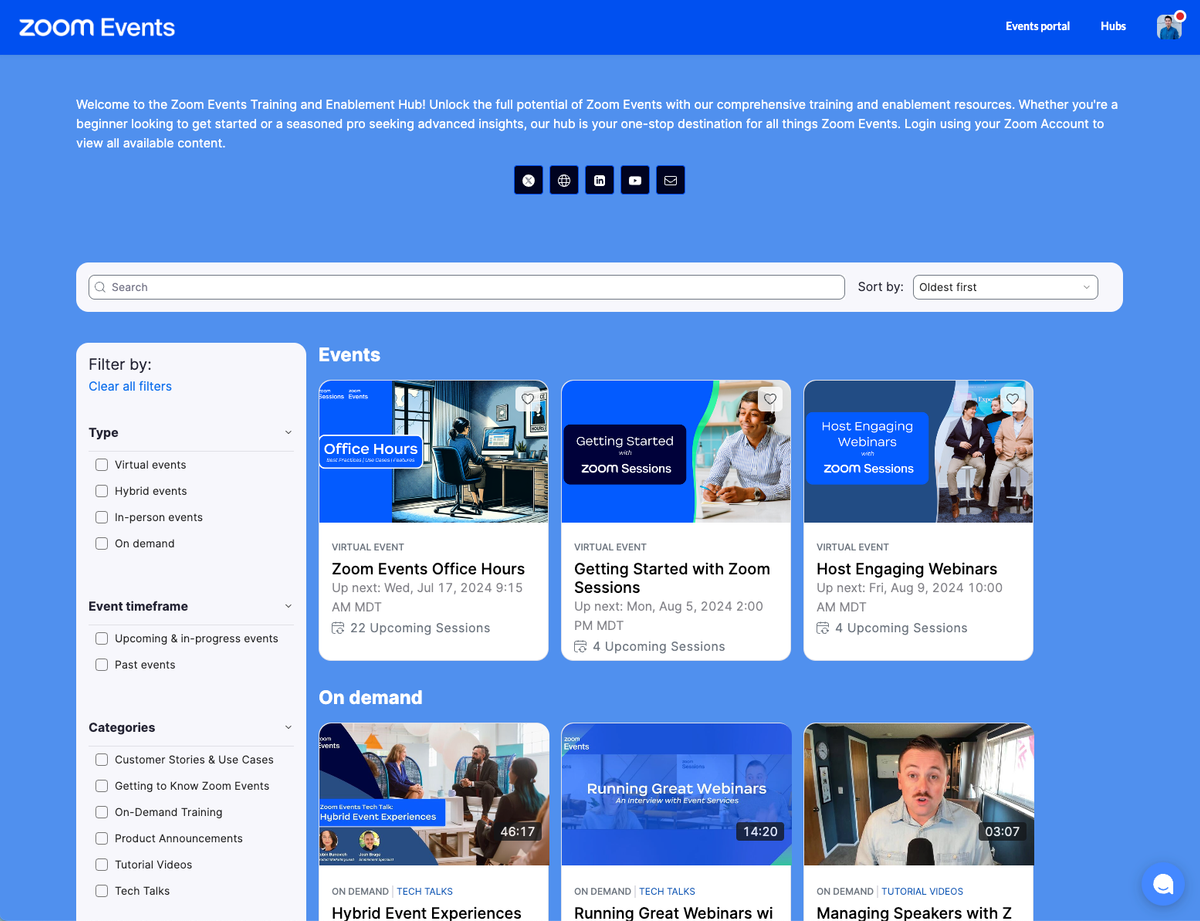
A Zoom Event is a virtual or hybrid gathering hosted through an all-in-one platform built for conferences, webinars, and workshops. It expands Zoom’s familiar meeting setup with tools for:
- Registration
- Ticketing
- Networking
- Analytics
You can use it for anything from small training sessions to multi-day conferences.
Zoom Events (opens in a new tab) now includes an improved analytics dashboard that helps hosts measure engagement, track attendance, and review performance across sessions. Its hybrid event tools make it easier to manage both in-person and online participants, while the updated mobile app lets attendees join and interact from anywhere.
With features like live sessions, breakout discussions, sponsor booths, and on-demand content, a Zoom Event helps hosts create engaging virtual experiences for everyone involved.
💡 Pro tip: Want to capture every key takeaway? Use Tactiq (opens in a new tab) to transcribe your Zoom session in real time and get instant AI summaries you can share with attendees after the session.
Zoom Event pricing
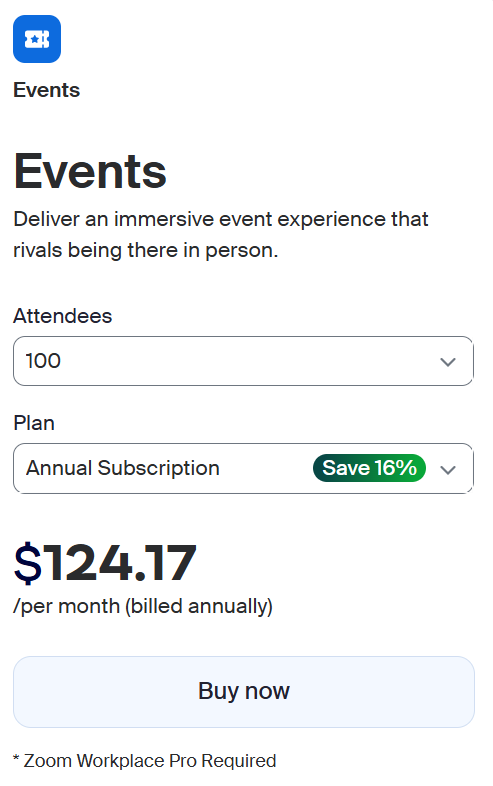
Zoom Events offers an advanced virtual and hybrid event solution for businesses that host regular conferences, summits, or community gatherings.
The annual subscription starts at $124.17 per month (billed annually) and includes a 16% discount compared to the monthly plan. A Zoom Workplace Pro subscription is required to host events under this plan.
This plan includes all the features from Webinars Plus, plus additional tools to create engaging, large-scale events.
Zoom Event vs Zoom Meeting
Understanding the difference between a Zoom Event and a regular Zoom Meeting (opens in a new tab) helps you choose the right format for your audience and goals.
Zoom Event
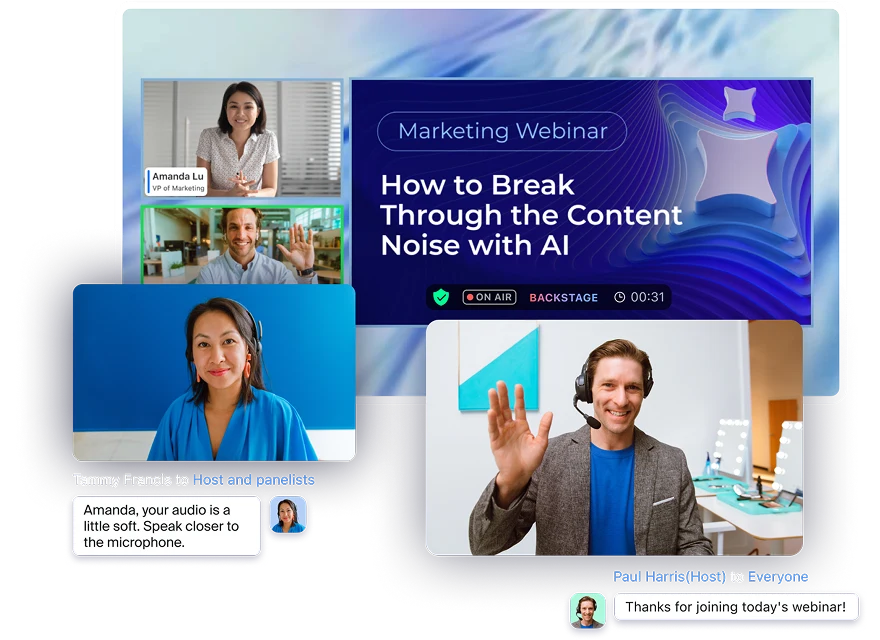
A Zoom Event is built for larger-scale (up to 10,000 attendees), structured gatherings like conferences, workshops, or multi-day training sessions. It combines multiple sessions into a single event experience with registration, ticketing, and engagement tools built in.
Key features include:
- Host large, organized events across multiple days or tracks
- Manage registration, ticket sales, and access levels
- Run live or pre-recorded sessions for flexible schedules
- Offer networking and sponsor spaces for deeper engagement
- Include hybrid tools for in-person and virtual participants
Zoom Events are ideal when you need more control, structure, and branding options for bigger or more complex gatherings.
If you often share follow-up notes after events, check out What Is a What is a Zoom Doc (opens in a new tab) to learn how to document and collaborate directly in Zoom.
Zoom Meeting
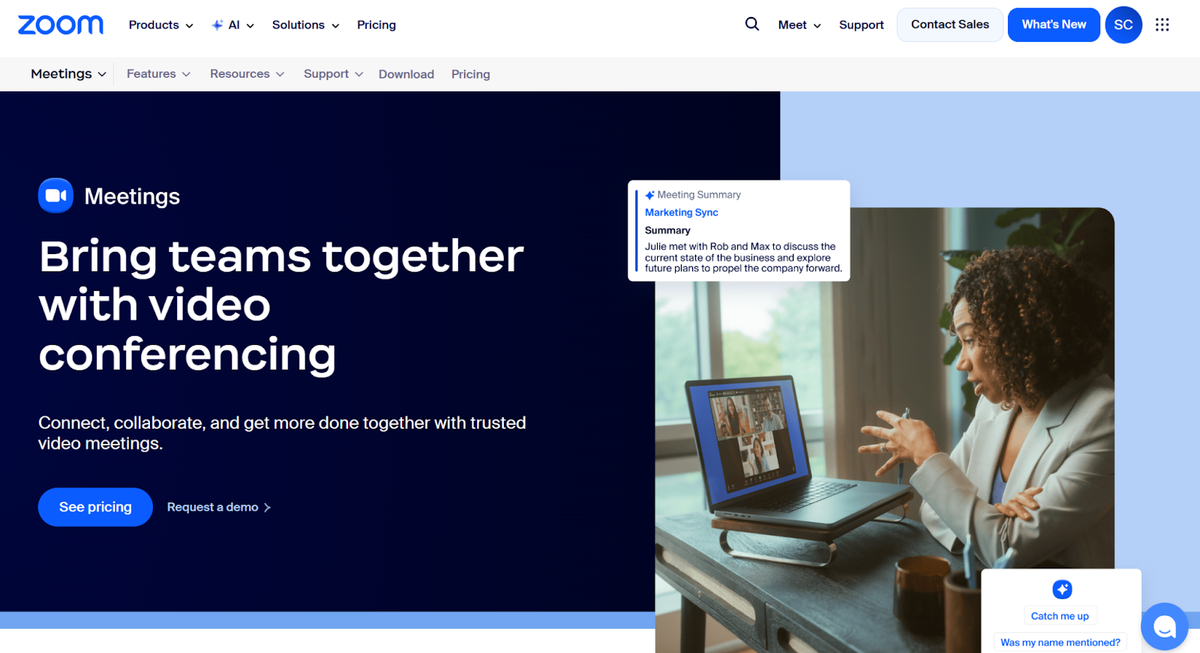
A Zoom Meeting is designed for everyday collaboration. It’s ideal for smaller groups of up to 100 participants on free or Pro plans, with higher limits available on Business and Enterprise tiers. These are the sessions you use for quick check-ins, team syncs, or client calls.
Key features include:
- Simple setup for instant collaboration
- Screen sharing, breakout rooms, and real-time chat
- Video and audio conferencing for up to 1,000 participants (depending on your plan)
- Access to Zoom’s in-meeting AI Companion, which can summarize discussions and highlight key points during live meetings
- Expert support available through Zoom’s help center and customer success team
Zoom Meetings are best for focused, small-to-medium group discussions where live collaboration matters most.
If you need to start a quick call before your event, see our guide on Creating a Zoom Instant Meeting (opens in a new tab).
How Do Zoom Events Work?
You can host and join Zoom events in the desktop app, mobile app, or a web browser.
Before joining, make sure you have:
- The latest version of the Zoom desktop or mobile app
- A Zoom Workplace Pro, Business, Education, or Enterprise account
- The same account used to register for the event
Joining a Zoom event from the desktop client
1. Open the Zoom desktop app and sign in.
2. Go to the Meetings tab and find the event you want to join.

3.Click Join Lobby.
Joining a Zoom event from mobile web
1. Sign in to Zoom Events using your mobile browser.
2. Tap your profile picture in the top-right corner and select Events Portal.
3. Go to the Upcoming tab.
4. Find the Zoom Event you want to join and tap Join Lobby next to its name.
5. The event lobby will open in your browser, where you can view upcoming sessions and keep track of all your events and event details.
Joining a Zoom event from a web browser
1. Sign in to Zoom Events on your browser.
3. Click Events Portal in the top-right corner.
3. Open the Upcoming tab and find the event you want to join.
4. Click Join Lobby next to the event name.
5. When prompted, select Open Zoom Meetings or click Join Lobby again on the page.
6. The event lobby will launch in a new window, where you can view upcoming sessions and monitor all your events.
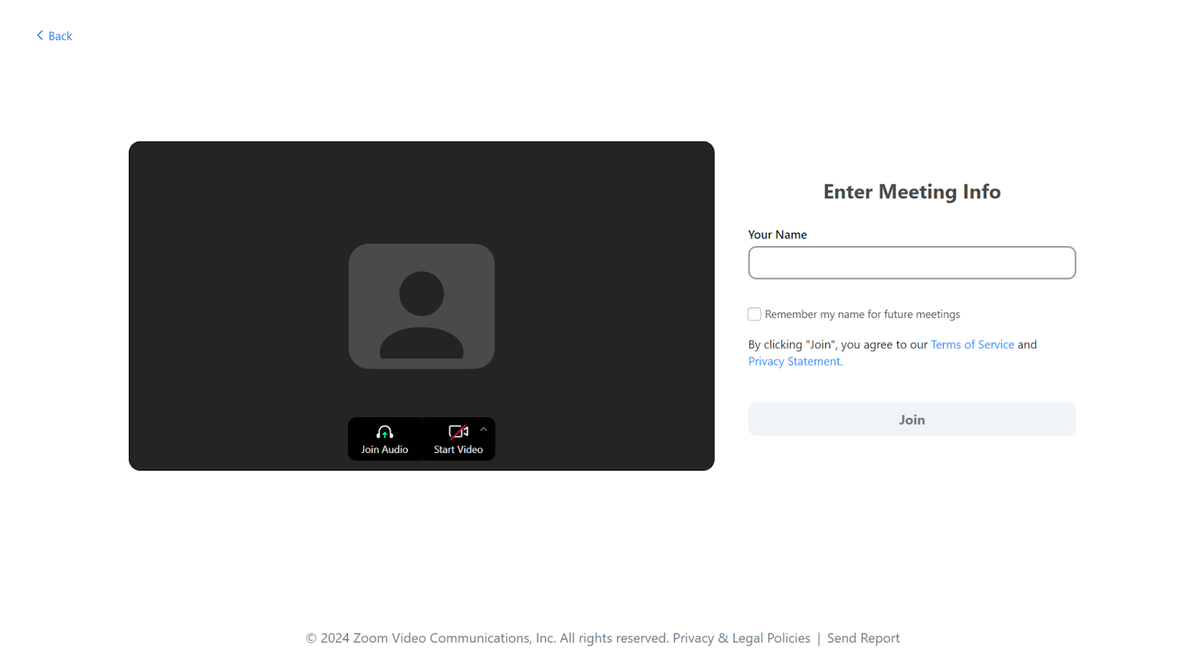
Once inside, you’ll enter the event lobby, where you can view the full agenda, check session details, and connect with other attendees before joining your chosen session.
If you’re hosting smaller sessions open to everyone, see how Public Zoom Meetings (opens in a new tab) differ from events that require registration. You can also view a tutorial below on how to find public Zoom communities to join:
Comparing Host vs Attendee Roles
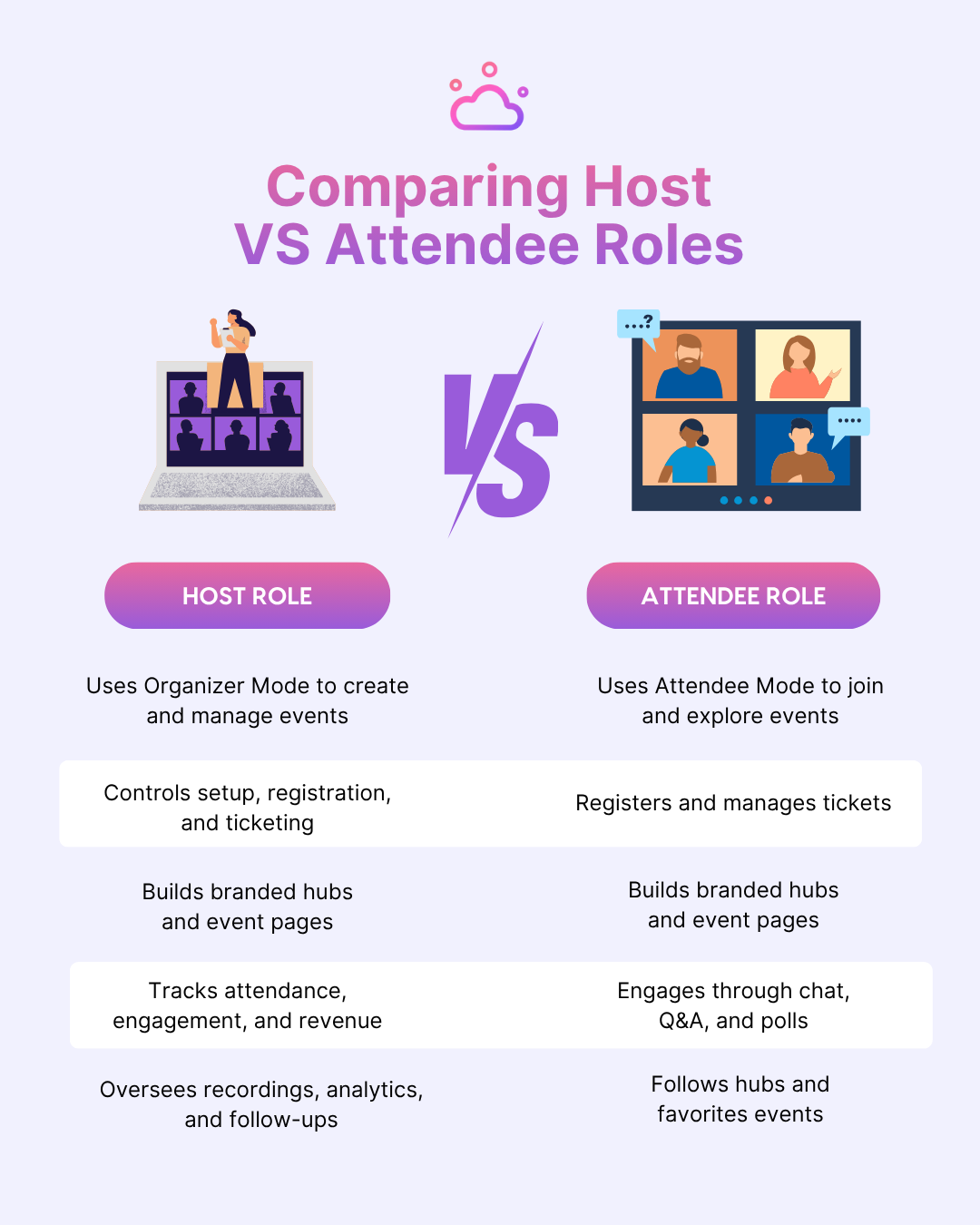
Every Zoom Event has two main roles that shape the experience: the host, who plans and runs the event, and the attendee, who participates and interacts during sessions. Understanding both helps you manage your event more effectively.
Host role
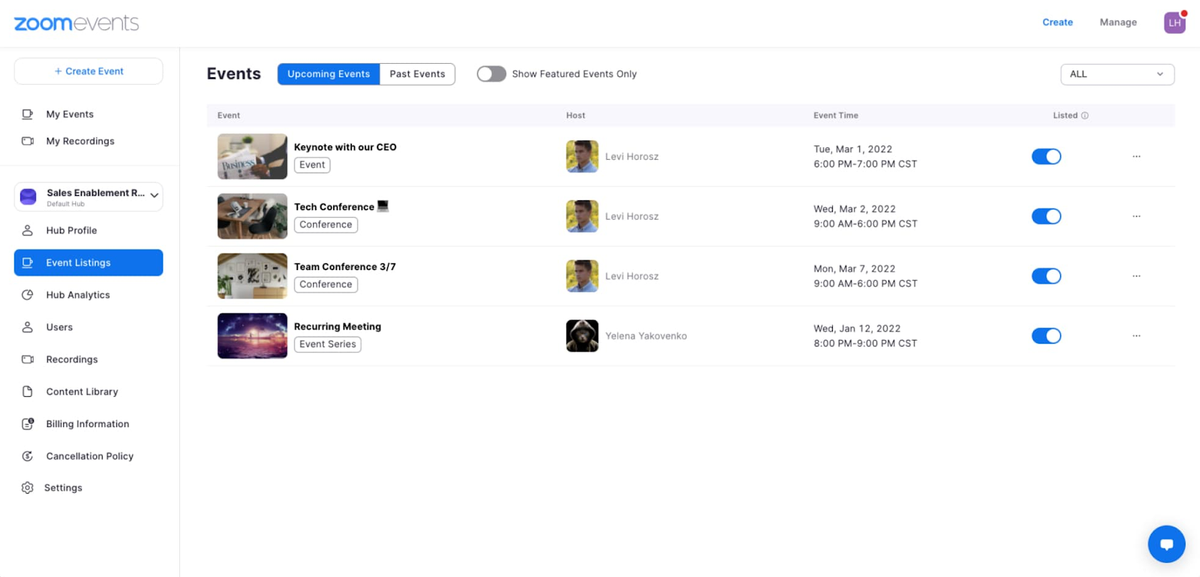
The host has full control over how the event is created and delivered. Using Organizer Mode, hosts can manage every stage of the event lifecycle: from setup and promotion to live moderation and post-event analytics.
Key responsibilities:
- Create and customize events, including multi-session or single-session formats
- Build branded hubs and event pages for easy navigation
- Manage registration, ticket types, and attendee access
- Link a Stripe or PayPal Business account to support paid events
- Track attendance, engagement, and revenue through analytics
- Switch to Attendee Mode to preview how participants will experience the event
- Oversee recordings, on-demand content, and post-event follow-up tasks
Attendee role
Attendees join events through Attendee Mode, where they can browse sessions, join live discussions, and connect with others. The experience is designed to be interactive and intuitive, giving attendees multiple ways to participate and stay engaged.
Key responsibilities:
- Register for events and manage tickets directly from their Zoom account
- Enter the event lobby to view the agenda, join sessions, and chat with other attendees
- Participate in Q&A, polls, and webinar reactions during live sessions
- Follow hubs or favorite events to get updates and discover related content
- Watch on-demand recordings or session highlights after the event
- Update personal profiles to improve networking and visibility
What are the Different Zoom Event Types?
Zoom Events gives hosts the flexibility to create sessions that fit their goals and audience. Depending on how interactive you want your event to be, you can choose between Meeting events or Webinar events, and organize them as single, multiple, or recurring sessions.
Webinar events
A Webinar event (opens in a new tab) works best for large audiences or structured presentations. The host controls the environment, while attendees participate through chat and Q&A only. This format helps reduce distractions and keeps attention on speakers and panelists.
Best for:
- Product launches
- Company town halls
- Educational webinars
- Keynote presentations
Meeting events
A Meeting event (opens in a new tab) allows for open interaction between hosts and attendees. Everyone can turn on their video or audio, chat, and collaborate in real time. It’s designed for sessions that need active participation and discussion.
Best for:
- Workshops
- Training sessions
- Team meetings
- Networking events
Event formats
Each event type can be created in different formats to match the scope of your event:
- Single session: One-time events that happen on a single day.
- Multiple sessions: Multi-day or multi-track events where several sessions run at once.
- Recurring series (opens in a new tab): Events scheduled to repeat daily, weekly, or monthly with consistent settings.
To host any of these, you’ll need:
- A Pro, Business, Enterprise, or Education account
- A Zoom Events Unlimited or Pay Per Attendee license
- A Stripe or PayPal Business account for processing paid tickets
Want to save recordings from your sessions? Learn how with our guide to the Zoom Video Downloader (opens in a new tab).
You can also check out this tutorial on How to Download a Zoom Video (If You're Not the Host):
How Tactiq’s In-Meeting AI Supports Zoom Events
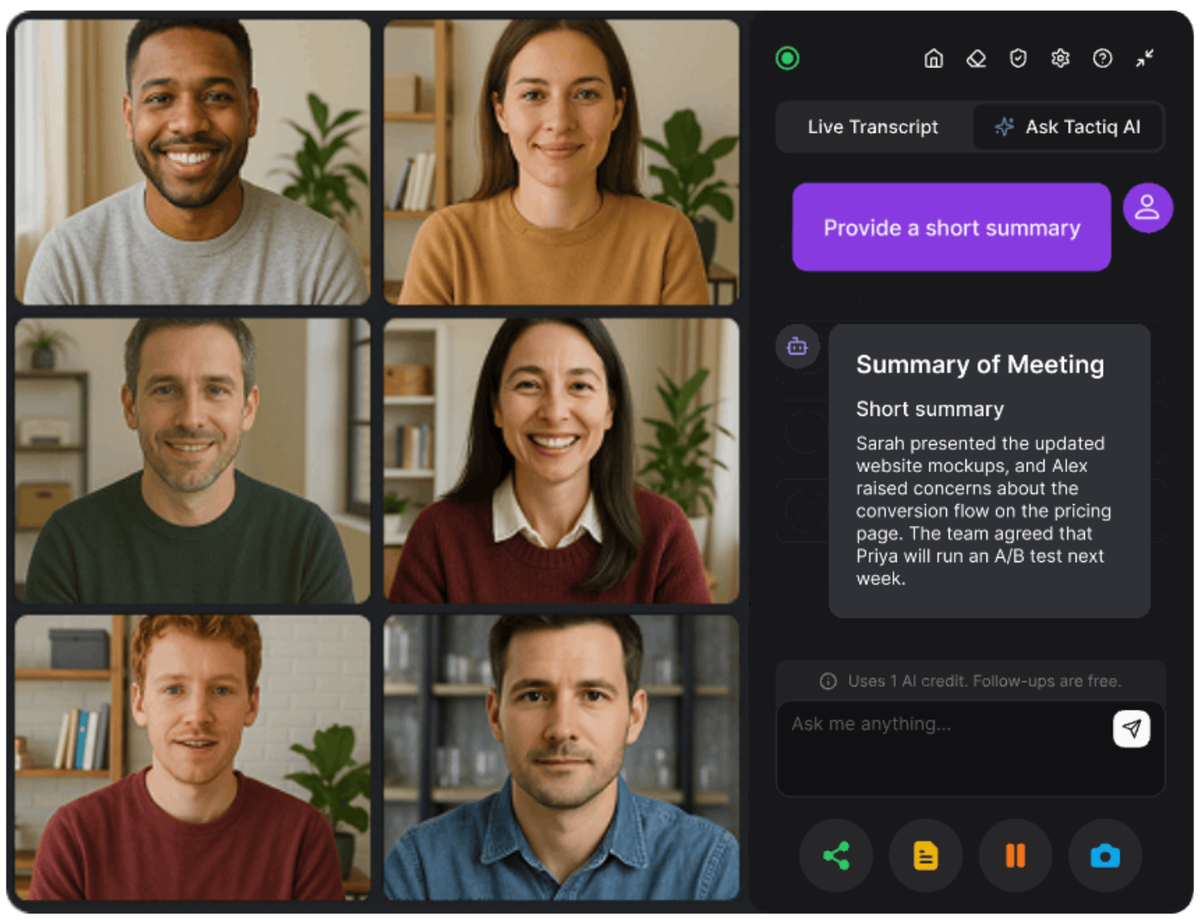
Zoom already offers built-in transcription and summary tools in AI Companion, but it’s available only on paid plans. Tactiq’s In-Meeting AI (opens in a new tab) gives you similar features for free, making it a great alternative for hosts who want real-time insights, summaries, and answers without an upgrade.
It also integrates with Google Meet and Microsoft Teams, making it a flexible option for any virtual or hybrid event.
Here’s how Tactiq enhances your Zoom Event
- Live transcription: Capture accurate, time-stamped transcripts for every session.
- Ask AI anything (opens in a new tab): Use Tactiq’s In-Meeting AI to ask questions about your Zoom Event in real time. Ask questions like “What action items were mentioned?” or “Who discussed deadlines?” to get instant, context-aware answers.
- AI-powered summaries: Generate automatic recaps that highlight the main topics, quotes, and decisions.
- AI Workflows (opens in a new tab): Automate post-event actions like sending follow-ups, updating project boards, or sharing highlights with your team.
Tactiq turns every Zoom session into an organized, insight-driven experience, helping you stay engaged in the moment while AI handles the details.
Install the Tactiq Chrome Extension for free (opens in a new tab) to capture smarter insights and transform the way you run your Zoom meetings.
Want the convenience of AI summaries?
Try Tactiq for your upcoming meeting.
Wrapping Up
A Zoom Event brings people together through interactive sessions, networking, and shared ideas. But keeping track of every key moment takes more than note-taking. It takes the right tools.
By pairing your Zoom meeting with Tactiq’s In-Meeting AI, you can capture every discussion, surface insights instantly, and turn conversations into clear next steps. You’ll spend less time reviewing and more time connecting with your attendees.
Make every event more engaging, organized, and impactful with Tactiq.
FAQs About Zoom Events and How to Use It
What is the difference between a Zoom Event and a Zoom Session?
A Zoom Session is designed for a single event or webinar, while a Zoom Event supports larger, multi-session or multi-day experiences with ticketing, analytics, and networking features.
How do I create a Zoom Event?
Sign in to Zoom Events, then open the left menu and choose Across Hubs or a specific hub. Select Events, click Create Event in the top-right corner, and choose Blank Event to begin. You’ll then be guided through the event setup process step by step.
How does a Zoom Event work?
A Zoom Event brings multiple sessions, registration, and analytics together in one platform. Attendees join through the event lobby to access sessions, chat, and recordings.
How do I attend a Zoom Event?
Sign in to your Zoom account, open your registration link or email invite, and join from the event lobby. You can access the agenda, sessions, and chat directly from there.
Where can I find a Zoom Event?
You can find Zoom Events through an email invite or the Zoom Events portal.
FAQ
Your questions, answered.
If you have any further questions, Get in touch (opens in a new tab) with our friendly team
What is Zoom Events and how can it improve your virtual event experience?
How do Zoom Events differ from regular Zoom Meetings?
What steps do you need to follow to join a Zoom Event?
What are the main responsibilities of a host versus an attendee in Zoom Events?
What types of Zoom Events can you host, and what are their typical use cases?
Related articles

Zoom ChatGPT: How to Connect and Access Meetings

Zoom MCP: Features, Setup, and Limitations (Full Guide)

Zoom Workplace and Zoom Meetings Difference: What You Need to Know

What Is Zoom Cloud Meeting App?

Zoom Cloud Meetings for Mac: Full Guide

Zoom Meeting Statistics 2026: Usage, Revenue & Data

How to Edit Zoom Recording: A Complete Guide

How to Record Yourself on Zoom
Want the convenience of AI summaries?
Try Tactiq for your upcoming meeting.
Bringing AI into your meetings has never been so easy.
Add to Chrome - It's free!(opens in a new tab)Try Tactiq in your upcoming meeting!
Sign up now