
How to Edit Zoom Recording: A Complete Guide
July 3, 2026
July 3, 2026
July 3, 2026
July 3, 2026

Most Zoom meetings start recording at the wrong moment. Someone's still saying hello, or the screen share runs three minutes past the actual end. By the time you're ready to share the recording, it needs work.
Zoom gives you a basic trim tool for cloud recordings, but it only handles the start and end. For anything more advanced, you need a different approach. And if what you actually need is the content of the meeting, not just a shorter video, there's a faster path.
Here's what this guide covers:
- How to trim and edit Zoom cloud recordings in the web portal
- Free browser-based video editing tools for Zoom recordings
- Mobile editing options for iOS and Android
- How to extract transcripts, summaries, and action items with Tactiq
TL;DR: How to Edit Zoom Recording
Zoom's native trim tool handles basic start and end cuts on cloud recordings, but requires a paid account and can't be used to cut from the middle.
For more control, Clipchamp (Windows) and iMovie (Mac) are the strongest free desktop options. Flixier works in any browser without a download.
On mobile, CapCut offers quick trims on iOS and Android. If you need the actual content of the meeting (decisions, action items, follow-ups), Tactiq transcribes in real time and turns any uploaded Zoom recording into a searchable transcript and AI summary instantly.
How to Edit a Zoom Cloud Recording Natively
Zoom's web portal includes two built-in editing tools for cloud recordings: a trim function and a transcript editor. They're free to use if you have a paid Zoom account with cloud recording enabled, but they come with real limitations worth knowing upfront.
Before you access either tool, you'll need to download or locate your Zoom recording in the web portal. Sign in at zoom.us, click Recordings & Transcripts in the navigation menu, then open the Cloud recordings tab.
How to trim a Zoom cloud recording
The scissor icon in the Zoom player lets you cut the beginning and end of a cloud recording. Here's how to do it:
1. Sign in to the Zoom web portal and click Recordings in the navigation menu.
2. Click the Cloud recordings tab, then click the meeting topic for the session you want to trim.
3. Click the thumbnail of the recording to open it in a new browser tab.
4. Click the scissor icon in the bottom right corner of the player.

5. Drag the blue sliders to set your start time and end time. The blue highlighted area represents the trimmed recording that will be saved.
6. To trim by the second, drag a slider then click the back arrow icon or forward arrow icon.
7. (Optional) Hover over a non-trim section of the playback bar and click the plus icon to add another trim section. To delete a section, hover over the blue area and click Remove.
8. Click Trim, then click Trim again in the confirmation window.
9. Wait for processing. Trimming can take up to two hours depending on recording length. Reload the page to view the trimmed version.
10. (Optional) To undo, click Restore below the playback bar, then confirm in the confirmation window. Note: restoring permanently deletes the trimmed version.
Key limitations to know:
- Trim only removes content from the start or end. You cannot delete sections from the middle of a recording.
- Trimming overwrites the original recording (though you can restore it).
- Zoom limits you to five trims per recording every 12 hours.
- Trimming is not supported on mobile browsers.
- Cloud recording is a paid feature. Free Zoom accounts cannot use this tool.
How to edit a Zoom transcript in the web portal
If your Zoom account has audio transcription enabled, an audio transcript is generated automatically after each cloud recording. You can edit it directly in the web portal to fix errors, add punctuation, or correct speaker names.
1. Sign in to the Zoom web portal and click Recordings & Transcripts.
2. Click the Cloud recordings tab, then click the name of the recorded meeting.
3. Click the thumbnail of the recording. It opens in a new browser tab, with the audio transcript displayed on the right side.
4. Hover over a phrase you want to fix, then click the pencil icon that appears on the lower right side.
5. Edit the text directly.
6. To fix a speaker name, hover over the speaker label and click the pencil icon next to the name.
7. Click the checkbox to save each edit.
Note: Audio transcription requires a Pro, Business, Education, or Enterprise Zoom account. The free plan does not include this feature.
How to Edit a Zoom Recording on PC (Windows)
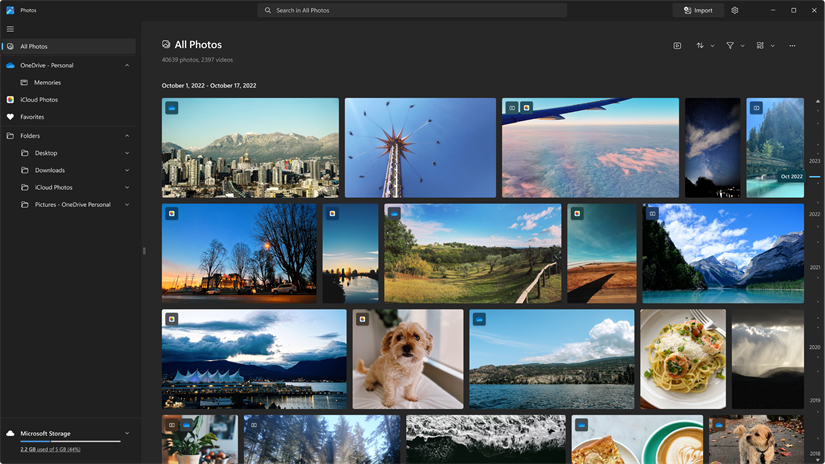
Zoom saves local recordings as MP4 files, compatible with most video editing software. By default, you'll find them at C:\Users[Username]\Documents\Zoom on Windows.
Popular tools for editing Zoom recordings on PC include:
- Windows Photos app: free and built into Windows 10 and 11, good for basic start and end trimming
- Clipchamp: free, built into Windows 11 and available in any Chrome or Edge browser, supports mid-recording cuts, captions, and transitions
- Adobe Premiere Pro: paid, industry-standard for complex multi-track editing
- Flixier: browser-based, no download required (covered in the online section below)
How to Edit a Zoom Recording on Mac
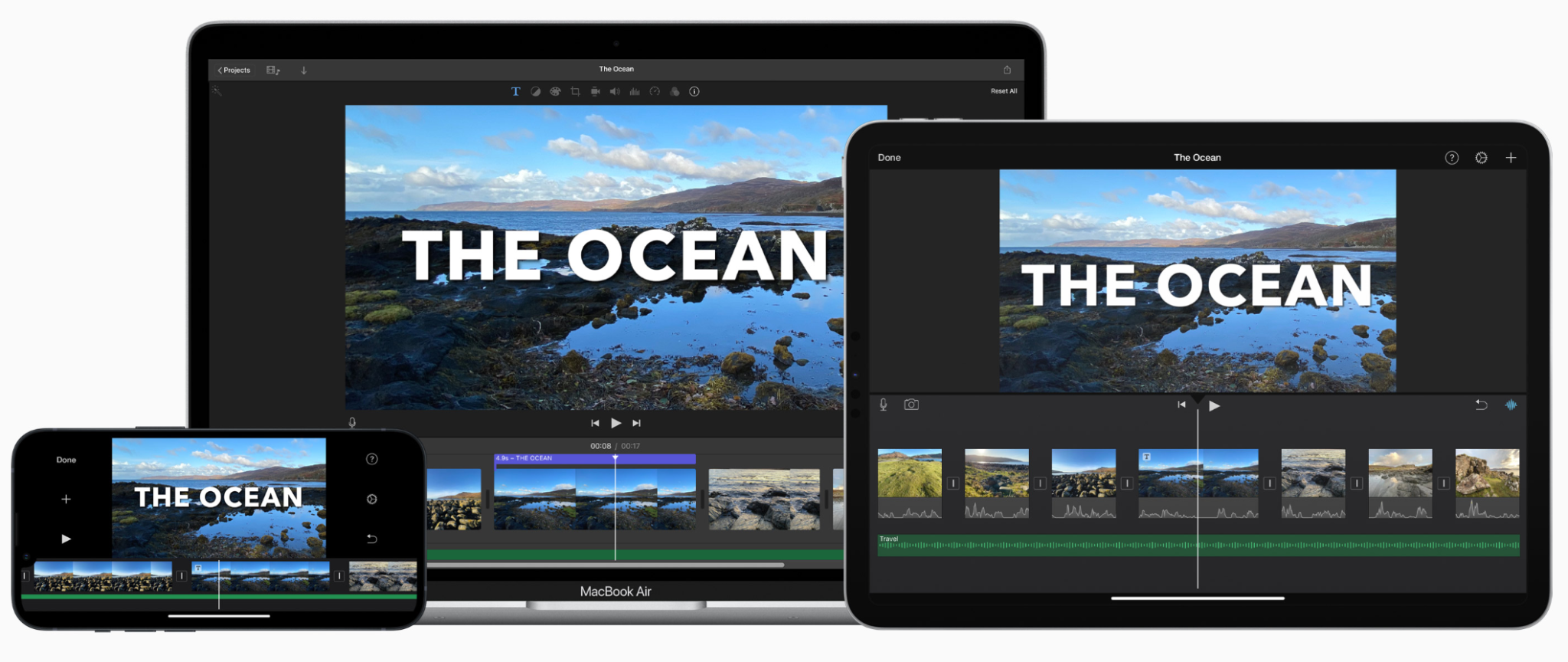
Zoom saves local recordings to /Users/[Username]/Documents/Zoom on Mac by default. The files are MP4, so they open in any Mac video editor without conversion. You can also save a transcript of your local Zoom recording if you need the content, not just the video.
Popular tools for editing Zoom recordings on Mac include:
- iMovie: free, pre-installed on most Macs, covers trimming, cuts, transitions, and audio adjustments
- Final Cut Pro: paid, Apple's professional-grade editor for complex multi-track projects
- ScreenFlow: paid, popular for screen recordings with built-in annotation and export tools
How to Edit a Zoom Recording Online for Free
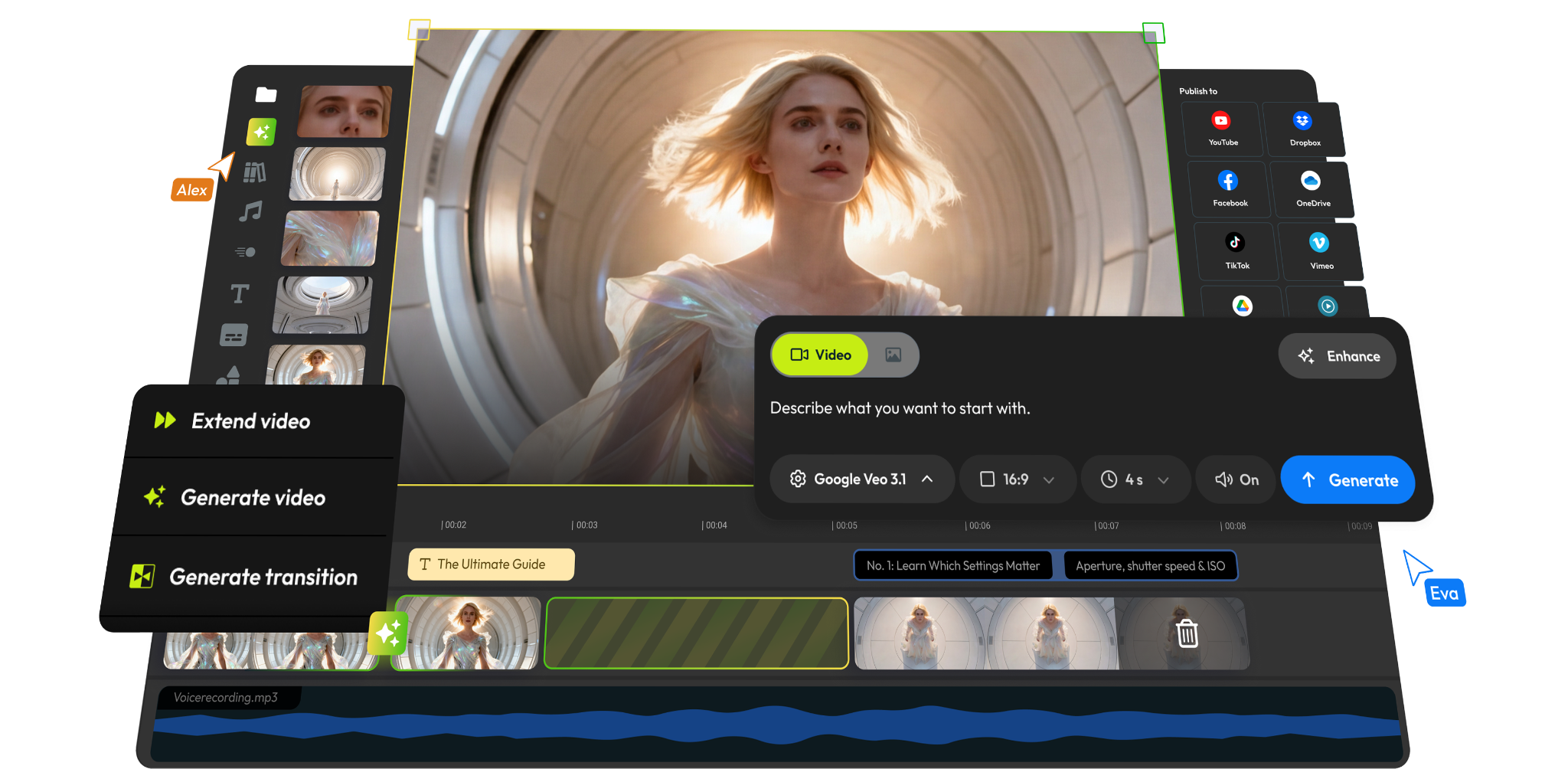
Browser-based editors let you get started without installing anything. Just upload your Zoom recording and start cutting. If you're working with multiple recordings, here's how to combine two Zoom recordings into one before editing. And if you'd rather skip the video edit entirely, you can also get a Zoom recording transcript for free and work from the text directly.
The two most popular options are:
- Flixier: browser-based, no download required, supports trimming, cuts, captions, and audio tools. The free plan exports at 720p with a watermark and caps at 10 minutes per month. Paid plans start at $19/seat/month for 1080p and no watermark.
- Clipchamp: free in any Chrome or Edge browser, no watermark on supported exports, good for trimming, captions, and transitions.
When to use online tools vs. desktop tools:
- Use an online editor for quick trims or caption passes without downloading software
- Use a desktop tool for frame-precise cuts, multi-track audio, or large file handling
- Online tools can slow down with large MP4 files depending on your browser and connection
How to Edit a Zoom Recording on Mobile
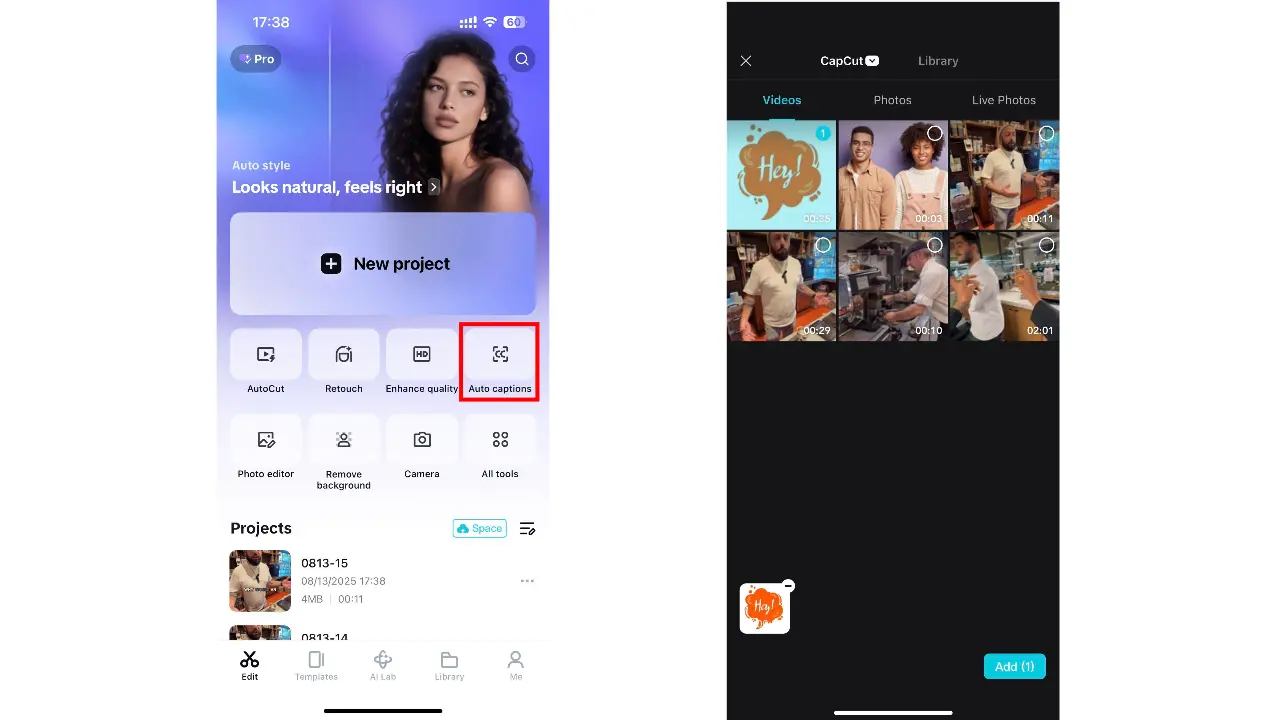
Editing a full Zoom recording on a phone isn't ideal for complex projects; small screens and touch controls make precise cuts harder. For quick trims before sharing, though, mobile works well.
The best free options for iOS and Android are:
- CapCut: available on the App Store and Google Play, with a straightforward timeline interface, auto-captions, and basic audio controls
- Vimeo: lets you upload, trim, and share recordings directly from the mobile app on both iOS and Android
Note: To edit a Zoom recording on mobile, the file needs to be saved to your phone first. Cloud recordings can be downloaded from the Zoom web portal before importing into either app.
How to Get More From Your Zoom Recording With Tactiq

Trimming a video makes it shorter. It doesn't tell you what was decided, who owns what, or what needs to happen next. That's where most recording workflows fall short.
Tactiq works differently. It's a Chrome extension that transcribes your Zoom meetings in real time. No bot joins the call, and no cloud recording is required. The transcript is ready the moment the meeting ends, along with AI-generated summaries and action items.
If you already have a recorded Zoom meeting, you can get a transcript from your Zoom recording for free by uploading the MP4 or MOV file directly to Tactiq from your dashboard.
From there, you can use Tactiq's built-in AI to:
- Generate a meeting summary
- Extract action items and next steps
- Write follow-up emails or project updates
- Ask questions about the transcript directly
When you're ready to share or file the output, Tactiq exports to Google Drive, Notion, Slack, Confluence, HubSpot, Linear, Pipedrive, and OneDrive.
The result: instead of rewatching a 45-minute recording to find one decision, you search the transcript, pull the context, and move on.
Install the Tactiq Chrome extension free and turn your next Zoom meeting into a searchable, actionable transcript.
{{rt_cta_ai-convenience}}
Stop Rewatching Zoom Recordings: Edit Smarter
The right editing tool depends on what you need. Zoom's native trim tool handles quick start and end cuts. Desktop tools like iMovie and Clipchamp give you more control. Browser-based editors let you start without downloading anything. CapCut covers basic trimming on mobile.
If what you need is the content of the meeting, not just a shorter video, Tactiq gives you a searchable transcript and AI summary the moment the call ends.
Yes. Cloud recordings can be trimmed in the Zoom web portal. For local recordings, use a video editor like iMovie, Clipchamp, or Flixier.
For cloud recordings, sign in to the Zoom web portal, open the recording, and click the scissor icon to trim the start or end.
Yes. Zoom's built-in trim tool is free on paid plans. Clipchamp and the Windows Photos app are free on Windows. iMovie is free on Mac.
For cloud recordings, Zoom's native trim tool. For local recordings, Clipchamp (Windows/browser) or iMovie (Mac) are the strongest free options.
Upload your Zoom recording to Tactiq to get an accurate transcript automatically, without replaying the recording.
Related articles
_Main.jpg)







Want the convenience of AI summaries?
Try Tactiq for your upcoming meeting.
Want the convenience of AI summaries?
Try Tactiq for your upcoming meeting.
Want the convenience of AI summaries?
Try Tactiq for your upcoming meeting.