
How to Embed a Zoom Meeting on Your Website
- Published:
- June 4, 2026
- Updated:
- August 20, 2026

You can embed a Zoom meeting on a website, but you can't do it by dropping a raw Zoom link into an iFrame. That approach won't work. The right method is the Zoom Meeting SDK, which is built specifically for embedding the Zoom meeting experience inside your own web page.
If you're not a developer, a WordPress plugin handles the SDK setup for you. If you just need a quick join option, a branded button is the simplest path.
Here's what this article covers:
- Why a raw Zoom link won't embed and what to use instead
- How to embed Zoom meetings using a WordPress plugin (no code required)
- How to use the Zoom Meeting SDK for custom website builds
- How to embed a Zoom webinar on a website
- How to capture transcripts and notes from any embedded Zoom meeting
How Can You Embed a Zoom Meeting on a Website?
Use the Zoom Meeting SDK (opens in a new tab). It embeds the full Zoom experience (video, audio, chat, and breakout rooms) directly inside your web page. For non-developers, a WordPress plugin handles the setup. For the simplest use case, a join button gets the job done.
💡 Pro tip: Once your meeting goes live, you can capture everything that's said without taking notes during the call. Install the free Tactiq Chrome extension (opens in a new tab), and it will transcribe your embedded Zoom meeting in real time.
3 Methods to Embed a Zoom Meeting on a Website
There are three ways to embed a Zoom meeting on a website. The right one depends on your technical setup, how much you want to customize the experience, and how quickly you need it live.
Method 1: WordPress plugin (no-code)
A WordPress plugin is the fastest way to embed a Zoom meeting on your site. It handles the Zoom Meeting SDK integration for you. No code required. If your site is hosted on WordPress (opens in a new tab), you can install a Zoom plugin directly from your WordPress dashboard and avoid the developer setup required with the SDK.
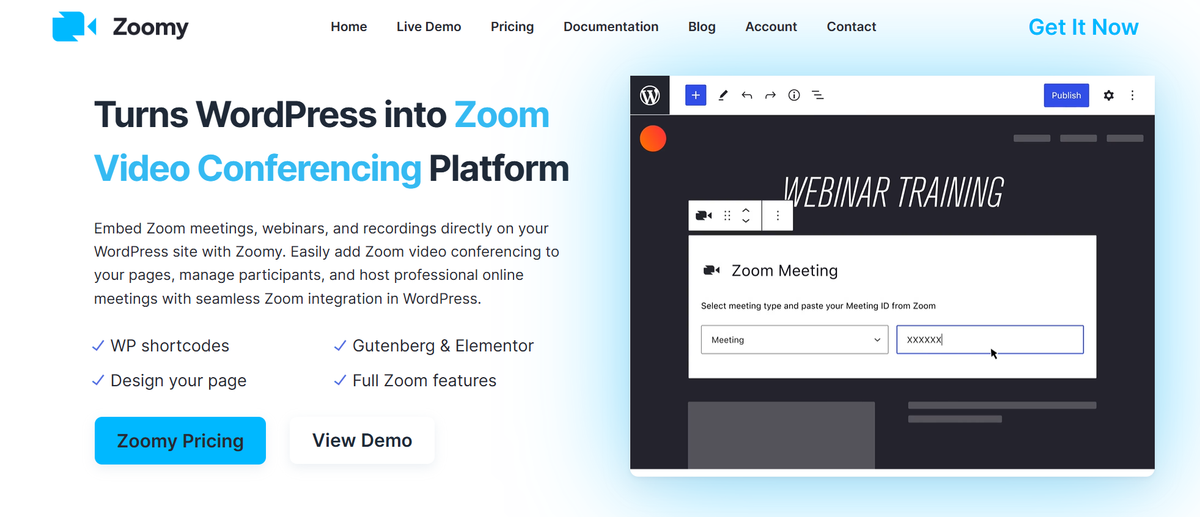
Zoomy by eLearning Evolve (opens in a new tab) is the most established option. It supports meetings, webinars, and recordings. It works with Gutenberg blocks, the classic WordPress editor, and Elementor. You get the full Zoom feature set: breakout rooms, polling, live chat, screen sharing, closed captioning, and waiting room controls, all running directly on your page.
Here's how to set it up:
- In your WordPress admin, go to Plugins → Add New. Search for "Zoomy" and install it, or upload the plugin ZIP directly.
- Activate the plugin. Go to Settings in the Zoomy dashboard and connect your Zoom account using your API credentials (Client ID and Client Secret from the Zoom App Marketplace).
- Navigate to Zoom Meetings in your WordPress sidebar menu and create a new meeting. Enter your meeting ID and configure your default settings.
- To embed, add the Zoomy Gutenberg block to any page or post — or paste the shortcode into your text editor.
- Publish the page. Participants can join the Zoom meeting directly from your website, no downloads required.
Enable Auto Join mode in Zoomy's settings area to skip the name entry screen. Logged-in WordPress users go straight into the video conference.
Best for: educators, event organizers, and small businesses who want a no-code setup with full Zoom app functionality.
Prefer a lighter option? ZD Embed for Zoom Meeting SDK is a free, open-source alternative available in the WordPress plugins area. It uses a shortcode to embed a single meeting per page. It has far fewer active installations, so it suits developers who are comfortable with basic WordPress configuration rather than non-technical users.
Method 2: Zoom Meeting SDK (developer route)
The Zoom Meeting SDK is the official way to embed Zoom directly into any website or web app. It gives developers full control over the layout, user experience, and default settings without relying on a plugin.
Before you write any code, you need to create a Zoom app and retrieve your SDK credentials:
1. Log in to the Zoom App Marketplace (opens in a new tab) and click Develop → Build App.
2. Select General App and click Create.
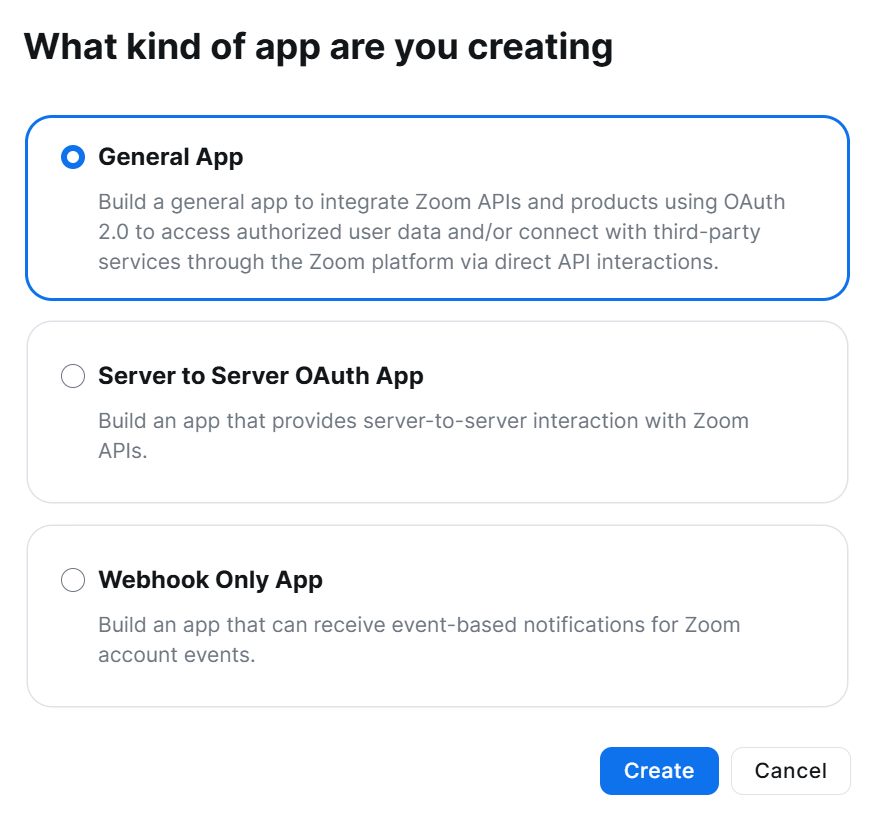
3. Go to Features → Embed and enable the Meeting SDK.
4. Copy your Client ID and Client Secret from the app credentials area. These are your API key and secret key. Keep them secure.
Once you have your credentials, the web SDK offers two display modes:
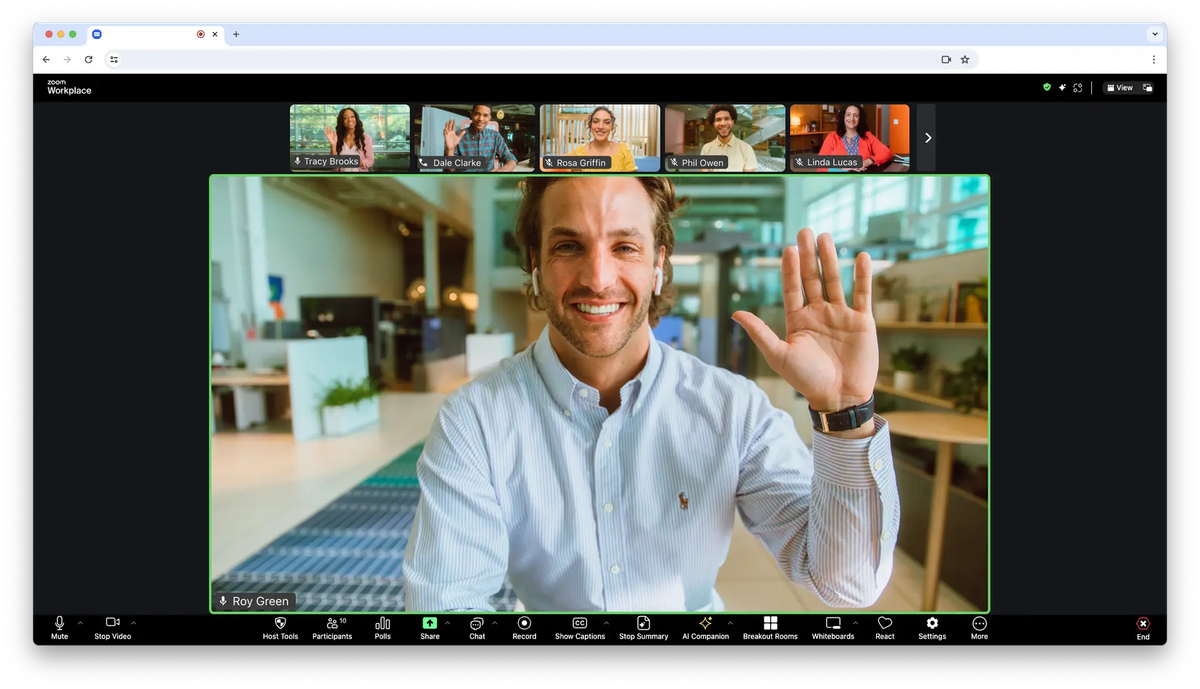
- Client view: renders the full Zoom client interface inside your web page, similar to the standard Zoom app. Best for mobile browser support.
- Component view: splits the meeting into modular components you can position anywhere on the page. Gives you more design flexibility, but is intended for desktop browser use cases only.
The SDK supports React, Angular, Vue.js, and vanilla JavaScript. Install it via npm (Node Package Manager) or CDN (Content Delivery Network), initialize it with your Client ID, and generate a JWT (JSON Web Token) signature server-side to authenticate each session.
You can also embed the Meeting SDK in an iFrame (opens in a new tab) on a webpage or in WebViews on native Android and iOS apps, following Zoom's official best practices for iFrame implementation.
Best for: developers who want a custom UI, full control over parameters, and deep integration with their web app.
Method 3: Embed a join link or button
The simplest option is to add a Zoom join link or a branded join button to your page. This doesn't embed the video conference directly; it redirects participants to Zoom when they click.
Here's how to do it:
- Schedule your meeting in Zoom and copy the join link from your Zoom account dashboard.
- Paste the link into a button or text link on your web page using your website or page builder's text editor.
- Optionally, add the meeting password and unique meeting ID to the URL parameters so participants join automatically without a separate prompt.
Limitations to know:
- Participants leave your website to join the meeting; there's no embedded video experience
- On mobile, clicking the link opens the Zoom app (or prompts an install if it's not present)
- You have no control over the Zoom client view or default meeting settings
- Not suitable if you need participants to stay within your site
Best for: simple use cases where you just need more people to find and join your meeting easily: a landing page, a booking confirmation page, or a community events calendar.
How to Embed Zoom Webinar on a Website
Embedding a Zoom Webinar works the same way as embedding a meeting. You use the Zoom Meeting SDK or a WordPress plugin like Zoomy. But before you set it up, it's worth understanding how webinars differ from standard meetings, because the distinction affects your setup and your attendees' experience.
For a deeper look at how Zoom Webinars work, see what is a Zoom webinar and how to use it (opens in a new tab).
Key differences between meetings and webinars
- Roles: Meetings have hosts and participants. Zoom Webinars have hosts, co-hosts (opens in a new tab), panelists, and attendees. Only hosts and panelists can speak, share video, or share their screen.
- Attendee experience: Webinar attendees join in listen-only mode by default. They can interact via Q&A, chat, polls, and reactions if the host enables these features.
- Capacity: Standard Zoom meetings support up to 100 participants on Basic and Pro plans. Zoom Webinars support up to 100,000 view-only attendees depending on the capacity purchased.
- Registration: Webinars include built-in registration with custom fields and branding. Meetings only offer optional basic registration on Pro plans and above.
- Zoom Webinars is a paid add-on: it's not included in standard Zoom meeting plans. You need to purchase the Zoom Webinars license separately to access webinar features.
- Participant list: In a meeting, everyone can see who's in the room. In a webinar, only the host and panelists can view the attendee list.
When to embed a webinar vs. a meeting
Webinars are the right choice for public-facing events where you want a structured presentation with limited audience interaction: product launches, company-wide announcements, online classes, and town halls. Meetings work better for collaborative sessions where everyone needs to participate equally.
SDK requirements for webinars
The Zoom Meeting SDK supports both meetings and Zoom Webinars. The same client view and component view options apply. Each time a user joins a webinar through the SDK, generate an SDK JWT server-side to authenticate the session. If your webinar requires registration, consult the Zoom Meeting SDK documentation (opens in a new tab) for the specific token requirements; the flow differs from a standard unregistered join.
Common Issues When Embedding Zoom on a Website
Getting Zoom embedded on your website takes some configuration, and a few issues come up regardless of which method you use. Here's what to watch for before you go live.
Raw iframe embeds don't work
You can't embed a standard Zoom join link directly in an iframe on your page. Browser and platform restrictions prevent it from loading reliably. The Zoom Meeting SDK is the correct approach. It's designed specifically for web embedding and handles the authentication and rendering layer properly.
iOS and mobile browser limitations
Component view is built for desktop browsers only. On mobile, use client view instead. On iOS specifically, the Zoom app is required for the full meeting experience; the web SDK has limited support on iOS mobile browsers. If your audience is primarily on mobile, factor this into your setup before you go live.
API credential errors and invalid signatures
This is the most common technical issue developers hit. The SDK authenticates every session using a JWT signature generated server-side from your Client ID and Client Secret. If the signature fails, the meeting won't load. Common causes include:
- Using a meeting UUID instead of the numeric meeting ID in the JWT payload
- A server clock that has drifted, even by a few seconds, can invalidate the signature
- Mismatched Client ID or Client Secret between your server and the app credentials area in the Zoom App Marketplace
- A role mismatch: the role value in the signature (0 for attendee, 1 for host) must match what you pass when joining
- An expired token: SDK JWT signatures are valid for a maximum of 48 hours from the iat value
Meeting not showing on the page
If the meeting window isn't rendering, check these first:
- Your page is served over HTTPS: the SDK requires a secure connection
- The iframe has the necessary browser permissions granted for camera and microphone; browsers block these by default inside iFrames
- Page caching is disabled for the embed page: a stale cached token causes an "invalid or expired token" error, since SDK JWT signatures expire
- Your SDK app has the Meeting SDK feature enabled under Features → Embed in the Zoom App Marketplace
How to Capture Notes from Zoom Meetings Embedded on Your Website
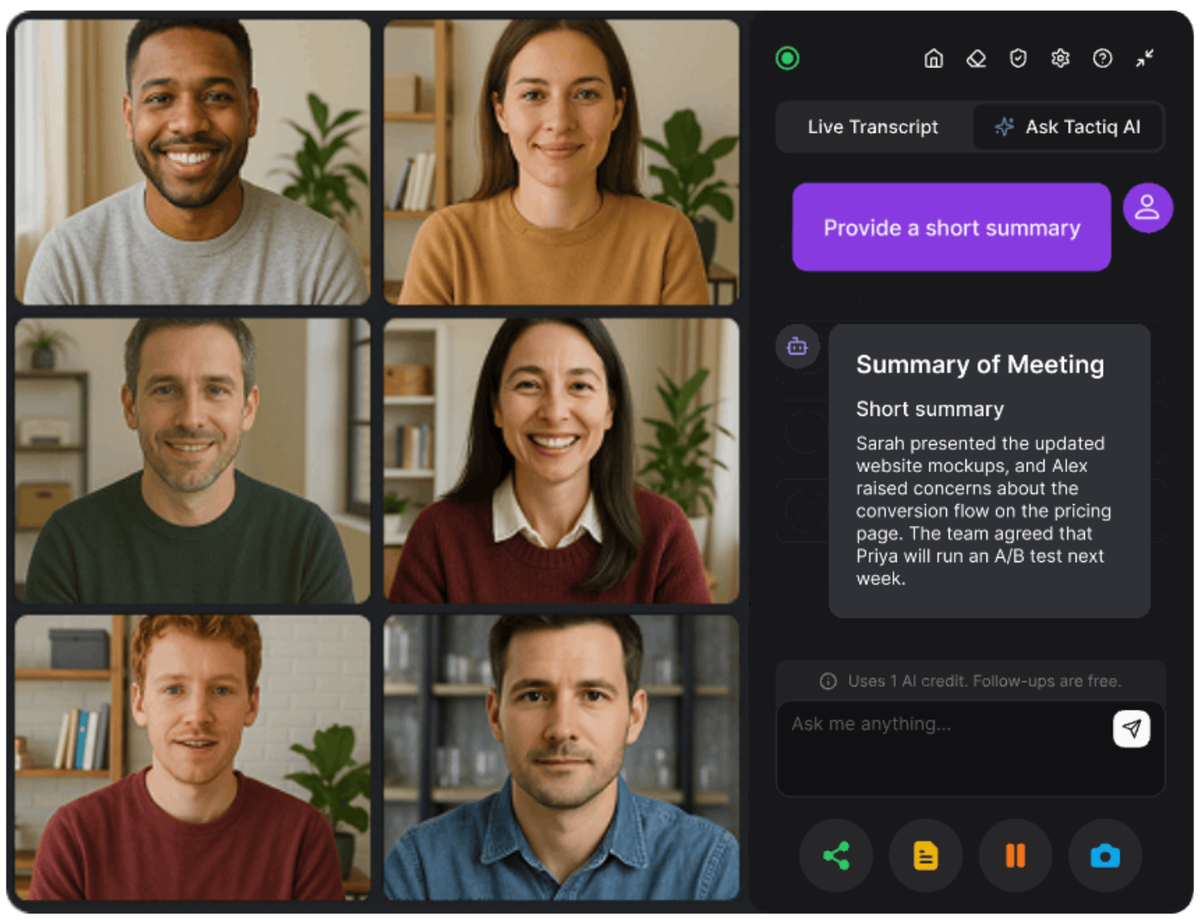
Embedding Zoom on your website solves the access problem. But once the meeting ends, most embedded setups have no record of what was said.
Since embedded Zoom meetings run in the browser, Tactiq (opens in a new tab) works out of the box. Install the free Chrome extension (opens in a new tab), join your embedded meeting in Chrome, and Tactiq transcribes everything in real time. No bot, no recording, no audio stored.
You get a full transcript with:
- Speaker labels
- An AI summary with decisions and action items
- One-click export to Google Docs, Notion, HubSpot, and more
You can also run custom AI prompts to generate follow-up emails or project updates directly from the transcript.
It's particularly useful for recurring embedded meetings: client calls, online classes, and team standups hosted on a dedicated page. Every session becomes a searchable record automatically.
For more on Zoom transcription, see how to get a Zoom meeting transcript for free (opens in a new tab) and how to find Zoom transcripts (opens in a new tab).
Want the convenience of AI summaries?
Try Tactiq for your upcoming meeting.
Embed Zoom on Your Website and Never Miss a Meeting Insight
As we’ve seen, there are three ways to embed Zoom on a website. A WordPress plugin is the fastest route. The Zoom Meeting SDK gives developers complete control over the layout and UI. And a join button is the simplest option for basic use cases.
Embedding the meeting is step one. Step two is capturing what's said. Tactiq transcribes every embedded Zoom session in real time, generates AI summaries and action items, and automatically builds a searchable record.
Install Tactiq free and get a transcript of every embedded Zoom meeting. (opens in a new tab)
FAQ
Your questions, answered.
If you have any further questions, Get in touch (opens in a new tab) with our friendly team
Can I embed a Zoom meeting in an iframe?
How do I add Zoom to my website without coding?
What is the Zoom Meeting SDK?
Is there a free way to embed Zoom on a website?
Do participants need the Zoom app to join an embedded meeting?
Related articles

Zoom ChatGPT: How to Connect and Access Meetings

Zoom MCP: Features, Setup, and Limitations (Full Guide)

Zoom Workplace and Zoom Meetings Difference: What You Need to Know

What Is Zoom Cloud Meeting App?

Zoom Cloud Meetings for Mac: Full Guide

Zoom Meeting Statistics 2026: Usage, Revenue & Data

How to Edit Zoom Recording: A Complete Guide

How to Record Yourself on Zoom
Want the convenience of AI summaries?
Try Tactiq for your upcoming meeting.
Bringing AI into your meetings has never been so easy.
Add to Chrome - It's free!(opens in a new tab)Try Tactiq in your upcoming meeting!
Sign up now