

Most people just call it "the Zoom app," but its original name was Zoom Cloud Meetings, and that name still lingers in casual use, older articles, and app listings.
The name reflects a real technical distinction: Zoom (opens in a new tab) runs on cloud infrastructure rather than a direct connection between two computers. That distinction shapes how the app performs, scales, and gets used across teams of every size.
Here's what this guide covers:
- What "Zoom Cloud Meetings" means and how the name evolved into Zoom Workplace
- How cloud-hosted video conferencing actually works
- Key features, pricing tiers, and how to download and join meetings
- How Tactiq adds transcription and AI summaries on top of any Zoom plan
TL;DR: What Is Zoom Cloud Meeting App (Inside Zoom Workplace)?
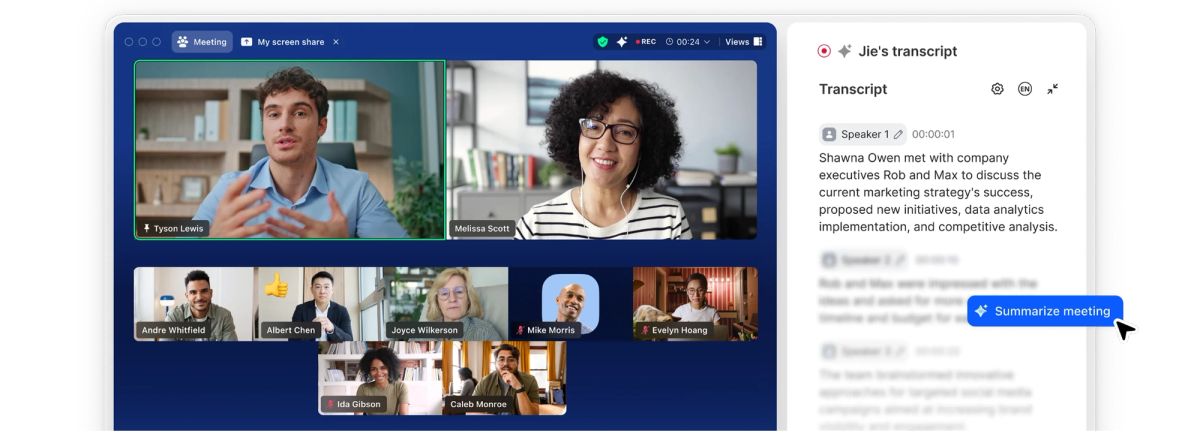
Zoom launched in 2013 (opens in a new tab) as Zoom Cloud Meetings, and that name described exactly what the software did. It hosted video meetings through cloud servers instead of routing calls directly between two computers.
Zoom has since folded that original app into Zoom Workplace (opens in a new tab), its broader collaboration platform, but the core video-calling engine works the same way it always did.
At its core, Zoom Cloud Meetings is cloud-hosted video conferencing software:
- Your device connects to Zoom's servers, not directly to other participants
- Zoom's servers manage the connection between everyone in the call
- This differs from peer-to-peer setups, where devices connect directly with no server involved
Individuals, small teams, large businesses, and educators all use the same underlying app, just with different plan limits:
- Freelancers and solo professionals hopping on client calls
- Small teams running daily standups
- Large enterprises hosting company-wide town halls
- Educators running virtual classrooms
💡 Pro tip: Whatever plan you're on, Tactiq’s Chrome extension (opens in a new tab) adds a live transcript and AI summary to every Zoom call, so nothing said in the meeting gets lost. No bot or recording.
How Zoom Cloud Meetings work
Cloud hosting means Zoom's servers do the heavy lifting:
- Every participant sends their video and audio stream to Zoom's servers
- Zoom's servers distribute those streams to everyone else in the meeting
- Peer-to-peer connections only work well for one-on-one calls, since each new participant would need a direct connection to every other person
This matters most as meetings grow:
- Free plans support up to 100 participants
- Paid tiers support hundreds more
- None of this requires individual devices to manage dozens of direct connections at once
Zoom also adjusts video quality per participant based on their bandwidth. Someone on a weak connection gets a lower-resolution stream, while someone on fiber gets full quality, within the same meeting.
Key Features of Zoom Cloud Meetings
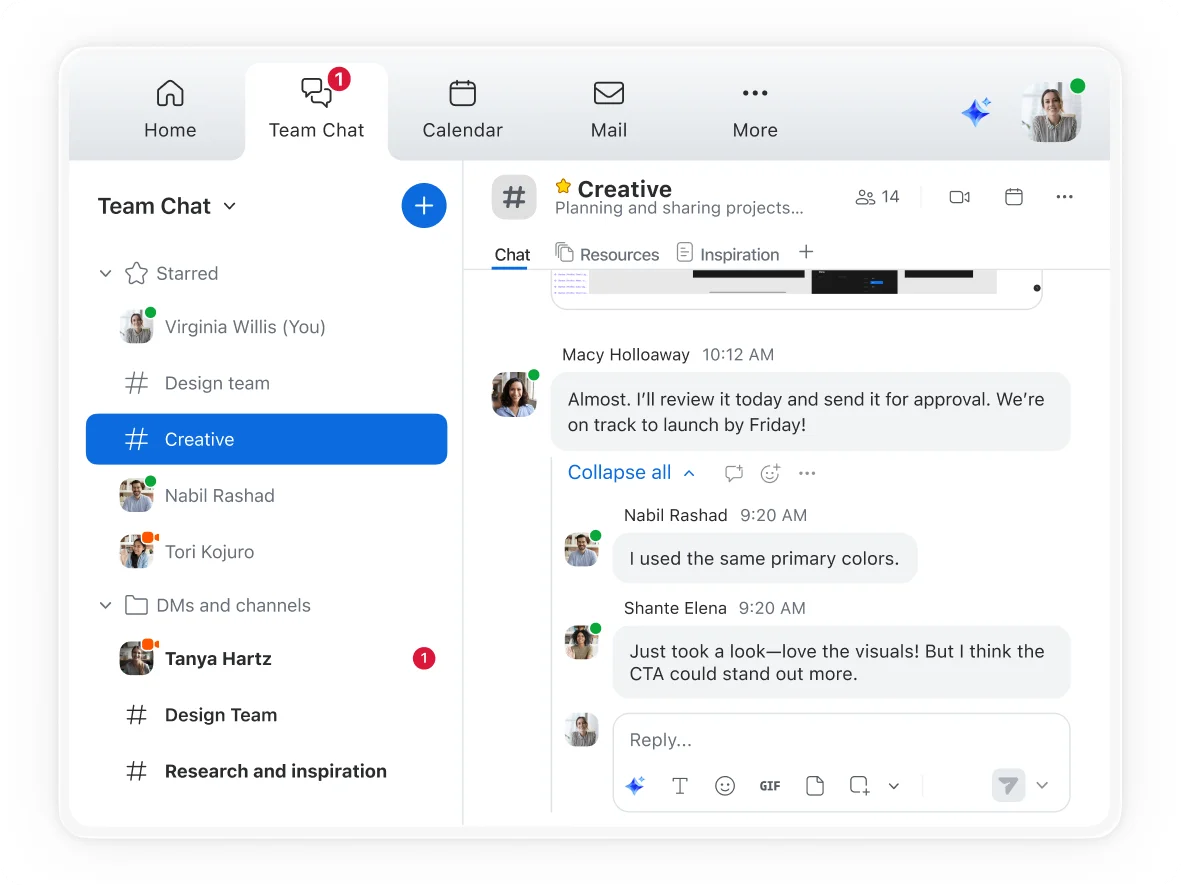
Zoom Cloud Meetings covers the core tools most people need for video calls, without extra setup:
- Video and audio calls for one-on-one or group meetings
- Screen sharing, including full screen, a single app window, or a browser tab
- In-meeting chat, both to everyone or to individual participants
- Breakout rooms (opens in a new tab) that split a meeting into smaller group sessions
- Local and cloud recording, depending on your plan
Breakout rooms let hosts split a meeting into up to 100 smaller sessions, assign participants automatically or manually, and pull everyone back into the main room at any time.
Recording works differently depending on your plan:
- Free accounts support local recording only, saved directly to your computer
- Paid accounts unlock cloud recording, which stores files in your Zoom account and makes them easier to share
- Participants need host permission to record, regardless of plan
If you want a transcript instead of a video file, our guide on how to record yourself on Zoom (opens in a new tab) covers both recording methods and how to capture what was said without managing a video file.
Zoom Cloud Meetings is also just one piece of the broader Zoom Workplace ecosystem:
- Zoom Rooms brings the same video experience to physical conference rooms, with one-tap join and dedicated hardware
- Zoom Phone adds cloud-based calling on top of your meeting plan, so phone calls and video meetings run through the same app
- Team Chat covers persistent messaging, file sharing, and channels alongside your meetings
Zoom Cloud Meetings Pricing: Free vs. Paid Plans
Zoom's free Basic plan covers a lot of ground, but it comes with real limits:
- Group meetings cap out at 40 minutes
- Meetings support up to 100 participants
- Local recording only, no cloud recording
- Basic versions of Whiteboard, Docs, and Clips included
That 40-minute cap is often the first thing that pushes teams toward a paid plan. Our guide on how to extend your Zoom meeting time (opens in a new tab) covers ways to work around the limit or upgrade for uninterrupted sessions.
Zoom offers three paid tiers, each building on the last:
- Zoom Workplace Pro Subscription removes the 40-minute cap, extending meetings to 30 hours, and unlocks unlimited Zoom AI Companion use plus 10 GB of cloud storage
- Zoom Workplace Business raises the participant cap to 300, adds single sign-on and managed domains, and includes advanced admin controls
- Zoom Workplace Enterprise scales further, supporting 1,000+ participants, unlimited cloud recording, a full-featured phone system, and add-ons like customer-managed encryption keys
Plan prices shift often enough that it's worth checking Zoom's own pricing page (opens in a new tab) directly before you commit to a plan.
How to Download and Use the Zoom Cloud Meeting App
Zoom Workplace runs on desktop, mobile, and directly in a browser, so you can choose whichever fits your setup:
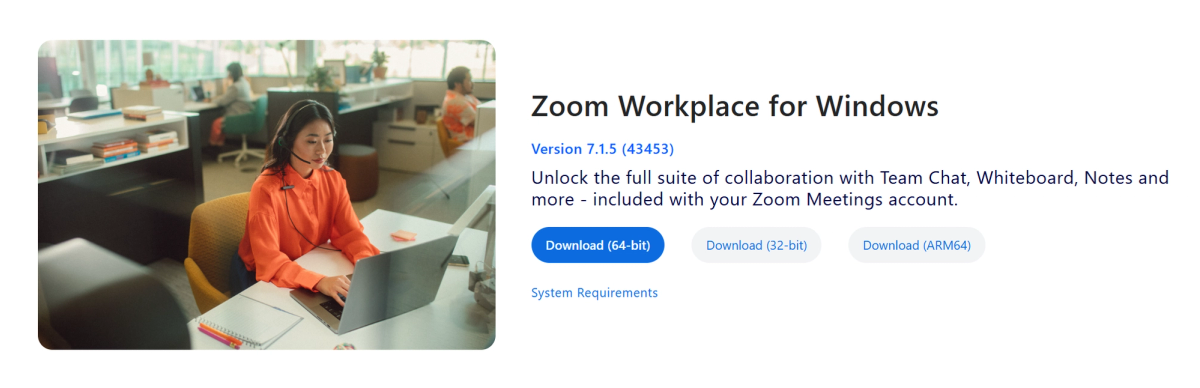
- Go to the Zoom Download Center (opens in a new tab).
- Select your operating system: Windows, macOS, or Linux for desktop.
- Download the installer for your device and complete the installation.
- Open the app and sign in, or create a free account if you're new to Zoom.
Mobile install works just as easily:
- Open the App Store (iOS) or Google Play (Android device).
- Search for Zoom Workplace.
- Tap Install or GET, then open the Zoom mobile app once it finishes downloading.
Zoom pushes new bug fixes and improvements through regular app updates, so keeping the desktop and mobile apps current avoids most connection and feature issues.
You don't always need to install anything to join a meeting. If you'd rather skip the download, our guide on whether you can use Zoom in your browser (opens in a new tab) walks through joining directly from a web browser instead.
Joining also doesn't require a Zoom account of your own:
- Click the meeting link from an email or calendar invite.
- Choose Join from Your Browser, or open the link in the desktop or mobile app.
- Enter your name and the meeting passcode if prompted.
- Click Join.
Hosting a meeting, on the other hand, does require a Zoom account, even on the free plan.
How to Get a Transcript of Your Zoom Cloud Meeting
Zoom's built-in AI features, formerly branded as Zoom AI Companion (opens in a new tab), are now built natively into Zoom Workplace without that name attached. These native features still cover the basics on paid plans:
- Automatic meeting summaries
- Chat message drafting
For more advanced, agentic capabilities, Zoom now offers ZoomMate (opens in a new tab), a separate paid add-on that connects meeting context to tools like Salesforce, Jira, and Slack to execute follow-up actions automatically.
Tactiq (opens in a new tab) works differently. It works alongside Zoom, not inside it. It adds a live transcript and AI summary to any meeting, on any plan:
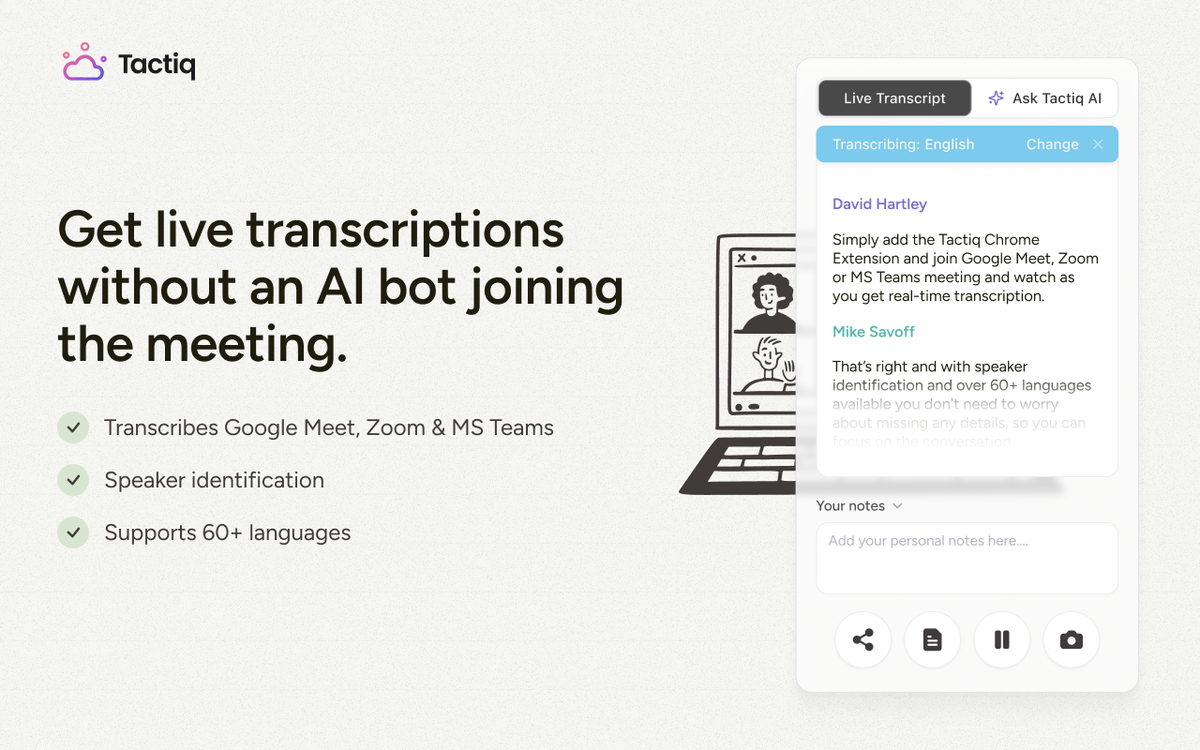
- Real-time transcript capture as the meeting happens, with speaker identification
- AI-generated summaries with action items and key decisions
- Custom AI prompts to turn transcripts into follow-up emails, project updates, or tickets
- Works the same way whether you're on Zoom Basic or Zoom Enterprise
No matter which Zoom plan you're on, install the free Tactiq Chrome extension (opens in a new tab) and get a live transcript and AI summary from your very next meeting.
Want the convenience of AI summaries?
Try Tactiq for your upcoming meeting.
What Zoom Cloud Meetings Means for Your Next Call
Zoom Cloud Meetings was the original name for what's now Zoom Workplace. The cloud-hosted architecture behind it hasn't changed: your device connects to Zoom's servers, not directly to other participants. This is what lets meetings scale from a quick one-on-one to a company-wide town hall.
Whether you're on the free Basic plan or a paid tier, the core experience stays the same. Free accounts cover short meetings and local recording. Paid plans remove the time cap and add cloud recording, admin controls, and AI features. If you run into setup issues along the way, the Zoom Community is a solid place to find troubleshooting help from other users.
Whatever plan you're on, Tactiq's transcript and summary layer works the same way. See how above.
FAQ
Your questions, answered.
If you have any further questions, Get in touch (opens in a new tab) with our friendly team
What is a Zoom cloud meeting?
Is the Zoom cloud meeting app free?
What's the difference between Zoom Cloud Meetings and Zoom Meetings?
How long can a free Zoom cloud meeting last?
How can I get a transcript of a Zoom cloud meeting?
Related articles

Zoom ChatGPT: How to Connect and Access Meetings

Zoom MCP: Features, Setup, and Limitations (Full Guide)

Zoom Workplace and Zoom Meetings Difference: What You Need to Know

Zoom Cloud Meetings for Mac: Full Guide

Zoom Meeting Statistics 2026: Usage, Revenue & Data

How to Edit Zoom Recording: A Complete Guide

How to Record Yourself on Zoom

How to Embed a Zoom Meeting on Your Website
Want the convenience of AI summaries?
Try Tactiq for your upcoming meeting.
Bringing AI into your meetings has never been so easy.
Add to Chrome - It's free!(opens in a new tab)Try Tactiq in your upcoming meeting!
Sign up now