
Zoom MCP: Features, Setup, and Limitations (Full Guide)
- Published:
- September 17, 2026
- Updated:
- September 17, 2026

Zoom launched an official Model Context Protocol (MCP) server that lets AI tools like Claude and ChatGPT pull meeting data on request.
A Claude connector (opens in a new tab) like this gives Claude direct access to an outside tool, so you can ask questions instead of hunting through recordings yourself. But it only works within the Zoom ecosystem, and only when you actively open an AI client and ask.
Here's what this article covers:
- What Zoom MCP is and what it can do
- How to set it up and where it falls short
- A cross-platform alternative worth knowing about
TL;DR: What is Zoom MCP?
Zoom's MCP server is an official bridge that lets AI clients like Claude, Cursor, and VS Code pull meeting data on request, including transcripts, recordings, and calendar details. It requires a paid Zoom plan and only works within Zoom.
Tactiq's MCP server (opens in a new tab) is the cross-platform alternative worth knowing about if your team meets elsewhere too.
Does Zoom Have a Model Context Protocol (MCP)?
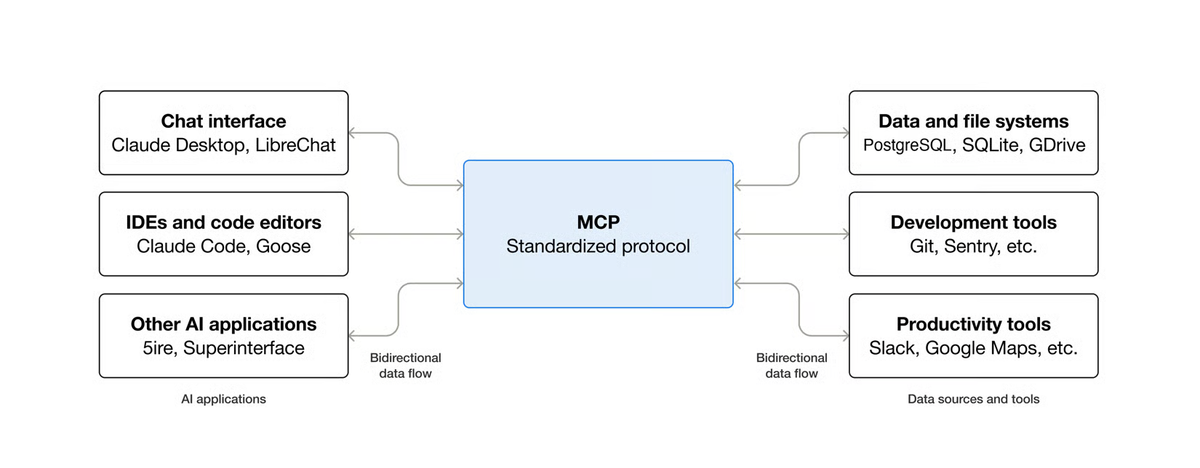
Yes. Zoom's official MCP server (opens in a new tab) runs on its developer platform. It gives AI clients like Claude, Cursor, and VS Code a standard way to pull meeting data.
The server uses the Model Context Protocol (opens in a new tab), an open standard for sharing API context with AI models. This means no custom integration is needed for each AI tool.
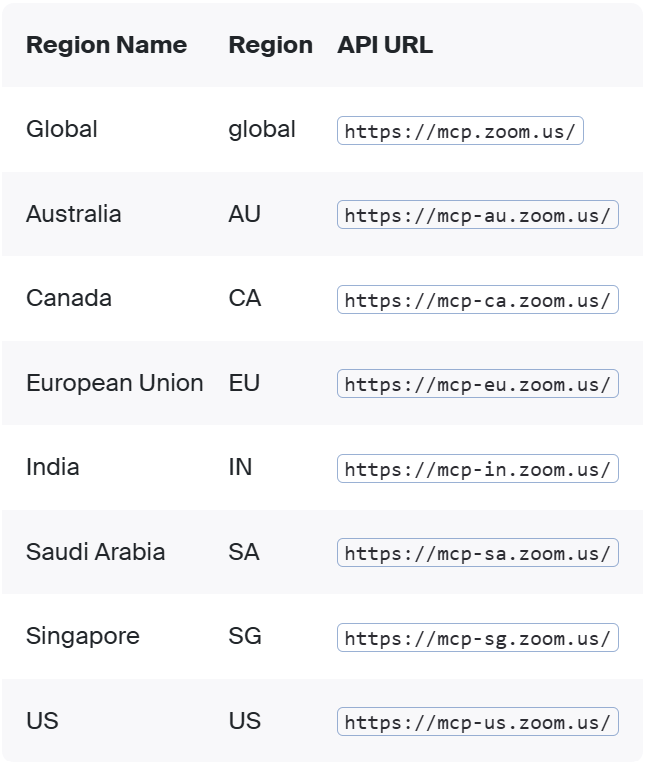
The remote server runs over streamable HTTP, hosted entirely by Zoom. There's no local install required to get started. Zoom also offers regional gateway URLs for data residency and latency needs.
- Global: mcp.zoom.us
- US: mcp-us.zoom.us
- EU: mcp-eu.zoom.us
- Australia: mcp-au.zoom.us
- Canada, India, Saudi Arabia, and Singapore also have dedicated regional endpoints
Zoom's official server differs from community-built Zoom MCP servers on GitHub and npm. These let developers self-host and customize their own Zoom MCP connection. Security, update schedules, and support levels vary across these independent projects.
Here's what Zoom's official server can do once connected.
What Zoom's Model Context Protocol Can Do
Zoom's MCP server exposes several types of meeting and workspace data as tools an AI client can call. This covers everything from basic meeting summaries to enterprise-wide search across connected systems.
At the core, the server surfaces:
- Meeting summaries and transcripts, generated from Zoom's built-in AI features (formerly branded Zoom AI Companion, retired in June 2026)
- Recordings
- Notes and action items
- Collaboration history across past Zoom meetings
- Chat and calendar data, useful for scheduling intelligence or thread summaries
- Zoom Canvas and Whiteboard content, for document summarization and insight extraction
In May 2026 (opens in a new tab), Zoom expanded the server with agentic search across enterprise systems. This lets AI tools reason across:
- Salesforce account data
- Workday employee records and time-off balances
- ServiceNow tickets and incident data
At launch, agentic search supports 10 connected third-party platforms, with more planned.
Setting Up Zoom MCP
Setting up Zoom MCP follows four steps, though the exact process varies by AI client.
- Log in to the Zoom App Marketplace (opens in a new tab) as a developer or admin, then click Develop > Build App > General App > Create.
- In your app's configuration screen, click Scopes > Add Scopes. Add the scopes listed for the specific Zoom MCP server you're connecting to, then click Done.
- Send a POST request to https://zoom.us/oauth/token. Since MCP requires OAuth 2.1, include a PKCE code_verifier in the exchange.
- Connect your client. Include the access token as a Bearer token in the Authorization header for every request to Zoom's MCP endpoint.
Claude uses a guided connector flow instead of manual token handling: add a custom connector in Claude's settings, enter your Zoom app's server URL and OAuth credentials, then confirm the redirect URL back in Zoom. Read more on choosing the right connectors for Claude (opens in a new tab).
Cursor and VS Code connect over the same SSE/HTTP transport, with a local stdio option also available for developers who need it.
Zoom's own setup requirements list licenses for the "respective Zoom products" you're connecting to. In practice, this generally means a paid Zoom plan, since Basic Zoom accounts have limited API access.
The Limitations of Zoom Model Context Protocol
Zoom MCP works well for pulling information, but it has real constraints you should know before you rely on it.
It's reactive, not automatic
MCP follows a request-response model. Nothing runs unless someone opens an AI client and asks a question. If no one asks, the meeting's context sits unused until someone remembers to look.
It's Zoom-only
The server exposes Zoom data. It doesn't unify meetings from Google Meet or Microsoft Teams into one place, so a team split across platforms ends up checking two or three tools instead of one.
Rate limits scale with your plan
Zoom's own docs confirm increased rate limits apply to Business, Enterprise, Education, and Partner accounts, so lower tiers may hit limits faster during heavy use, like a busy sales week.
Setup requires a developer step
Creating a Marketplace app and configuring OAuth scopes takes more effort than a one-click integration, so non-technical teams may need IT involved just to get started.
Teams meeting only in Zoom may find the setup above sufficient. Teams working across multiple platforms often need a broader solution.
Tactiq as the Zoom MCP Alternative
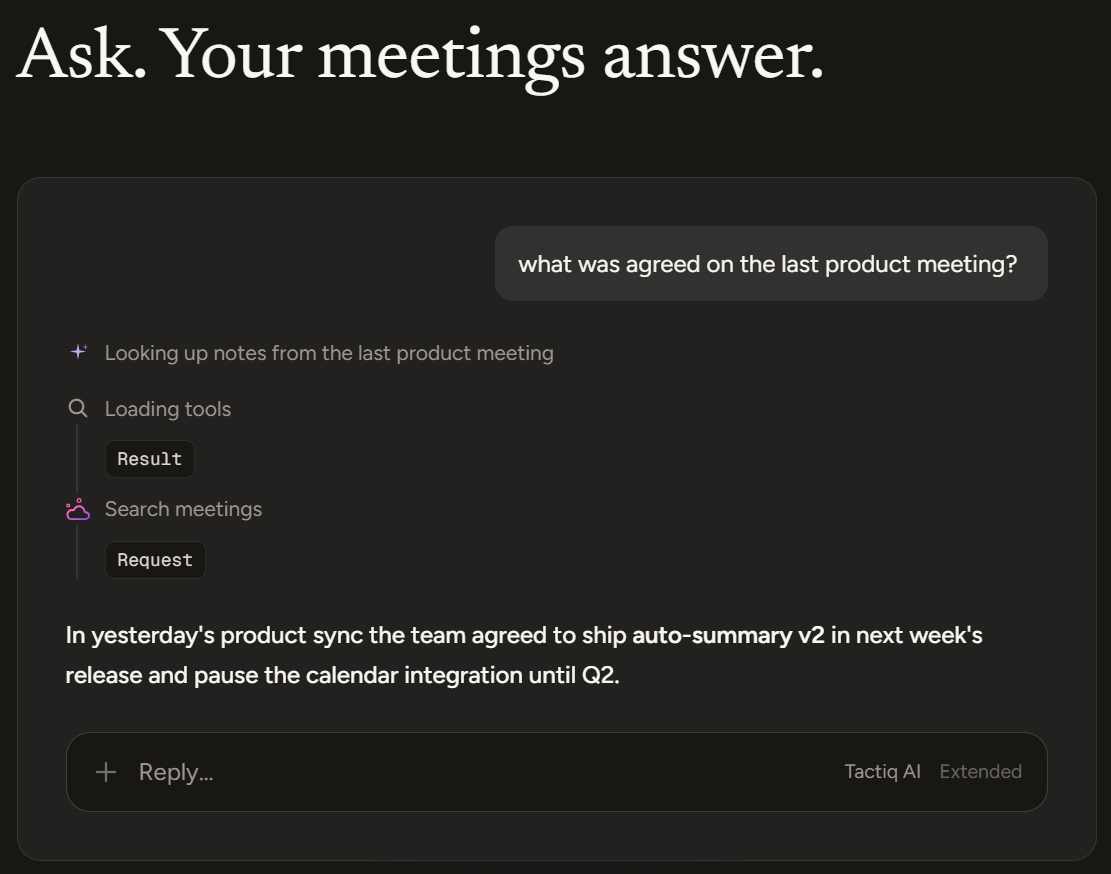
Here's how that cross-platform setup actually works. Tactiq's MCP server (opens in a new tab) gives AI clients direct access to meeting transcripts (opens in a new tab) already captured in the browser.
Setup is also simpler. Connecting takes two clicks from Claude's Connectors Directory: choose Connect, then Allow, with no server URL to paste and no developer app to build. Anthropic reviewed Tactiq for quality and security before listing it as a verified connector.
The same server works across multiple AI clients without separate configuration for each one:
- Claude and Claude Code
- Cursor
- ChatGPT and Codex
- n8n
One setup covers your whole AI workflow, instead of configuring each AI tool to connect with Zoom separately. Search and list functions work on any Tactiq plan, including Free. Reading full transcripts and summaries needs the Team plan or higher.
For teams already using Claude, connecting meeting notes through MCP (opens in a new tab) takes a few minutes to set up.
Want the convenience of AI summaries?
Try Tactiq for your upcoming meeting.
Zoom MCP or a Cross-Platform Alternative: What to Choose
Zoom's MCP server is a solid official option if your meetings stay in Zoom (opens in a new tab), now extended with agentic search across tools like Salesforce and Workday. If they don't, Tactiq's MCP server covers Zoom, Google Meet, and Microsoft Teams from one setup.
The right choice depends on where your meetings actually happen.
FAQ
Your questions, answered.
If you have any further questions, Get in touch (opens in a new tab) with our friendly team
Is Zoom's MCP server free to use?
Which AI tools work with Zoom MCP?
Does Zoom MCP work with the free Zoom plan?
Is there a difference between Zoom's official MCP server and community-built ones?
Can I use Zoom MCP and Tactiq MCP together?
Related articles

Zoom ChatGPT: How to Connect and Access Meetings

Zoom Workplace and Zoom Meetings Difference: What You Need to Know

What Is Zoom Cloud Meeting App?

Zoom Cloud Meetings for Mac: Full Guide

Zoom Meeting Statistics 2026: Usage, Revenue & Data

How to Edit Zoom Recording: A Complete Guide

How to Record Yourself on Zoom

How to Embed a Zoom Meeting on Your Website
Want the convenience of AI summaries?
Try Tactiq for your upcoming meeting.
Bringing AI into your meetings has never been so easy.
Add to Chrome - It's free!(opens in a new tab)Try Tactiq in your upcoming meeting!
Sign up now