
Zoom Cloud Meetings for Mac: Full Guide
- Published:
- July 26, 2026
- Updated:
- September 7, 2026

Zoom Cloud Meetings was the original name of Zoom's app, but you won't find that name in use anymore. Zoom (opens in a new tab) renamed its desktop and mobile app to Zoom Workplace with the version 6.0 update.
If you're searching "Zoom Cloud Meetings" on a Mac, Zoom Workplace is what you're looking for now.
TL;DR: Zoom Cloud Meetings for Mac
Zoom Cloud Meetings is now called Zoom Workplace, following a rename that took effect in April 2024 (opens in a new tab). Getting set up on Mac just requires checking your system meets the minimum requirements, then downloading and installing the correct version for your device. Once you're up and running, Tactiq's native Mac app can transcribe your Zoom desktop calls directly, without needing a browser open.
What Is Zoom Cloud Meetings on Mac? (Now Zoom Workplace)
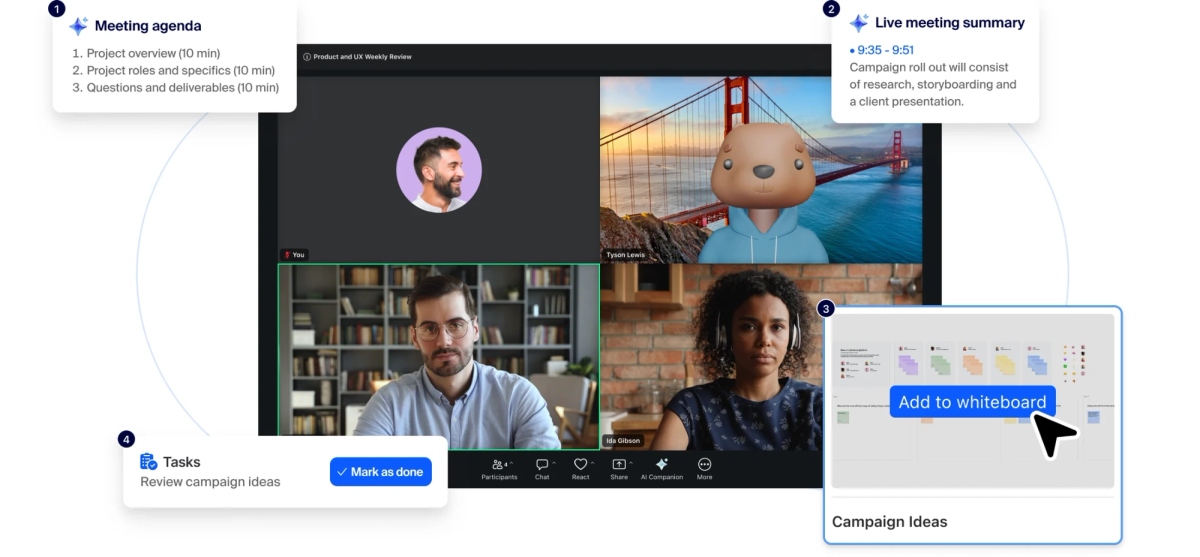
Zoom renamed Zoom Cloud Meetings to Zoom Workplace as part of a broader shift to position it as a full collaboration platform, not just a meetings tool. The rename applies to Zoom Workplace for Mac the same way it does on other devices.
The Zoom app on your Mac still works the same way it always has, just under a new name and look. If your Mac shows an older version labeled "Zoom," updating it brings you to the current Zoom Workplace branding automatically.
System Requirements for Zoom on Mac
Before you install Zoom on your Mac (opens in a new tab), check that your device meets the requirements below. The Zoom app's system requirements are the same across Mac, Windows, and Linux, based on operating system version rather than chip type.
- Operating system: macOS 10.15 or later
- Processor: Dual-core 2GHz or higher (quad-core 2.5GHz or higher recommended)
- RAM: 4GB minimum, 16GB recommended
- Internet connection: Broadband wired or wireless
- Camera and audio: Built-in or USB webcam, speakers, and microphone
💡 Pro tip: Tactiq's live transcription (opens in a new tab) processes audio, not video, thanks to its Chrome Extension, so it keeps working even if screen sharing slows your Mac down.
Older Macs running macOS 10.13 or 10.14 can no longer run the current version of Zoom, so an operating system update may be needed before installing.
How to Install Zoom Cloud Meetings on Mac
Installing Zoom Workplace on your Mac takes just a few steps, and the free download is available directly from Zoom's site. Downloading the correct version for your device (Apple Silicon or Intel) avoids compatibility issues later.
Enable installation permissions first:
- Click the Apple icon in the top-left corner and choose System Settings (or System Preferences on older macOS versions).
- Click Privacy & Security.
- Under Allow applications from, choose App Store & Known Developers.
Then install the app:
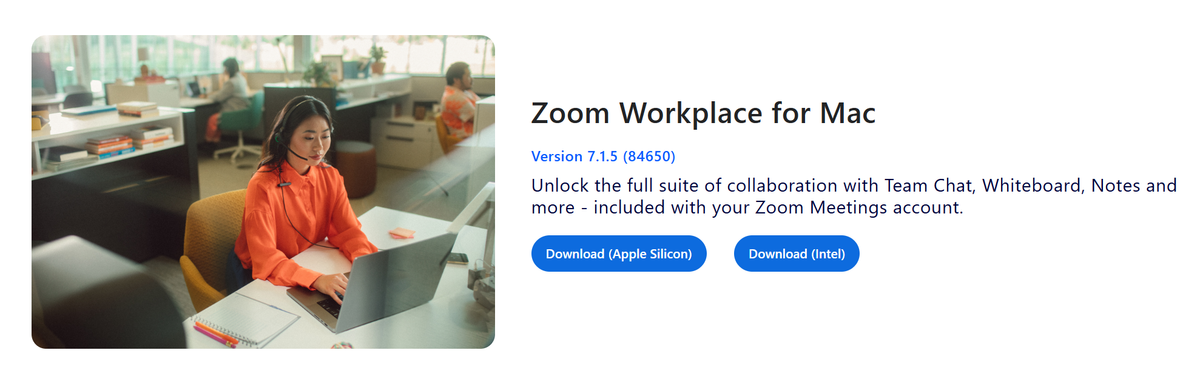
- Go to the Zoom Download Center (opens in a new tab).
- Under Zoom Workplace for Mac, click Download for Apple Silicon or Download for Intel, matching your device.
- If a pop-up window doesn't appear automatically, double-click the downloaded installer file to begin.
- Once the installer opens, click Continue.
- Choose Install for all users of this computer or Install only for me, then click Continue.
- Click Install, then enter your administrator credentials if prompted.
- Click Install Software, then click Close once installation finishes.
The first time you join a meeting, Zoom will ask for microphone and camera permissions, plus screen recording access if you plan to share your screen.
How to Join or Host a Meeting on Mac
Joining or hosting a meeting on Zoom Workplace for Mac works the same way whether you're a participant or the host. Here's how to do both from the desktop app.
To join a meeting:
- Sign in to the Zoom Workplace desktop app.
- Click the Home tab (or the More tab if Home isn't visible).
- Click the meeting you want to join from your list of scheduled meetings.
- Click Join on the meeting card.
To host a meeting:

- Sign in to the Zoom Workplace desktop app.
- Click the Meetings tab.
- Click the meeting you want to start.
- Click Start on the meeting card.
If you're joining from an email or calendar invite (opens in a new tab) instead, click the join link, check your audio and video settings, then click Join. Zoom Workplace will either connect you automatically or place you in a waiting room until the host lets you in.
Key Mac-Specific Features
Zoom Workplace on Mac includes several features worth knowing before your first meeting. Most permissions live in macOS System Settings, while feature settings live inside the Zoom app itself.
- Screen sharing: Click Share Screen in your meeting controls, then choose what to share. macOS may prompt you to grant Screen Recording permission the first time.
- Recording: Click the Record icon during a meeting to record locally to your Mac, if the host allows it.
- Virtual backgrounds: Before a meeting, go to Settings > Video & Effects in the Zoom Workplace app. During a meeting, click the arrow next to Start/Stop Video, then choose Video & effects settings.
- External camera and microphone: Connect your device before opening Zoom, then select it under Settings > Audio or Settings > Video.
If Zoom can't access your camera, microphone, or screen, check System Settings > Privacy & Security on your Mac and confirm Zoom has permission.
Zoom for Mac Pricing and Plan Limits
Zoom Workplace pricing applies the same way on Mac as on any other device, since plans are tied to your account rather than your operating system.
- Basic (free): 40-minute cap on group meetings, up to 100 participants, 3 editable whiteboards, manual task entry
- Pro ($14.16/user/month, billed annually): Removes the 40-minute cap (up to 30 hours per meeting), adds 10GB cloud storage, unlimited AI note-taking, unlimited docs and clips
- Business ($18.33/user/month, billed annually): Raises participant limits to 300, adds unlimited whiteboards, includes end-to-end encrypted scheduling
- Enterprise: Custom pricing, available by contacting sales
Troubleshooting Common Zoom Issues on Mac
Most Zoom problems on Mac come down to permissions or performance, both of which are easy to fix once you know where to look.
Camera, microphone, or screen sharing not working
- Click the Apple icon and select System Settings.
- Choose Privacy & Security.
- Click the permission you need to change: Camera, Microphone, or Screen Recording.
- Toggle the switch on for Zoom, then restart the app if prompted.
Slow performance during calls
Screen sharing and virtual backgrounds are demanding on your Mac's graphics processor. If calls lag, close unused apps, confirm you're on the latest macOS version, and disable video effects you don't need.
If problems persist after these steps, Zoom's support site has dedicated troubleshooting articles for less common errors.
How to Transcribe Zoom Calls on Mac
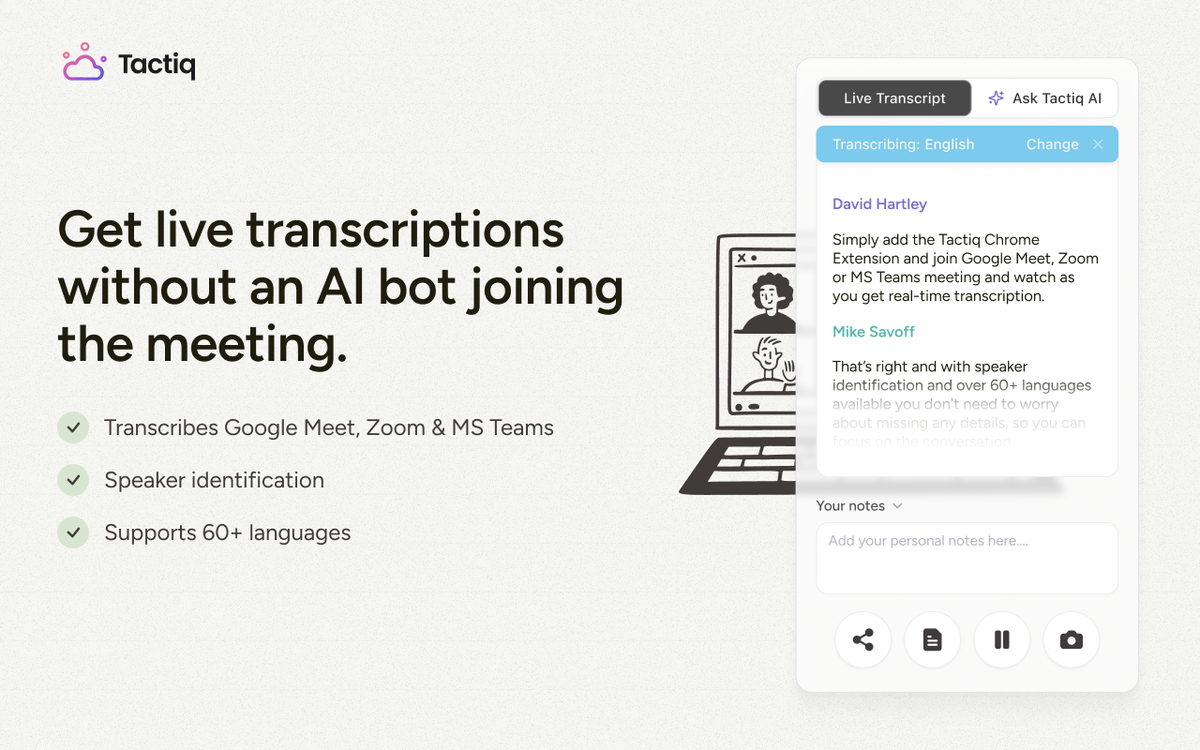
Once Zoom Workplace is set up, Tactiq can transcribe and summarize your Zoom calls on Mac. Tactiq works with Zoom on Mac in two ways: the Chrome extension or a native Mac app currently in beta.
The Chrome extension (opens in a new tab) covers Google Meet, Zoom, and Microsoft Teams directly in your browser (opens in a new tab), with automatic AI summaries and action items generated after each call.
For Mac users who join Zoom calls through the desktop app rather than the browser, Tactiq's Mac app transcribes those calls natively, without needing a browser tab open.
The Mac app is currently focused on Zoom desktop calls only. If you also use Google Meet or Microsoft Teams, the Chrome extension covers those platforms in the meantime.
To install the Mac app:
- Download it from your Tactiq dashboard banner, or directly from Tactiq's download page (opens in a new tab).
- Open the .dmg file and drag the Tactiq icon into your Applications folder.
- Open the app. If macOS asks whether you're sure you want to open it, click Open.
- Allow audio access when prompted.
- Open the Zoom Desktop app and start or join a meeting. Tactiq begins transcribing automatically once you start talking.
A couple of current limitations worth knowing: the app supports one language at a time, and your meeting title may show up generically as "Meeting Transcription" with the date and time, since syncing the actual Zoom meeting name isn't supported yet.
Want the convenience of AI summaries?
Try Tactiq for your upcoming meeting.
Wrapping Up Zoom on Mac
Zoom Cloud Meetings is now Zoom Workplace, and the app works the same way on Mac as it always has under its new name. Getting set up takes just a few steps: checking system requirements, downloading the right version for your device, and granting the permissions Zoom needs to run smoothly.
Once you're up and running, capturing what happens in your meetings is worth thinking about next. A native Mac app can now transcribe your Zoom calls directly.
Try Tactiq free to get automatic transcripts and AI summaries from every Zoom meeting on your Mac.
FAQ
Your questions, answered.
If you have any further questions, Get in touch (opens in a new tab) with our friendly team
Is Zoom Cloud Meetings free for Mac?
Is "Zoom Cloud Meetings" the same as Zoom Workplace now?
How do I install or update Zoom on my Mac?
What are the system requirements for Zoom on Mac?
Can I use Tactiq inside the Zoom app on Mac?
Related articles

Zoom ChatGPT: How to Connect and Access Meetings

Zoom MCP: Features, Setup, and Limitations (Full Guide)

Zoom Workplace and Zoom Meetings Difference: What You Need to Know

What Is Zoom Cloud Meeting App?

Zoom Meeting Statistics 2026: Usage, Revenue & Data

How to Edit Zoom Recording: A Complete Guide

How to Record Yourself on Zoom

How to Embed a Zoom Meeting on Your Website
Want the convenience of AI summaries?
Try Tactiq for your upcoming meeting.
Bringing AI into your meetings has never been so easy.
Add to Chrome - It's free!(opens in a new tab)Try Tactiq in your upcoming meeting!
Sign up now