
15 Best connectors for Claude
June 12, 2026
June 12, 2026
September 23, 2026
September 23, 2026

Claude becomes more useful when it can access the tools your team already uses. Claude connectors link the platform with apps, files, databases, and workflows through the Model Context Protocol (MCP).
You can ask Claude to search emails, review project data, manage tasks, or find meeting details. However, the best connectors for Claude depend on where your team works and makes decisions.
This guide covers:
- 15 Claude connectors across communication, meetings, project management, CRM, analytics, and content
- How to add directory and custom connectors
- How to choose connectors based on capabilities, permissions, and workflow value
TL;DR: What is the Best Claude Connector?
The best Claude connector gives Claude access to the context your team uses most. For meeting-driven workflows, the Tactiq MCP server connects Claude with searchable transcripts, summaries, and action items.
15 Best Connectors for Claude by Use Case
These 15 Claude connectors cover common workflows across communication, meetings, project management, sales, analytics, and content creation.
1. Gmail Connector
Communication & email
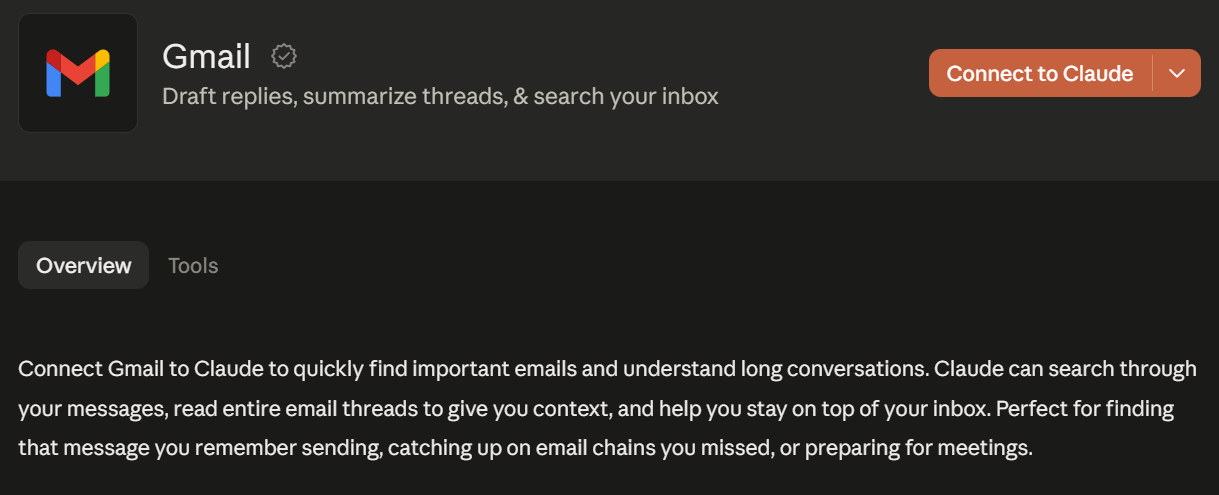
The Gmail connector lets Claude search messages, read email threads, and summarize long conversations. Depending on your permissions, you can also ask Claude to draft replies, forward messages, apply labels, or send emails.
This connector helps teams find decisions and contact details without searching the inbox manually. It can also provide email context when preparing for meetings or following up on tasks.
2. Google Calendar Connector
Communication & email
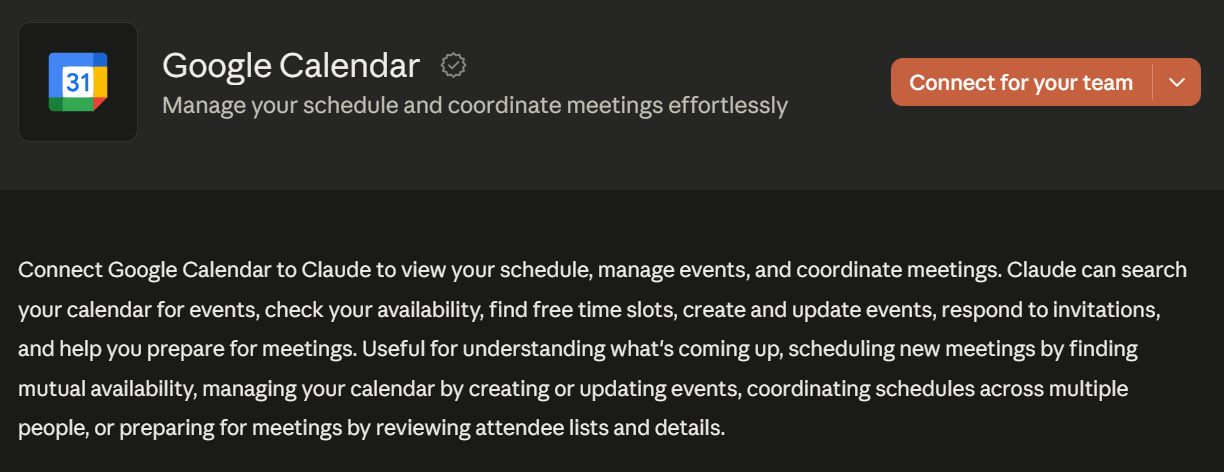
The Google Calendar connector lets Claude search events, check availability, and suggest open time slots. Depending on permissions, Claude can also create, update, delete, or respond to calendar events.
Connecting Google Calendar to Claude helps teams coordinate schedules without switching between apps. You can also ask Claude to review attendee details before a meeting.
3. Calendly Connector
Communication & email
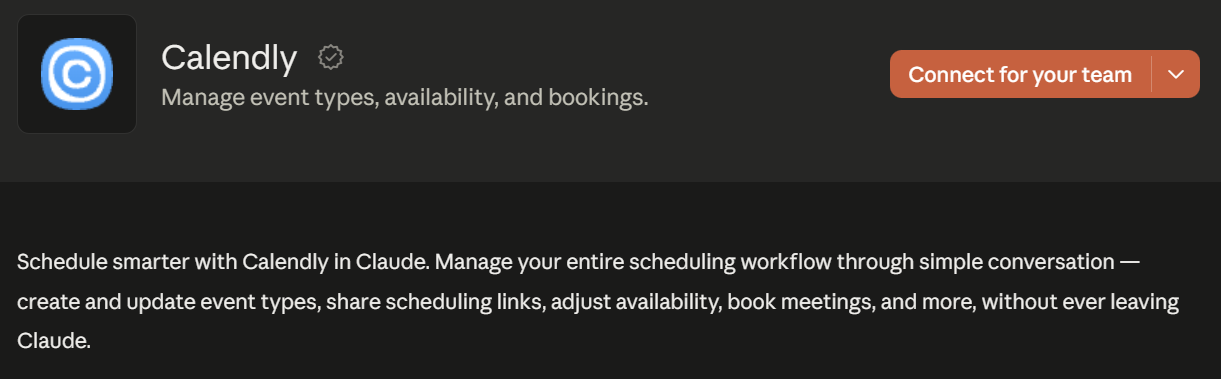
The Calendly connector lets Claude manage event types, availability, bookings, and scheduling links. You can ask Claude to find open times, book meetings, update event types, or cancel scheduled events.
This connector suits teams that schedule external calls with candidates, customers, or partners. It keeps the booking workflow inside Claude while using your existing Calendly settings.
4. Tactiq Connector
Meetings & transcription
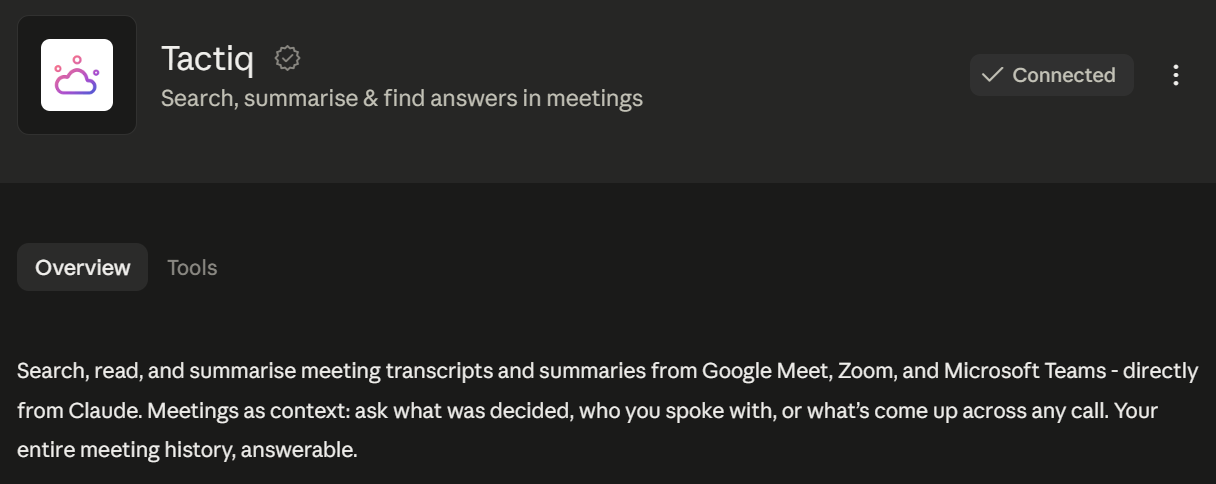
Tactiq transcribes Zoom, Google Meet, and Microsoft Teams calls in real time without a meeting bot. It also generates summaries and action items after each conversation.
The Tactiq MCP server gives Claude access to your searchable meeting history. You can ask Claude to find past conversations, summarize discussions, surface decisions, or identify action items without manually exporting transcripts.
See our guide to using Tactiq as a Claude connector for setup steps and prompt examples.
{{rt_cta_ai-convenience}}
5. Asana Connector
Project management & productivity
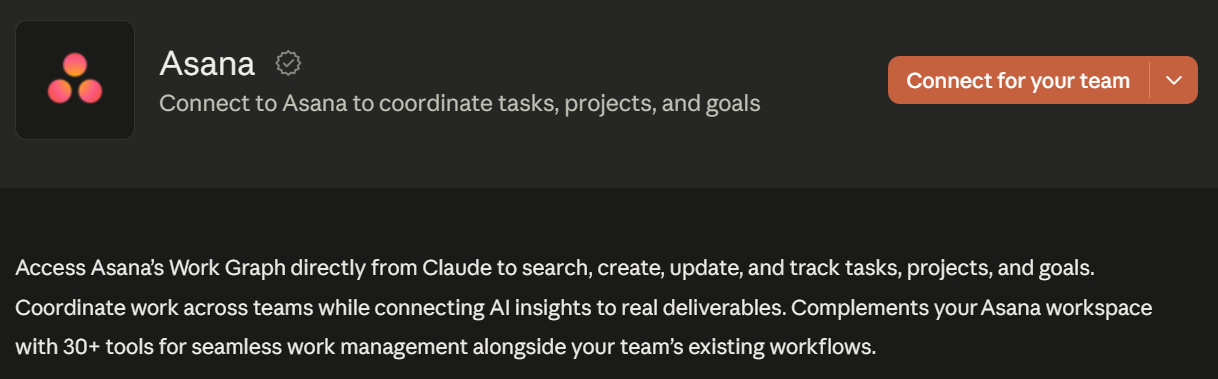
The Asana connector lets Claude search, create, update, and track tasks, projects, and goals. It can also retrieve project details, task assignments, due dates, status updates, and flagged blockers.
Teams can use it to review project progress or turn Claude conversations into trackable work.
6. Linear Connector
Project management & productivity
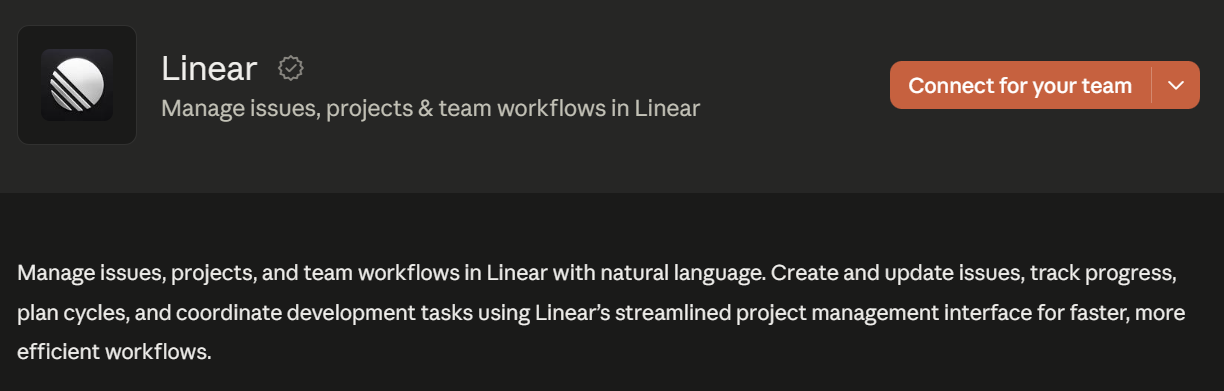
The Linear connector lets Claude find, create, and update issues, projects, and comments. It can also retrieve cycles, documents, issue statuses, labels, teams, and assigned work.
Product and engineering teams can use it to plan projects, review progress, and document updates. Claude can also summarize completed work using issue and cycle data from Linear.
7. HubSpot Connector
CRM & sales
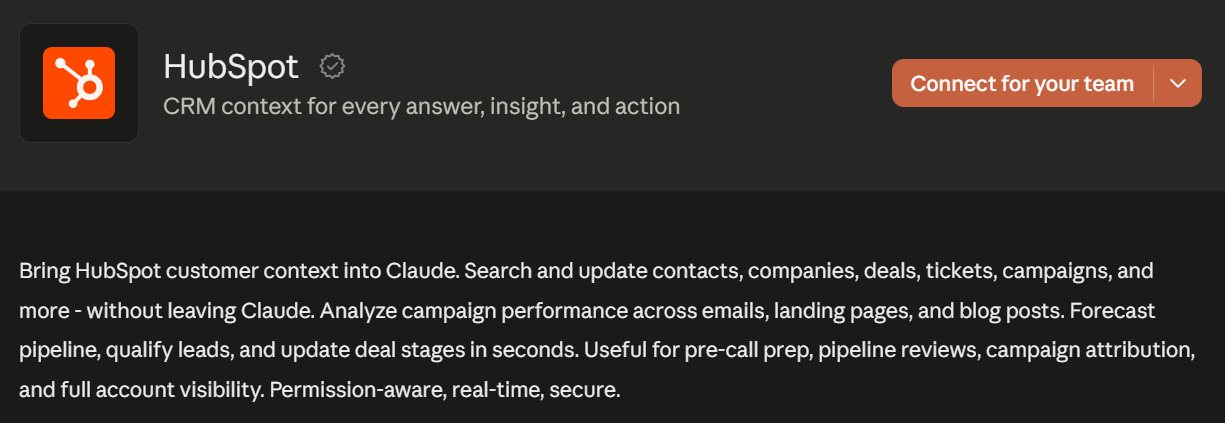
The HubSpot connector gives Claude access to CRM data, including contacts, companies, deals, tickets, and campaigns. Depending on permissions, Claude can search or update these records without a manual export.
Sales teams can use the connector for account research, pipeline reviews, and call preparation. Marketing teams can also ask Claude to analyze campaign data across emails, landing pages, and blog posts.
8. Salesforce Connector
CRM & sales
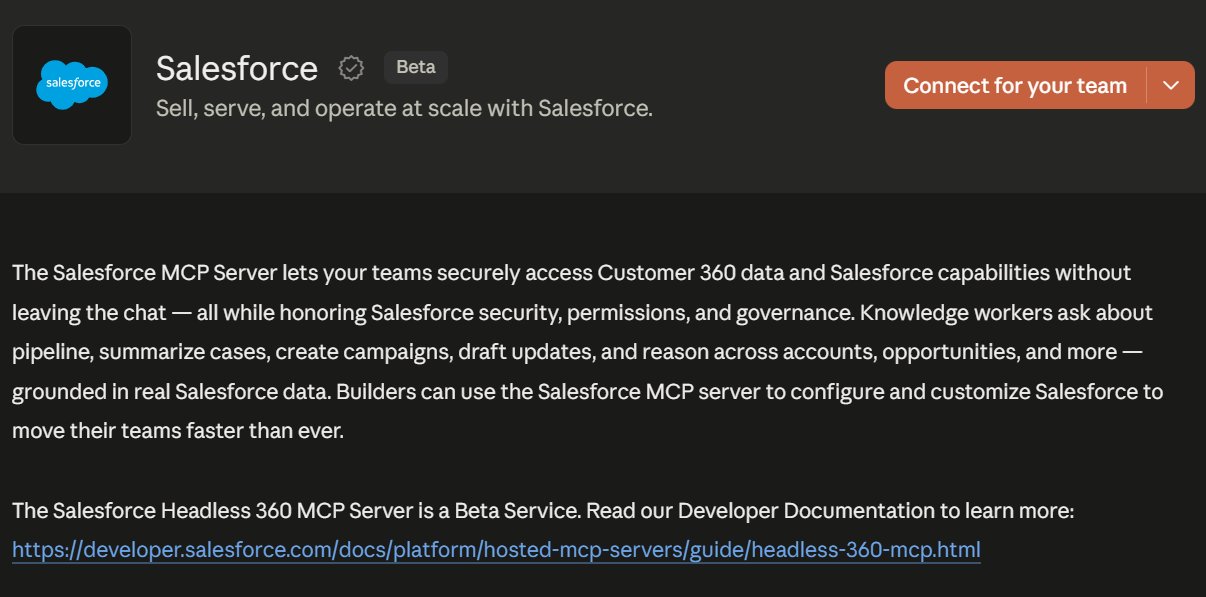
The Salesforce Connector is a beta service that gives Claude access to Customer 360 data and Salesforce capabilities. Teams can ask Claude about pipelines, cases, accounts, opportunities, and campaigns using current Salesforce data.
The connector can query, create, and update Salesforce records. It follows the authenticated user’s permissions, sharing rules, and field-level security.
9. Intercom Connector
CRM & sales
The Intercom Connector gives Claude read access to customer conversations, tickets, and contact data. Claude can search these records and retrieve details without changing the source information.
Teams can use this customer context to identify recurring issues, prepare for account reviews, or research product feedback. It can also help sales and support teams understand previous customer conversations before responding.
10. Mixpanel Connector
Analytics
The Mixpanel Connector lets Claude query product analytics using natural language. It supports segmentation, funnel, flow, retention, and session replay analysis.
Growth and data teams can use it to investigate user behavior without navigating multiple reports. Claude can also create dashboards, manage event metadata, and address data quality issues within existing Mixpanel permissions.
11. Google Drive Connector
Content & design
The Google Drive Connector lets Claude search files, read content, and upload new files. It supports Google Docs, Sheets, Slides, PDFs, and other stored documents.
Content teams can use it to find research, analyze spreadsheets, or prepare materials using existing files. Depending on permissions, Claude can also create, copy, update, share, or move files to the trash.
12. Canva Connector
Content & design
The Canva Connector lets Claude search, summarize, generate, autofill, and export Canva designs. It can also import designs from URLs and organize items into folders.
Content marketers can use it to create social graphics, presentations, and other visual assets from a prompt. Claude can also retrieve design content or add comment threads for review.
13. Webflow Connector
Content & design
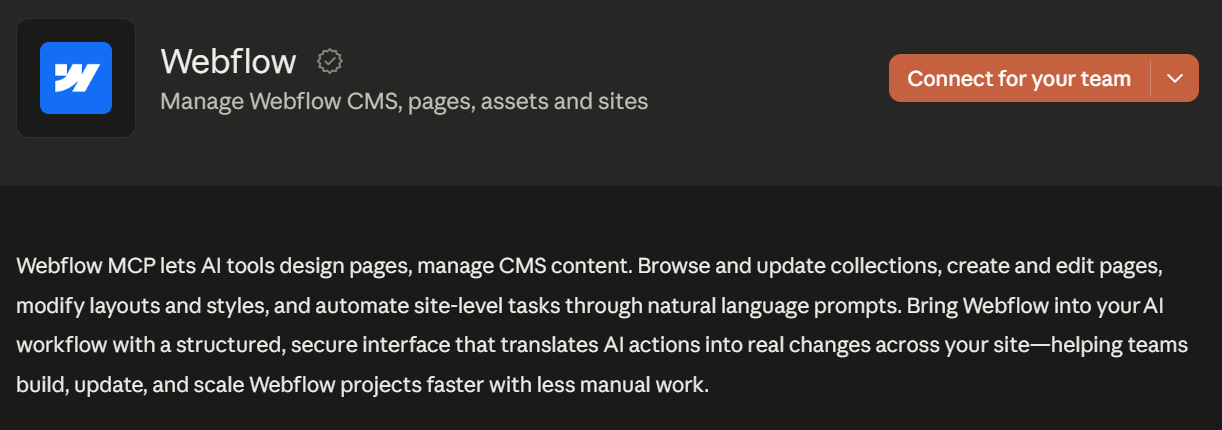
The Webflow Connector lets Claude manage CMS content, pages, assets, and site data. It can create or edit pages, update collections, and modify layouts, styles, components, and variables.
Content and web teams can use it to update structured data or build page elements through natural language. The connector can also analyze site activity and works within the user’s existing Webflow permissions.
14. Miro Connector
Content & design
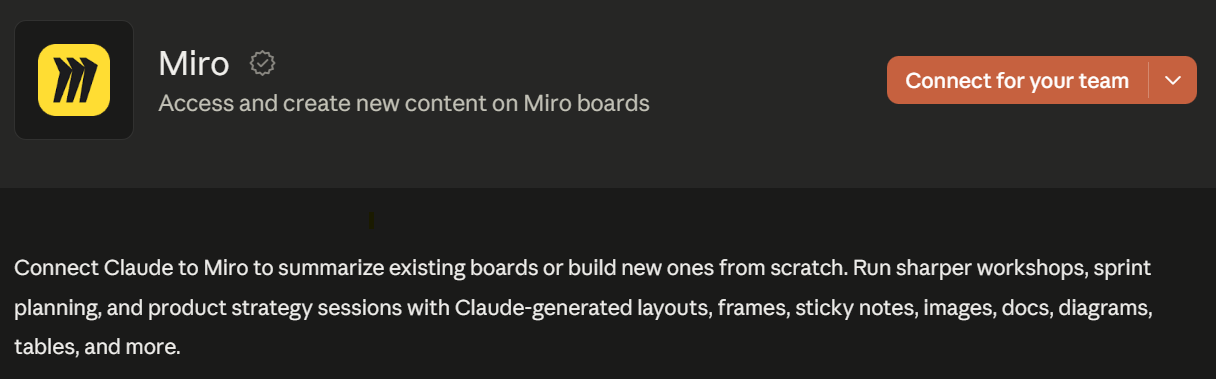
The Miro Connector lets Claude search and summarize existing boards or create new ones. It can generate frames, sticky notes, tables, documents, images, and diagrams from a prompt.
Teams can use it for workshops, sprint planning, research, and product strategy. Claude can also read, reply to, and resolve board comments within existing access permissions.
15. Sanity Connector
Content & design
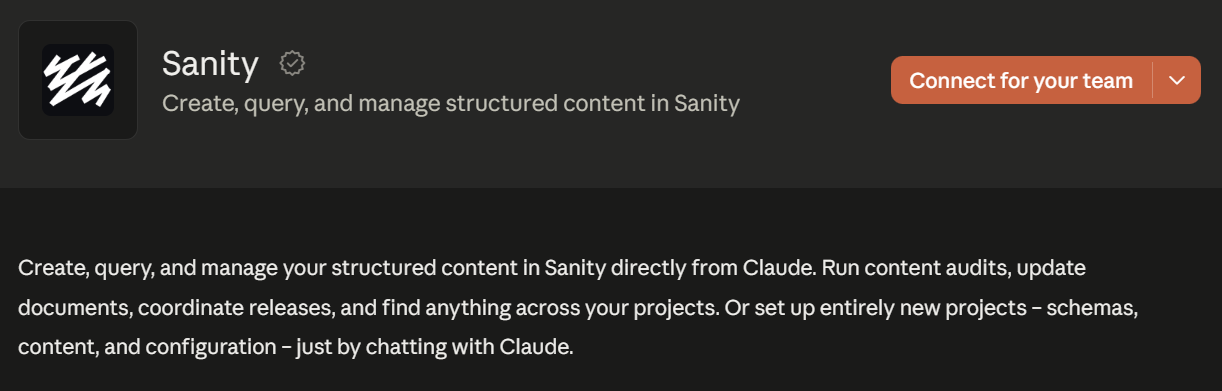
The Sanity Connector lets Claude create, query, update, and publish structured content. It can work with documents, datasets, schemas, releases, and projects through natural language.
Content and development teams can use it for audits, migrations, release coordination, or document updates. Its actions follow the connected user’s Sanity role and permissions.
How to Add Connectors to Claude
You can add a connector from Claude’s directory or configure a custom connector through remote MCP.
Adding a directory connector
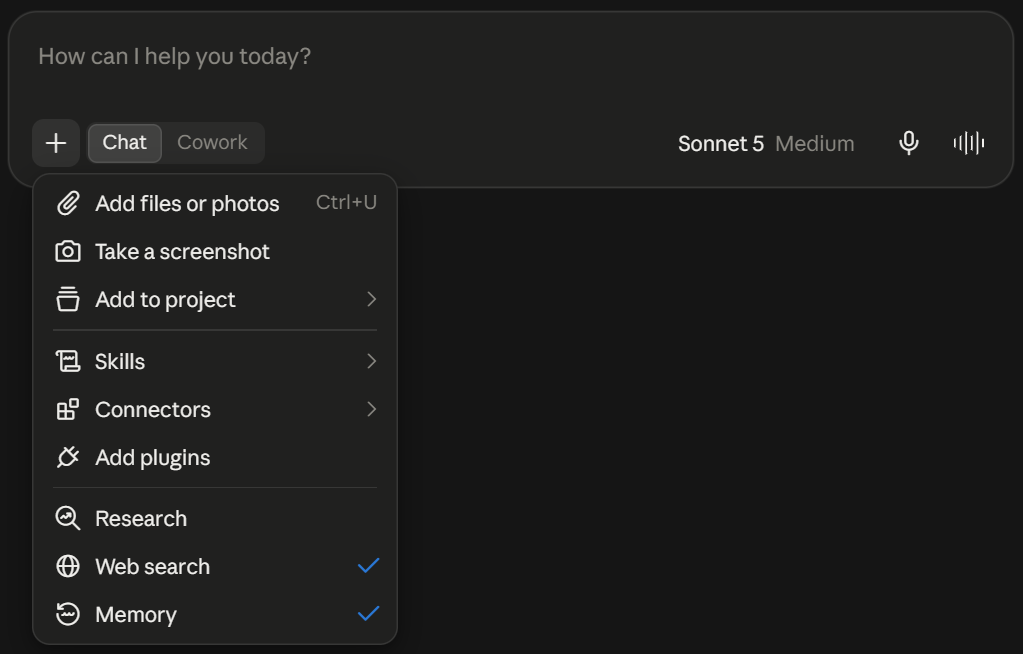
- Go to Customize > Connectors in Claude.
- Browse connectors by category or search for a specific app.
- Select the connector and review its capabilities.
- Click Connect, then complete the authentication process.
- Open a chat and click + > Connectors to enable it for that conversation.
On Claude Team and Enterprise plans, an Owner must first enable the connector for the organization. Each member then authenticates their own account unless the organization uses enterprise-managed authorization.
Adding a custom connector
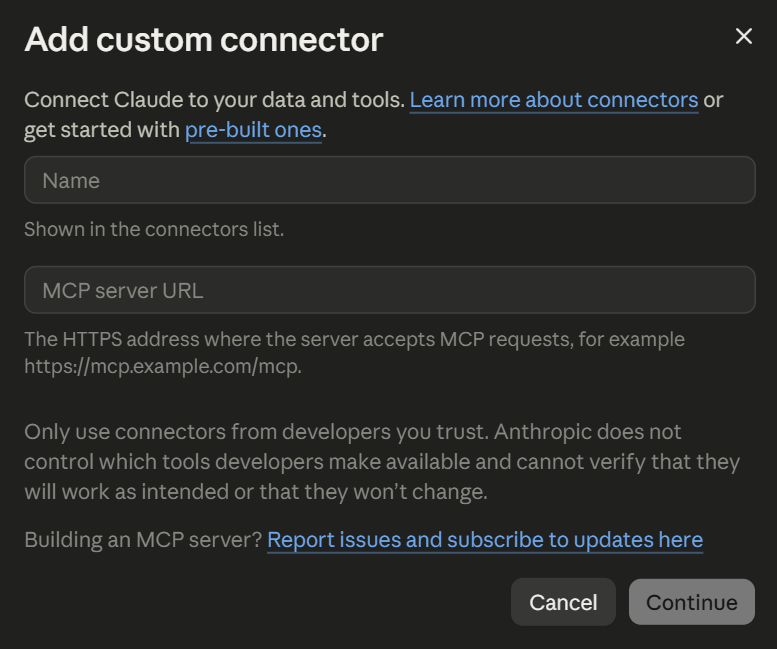
- Go to Customize > Connectors and click Add.
- Enter the connector’s name and remote MCP server URL.
- Add OAuth credentials under Advanced settings if required.
- Click Add, then complete the authentication process.
Custom connectors are available on all Claude plans, but free users can add only one. The MCP server must also be accessible through the public internet.
See How to Add a Custom Connector in Claude for a complete walkthrough.
How to Choose the Right Claude Connectors
Choose connectors based on where your team stores important context and what you want Claude to do. Start with two or three tools tied to a clear workflow.
Before connecting an app, consider:
- Available actions: Check whether the connector can only read data or can also create, update, and delete it.
- Permissions: Claude inherits your access from the connected service. It cannot retrieve information your account cannot access.
- Context quality: Organized files, tasks, and records help Claude return more relevant answers.
- Workflow value: Prioritize connectors that reduce repeated searching, data entry, or switching between apps.
Review each connector’s capabilities and requested permissions before enabling it. Then test it against one recurring workflow before adding more tools.
Go to Customize > Connectors, then browse or search for the app you want. Select it, review its permissions, click Connect, and complete authentication.
Web connectors are available on every Claude plan. However, some connected services may require their own paid subscriptions or limit certain features. Free Claude users can also add one custom connector.
As of September 2026, the Claude Connectors Directory lists more than 800 connectors. This number will change as Anthropic and third-party developers add new options.
Yes. Tactiq is a verified connector in Claude’s directory. Once connected, Claude can search your meeting transcripts, summarize conversations, and surface decisions or action items.
Related articles








Want the convenience of AI summaries?
Try Tactiq for your upcoming meeting.
Want the convenience of AI summaries?
Try Tactiq for your upcoming meeting.
Want the convenience of AI summaries?
Try Tactiq for your upcoming meeting.