
Slack MCP Server: How to Connect Claude and Share Meeting Notes
- Published:
- November 20, 2026
- Updated:
- November 20, 2026

The official Slack MCP server connects Claude to your Slack workspace. With the right permissions, Claude can search messages, read threads, and post updates in a Slack channel.
Claude can use your meeting transcript to draft a Slack update through the Tactiq connector. You can review the decisions, owners, and deadlines before asking Claude to post the update.
In this guide, you’ll learn:
- What the official Slack MCP server does and how it differs from community servers
- How to connect Slack to Claude on the web, on desktop, or in Claude Code
- How to share meeting notes and follow up on decisions in Slack with Claude
- How to troubleshoot common connection and posting issues
TL;DR: Why Use the Slack MCP Server?
The Slack MCP server helps you follow through on decisions without losing the context behind them. Claude can find what your team already discussed in Slack and use it to draft a follow-up. Add Tactiq to bring in meeting decisions and next steps that haven’t made it into Slack yet.
What Is the Slack MCP Server?
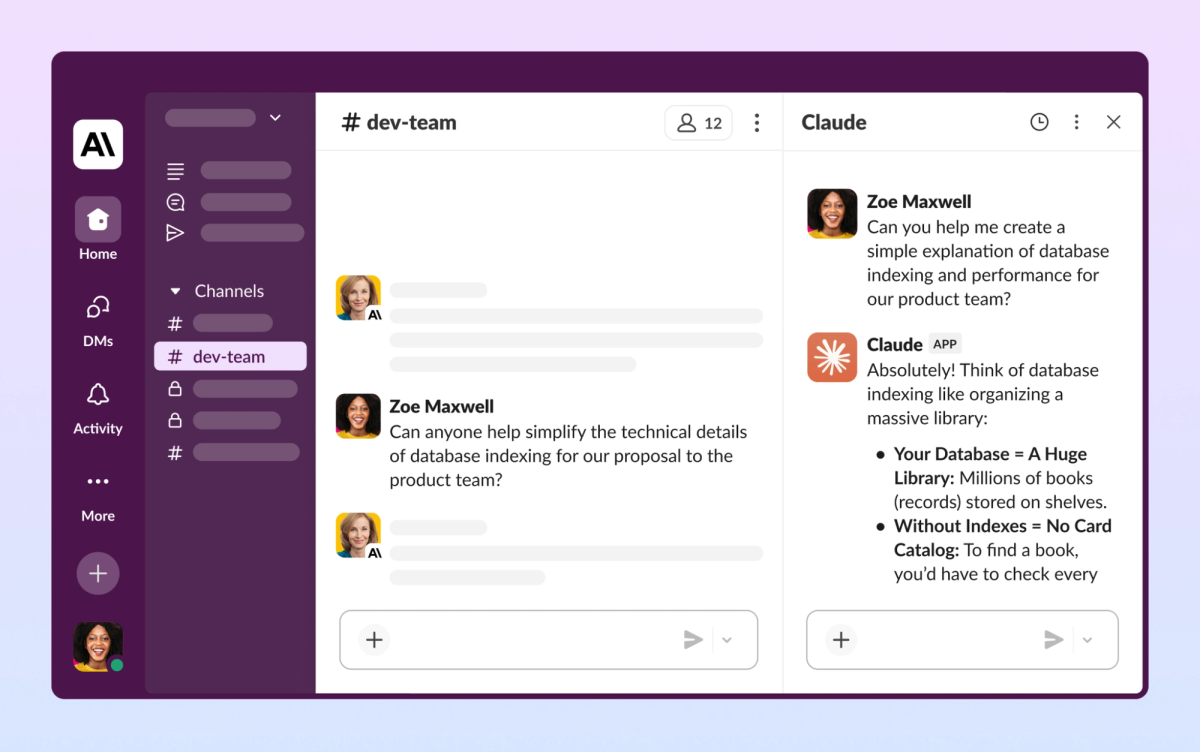
The Slack MCP server is Slack’s implementation of Model Context Protocol (MCP). MCP gives apps like Claude a standard way to use tools from other services. Claude is the MCP client, and Slack hosts the server.
Slack reports more than 200,000 paid customers. Anthropic reported serving more than 300,000 business customers in September 2025. For teams that use both tools, Slack MCP lets Claude use past Slack discussions to answer questions and share updates.
The Slack app’s OAuth scopes define what Claude can access and which actions it can take. For example, searching public channels and searching direct messages require separate permissions.
With the right permissions, the Slack MCP server lets Claude:
- Search Slack for messages, files, channels, and people.
- Retrieve channel history and read full threads for context.
- Send messages to share updates or follow up on decisions.
- Create and update Slack canvases, such as a project decision log.
Official Slack MCP server vs. community servers
For most teams using Claude, start with the official Slack MCP server. Slack hosts it, uses scoped OAuth permissions, and lets admins manage access through the workspace’s app approval process.
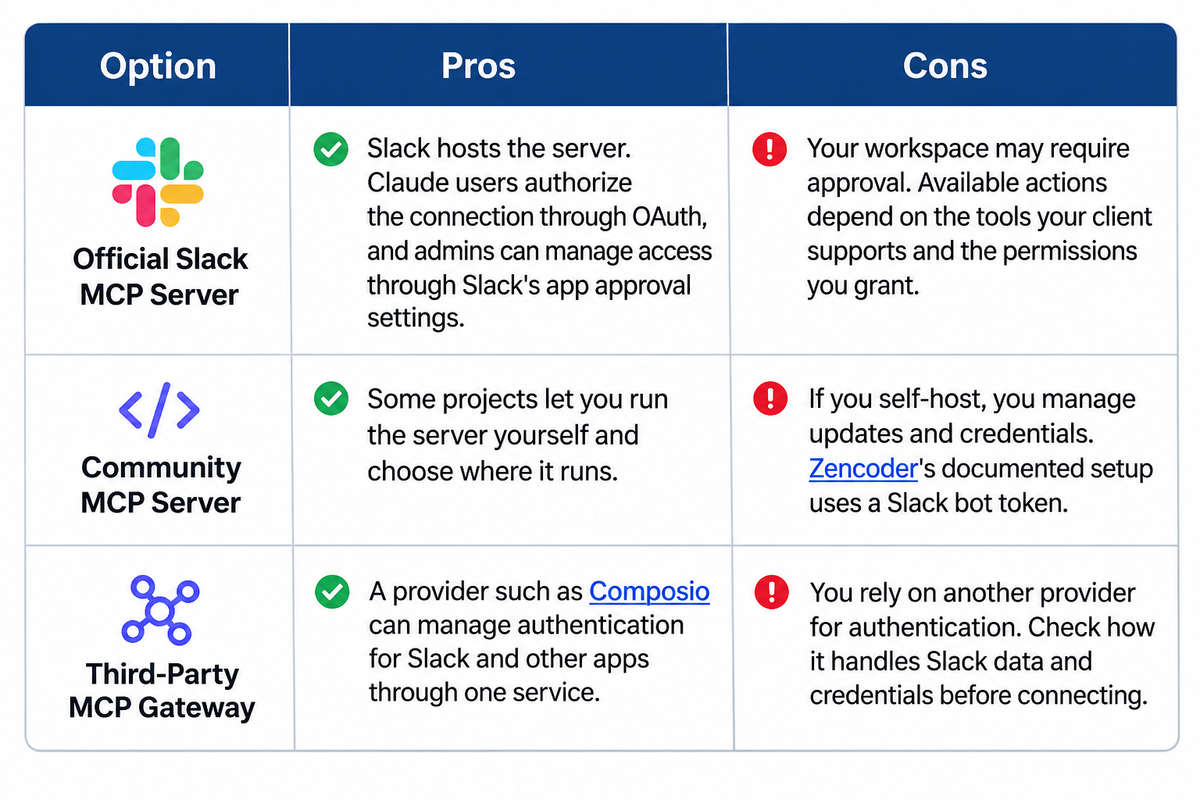
Slack’s documented controls make the official server a practical starting point. For any community server, check who hosts it, how it handles credentials, and which Slack permissions it requests.
Claude’s Slack connector vs. using Claude in Slack (Claude Tag)
Claude’s Slack connector brings Slack conversations into a Claude chat. Use it to review a project thread and draft a reply without leaving Claude.
Claude Tag lets you work with Claude directly in Slack. It replaced the earlier Claude in Slack app and is in beta for Claude Team and Enterprise plans. In a channel set up for Claude Tag, tag @Claude to ask for a summary your teammates can read in the thread.
How to Set Up the Slack MCP Server in Claude
Add the Slack connector from Claude’s directory on the web or desktop. If you work in the terminal, use Slack’s plugin for Claude Code.
Add the Claude Slack connector on the web or desktop
- Open Claude in your browser or in the desktop app. In the sidebar, select Customize, then Connectors.
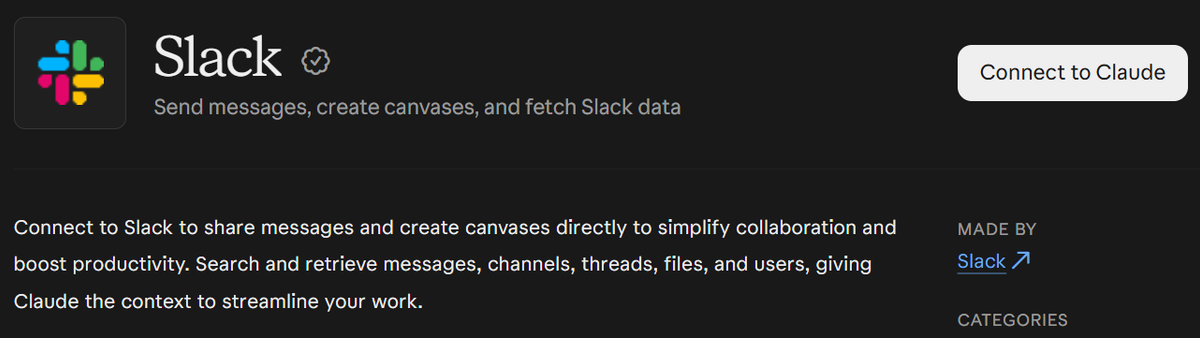
- Search for Slack, click it, and select Connect to Claude. If you see Request, use it to ask your Claude organization owner to enable the connector.
- Sign in to Slack and follow the prompts to authorize the connection.
The Slack connector is available on paid Claude plans. On Claude Team and Enterprise, an Owner or Primary Owner must enable the connector for the organization. Your Slack workspace admin may also need to approve the Slack app.
Connect Slack MCP to Claude Code
- Open a Claude Code session and add Slack’s plugin marketplace by running /plugin marketplace add slackapi/slack-skills-plugin.
- Run /plugin install slack@slack. The plugin configures the official Slack MCP server when it loads.
- Follow the prompt to sign in to Slack and authorize the connection.
Try asking Claude to find a recent discussion in a channel you can access. Searching and posting use separate OAuth scopes. Sending a Slack message requires chat:write.
How to Share Meeting Notes Using Slack MCP
Once Slack is connected to Claude, try it on a meeting follow-up. Your team might agree on a new launch date during a call, while the project channel still shows the old timeline.
In Microsoft’s 2023 Work Trend Index, 55% of respondents said next steps were unclear at the end of meetings. Sharing the decision, owner, and deadline in Slack gives everyone a place to check what happens next.
Tactiq transcribes meetings on Google Meet, Zoom, and Microsoft Teams. Connect it to Claude alongside Slack MCP to draft a recap from the transcript and share it in your project channel. Reading full transcripts through the Tactiq connector requires Tactiq Team or higher. The Slack connector needs permission to send messages.
Connect Tactiq MCP and Slack MCP in Claude
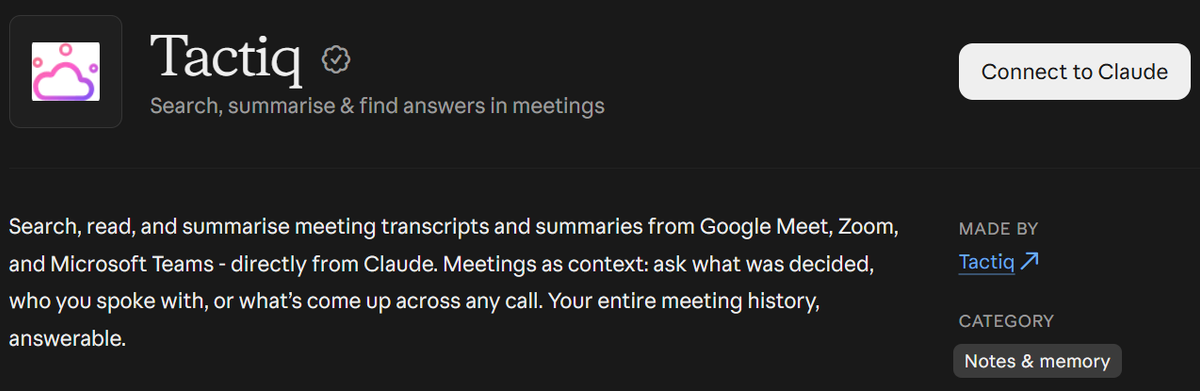
- Open Tactiq’s listing in Claude’s connector directory. Select Connect to Claude, then Allow.
- In Claude, open Customize → Connectors → Yours and confirm that Tactiq and Slack are connected.
- Start a new Claude chat. Click + at the lower left, hover over Connectors, and turn on Tactiq and Slack.
- Try the prompt below. Replace the meeting title, date, and Slack channel name with your own.

“Find the Tactiq transcript for “Website Launch Sync” on November 17, 2026. Draft a recap for #website-launch with the decisions, action items, owners, and deadlines. Flag any missing owners or deadlines. Show me the draft and wait for my approval before posting.”
Want the convenience of AI summaries?
Try Tactiq for your upcoming meeting.
Prompts to turn meeting transcripts into Slack updates
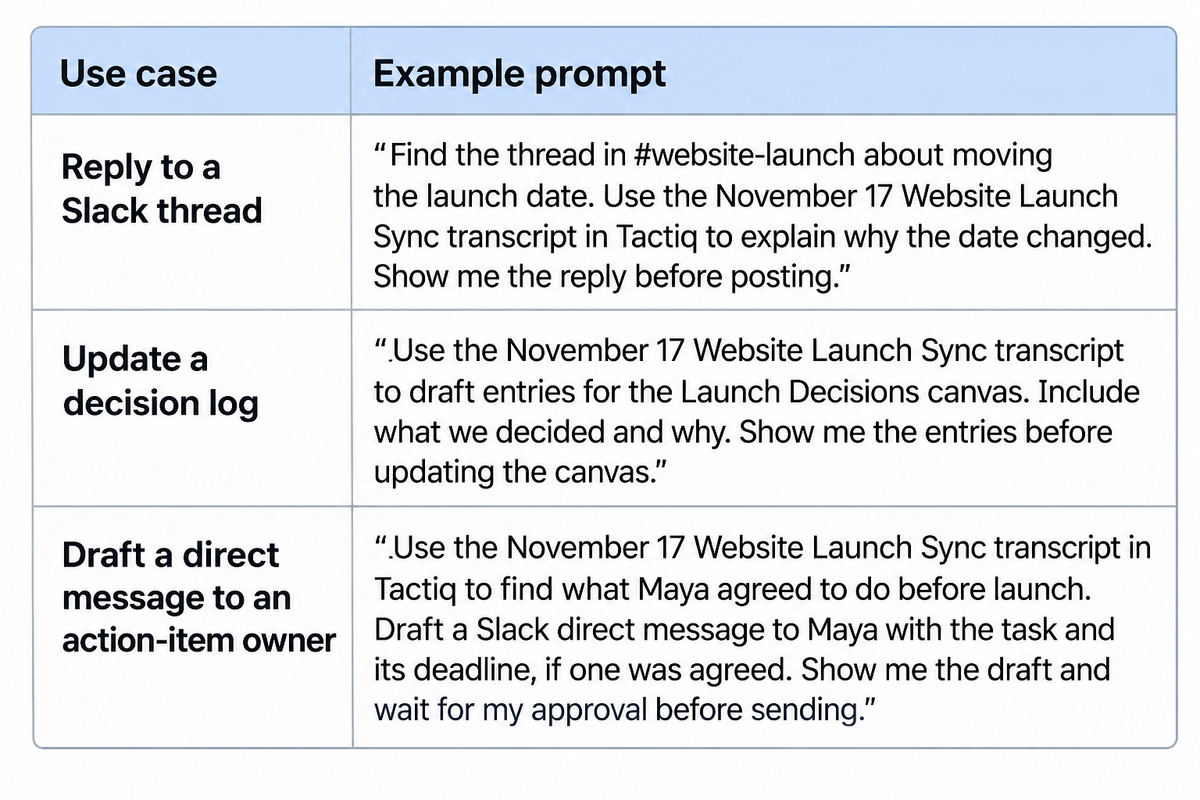
A meeting recap is a good starting point. You can also use the transcript to answer a question in a Slack thread, update a decision log, or track action items. Claude can update Slack canvases when the Slack connector has the required write permissions.
Troubleshooting the Slack MCP Server
If Claude can find a Slack thread but can’t post your reply, the connection may already be working. Searching and posting require separate permissions. Use the table below to check where you’re getting stuck, from installing the plugin to sending your first message.
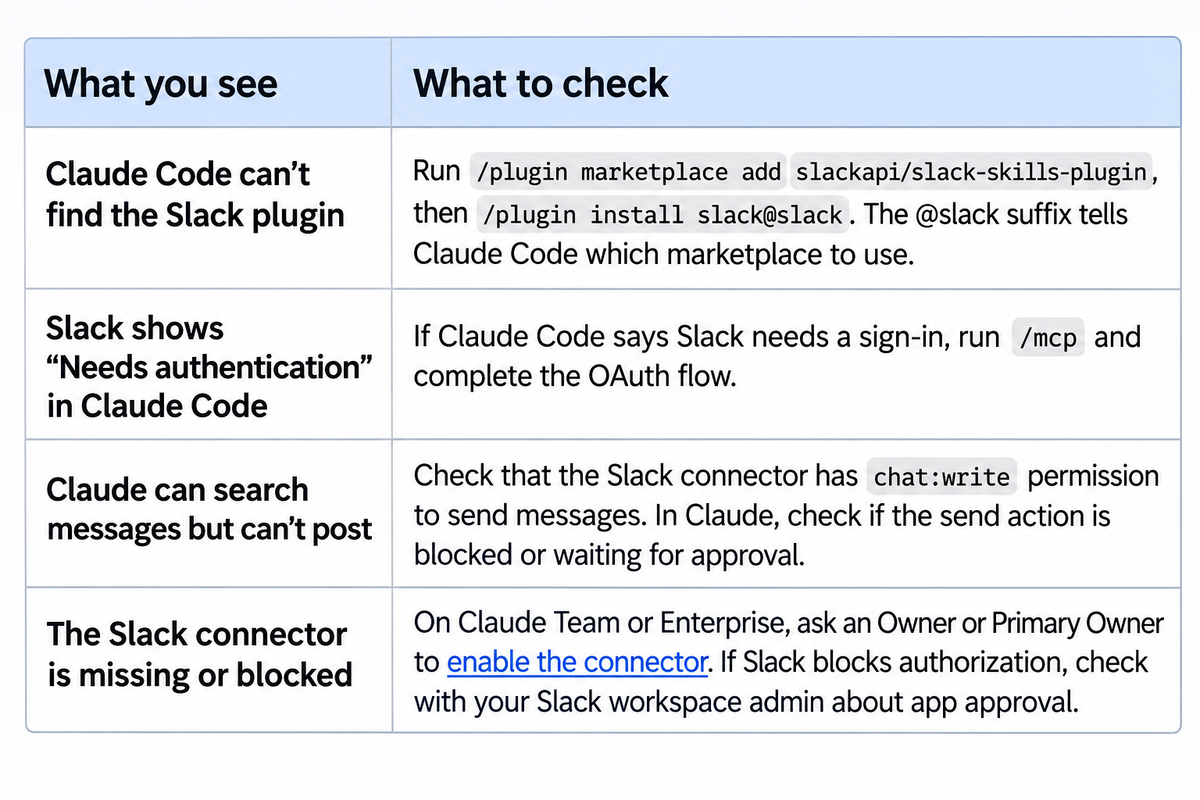
After updating permissions, retry the action that failed. If a message still won’t send, share the exact error with your admin so they can investigate.
From Meeting Decisions to Slack Updates
If you want Claude to work with your Slack conversations, start with the official Slack MCP server. Add the Slack connector from Claude’s directory on the web or desktop. If you work in the terminal, install Slack’s plugin in Claude Code. Check that Claude can find a thread you already have access to before asking it to post.
When the details you need are in a meeting transcript, connect Tactiq alongside Slack. Ask Claude to draft a channel update, answer a question in an existing thread, or update a Slack canvas. For example, if a launch date changed in a meeting, use the transcript to explain why in the project thread.
Start with one meeting and one follow-up. Check the draft against the transcript, especially who owns the next step and when it’s due. Then ask Claude to share the update in Slack so your team knows what to do next. Connect Tactiq to Claude.
FAQ
Your questions, answered.
If you have any further questions, Get in touch (opens in a new tab) with our friendly team
How do I connect Claude to Slack?
Does Slack have an official MCP server?
What is Slack MCP?
How do I set up Slack MCP in Claude Code?
How do I post meeting notes to Slack with Claude?
Related articles

Claude Skills vs MCP: What’s the Difference?

Claude Memory: How to Import and Manage Your AI Context

Claude Cowork Connectors: Automate Recurring Work

Best Claude Skills: Top Picks for Meetings, Content, and Code

AI Meeting Notetaker with Claude Connector: Top 6 Picks

Which Claude Model Is Best for Writing and Research?

What is Claude Mythos? Is It for Remote Professionals?

Is Claude Fable 5 Better Than Opus 5?
Want the convenience of AI summaries?
Try Tactiq for your upcoming meeting.
Bringing AI into your meetings has never been so easy.
Add to Chrome - It's free!(opens in a new tab)Try Tactiq in your upcoming meeting!
Sign up now