
Claude Cowork Connectors: Automate Recurring Work
October 21, 2026
October 21, 2026
October 21, 2026
October 21, 2026

Claude Cowork connectors give Claude access to connected apps for multi-step work. Add scheduled tasks, and Claude can prepare recurring reports or briefings without a fresh prompt each time. Approval settings determine when it needs your input.
Anthropic is merging Cowork and chat into one Claude experience, so your interface may look different. Existing connectors carry over into that experience.
This guide covers:
- How Claude connectors work in Cowork
- How to connect apps and manage permissions
- How to schedule recurring work
- How to use Tactiq meeting transcripts in five practical workflows
How to Create Scheduled Tasks with Claude Cowork Connectors
Start with the work you want finished. For example, you might want Claude to prepare a weekly project report and save it in Notion.
1. Describe the task, timing, and output. Open a conversation in Claude Desktop or the web. Specify the information to use, when the task should run, and where the result should go. Select Cowork if your message box still shows separate Chat and Cowork options.
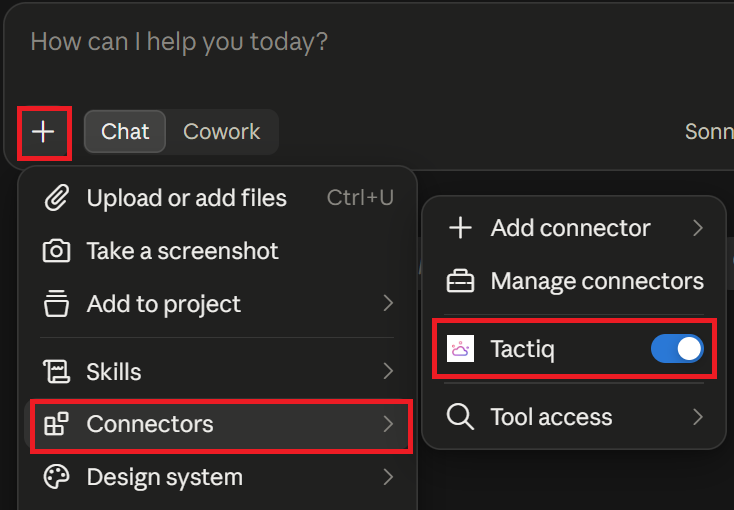
2. Connect the required services. This example needs Notion for the report and Google Drive for project documents. Open + > Connectors in the conversation. If Manage connectors appears, select it, then click + to browse. If that option is absent, open Customize > Connectors and click +. Select each service, review its capabilities, and click Connect or Install to authorize access.
3. Enable the connectors for your task. Return to the conversation and open + > Connectors. Toggle on Notion and Google Drive so Claude can use them. On Team and Enterprise plans, an Owner must first enable these connectors for the organization.
4. Choose an approval mode in the message box. Open the mode selector and choose Manual or Auto. Manual asks you before using tools marked Needs approval. Auto reviews actions automatically, allowing work to continue with fewer interruptions. It may still pause for your input, and blocked tools remain unavailable. Organization policies can restrict these options.
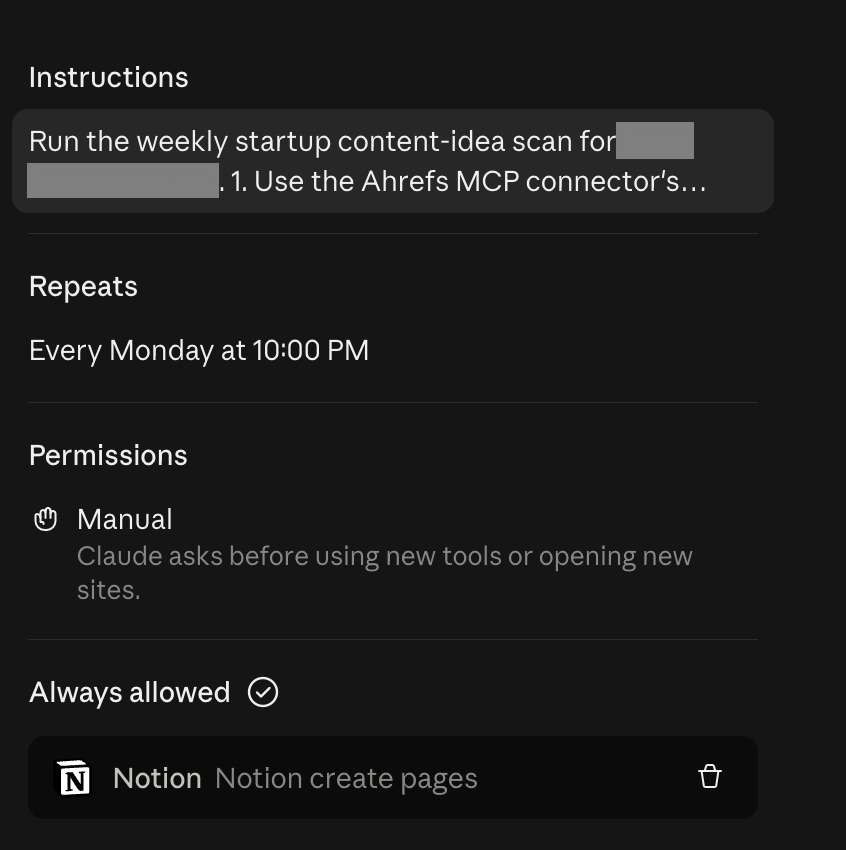
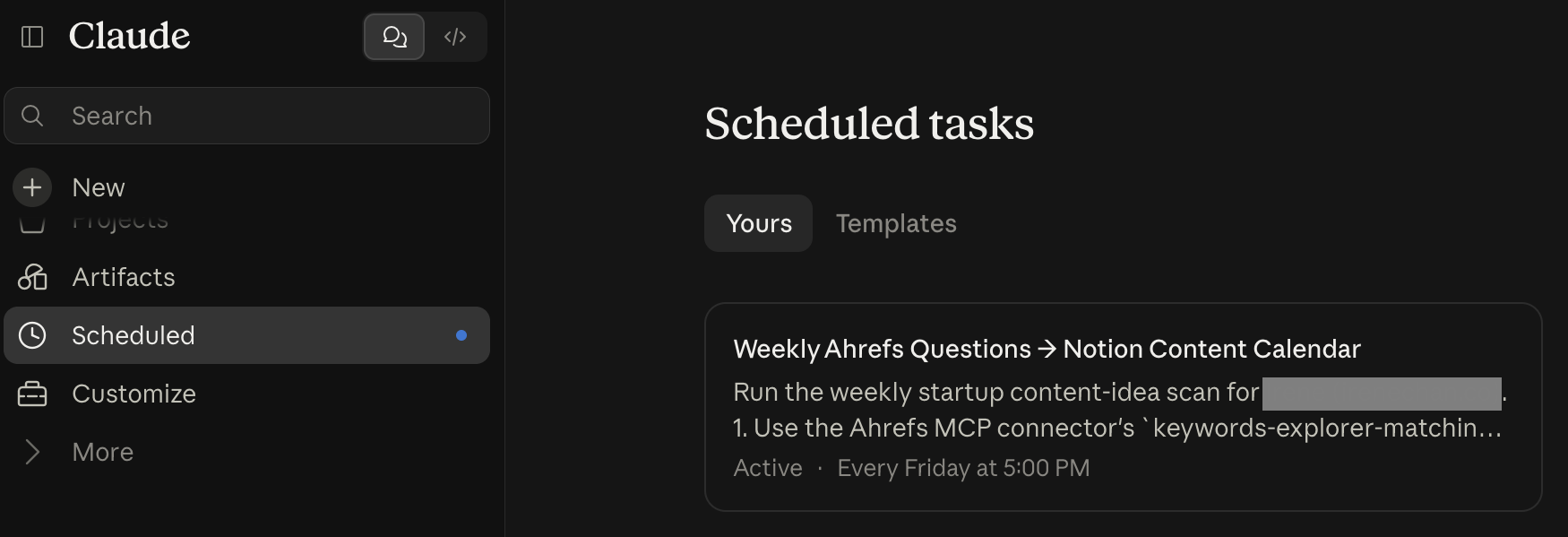
5. Confirm the recurring schedule. In the unified experience, review Claude’s proposed task instructions and timing, then click Schedule. In the separate Cowork interface, open Scheduled > New task > Create with Claude and describe the workflow. Review the proposed task and click Schedule.
💡 Pro tip: Project updates don’t always explain why a deadline changed or a priority shifted. Tactiq captures meeting transcripts, giving Claude that discussion context for your weekly report. Reading transcripts requires Tactiq Team or higher.
Explore our guide to the best connectors for Claude for services that fit your workflow.
Claude Chat vs. Claude Cowork: What’s changing?
Previously, users selected Chat or Cowork before starting. Anthropic is merging them, letting Claude decide how to handle each request.
In the unified experience:
- You ask questions and delegate longer tasks in the same conversation.
- Claude uses your existing context, skills, and connectors.
- You no longer need to select Cowork before handing over a task.
The rollout began with Pro and Max plans. Some accounts still show separate Chat and Cowork options, so your interface may differ. Once you create a scheduled task, it appears under Scheduled in the sidebar, where you can review runs and manage it.
How to Add Connectors to Claude Cowork
Start with the apps needed for one workflow. For a weekly project report, connect your document storage and project management tool first.
From the connectors directory

You can connect Claude to directory apps through Claude Desktop or the web. Follow these steps:
- Open Customize > Connectors.
- Browse connectors and select the app you need.
- Review its description and supported capabilities.
- Click Connect or Install, then follow the authentication prompts.
- Review the requested access and configure permissions as needed.
To enable the connection for a conversation, open + > Connectors and toggle the service on.
On Claude Team and Enterprise plans, an Owner or Primary Owner must first enable the connector for the organization. Members then authenticate individually, unless the organization uses enterprise-managed authentication.
For services outside the directory, custom connectors let you connect a remote Model Context Protocol (MCP) server through Customize > Connectors.
Connector permissions and approval modes
Before Claude sends a message or updates a ticket, decide which actions need your review.
Open Customize > Connectors, select a service, and check its Tool permissions:

- Always allow: Give standing permission, subject to approval mode and organization policies.
- Needs approval: Claude asks you before using the tool in Manual mode. In Auto mode, Claude may approve it automatically.
- Blocked: Prevent the tool from running in any mode.
The task’s approval mode controls how Claude proceeds:
- Manual: Asks before using tools marked Needs approval.
- Auto: Reviews actions automatically and decides which can proceed.
- Skip: Uses unblocked tools without asking or automatically reviewing actions.
The unified experience offers Manual and Auto in the message box. Organization policies may restrict your options. For write actions requiring your sign-off, use Needs approval with Manual mode.
Turning Connectors Into Recurring Work With Cowork Scheduled Tasks
Once Claude can retrieve the right information, a schedule saves you from requesting the same report every week. Connectors supply the data; the schedule supplies the trigger.
Scheduled tasks save your instructions and run them repeatedly. They can use your configured connectors, skills, and plugins.
Key details to know:
- Plan access: Scheduling requires Claude Pro, Max, Team, or an Enterprise plan.
- Cadence: Manual setup offers hourly, daily, weekly, weekday, or on-demand runs.
- Remote runs: Cloud tasks can run while your computer sleeps or Claude Desktop is closed.
- Local exception: Tasks requiring local files or apps run locally.
- Trigger: Recurring runs follow a time-based schedule. They don’t automatically start when a meeting ends.
For example, request a Friday report using the previous seven days of project information. Specify the sources, reporting period, and output format so Claude gathers relevant context.
In the unified experience, describe the task and cadence in any conversation. Review Claude’s proposed instructions and click Schedule.
If you still use the separate Cowork interface, open Scheduled > New task > Create with Claude. You can review past runs, edit instructions, or pause the schedule from Scheduled.
How to Connect Tactiq MCP to Claude Cowork
A weekly meeting report needs the discussions behind the updates. Tactiq transcribes Google Meet, Zoom, and Microsoft Teams meetings. Its MCP server makes that meeting context available to Claude.
First, install the Tactiq Chrome extension and sign in. Capture a meeting, then connect Tactiq to Claude.
You can connect through the directory without entering a server URL:
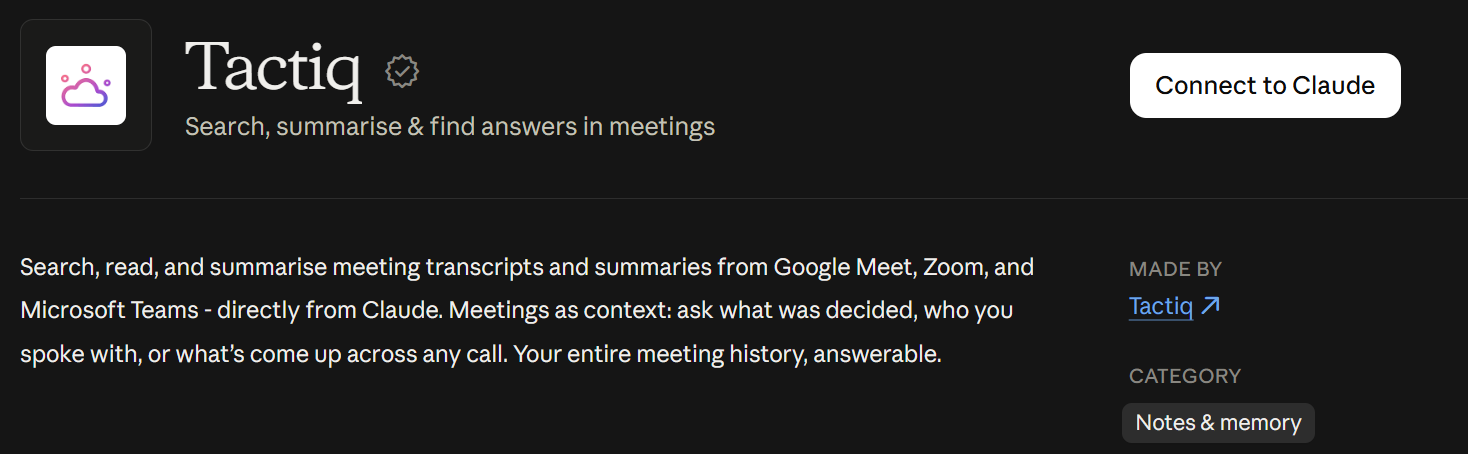
- Open Customize > Connectors in Claude and find Tactiq.
- Select Tactiq and click Connect or Install.
- Review the permissions on Tactiq’s authorization screen, then click Allow.
For team-wide setup on Claude Team or Enterprise:
- An Owner opens Organization settings > Connectors > Browse connectors.
- They select Tactiq and click Add to your team.
- Each member opens Customize > Connectors and connects their own Tactiq account.
{{rt_cta_ai-convenience}}
What your Tactiq plan lets Claude access
- Free or Pro: Search and list meetings.
- Team or higher: Also read meeting details, summaries, and full transcripts.
The transcript-based workflows below require Tactiq Team or higher, with the relevant reading permissions approved.
If you upgraded after connecting, reconnect Tactiq to authorize the additional permissions. A newly ended call’s summary may still be generating, so allow time before requesting it.
5 Recurring Cowork Tasks That Turn Meeting Transcripts Into Action
Connect Tactiq with the destination tools below, then test each workflow before scheduling it. These examples require Tactiq Team or higher and a paid Claude plan.
Friday action-item roll-up to Slack (Tactiq + Slack)
Commitments can get scattered across several calls. Connect Tactiq and Slack, then schedule Claude to:
- Review the week’s relevant meetings.
- Group action items by owner, including stated deadlines and links to sources.
- Prepare a Slack update and send it when permissions allow.
Ask Claude to flag missing details and leave completion status unconfirmed unless the sources explicitly state it.
Monday 1:1 prep brief (Tactiq + Google Calendar)
Your calendar shows who you’re meeting, but not what needs revisiting. Connect Tactiq and Google Calendar, then schedule Claude to:
- Find the week’s 1:1s.
- Retrieve previous Tactiq meetings with those attendees.
- Summarize prior commitments and suggest discussion points.
Daily standup digest into Linear or Jira tickets (Tactiq + Linear/Jira)
Standup discussions don’t always reach your issue tracker. Connect Tactiq and Linear or Jira, then schedule Claude to:
- Find today’s standup transcript; skip the task if unavailable.
- Search for related issues before proposing tickets or updates.
- Include supporting meeting links and flag missing owners or deadlines.
Set write tools to Needs approval and use Manual mode to review changes.
Weekly customer-call themes to HubSpot or Notion (Tactiq + HubSpot/Notion)
Individual call summaries can hide recurring customer concerns. Connect Tactiq and HubSpot or Notion, then schedule Claude to:
- Review the week’s customer calls and group repeated themes.
- Include supporting examples and source links.
- Create a Notion report or propose updates to matching HubSpot records.
Specify the destination page or CRM fields before allowing writes.
Monthly decision log in Google Drive (Tactiq + Drive)
Decisions can get lost across a month of meetings. Connect Tactiq and Google Drive, then schedule a weekly task to:
- Check a specified folder for the previous month’s decision log.
- If missing, compile that month’s decisions, dates, stated rationale, and source links.
- Upload the log when permissions allow; otherwise, ask for approval before uploading.
Specify the project and filename format so Claude can check for an existing log.
Put Your Meeting Context to Work Every Week
Start with one recurring output you already prepare, such as a Friday update or Monday meeting brief. Connect the relevant sources, define the reporting period, and test the results before scheduling it. Keep approval controls on actions you want to review.
For meeting-based workflows, install the Tactiq Chrome extension to capture conversations. Then connect Tactiq to Claude so those discussions can inform your next report, preparation brief, or decision log.
No. Cowork uses Claude’s existing connectors. Connect services through Customize > Connectors, then enable the ones you need for your task. Existing connectors also carry over into the unified Claude experience.
Web connectors are available on all Claude plans, but Cowork and scheduled tasks require a paid plan. Connected services may charge separately. Free Claude users can add one custom connector.
Yes. Scheduled tasks can use your configured connectors, skills, and plugins. They run at the selected cadence, subject to permissions. Tasks requiring local files or apps run locally.
Connectors give Claude access to external services and their tools. Plugins bundle connectors, skills, and sub-agents to customize how Claude handles particular work.
Yes. Claude can use your transcripts in scheduled workflows. Connect Tactiq and schedule Claude to use meeting content for recurring reports, briefs, or proposed tickets. Reading transcripts requires Tactiq Team or higher; scheduling requires a paid Claude plan.
Related articles








Want the convenience of AI summaries?
Try Tactiq for your upcoming meeting.
Want the convenience of AI summaries?
Try Tactiq for your upcoming meeting.
Want the convenience of AI summaries?
Try Tactiq for your upcoming meeting.