
Claude Memory: How to Import and Manage Your AI Context
October 23, 2026
October 23, 2026
October 23, 2026
October 23, 2026

Switching AI tools means starting over. ChatGPT or Gemini may already know your preferences, writing style, and projects, but Claude doesn't automatically inherit that context.
Claude memory import helps you bring that context into Claude without rebuilding your profile from scratch. Claude extracts relevant details from your exported memory, but it doesn't import your entire conversation history or meeting records.
In this guide, you'll learn:
- What Claude memory saves between conversations and how to manage it
- How to import memory from ChatGPT, Gemini, and other AI tools
- How to give Claude access to your actual meeting history
What Claude Memory Import Does (and What Claude Memory Keeps)
Claude can build memory from your conversations or import existing context from another AI tool. These features work differently, so it's worth understanding what each one saves.
What Claude AI's memory saves between chats
Claude organizes useful information into memory topics as you chat, rather than summarizing every conversation afterward. According to Anthropic's memory documentation, this can include:
- Your job, ongoing projects, and professional context
- People and places relevant to your work and life
- Communication preferences, including tone and writing style
- Technical preferences, including coding style
For example, if you regularly ask Claude to draft project updates, it may remember your preferred format and reporting style. You can also explicitly ask Claude to remember something.
Claude can also search your previous chats on supported plans. Unlike memory, chat search retrieves details from earlier conversations instead of relying on saved context.
Claude also maintains project-specific memory. It can use your general memory within projects, while keeping each project's context separate from other projects. You can learn more in our ChatGPT Project vs. Claude Project comparison.
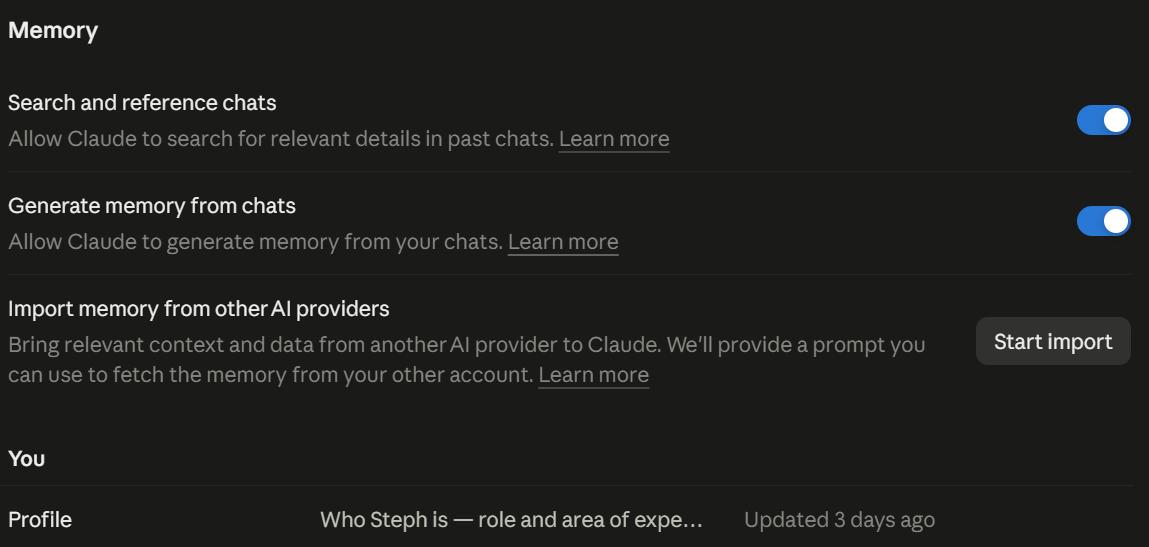
You also control what Claude remembers:
- Review or edit memory: Open Settings → Memory to review saved entries. Select an entry to edit or delete it.
- Pause memory: In Settings → Memory, turn off Generate memory from chats, then choose Pause memory. Existing memories remain saved, but Claude stops using or creating them.
- Reset memory: Turn off the same setting, then select Reset memory to delete saved memories, including project memories permanently.
- Use Claude incognito chat: Start a new chat outside a project and click the ghost icon in the upper-right corner. Incognito chats won't use existing memory or appear in your normal chat history.
You can also disable memory for a single conversation. For example, you might brainstorm a temporary project without affecting the context Claude remembers about your ongoing work. Open a new chat, click the + menu, and turn off Memory before sending your first message.
Claude won't use your existing memories, search previous chats, or save new memories from that conversation. However, the chat remains in your history and can still appear in future chat searches.
If you don't want a conversation saved to your history or included in future searches, use an incognito chat instead.
What a memory import brings over, and what it leaves behind
Claude memory import transfers stored context from ChatGPT, Gemini, or other AI assistants. This can include writing preferences, custom instructions, ongoing projects, and other context relevant to your work.
However, it doesn't migrate your complete conversation history, files, or meeting transcripts. Claude extracts relevant information from the exported text, so some details may be missing.
💡 Pro tip: Claude memory import transfers what your previous AI knew about you, not what happened during your meetings. Connect Tactiq to Claude to search actual meeting transcripts and action items, so you can retrieve decisions without relying on saved memories.
How to Import Memory Into Claude From AI Tools
Importing memory into Claude takes three steps: export your existing AI memory, paste it into Claude, and review what Claude saves.
Step 1: Export your memory from your current AI tool
Open ChatGPT, Gemini, or another AI tool and start a new conversation.
Copy Anthropic's recommended export prompt (under Step 1) and paste it into the chat. The prompt asks your AI tool to:
- Extract stored memories, preferences, and projects.
- Include custom instructions, corrections, and other stored context.
- Preserve your words verbatim where possible.
- Organize everything into a single code block, including the date saved when available.
- Include all available memories and other stored context without summarizing, grouping, or omitting entries. Confirm whether the export is complete.
Review the generated output and remove sensitive information before importing it into Claude.
Step 2: Start the import in Claude
After you copy your exported memory, open Claude and sign in.
1. Go to Settings → Memory and select Start import. If you use the legacy interface, find Memory under Settings → Capabilities.

2. Claude displays Anthropic's recommended export prompt and a text box. Paste your exported memory into the box.
3. Check the pasted text before proceeding.
Step 3: Add to memory and confirm the import worked
After you review the exported text, click Add to memory. Claude extracts key information and saves it as individual memory entries.
After the import, click See what Claude learned about you. This opens a new chat with the prompt: "I updated my memory. What did you learn about me?"
If something looks wrong:
- Missing details: Ask Claude to remember the information or add it through Settings → Memory.
- Incorrect information: Tell Claude what to change or remove.
- Incomplete import: Check your exported text and try importing again.
Anthropic notes that memory imports are experimental, so some information may not be retained. You can also save your original export as a backup.
Use Tactiq to Give Claude Memory of Your Meetings
Claude might remember that you run a Monday standup, but it won't automatically know what your team decided during the call.
That's the difference between saved memory and meeting history. With Tactiq's Claude connector, Claude can search actual meeting transcripts and action items instead of relying on stored context.
Tactiq transcribes Google Meet, Zoom, and Microsoft Teams meetings through its Chrome extension. You can then access those meetings in Claude using the Model Context Protocol (MCP).
How to connect Tactiq to Claude
1. Install Tactiq. Visit the Tactiq Chrome extension page, install the extension, and sign in or create an account.
2. Capture your meetings. Join a Google Meet, Zoom, or Microsoft Teams meeting in a supported browser. Tactiq transcribes the conversation and saves the transcript to your account.
3. Connect Tactiq to Claude. Open the Claude Connectors Directory, search for Tactiq, and click Connect to Claude.

4. Authorize access. Sign in to Tactiq if prompted, then click Allow to authorize the connection.
5. Use the connector. Open a Claude chat, enable the Tactiq connector if needed, and ask Claude to find your meetings.
If you already have meeting transcripts saved in Tactiq, you can skip the installation and capture steps.
Plan requirements: Tactiq Free and Pro accounts can search and list meetings. Accessing meeting summaries, details, and full transcripts through Claude requires Tactiq Team or higher.
{{rt_cta_ai-convenience}}
What can you ask Claude about your meetings?
Once connected, try these prompts:
- "Find my project standup meetings from last week."
- "Summarize the decisions from Monday's standup and list action items with their owners."
The second prompt requires access to meeting content through a supported Tactiq plan. For more examples, see our guide to using MCP with meeting notes.
Claude's memory helps it understand how you work. Tactiq gives it access to what your team actually discussed.
Connect Tactiq to Claude to make your meeting history searchable.
Make Claude Memory More Useful
Claude memory helps you carry useful context between conversations, while memory import makes switching from ChatGPT or Gemini easier. You can also review what Claude remembers, manage saved information, or use incognito chats when you don't want a conversation added to memory.
However, memory isn't a complete record of your work. It can remember your preferences and projects, but it won't automatically know what happened in your meetings.
With Tactiq's Claude connector, you can give Claude access to your actual meeting history. Instead of relying on a saved summary, you can retrieve past discussions, decisions, and action items when you need them.
Copy Anthropic's memory export prompt into ChatGPT, Gemini, or another AI tool. Then open Claude → Settings → Memory → Start import, paste the exported text, and click Add to memory.
Anthropic's memory import feature is available to free and paid Claude users. However, memory features and usage limits vary by plan.
You can use the import process with ChatGPT, Gemini, and other AI tools. However, Anthropic doesn't explicitly guarantee how multiple imports are combined. Review your saved memory content after each import to check for missing or conflicting information.
No. Claude incognito chats don't use existing memories or add new information to memory. They also don't appear in your normal chat history.
Claude memory doesn't automatically retain meeting transcripts. With Tactiq's Claude connector, Claude can search your saved meetings and retrieve summaries or action items, depending on your Tactiq plan.
Related articles








Want the convenience of AI summaries?
Try Tactiq for your upcoming meeting.
Want the convenience of AI summaries?
Try Tactiq for your upcoming meeting.
Want the convenience of AI summaries?
Try Tactiq for your upcoming meeting.