
What Is A Claude Connector?
May 14, 2026
May 14, 2026
October 14, 2026
October 14, 2026

Claude is a capable AI, but out of the box, it only knows what you tell it. Every conversation starts fresh, with no connection to your actual work: no files, no tasks, no messages, no data from the tools your team uses every day.
That changes with Claude connectors. Connectors link Claude directly to your apps and services, so you can ask Claude to search your Google Drive, create a Linear issue, or pull data from Slack without leaving the chat interface or copying anything manually.
This guide covers:
- What Claude connectors are and how they work
- The role of MCP (Model Context Protocol) in making them possible
- How to find, connect, and manage connectors
- The difference between standard and interactive connectors
- How to bring your meeting transcripts into Claude using Tactiq
What Is a Claude Connector?
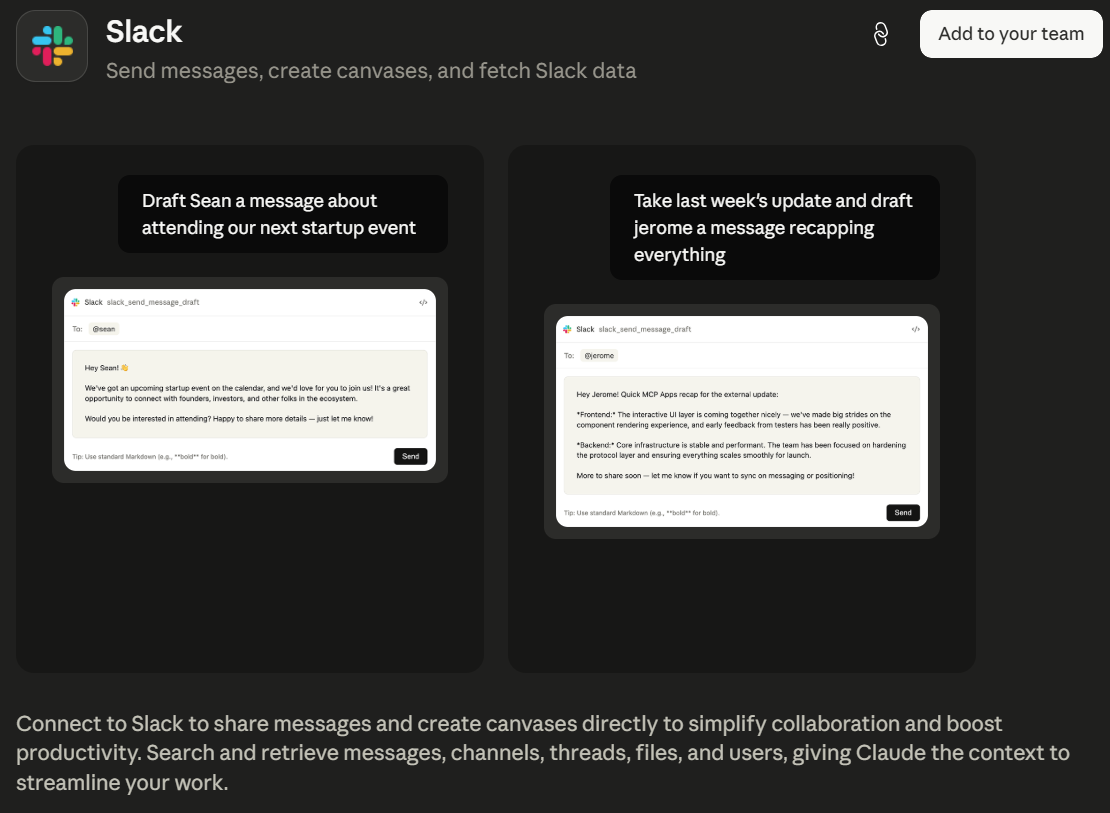
A Claude connector is a bridge between Claude and an external app or service. Once connected, Claude can access that service's data and take actions within it, all from your chat interface. It inherits your permissions from the connected service, so Claude can only see and do what you already can.
Here's what that looks like in practice:
- Connect Slack → ask Claude to send a message or summarize a channel
- Connect Google Drive → ask Claude to search files or summarize documents
- Connect Linear → ask Claude to create issues or check project status
- Connect Asana → ask Claude to update tasks or surface what's overdue
- Connect GitHub → ask Claude to review pull requests or search your codebase
The difference this makes is significant. Instead of copying data into Claude's chat and explaining the context every time, you ask Claude to retrieve the actual data directly. Claude becomes context-aware rather than context-blind.
💡 Pro tip: Skip the copy-paste. Connect Tactiq's MCP to Claude and ask it directly for a summary of your last meeting; no manual transcript transfer needed.
How Claude Connectors Work
Claude doesn't connect to external apps through traditional integrations or API keys you configure yourself. The whole system runs on a single open standard called MCP.
The role of MCP (Model Context Protocol)
MCP stands for Model Context Protocol. It's an open standard created by Anthropic. It gives AI applications a universal way to connect to external tools and data sources. Before MCP, every integration required its own custom implementation. MCP replaces that with one consistent protocol.
Here's how it works in practice:
- When you connect a service, that service runs an MCP server (either hosted remotely in the cloud or locally on your computer)
- During a conversation, Claude calls tools from that MCP server to retrieve data, create records, or take actions on your behalf
- Claude brings connected services into the conversation automatically when relevant; you don't have to prompt it every time
- MCP works across Claude on the web, Claude Desktop, Claude Code, and the API
- Because MCP is an open standard, other AI tools can build on it too, not just Claude
Remote connectors vs. desktop extensions
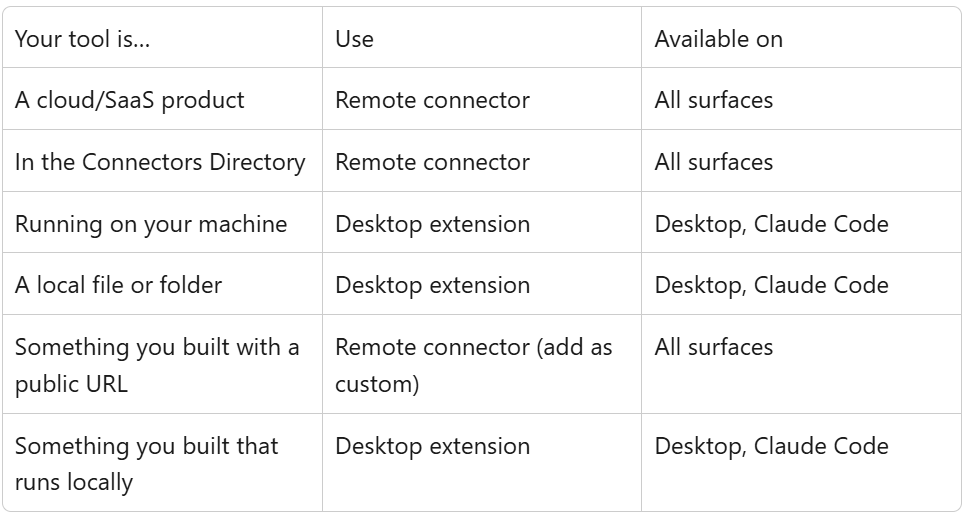
Not all connectors work the same way, and the distinction matters depending on your setup.
Remote connectors are the default. They connect Claude to cloud-based services like Slack, Notion, Google Drive, GitHub, Stripe, and others in the Connectors Directory:
- Work across every Claude surface: web, mobile, Claude Desktop, Cowork, and Claude Code
- Connect once on the web or desktop, and they're available on mobile automatically
- Right choice for most users and most workflows
Desktop extensions work differently. They run locally on your machine:
- Give Claude access to things that don't live in the cloud, like local files, databases on localhost, and desktop applications
- Only available in Claude Desktop and Claude Code, not on web or mobile
- Installed through Claude Desktop under Settings > Extensions
If you use Claude Desktop for agentic tasks like file management and automation, the guide to the Claude Cowork Chrome extension covers how desktop and browser-based workflows seamlessly fit together.
Some connectors carry an Interactive badge in the Connectors Directory. These render live interfaces directly inside your Claude conversation: dashboards, task boards, and design tools you can act on without leaving the chat.
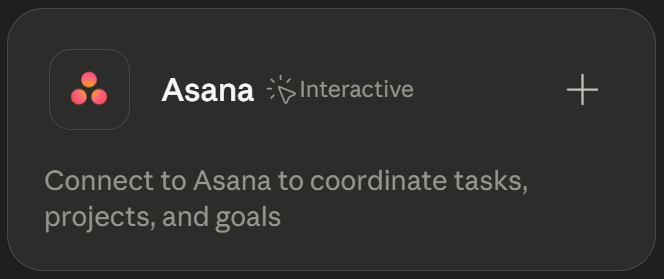
Ask Claude about your project status, and instead of a text description, it opens your Asana board right in the conversation. Standard connectors return data as text; interactive connectors let you work with that data in place.
How to Set Up a Claude Connector
Getting connected takes a few minutes. The setup process differs slightly depending on your plan and whether you're adding a directory connector or a custom one.
Using the Connectors Directory
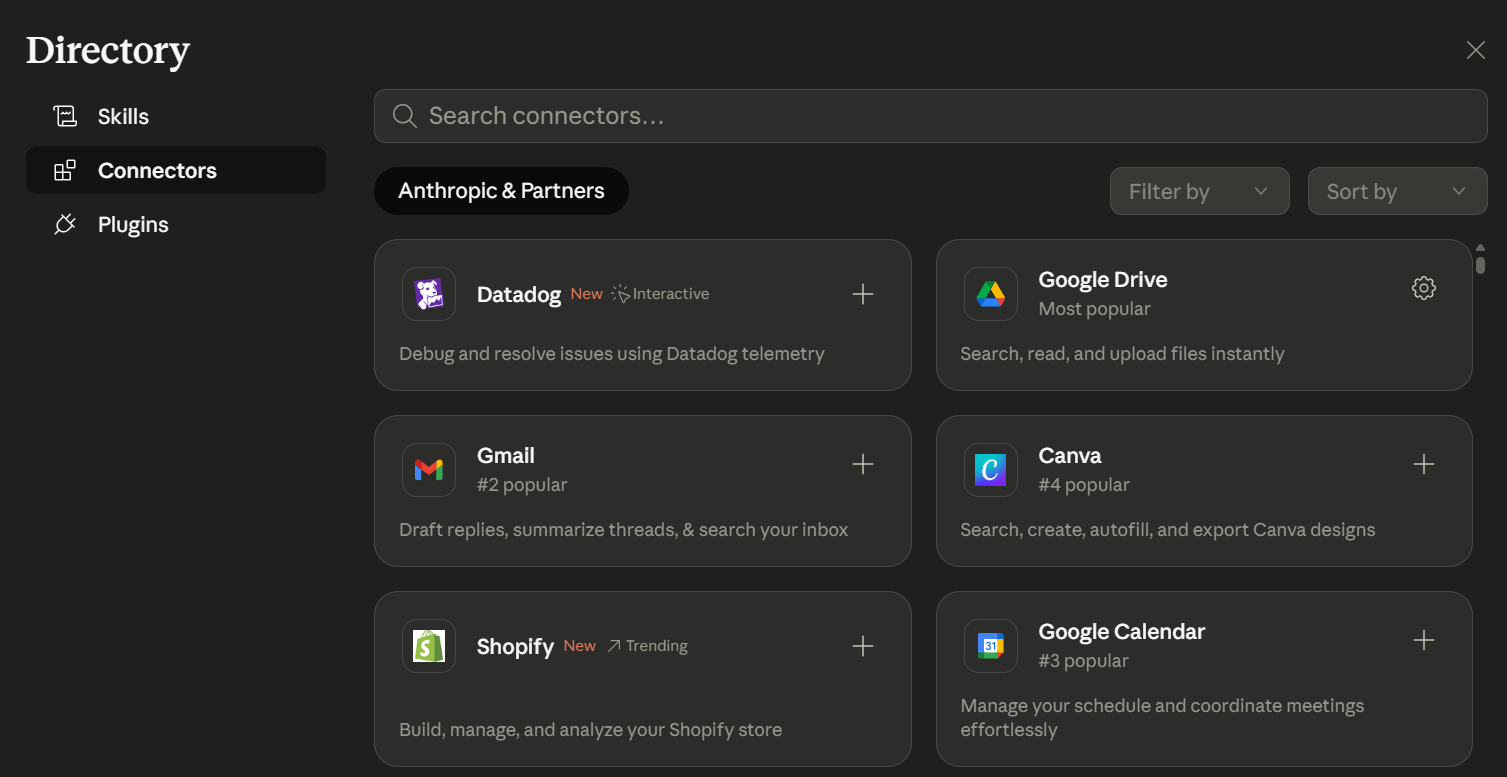
The Connectors Directory lives at claude.ai/connectors. You can browse it from two places.
From a chat: Click "+" in the lower left of your chat interface (or type "/"), then click "Add connectors.”
From settings: Navigate to Customize > Connectors and click "+" next to Connectors.
Once you find the connector you want:
- Click it to review its description and read/write capabilities.
- Click "Connect" or "Add" to begin setup.
- Follow the authentication prompts to grant Claude access to your account.
- Configure any specific settings or permissions as needed.
On Team and Enterprise plans, an Owner must enable a connector at the org level first. Members then authenticate individually; enabling a connector for the org doesn't automatically grant anyone access.
Adding a Custom Connector

Custom connectors let you connect Claude to tools not in the directory: internal databases, proprietary systems, or any service running its own MCP server. They're available on all plans. Free users are limited to one custom connector.
For Pro and Max users:
- Navigate to Customize > Connectors.
- Click "+" then "Add custom connector."
- Enter the connector's name and remote MCP server URL.
- Optionally, click "Advanced settings" to add an OAuth Client ID and secret.
- Click "Add," then authenticate as you would with any directory connector.
For Team and Enterprise plans, an Owner adds the custom connector via Settings > Organization settings > Connectors first. Members connect their accounts once it's enabled.
Note that Claude connects to your MCP server from Anthropic's cloud, not your local device. If your server is behind a corporate firewall, you'll need to allowlist Anthropic's IP ranges.
For more info on how to add custom connectors, check out this guide: How to Add a Custom Connector in Claude.
Managing Permissions
Once a connector is active, you control what it can do via Customize > Connectors. Select any connector to see its Tool permissions. You can disconnect any connector by selecting “Disconnect” on the upper right.
On Team and Enterprise plans, Owners set org-wide restrictions for each permission:
- Always allow - Claude acts without asking
- Needs approval - Claude asks before acting
- Blocked - Claude cannot perform this action
Common examples: allow Claude to read Google Drive files but block it from creating documents; let Claude view Linear issues but prevent it from changing their status. These restrictions apply to everyone in the org; individual users can't override them.
All data transfers are encrypted, and Claude can only access content you already have permission to view in the source system.
How to Use Tactiq as Your Meeting Intelligence Connector for Claude

Claude can summarize a call, extract action items, and draft a follow-up, but it needs the conversation first. Claude cannot join a meeting or capture what was said. That is the gap.
Tactiq fills it. It is a Chrome extension that captures your meeting transcript in real time across Zoom, Google Meet, and Microsoft Teams. No bot and no recording required. The transcript is ready the moment your call ends, with speaker labels intact.
Getting your meeting into Claude
Tactiq now has its own listing in Claude's Connectors Directory, so connecting the two takes a few clicks:
1. In Claude, go to Customize > Connectors and click Add > Browse connectors, or jump straight to the Tactiq listing in the directory.
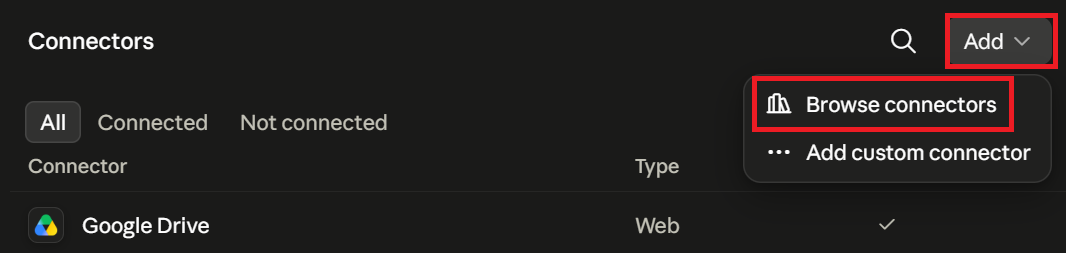
2. Search Tactiq and click Connect to Claude.

3. On the Tactiq screen, click Allow to authorize the connection.
4. Start a new Claude chat, click the plus sign (+) > Connectors > make sure Tactiq MCP is toggled on before using it.
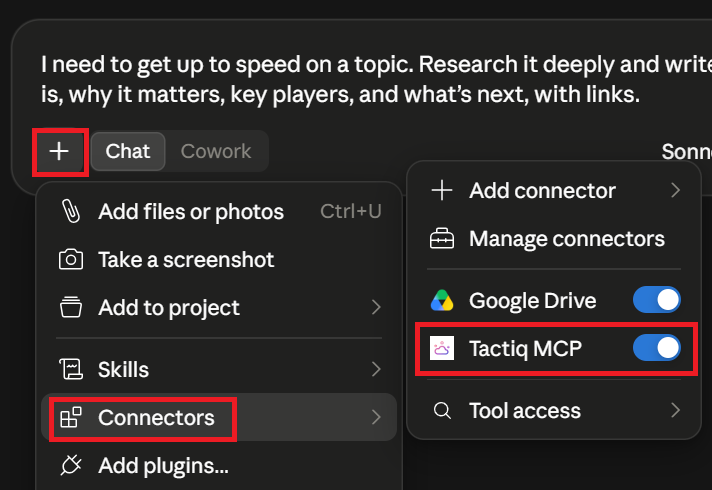
Once linked, ask Claude things like "summarize my last Tactiq meeting" or "find my calls with the design team from last month" directly in the chat.
What Claude can do depends on your Tactiq plan. Free and Pro accounts let Claude search and list your meetings. A Tactiq Team plan unlocks summaries and short transcript excerpts, so Claude can answer questions about what was actually said.
Prefer not to connect, or only need one transcript? These options still work:
- Copy and paste the transcript directly into a Claude conversation.
- Export it as a PDF or TXT file and upload it.
- Use Tactiq Workflows to send transcripts to Google Drive, then pull them into Claude through the Google Drive connector.
Install the Tactiq Chrome extension to start capturing your meetings.
{{rt_cta_ai-convenience}}
Claude Connectors: Turn Claude Into a Workflow Tool
Claude starts every conversation from scratch with no context, history, or access to your tools. Connectors change that. They give Claude access to the apps and data your team already works with, so you spend less time explaining and more time getting things done.
The one gap connectors don't cover is your meetings. Claude can't join a call or capture what was said. Tactiq does. Install it once, and every meeting becomes a searchable, structured transcript that's ready to hand off to Claude the moment your call ends.
Try Tactiq for free and start capturing your next meeting.
A Claude connector is a link between Claude and an external app or service. It lets Claude access your data, search files, and take actions within connected tools, all from your Claude conversation.
Navigate to Customize > Connectors and click "+" to browse the Connectors Directory. Select a connector, click "Connect," and follow the authentication prompts. On Team and Enterprise plans, an Owner must enable the connector at the org level first.
MCP (Model Context Protocol) is the open standard Anthropic created for connecting AI applications to external tools and data sources. Every Claude connector runs on MCP.
Web connectors from the directory are available on all plans. Custom connectors (remote MCP servers) are available on all plans, too, but Free users are limited to one custom connector. The Slack connector requires a paid plan.
Standard connectors return data as text inside your Claude conversation. Interactive connectors render a live interface (like a dashboard or task board) directly in the chat, so you can act on data without leaving Claude.
Related articles








Want the convenience of AI summaries?
Try Tactiq for your upcoming meeting.
Want the convenience of AI summaries?
Try Tactiq for your upcoming meeting.
Want the convenience of AI summaries?
Try Tactiq for your upcoming meeting.