
7 Real Claude Project Examples Anyone Can Use
March 13, 2025
March 13, 2025
June 6, 2026
June 6, 2026

Repetitive tasks that reference multiple documents are time-consuming and error-prone. That's where Claude Projects comes in. Since March 2026, Claude remembers your preferences across all sessions on every plan, including the free plan. Projects go one step further by giving each workspace its own isolated memory space.
In this article, you'll find seven Claude project examples I use daily as a marketing project manager. Here's what we'll cover:
- What Claude Projects are and how they work
- How to set up your first project
- Seven real-world examples you can replicate today
- Tips for getting more out of your projects
7 Claude Project Examples You Can Use Today
Example 1: Writing content briefs
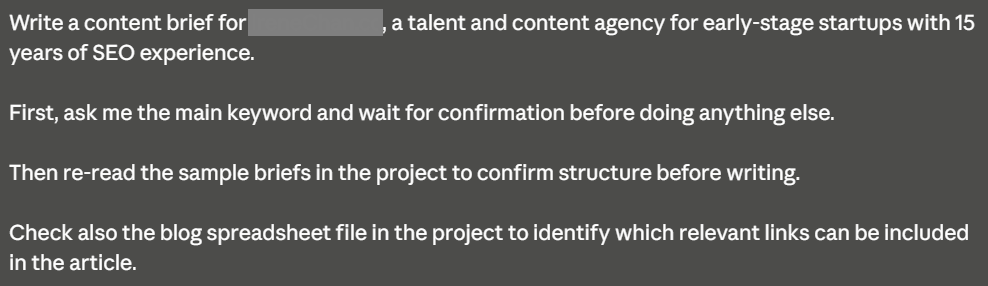
Using Claude for content briefs keeps every piece consistent while cutting down the time you spend. The project includes resources such as content guidelines, tone of voice documentation, and concrete examples of successful briefs.
Since using Claude Projects for content briefs, I've cut the time I spend on them by 80%. Once I have the topic data, I type it in and get a structured brief back every time, in the same format.
Example 2: Updating old blog posts
Keeping blog content fresh is important for SEO, but a full rewrite isn't always necessary. Changing around 25% of the content is often enough for a solid refresh.
Copy and paste the existing post. Claude rewrites the relevant sections in line with your SEO guidelines and content standards. It's one of the most time-efficient Claude project examples for content teams.
Example 3: Writing product emails
Product emails need to stay on-brand every time, even when you have writer's block. This project helps by:
- Maintaining a consistent brand voice across all emails
- Generating relevant content based on specific product updates
- Using templates to make sure all key information is included
All you need to provide is the update itself. Claude handles the rest using your brand guidelines and past email examples.
💡 Pro tip: Use Tactiq to transcribe your product update calls, then upload the transcript as a resource in your email project. Claude will pull the key details directly from the meeting. No more hunting through notes before you write.
Example 4: Transcripts as resources (Tactiq integration)

If you use Tactiq for meetings, you can add transcripts directly as resources in your Claude Projects. This keeps your project knowledge base up to date and gives Claude the context it needs to produce accurate outputs. Here's how to get started:
- Install Tactiq on Google Chrome.
- Use Tactiq to transcribe your call in real time.
- After the call, download the full transcript.
- Upload the transcript as a PDF inside your Claude Project or include just the AI summary and key insights.
This is especially useful when important process changes come up in a call, and you don't have formal documentation yet. You can also automate this step entirely. Tactiq's Zapier integration can send transcripts directly to your workflow after each meeting, removing the manual upload step.
You can also set up a custom AI workflow on Tactiq to push transcripts to a Google Drive folder automatically.
For a full meeting workflow guide, see Can Claude AI Take Meeting Notes?
Ready to keep your Claude Projects up to date? Try Tactiq and start capturing your meetings today.
{{rt_cta_ai-convenience}}
Example 5: Creating a support knowledge base
Knowledge bases take time to maintain, especially when products update often.
This project ensures consistency in documentation style and format across all articles. Upload your existing support documentation, common customer inquiries, and product docs as resources. Claude will generate new knowledge base articles that match your established format and tone every time.
Example 6: Meeting-to-action pipeline
Most meetings end with good intentions and a long list of follow-ups that never get done. This project turns raw meeting content into structured, actionable steps before the day is over.
Upload your transcript or AI summary, and Claude extracts action items, assigns owners based on context, and drafts follow-up messages. Include your team's project management template as a resource so every output lands in the right format: a task list, a Notion page, or a client-facing summary.
Set the custom instructions once, and every future meeting produces a consistent, ready-to-use action plan.
Example 7: Competitive research brief
Staying on top of competitors requires regular research, but compiling research findings into a useful format takes time. This project turns scattered data into structured competitive briefs you can use for strategic decision-making.
Upload competitors' pricing pages, product documentation, and market research reports as project knowledge. Prompt Claude with a specific question (a new feature, a pricing change, a positioning shift), and it returns a detailed analysis to pull data from your uploaded resources. Because the resources stay in the project, each brief builds on the same foundation without starting from scratch.
What Are Claude Projects?
Claude Projects are self-contained workspaces built around a specific output. Each project has its own custom instructions, document library, and focused chat history, kept separate from your general Claude conversations.
Each project also maintains its own isolated memory space. Context you set inside a project stays scoped to that project and won't bleed into other chats. Here's what you get:
- Dedicated knowledge base: Upload brand guidelines, research papers, and other relevant documents.
- Custom instructions: Set a style guide that shapes how Claude responds within each project.
- Focused chats: Keep a separate chat history per project to stay organized.
- Team collaboration: Claude Team and Enterprise users can share projects with multiple team members. See Claude Teams: Pricing, Features & Benefits for a full breakdown.
Claude Pro costs $20 per month and includes Claude Code and unlimited projects. The Team plan starts at $25 per seat per month (billed annually), with a minimum of five members.
How to Start a Claude Project
Setting up a Claude Project takes about five minutes. Here's how to do it.
1. Choose a task
Start by identifying a task that works well inside a project. Ask yourself:
- Does this task always produce the same type of output?
- Does it follow the same process and guidelines every time?
- Does it require scanning lots of relevant documents?
Pick one specific task rather than trying to accomplish too many things at once. For example, one of my projects only writes content briefs. It doesn't draft full articles; just the briefs.
2. Create a project
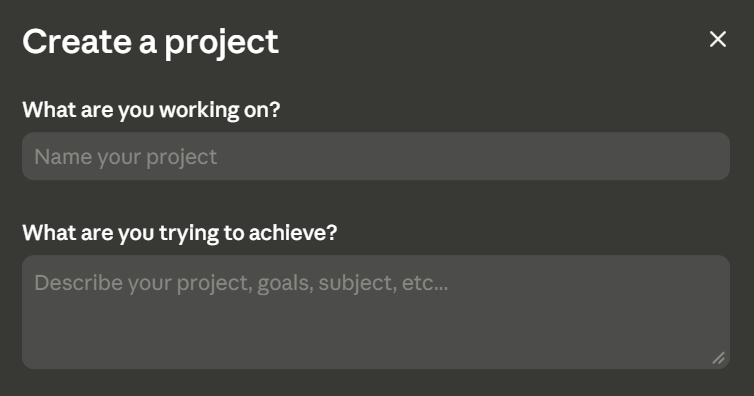
Open Claude on the web or desktop app. Click Projects in the left sidebar, then hit New Project in the upper-right corner. Give your project a descriptive name, something specific enough to recognize at a glance, like "Q3 Email Sequences" rather than just "Emails."
A detailed name matters even more when you share projects with multiple team members across a Claude Team or Enterprise plan.
3. Create custom instructions
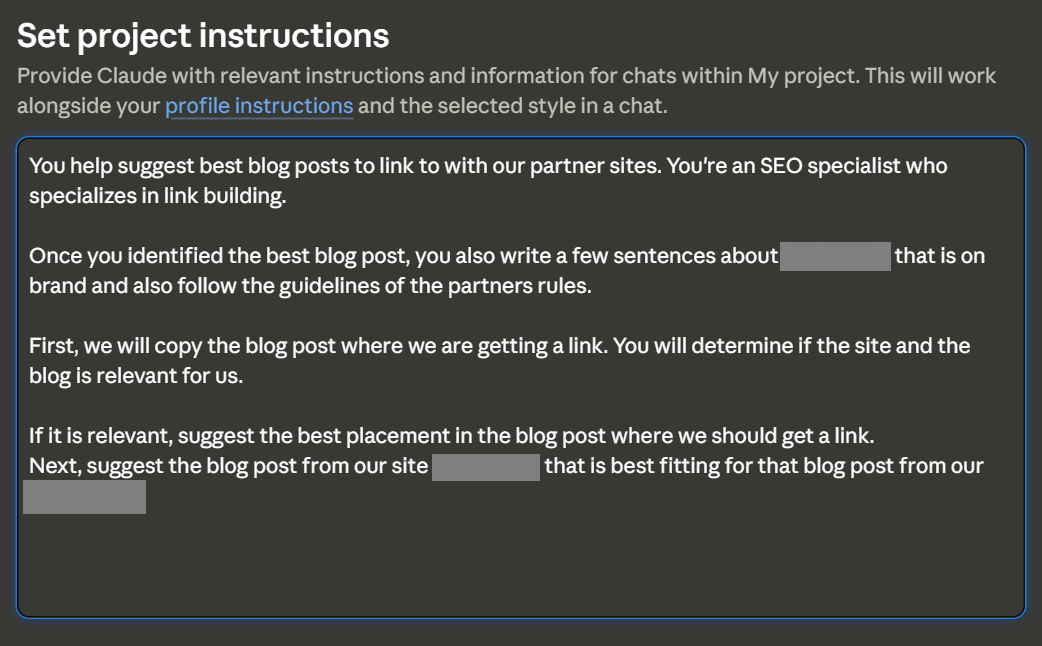
This is where you instruct Claude on exactly what to do. You don't need any technical background. Write it the way you'd brief a new assistant. Be specific about the output format, tone, and any guidelines Claude should follow. Think of it as a style guide Claude will reference every time you use the project.
If you already have detailed process documentation, you're most of the way there. Tweak it so the instructions are clear and focused on the final output.
4. Upload resources
Resources are any documents Claude needs to complete the task. These could include:
- Brand guidelines and audience personas
- Past examples like blog post drafts or content briefs
- Market research reports, investment reports, or scientific papers
- Research papers, data sets, or spreadsheets
- Bank statements or monthly budget breakdowns for financial projects
You can upload PDF files, Word documents, Excel spreadsheets, CSV files, text files, and HTML files. Video and audio files are not supported.
Regularly review your uploaded resources. Remove outdated files and replace them with current versions, especially if you reference a spreadsheet or style guide that updates frequently.
5. Start testing
Open a new chat inside your project and start a conversation. Instead of typing a long prompt with all your guidelines, you only need to provide the specific input: the topic, the data, or the request. Claude handles the rest using your instructions and resources.
If the output isn't quite right, provide specific feedback and refine your custom instructions. A few clear examples go a long way toward improving consistency.
Tips for Getting the Most Out of Claude Projects
These small habits make a big difference in the quality and consistency of your outputs.
Give detailed custom instructions
The more specific you are, the better Claude performs. Include your preferred output format, tone, and any non-negotiables. Think of it as writing a style guide for a new hire: the more concrete examples you provide, the less back-and-forth you'll need.
Regularly update your resources
If you reference a spreadsheet, style guide, or process document that changes frequently, set a reminder to upload the latest version. I update our blog spreadsheet on the first of every month so Claude always has the most recent data.
Use Project Memory to separate your contexts
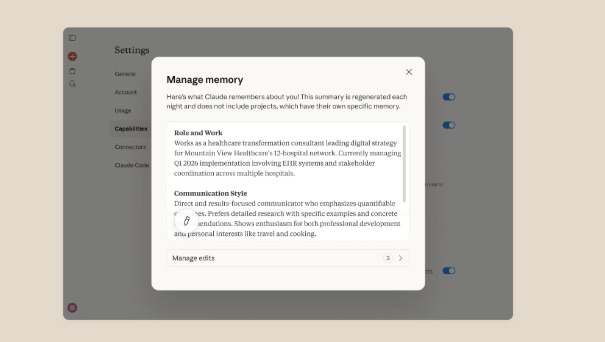
Each project maintains its own isolated memory space, so preferences and context you set inside one project won't bleed into others. This makes Claude Projects especially useful if you manage multiple clients or teams. Keep each one in its own project, and Claude will never mix up their guidelines, brand voice, or instructions.
Start specific, then expand
Resist the urge to build a project that does everything. Start with one well-defined task, test it thoroughly, and expand only once the output is consistent. Focused projects produce better results than broad ones.
Work directly with files on your desktop using Claude
Claude Cowork lets you go one step further, working with local Word docs, spreadsheets, and folders without manual uploads. See Claude Cowork Alternatives if you need to extend your workflow beyond Claude Projects.
Start Your First Claude Project Today
Claude Projects removes the friction of context-switching between guidelines, docs, and drafts. The seven examples above are a starting point. Once you see how much time you save on one task, building the next project becomes obvious.
Use Tactiq to keep your knowledge base fresh, and let Claude automate repetitive tasks, so you can focus on the decisions that actually move things forward.
Content creation, research briefs, email drafting, meeting follow-ups, knowledge base building, and more. Any task with a consistent output and repeatable process is a strong fit for a Claude Project.
Claude Projects require a paid plan. Pro starts at $20/month and includes unlimited projects. Team plans start at $25 per seat per month, billed annually, with a minimum of five members.
Pro and Team plan users can create unlimited projects. Each project has its own knowledge base, custom instructions, and isolated chat history.
Yes. Claude Team and Enterprise plan users can share projects with multiple team members, enabling collaborative workflows and a shared knowledge base across your organization.
A regular chat has no persistent instructions or documents. A Claude Project gives you a dedicated knowledge base, custom instructions, and isolated memory that applies across every conversation in that project.
Related articles








Want the convenience of AI summaries?
Try Tactiq for your upcoming meeting.
Want the convenience of AI summaries?
Try Tactiq for your upcoming meeting.
Want the convenience of AI summaries?
Try Tactiq for your upcoming meeting.