
How to Use Claude Cowork Chrome Extension
February 13, 2026
February 13, 2026
March 30, 2026
March 30, 2026

Tired of copying data between websites and documents? The Claude Chrome extension automatically handles repetitive browser work. No more manual data entry or switching between windows.
This browser extension works alongside Claude Cowork on your desktop. Together, they handle complex tasks that span both your local files and the web. Claude in Chrome lets Claude handle web-based work while Cowork manages your local files and documents.
Setting up the Claude Cowork Chrome extension takes just a few minutes. Once connected, you can ask Claude to complete browser tasks through natural conversation while maintaining full control over what it accesses.
Here's what we'll cover:
- What Claude Cowork and Claude in Chrome actually do
- Step-by-step installation and setup process
- Key features like file management and scheduled tasks
- Limitations you should know before getting started
- How Tactiq enhances your Claude Cowork workflows with meeting transcription
What is the Claude Chrome Extension?
Claude Cowork handles local file management on your desktop. Claude in Chrome automates browser tasks and web-based workflows.
Understanding how these tools differ helps you use them effectively. Each serves a specific purpose in your automation workflow.
Understanding Claude Cowork
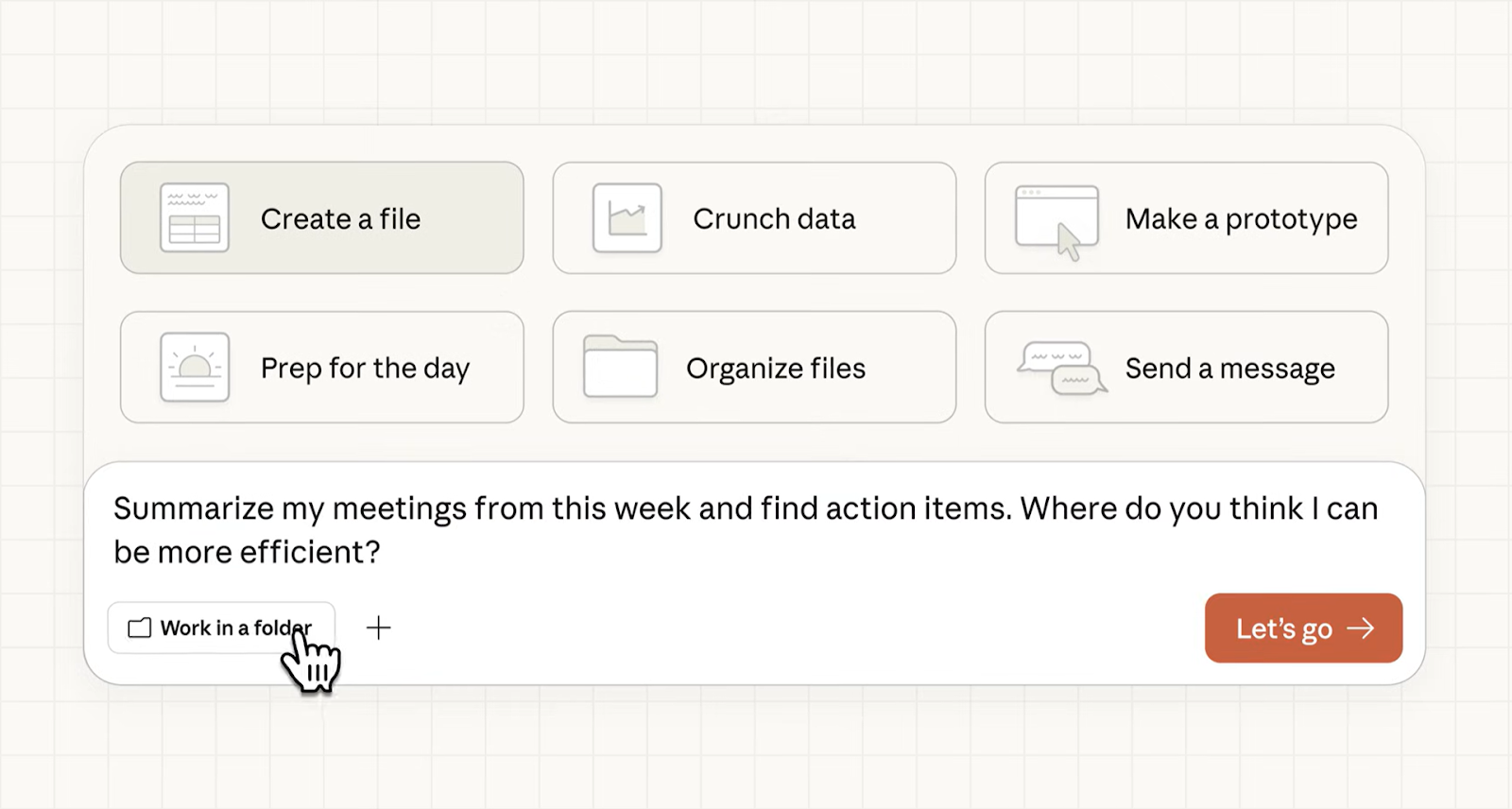
Claude Cowork is a desktop AI agent that runs locally on your desktop computer. It brings agentic capabilities to knowledge work beyond coding tasks.
Key capabilities include:
- Desktop AI agent for file management and automation
- Direct access to local files without manual uploads
- Breaks complex work into subtasks and executes them
- Creates professional outputs like Excel spreadsheets and PowerPoint presentations
- Runs in an isolated virtual machine for security
- Organizes files, processes data, and synthesizes research
The tool operates within the Claude Desktop app. You describe what you want done, and Claude handles the execution. You maintain visibility into what Claude plans to do throughout the process.
For example, ask Claude to organize your Downloads folder. Claude scans the contents, proposes a sorting plan with categories and naming conventions, then shows you everything before making changes. Once you approve, Claude reorganizes the entire folder automatically.
Cowork is available as a research preview for all paid plans. This includes Pro, Max, Team, and Enterprise plans using the Claude Desktop app on macOS and Windows (x64 only).
Understanding Claude in Chrome Extension
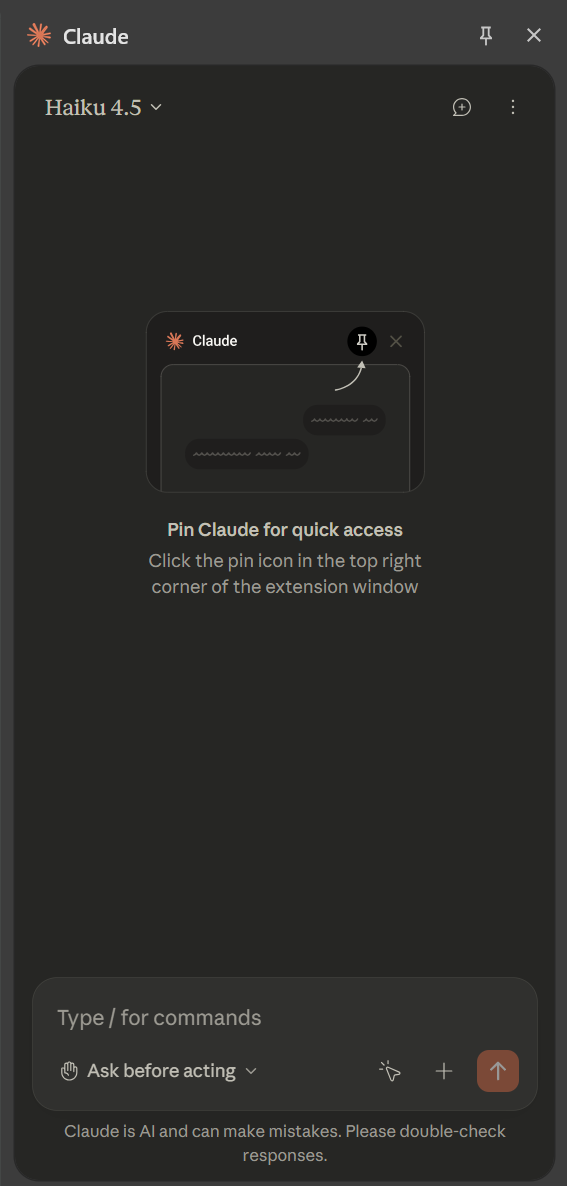
Claude in Chrome is a browser extension that automates web-based tasks.
Browser automation capabilities include:
- Navigate websites and click buttons through natural conversation
- Fill forms and handle repetitive data entry
- Extract data from web content across multiple tabs
- Read console logs, network requests, and DOM state for debugging
- Record workflows to teach Claude your processes
- Run scheduled tasks automatically on your schedule
The browser extension adds automation capabilities that Cowork alone cannot handle. You interact with Claude through a sidebar while browsing any website.
💡 Pro tip: Tactiq is perfect for automating meeting workflows. It transcribes your Zoom, Google Meet, and Teams calls automatically, then Claude can extract action items and create follow-up tasks from those saved transcripts.
How to Use Claude Cowork Chrome Extension
Setting up the Claude Cowork Chrome extension and accessing Cowork mode takes just a few minutes. Once installed, you can automate browser tasks and manage local files through natural conversation with Claude.
Installing Claude in Chrome
Install the Chrome extension from the Chrome Web Store to enable browser automation capabilities. You need a paid Claude subscription to access these features.
1. Visit the Claude Chrome extension page.
2. Click "Add to Chrome" to begin installation.
3. Sign in using your Claude account credentials.
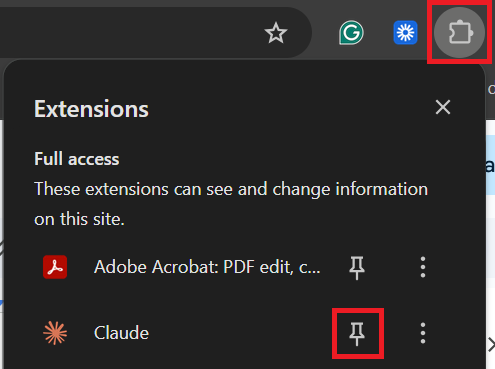
4. Pin the extension by clicking the puzzle piece icon in your toolbar, then click the thumbtack next to "Claude".
5. Grant the necessary permissions for Claude to interact with your browser.
6. The Claude icon appears in your Chrome toolbar and opens a side panel.
Claude in Chrome is not supported on other Chromium-based web browsers or mobile devices. The extension only works in Google Chrome.
Accessing Cowork in Claude Desktop
Claude Cowork runs in the Claude Desktop app. Switch to Cowork mode when you want Claude to handle tasks beyond regular chat.
1. Open the Claude Desktop app.
2. Look for the mode selector that includes "Chat" and the Cowork tab.
3. Click the Cowork tab to switch modes to the "Tasks" mode.
4. Describe the task you want Claude to complete.
5. Review Claude's approach before letting it run.
The Claude Desktop app must remain open while Claude works on your tasks. If you close the app, your session will end.
Enabling Chrome Connector in Cowork
The Chrome Connector links your browser extension to Claude Desktop. This connection lets Claude handle both local files and browser tasks in a single workflow.
1. Click your initials in the lower left corner of Claude Desktop.
2. Select "Settings" from the menu.
3. Navigate to the "Connectors" section.
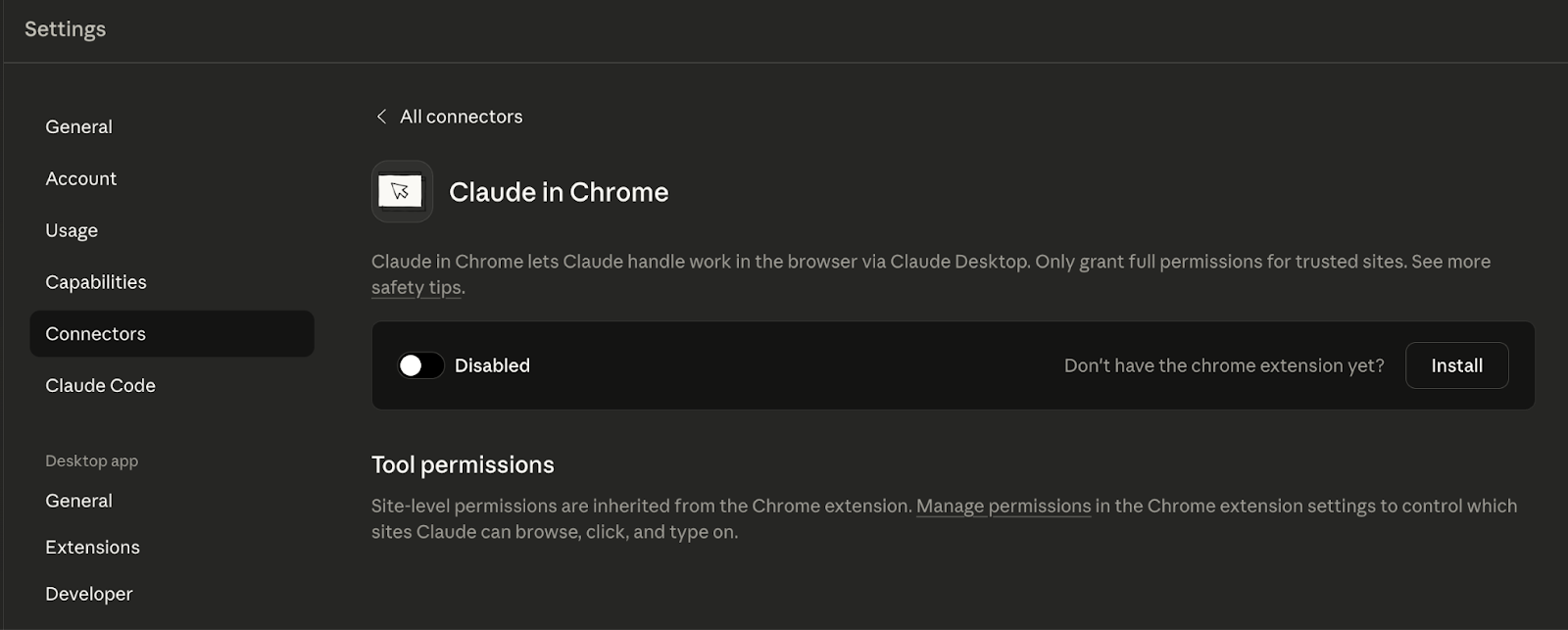
4. Find "Claude in Chrome" in the connectors list.
5. Click "Configure" next to the Chrome connector.
6. Toggle the connector on.
7. Download and install the extension if you haven't already.
After enabling the connector, Claude in Chrome appears in the "Connectors" drop-down on your chats. This is disabled by default, so enable it manually for each conversation where you need browser automation.
The connector only works with Haiku 4.5, Sonnet 4.5, or Opus 4.5 models. The connector will be disabled once you select another model in your chat window.
Recording Workflows and Scheduled Tasks
The Chrome extension can learn your browser workflows and automatically repeat them. This helps automate repetitive tasks that you perform regularly.
Recording workflows
Click the record icon in the extension panel and perform the steps you want Claude to learn. Stop recording when finished and save the workflow as a shortcut for future use. Claude learns to repeat these steps whenever you need them.
Scheduled tasks
Set recurring browser tasks to run automatically on your schedule. Schedule your saved shortcuts by clicking the clock icon in the upper-right corner of the extension panel. Claude handles tasks daily, weekly, monthly, or annually without your supervision.
Multi-tab functionality
Drag tabs into Claude's designated tab group to let Claude view and interact with all grouped tabs at once. This eliminates manual switching between tabs when compiling information from multiple sources.
Limitations and Considerations
Claude Cowork and the Chrome extension are both in research preview with important limitations. Understanding these constraints helps you use the tools safely and effectively.
Performance and speed
Chrome automation can be slower compared to manual browsing. The extension handles browser tasks at its own pace while maintaining accuracy.
Browser tasks that take you seconds might take Claude minutes. The AI assistant reads the DOM state, processes information, and determines the next action for each step. Network requests and page load times add delays to browser automation.
Security and safety
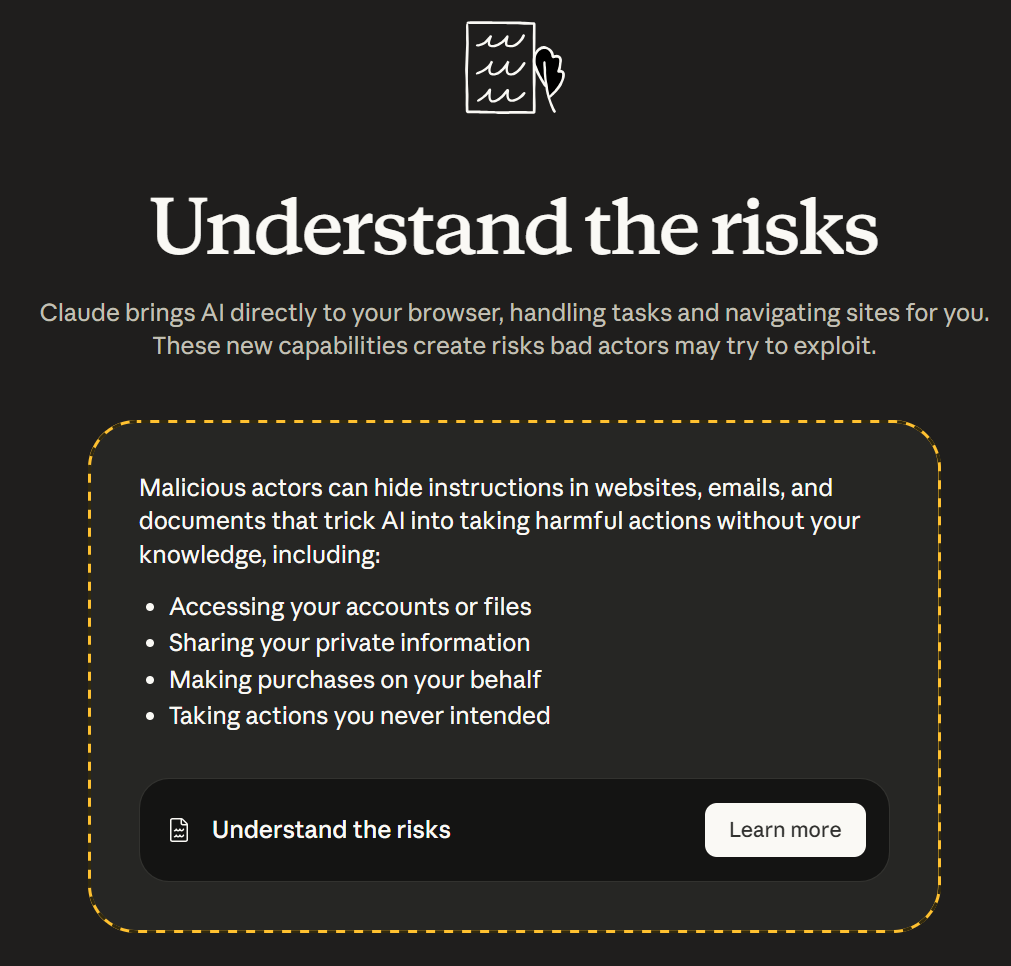
The biggest security concern with Claude in Chrome is hidden instructions on websites. Bad actors can embed commands in web pages, emails, and documents that trick Claude into taking actions you didn't intend without your knowledge.
Trusted sites only
Start with familiar websites you trust completely. Only grant Claude permissions to sites where you understand the risks. Avoid using the browser extension on financial platforms, healthcare portals, or any site containing sensitive personal data.
Claude can take screenshots when responding to your requests. This creates privacy concerns on dating platforms, health sites, or anywhere you view confidential information.
Always confirm before Claude handles financial transactions, password management, or work-critical tasks. Watch for unexpected behavior from Claude. If the AI assistant suggests actions you didn't request, stop the task immediately and report the issue.
Pricing and availability
Requirements
- Works on macOS and Windows (x64 only)
- Windows arm64 is not supported
- App must remain open during tasks
- Sessions don't sync across devices"
Paid subscription required
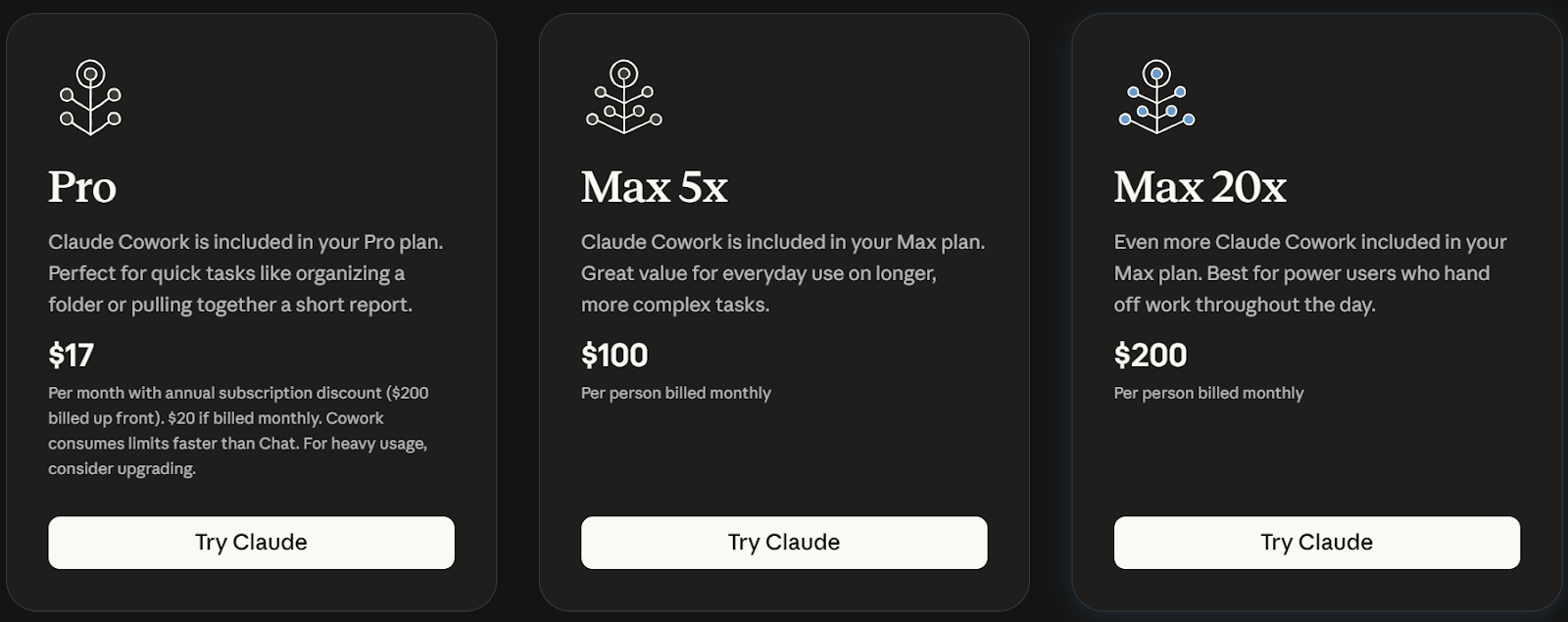
- Pro Plan: $20/month ($17/month annual) - Good for quick tasks
- Max Plan (5x): $100/month - Everyday use on complex tasks
- Max Plan (20x): $200/month - Power users with heavy usage
- Cowork consumes limits faster than regular chat
Pricing and plan features are subject to change. Visit the Cowork pricing page for the most current information.
Feature limitations
- No Projects support during research preview
- No memory across Cowork sessions
- Cannot share chats or artifacts
- Team/Enterprise: No Audit Logs or Compliance API capture
- Not suitable for HIPAA, FedRAMP, or regulated workloads
How Tactiq Complements Claude Cowork Workflows

Meeting transcripts create valuable input for Claude Cowork's automation capabilities.
Tactiq helps remote teams capture and summarize every Zoom, Google Meet, and Microsoft Teams call automatically, in real time.
Key Tactiq features
- Real-time transcription with speaker identification and timestamps
- In-meeting AI for instant answers and summaries during calls
- AI-powered summaries and action item extraction
- Save transcripts locally for Claude Cowork processing
- Searchable meeting library for quick reference
Tactiq handles most meeting documentation needs on its own. For more advanced workflows that require complex file management or browser automation, you can save Tactiq transcripts locally and use Claude Cowork to process them further.
Claude can analyze your saved meeting transcripts to create detailed reports, extract recurring themes across multiple meetings, or organize transcripts into structured documents. Combine this with the Chrome extension to automate follow-up actions across your web-based tools.
Ready to streamline your meeting workflows? Try Tactiq free and start automating your post-meeting tasks with Claude Cowork today.
{{rt_cta_ai-convenience}}
Getting Started with Claude Cowork Automation
The Claude Cowork Chrome extension transforms how you handle repetitive browser tasks and file management. The combination of local file access and browser automation eliminates hours of manual work each week.
Start with trusted sites and simple workflows as you learn the tools. The research preview has limitations, but the automation capabilities already save significant time on repetitive tasks.
For meeting-based workflows, combine Tactiq's automatic transcription with Claude Cowork's automation for maximum productivity. Tactiq captures every meeting detail while Claude transforms those transcripts into actionable tasks, reports, and calendar updates.
Ready to turn meeting conversations into automated tasks? Install Tactiq free and connect your transcripts to Claude Cowork for hands-free follow-up workflows.
FAQs on How to Use Claude Cowork Chrome Extension
What is Claude Cowork Chrome extension?
The Claude Cowork Chrome extension consists of two tools that work together. Claude Cowork is a desktop AI agent for file management and automation on macOS and Windows. Claude in Chrome is a browser extension that automates web-based tasks like filling forms, extracting data, and navigating websites.
How do I install Claude in Chrome?
Visit the Chrome Web Store and search for "Claude." Click "Add to Chrome" and review the permissions. After installation, read the beta feature warning about risks and sign in with your paid Claude account credentials. The extension appears as a sidebar in your browser.
Can I use Claude in Chrome for free?
No, Claude in Chrome requires a paid subscription. The extension is available to Pro, Max, Team, and Enterprise plan subscribers. Free Claude accounts cannot access the browser automation features.
What is the difference between Claude Cowork and Claude in Chrome?
Claude Cowork runs on your desktop and manages local files, creates documents, and organizes data. Claude in Chrome automates browser tasks like web navigation, form filling, and data extraction. They integrate through the Chrome Connector to handle workflows that span both local files and web content.
How does Claude Cowork work with meeting transcripts?
Claude Cowork can analyze meeting transcripts saved to local folders. Use Tactiq to automatically transcribe your meetings, save the transcripts locally, then point Claude Cowork at these files. Claude extracts action items, identifies themes, and creates structured reports from your meeting data.
Related articles








Want the convenience of AI summaries?
Try Tactiq for your upcoming meeting.
Want the convenience of AI summaries?
Try Tactiq for your upcoming meeting.
Want the convenience of AI summaries?
Try Tactiq for your upcoming meeting.