
Best Software to Record Meetings in 2026
February 27, 2026
February 27, 2026
May 14, 2026
May 14, 2026

Recording a meeting sounds simple until you're scrubbing through a 90-minute video to find one decision someone made in passing.
Most people default to recording their online meetings without thinking twice. But recording isn't always the fastest or most practical way to capture conversations and stay on top of follow-ups.
This article breaks down your options, from native tools built into your video conferencing platform to smarter alternatives that skip the video file entirely.
Here's what you'll find inside:
- Native recording options in Zoom, Google Meet, and Microsoft Teams
- Third-party recording software like Otter.ai, Fathom, and Fireflies
- Why transcription often beats recording for most use cases
- How Tactiq captures meetings without bots or bulky video files
- Key features to look for before choosing a tool
Native Meeting Recording Options
Most video conferencing tools come with built-in recording features. Before reaching for a third-party tool, it's worth knowing what your current platform already offers, and where it falls short.
How to record Zoom meetings

Zoom includes local recording on all plans, including the free tier. Paid plan subscribers get cloud recording, which automatically saves your meeting recordings and generates a basic transcript.
To start recording, click Record in the meeting toolbar. Choose Record to the Cloud or Record to this Computer depending on your plan.
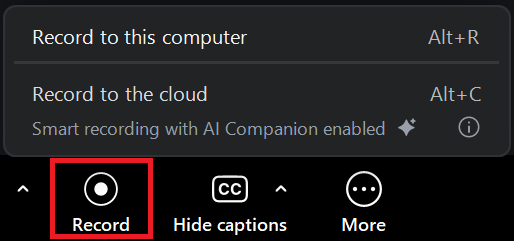
A few things to keep in mind:
- All meeting participants are notified when the recording starts
- Free plan users can only record locally (no cloud storage)
- Cloud recordings are stored for 30 days on most paid plans before auto-deletion
💡 Pro tip: Tactiq gives you real-time transcription directly inside Zoom, Google Meet, and Microsoft Teams. No bot, no recording, no bulky video files. You get accurate meeting transcripts, AI meeting notes, and searchable records of all your meetings, free to get started.
How to record Google Meet meetings

Google Meet's recording feature is available on paid Google Workspace plans. It's not included in the free version.
To record a Google Meet session, click Meeting tools in the bottom-right corner, select Recording, then hit Start Recording. Google Calendar users can also enable auto-recording for scheduled meetings.

Key limitations:
- Recording is only available on Business Standard plans and above
- Recordings save to the host's Google Drive automatically
- Meeting participants receive an email with the recording link after the call
How to record Microsoft Teams meetings
Microsoft Teams includes recording for most paid plans. The host or a meeting participant with permission can start a recording directly from the meeting toolbar.
Click the three-dot menu (More) during a call, then select Start Recording. Teams also offers built-in transcription on select plans, saving you a separate step.

Worth noting:
- Microsoft Teams recordings save to OneDrive or SharePoint
- Transcription is available on Teams Premium and select Microsoft 365 plans
- Free Teams users do not have access to meeting recordings
Webex and other platforms
Webex supports cloud and local recording on paid plans, with AI-generated meeting notes available on higher tiers. Most other video conferencing tools offer some form of built-in recording, though features vary by plan.
Other Meeting Recording Software
Built-in recording tools cover the basics, but they often stop there. If you need transcription, AI meeting notes, or more flexible storage, third-party tools fill that gap.
Otter.ai

Otter.ai is one of the most widely used AI meeting notetakers. It joins your calls automatically and generates real-time transcription alongside AI meeting notes.
Key features:
- Real-time transcription for Zoom, Google Meet, and Microsoft Teams
- AI summaries and action item extraction after each call
- Speaker identification to track who said what
- Searchable meeting transcripts across all your meetings
Limitations: The free plan caps at 300 transcription minutes per month with a 30-minute limit per conversation. Most business meetings run longer. Unlimited transcription requires a paid plan, starting at $16.99/month per user (or $8.33/month billed annually).
Fathom
Fathom is a popular AI meeting notetaker for Zoom, Google Meet, and Microsoft Teams. It's known for its clean interface and fast AI summaries.
Key features:
- Automatic recording and transcription for online meetings
- Unlimited recordings, transcription, and storage on the free plan
- AI summaries and action items (unlimited on paid plans)
- CRM integrations for sales teams managing client calls
Limitations: The free plan restricts AI summaries to just five meetings per month. Unlocking unlimited AI features requires the Premium plan at $19/month (or $15/month billed annually). Like most tools in this category, Fathom requires a bot to join your meetings, which some meeting participants find disruptive.
Fireflies.ai
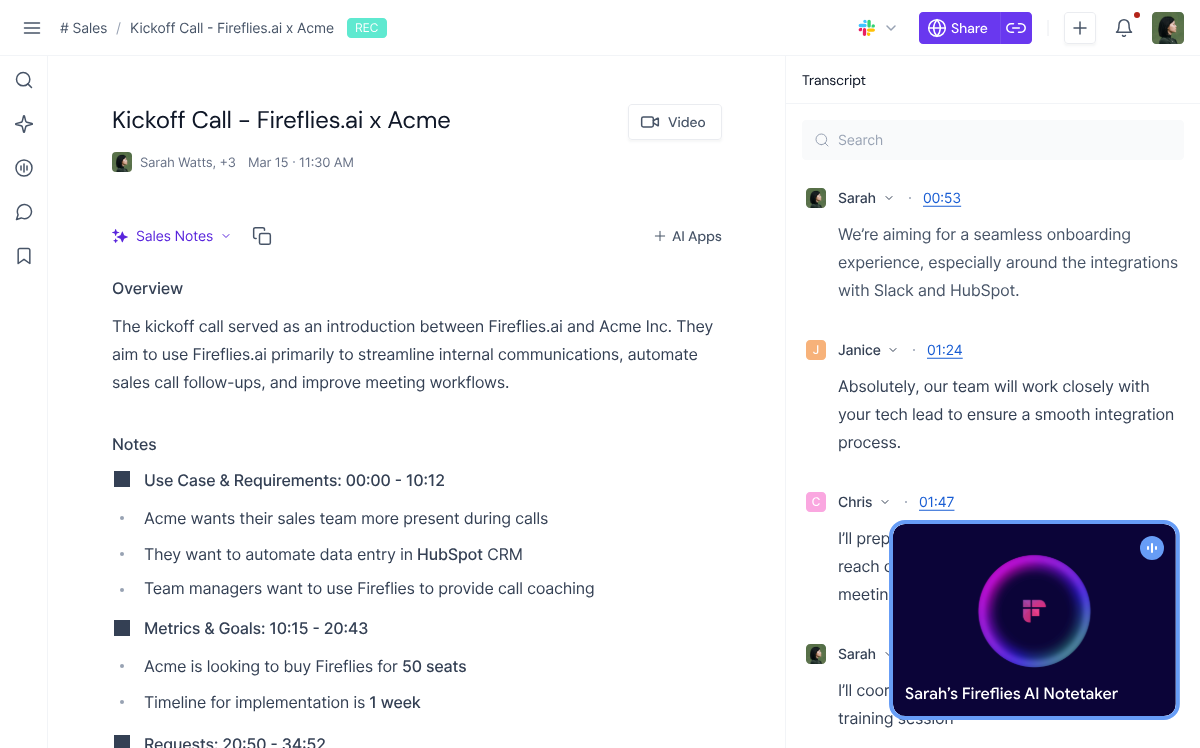
Fireflies.ai is an AI meeting assistant that records, transcribes, and analyzes your calls. It works across most major video conferencing platforms and connects with project management and CRM tools.
Key features:
- Automatic transcription and AI meeting notes across all your meetings
- Topic tracking and keyword search across meeting transcripts
- 100+ language support, useful for global teams
- Integrations with Salesforce, HubSpot, Notion, Slack, and more
Limitations: The free plan caps cloud storage at 800 minutes total. Transcription accuracy can also dip with strong accents or non-native speakers. The Pro plan starts at $10/month per user, billed annually ($18/month billed monthly), with video recording and advanced analytics locked behind the Business plan at $19/month annually.
Do You Really Need to Record? Why Transcription Is Better
Recording every meeting feels like the safe option. But for most use cases, it creates more work than it saves.
Here's why more teams are switching from meeting recordings to transcription.
Faster to review
Reading is faster than watching. The average adult reads around 238 words per minute silently. Most people speak at roughly 150 words per minute, meaning a one-hour meeting recording takes at least an hour to consume. A meeting transcript takes a fraction of that time to scan.
When you need to pull a specific decision or action item from last week's internal meetings, scanning a transcript is far more efficient than scrubbing through a video file.
Privacy and comfort
Recording a call changes how people show up. Meeting participants often self-censor when they know they're on camera and on record. Transcription tools that work without a visible bot or recording notification create a more natural environment. People speak more freely, and discussions tend to be more productive.
Storage efficiency
Video files are large. A 60-minute meeting recording in HD can take up 1-2 GB of cloud storage. Multiply that across all your meetings for a month, and storage costs add up quickly. Text-based meeting transcripts use a fraction of that space and are far easier to manage long-term.
Searchable and shareable
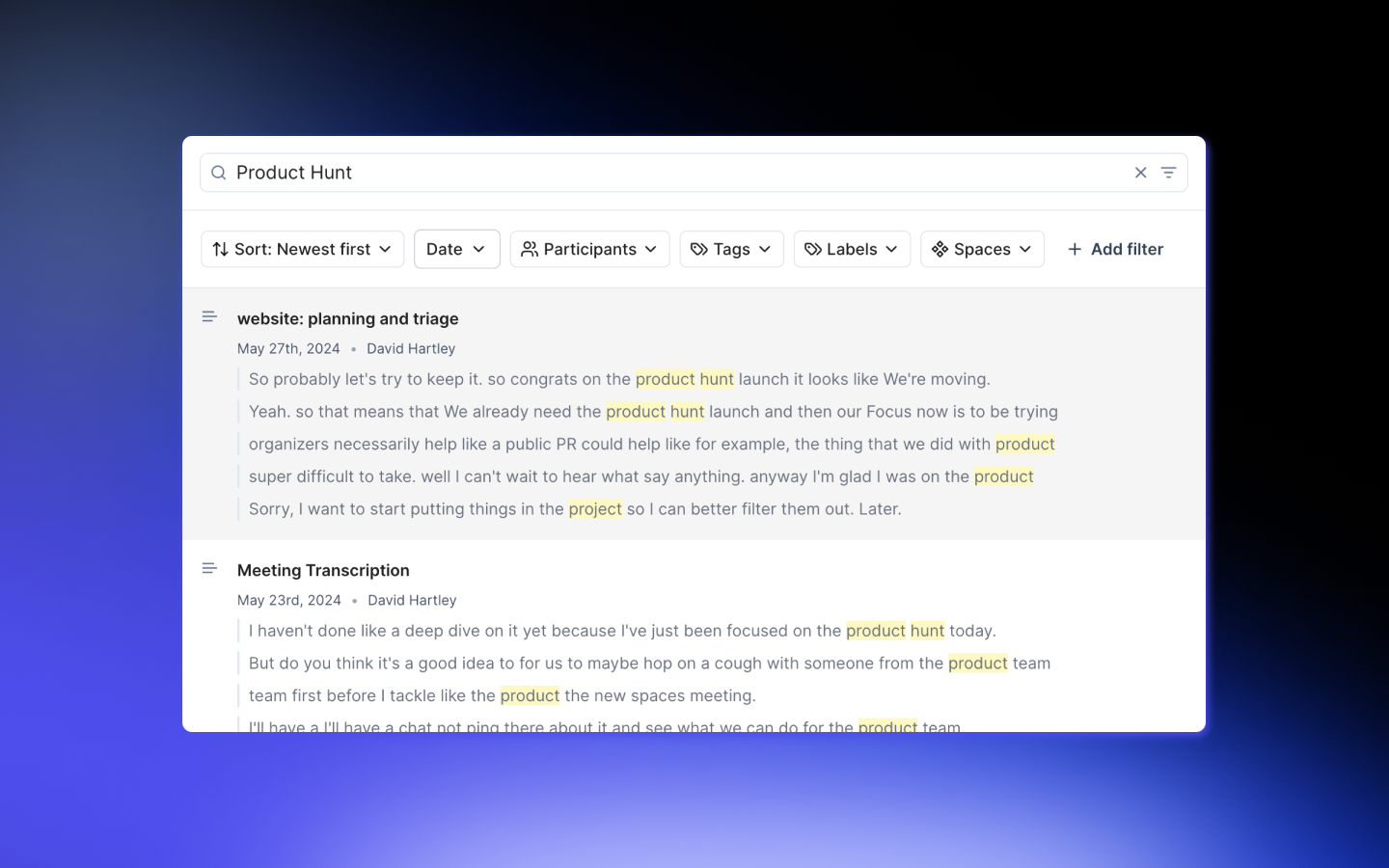
You can't search for a video. With meeting transcripts, you can find any key point, decision, or follow-up item across months of recorded calls in seconds. Transcripts are also easy to share. Paste them into Notion, send them via Slack, or drop them into a project management tool without any file size issues.
When you actually need recording vs. when transcription is enough
Recording still makes sense in specific situations: client calls where visual context matters, product demos, training sessions, or any meeting where tone and body language are part of the record.
For everything else like standup calls, team check-ins, one-on-one calls, planning sessions, and internal meetings, transcription captures everything that matters without the overhead.
Tactiq is built exactly for this. It transcribes your meetings in real time inside Zoom, Google Meet, and Microsoft Teams. No bot, no recording, no bulky video files. You get accurate meeting transcripts, AI-powered summaries, and searchable records of all your meetings the moment the call ends.

Install the free Tactiq Chrome extension and have your first meeting transcribed in minutes.
{{rt_cta_ai-convenience}}
Key Features to Look for in Meeting Recording Software
Not all meeting recording software is built the same. Here's what to evaluate before choosing a tool.
- Audio and video quality: Look for noise cancellation and reliable multi-speaker handling. Video quality matters more for client calls and training recordings than internal meetings.
- Transcription accuracy: Test any tool with your real meeting conditions. Accuracy drops with background noise and strong accents. Speaker identification helps you track who said what.
- AI summaries and action items: The best tools automatically generate AI meeting notes, extract key points, and pull out action items. Custom meeting templates and reusable AI prompts are a bonus for teams with consistent reporting needs.
- Integration capabilities: Look for native connections to Google Drive, Notion, Slack, and your project management tools. Pushing meeting transcriptions directly into your existing stack saves time on follow-ups.
- Privacy and security: Look for SOC 2, GDPR, and end-to-end encryption at a minimum. HIPAA BAA compliance matters for healthcare and finance teams.
- Storage options: Text-based transcripts scale far more efficiently than video files, especially for global teams with high meeting volume.
- Pricing and scalability: A generous free plan is a good starting point, but check how per-seat pricing scales before committing.
Which Meeting Recording Tool is Right for You?
Recording every meeting feels like the safe option, but for most teams, it creates more overhead than it's worth. Video files are bulky, hard to search, and time-consuming to review.
Native tools in Zoom, Google Meet, and Microsoft Teams cover the basics. Tools like Fathom and Fireflies.ai layer on AI meeting notes and transcription, but still rely on recording as the foundation. Otter.ai transcribes live audio but also joins as a bot, making your meeting setup more visible to other participants.
Tactiq skips the recording entirely. You get accurate real-time transcription, AI-powered summaries, and automated follow-ups: no bot jumping on the call, no video file, no hassle. Free to get started.
FAQs on Software to Record Meetings
Is there a free AI tool to record meetings?
Yes. Fathom offers unlimited recordings on its free plan. Tactiq's free plan includes 10 meeting transcripts and 5 AI credits per month. No credit card required.
What is the best software to record meetings?
It depends on your needs. Fathom and Fireflies.ai are strong recording options. For transcription without recording, Tactiq is the leading solution across Zoom, Google Meet, and Microsoft Teams.
How can I record a meeting for free?
Zoom, Google Meet, and Microsoft Teams all offer free or built-in recording on select plans.
Do I need permission to record a meeting?
Yes. Most regions require at least one-party consent, and many require all participants to be notified. Always inform meeting participants before recording.
Can I record a meeting without the host knowing?
This depends on the platform and local laws. In most cases, recording without consent is not permitted. Tactiq transcribes meetings without a recording. Only you see the transcript unless you choose to share it.
Related articles








Want the convenience of AI summaries?
Try Tactiq for your upcoming meeting.
Want the convenience of AI summaries?
Try Tactiq for your upcoming meeting.
Want the convenience of AI summaries?
Try Tactiq for your upcoming meeting.