
How to Connect Meeting Notes to Claude MCP
June 4, 2026
June 4, 2026
August 12, 2026
August 12, 2026

Most meeting notes end up scattered in a notes app, a shared doc, or buried inside a platform no one checks. Claude MCP connectors solve that by pulling your meeting data directly into Claude, so you can query it, draft from it, and act on it without the need to search for anything.
Here's what you'll learn:
- What Claude MCP connectors are and how they work with meeting data
- The Zoom connector and who it's best for
- Four ways to connect meeting notes using Tactiq, Obsidian, Notion, and custom MCP servers
The Best Way to Connect Meeting Notes to Claude MCP
Zoom has an official connector in Claude's directory, but it only works if you're already using Zoom with AI Companion enabled. For everyone else, the fastest path is to use an AI meeting transcription tool like Tactiq to capture your transcripts, save them to Google Drive, then add Tactiq as a custom MCP connector in Claude. Obsidian, Notion, and custom MCP servers are also options, depending on how your team works.
How to Connect Meeting Notes to Claude MCP Using Official Connectors
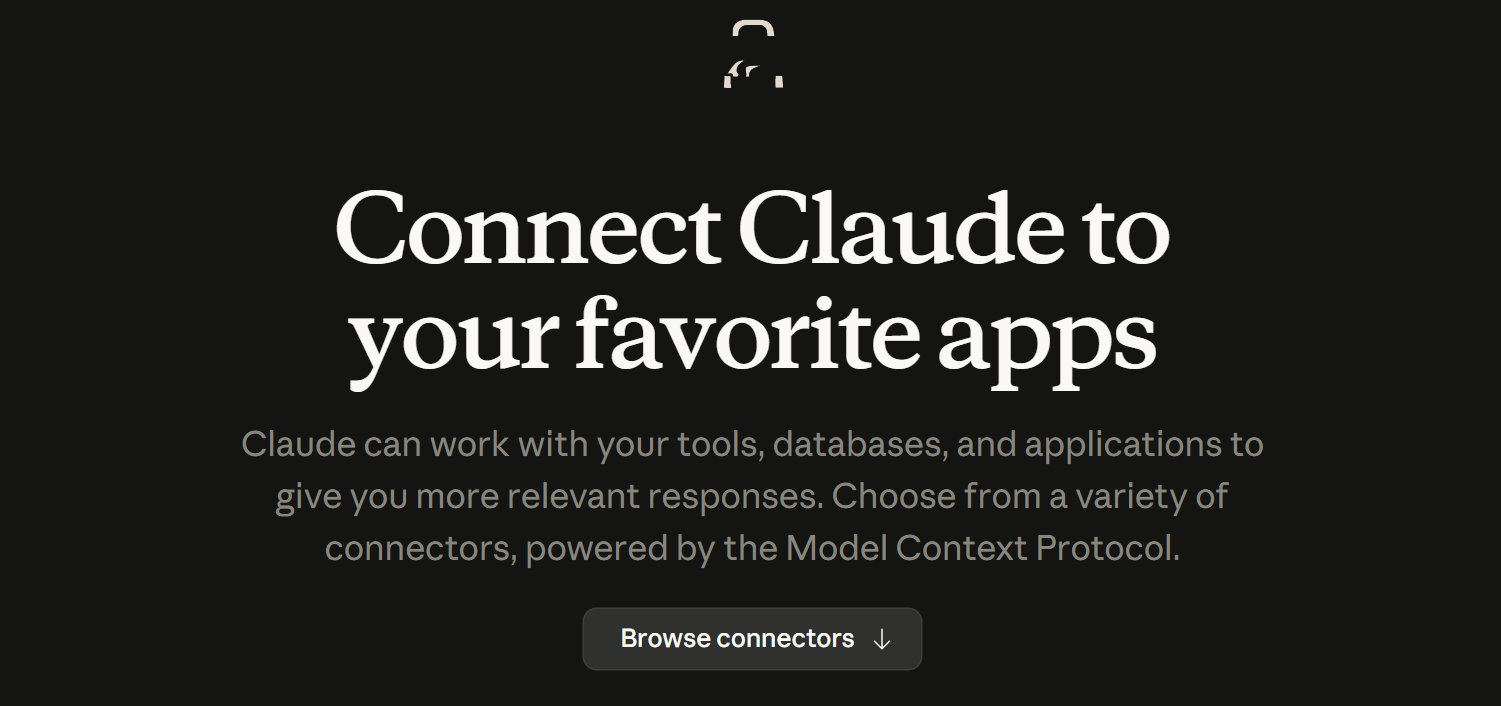
Claude's Connectors Directory gives you one-click access to external tools and data sources. Instead of copying and pasting from scattered notes, you connect the source once and ask Claude questions in plain English.
For meeting notes specifically, Zoom is the only official connector in the directory built around meeting data.
Zoom connector: best for teams already on Zoom
Zoom launched its MCP connector for Claude in April 2026. It surfaces AI Companion summaries, full transcripts, recordings, and scheduling data directly inside Claude.
A few things to know before setting it up:
- The connector works in Claude Cowork and Claude Code
- It requires a paid Zoom Workplace plan (Pro or above)
- Zoom AI Companion must be enabled on your account; the connector surfaces AI Companion outputs, not raw recordings
- Setup uses OAuth authentication through Claude's connector directory
How to connect Zoom to Claude
1. Open Claude and click the + button in the lower left of the chat, then select Connectors > Add Connector.
2. Search for Zoom for Claude and click the + button to connect.
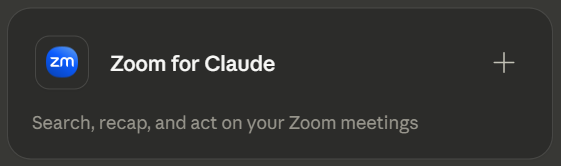
3. Authenticate with your Zoom account via OAuth.
4. Once connected, Claude can access your Zoom meeting history, summaries, and transcripts.
If your team runs a mix of Google Meet and Zoom calls, Zoom's connector will only surface Zoom meetings. For full meeting history across platforms, connecting Tactiq as a custom MCP connector covers everything.
4 Ways to Connect Meeting Notes to Claude MCP
Not everyone runs their meetings on Zoom, and even if you do, you may want meeting data to live somewhere more accessible than a single platform. These four methods cover the most practical ways to get meeting notes into Claude, from no-code setups to developer-grade pipelines.
1. Tactiq's custom MCP: best for Google Workspace teams

Tactiq's MCP lets you connect your meeting transcripts directly to Claude as a custom connector. After each meeting on Google Meet, Zoom, or Microsoft Teams, Tactiq captures the full transcript and makes it queryable inside Claude. No manual saving or copy-pasting required.
How to connect Tactiq to Claude as a custom MCP:
- Go to your Tactiq dashboard and navigate to Account & Settings > Integrations.
- Locate the Claude MCP section and copy your unique MCP server URL.
- In Claude, go to Customize > Connectors and click the + button.
- Enter a name for the connector and paste your Tactiq MCP server URL.
- Click Add and follow the authentication prompts to connect.
Once connected, you can ask Claude things like:
- "What were the action items from last Tuesday's client call?"
- "Summarize all customer calls from this month"
- "Draft a follow-up email based on yesterday's discovery calls"
Tactiq MCP is currently in beta on the Business plan.
2. Obsidian connector: best for personal knowledge management
If you store everything in an Obsidian vault, you can connect it to Claude Desktop using a local MCP server. Your vault stays on your machine; Obsidian notes are plain markdown files, which makes them straightforward to expose via MCP.
There are two main approaches:
- Filesystem-based servers (e.g., obsidian-mcp) read .md files directly from disk; no plugins needed, Obsidian doesn't need to be running
- REST API-based servers (e.g., mcp-obsidian) connect through Obsidian's Local REST API community plugin; Obsidian must be open for this to work
Both require Claude Desktop and editing the claude_desktop_config.json file to point at your vault.
This isn't a one-click setup. It suits solo users who already live in Obsidian, not teams. The payoff is being able to query your entire meeting history alongside everything else in your vault.
💡 Pro tip: Save Tactiq transcripts as markdown files into your Obsidian vault's meeting notes folder. Claude can then search your full meeting history alongside your other notes.
3. Notion connector: best for team knowledge bases
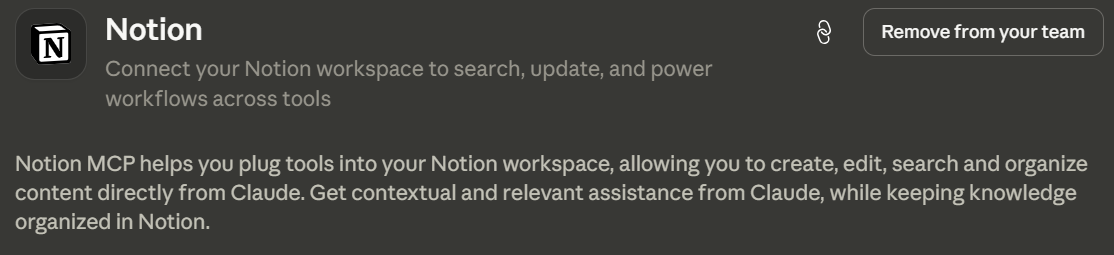
Notion is a built-in connector in Claude's directory. If your team already uses Notion as a single source of truth, connecting it to Claude gives you conversational access to everything stored there, including meeting notes.
Tactiq has a native Notion integration. After each meeting, Tactiq can automatically send transcripts and AI-generated summaries to a designated Notion database. Once Notion is connected to Claude, those notes are queryable.
How to connect Notion to Claude
- In Tactiq, go to Account & Settings > Integrations and connect Notion under the Other section.
- Go to My Workflows, create a new workflow, and set it to trigger automatically after each meeting.
- Add an AI step to generate a summary, then add a Share to an Integration step and select Notion.
- Choose the Notion database where you want transcripts saved.
- In Claude, go to Settings > Connectors, search for Notion, and click Connect.
- Authenticate with your Notion account and select your workspace.
Once connected, you can ask Claude to:
- Summarize decisions across multiple meetings in a project
- Extract feature requests from all customer calls this quarter
- Surface the next steps that were never followed up on
This setup works especially well for teams running regular client meetings or project syncs where context builds over time.n
4. Custom MCP servers: best for advanced users
If no official connector covers your meeting data source, you can build or configure a custom MCP server and register it with Claude. Your server needs to be reachable over the public internet; Claude connects from Anthropic's cloud, not your local device.
Setup varies by plan:
- Free: Add one custom connector via Customize > Connectors > Add custom connector
- Pro and Max: Add it yourself via the same path
- Team and Enterprise: An Owner adds it at the org level first; members connect individually
This makes sense when:
- Your meeting data source has no official connector
- Your team has compliance requirements around data flows
- You're in a regulated industry that requires data to stay within your own infrastructure
- Engineering teams want to expose meeting data as structured context for Claude Code workflows
If you're evaluating custom MCP options, it's worth checking the Tactiq MCP server first. It's a ready-made native connector (no local install or config file editing), and it works across Google Meet, Zoom, and Microsoft Teams.
For most teams, one of the three methods above will do the job. Custom MCP servers are the right call when you need control that off-the-shelf connectors don't offer.
Using Meeting Notes in Claude MCP
The right method depends on where your notes already live. The Zoom connector is the fastest option if you're already on Zoom with AI Companion enabled. For everyone else, connecting Tactiq with Google Drive is the most accessible path.
Tactiq captures transcripts from Google Meet, Zoom, and Microsoft Teams and saves them automatically to Drive, where Claude can query your full meeting history. Teams using Notion can use Tactiq's Notion workflow instead. Obsidian and custom MCP servers are available for more specific needs.
The Tactiq MCP server is now live, giving Claude direct access to your meeting transcripts without routing through a third-party storage tool. Install the Chrome extension to start capturing transcripts today.
MCP stands for Model Context Protocol, an open standard created by Anthropic that lets Claude connect to external tools and data sources. Connectors built on MCP give Claude direct access to your files, apps, and services within a conversation.
Go to Settings > Connectors in Claude to open the directory. Find the tool you want, click Connect, and follow the authentication prompts. Web connectors are available on all paid plans.
Yes. Google Drive is a built-in connector in Claude's directory. Connect it via Settings > Connectors, authenticate with your Google account, and Claude can search and read your Drive files, including any transcripts saved there by Tactiq.
Yes. Zoom launched an official MCP connector for Claude in April 2026. It surfaces AI Companion summaries, transcripts, and recordings inside Claude. It requires a paid Zoom Workplace plan with AI Companion enabled.
Use Tactiq. It automatically captures transcripts from Google Meet, Zoom, and Microsoft Teams. Connect it to Claude as a custom MCP connector for direct access, or route transcripts through Google Drive or Notion if you prefer storing notes there first.
Related articles








Want the convenience of AI summaries?
Try Tactiq for your upcoming meeting.
Want the convenience of AI summaries?
Try Tactiq for your upcoming meeting.
Want the convenience of AI summaries?
Try Tactiq for your upcoming meeting.