
How to Combine Two Zoom Recordings
February 26, 2026
February 26, 2026
April 7, 2026
April 7, 2026

Zoom doesn't have a built-in way to combine two recordings into one file. If your meeting got cut off, restarted, or saved in separate audio and video files, you're left doing it manually. And that can feel like more work than it's worth.
The good news? A few free video editing tools make this process straightforward. And if your goal is to capture key moments and decisions from your meetings, there's an even faster way to skip video editing altogether.
Here's what this guide covers:
- Why Zoom recordings end up split into two files
- How to combine Zoom recordings using free tools
- How to sync Zoom audio and video saved as separate files
- How to create a split-screen view from two recordings
- How Tactiq removes the need to merge recordings altogether
Why You Might Need to Combine Two Zoom Recordings
It happens more often than you'd think. You finish a Zoom meeting and realize your recording is split into two separate files. Before you search for a way to merge them, it helps to understand why this occurs in the first place.
Your meeting ended unexpectedly, and you had to restart
If a Zoom meeting drops and someone restarts it, the recording starts fresh as a new file. Each session saves separately, so you end up with two video recordings instead of one continuous file.
You accidentally stopped and restarted the recording
It's easy to hit the record button twice during a long meeting. Each time you stop and start again, Zoom creates a new recording. That means two separate clips sitting on your computer or in your Zoom cloud recordings.
The meeting ran across two separate sessions
Some meetings don't fit into one block of time. A training session, a multi-part interview, or a project sync split across two days will always generate multiple recordings. Combining them into one file makes it easier to store, share, and watch later.
💡 Pro tip: Merging two Zoom recordings can take 20-30 minutes of editing work. Tactiq transcribes each session in real time, so you get searchable notes and AI-generated action items the moment your call ends. No video editing needed.
Zoom saved your audio and video as different files
Depending on your Zoom settings, your recording might save the audio as an .m4a file and the video as a separate .mp4. These two files need to be synced and merged before the recording is usable.
Before you do anything, locate both files
Check your local recordings folder on your computer or log into the Zoom web portal to access your cloud recording library. You'll need both files downloaded and ready before you begin the video editing process.
Learn where to find your Zoom recordings in the tutorial below:
How to Combine Zoom Recordings (Step-by-Step)
Not every situation calls for the same fix. The right approach depends on what type of files you're working with and what you need the final recording to look like.
1. Merge recordings end-to-end (one after the other)
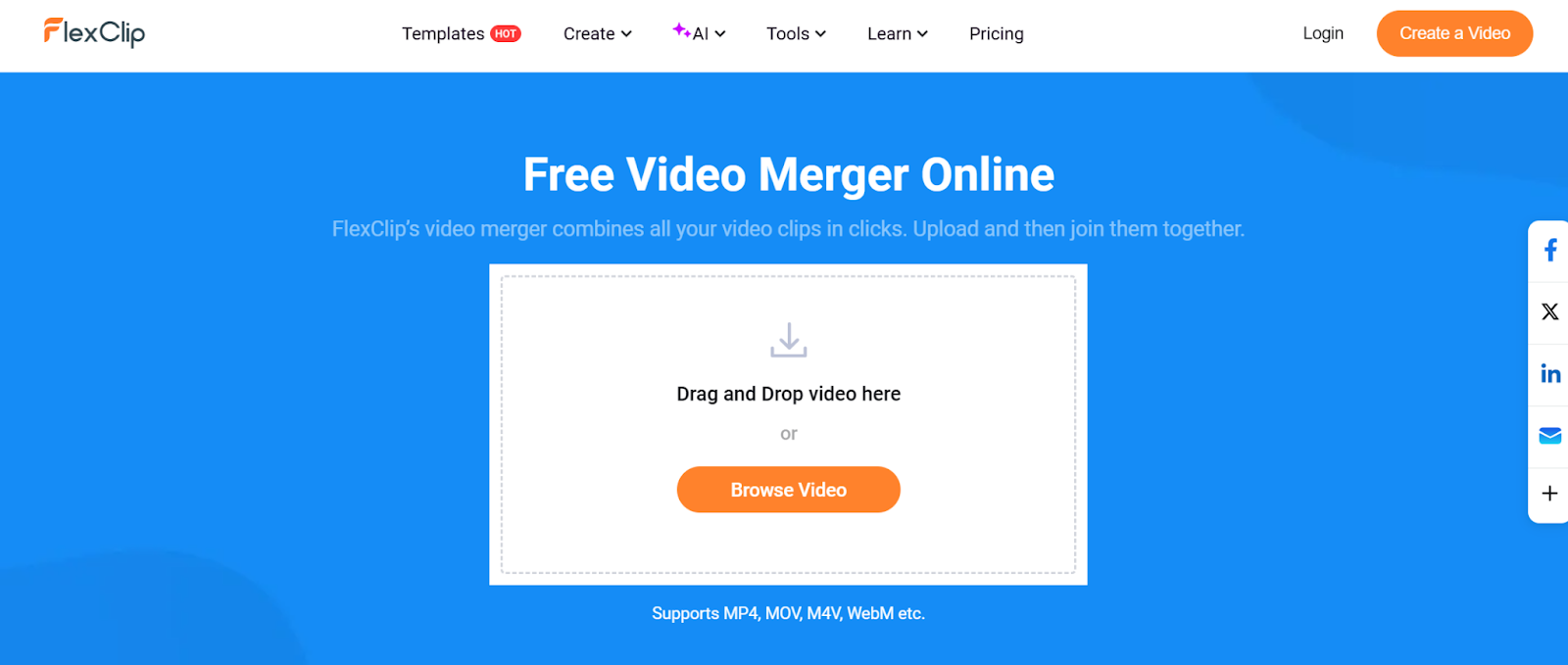
This is the most common scenario. You have two video recordings from the same meeting, and you want to stitch them into one continuous file.
Best for: reconnected sessions, two-part meetings, or any Zoom recording that was accidentally stopped and restarted.
Recommended free tools: FlexClip’s Free Video Merger (browser-based, no installation needed).
Here’s how to use FlexClip to combine your recordings:
1. Upload your recording files. Head to FlexClip's video merger tool and select the two Zoom recordings from your computer.
2. Set the playback order. Drag and drop each video clip into the sequence you want: earlier session first, second session after.
3. Export your merged file. Hit the download button to save the combined recording to your computer without any loss in video quality.
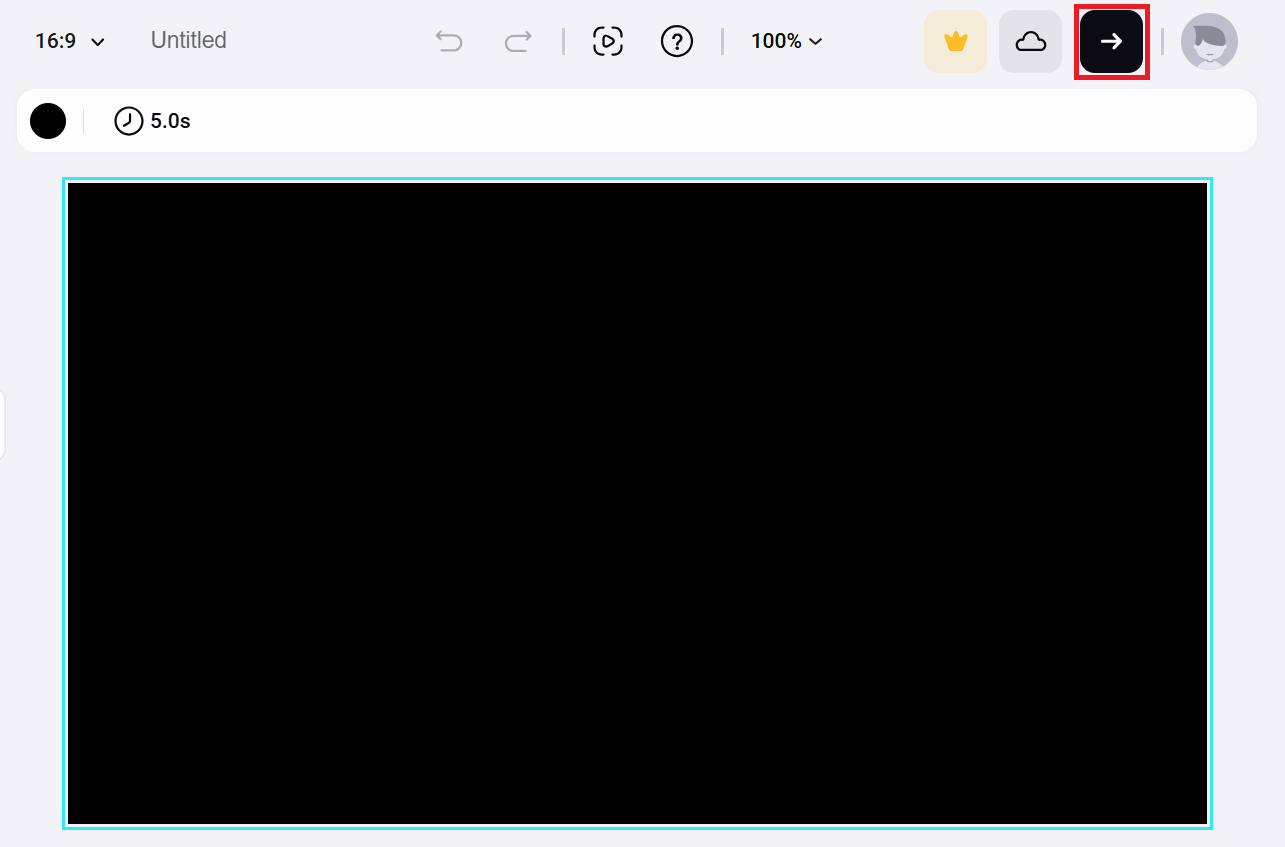
💡 Pro tip: Before uploading, rename your Zoom recording files something clear like "Session 1" and "Session 2" so it's easy to arrange the right sequence in the editor.
2. Merge Zoom audio and video recordings into one file
Zoom sometimes saves your meeting as two separate files: a video (.mp4) and an audio-only file (.m4a). This happens with both local and cloud recordings, depending on your settings.
Best for: local recordings where the audio and video are saved separately, or cloud recordings with the audio-only file option enabled.
Recommended tool: FlexClip. VLC can sync audio and video for playback, but cannot reliably save or export the combined file, so FlexClip is the simpler and safer option here.
Here’s how to use FlexClip to combine audio and video recordings:
1. Open the audio and video merge tool. Go to FlexClip audio and video editor. You'll also find a library of free templates here if you need them.
2. Upload your files. Head to the Media section and bring in your Zoom video and audio files. You can pull them from your computer, a mobile device, or a cloud service like Google Drive.
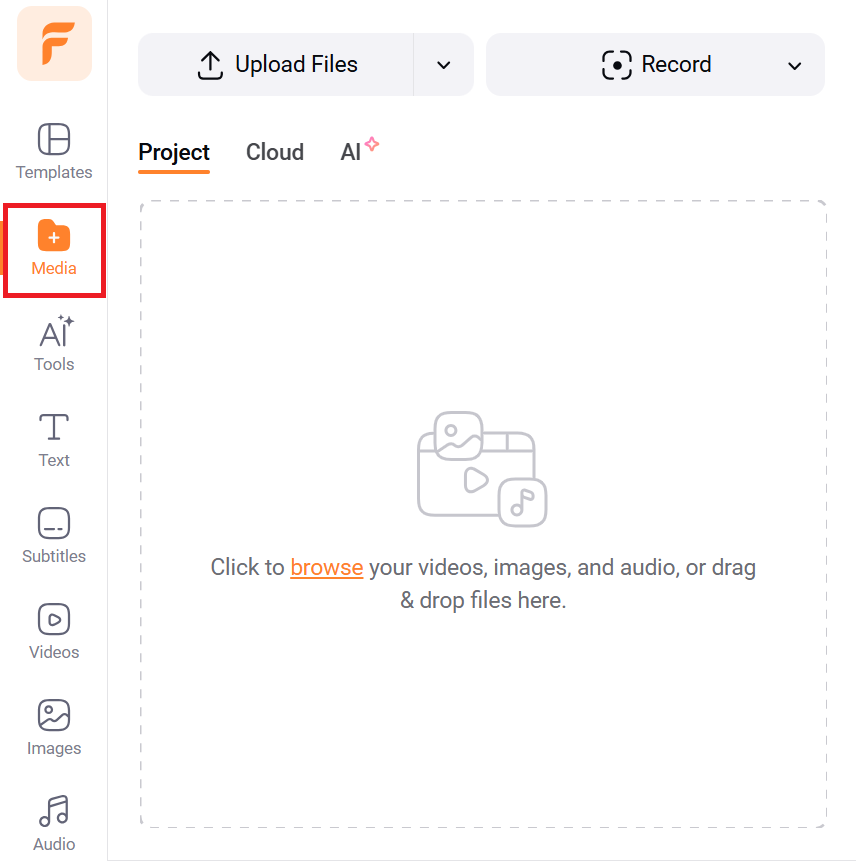
3. Add both files to the timeline. Click the Add as Scene button to place your video and audio onto the editing timeline. You can also drag and drop them directly.

4. Sync the audio to the video. Use the editing tools above the preview window to trim, split, or adjust the starting point of your audio so it lines up cleanly with the video.

5. Export your file. Choose your preferred resolution and download the combined recording. You can also save it to a cloud service or share it via a link.
3. Combine two Zoom recordings side-by-side (split screen)
This option lets you place two video clips on screen at the same time. This is useful if you have a screen share and a webcam view saved as separate files.
Best for: combining a screen recording with a webcam feed, or showing two different views in one video clip.
Recommended tool: FlexClip or WonderFox HD Video Converter Factory Pro.
Here’s how to use FlexClip to combine two Zoom recordings side-by-side:
1. Upload your recording files. Open FlexClip's online video editor and drag your two Zoom recordings into the media library. You can also pull files from your mobile device or a cloud platform if needed.
2. Add each video as a separate layer. Click the Add As Layer button to place both recordings onto the same scene as individual layers. You can trim each clip directly on the timeline to adjust the length.

3. Position the videos side by side. Click on each layer on the canvas and drag the corners to resize it. Move each clip into position (left and right, or top and bottom) to create the split-screen layout you want.
4. Polish the final video. Add text to highlight key moments, drop in background music to set the tone, or apply filters and transitions to clean up the overall look.
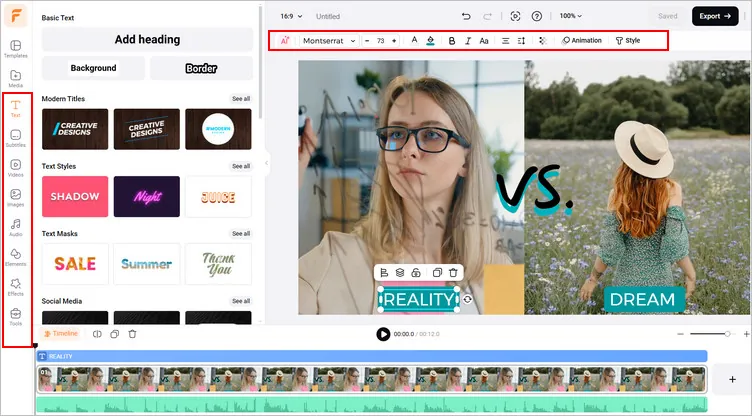
5.Export and share. Hit the Export button to download the finished split-screen video. FlexClip also generates a shareable link so you can send it directly without uploading to another platform.
How Tactiq Eliminates the Need to Combine Zoom Recordings

Merging video files takes time. You have to locate the recordings, upload them to a video editor, sync the clips, and export the final file. All this before you've even started reviewing what was said in the meeting.
For most remote teams, the goal was never a polished video in the first place. It was capturing the decisions, action items, and key moments that came out of the meeting. That's a problem Tactiq solves without touching a video editor at all.
Tactiq auto-transcribes each Zoom meeting in real time as it happens. No combining required. Every word gets captured in a live transcript during the call. When the meeting ends, you have a complete, searchable record of everything that was discussed. No merging, uploading, or waiting for an export to finish.
If your meeting ran across two separate sessions, you get one transcript per session. Combine the insights from both documents in seconds. Here's what Tactiq can do:
- Real-time transcription. Tactiq captures every word as your Zoom meeting happens. No recording file needed.
- AI-generated summaries. When the meeting ends, Tactiq automatically pulls out key moments, decisions, and action items.
- One-click exports. Send your meeting notes directly to Notion, Google Drive, or Slack in seconds.
- Multi-session coverage. Get a full transcript for each session, then combine insights across meetings without touching a video editor.
Tactiq works especially well for recurring syncs, multi-session training programs, and long project meetings that span multiple days.
And it's not limited to Zoom. Tactiq works across Google Meet and Microsoft Teams, too, so your whole team stays covered no matter which platform they use.
Install the Tactiq Chrome extension for free.
{{rt_cta_ai-convenience}}
Wrapping Up
As we’ve seen, Zoom doesn't have a built-in way to combine two recordings into one file. So, if your meeting got split, you'll need a free video editing tool like FlexClip to merge your recording files, sync separate audio and video, or create a split-screen view.
That said, for most remote teams, the real goal is never the video itself. It's the information inside it. Watching and re-watching hours of combined recordings to find one decision or action item is time teams don't have anymore.
Tactiq offers a smarter workflow. Instead of merging video files after the meeting, Tactiq automatically transcribes your Zoom, Google Meet, or Microsoft Teams meetings in real time and generates AI summaries. You get the key moments from every session without downloading a single recording file.
FAQs on Combining Zoom Recordings
Can Zoom merge two recordings automatically?
No. Zoom doesn't have a built-in feature to combine recordings. You'll need a free video editing tool like FlexClip to merge two Zoom recordings into one file.
What is the best free tool to combine Zoom recordings?
FlexClip is a strong option. It's browser-based, requires no installation, and lets you merge multiple recordings and export as MP4 for free.
How do I combine Zoom audio and video recordings that were saved separately?
Upload both your .mp4 video and .m4a audio files to FlexClip, add them as separate layers on the timeline, sync them up, and export as one file.
Can I combine Zoom recordings from different meetings?
Yes. Any video editing tool that supports MP4 files can merge recordings from different Zoom meetings into one combined video file.
How do I find my Zoom recordings before combining them?
Local recordings are saved to your computer by default. Cloud recordings can be accessed by logging into the Zoom web portal. Alternatively, use Tactiq to auto-transcribe each meeting in real time, so you never need to hunt down a recording file again.
Related articles
_Main.jpg)







Want the convenience of AI summaries?
Try Tactiq for your upcoming meeting.
Want the convenience of AI summaries?
Try Tactiq for your upcoming meeting.
Want the convenience of AI summaries?
Try Tactiq for your upcoming meeting.