
How to Add Zoom Meeting to Outlook (Web, Desktop & Mobile)
May 6, 2026
May 6, 2026
May 6, 2026
May 6, 2026

If you schedule meetings back-to-back, switching between Zoom and your Outlook calendar wastes time. The good news: you can add a Zoom meeting to any Outlook event without leaving the app.
The Zoom for Outlook add-in connects the two tools directly. Once it's installed, you get the Zoom meeting link, dial-in numbers, and meeting ID dropped into a new event automatically. No copy-pasting or switching tabs.
This guide covers:
- The difference between the Zoom add-in and the legacy Zoom plugin, and which one to use
- How to install the Zoom for Outlook add-in on web, desktop, and mobile
- How to schedule a Zoom meeting in Outlook, step by step
- What to do if Zoom isn't showing up in Outlook
- How to capture what actually happens in those meetings with Tactiq
Zoom for Outlook Add-In vs. Plugin: Which One Should You Use?
If you've searched for how to add Zoom to Outlook, you've likely seen both terms: add-in and plugin. They do the same job, schedule Zoom meetings from Outlook, but they work differently.
What the Zoom plugin is
The Zoom Microsoft Outlook plugin is a legacy desktop application that you install directly onto your computer. It works on Windows and some older macOS versions, but Zoom actively recommends moving away from it. Microsoft is blocking injection-based plugins from Outlook for macOS, and the plugin has hard compatibility limits:
- Not compatible with Outlook on the web or Outlook mobile
- Not supported on macOS 10.15 Catalina or later
- Requires the Zoom desktop client to be installed and signed in
- Only works on 64-bit systems
One more thing worth knowing: meetings scheduled with the legacy plugin can't be edited using the add-in. You'd need to delete and reschedule them.
What the Zoom add-in is
The Zoom for Outlook add-in is a cloud-based integration available through Microsoft AppSource. Install it once, and it works across classic Outlook for Windows, new Outlook, Outlook on the web, Outlook for Mac, and Outlook mobile, all tied to your Microsoft 365 account.
Which one should you use?
The add-in, in almost every case. It's the current supported integration and works across every version of Outlook. For a deeper look at the plugin's history and limitations, see Zoom Plugin for Outlook.
💡 Pro tip: Once your Zoom or Teams meeting ends, most teams lose track of what was said. Tactiq captures a live transcript in your browser (no recording needed), so action items and summaries are ready the moment you hang up.
How to Install the Zoom for Outlook Add-In
The Zoom for Outlook add-in lets you add a Zoom meeting to any new or existing Outlook calendar event. Here's how to install it across web, desktop, and mobile.
Before you install: To use the add-in on the Outlook desktop app, you need a Microsoft Exchange account added to Outlook. If you only have an IMAP account, install and use the add-in via Outlook on the web instead.
On Outlook Web
1. Go to Zoom for Outlook in the Microsoft App Store.
2. Click Get It Now.
3. Follow the prompts to complete the installation.
On Outlook desktop (Windows and Mac)
1. Open Outlook and sign in to your account.
2. In the upper-left corner, click the File tab.
3. Click Info, then scroll down and click Manage Add-ins.
4. Outlook opens a browser window. Sign in if prompted.
5. In the Add-Ins for Outlook window, search for Zoom for Outlook.
6. Click Add.
If you only see an IMAP account under the File tab, use the web app method above instead; the desktop add-in requires a Microsoft Exchange account.
On Outlook mobile (iOS and Android)
1. Open the Outlook app and tap your profile icon in the top-left corner.
2. Tap the settings icon at the bottom of the panel.
3. Swipe down and tap Add-ins.
4. Swipe down to find Zoom and tap the + button to add it.
Note for admins: If your organization needs to deploy the add-in for all users, you can do this through the Office 365 Admin Portal under Settings → Integrated apps. If you're not the admin, share these steps with your IT team.
How to Schedule a Zoom Meeting in Outlook
With the add-in installed, adding a Zoom meeting to an Outlook event takes a few clicks. Here's how to do it across web, desktop, and mobile, plus how to add Zoom to an existing event and set meeting options.
Outlook web:
1. Open your Outlook web calendar and click New Event.
2. Enter your meeting details: title, date, time, location, and guest list.
3. Set the date and time before adding Zoom. If you add Zoom first, the meeting gets scheduled for the default time, which may cause it to expire before your intended start date.
4. Click Zoom, then Add a Zoom Meeting.
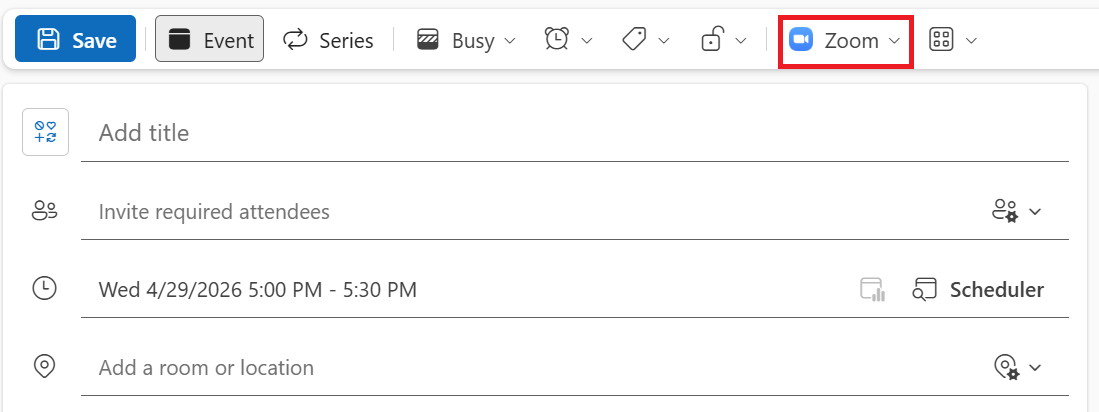
5. Sign in to your Zoom account if prompted. If you're already signed in to the Zoom web portal, it logs in automatically.
6. Complete the remaining event details and click Save.
Outlook desktop (Windows):
1. Open your Outlook calendar and click New Event.
2. Enter your meeting details.
3. In the meeting toolbar, click Zoom, then Add a Zoom Meeting.
4. Sign in to your Zoom account if prompted.
5. Click Send to send the invite to attendees, or Save for a personal event.
Outlook desktop (Mac):
1. Open your Outlook calendar and click New Event.
2. Enter your meeting details.
3. Click the Zoom icon in the toolbar, then Add a Zoom Meeting.
4. Sign in to your Zoom account if prompted.
5. Click Send or Save.
Outlook mobile (iOS and Android):
1. Open the Outlook app and tap the calendar icon.
2. Tap + to create a new event and enter your meeting details.
3. Tap Zoom, then Add a Zoom Meeting.
4. Sign in to your Zoom account if prompted.
5. Tap Save.
Your meeting settings automatically populate from your default settings in the Zoom web portal. You can override individual settings per meeting from the Zoom panel before saving.
Adding Zoom to an existing Outlook event
Already created a calendar event and forgot to add Zoom? No problem.
1., Open your Outlook web calendar and click the event to edit it.
2. Click Zoom, then Settings.
3. Make any changes and click Update to apply them.
4. Save the event. Attendees will receive an updated invitation with the Zoom details.
Setting meeting options
Your scheduler settings sync from the Zoom web portal by default, but you can adjust individual meetings before saving. From the Zoom panel in any calendar event, you can configure the waiting room, passcode, video and audio defaults, and alternative hosts. To learn more about managing meeting invites once they're sent, see How to Send a Zoom Meeting Invite.
Setting up recurring Zoom meetings in Outlook
Outlook users can set Zoom to automatically add a meeting to every calendar event they schedule. This saves time for teams running regular standups or weekly syncs.
1. Open your Outlook web calendar and click the settings icon.
2. Click the Events and invitations tab.
3. Make sure Add online meeting to all meetings is checked.
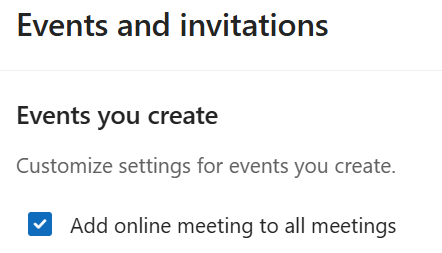
4. Select Zoom from the list of meeting providers.
5. Click Save.
From this point on, Zoom meeting details are added automatically whenever you schedule a new Outlook event.
For a full walkthrough on recurring Zoom meetings, watch this quick video:
Troubleshooting: Zoom Not Showing in Outlook
Installed the add-in, but can't find it? Here are the most common issues and how to fix them.
Zoom add-in not appearing in the Outlook ribbon
- On macOS, the most common cause is Outlook's privacy settings. Go to Outlook → Preferences → Privacy and check Turn on optional connected experiences. Restart Outlook, and the add-in should appear.
- On Windows Classic Outlook, restart Outlook after installation. If it still doesn't show, go to File → Options → Add-ins, set the Manage dropdown to Disabled Items, and click Go. If Zoom appears in the list, select it and click Enable.
Zoom add-in not appearing in new Outlook
The legacy Zoom plugin doesn't work in the new Outlook; only the web add-in does. If you switched from classic Outlook, you'll need to install the Zoom for Outlook add-in fresh using the steps in the installation section above.
IMAP account limitations
The desktop add-in requires a Microsoft Exchange account. If your Outlook desktop is set up with an IMAP account, the add-in won't work there. Install and use it through Outlook on the web instead.
Clicking Join opens Teams instead of Zoom
Outlook's Add online meeting to all meetings setting defaults to Teams as the provider. Open your Outlook calendar settings and either disable that option or switch the provider to Zoom. For a one-off fix, open the calendar event and click the Zoom meeting link directly rather than the Join button.
Admin and permissions issues
If you get a permissions error during installation, your IT admin has restricted add-in installs. Ask them to deploy it through the Office 365 Admin Portal. If the add-in is installed but won't authenticate, your network may be blocking required Zoom URLs, another one for your IT team to resolve.
How to Get More from Your Zoom + Outlook Meetings with Tactiq

Connecting Zoom to Outlook solves the scheduling problem. But most teams lose track of what was actually said the moment the meeting ends. That's the gap Tactiq fills.
Tactiq is a Chrome extension that captures a live transcript of your Zoom meeting in real time. No recording required and no bot joining the call. It works directly in your browser while the meeting runs, so you stay present in the conversation. After the meeting, you have a full, searchable transcript ready to work with.
From that transcript, Tactiq's AI generates a meeting summary, pulls out action items, and lets you run custom prompts to create follow-up emails, project updates, or any other output your workflow needs. You can share highlights with teammates, export to your tools of choice, or search back through past meetings by keyword.
To use Tactiq with Zoom, you need the following:
- The Tactiq Chrome extension installed
- Automated captions enabled in your Zoom settings (go to zoom.us → Settings → In Meeting (Advanced) → Automated captions)
- Zoom joined via your browser, not the desktop app
Once those are set, Tactiq starts transcribing automatically when you join a meeting. No setup needed on a per-meeting basis.
For a full guide on capturing and using Zoom meeting notes, see How to Take Notes in Zoom.
{{rt_cta_ai-convenience}}
You've Added Zoom to Outlook. Now What?
Getting Zoom into your Outlook calendar is straightforward once you know which tool to use. The add-in handles everything the legacy plugin can't (web, desktop, Mac, and mobile) and takes a few minutes to set up.
But scheduling the meeting is only half the job. Once the call happens, most teams have no reliable record of what was decided or what needs to happen next. That's where Tactiq comes in. Install the Chrome extension, enable automated captions in Zoom, and every meeting you schedule from Outlook becomes a searchable transcript with an AI-generated summary and action items. Ready before your next one starts.
Try Tactiq today and start turning your Zoom meetings into something you can actually use.
Open the event in your Outlook calendar to edit it. Click Zoom → Settings. Make any changes and click Update, then save the event. Attendees will receive an updated invitation.
The plugin is a legacy desktop application with limited compatibility. The add-in is cloud-based, works across Outlook web, desktop, Mac, and mobile, and is the version Zoom actively supports. Use the add-in.
On macOS, check Outlook → Preferences → Privacy and enable optional connected experiences. On Windows, restart Outlook after installation. If you're on the new Outlook, the legacy plugin won't work. Install the Zoom for Outlook web add-in instead.
Yes. Open the Outlook mobile app, tap + to create a new event, and tap Zoom → Add a Zoom Meeting. Sign in to your Zoom account on first use and tap Save.
Yes, but only the web add-in, not the legacy plugin. In the new Outlook, go to More apps → Add apps, search for Zoom for Outlook, and install it from there.
Related articles
_Main.jpg)







Want the convenience of AI summaries?
Try Tactiq for your upcoming meeting.
Want the convenience of AI summaries?
Try Tactiq for your upcoming meeting.
Want the convenience of AI summaries?
Try Tactiq for your upcoming meeting.