
How to Take Notes in Zoom
June 14, 2022
June 14, 2022
October 12, 2025
October 12, 2025

Managing everything during a Zoom meeting can feel overwhelming. You’re trying to participate, follow the discussion, and capture key points simultaneously. Traditional note-taking during Zoom meetings often means missing crucial information while you type.
That’s why AI meeting assistants have become so valuable. They can automatically take notes, generate meeting summaries, and highlight action items so you stay engaged in the conversation.
In this guide, you’ll discover:
- How to use Zoom AI Companion and agentic tools for live notes, action items, and scheduling
- How to capture and share notes with Voice Recorder, templates, and workflows
- What to know about privacy, consent, and AI bots in Zoom meetings
What is AI Note Taking?
AI note-taking is like having an assistant inside your Zoom meeting. It listens, captures notes, and organizes the key sections of the discussion, allowing you to focus on the conversation.
These tools use speech-to-text technology to turn spoken words into written notes in real time. But they don’t stop there. An AI meeting assistant can also:
- Identify key points and action items
- Highlight next steps for attendees
- Organize notes during Zoom meetings for future reference
With an AI notetaker, you don’t have to worry about missing details. You can stay engaged in the conversation while the notes are saved for review after the meeting ends.
Zoom AI Companion and Agentic Features
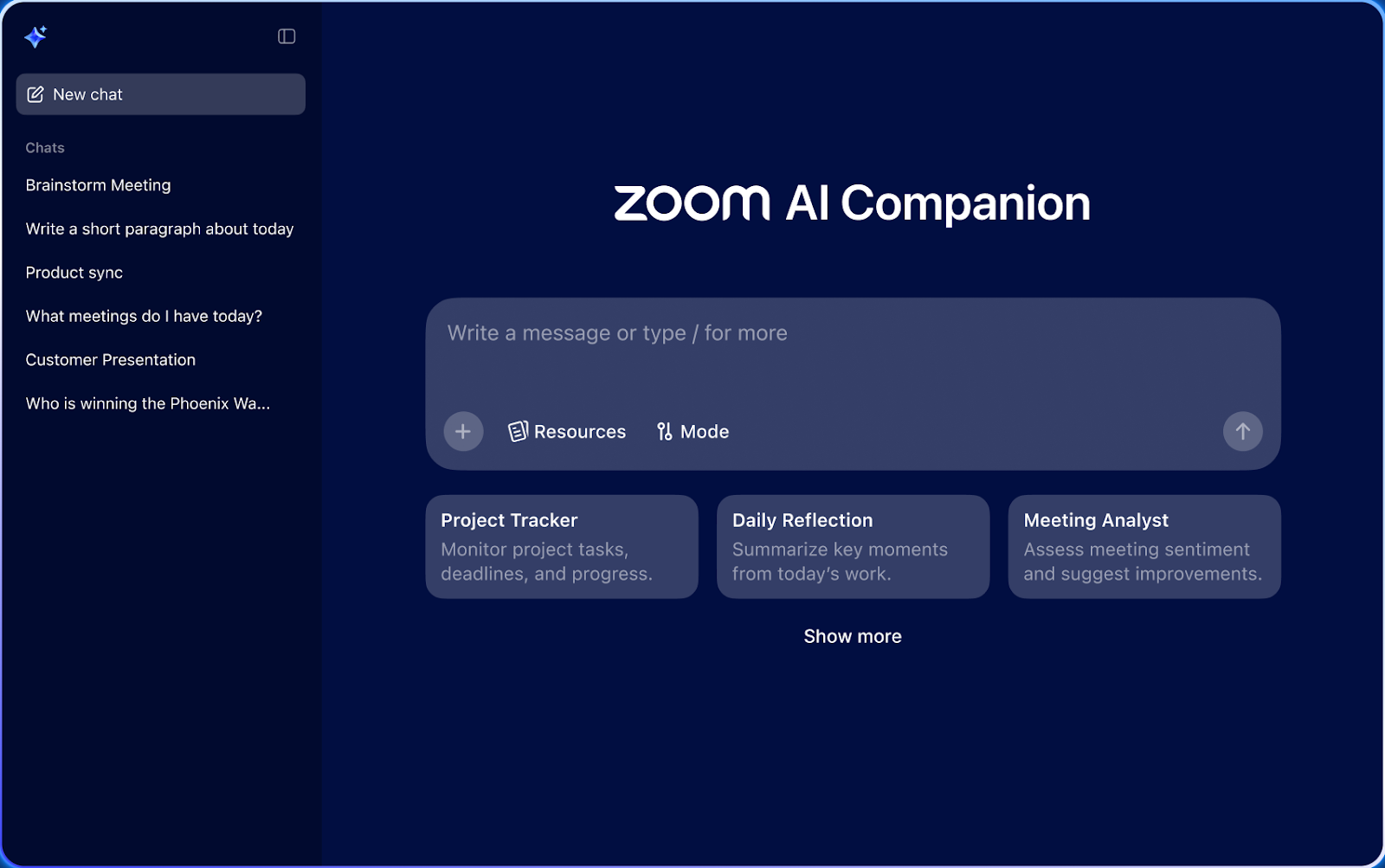
Image from Zoom
Zoom AI Companion is built into the Zoom platform for users with paid Workplace plans. It helps you take notes in Zoom meetings by providing real-time transcription, meeting summaries, and action items directly in your call.
Zoom also introduced a major agentic upgrade that expanded Companion’s role from note taker to active meeting assistant. Through a new Tasks tab in Zoom Workplace, Companion can now:
- Automatically schedule the next meeting
- Generate documents and follow-up content
- Create short video clips from your Zoom calls
- Provide live notes as the meeting unfolds
These features mean your Zoom notes don’t just capture what was said — they also help you prepare for next steps and stay organized after the meeting ends. And the best part? They’re included at no extra cost on eligible paid plans.
💡 Pro tip: With Tactiq’s In-Meeting AI, you can ask questions during your Zoom meeting and get instant AI answers based on the live transcript — no need to wait until the meeting ends.
How To Turn On AI Notes In Zoom
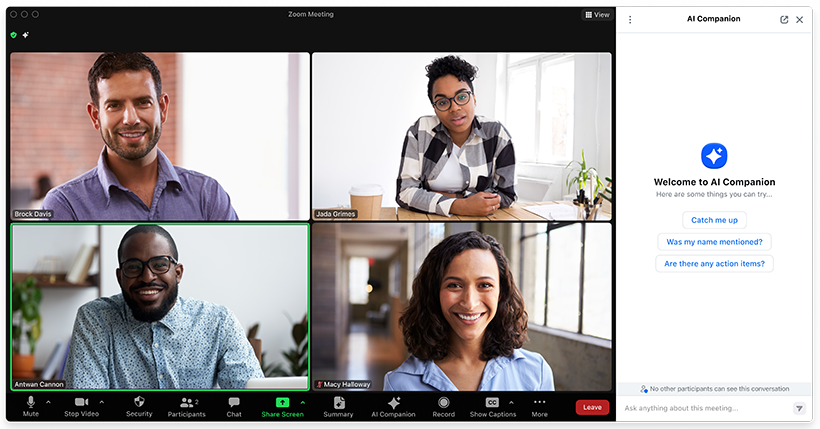
Zoom makes it simple to enable AI note-taking through the AI Companion settings. Once activated, you’ll have access to real-time transcription, meeting summaries, and action items during your Zoom meetings.
Here’s how to turn it on:
- Sign in to your Zoom account in the web portal.
- Go to Account Management > Account Settings, then click the AI Companion tab.
- Under Meeting, toggle on Meeting Summary with AI Companion.
- Choose who can see the notes: only you as host, invited participants from your organization, or everyone in the Zoom meeting.
- Save your changes.
Voice Recording and In-Person AI Notetaking
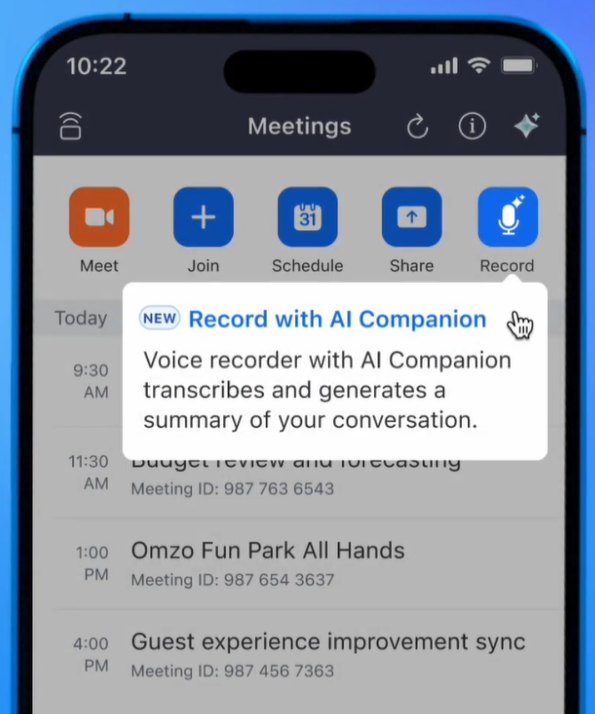
Image from Zoom
Zoom’s Voice Recorder brings note-taking beyond Zoom calls. Available in the Zoom Workplace mobile app, it lets you record in-person conversations and automatically generates a transcript, meeting summary, and key points. You’ll have both the audio and written notes to review later for documentation, reporting, or training.
The feature is supported on the latest iOS and Android devices (with compatible processors) and requires a paid Zoom account with AI Companion enabled. Once activated, you can:
- Record ad-hoc conversations or scheduled events
- Access transcripts and summaries after the meeting ends
- Update speaker names or delete recordings as needed
Currently, Voice Recorder with AI Companion supports 12 major languages, including English, Spanish, Chinese, Japanese, French, and Arabic.
📌 Remember: always follow local laws and consent requirements before recording in-person meetings.
Custom Templates And AI Workflows
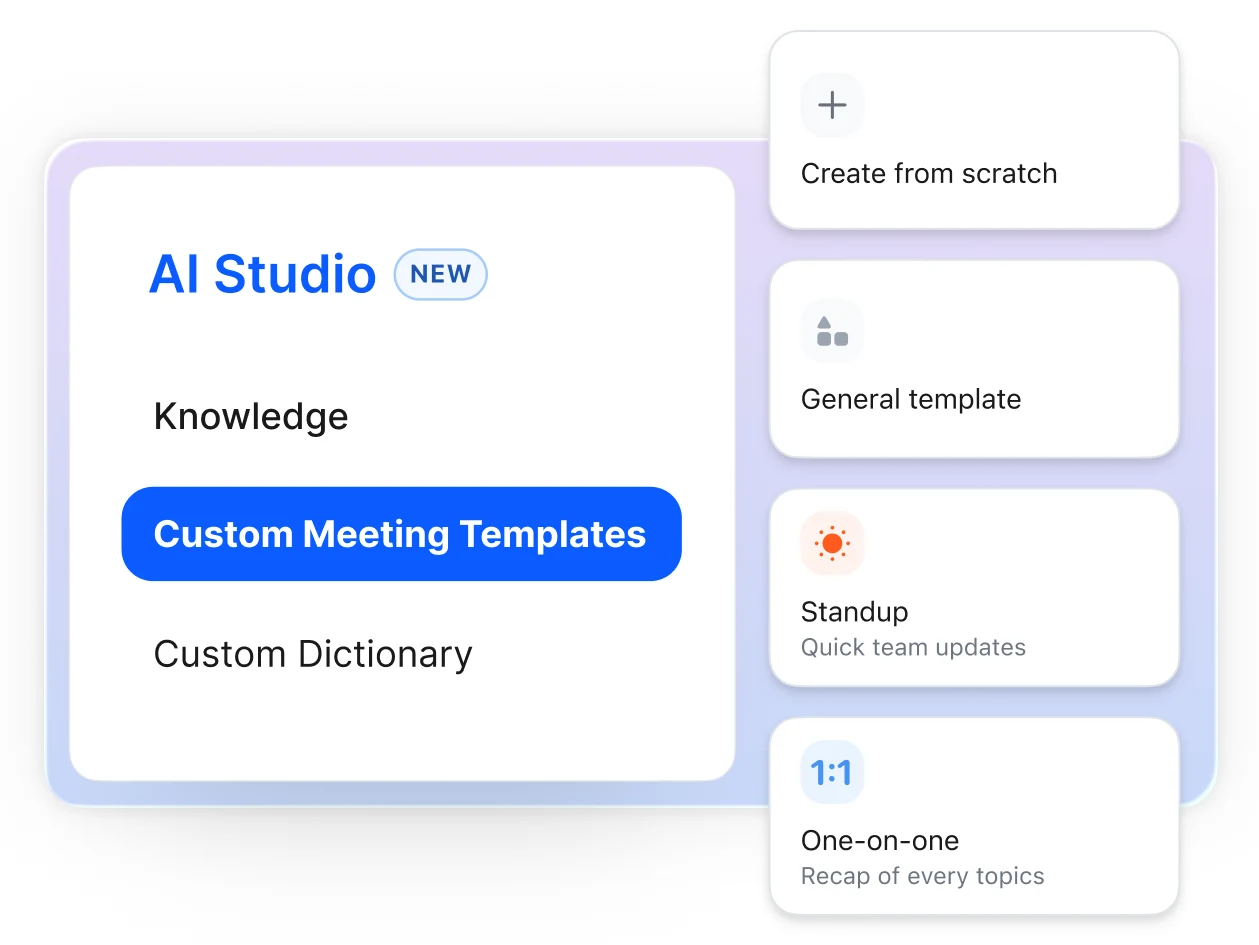
Image from Zoom
Zoom’s AI Companion now lets you design meeting summaries to fit your needs. You can build a template for any meeting type – from 1:1 check-ins to client calls — and add dedicated sections for discussion points, action items, and decisions.
Once set up, AI automatically fills in the template with notes during your meeting, so you end up with consistent, organized outputs every time.
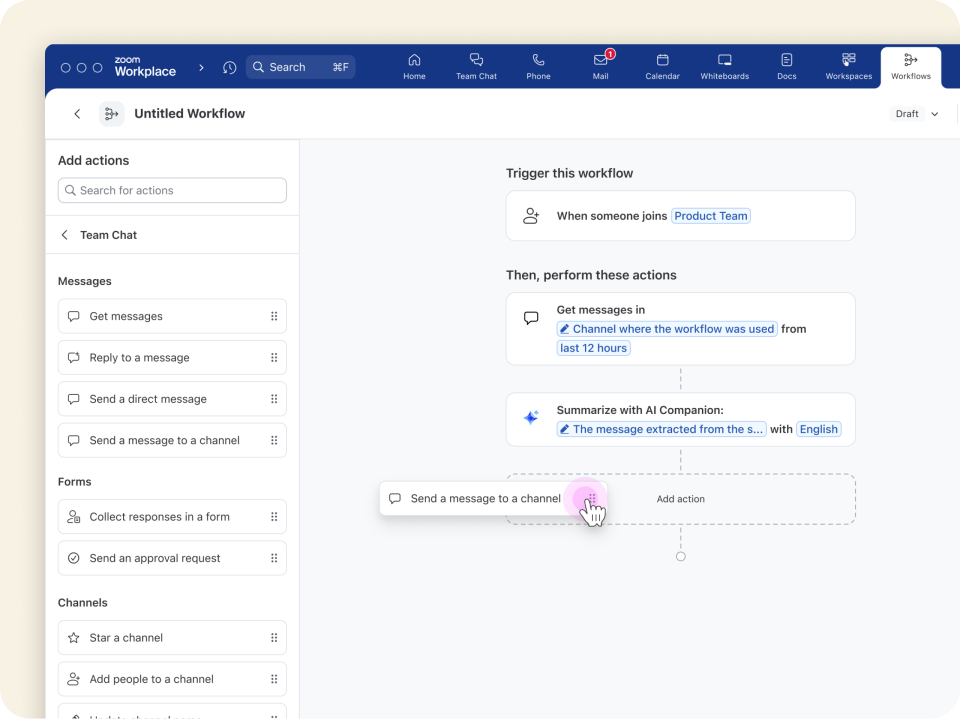
Image from Zoom
Workflows take this a step further. With Zoom Workflow Automation, you can connect your notes to the tools your team already uses. Instead of manually copying content, you can:
- Send meeting summaries straight into Zoom Docs, Chat, or email follow-ups
- Trigger automatic updates in tools like Google Drive, Jira, or Outlook Calendar
- Use ready-made templates to save time on recurring tasks
This no-code system allows anyone to create conditional workflows that cut down repetitive work, helping teams save time, improve collaboration, and stay focused on important projects.
Use Tactiq For Smarter Zoom Notes

Zoom’s AI Companion offers strong built-in note-taking, but many teams prefer a tool that works across platforms and provides more flexibility. Tactiq fills that role.
Tactiq is an AI meeting assistant that helps you take notes in Zoom, Google Meet, and Microsoft Teams. It captures every conversation in real time and makes your meeting notes easier to review and share.
With Tactiq, you can:
- Transcribe meetings in 60+ languages
- View real-time captions to stay engaged in the conversation
- Export meeting notes into Google Docs, PDF, and other formats
- Automate AI workflows to send summaries and follow-ups to the right tools
- Interact through in-meeting AI, asking questions and getting instant answers from the transcript
Tactiq also generates meeting summaries, action items, and searchable notes without requiring recordings. This lets you focus on the discussion and share meeting notes with other participants right after the call.
Start capturing better Zoom notes today. Download Tactiq for free and turn your meetings into transcripts, summaries, and action items in seconds.
{{rt_cta_ai-convenience}}
Privacy, Consent, and Bot Overload
AI note-taking makes meetings easier, but it also raises new concerns. Many teams worry about a growing “bot overload,” where automated assistants start to outnumber other participants in a Zoom meeting. This can affect interaction and even create confusion about who is contributing.
Privacy and consent are equally important. Recording and transcription tools capture sensitive information, so it’s critical to:
- Be transparent with attendees about when AI tools are active
- Follow local and regional laws around recording consent
- Limit how notes are shared to protect crucial information
If you’re hosting public calls, these issues matter even more. Learn more in our guide: Public Zoom Meetings.
For teams that want to understand how data is handled, visit the Tactiq Trust page to see details on security and compliance practices.
Elevate Your Zoom Meetings With AI Note Taking
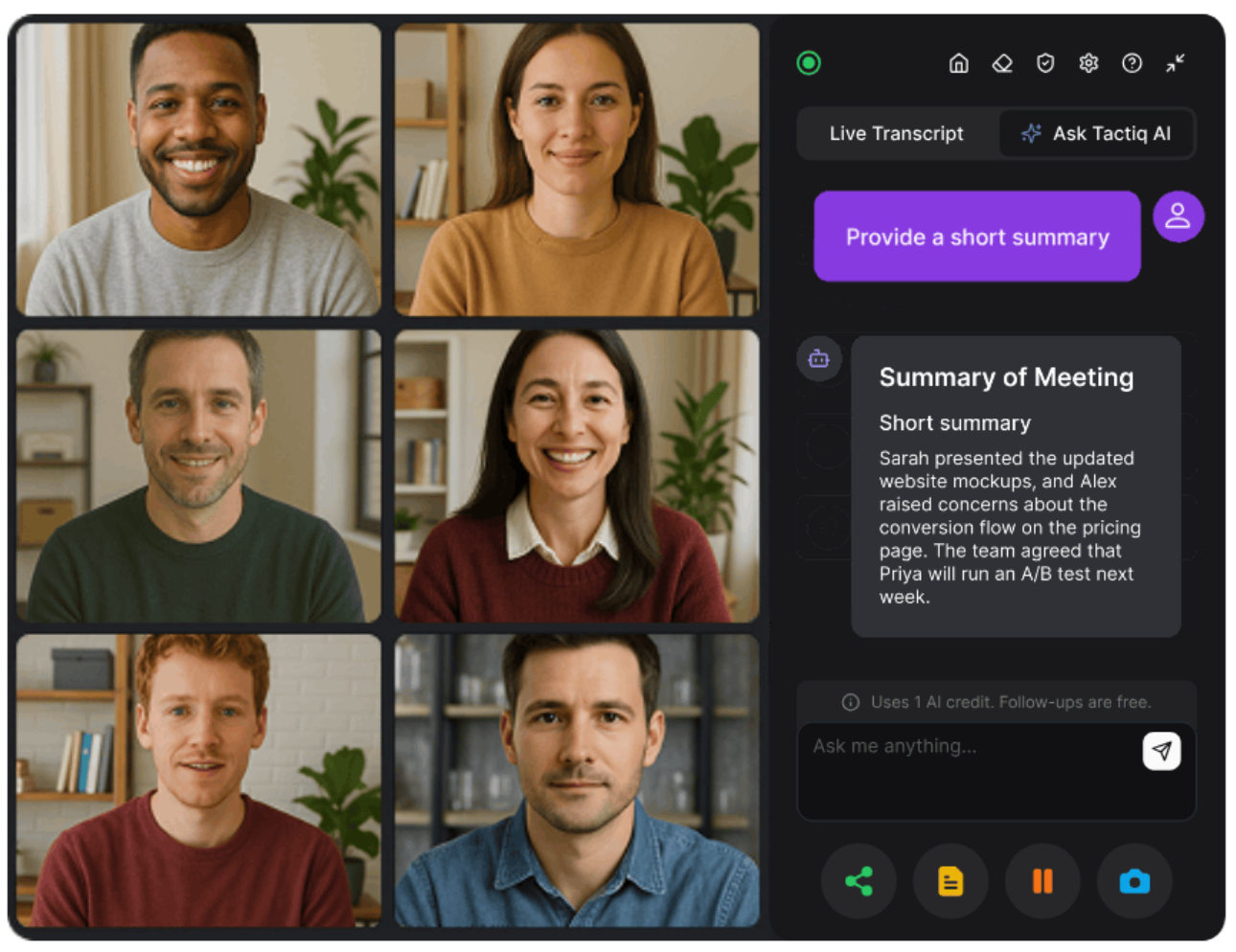
Taking notes in Zoom no longer means splitting your focus or missing details. With Zoom AI Companion, you get real-time transcription, meeting summaries, action items, live notes, scheduling tools, and more.
New features like Voice Recorder for in-person meetings and custom templates with AI workflows make it easier to capture key points and share meeting notes across your organization.
For teams that want flexibility beyond Zoom, Tactiq adds real-time captions, highlight suggestions, in-meeting chat, and exports to Google Docs or PDF — all in over 60 languages.
Using these tools helps you save time, keep track of important sections, and share meeting notes for better collaboration and future reference.
FAQs About How to Take Notes in Zoom
Does Zoom have an AI note-taking app?
Yes. Zoom includes note-taking with its AI Companion on paid plans. It can create meeting summaries, transcripts, and action items automatically.
How do I activate notes on Zoom?
Go to your Zoom web settings > Account Management > Account Settings, then click the AI Companion tab. Toggle on Meeting Summary with AI Companion. From there, choose who can view the notes and save your changes.
How to take notes during a Zoom meeting automatically for free?
If you’re looking for a free option, you can use tools like Tactiq. It provides real-time transcription, AI-generated summaries, and action items without requiring a paid Zoom plan.
Can AI take notes during a Zoom meeting?
Yes. AI note takers capture the discussion, highlight key points, and organize action items in real time so you can focus on the conversation.
What are the benefits of using Tactiq with Zoom?
Tactiq supports over 60 languages, provides live captions, AI highlight suggestions, in-meeting chat, workflows, and exports to formats like Google Docs or PDF — all without needing to record the meeting.
Zoom does not have a built-in note-taking feature. You need to use a separate note-taking app or a transcription tool like Tactiq to capture meeting notes, so you never miss key points or action items.
You can use a transcription tool like Tactiq to automatically transcribe the meeting, allowing you to stay engaged in the conversation. This way, you don’t have to split your attention between listening and typing, so you capture everything effortlessly.
First, install the free Tactiq Chrome extension. Then, connect Tactiq to Zoom, and when you host a meeting in Chrome, Tactiq will automatically transcribe the conversation and let you add notes in the same window. Your notes and transcript are saved to your Google Docs and Tactiq account, so you can review them anytime.
You can use Zoom-integrated note-taking extensions, which let you type and share notes during the meeting, or position your Zoom window and a note-taking app side by side. These methods help you organize your thoughts without missing what’s being discussed.
Using a template helps you organize notes into clear sections, making them easier to review and remember. By setting up key points or an agenda in Tactiq before your meeting, you ensure your notes stay structured and actionable.
Related articles
_Main.jpg)







Want the convenience of AI summaries?
Try Tactiq for your upcoming meeting.
Want the convenience of AI summaries?
Try Tactiq for your upcoming meeting.
Want the convenience of AI summaries?
Try Tactiq for your upcoming meeting.