
How to Host a Zoom Meeting Without Signing In
- Published:
- November 25, 2025
- Updated:
- February 10, 2026

Zoom doesn’t allow hosting a Zoom meeting (opens in a new tab) without signing in, so you’ll always need a Zoom account to host. This requirement protects your meeting from unauthorized users, keeps your meeting ID secure, and helps prevent disruptions.
The good news? You can still start a Zoom meeting quickly, launch an instant session from the Zoom app or browser, and share a simple link that lets guests join the meeting without extra steps.
Here’s what we’ll cover next:
- How to make your meetings easy to join
- How to start an instant Zoom meeting
- How to use Tactiq to transcribe your calls
Making Your Zoom Meetings Easy to Join (Without Compromising Security)
People look for ways to join meetings fast, sometimes searching for a “Zoom meeting without a passcode.”
Zoom doesn’t allow passcode-free access unless you turn on the Waiting Room, because every Zoom meeting must have at least one security layer enabled. This protects your meeting from unwanted users and keeps your meeting ID safe.
Why Zoom requires security features
Zoom added stronger security features to stop “Zoombombing (opens in a new tab)” and protect access to every meeting. Since 2022, all hosts must turn on one of the following:
- A passcode
- A Waiting Room (opens in a new tab)
- Or the option that only authenticated users can join
These requirements keep your screen, camera, and microphone safe from unwanted users. The good news? You can still make it very simple for guests to enter the meeting.
Embed passcodes in meeting links (best practice)
The fastest way to let people join is to use a secure link with an embedded passcode. When guests click it, they join the meeting instantly. No typing required.
How embedded passcodes work:
- Zoom creates a long link that already includes the passcode.
- Participants click the link → They join immediately.
- Zoom handles any login requirements automatically.
How to enable it:
1. Open your Zoom account settings.
2. Go to Settings > Security.
3. Make sure the Embed passcode in meeting link for one-click join is enabled.
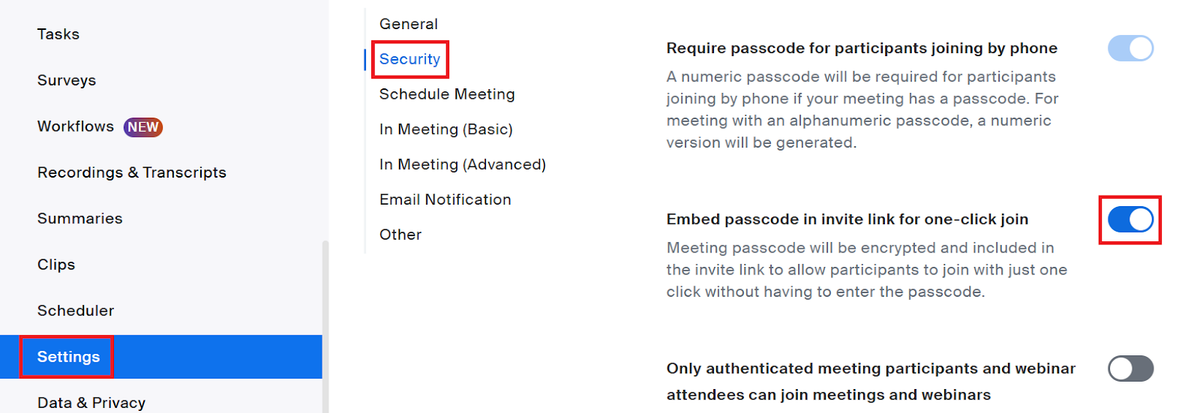
4. Always share the full invitation details so guests can join with ease.
Alternative: Use the waiting room instead of the passcode
If you prefer control, you can host a meeting without a passcode by turning on the Waiting Room. Guests appear as “waiting,” and you click to admit them.
How to turn it on:
- Go to your Zoom settings → Security.
- Enable Waiting Room.
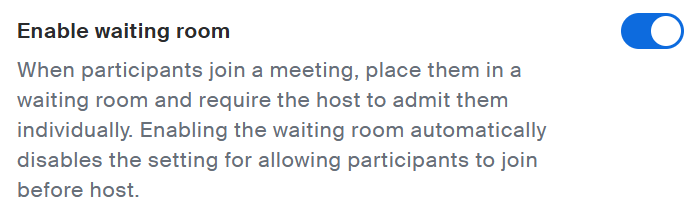
- Turn Passcode off.
- Save your option.
This setup works best when you want to verify each guest before they enter the meeting.
Personal Meeting ID (PMI) for consistent access
A Personal Meeting ID creates a permanent room with the same meeting ID every time you host. It’s simple for people to find, learn, and reuse.
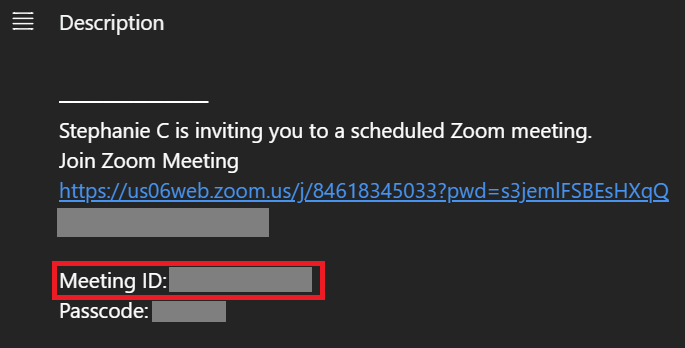
Where to find your Zoom meeting ID (opens in a new tab):
1. Launch the Zoom desktop app.
2. Click the "Meetings" tab at the top.

3. Find your scheduled meeting in the calendar.
4. Click on the meeting, and the Meeting ID will appear under Description.
When to use a PMI:
- Team check-ins
- Office hours
- Recurring sessions
Security note: Anyone with the link can join the meeting, so share it carefully with trusted users.
Want more control over your recurring calls? Learn how to extend your Zoom meeting time (opens in a new tab) so your PMI sessions never get cut short.
How to Start an Instant Zoom Meeting (Desktop)
Starting an instant Zoom meeting (opens in a new tab) only takes a few clicks. You can host it from the Zoom app or desktop client as long as you're signed in to your Zoom account. This is the fastest way to launch a call without scheduling anything in advance.
Method 1: One-click start from the Zoom desktop app
This is the quickest way to open a meeting and let people join using your simple meeting link.
1. Open the Zoom app on your computer.
2. Log in to your account if you haven’t already.
3. On the home screen, click New Meeting.
4. (Optional) Click the arrow next to New Meeting and tick Use My Personal Meeting ID if you want the same meeting ID every time.
5. Your meeting will launch instantly.
How to invite users (opens in a new tab) once the meeting has started:
6. Click Participants
7. Click Invite at the bottom of the right panel
8. Copy the full invite link or send an email invite directly
9. Guests can join the meeting without extra steps if passcodes are embedded
This method works well when you need to start a meeting without planning ahead.
Method 2: Start meeting from the Meetings tab
You can also host an instant meeting from the Meetings tab in the desktop client.
1. Open the Zoom app.
2. Select the Meetings tab at the top.
3. Click the plus sign (+), then select Meet Now.
4. The Zoom meeting starts right away using your default settings.
This is helpful if you like checking your meeting details or PMI before you begin.
How to Use Tactiq to Transcribe Zoom Meetings
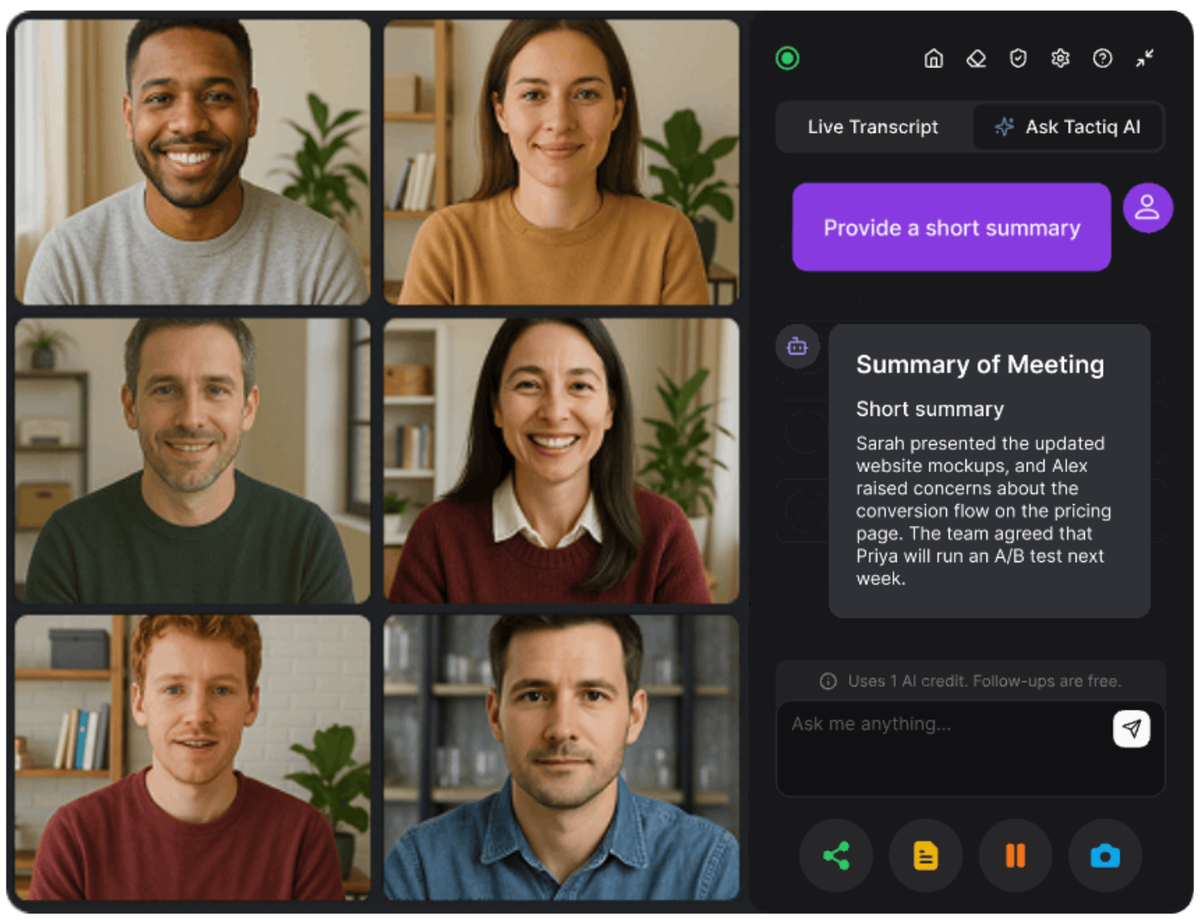
After you’ve learned how to host an instant Zoom meeting, the next step is keeping clear notes without juggling different screens.
If you’re using Zoom Web, Tactiq (opens in a new tab) helps you capture everything while you stay focused on the conversation. It also works with other platforms like Google Meet and Microsoft Teams, so your transcripts stay consistent across your tools.
Here’s how to start:
- Install the Tactiq Chrome extension. (opens in a new tab)
- Connect Zoom under Integrations (opens in a new tab).
- Join or launch your meeting directly in the browser (opens in a new tab).
- Tactiq shows a consent banner so participants know transcription is enabled.
- Tactiq begins recording the transcript automatically.
- After you end the meeting, you can view your transcript, highlights, and summaries in Tactiq.
Tactiq features you’ll use
- Real-time transcription (opens in a new tab): Captures your full meeting text as the conversation happens.
- In-Meeting AI (opens in a new tab): Lets you ask questions about the meeting in real time and get instant insights as the discussion unfolds.
- Custom AI prompts: Ask any question about your meeting and get tailored insights. Turn transcripts into emails, documentation, wikis, or updates in one click.
- AI workflows (opens in a new tab): Automate repetitive tasks by turning your meeting notes into structured outputs like summaries, tasks, or follow-ups sent automatically to the right tools.
With these features, you can run the meeting confidently while Tactiq captures every important detail and turns it into something useful.
Install the free Tactiq Chrome extension (opens in a new tab) to capture your next Zoom Web meeting automatically.
Want the convenience of AI summaries?
Try Tactiq for your upcoming meeting.
Wrapping Up Your Zoom Meeting Setup
You now have a simple way to host a Zoom meeting even when you need to move fast. Instant meetings, embedded passcodes, and your Personal Meeting ID all make it easy for users to join while keeping every session protected. Zoom’s security rules may feel strict, but features like passcode-embedded links help guests enter the meeting without extra steps.
And when you want to stay focused on the conversation, Tactiq keeps your notes, transcripts, and insights organized across Zoom, Google Meet, and Microsoft Teams. You get real-time transcription, Meeting AI, custom prompts, and AI workflows that turn every meeting into clear next steps.
FAQs About How to Host A Zoom Meeting Without Signing In
Do I need a Zoom account to start a meeting?
Yes. You must sign in to your Zoom account to host any Zoom meeting. Zoom requires this to protect your meeting ID, control security settings, and prevent unknown users from starting or managing your session.
Can I start a Zoom meeting without a passcode?
Yes, but only if the Waiting Room is enabled. Zoom requires at least one security option for every meeting.
What’s the difference between an instant meeting and a scheduled meeting?
An instant meeting starts right away. A scheduled meeting is created in advance with a set time, meeting ID, and invitation details.
How do I start a Zoom meeting quickly without scheduling?
Open the Zoom app, log in, and click New Meeting to launch one instantly.
Can participants join my meeting before I start it?
Only if you turn on “Allow participants to join before host” in your meeting settings.
Related articles

Zoom ChatGPT: How to Connect and Access Meetings

Zoom MCP: Features, Setup, and Limitations (Full Guide)

Zoom Workplace and Zoom Meetings Difference: What You Need to Know

What Is Zoom Cloud Meeting App?

Zoom Cloud Meetings for Mac: Full Guide

Zoom Meeting Statistics 2026: Usage, Revenue & Data

How to Edit Zoom Recording: A Complete Guide

How to Record Yourself on Zoom
Want the convenience of AI summaries?
Try Tactiq for your upcoming meeting.
Bringing AI into your meetings has never been so easy.
Add to Chrome - It's free!(opens in a new tab)Try Tactiq in your upcoming meeting!
Sign up now