
Can Someone Rejoin a Zoom Meeting After Being Removed?
- Published:
- November 17, 2025
- Updated:
- November 17, 2025

Removing someone from a Zoom meeting (opens in a new tab) can feel like a big step. Maybe the person joined by mistake. Maybe there's a disruption. Or maybe you just need to keep the conversation on track.
In any case, the next question usually pops up quickly: can they return to the meeting after being removed?
The short answer is yes, but only in certain situations. Zoom blocks removed participants from rejoining the current session, but there’s a setting you can turn on that lets them rejoin. The rules can feel confusing, especially if you’re managing recurring meetings, sharing links with guests, or handling sensitive conversations.
In this guide, you’ll learn:
- What actually happens when you remove someone
- How removal affects the current meeting and future ones
- The exact setting you need to enable to let someone rejoin
- What to do if you need them back right now
- How Tactiq helps document what happened during removal
What Happens When You Remove Someone from a Zoom Meeting?
Removing a meeting participant changes their access right away. Zoom treats it as a hard block for the rest of that session, even if they try to rejoin with the same link.
Default behavior
When you remove someone from a Zoom meeting:
- They can’t rejoin the current session.
- Zoom blocks them from returning using the same email address.
- They must wait until the next session to join again (opens in a new tab).
How removal affects future meetings
Removing someone only affects the meeting you’re currently in. It doesn’t change their ability to join later sessions.
Here’s what that means:
- The same meeting link will work for future meetings.
- Recurring meetings are treated as separate sessions, so that they can join the next one.
- The Meeting ID doesn’t permanently block a participant.
If you need to remove a participant from a single session, removal works.
If you need long-term control, you’ll need different settings, like passwords, waiting rooms (opens in a new tab), or managing who receives the meeting invite.
Best Practices for Managing Removed Participants
Handling a removed participant goes beyond clicking “Remove.” Clear documentation, communication, and meeting scheduling practices help you avoid confusion and keep the meeting on track.
This is also where an AI tool like Tactiq (opens in a new tab) becomes especially helpful.
Document why participants were removed
It helps to keep a record of what happened and when. This is important for HR concerns, internal reviews, or any sensitive meeting notes.
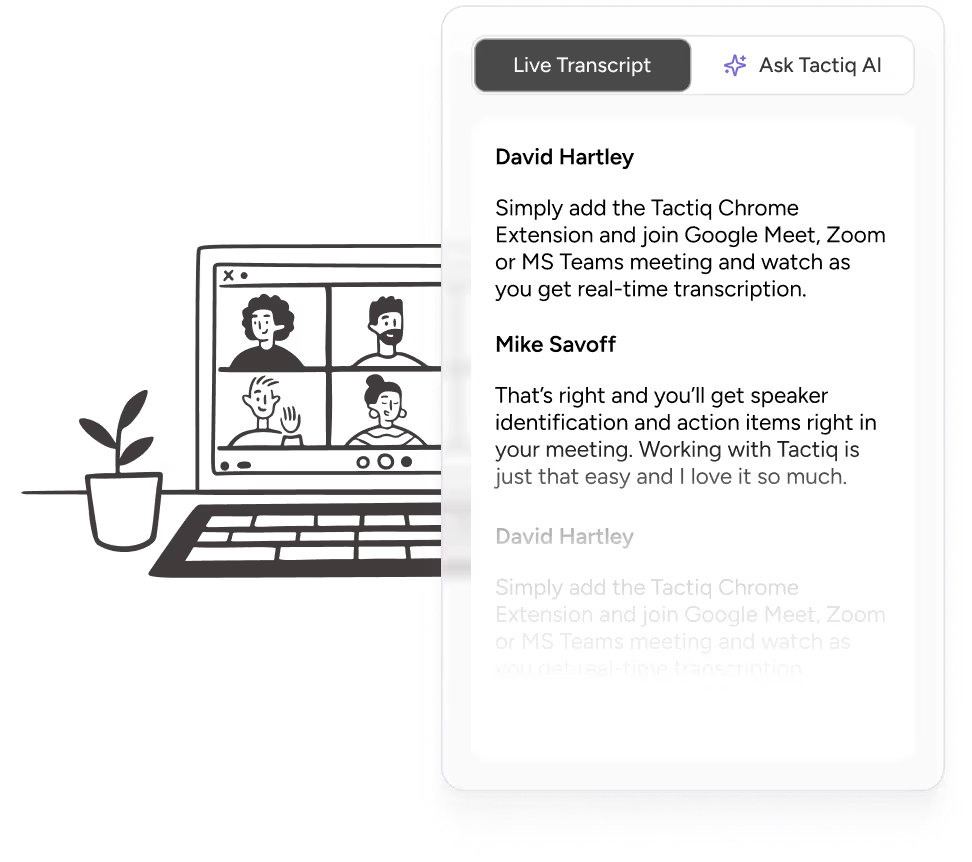
Tactiq can capture these details for you through automatic transcription. You’ll have the exact conversation recorded, along with timestamps that show when the issue occurred.
Tip: Use Tactiq to save a clean transcript of the moment you removed someone. It gives you a reliable record for follow-ups, reporting, or compliance reviews.
Install the free Tactiq Chrome Extension (opens in a new tab) to start automatically capturing your meeting notes.
If you need a clear record of what happened in the meeting, you can also record the session when allowed. Learn how in our guide on how to record a Zoom meeting as a participant (opens in a new tab).
Communication tips
If possible, let the participant know why you removed them. You can send a quick message afterward or recap the key points they missed.
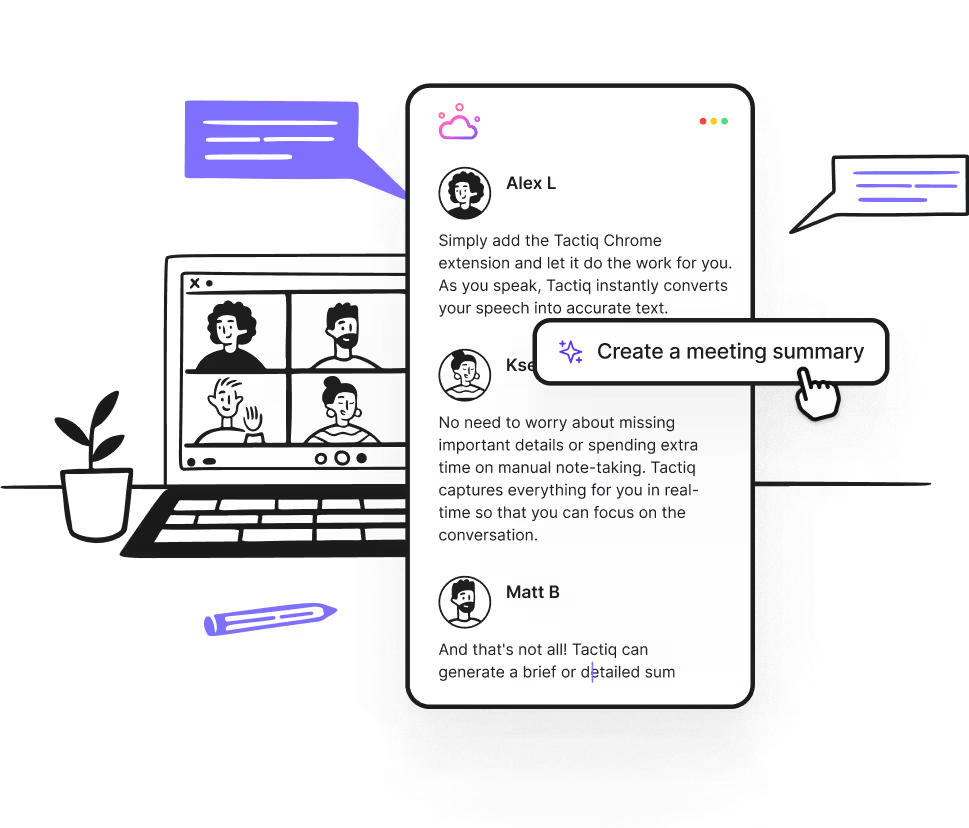
Tactiq helps here, too. Its AI summaries highlight the main ideas, decisions, and action items from the meeting. You can share a clear summary that allows the person to catch up without having to replay the entire conversation.
For recurring meetings
In recurring sessions (opens in a new tab), the same person might be removed more than once. It helps to track patterns and adjust your meeting scheduling or meeting options if needed.
Tactiq keeps a history of your meetings, so that you can pick up on repeated issues. From there, you can decide if you need stricter meeting policies or more controlled access.
You can use Tactiq’s meeting history to see when disruptions repeat. It helps you set better rules and prevent future issues.
Tip: If you’re dealing with interruptions and want to regain control without removing anyone, you can quickly quiet the room. Here’s how to mute all participants in a Zoom meeting (opens in a new tab).
How to Enable “Allow Removed Participants to Rejoin”
Zoom gives you control over whether removed participants can return to a meeting. This setting isn’t turned on by default, so you’ll need to enable it before the meeting starts.
Keep in mind that any change takes effect only after the meeting has ended and is then restarted.
Enable the setting before your meeting (account level)
If you manage Zoom for an entire organization, you can turn this on for every user.
1. Sign in to the Zoom web portal as an account admin.
2. Go to Account Management → Account Settings.
3. Select the Meeting tab.
4. Scroll to In-Meeting (Basic).
5. Find the “Allow removed participants to rejoin” option and make sure it’s enabled.

6. To make this setting mandatory, click the lock icon and confirm.
This changes the global setting, so it applies to all Zoom users in your account.
Enable for specific groups (group settings)
Admins can also enable this for certain teams or departments.
1. Sign in to the Zoom web portal as an admin.
2. Go to User Management → Groups.
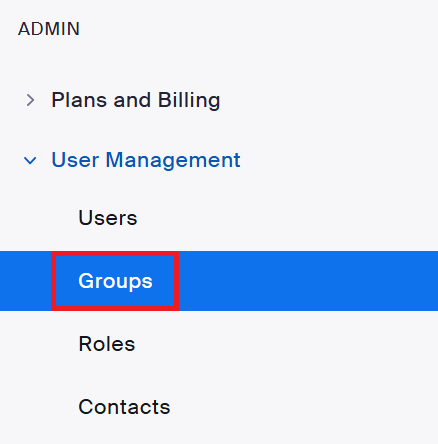
3. Select the group name.
4. Open the Meeting tab.
5. Under In-Meeting (Basic), switch on Allow removed participants to rejoin.
If it’s grayed out, it means the account admin has locked it at the higher level.
Enable for your own account (user level)
If you’re not an admin, you can still turn it on for your meetings.
1. Sign in to the Zoom web portal.
2. Go to Settings.
3. Select the Meeting tab.
4. Under In-Meeting (Basic), enable Allow removed participants to rejoin.
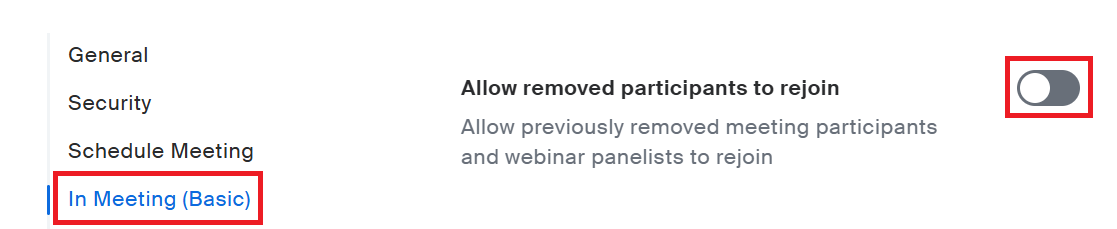
If it’s locked, contact your Zoom admin.
Important limitations
A few rules make this setting easy to misunderstand:
- It won’t apply to live meetings.
- You must end the meeting and restart it for the change to work.
- You’ll need this enabled before your next session begins.
- It only affects meetings, not the behavior of webinar attendees. If you’re running a webinar (opens in a new tab) instead of a meeting, you’ll need to manage removed attendees directly from the Manage Attendees section, where you can select multiple attendees in the pop-up window and approve them to rejoin.
Once it’s on, removed participants can rejoin meetings simply by using the same meeting link during a future session.
How to Let Someone Rejoin During an Active Meeting
If you need a removed participant to come back during the same meeting, your options depend on whether you enabled the rejoin setting beforehand. Zoom applies this rule strictly, so the steps change based on your current setup.
If the setting is already enabled
If Allow removed participants to rejoin was turned on before the meeting started:
- The participant can click the same meeting link.
- Zoom will let them rejoin the active session.
- No extra steps needed from you as the meeting host.
This is the smoothest way to bring someone back in quickly.
If the setting is NOT enabled
If the setting was off when you removed the participant, Zoom won’t allow them back into the current session even if you turn the setting on mid-meeting.
In this case, you only have one option:
- End the meeting for everyone, enable the setting, and restart the meeting.
- Ask attendees to rejoin using the original link.
- Use Leave Meeting to transfer host controls if you don’t want to be the one restarting.
This avoids a full stop and lets another host (opens in a new tab) handle the restart if you prefer.
Once the meeting restarts, the removed participant will be able to rejoin.
How Tactiq Helps Manage Participant Removal Scenarios
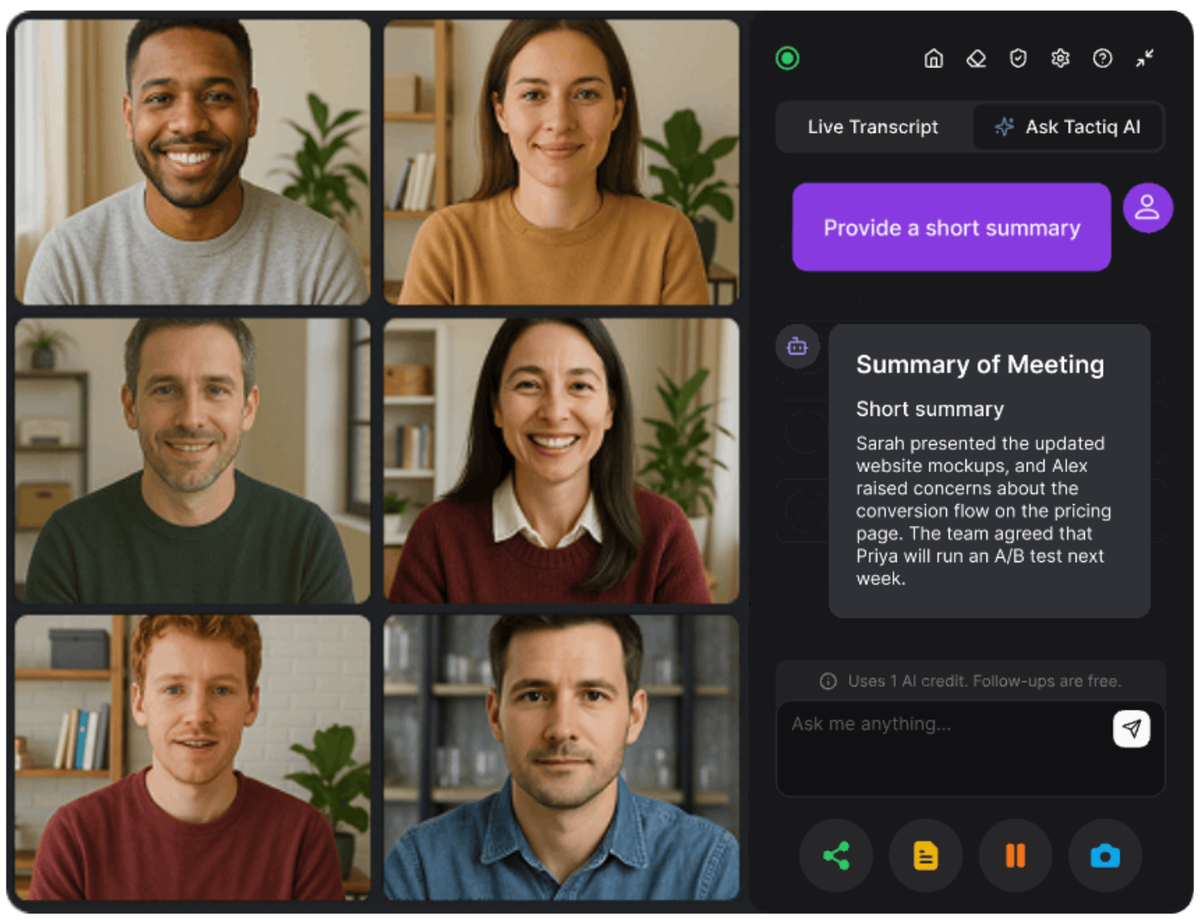
When someone gets removed from a Zoom meeting, the follow-up work can be just as important as the moment itself. You may need clear documentation, a recap for the removed participant, or a way to track patterns across recurring meetings.
Tactiq (opens in a new tab) supports all of this with built-in transcription and AI tools.
Here’s how Tactiq helps:
- Automatic meeting transcription (opens in a new tab) - Tactiq captures the full conversation in real time, making it easy to document what led to the removal. You’ll always have a clear record of what was said.
- AI summaries for removed participants - Share a short recap to help them return prepared. Tactiq pulls key points, decisions, and action items into a simple summary you can send in minutes.
- In-Meeting AI (opens in a new tab) - Ask questions about the meeting while it’s happening. You can check decisions, get quick clarifications, or pull instant insights without stopping the flow.
- Track action items missed during removal - If the removed participant had tasks assigned earlier, Tactiq’s AI highlights them so nothing falls through the cracks.
Install the Tactiq Chrome Extension for free (opens in a new tab) to start automatically capturing clear meeting notes.
Want the convenience of AI summaries?
Try Tactiq for your upcoming meeting.
Wrapping Up
Removing someone from a Zoom meeting doesn’t have to create confusion. Zoom blocks removed participants from rejoining the current session, but they can come back in future sessions unless you change your settings.
If you want them to rejoin during the same meeting, make sure Allow removed participants to rejoin is enabled before the session starts, or restart the meeting after turning it on.
These small steps help you stay in control of who attends, how your meeting runs, and what happens next. And if you need clear documentation or a quick recap for anyone who missed key moments, Tactiq gives you accurate transcripts, helpful AI summaries, and a full meeting history you can rely on.
FAQs About Rejoining A Zoom Meeting After Being Removed
Can someone rejoin a Zoom meeting after being removed?
Yes. They can’t rejoin the current session, but they can join a future one. If you want them to rejoin right away, you must enable “Allow removed participants to rejoin” before the meeting starts or restart the meeting after turning it on.
How do I allow removed participants to rejoin my Zoom meeting?
Enable Allow removed participants to rejoin in your Zoom web settings under In-Meeting (Basic). Changes won’t apply to live meetings. You must end and restart the session.
Can removed participants join future Zoom meetings with the same link?
Yes. Removal only applies to the meeting you’re currently in. The same link will work for future sessions, including recurring meetings.
What’s the difference between removing someone and ending a meeting?
Removing someone blocks them from the active meeting. Ending the meeting closes the session for everyone and resets the access rules for the next one.
Can I use Tactiq to document why participants were removed?
Yes. Tactiq provides real-time transcription and AI summaries to document what happened and share clear follow-ups easily.
Related articles

Zoom ChatGPT: How to Connect and Access Meetings

Zoom MCP: Features, Setup, and Limitations (Full Guide)

Zoom Workplace and Zoom Meetings Difference: What You Need to Know

What Is Zoom Cloud Meeting App?

Zoom Cloud Meetings for Mac: Full Guide

Zoom Meeting Statistics 2026: Usage, Revenue & Data

How to Edit Zoom Recording: A Complete Guide

How to Record Yourself on Zoom
Want the convenience of AI summaries?
Try Tactiq for your upcoming meeting.
Bringing AI into your meetings has never been so easy.
Add to Chrome - It's free!(opens in a new tab)Try Tactiq in your upcoming meeting!
Sign up now