
Zoom Meeting Analytics and Reporting: Complete Guide
- Published:
- March 16, 2026
- Updated:
- May 11, 2026

Zoom gives you a lot of data after every meeting: who joined, how long they stayed, and whether their audio or video held up. You can track usage by meetings (opens in a new tab), minutes, and participants, and even drill down into audio and video quality scores.
But if you've ever pulled a report and felt unsure about what you were actually looking at, you're not alone.
Zoom meeting analytics can tell you a lot about usage and participation across your organization. The challenge is knowing where to find that data, how to read it, and what to do when the numbers only tell part of the story.
This guide helps you get more out of your Zoom experience, from pulling your first report to understanding what the data actually means.
Here's what you'll find inside:
- How to access Zoom meeting analytics as an admin or host
- The key usage metrics Zoom tracks and what they mean
- Where Zoom's native analytics fall short
- How to get deeper meeting insights with Tactiq
What is Zoom Meeting Analytics?
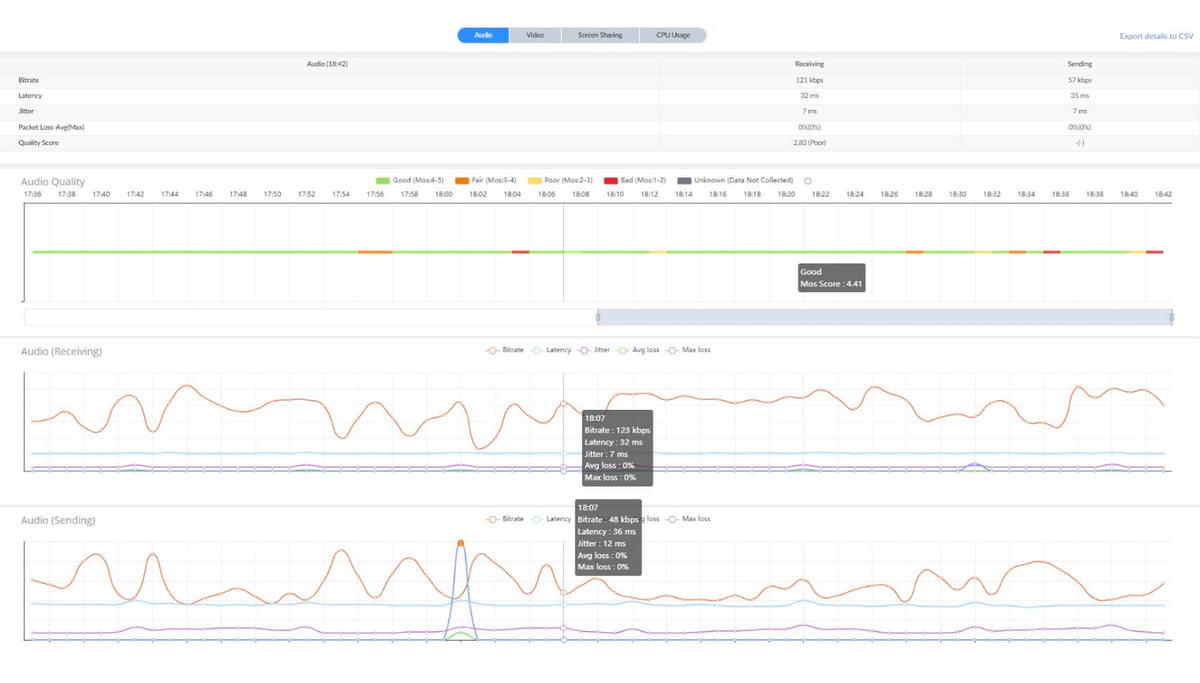
Zoom meeting analytics refers to the usage, performance, and engagement data Zoom collects across your meetings, webinars, and other communication tools. It covers everything from how many participants joined a call to the audio and video quality each person experienced.
There are two ways to access this data: Zoom's native analytics built directly into the platform, and third-party tools that pull from Zoom's API for deeper reporting.
Native analytics are great for quick usage snapshots. Third-party tools like self-service dashboards (opens in a new tab) or dedicated analytics platforms are better suited for trend analysis and cross-tool insights.
Who has access to Zoom analytics?
Access depends on your role and your plan. Admins can see org-wide data across all users, meetings, and Zoom rooms (opens in a new tab) through the Analytics & Reports section of the web portal. Individual hosts can only access reports for their own meetings, things like participant lists, poll results, and registration data.
Free plans offer limited reporting, while paid plans unlock more detailed analytics capabilities. Business and Enterprise tiers add more sophisticated analytics and advanced admin controls, including the full dashboard with quality metrics and device data.
What Zoom tracks
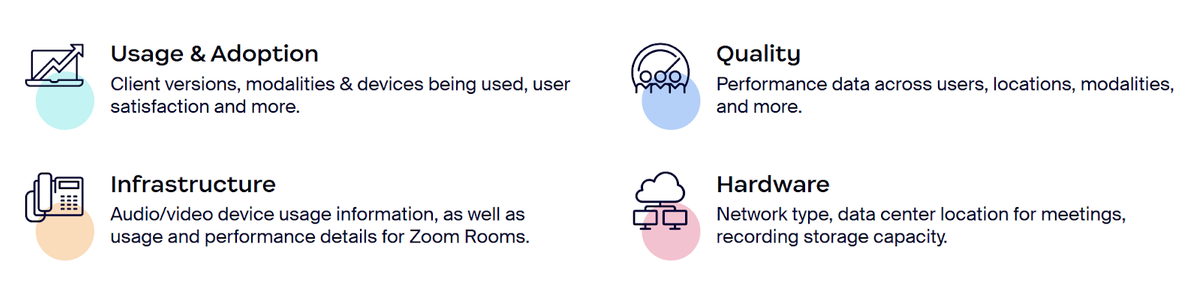
Zoom's analytics dashboard is organized into four main categories:
- Usage & Adoption - Client versions, meeting formats, devices in use, Zoom Team chat activity, and user satisfaction ratings
- Quality - Performance data across users, locations, and meeting formats, including MOS scores for audio, video, and screen share
- Infrastructure - Audio/video device usage, plus usage and performance details for Zoom Rooms
- Hardware - Network type, data center location for meetings, Zoom Phone call data, and recording storage capacity
💡 Pro tip: To capture what was actually said during the meeting, extract decisions, action items, and key discussion points, use Tactiq's AI-powered meeting transcription (opens in a new tab) to get the full picture. Plus, Tactiq also gives you analytics of your meeting.
How to Access Zoom Meeting Analytics
There are a few different ways to access Zoom analytics, depending on your role and what you need. Here's how each path works.
How to access analytics via the Zoom web portal (admin)
This route requires account owner or admin permissions.
- Sign in to the Zoom web portal at zoom.us (opens in a new tab).
- In the navigation menu, click Account Management, then select Reports from the dropdown menu.
- Click the type of report you want to pull, or select the User Activity Reports tab for additional report types..
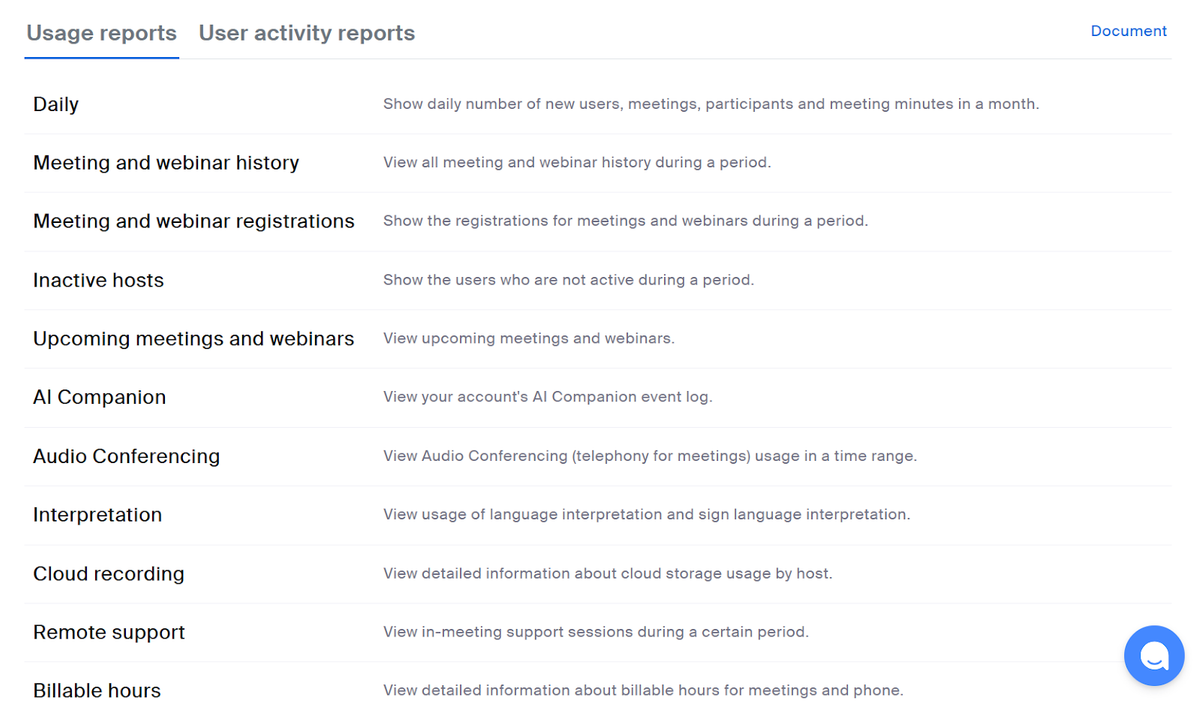
From here, you can access usage data across your entire organization: meeting history, registrations, cloud recordings (opens in a new tab), AI Companion logs, and more. Reports can cover up to one month at a time and are searchable for the last 15 months.
💡 Pro tip: Need a quick record of who attended? Check out our guide on how to access your Zoom attendance report (opens in a new tab) for a step-by-step walkthrough. You can also watch this video tutorial below:
How to access meeting reports as a host
Account members who aren't admins have a separate path to their own meeting data.
- Sign in to the Zoom web portal at zoom.us (opens in a new tab).
- In the navigation menu, click Analytics & Reports.
- Select the report type you need from the available options.
There are two report types available to hosts under the Usage Reports section:
- Meeting and webinar history - View all meetings and webinars you've hosted during a selected period
- Meeting and webinar registrations - View registration details for your meetings and webinars during a selected period
Note that meetings must be hosted on a paid account (opens in a new tab) to generate reports.
Key Zoom Meeting Metrics to Track
Zoom captures a wide range of data across your meetings. Here are the most useful metrics to monitor and what they actually tell you.
Attendance and participant data
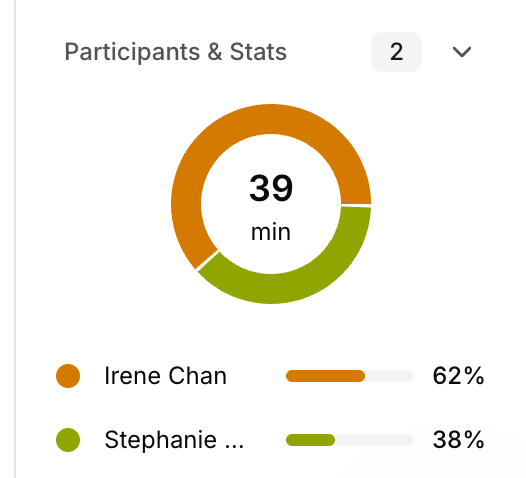
The usage report shows you who joined each meeting, how many unique participants attended, and their individual join and leave times. You can also see when the meeting was created, when it started and ended, how long it lasted, and the total number of participants.
This is useful for tracking participation patterns across your team over time.
Meeting duration and frequency
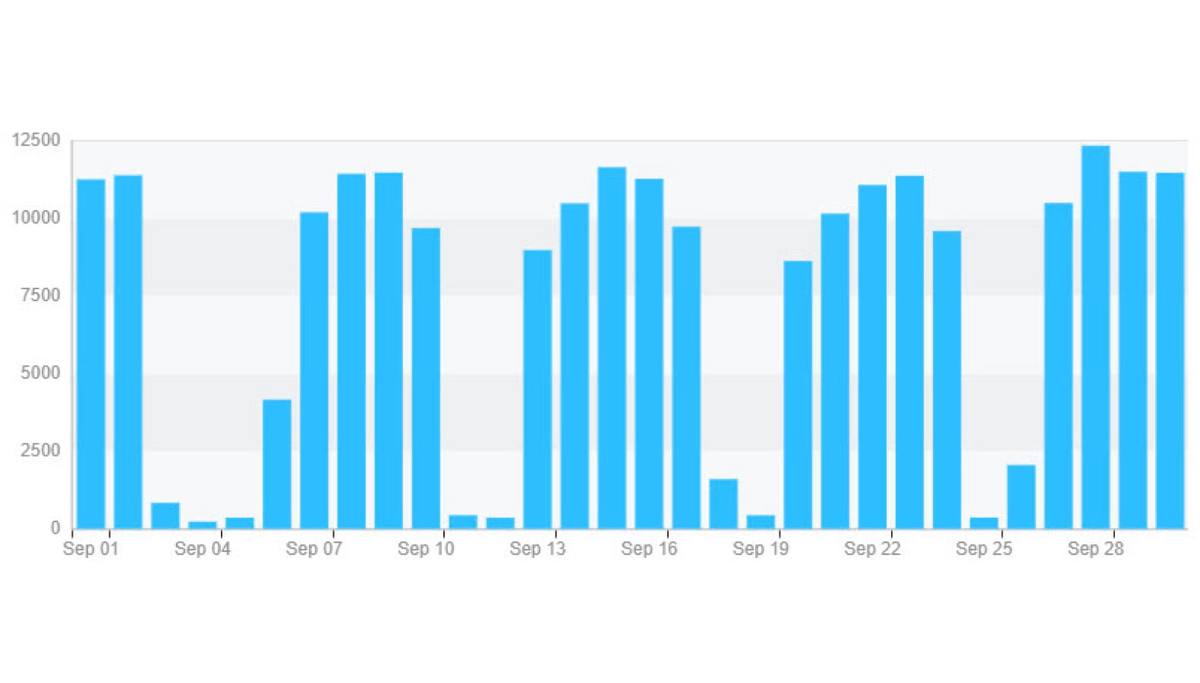
Usage data lets you monitor how often your team is meeting and for how long. You can sort this data by user, group, or department to identify trends, like teams that are over-meeting or individuals who consistently drop off early.
Audio and video quality scores
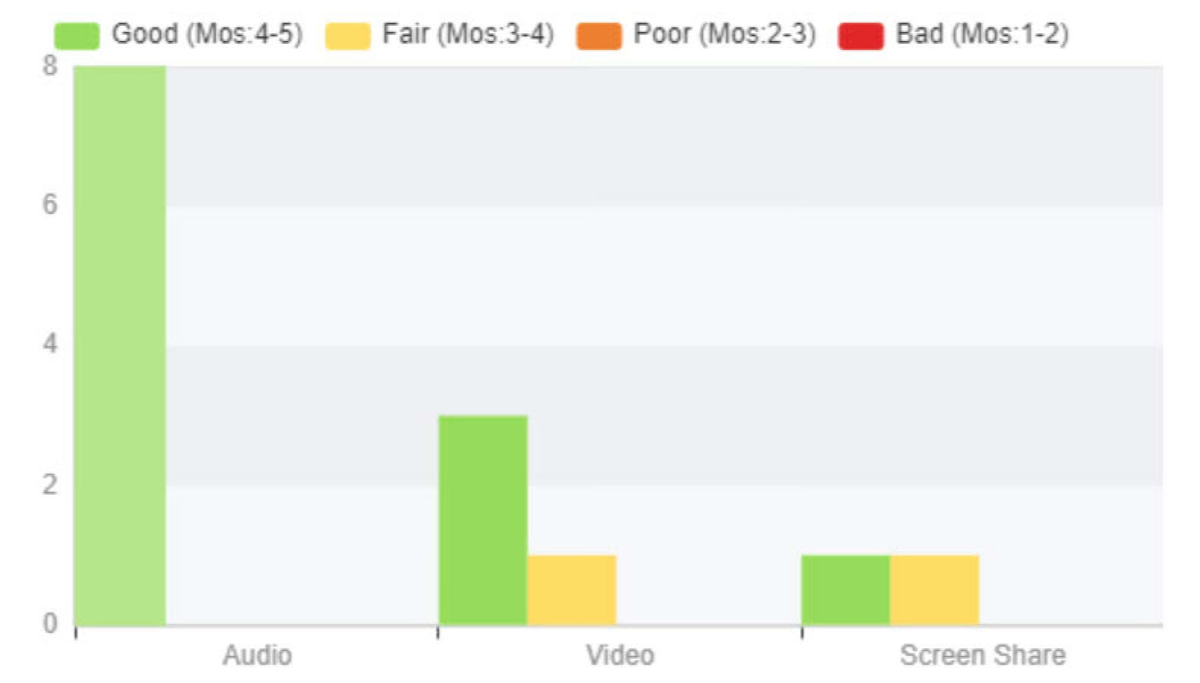
Zoom uses Mean Opinion Score (MOS) to measure the perceived quality of audio and video transmissions. Higher scores indicate better performance, while lower scores point to degraded experiences.
MOS scores range from 1.0 to 5.0, with scores below 3 generally flagging a poor experience worth investigating. Admins can drill down by participant to pinpoint whether issues are device-related, network-related, or location-specific.
Poll responses and engagement signals
Zoom lets you generate poll reports for individual meetings, showing how participants responded to in-meeting polls (opens in a new tab). This adds a layer of engagement data that standard meeting minutes can't capture.
Limitations of Zoom's Native Analytics
Zoom's reporting tools are solid for tracking usage and performance. But there are some real gaps worth knowing about before you rely on them too heavily.
Data retention limits
Reports are searchable for up to 15 months, with a maximum search range of one month at a time. That's a reasonable window, but it means older data isn't recoverable. If you need long-term trend analysis across quarters or years, you'll need to export and store your CSV files regularly.
Attendance doesn't equal engagement
Zoom can tell you that someone joined a meeting and stayed for the full duration. It can't tell you if they were paying attention, contributing to the discussion, or multitasking the entire time. Attendance data gives you a headcount, not a measure of how productive the meeting actually was.
Admin-only access to key data
Many of the most useful reports are only available to account owners and admins. Individual hosts have access to their own meeting data, but org-wide usage trends, quality dashboards, and cross-team insights are locked behind admin permissions. This makes it harder for individual contributors to monitor and improve their own meeting performance.
Quantitative data only
Zoom tracks numbers: participants, minutes, MOS scores, poll responses. It doesn't capture what was said, what was decided, or what needs to happen next. For teams that run meetings to move work forward, that's a significant blind spot.
How to Get Deeper Zoom Meeting Insights with Tactiq
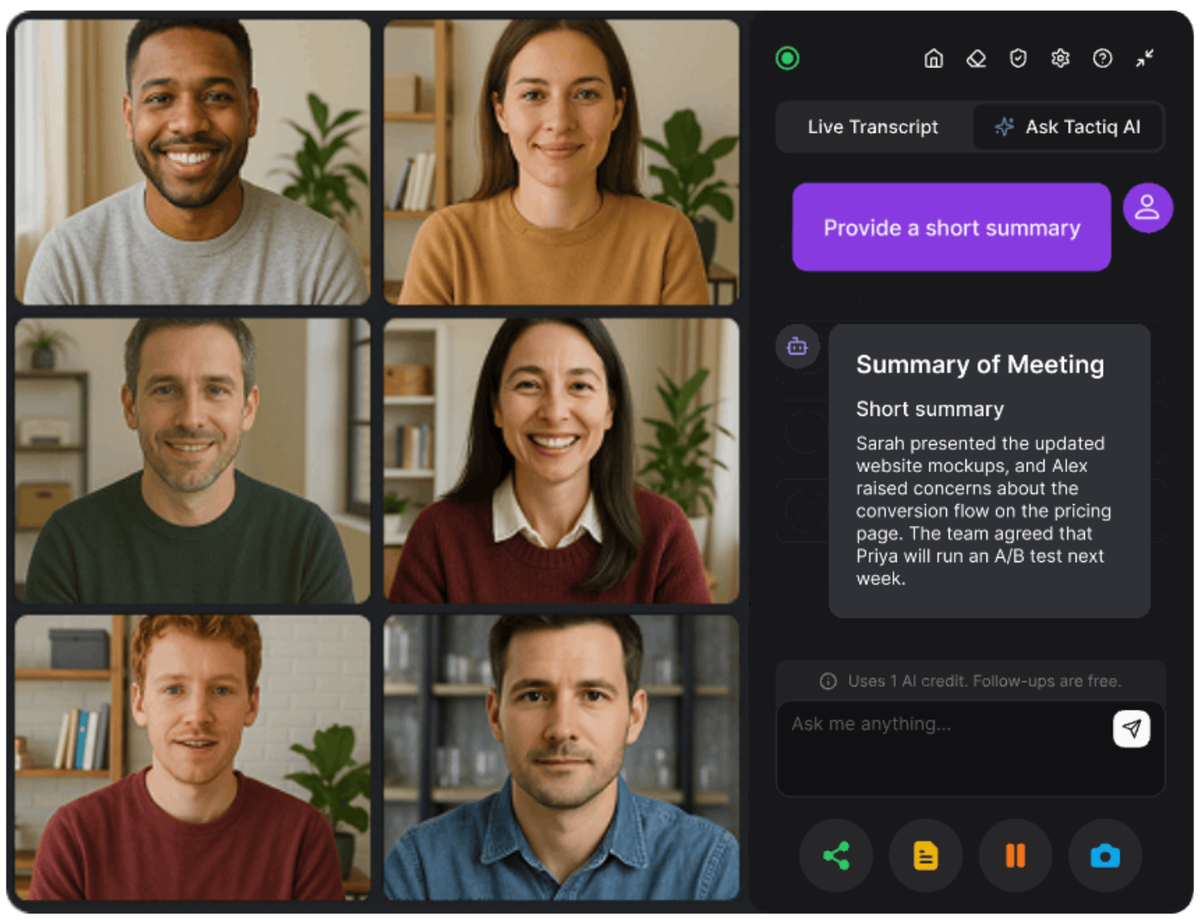
Zoom analytics tells you who showed up and how the connection held up. Tactiq (opens in a new tab) tells you what actually mattered in the meeting.
Zoom's usage reports are useful for ops and IT teams. But for people running meetings, tracking decisions, assigning action items, and following up with their team, that data doesn't go far enough. Tactiq captures the content of every conversation, not just the metadata around it.
Here's what Tactiq adds to your Zoom meeting workflow:
- Real-time transcription with speaker identification - Tactiq's Chrome extension transcribes your Zoom meetings live, with speaker labels. No bot joins the call. Find all your Zoom transcripts (opens in a new tab) in Tactiq after every session.
- AI-generated summaries and action items - After each meeting, Tactiq automatically surfaces key decisions, action items, and a full summary. No more manual meeting notes (opens in a new tab).
- Searchable meeting history - Search across all past meetings to find what was said and by whom, not just when people joined.
- Workflow integrations - Send action items directly to HubSpot, Notion, Linear, or Slack to keep your team moving without switching tools.
Tactiq also works with Google Meet and Microsoft Teams, so your entire meeting workflow stays consistent across platforms.
Install the free Tactiq Chrome Extension (opens in a new tab) and start turning every Zoom call into actionable insights.
Zoom Meeting Analytics: From Usage Reports to Actionable Insights
Zoom's native analytics are a solid starting point for understanding how your team uses meetings. They give you reliable data on attendance, usage trends, and technical performance, all useful for keeping your organization running smoothly.
But if you want to understand what's actually happening inside your meetings, you need more than headcounts and MOS scores. Combining Zoom's usage data with Tactiq gives you the full picture: who attended and what they said, what was decided, and what needs to happen next.
Try Tactiq (opens in a new tab) to start capturing meeting content that Zoom's analytics can't.
Frequently Asked Questions on Zoom Meeting Analytics
Does Zoom have meeting analytics?
Yes. Zoom offers built-in reporting for usage, attendance, and audio/video quality. Admins get org-wide data, while hosts access reports for their own meetings. Advanced analytics are available on paid plans.
How do I see Zoom meeting statistics?
Sign in at zoom.us. Admins go to Account Management > Reports. Members click Analytics & Reports in the navigation menu to access meeting history and registration data.
Can Zoom track meeting attendance?
Yes. Zoom records each participant's name, join time, leave time, and duration. Hosts and admins can view and export this data as a CSV file from the Reports section.
How do I get a Zoom meeting report?
Sign in to the Zoom web portal and click Reports in the navigation menu. Under Usage Reports, select Meetings, set your date range, and locate your meeting. Click the participant number to view attendance, registration, or poll data and download it as a CSV file.
Can Tactiq help with Zoom meeting analytics?
Yes. Tactiq adds real-time transcription, AI summaries, action items, and searchable meeting history to your Zoom meetings, capturing the content and context that Zoom's analytics can't.
Related articles

Zoom ChatGPT: How to Connect and Access Meetings

Zoom MCP: Features, Setup, and Limitations (Full Guide)

Zoom Workplace and Zoom Meetings Difference: What You Need to Know

What Is Zoom Cloud Meeting App?

Zoom Cloud Meetings for Mac: Full Guide

Zoom Meeting Statistics 2026: Usage, Revenue & Data

How to Edit Zoom Recording: A Complete Guide

How to Record Yourself on Zoom
Want the convenience of AI summaries?
Try Tactiq for your upcoming meeting.
Bringing AI into your meetings has never been so easy.
Add to Chrome - It's free!(opens in a new tab)Try Tactiq in your upcoming meeting!
Sign up now