
How to Zoom In on a Video in a Zoom Meeting
April 15, 2026
April 15, 2026
June 8, 2026
June 8, 2026

Zooming in during a Zoom meeting sounds simple until you realize there's no single "zoom in" button. What you're actually trying to zoom into changes everything: your own camera feed, another participant's video, a shared screen, or your own display.
Each scenario uses a different method. Some are built into Zoom's video settings. Others rely on your operating system or device. A few have real limitations worth knowing upfront.
Here's what this article covers:
- How to zoom in on your own camera using Zoom's built-in camera controls
- How to zoom in on the Zoom screen or adjust your view layout
- How to zoom in on a shared screen during a meeting
- Troubleshooting when your camera appears zoomed in too much
- How to stay on top of meeting content even when your focus is on the screen
How to Zoom In on Your Own Camera in a Zoom Meeting
Zoom doesn't have a built-in zoom slider for your camera feed that works universally. What's available depends on your webcam and operating system. That said, there are a few methods that do work. Here's what's actually confirmed.
Using Zoom's built-in camera controls (desktop)
Zoom doesn't have a universal zoom slider for your camera. What you can adjust directly in Zoom's video settings is how your camera feed is cropped and framed.
1. Sign in to your Zoom account on the Zoom desktop app and click your profile picture in the top right corner.
2. Select Settings, then click Video & effects.
3. Under the camera preview, check the Original ratio option to restore your camera's native 4:3 crop. This reduces the widescreen field of view and can make you appear larger in frame.

4. Toggle HD on or off to see if it affects your framing.
If you need actual zoom control, check your webcam's manufacturer software. Tools like Logitech Capture expose zoom, pan, and tilt controls independently of the Zoom application.
💡 Pro Tip: When you're focused on a shared screen or zoomed-in view, it's easy to miss what's being said. Tactiq transcribes your Zoom meetings in real time so nothing gets lost while your attention is on the visuals.
Zoom in on your camera on mobile
The Zoom mobile app doesn't include a native camera zoom control inside meetings. Your best options on mobile are:
- Use your phone's native camera app to check your zoom level before joining
- On some devices, try a pinch-to-zoom gesture on your camera preview within the Zoom app; availability varies by device and app version
- Physically move closer to your device for a more reliable result without losing video quality
Digital zoom on mobile degrades video quality, so adjusting your physical position is usually the better call.
How to Zoom In on the Zoom Screen (Not Your Camera)
If your goal is to get a better look at what's on your screen, not your own camera feed, Zoom gives you a few ways to do that. None of them is a traditional Zoom function, but used together, they make a real difference.
Enter full-screen mode
The quickest way to make everything on your Zoom screen appear larger is to go full screen. This expands the meeting window to fill your entire display.
To enter full screen:
1. Join or start a Zoom meeting.
2. Hover your cursor over the Zoom window to reveal the toolbar.
3. Click the maximize button (top right corner of the window on Windows, or the green button on Mac).

4. To exit, press Esc or hover and click the restore button.
You can also use the keyboard shortcut Alt+F on Windows to toggle full screen on and off.
Adjust window size and layout

Full screen gives you more real estate, but your view layout determines how participants fill that space. Zoom offers several layout options, accessible by clicking the View icon in the top right corner of the meeting window:
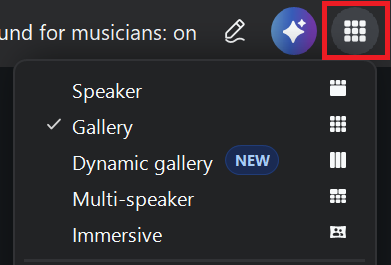
- Speaker view: The active speaker's video fills most of the screen. Other participants appear as smaller thumbnails. Requires 3 or more participants.
- Gallery view: All meeting participants appear in an equal grid, up to 49 participants per screen on supported hardware. As someone speaks, Zoom moves them to your current page and highlights their tile.
- Dynamic gallery view: An enhanced version of Gallery view that automatically crops all video tiles to focus on faces and make better use of screen space.
- Multi-speaker view: Up to 4 active speakers are automatically enlarged while others remain visible in a smaller strip below. Requires desktop app version 6.0.0 or higher and at least 5 participants.
- Immersive view: Places up to 25 participants into a shared virtual background/scene. Hosts can arrange and resize participants manually or automatically.
- Floating thumbnail: Minimizes the meeting into a small window that stays on top of other applications.
You can also double-click any participant's video tile in Gallery view to enlarge it and push all other feeds to the background. Double-click again to return to the grid. To toggle full screen, double-click the Zoom window itself, or press Alt+F on Windows.
During screen sharing, the View menu switches to: Standard, Side-by-side Speaker, Side-by-side Gallery, Side-by-side Dynamic gallery, and Side-by-side Multi-speaker, letting you adjust how much space the shared content takes versus participant video.
How to Zoom In on a Shared Screen in Zoom
When someone else is sharing their screen in a Zoom meeting, you can't zoom into that shared content directly inside the Zoom app. Zoom doesn't have a native Zoom control for viewing another participant's shared screen. The workarounds come from your operating system.
Use your OS zoom tool to enlarge shared content
Both Windows and Mac have built-in accessibility tools that magnify your entire display, including whatever is showing in your Zoom window.
On Windows (Magnifier):
- Press Windows + Plus (+) to open Magnifier and zoom in.
- Press Windows + Minus (-) to zoom out.
- Press Windows + Esc to close Magnifier.
Magnifier follows your mouse cursor by default, so you can pan across the shared screen to focus on specific areas.
On Mac (Zoom accessibility feature):
- Go to System Settings > Accessibility > Zoom.
- Enable Use keyboard shortcuts to zoom or Use scroll gesture with modifier keys to zoom.
- Once enabled, press Option + Command + = to zoom in and Option + Command + – to zoom out.
What Zoom's annotation tools can and can't do
Zoom's annotation tools let you draw, highlight, and add text on top of a shared screen. They don't zoom into the content, but they can help you mark up or call attention to specific areas.
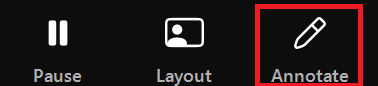
To annotate on someone else's shared screen, click View Options at the top of your Zoom window and select Annotate. If you don't see the Annotate option, the host has disabled participant annotation for the meeting.
Can you zoom in on another participant's video?
No. Zoom doesn't let you zoom into another participant's camera feed. You can enlarge their tile by double-clicking it in Gallery view, or switch to Speaker view to make the active speaker fill more of the screen. But there's no way to magnify their video feed itself.
Troubleshooting: Zoom Camera Zoomed In Too Much
If your camera looks more zoomed in than it should, it's usually a Zoom settings issue, not a hardware problem. Here are the most common causes and how to fix each one.
Wrong camera selected
Zoom may be using a different camera than you expect, especially if you have a virtual camera, OBS Studio, or an external webcam connected alongside your built-in one.
To check:
- In the Zoom desktop client, click your profile picture on the upper right > Settings > Video & effects.
- Click the camera dropdown at the top of the camera preview.
- Select the correct camera from the list.

If a virtual camera is selected by accident, switching to your built-in webcam or external webcam will often fix the zoomed-in appearance immediately.
Original ratio toggled off
Zoom's original ratio setting controls how your camera feed is cropped. When it's turned off, Zoom crops the video to fill the frame, which can make you appear more zoomed in than you actually are.
To fix it:
- In the Zoom desktop app, click your profile picture on the upper right > Settings > Video & effects.
- In the Camera section, check Original ratio.
This restores your camera's natural aspect ratio and typically reduces the zoomed-in effect.
HD setting
Enabling HD in Zoom's video settings sometimes affects how the camera feed is framed, depending on your webcam. If your camera looks zoomed in after enabling HD, try toggling it off. If you want to improve how you look on camera more broadly, check out this guide on how to look better on Zoom.
Click your profile picture on the upper right > Settings > Video & effects, then uncheck HD to see if it changes your framing.
Internet or video quality issues
Poor connection quality can cause Zoom to drop resolution and alter how your video feed renders, sometimes creating a soft, cropped, or distorted appearance. If the above fixes don't help, check your internet connection and close any bandwidth-heavy applications running in the background.
You can also learn more about setting up a Zoom meeting to get your full setup dialed in ahead of time.
Focus on the Screen and let Tactiq Capture the Meeting

Zooming in to follow a presentation or catch a detail on a shared screen takes focus. When your attention is locked on the visual, note-taking goes out the window, and so does anything said in the background.
That's where Tactiq helps. Tactiq is an AI transcription and summarization tool for your meetings. It runs quietly in the background while you stay focused on what's on screen. Every word gets captured. No manual notes required.
Beyond transcription, Tactiq lets you:
- Generate AI-powered summaries and action items after the meeting
- Ask questions about your meeting in real time using the in-meeting AI assistant
- Use custom prompts to turn transcripts into follow-up emails, project updates, or documentation
- Automate post-meeting tasks with AI workflows that push outputs to tools like Notion, Slack, or HubSpot
- Search across past meetings to find decisions, quotes, or context in seconds
- Transcribe in over 60 languages for multilingual teams
Tactiq works as a Chrome extension. No bots join your call. It captures live transcripts directly in your browser across Zoom, Google Meet, and Microsoft Teams.
Install the Tactiq Chrome Extension for free and make sure every meeting detail is captured, even when your eyes are somewhere else.
Stop Missing Key Details in Your Zoom Meetings
Zooming in on Zoom depends on what you're trying to see: your camera, the screen, a shared presentation, or another participant's video. Each has a different fix. Most limitations are hardware or OS-level, not Zoom itself.
And when your focus is locked on the screen, things get missed. Tactiq transcribes your Zoom meetings in real time so you can watch closely without losing what was said.
FAQs on How to Zoom In Video on Zoom Meetings
Does Zoom have a built-in zoom in feature for video?
Not exactly. Zoom doesn't have a single zoom-in button. What's available depends on what you're zooming into (your camera, the meeting screen, or a shared screen), and each uses a different method or workaround.
How do I zoom in on my camera during a Zoom meeting?
Go to Settings > Video & effects. Check the Original ratio option to restore your camera's native 4:3 crop, which can make you appear larger in frame by reducing the widescreen field of view. For actual zoom control, check your webcam's manufacturer software, such as Logitech Capture.
How do I zoom in on a shared screen in Zoom?
Zoom doesn't have a native zoom control for shared screens. Use your OS tool instead: Windows Magnifier (Windows + Plus) or Mac Accessibility Zoom (Option + Command + =) to magnify your display on top of the shared content.
How do I zoom in on Zoom on mobile?
The Zoom mobile app doesn't include a native camera zoom control. On most devices, you can try a pinch-to-zoom gesture on your camera preview, though availability varies by device and app version.
Can I zoom in on another participant's video in Zoom?
No. Zoom doesn't allow you to zoom into another participant's camera feed. You can double-click their video tile in Gallery view to enlarge it, or switch to Speaker view to make them fill more of the screen.
Related articles
_Main.jpg)







Want the convenience of AI summaries?
Try Tactiq for your upcoming meeting.
Want the convenience of AI summaries?
Try Tactiq for your upcoming meeting.
Want the convenience of AI summaries?
Try Tactiq for your upcoming meeting.