
How to Start a Zoom Meeting in Slack
March 24, 2026
March 24, 2026
May 25, 2026
May 25, 2026

Most remote teams run on two tools: Slack for daily conversation and Zoom for face-to-face meetings.
The problem is the gap between them. You're mid-thread in a Slack channel, things get complicated, and suddenly you're copying a meeting link, pasting it back into the conversation, and waiting for everyone to find it and join. That context switch adds friction every single time.
The Slack and Zoom integration eliminates that gap. Once it's set up, you can launch a Zoom meeting directly from any channel or direct message.
This guide covers:
- What you need before getting started
- How to set up the Zoom-Slack integration step by step
- Every way to start a Zoom meeting in Slack
- Troubleshooting common issues
- How to bring meeting notes back into Slack automatically
What You Need Before Getting Started
Before you can launch a Zoom meeting from Slack, you need a few things in place.
A Zoom account
A free Zoom Basic account is enough to install the integration, but Basic users can't use the /zoom slash command to start instant meetings. That feature requires a paid plan (Pro, Business, or Enterprise).
Basic accounts also don't have access to meeting summaries or recording links after the call.
A Slack account
You need an active Slack account in the workspace where you want to use Zoom. Standard users can install the app only for their own account. Installing it company-wide requires Slack workspace admin privileges.
Admin approval on the Zoom side
Before anyone can install the Zoom app for Slack, a Zoom account admin needs to pre-approve it in the Zoom Marketplace. If the app hasn't been pre-approved yet, you won't be able to complete the installation. Check with your IT team if you hit a wall during setup.
How to Set Up the Zoom-Slack Integration
There are two parts to this setup: installing the Zoom app in your Slack workspace, then connecting your individual Zoom account. Both steps are straightforward, but you'll need admin approval on the Zoom side before you can begin.
Install the Zoom app in Slack

The Zoom app is available through the Zoom Marketplace. Before anyone on your team can install it, a Zoom account admin needs to pre-approve it. Once that's done, here's how to install it:
1. Sign in to your Zoom account and head to the Zoom Marketplace.
2. Search for "Slack" and click the app.
3. Click Visit Site to Install, review the permissions, and select Allow.
4. Choose your installation type:
- For your whole organization: Click Install Zoom for Slack company-wide, verify the permissions, and click Authorize. Select your Slack workspace, click Connect to Slack workspace, verify permissions, and click Allow.
- For your account only: Click Add Zoom to ONLY my Slack account, verify the permissions, and click Allow.
5. To finish setup, go to any Slack channel, type /zoom, and click the link in the reply.
6. Verify the permissions and click Authorize.
Connect your Zoom account to Slack
Installing the app doesn't automatically link individual Zoom and Slack accounts. Each Slack user needs to complete a one-time authorization.
1. In any Slack channel or direct message, type /zoom.
2. Click Authorize Zoom in the reply.

3. You'll be redirected to Zoom. Sign in if prompted, then click Allow to grant the required permissions.
4. On the Slack authorization page, review the permissions and click Accept and continue.
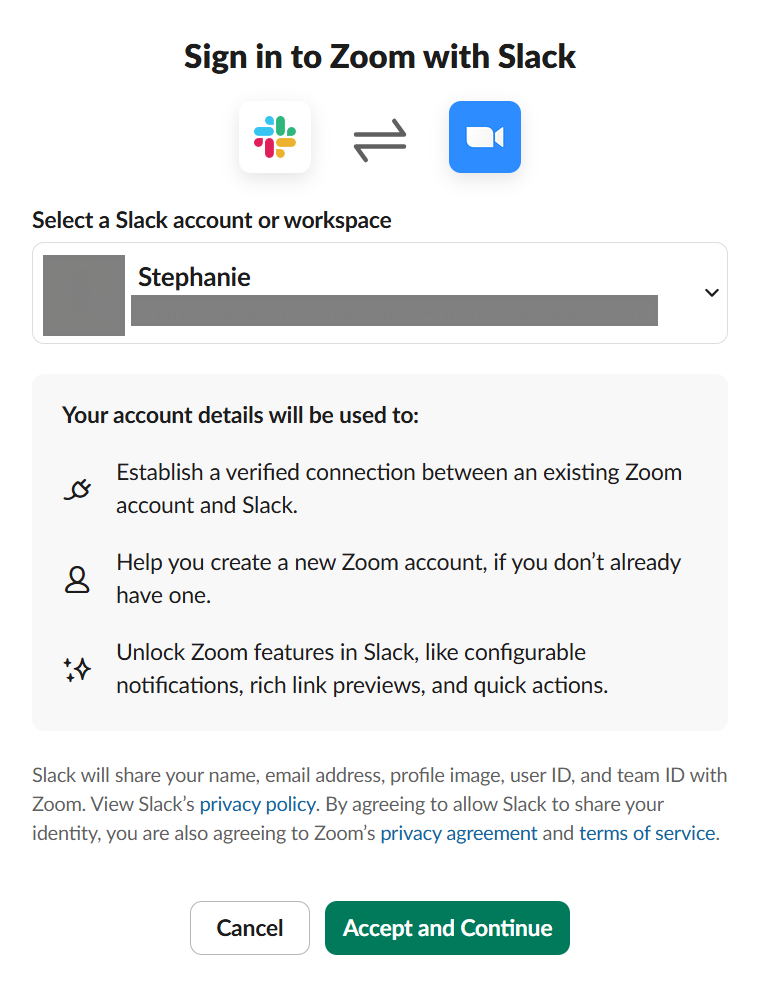
That's it. The @Zoom bot will confirm the connection, and the integration is ready to use. If your account has Zoom AI Companion enabled (paid plans only), it can automatically generate meeting summaries and post them to the Zoom bot in Slack after each call.
💡 Pro tip: Already using Tactiq for your Zoom meetings? Tactiq's Slack integration lets you automatically post a structured summary to any Slack channel right after the call ends: action items, decisions, and key points land exactly where your team is already talking.
How to Start a Zoom Meeting in Slack
Once the integration is set up, you can launch a Zoom meeting in several ways without leaving Slack. Here are the methods, from fastest to most specific.
Using the /zoom slash command
The /zoom slash command is the fastest way to start a meeting. It works in any channel or direct message.
1. Open any Slack channel or direct message.
2. Type /zoom in the message field and hit Send.
3. A meeting notification appears in the channel. Click Join to open Zoom and start the meeting.
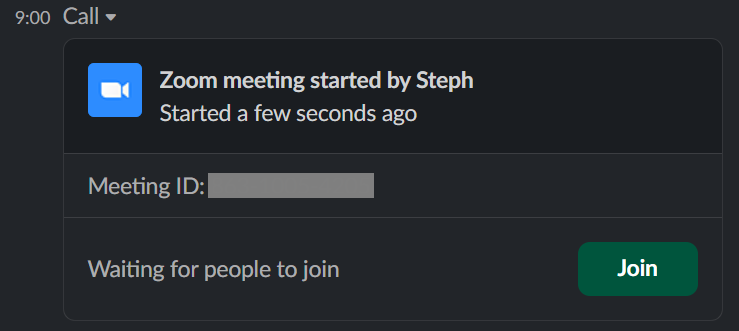
All members of the channel or direct message will see the meeting prompt and can join Zoom meetings from there. The meeting will also appear in your Zoom account meeting list.
Start a meeting with a topic
Adding a meeting topic helps attendees know what the call is about before they join. Use this method when you're kicking off a specific discussion or want to set a clear meeting agenda.
1. In any Slack channel or direct message, type /zoom meeting [topic] — for example, /zoom meeting Q3 budget review.
2. Hit Send.
3. The meeting notification appears in the channel with the meeting title visible to all members.
The topic becomes the meeting title in both Slack and your Zoom account.
Zoom slash commands cheat sheet
How to Set Zoom as Your Default Calling App in Slack
By default, clicking the call button in Slack launches a huddle. If your team uses Zoom, you can change this so every call button opens a Zoom meeting instead. This setting requires Slack workspace owner or admin access.
Here's how to set it up:
- From your desktop, click Admin in the sidebar.
- Select Workspace settings from the menu.
- Next to Third-party call providers, click Expand.
- Under Calling options, check the box next to Zoom.
- Click Save.
Once saved, clicking the call button in any channel or direct message will launch a Zoom meeting. On Pro and Business+ plans, you can enable multiple calling apps so members can choose between options from the phone icon.
Troubleshooting: Zoom Not Working in Slack
Even after a clean setup, the Slack-Zoom integration can run into issues. Here are the most common problems and how to fix them.
/zoom command not responding

If you type /zoom and nothing happens, the Zoom app likely isn't a member of that channel. Fix it by typing /invite @Zoom in the channel. This adds the Zoom bot and restores slash command functionality.
"Connect to Zoom" loop
If you keep getting redirected to a "Connect to Zoom" prompt after already authorizing, your credentials may have expired, or the connection broke. Type /zoom logout in any Slack channel to clear the session, then type /zoom again to re-authorize from scratch.
Permission errors
If you see a permissions error when trying to use the integration, the Zoom app likely hasn't been pre-approved in the Zoom Marketplace. A Zoom account admin needs to approve the Slack app before individual users can connect.
If you've already done that, check that your Slack workspace admin has also enabled third-party calling apps in workspace settings.
Private channel issues
The Zoom bot isn't automatically added to private Slack channels. To use the /zoom command in a private channel, type /invite @Zoom to add it manually. Note that meeting summaries and recording links are only available in channels and group direct messages, not in 1:1 DMs.
After the Meeting: Bring Notes Back to Slack with Tactiq

Starting a Zoom meeting from Slack is the easy part. The harder problem is what happens after the call ends: action items get buried, decisions don't make it back to the channel, and anyone who missed the call is left guessing. Most guides stop at "meeting started." That's where Tactiq picks up.
Tactiq transcribes your Zoom meeting in real time, directly in your browser. No bot joining the call, no recording required. After the meeting, Tactiq's Slack workflow automatically generates a structured summary and posts it to the Slack channel where your team is already working. Key post-meeting assets like action items, key decisions, and key takeaways land exactly where the conversation started.
Here's what that looks like in practice:
- Your team triggers a Zoom meeting from a Slack channel using /zoom
- Tactiq transcribes the meeting live as it happens
- After the call, Tactiq generates a structured summary with action items and follow-ups
- The summary posts automatically to the same Slack channel
- The whole team, including anyone who missed the call, has full context instantly
If your team uses Slack huddles as well as Zoom, Tactiq works across both workflows. And if you need to go deeper into what was said, you can export the full transcript or search past meetings directly from your Tactiq dashboard.
Install Tactiq for free and automatically bring your meeting notes back to Slack.
🎥 Watch:
🎥 Watch:
Make Every Zoom Meeting Count
Starting a Zoom meeting from Slack takes seconds once the integration is set up. A single /zoom command launches a video meeting from any channel or direct message. But the conversation that happens on that call needs to make it back to Slack, where your team can act on it.
Tactiq handles that automatically. It transcribes every Zoom meeting in real time and posts a structured summary back to the Slack channel it originated from: action items, decisions, and key takeaways included.
Install Tactiq free and make sure every meeting your team starts in Slack actually counts.
{{rt_cta_ai-convenience}}
FAQs on Starting Zoom Meeting in Slack
Can you start a Zoom call directly from Slack?
Yes. Once the Zoom app is installed in your Slack workspace, type /zoom in any channel or direct message to launch an instant Zoom meeting.
How do I add Zoom to Slack?
Sign in to the Zoom Marketplace, search for Slack, and click Visit Site to Install. Follow the prompts to authorize the app and connect your Zoom account to your Slack workspace.
Does Slack have its own video conferencing?
Yes. Slack has a built-in video calling feature called huddles. It supports audio, video, and screen sharing.
Is the Zoom Slack integration free?
The integration itself is free to install. Your meeting capabilities (duration limits, participant counts, and features like recording and meeting summaries) depend on your Zoom plan.
How do I automatically send Zoom meeting notes to Slack?
Use Tactiq. It transcribes your Zoom meeting in real time and uses an AI workflow to post a structured summary to any Slack channel you choose. No manual copy-pasting required.
Related articles
_Main.jpg)







Want the convenience of AI summaries?
Try Tactiq for your upcoming meeting.
Want the convenience of AI summaries?
Try Tactiq for your upcoming meeting.
Want the convenience of AI summaries?
Try Tactiq for your upcoming meeting.