
How to Make a Zoom Meeting Interactive
April 28, 2026
April 28, 2026
April 29, 2026
April 29, 2026

Most virtual meetings aren't boring by accident. They're designed that way, structured for one person to talk and everyone else to listen. According to Flowtrace's State of Meetings 2025 report, 52% of attendees lose attention within the first 30 minutes, and 67% of meetings are deemed unproductive. Participants zone out, open other tabs, and leave with no clear next steps and nothing to show for their time.
Interactive Zoom meetings fix the structure, not just the energy. When attendees have something to respond to, contribute to, or decide on, they stay mentally and physically in the room. The conversation gets sharper. The outcomes get clearer.
This article covers:
- The five built-in Zoom features that drive active participation
- Facilitation strategies that make online meetings more engaging
- How AI tools can make your next Zoom meeting more focused and productive
- How to keep your team contributing without losing momentum
5 Ways to Make a Zoom Meeting Interactive
Zoom has built-in tools designed to turn passive attendees into active participants. Most teams use maybe one or two of them. Here's how to get more out of the full set.
Polls and surveys
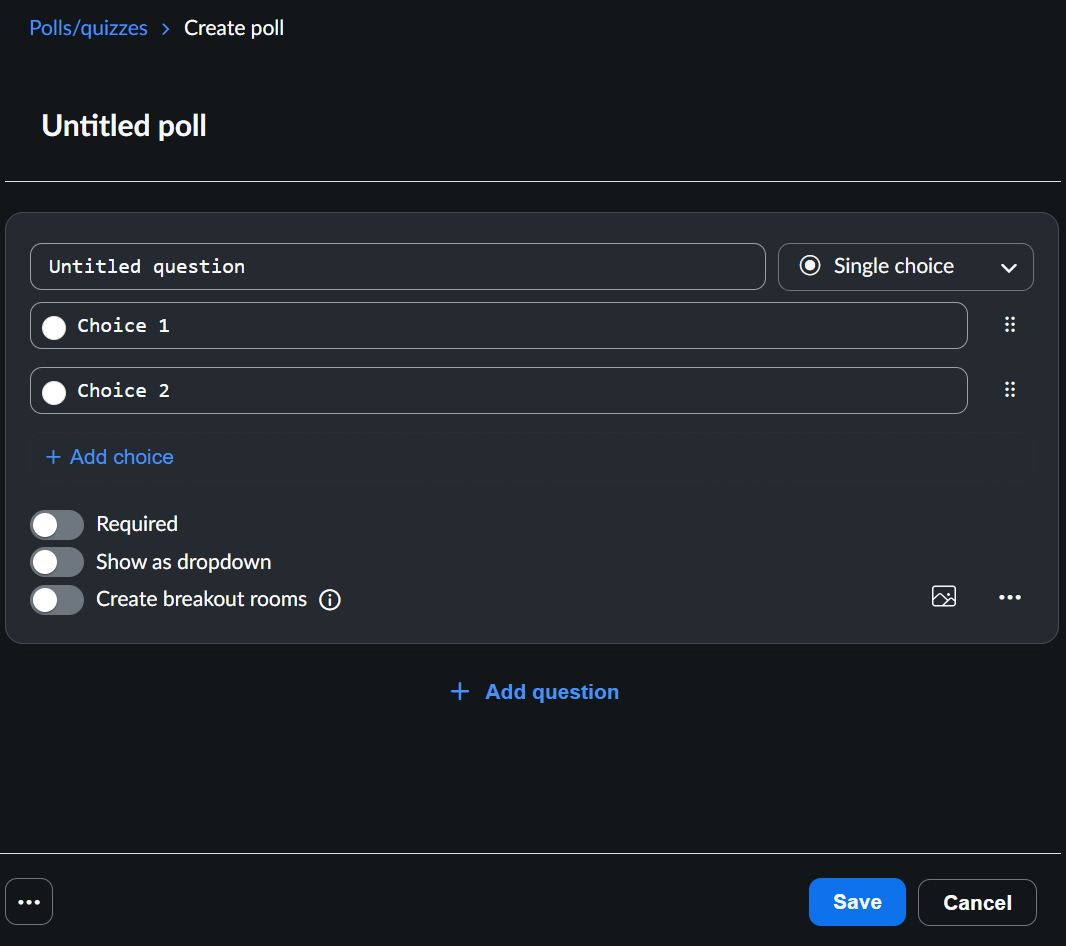
Live polls are one of the fastest ways to make video meetings more engaging. Instead of asking a question and waiting for someone to unmute, you push a poll and get instant responses from everyone in the room simultaneously.
Zoom's polling feature lets you create and launch polls directly in your meeting. Key things to know:
- Build single-choice or multiple-choice questions in advance or on the spot
- Launch the poll mid-meeting and share results with all attendees in real time
- Run polls anonymously when the topic is sensitive or not everyone feels comfortable speaking up
You can create up to 25 polls for a single meeting, so there's room to build interactivity into every phase of your agenda. Use polls to open a discussion, pressure-test assumptions, or make a group decision without a long back-and-forth.
Pro Tip: When everyone knows the meeting is getting transcribed by Tactiq, they spend less time worrying about taking notes and more time actually contributing. Install the free Tactiq Chrome extension to get real-time transcripts and AI-generated summaries for every Zoom call.
Breakout rooms

Breakout rooms turn a passive group call into a focused, small-group discussion. Instead of one long conversation where not everyone gets a turn, you split participants into smaller groups, each with a specific task or question to work through.
Zoom lets you split your meeting into up to 100 separate breakout room sessions. The host controls who goes where and can move between rooms to check in. When time is up, everyone returns to the main meeting to share what their group discussed.
The debrief is where breakout rooms pay off. Give each smaller group a clear prompt before they split:
- A problem to solve
- A decision to discuss
- A position to defend
- A question to answer for the full group
When they return, you get new ideas and concrete input instead of silence. You can also create breakout rooms directly from poll results, automatically routing participants into groups based on their answers. No manual sorting needed.
For a deeper look at how to configure and manage them, see how breakout rooms work in Zoom.
Whiteboard and annotation

The Zoom Whiteboard turns any meeting into a live workspace. Instead of one person presenting while everyone else watches, the whole group can contribute to a shared canvas in real time.
Zoom's annotation tools let participants add notes, draw, and mark up a shared screen during video calls, making it easier for remote teams to brainstorm and collaborate.
The host can allow or restrict who annotates, and names can appear next to each person's contributions so it's clear who added what.
The Zoom Whiteboard works well for:
- Mapping out a process or workflow as a group
- Running a live brainstorm with sticky notes and freeform drawing
- Marking up a shared document or presentation on screen
- Collecting visual input without switching to an external tool like Google Slides
When the session ends, you can save the whiteboard as a screenshot directly from the meeting.
Chat, reactions, and raise hand

Not every meeting participant is comfortable speaking up. Chat, reactions, and the raise hand feature give quieter attendees a way to contribute without interrupting the flow.
The in-meeting chat lets participants share links, ask questions, and respond to prompts in real time. It's especially useful for running a backchannel during a presentation, keeping side discussions visible without pulling focus from the speaker.
Zoom reactions are emoji icons that appear on a participant's video tile. Most disappear after ten seconds, while non-verbal feedback options like "Yes," "No," "Slow Down," and "Speed Up" stay active until turned off. They give you a fast read on the room without anyone needing to unmute.
The raise hand feature is where structured participation really pays off. When a participant raises their hand, a hand icon appears next to their name in the participants panel. Hosts can see all raised hands listed in the order they were raised, so no one gets skipped, and the conversation stays fair.
Q&A feature

The Q&A feature gives participants a dedicated space to submit questions without interrupting the speaker. It's particularly useful in larger Zoom meetings where open discussion can get chaotic fast.
Zoom's Q&A feature for meetings lets participants ask questions during the meeting, and hosts can answer them live or in writing. Questions can be made visible to all attendees, and participants can upvote the ones they most want answered, so the most important topics surface naturally without the host having to guess.
Here's how to get the most out of Q&A in your next Zoom meeting:
- Enable Q&A before the meeting in your Zoom settings
- Let participants know they can submit questions throughout, not just at the end
- Use the Most Upvotes sort view to prioritize questions from the group
- Answer high-priority questions live and address lower-priority ones in writing
- Share a summary of questions and answers after the meeting as a follow-up resource
The Q&A feature works especially well when paired with a co-host. One person runs the discussion while the other monitors incoming questions, flags the most relevant ones, and keeps the queue organized.
For large virtual events with a more formal structure, Zoom Webinars offer an expanded Q&A setup. See how Zoom Webinars work and when to use them over a standard meeting.
Other Strategies That Make Zoom Meetings Actually Interactive
Zoom's built-in features only go so far. How you design and facilitate the meeting determines whether those tools actually drive participation. These strategies work alongside the features to keep your audience engaged from start to finish.
Design for contribution, not consumption
Most Zoom meetings are built around one person's agenda. Designing for contribution means flipping that structure before the meeting starts. Give every attendee a defined role:
- Facilitator - keeps the agenda moving and manages time
- Note-taker - captures decisions and action items
- Timekeeper - flags when a topic is running long
- Decision-maker - named so the group knows who has final say
Share a clear agenda in advance with time limits and a named owner per topic. When participants know what's expected, they arrive ready to contribute, not just listen.
Start with a strong icebreaker or prompt
The first two minutes of a Zoom call set the tone for everything that follows. Skip the tired "what did you do this weekend" and open with a prompt tied to the meeting's purpose:
- "What's one thing you want to get out of today's meeting?"
- "What's the biggest blocker on your plate right now?"
- "Give us one word that describes where the project stands."
- "What's a decision you made this week you're confident about?"
These prompts work just as well to open an in-person meeting as they do a Zoom call. When the group already has a sense of shared momentum, active participation follows naturally.
For larger all-hands meetings, a quick scavenger hunt or two truths and a lie can work as a warm-up. Keep it short and tie it back to the team members or work.
Use a co-host to manage engagement
Running a Zoom meeting while monitoring chat, launching polls, and tracking raised hands is too much for one person. A co-host takes the operational load off the facilitator, so the conversation stays focused.
Split responsibilities like this:
- Facilitator — leads the discussion and keeps the agenda moving
- Co-host — monitors chat, launches polls, manages the Q&A queue, and handles breakout rooms
Hosts and co-hosts have full control over raised hands and can lower them for participants, so the co-host can manage the speaking queue without interrupting the flow of discussion. They can also admit participants from the waiting room and mute disruptive attendees.
Keep meetings short and structured
The longer a Zoom meeting runs, the harder it is to keep participants engaged. Attention drops fast on video, and without a clear time limit, discussions drift.
A few rules that make a real difference:
- Set a hard end time and share it in advance
- Assign a time limit to each agenda item
- Front-load the most important meeting points
- End five minutes early for questions and next steps
When the agenda is tight, facilitators cut the filler and focus on what actually needs a group decision. If meetings regularly run long, the problem is usually scope; split recurring sessions into focused 30-minute blocks instead.
For hosts hitting Zoom's time limits on free accounts, see how to extend your Zoom meeting time.
How Tactiq’s In-Meeting AI Makes Zoom Meetings More Interactive
Zoom's built-in AI Companion handles live transcription and meeting summaries. But it doesn't solve the core problem: participants still split their attention between contributing and keeping track of what's being said.

Tactiq runs alongside your Zoom meeting in real time. It transcribes every word as the conversation happens, so no one has to hold back from contributing just to keep notes. When participants know everything is being captured, attention stays on the conversation.
Tactiq surfaces what matters as it happens:
- Participants stay focused; everything is captured as the conversation happens
- Summaries are ready the moment the call ends, with no manual write-up needed
- Action items are pulled out automatically and tied to the right people
- Every meeting becomes searchable, so decisions don't disappear after the call
For a full overview of how to get more out of every Zoom call, see the complete Zoom guide for a perfect meeting.
Install the free Tactiq Chrome extension and get a full transcript of your next Zoom meeting.
{{rt_cta_ai-convenience}}
Transform Every Zoom Meeting into an Interactive Experience
Interactive Zoom meetings need three things: the right features, solid facilitation, and a way to capture what comes out of the conversation.
Zoom's built-in tools give every participant a way to contribute. Facilitation strategies like defined roles, strong opening prompts, and tight agendas keep energy from fading mid-meeting. But the best interactions are only as valuable as what you do with them after the call.
Tactiq makes sure nothing gets lost. Every Zoom meeting becomes something your team can search, reference, and act on.
Try Tactiq today and make your next meeting count.
Use polls, reactions, and icebreaker prompts to give participants something to respond to. Assign roles like facilitator and timekeeper so everyone has a reason to stay engaged. Shorter, structured meetings with a clear agenda consistently outperform longer, open-ended ones.
Zoom's most effective engagement tools are polls, breakout rooms, the whiteboard, in-meeting chat, reactions, raise hand, and Q&A. Used together, they give every participant multiple ways to contribute without interrupting the flow of the meeting.
Start with a low-friction opening prompt to get everyone talking early. Use polls and chat to create structured participation that doesn't require unmuting. Assign a defined role to each attendee so contribution is expected, not optional.
Yes. AI tools like Tactiq transcribe the meeting in real time, so participants can focus on the conversation instead of taking notes.
The best icebreakers are short and tied to the meeting's purpose. Try "What's one thing you want to get out of today?" or "Give us one word that describes where the project stands." Goal-oriented prompts get better responses and warm up the discussion faster.
Related articles
_Main.jpg)







Want the convenience of AI summaries?
Try Tactiq for your upcoming meeting.
Want the convenience of AI summaries?
Try Tactiq for your upcoming meeting.
Want the convenience of AI summaries?
Try Tactiq for your upcoming meeting.