
What is a Zoom Doc? (Full Guide)
August 27, 2025
August 27, 2025
August 5, 2026
August 5, 2026

Zoom keeps adding features that make meetings more collaborative and productive: from Zoom polls for quick feedback to Zoom Bots for automation.
Now there’s Zoom Docs, a built-in workspace where teams can plan, write, and collaborate without leaving Zoom. You can use it to draft agendas, capture key points, or co-edit project docs in real time, keeping your ideas organized before, during, and after meetings.
In this guide, we’ll break down what Zoom Docs is, its key features, how to get started, and how AI tools can make it even more powerful.
What is a Zoom Doc?

Think of Zoom Docs as a flexible workspace where you can build docs, wikis, tables, and even project trackers, all in one place.
With the help of the AI Companion, you can quickly turn meeting conversations into structured notes, summaries, and action items without starting from scratch.
Pro tip: Use Tactiq to capture live transcripts from your Zoom meetings and push highlights straight into a file you can download. It’s a quick way to keep everyone on the same page and ready for follow-up.
Zoom Docs pricing
Paid meeting subscriptions are required to use AI Companion for meeting summaries in Zoom Docs.

- Workplace Basic – Free for 1 user. Share up to 10 docs, 40-minute meetings, 100 participants, basic Team Chat, Whiteboard, and Clips.
- Workspace Bundle with Docs – $7.49/user/month (annual). Unlimited docs, AI Companion, unlimited version history.
- Workplace Pro – $13.33/user/month (annual). Adds 30-hour meetings, 10 GB storage, workflow automation, Clips Plus, and AI-first task management.
Key Features and Capabilities of Zoom Docs
Zoom Docs enables teams to work in real time, customize layouts, and integrate AI features so ideas stay organized and actionable. Here’s what makes it stand out.
Real-time collaboration & co-editing
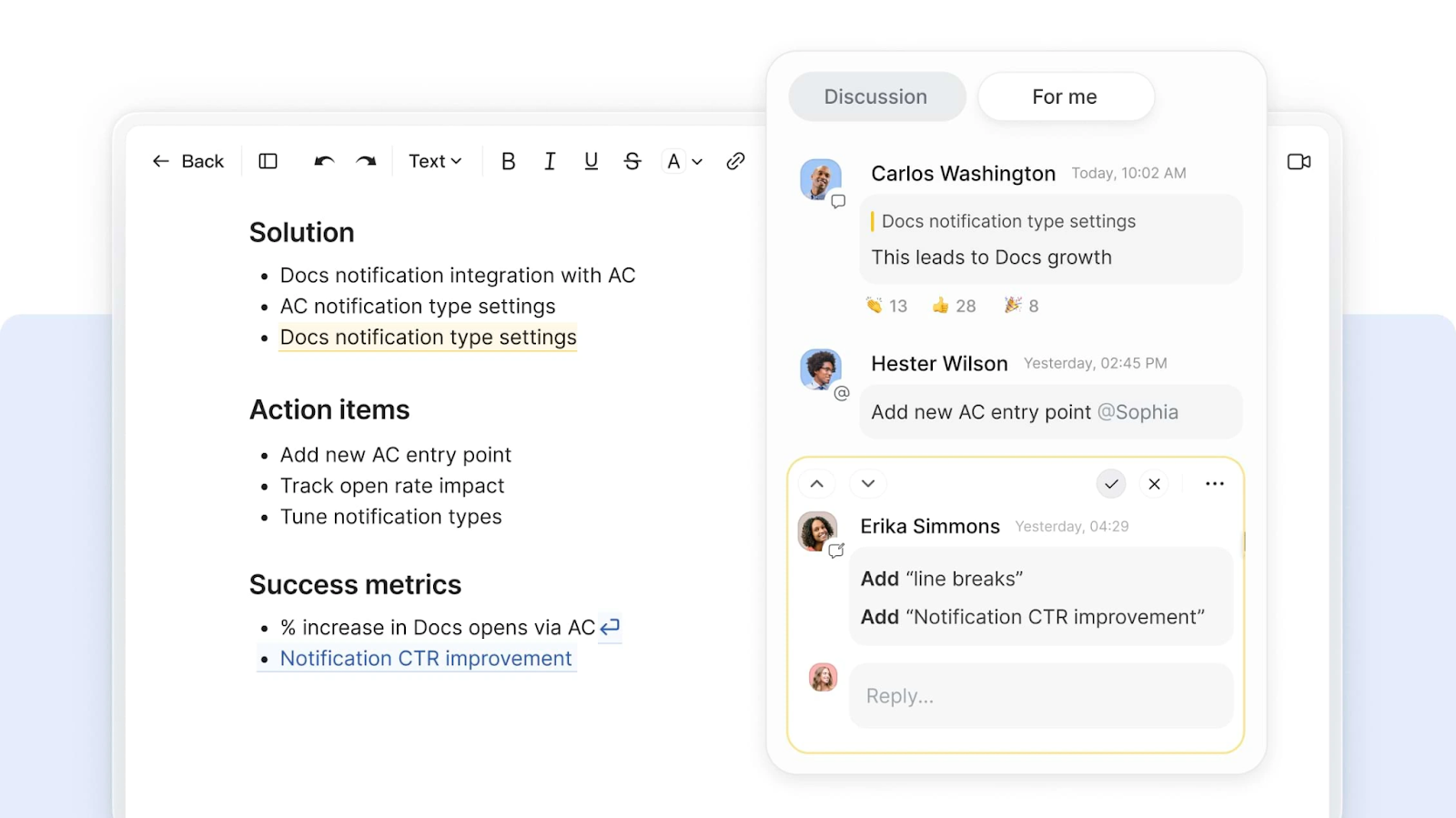
Work together on the same page during and outside of meetings. Multiple people can co-edit content at once, see changes instantly, and use built-in comments to share ideas as they go.
You can even pair your docs with quick video updates using Zoom Clips, making it easier to explain complex points or walk through changes visually.
AI Companion integration
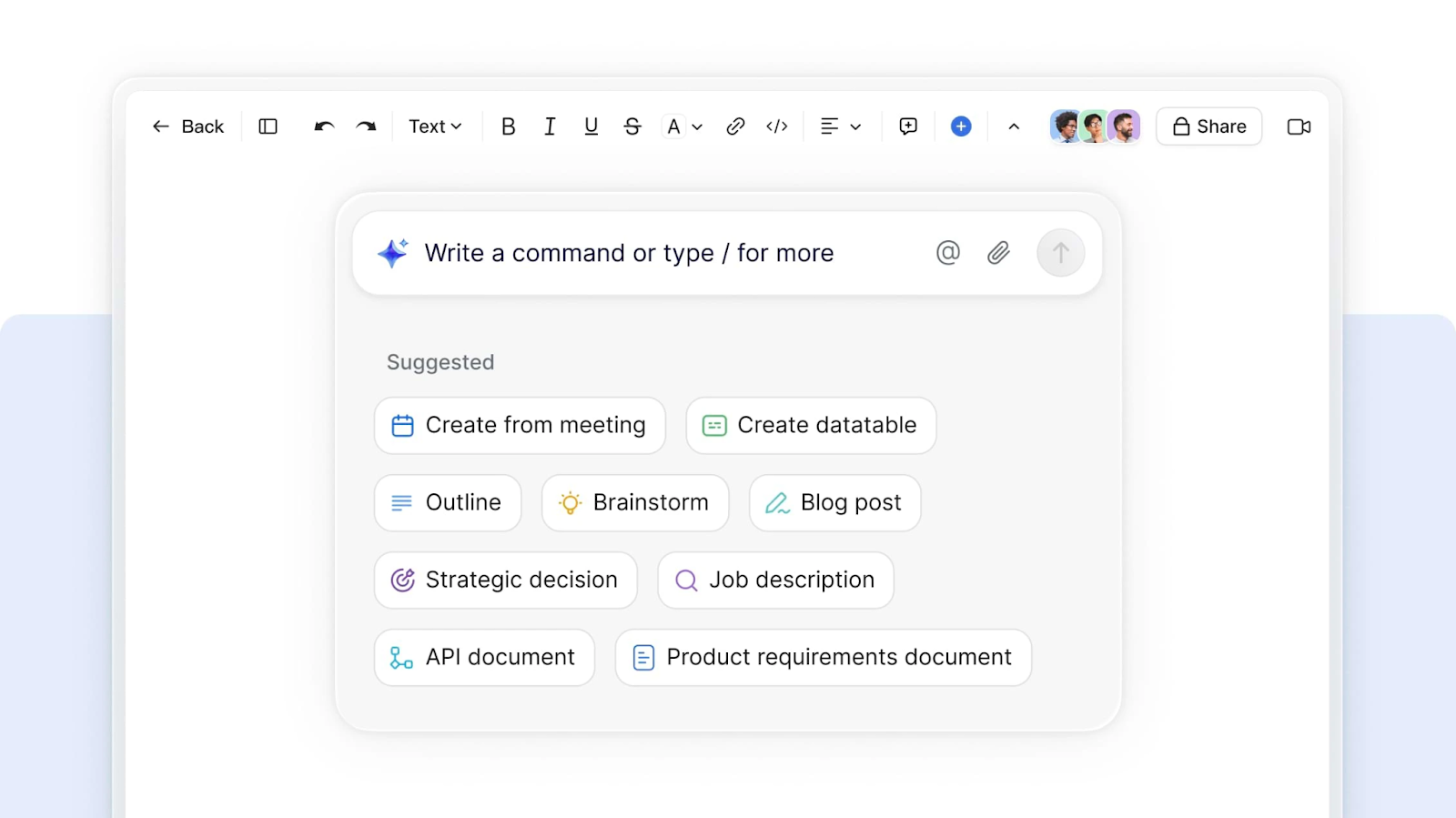
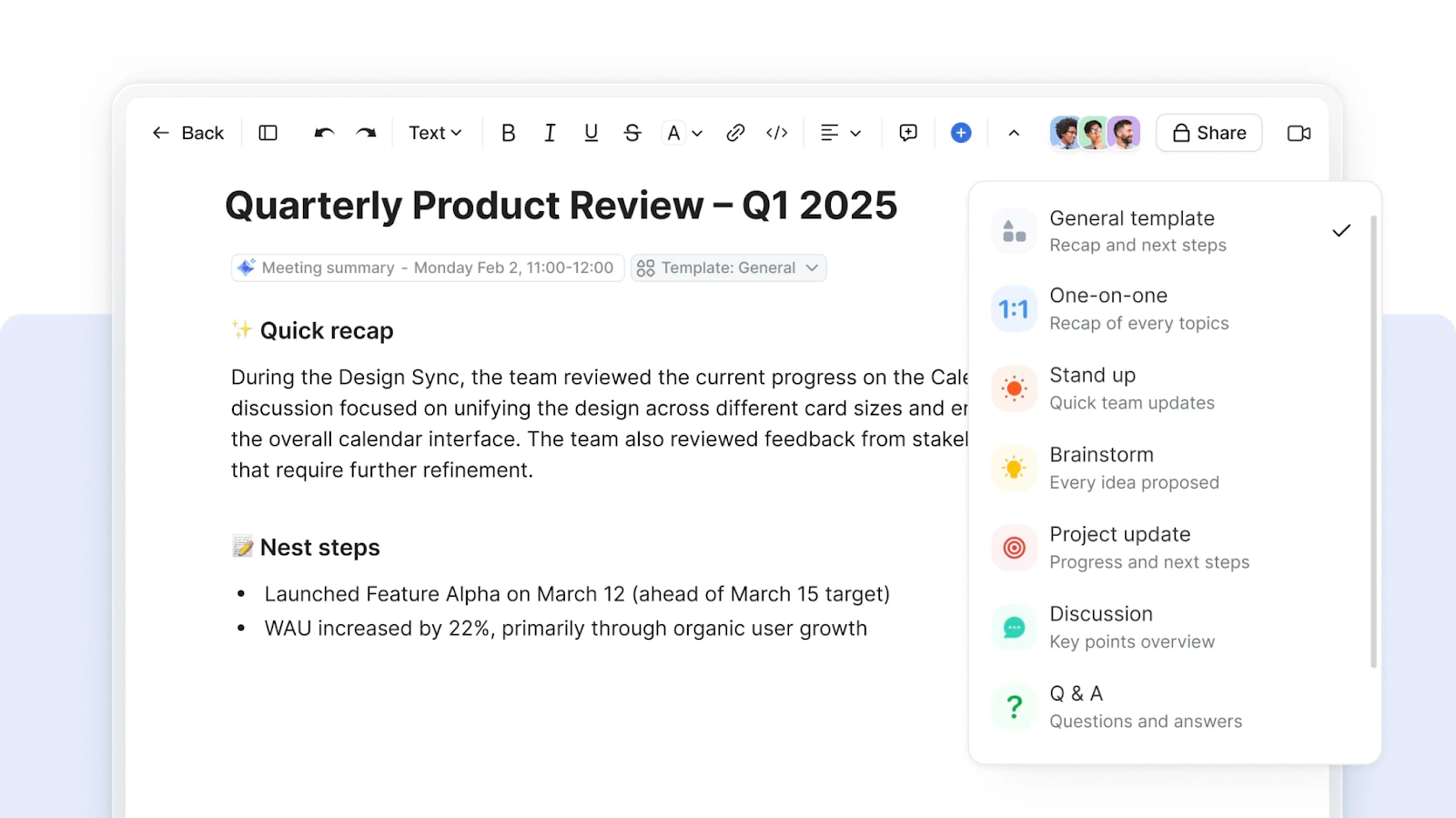
The built-in AI Companion can draft a doc from a meeting, highlight action items, translate content, or summarize key points. It’s like having an AI assistant that’s trained on your meeting context.
Document types: docs, wikis, and tables
Zoom Docs supports different formats so you can create wikis, create tables, and design data-driven project trackers. Add a data table to track progress or build a visual calendar to plan campaigns.
Templates and customization
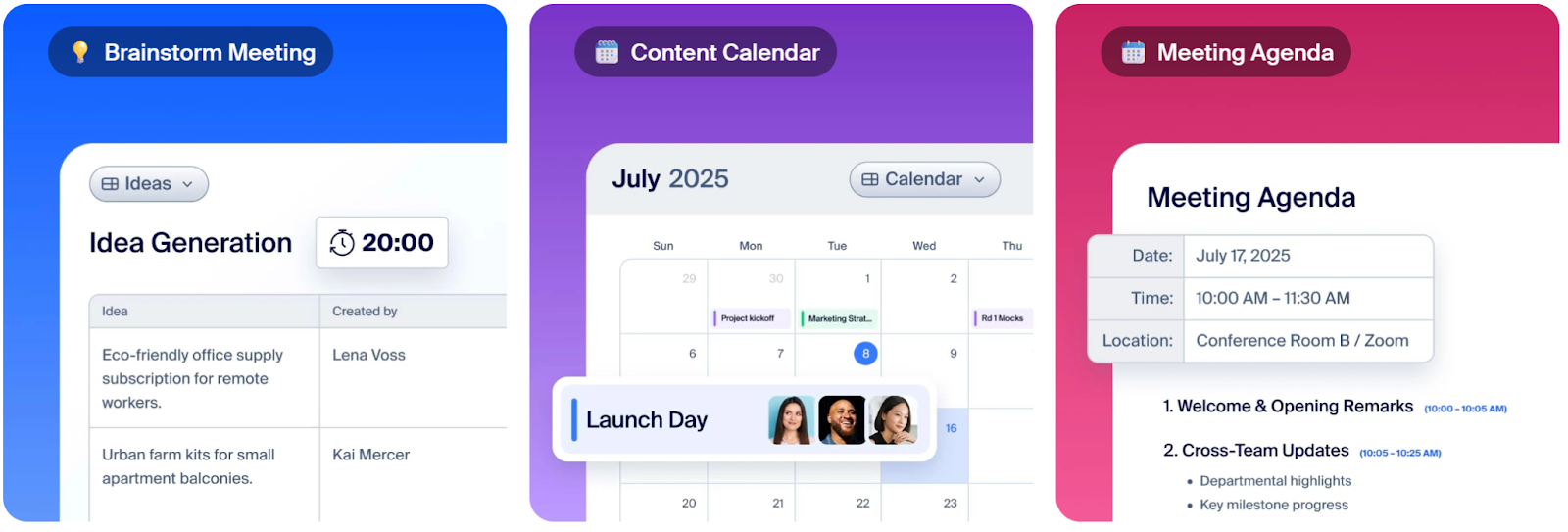
Speed up content creation with ready-to-use templates for agendas, content calendars, or a project management plan. Adjust layouts, colors, and blocks to fit your team’s style.
Sharing, permissions, and organization
You can adjust meeting participants’ permission levels so the right people can view, comment, or edit while keeping sensitive information secure.
You can even exclude anonymous meeting participants or grant temporary access to clients. The advanced sharing options window gives only the meeting host full control over the doc's permission settings.
Integration with Zoom Meetings and Team Chat
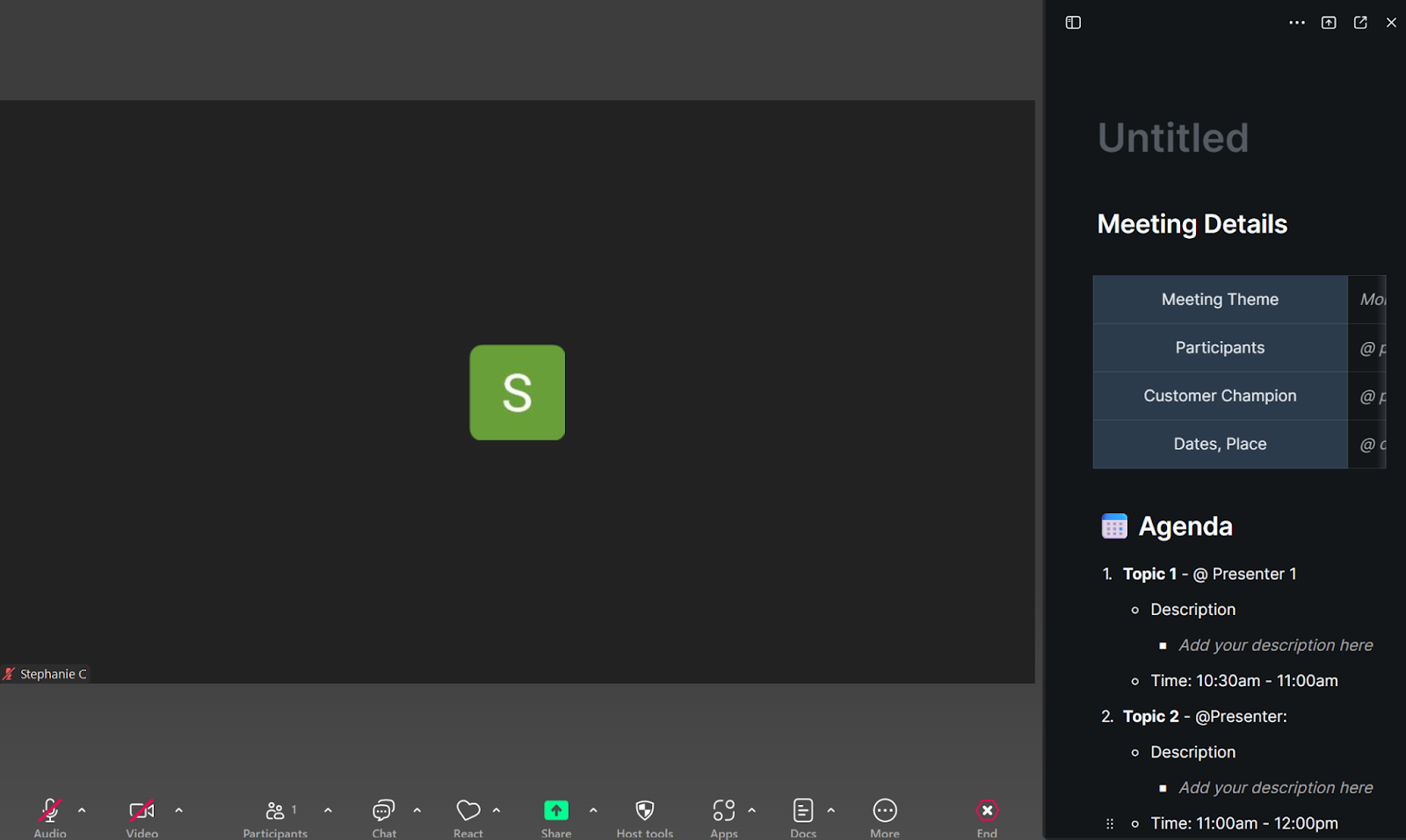
From the meeting controls menu, you can create docs before your call, update them during the discussion, and send them in Team Chat after. This keeps other meeting participants engaged and your notes tied to previous discussions.
You can also use a doc for facilitating spontaneous discussions. For sensitive content, limit editing so only participants in the meeting can make changes.
How to Access and Create a Zoom Doc
You can create Zoom Docs from your browser or the Zoom Workplace app (desktop or mobile, version 6.1.6 or higher).
Access via Zoom desktop app, web portal, or during meetings
1. From the Docs home page
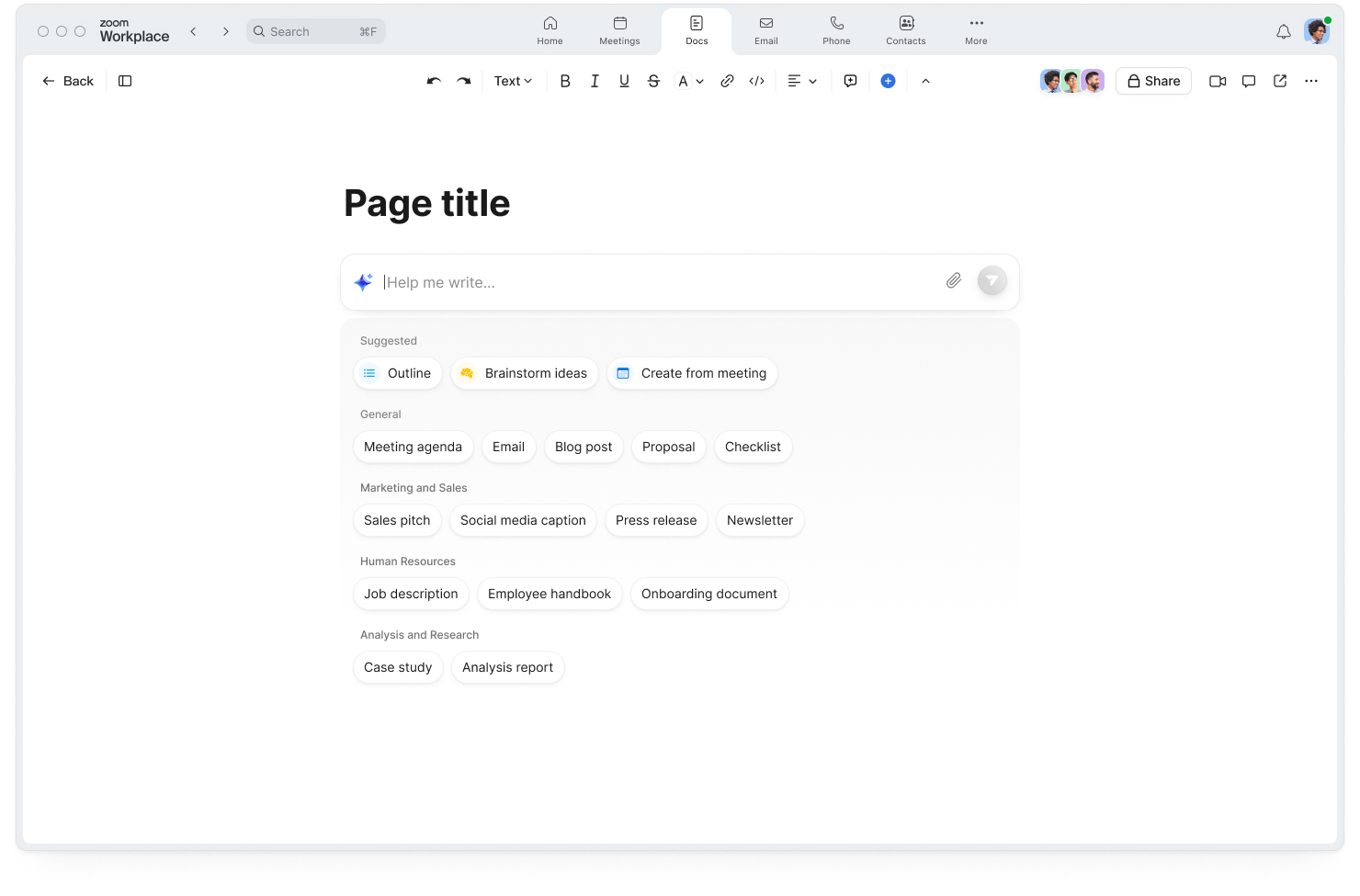
Go to the Zoom Docs page (docs.zoom.us) or click the Docs tab in your app to see your existing docs and start new ones. All your docs live in Zoom Hub, along with meeting summaries, recordings, and clips, making it easy to stay organized.
2. From My Meetings view
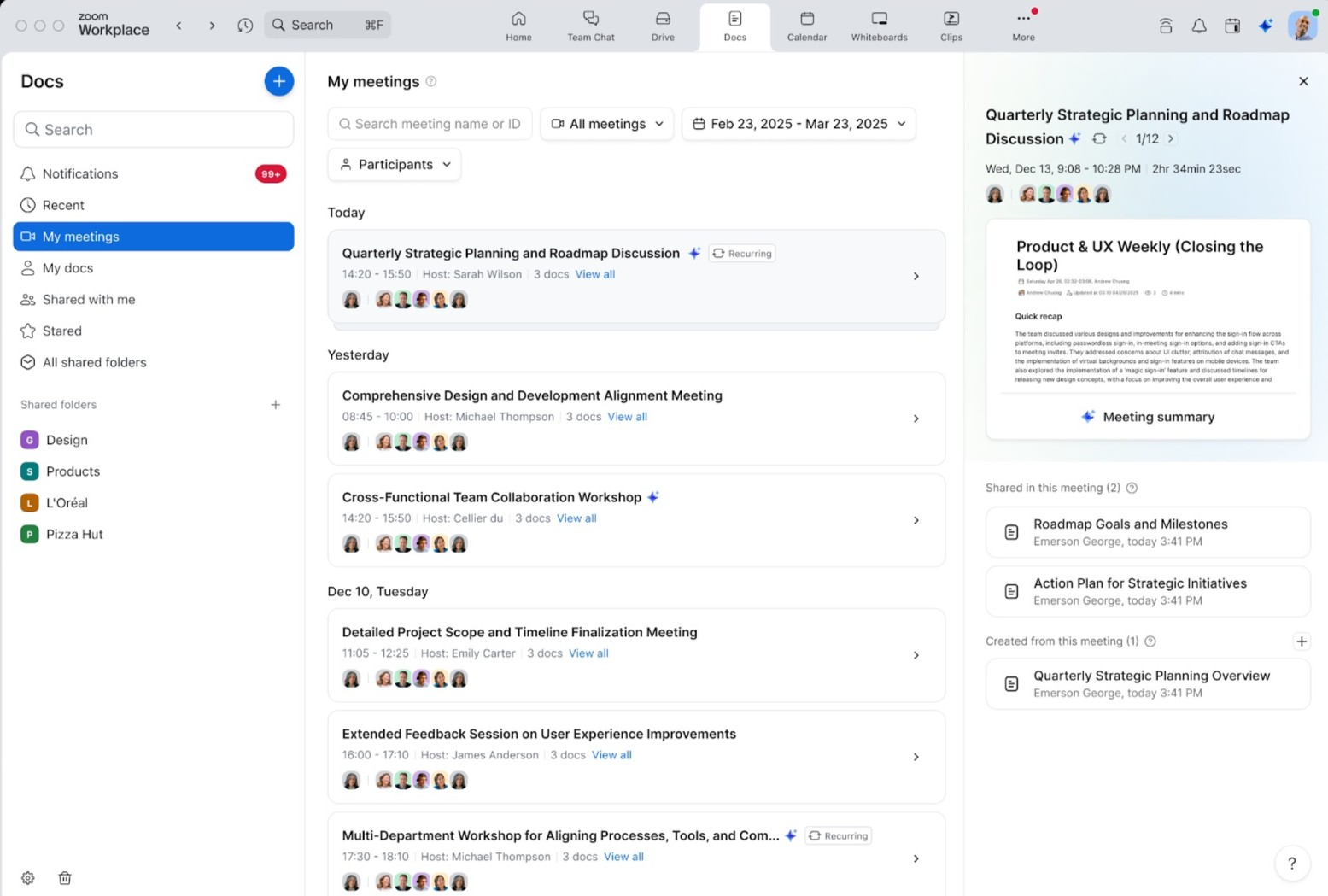
If you’re the meeting host, you can pull AI-generated summaries or transcripts from past calls into a new doc for continued collaboration.
3. During Zoom meetings
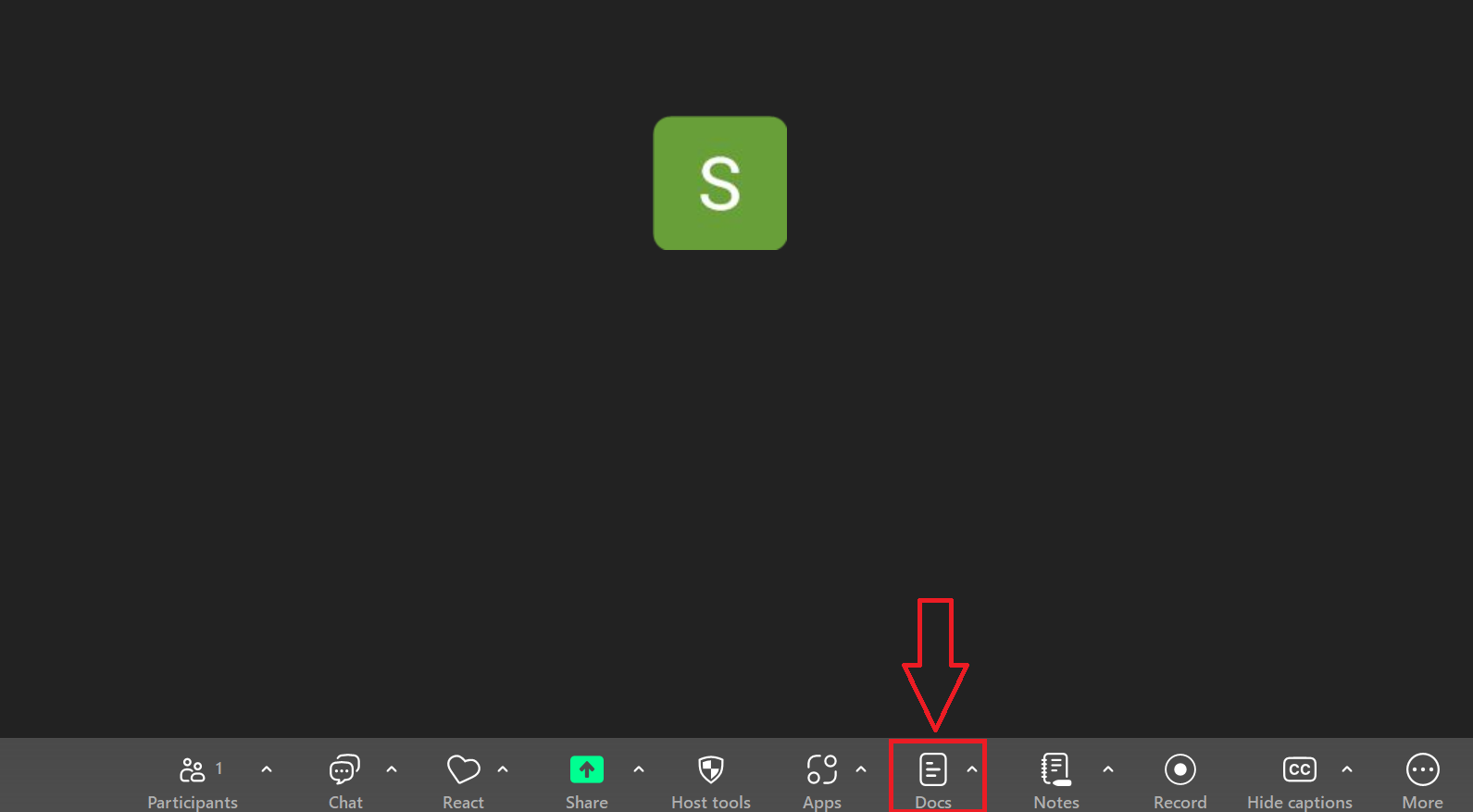
Click the Docs icon in the meeting controls menu to open or build a doc in real time with meeting participants. AI Companion can add action items as you go.
Creating and importing documents
There are three main ways to create documents in Zoom Docs:
1. Start a new doc from scratch
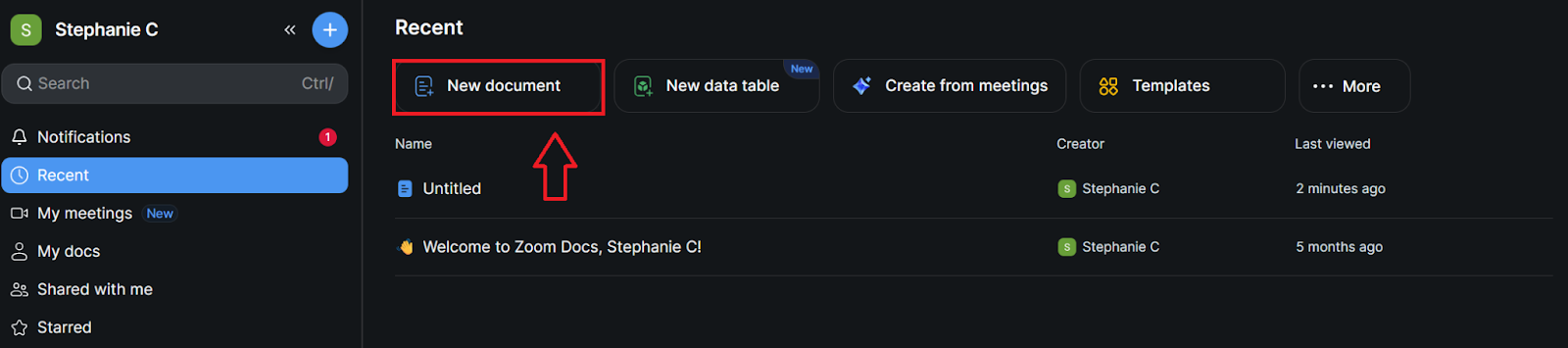
- Go to docs.zoom.us or the Docs tab in your Zoom Workplace app.
- Click New document.
- Begin typing, or use Zoom AI Companion to help you brainstorm, outline, or draft your content.
2. Use a template
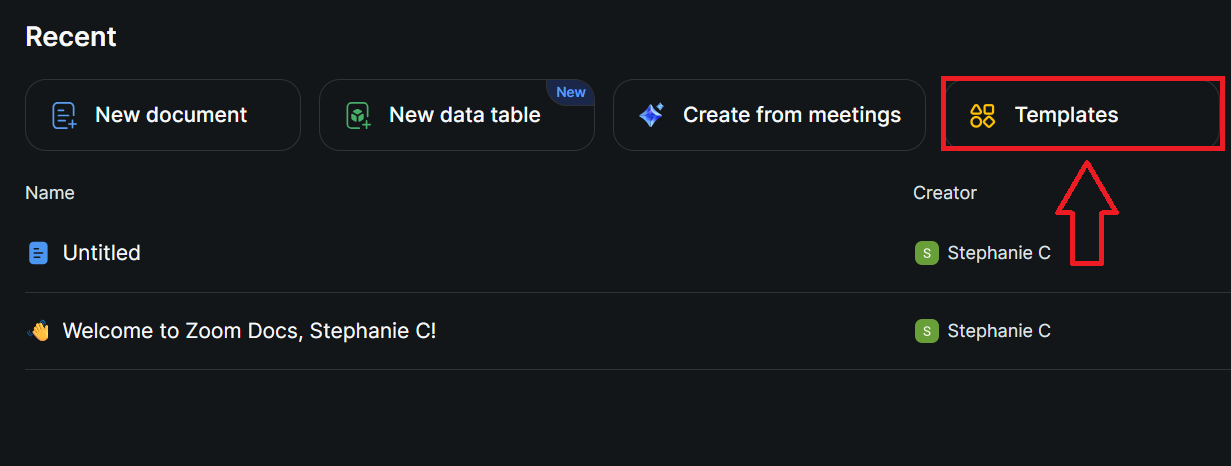
- From the Docs home page, click Templates.
- Choose a format like a meeting agenda, project tracker, or content calendar.
- Fill in your details, adjust sections, and customize the design to fit your project.
3. Import an existing file
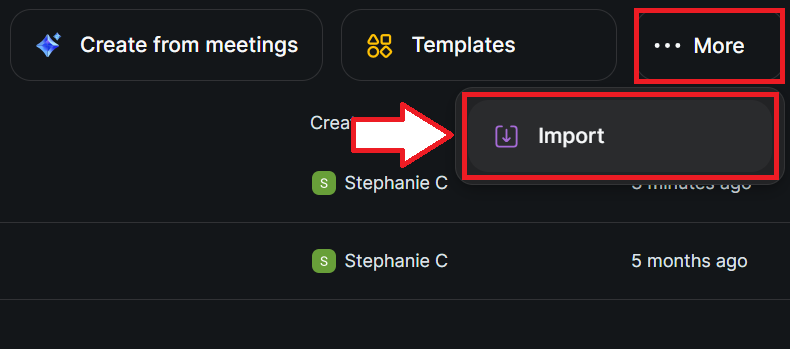
- In the Docs home page, click More > Import.
- Upload your file in one of the supported formats (.docx, .txt, .md, .xlsx, or .csv).
- Once uploaded, you can edit documents, add media blocks, or reformat content for collaboration.
- When importing files, you can also set access controls to exclude anonymous users from viewing sensitive drafts.
Why Tactiq is A Better Alternative to Zoom Docs
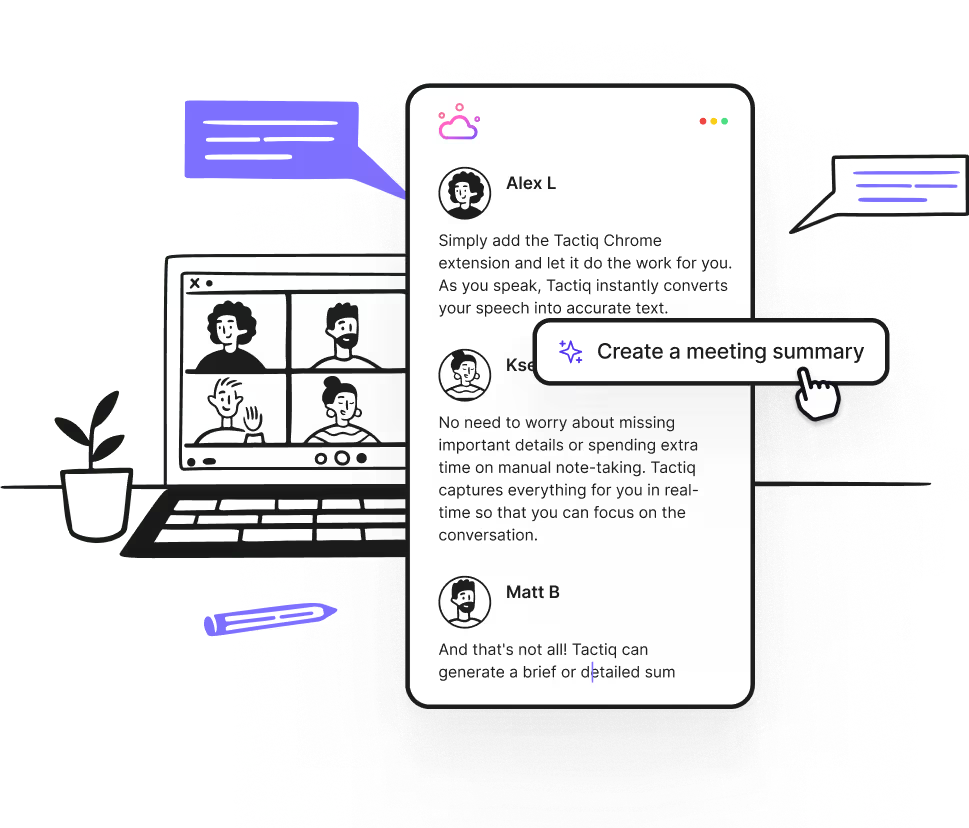
Zoom Docs is great for immediate collaboration during meetings, but it’s designed to stay inside the Zoom ecosystem. If your work stretches across different tools and meeting platforms, you might need something more flexible.
Tactiq works with Zoom, Google Meet, and Microsoft Teams, capturing live transcripts and using AI to instantly create summaries, action items, and follow-up content. Instead of only storing notes in one platform, you can push them to your favorite workspace: Google Docs, Notion, Slack, and more.
With Tactiq, you can:
- Capture everything: Automatic transcripts with speaker labels so you never miss details.
- Turn talk into action: Use AI prompts to draft emails, project updates, or documentation instantly.
- Build your own AI workflows: Send meeting insights directly to tools your team already uses.
- Work across platforms: Keep all your meeting knowledge in one searchable library, no matter where the conversation happened.
If your goal is to significantly enhance how you document and follow up on meetings and not just co-edit notes, Tactiq gives you the flexibility to work the way you want.
Try Tactiq for free and see how easy it is to keep your team on the same page after every call.
{{rt_cta_ai-convenience}}
Wrapping Up
With built-in collaboration tools, AI features, and the ability to generate impromptu meetings effortlessly, Zoom Docs keeps your team connected from planning to follow-up. It’s perfect if your team already works inside Zoom and wants a central place to build and share content.
But for teams that work across multiple meeting platforms or want AI to do more than just capture notes, Tactiq steps in as the more versatile choice. It turns every conversation into actionable insights you can share anywhere, helping your team stay aligned long after the meeting ends.
Get started with Tactiq today and turn your next meeting into your next big move.
FAQs about Zoom Docs
Where can I find Zoom Docs?
You can find Zoom Docs at docs.zoom.us or in the Docs tab of your Zoom app.
Are Zoom Docs free?
Yes, the Basic plan lets you create documents and share up to 10 collaborative docs. Paid plans unlock unlimited personal docs and AI Companion.
How do I create a Zoom Doc?
Go to docs.zoom.us or the Docs tab, then click Blank document, choose a template, or import a file to create a doc.
What are Zoom Docs used for?
They’re used to organize data, manage projects, take meeting notes, and share Zoom Docs with teams or clients.
Can Zoom Docs be used outside meetings?
Yes. You can access Zoom Docs anytime to edit, share docs, or plan without being in a meeting.
Related articles
_Main.jpg)







Want the convenience of AI summaries?
Try Tactiq for your upcoming meeting.
Want the convenience of AI summaries?
Try Tactiq for your upcoming meeting.
Want the convenience of AI summaries?
Try Tactiq for your upcoming meeting.