
How to Find a List of Public Zoom Communities to Join
August 25, 2025
August 25, 2025
November 13, 2025
November 13, 2025

Looking for ways to join new discussions, attend open forums, or sit in on expert talks? Public Zoom meetings provide you with that opportunity. They cover everything from online classes to community Q&As and industry webinars.
This blog post is for people who want to engage with communities online in a meaningful way, not to spam or disrupt these public forums. In this guide, you’ll learn:
- Where to find public Zoom meetings
- How to join them
- Best tips to make the most of each session
Understanding Public Zoom Meetings
Public Zoom meetings are open to anyone with the join link or meeting ID. They don’t require a private invitation, though some still ask you to register or sign in with a Zoom account.
These meetings are different from private ones, which are usually invite-only and shared within a team, group, or classroom.
You’ll often find public meetings set up for:
- Webinars featuring guest speakers or panel discussions
- Community meetups, such as book clubs or hobby groups
- University lectures and educational workshops
- Nonprofit talks and open forums for awareness campaigns
- Public events tied to industries, like marketing Q&As or tech demos
Public events make it easy to connect with new attendees, explore random discussions, and learn from experts without needing direct access to the host.
Where to Find Public Zoom Meetings
You can find public Zoom meetings through official Zoom tools and community sites. These sources make it easy to access events and join by meeting ID or link.
- Zoom Public Event List
Organizations with a Business, Enterprise, or Education Zoom account and an approved vanity URL can publish public calendars of upcoming meetings and webinars to [vanityurl].zoom.us/calendar/list.
This option is not enabled by default. It requires Zoom enablement, so you’ll need to submit a request to Zoom Support to activate it.
To check or enable this for your account:
- Sign in to the Zoom web portal.
- Go to Settings → Meeting tab → In Meeting (Advanced).
- Toggle List events on the Public Event List if available.
Once enabled, anyone (even outside your organization) can browse a calendar of public meetings up to 12 months ahead, select events, and either Join or Register depending on the event settings.
2. OnZoom and Zoom Events
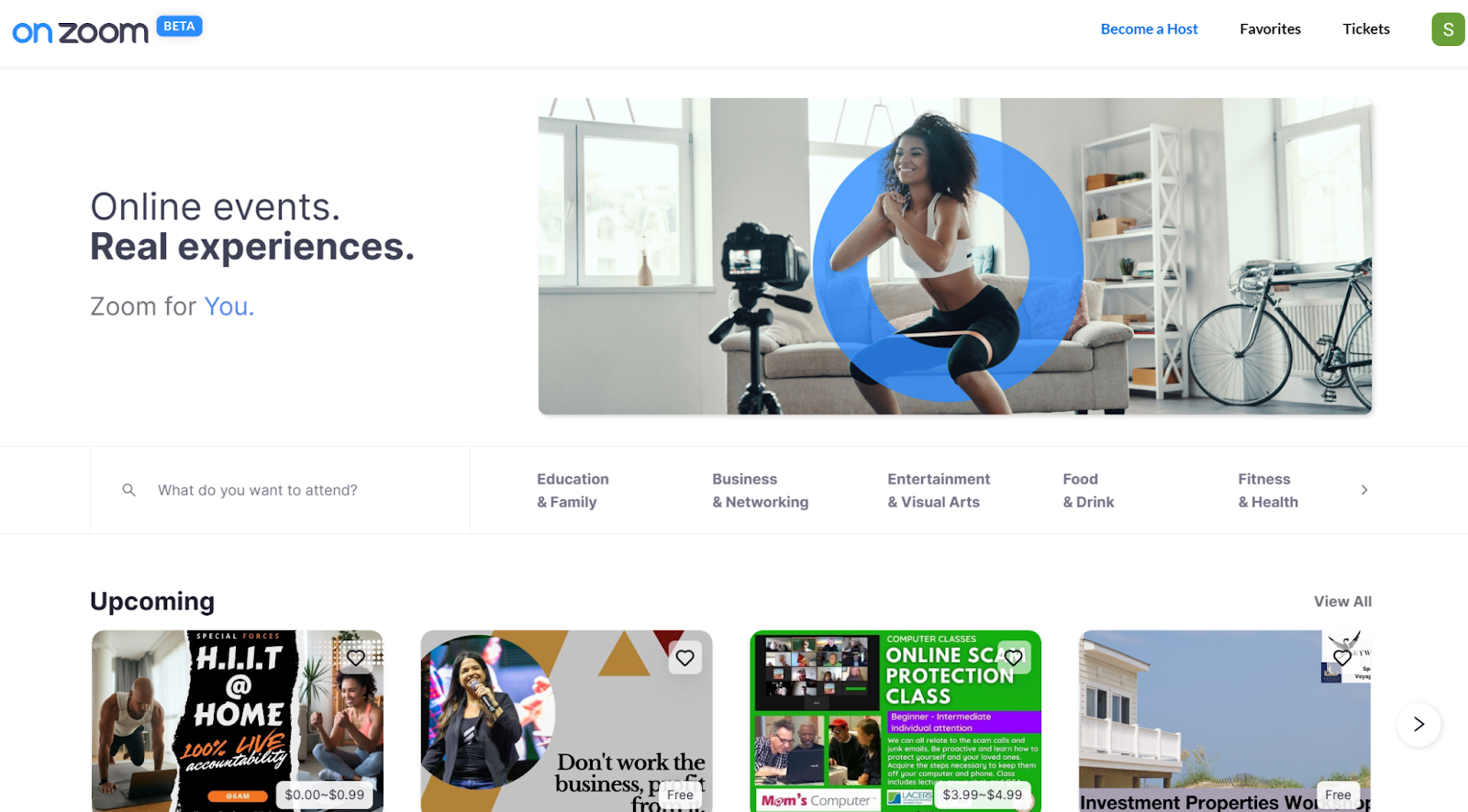
OnZoom offers everything from fitness and cooking classes to language lessons and career workshops. For example, you might find a free yoga class, a virtual wine tasting, or a paid masterclass on digital marketing.
Zoom Events provides larger-scale events like professional conferences, networking summits, or multi-session educational series. Attendees can sign in, view their tickets, and access live or recorded sessions. Many are open to the public with just a Zoom account.
3. Third-party sources (Meetup, Reddit, forums)

Community-driven platforms are excellent for finding diverse, open Zoom events:
- Meetup.com frequently lists groups using Zoom for book clubs, workshops, hobby sessions, and more. As one Reddit user advised:
“Meetup.com has lots of meetings you can join right now. … make your search radius ‘everywhere’ to get more results.”
- Reddit, message boards, and niche forums also share join links for public Zoom sessions. These are great for spontaneous, casual meetups and global communities.
💡 Pro tip: Use Tactiq to capture insights from large Zoom Events or breakout discussions, then share them with your team for continued learning and collaboration.
How to Join and Participate in Public Zoom Meetings
Depending on the platform and host, registration methods vary for joining a public Zoom meeting. Here’s how to navigate them:
1. Obtain the Join Link or Meeting ID
Public events provide either a join link or meeting ID on the event page or in your confirmation email.
2. Register when required
Some events request registration and may require you to sign in with your Zoom account, or submit your name and email address. Paid or limited-access events may require tickets.
- For Zoom Events, when registration is necessary, you'll receive an email with a ticket and join link.
3. Click the Join Link or use the Event Ticket
There are several ways to access the session:
- Zoom Events:
- Join from the confirmation email, calendar invite, or event ticket in your Zoom Events account.
- Use the Zoom desktop app, Zoom mobile app, or join in-browser via a browser lobby.
- Public Event List (vanity URL):
- Visit [vanityurl].zoom.us/calendar/list.
- Sign in to Zoom, find the event, then hover over the Join link or click Register if required.
- General Zoom Meetings:
- Join via email or calendar invite, the Zoom app, or web browser. No install required.
4. Choose how to join
Depending on your setup, you can join via:
- Zoom desktop or mobile app (recommended for full features and performance).
- Web browser, via Zoom Web App. Quick and easy if you don't want to install anything (note that feature access may be limited).
- In Zoom Events, the system may prompt you to continue in-browser or via the client, depending on your setup.
5. Test devices & enter lobby
- For Zoom Events, you can sometimes test your camera and audio before entering the session.
- After clicking Join, you may be placed in a lobby until the host admits you.
6. Engage thoughtfully during the session
- Pay attention to the host instructions. Some events may use breakout rooms, Q&A features, or polls.
- Mute yourself when not speaking, raise your hand if you need to, and avoid interrupting others.
- In webinar-style events, attendees may only interact via chat or Q&A (depending on host settings).
Tips for Finding and Selecting Interesting Public Meetings
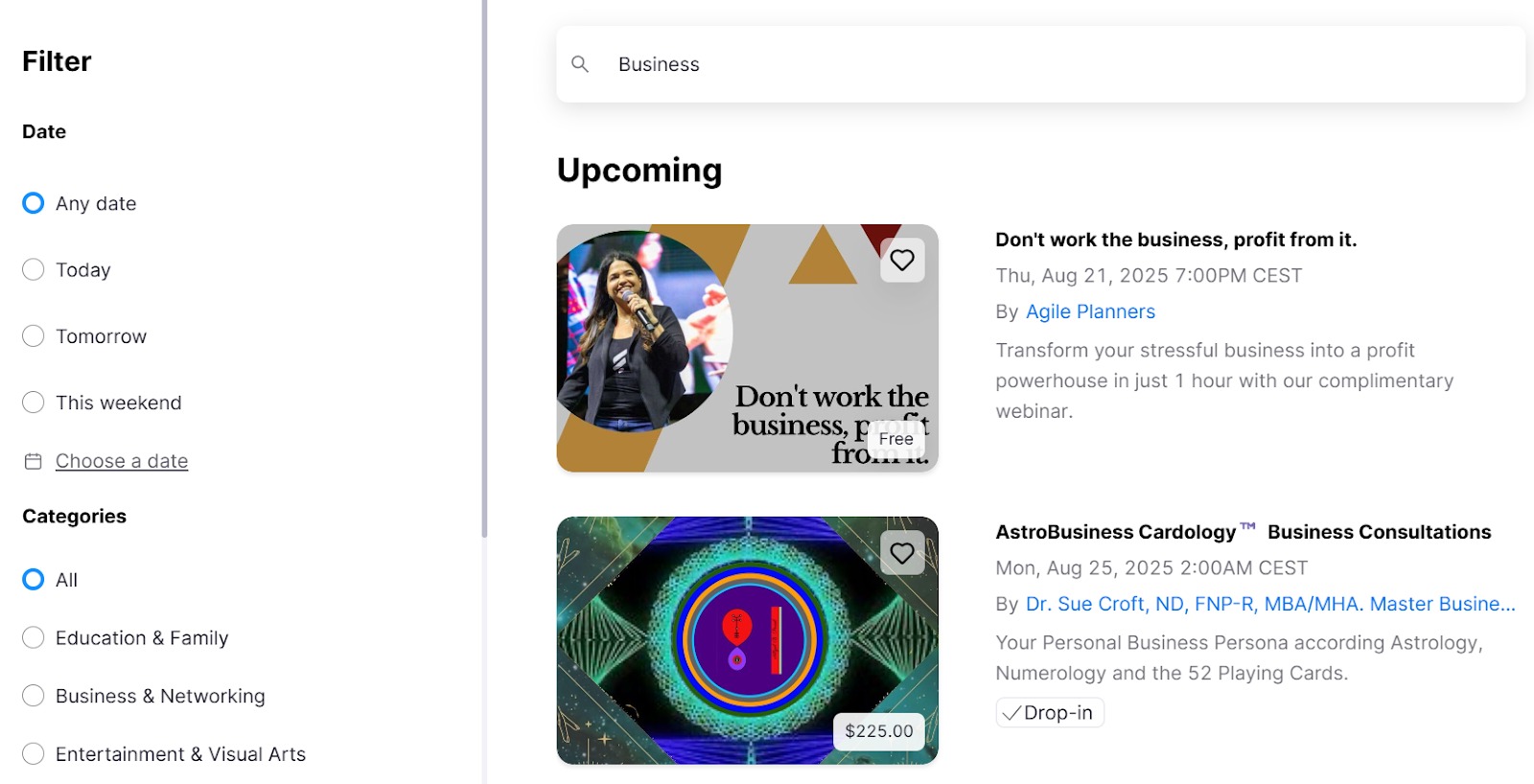
Look beyond the first public meeting you see. With so many options, it helps to filter by relevance and safety.
- Search by topic: Use keywords that match your goals, like “marketing webinar” or “virtual language exchange.” This helps find relevant events instead of unrelated or random meetings.
- Check the host: Review the host’s profile, organization, or event description. Legit hosts usually share clear instructions and a professional page.
- Consider the participants: Some public meetings draw hundreds of attendees, while others cater to smaller groups. Choose the format that fits how you like to connect.
- Review security: A trustworthy session often has registration, a password, or a waiting room enabled. These features protect against unwanted interruptions.
- Match your schedule: Save interesting events to your calendar (Google, Outlook, or Zoom) so you don’t miss out.
Safety, Privacy, and Etiquette in Public Zoom Meetings
Joining public Zoom meetings comes with more exposure than private ones, so it’s important to protect your privacy and respect the space.
- Protect your details: Use only your first name when joining. Avoid sharing personal information in chat or with other participants.
- Check meeting settings: Safe events use a waiting room, require a password, or ask you to sign in before joining. If these are missing, be cautious.
- Control your video and audio: Turn off your camera if you’re uncomfortable being visible. Always mute your audio unless speaking.
- Follow host guidelines: The host may set rules for chat, screen sharing, or breakout rooms. Pay attention to these to avoid removal.
- Respect attendees: Avoid interrupting, sending spam links, or dominating conversations. Treat others as you would in person.
- Leave if needed: If the meeting feels unsafe, you can click leave at any time from the toolbar.
How Tactiq Enhances Your Public Zoom Meeting Experience
Do you ever leave a public Zoom meeting wishing you had captured more of the discussion? Tactiq helps you focus on the conversation while automatically recording the details you’ll want later.
Real-time transcription and highlights
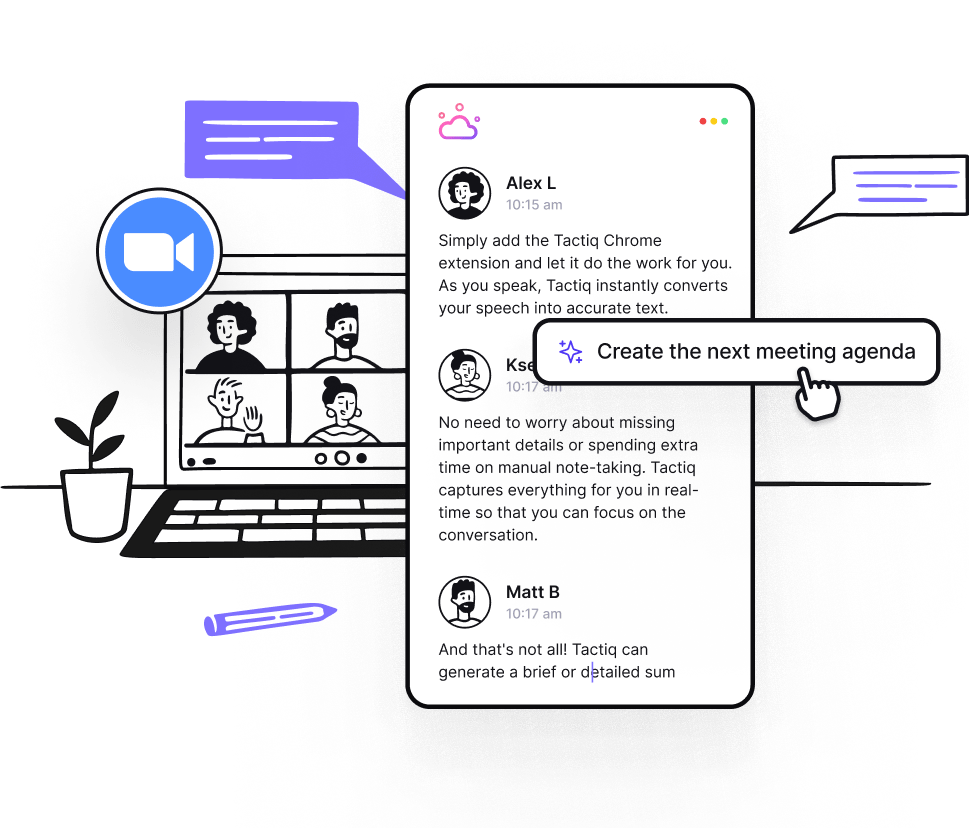
Tactiq provides a live Zoom transcript during the meeting. You can highlight important moments as they happen, making it easier to revisit later.
Search, filter, and organize meeting notes
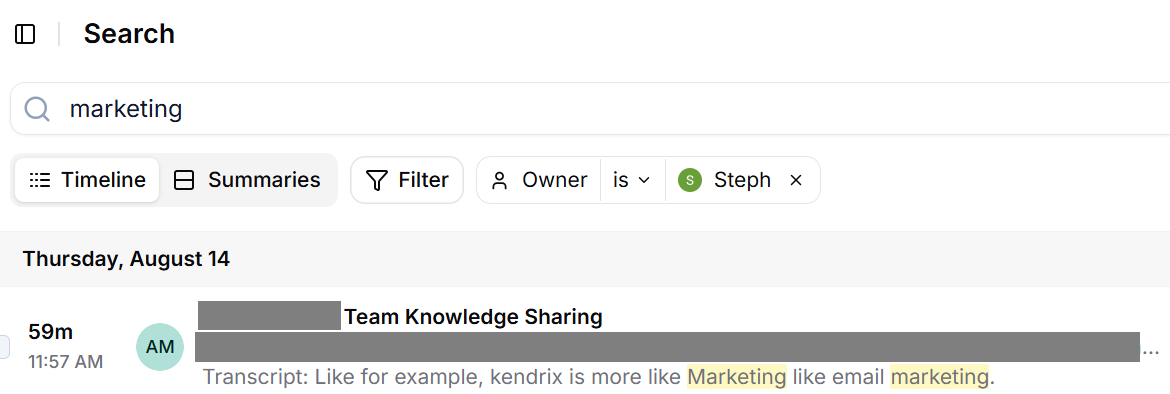
After the meeting, you can search transcripts by topic, filter highlights, and organize notes from multiple public meetings. This is useful if you attend several events in the same week.
Workflow integration and collaboration
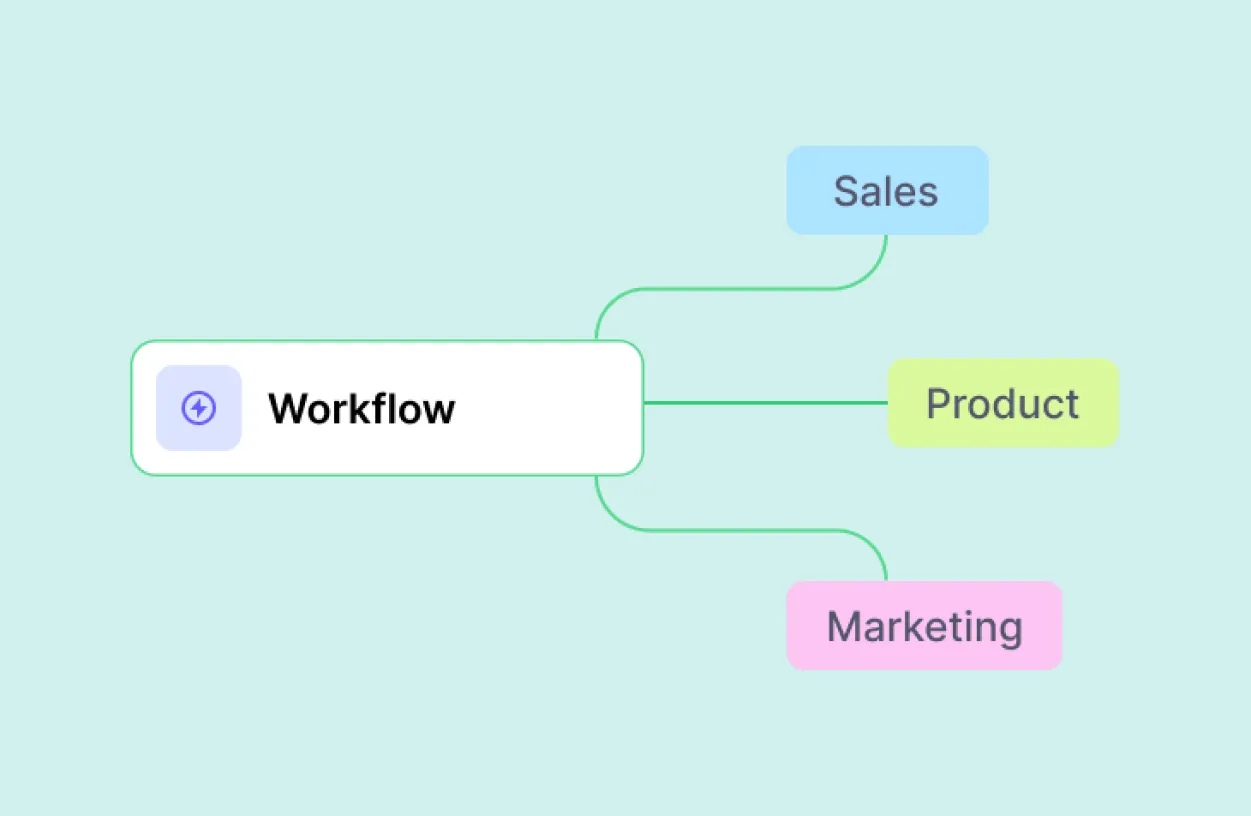
Export transcripts and notes to Google Docs, Notion, or project boards. With AI workflows, you can generate summaries, follow-up emails, or task lists directly from your notes, helping you apply what you’ve learned more efficiently.
👉 Install the Tactiq Chrome Extension today and make every public Zoom meeting more valuable.
{{rt_cta_ai-convenience}}
Wrapping Up
Finding public Zoom meetings is easier when you know where to look. These sessions can connect you with new groups, open up fresh learning opportunities, and give you access to expert insights.
The key is choosing events that match your goals, joining safely, and respecting both the host and other participants.
With Tactiq, you can capture a full Zoom transcript, highlight key points, and turn notes into action items you can revisit and share. It saves you time and helps you focus on learning instead of note-taking.
👉 Start using Tactiq today and turn every public Zoom meeting into lasting value.
FAQs About Zoom Public Zoom Meetings
Are there lists of public Zoom meetings I can attend?
Yes. You can find them through Zoom’s public event list (requires enablement), OnZoom, Zoom Events, or third-party platforms like Meetup and Reddit.
How do I find random public Zoom meetings?
Browse Meetup, Reddit, and forums where join links are shared. OnZoom also lists open sessions, from classes to community talks, that you can join with a Zoom account.
Can I see a list of Zoom meetings I attended?
Yes. Sign in to the web portal, go to the Meetings tab, then check your meeting history under Previous Meetings or reports if you’re the host.
Can you get an attendance list on Zoom?
Hosts can. Generate a Zoom attendance report from the Reports section of the Zoom web portal. It shows names, emails, and time spent by participants.
Related articles
_Main.jpg)







Want the convenience of AI summaries?
Try Tactiq for your upcoming meeting.
Want the convenience of AI summaries?
Try Tactiq for your upcoming meeting.
Want the convenience of AI summaries?
Try Tactiq for your upcoming meeting.