
What is a Zoom Hybrid Meeting? (Full Guide)
- Published:
- November 25, 2025
- Updated:
- July 21, 2026

Running a Zoom meeting (opens in a new tab) that mixes in-person and virtual participants can feel tricky. You want the in-room group to stay engaged. You want the remote attendees to follow the conversation with ease. And you want the whole event to feel natural for everyone.
That balance is the goal of a Zoom hybrid meeting. With the right setup and tools, you can connect both sides and keep the discussion moving without awkward pauses or tech issues.
Here’s what’s ahead:
- What a Zoom hybrid meeting is
- The equipment you need for your setup
- How to configure your meeting room
- Best practices for hybrid events
- How Tactiq supports your hybrid meetings
What Is A Zoom Hybrid Meeting?
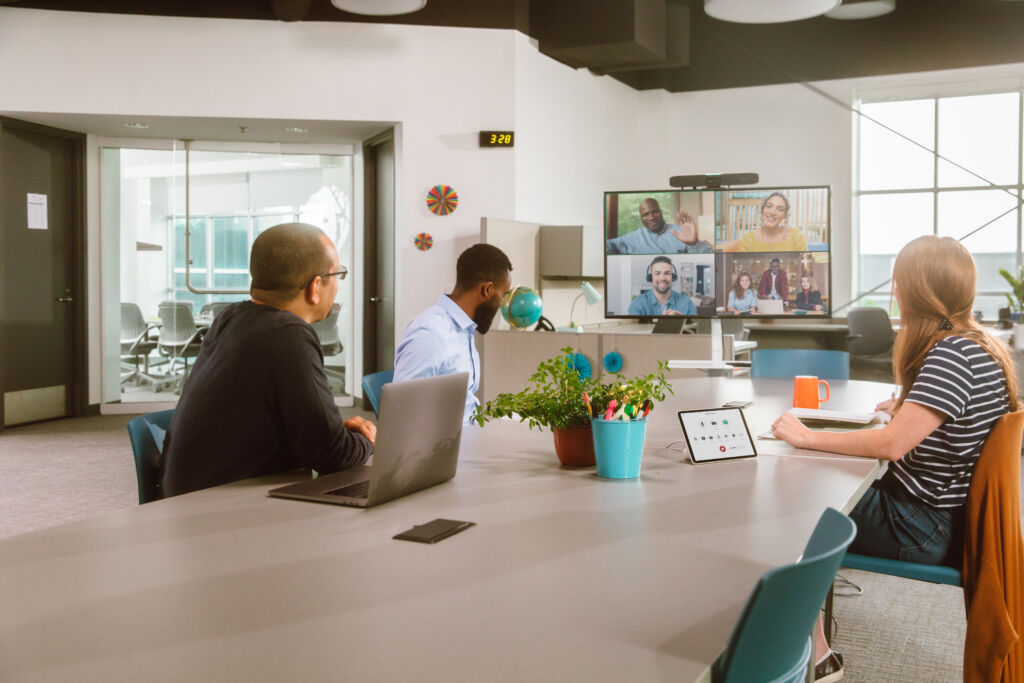
A Zoom hybrid meeting connects in-person attendees and virtual participants in one shared session. Some people sit together in a meeting room. Others join the Zoom meeting from another location. Everyone can speak, interact, and follow the agenda simultaneously.
Hybrid meetings work because Zoom blends on-site audio and video with online communication. In the room, you use cameras, microphones, speakers, and screens. Online, remote participants join from home, the office, or any other venue.
Here’s what a hybrid setup usually includes:
- A meeting room with a camera, microphone, speakers, and display
- A Zoom-enabled device to host the session
- Remote attendees joining through the Zoom app or browser
- Audio and video work together so both sides can interact
Zoom also offers an advanced option for organizations that want deeper control. Internal users can connect to a local server, while external participants join through the Zoom cloud. This setup:
- Keeps most internal meeting media on-premises
- Reduces bandwidth inside the company
- Adds a layer of security by routing internal traffic locally
- Still allows remote participants to join normally through the cloud
In short:
- Your in-person group meets in a physical room
- Your virtual audience joins online
- Zoom brings everyone together so all participants can follow the discussion and contribute
💡 Pro Tip: Want to capture chat messages, speaker notes, and key decisions automatically during your hybrid meeting? Add Tactiq (opens in a new tab) to your setup so you never miss anything, even when the room gets busy.
If you want a closer look at how hybrid sessions work beyond standard meetings, explore Zoom Events (opens in a new tab) for a full breakdown of Zoom’s event features.
Essential Equipment For Zoom Hybrid Meeting Setup
A great hybrid Zoom meeting starts with the right technology. Here’s what you need for a smooth experience.
Conference room hardware requirements
Your meeting room needs equipment that supports both in-room and remote attendees. Start with the essentials:
- High-quality cameras: A single webcam is sufficient for small rooms, but larger spaces need PTZ cameras so everyone stays in view.
- Professional microphones: Use array microphones or conference speakerphones to pick up voices evenly. This prevents the sound issues that often cause online and in-room attendees to disconnect.
- Speakers: Choose clear, high-quality speakers so the virtual audience feels present in the room.
- Display screens or projectors: Helps your in-person attendees see remote participants and shared content without straining their eyes.
- A laptop or computer for hosting hybrid events: This device runs the Zoom meeting and connects all AV equipment.
- Reliable network connection: Zoom's hybrid event guide emphasizes checking bandwidth early, especially if many in-person attendees will use the venue's Wi-Fi. For remote participants joining from hotels or coworking spaces (opens in a new tab), it's worth understanding is public Wi-Fi safe (opens in a new tab) for business calls before the session starts.
- Backup power and cables: Having extra adapters, batteries, and chargers reduces the risk of interruptions.
Zoom Rooms hardware solutions
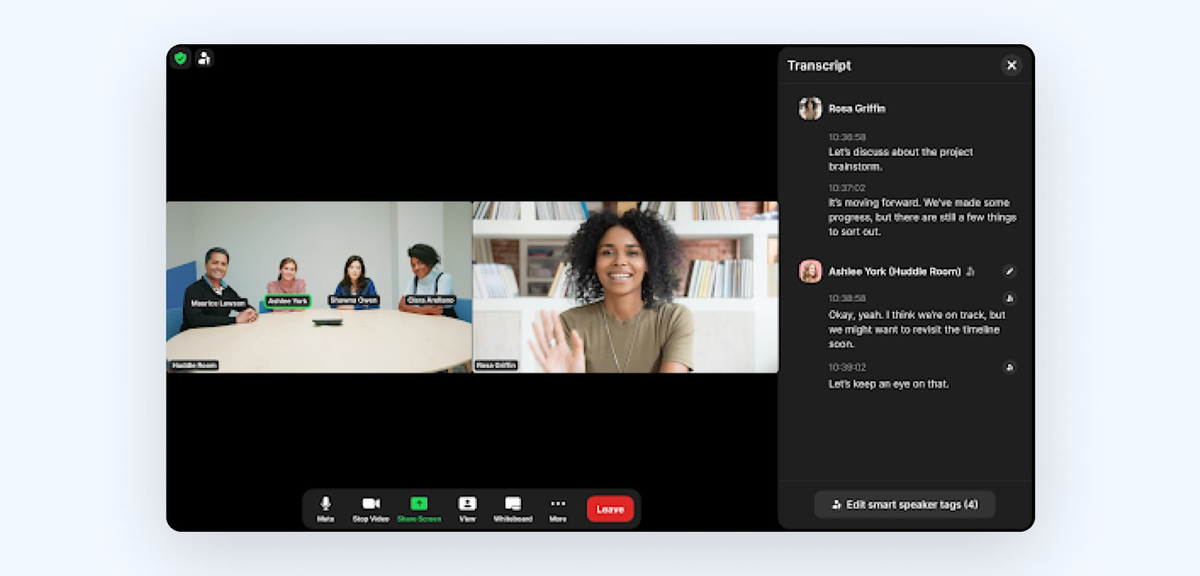
For a more polished setup, Zoom Rooms (opens in a new tab) devices offer a complete solution. They’re built for hybrid environments and simplify how your meeting room connects to Zoom.
Here’s what they include:
- All-in-one appliances: Combine a camera, a microphone, and speakers in one device. Good for smaller rooms.
- Touch displays and controllers: Let the host manage the meeting without handling a laptop.
- Modular setups: PTZ cameras, ceiling mics, and multiple displays for large hybrid events.
- Budget options:
- Small rooms → minimal hardware
- Mid-size rooms → PTZ camera + soundbar
- Large rooms → multi-camera layouts + ceiling mics
If your organization uses Zoom’s Hybrid Meeting module, internal meeting media can stay on-premises while external users join through the cloud. This reduces bandwidth and improves security without requiring changes to your Zoom Rooms setup.
If you’re comparing platforms before upgrading your hybrid setup, check out the Best Zoom Alternatives for Video Meetings (opens in a new tab).
Equipment For Remote Participants
Your virtual audience also needs a setup that helps them feel included:
- Webcam (built-in or external)
- Headset or microphone for clear audio
- Stable internet connection
- Good lighting, so their video feed is clear
- Quiet environment to cut background noise
Before the meeting, remind them to:
- Test their camera and microphone (opens in a new tab)
- Update their Zoom app
- Check their Wi-Fi speed
- Restart their device if needed
How To Set Up A Zoom Hybrid Meeting
Once your equipment is ready, it’s time to set up the actual Zoom hybrid meeting. This process involves configuring your Zoom settings, preparing the meeting room, and choosing features that help both in-person attendees and remote participants stay connected.
Pre-meeting configuration
A smooth hybrid meeting starts with a thoughtful setup. Here are the key steps:
1. Schedule your Zoom meeting
Use Zoom Meetings for interactive sessions. Choose Zoom Webinars only if your virtual audience won’t participate as much.
2. Enable hybrid-friendly features
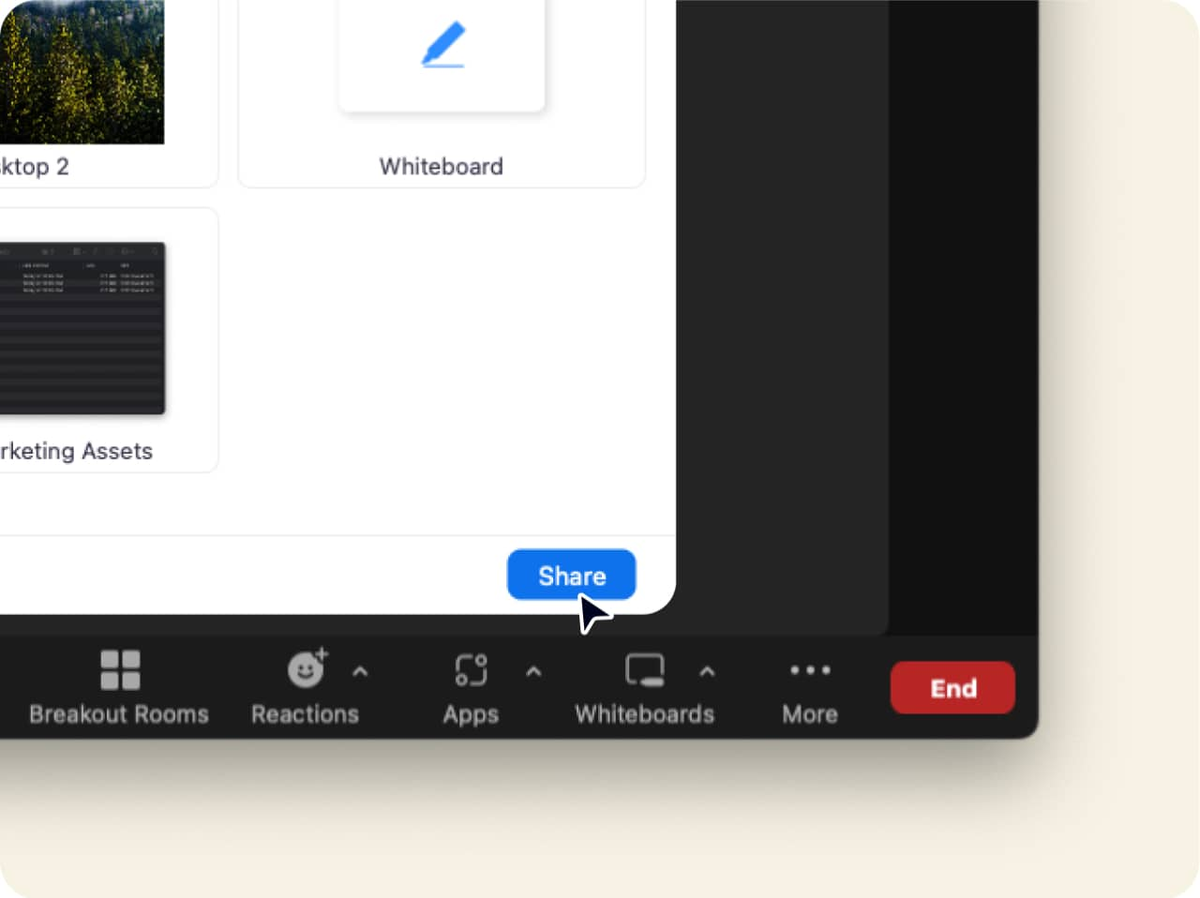
- Turn on:
- Screen sharing (opens in a new tab)
- Chat
- Q&A (if needed)
- Breakout rooms (opens in a new tab)
- Polls (opens in a new tab)
- Reactions (opens in a new tab)
3. Update registration settings
To track meeting participants or manage attendance, add registration. This matches Zoom’s hybrid event guidance on organizing sessions for different audiences.
4. Check your account settings
If your organization uses Zoom’s Hybrid Meeting module, admins must enable:
- Hybrid services
- Local zones
- Private mode (optional)
- Cloud service access - These settings control how internal and external users join the call.
5. Invite your audiences early
Inform remote participants of the required tech. Inform in-room attendees about where to sit so the camera captures them well.
Room configuration best practices
Your meeting room layout affects how engaged both audiences feel. Set up the room (opens in a new tab) with intention.
- Place cameras at eye level: Helps virtual participants feel like they’re sitting at the table.
- Position microphones centrally: Avoid corners and angles that cause echo. Zoom’s hybrid event guide highlights clear audio as one of the biggest factors in hybrid engagement.
- Use a dual-screen layout when possible:
- Screen 1: video gallery
- Screen 2: shared content
- Check your lighting: Make sure people’s faces are clearly visible and well-lit.
- Test everything in advance: Camera angle, audio pick-up, speaker volume, screen sharing, chat, and Wi-Fi.
- Have a support person nearby: For hybrid virtual events with mixed audiences, Zoom recommends dedicated staff to manage the virtual side.
Meeting settings and options
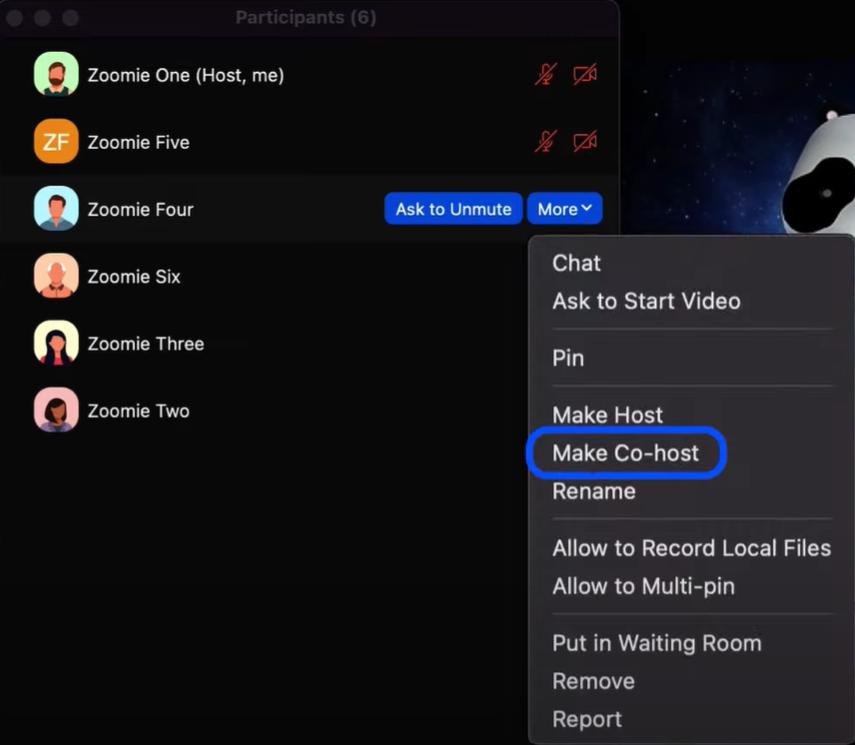
Once the meeting goes live, hosts can use these settings to keep the session smooth:
- Manage mute/unmute: (opens in a new tab)Mute online attendees at the start to reduce background noise.
- Assign a co-host (opens in a new tab): Helps manage chat, questions, and the waiting room (opens in a new tab).
- Use spotlighting or multi-spotlighting: Ensures everyone can see the active speaker clearly.
- Enable screen-sharing permissions: Allow presenters to share without delays.
- Record the meeting (opens in a new tab): Cloud recording (opens in a new tab) works well, but organizations using the Hybrid Meeting module can also record to internal storage.
- Monitor the chat and Q&A: Keeps remote participants from feeling overlooked. If important messages ever disappear after a call, learn how to recover Zoom chats (opens in a new tab).
Best Practices For Running Successful Hybrid Meetings
Running hybrid meetings means supporting two distinct audiences at once: your in-person attendees and your virtual participants. The goal is to make both groups feel seen, heard, and involved. These best practices help you create a smooth and engaging experience for everyone.
Creating an inclusive meeting environment
Everyone participates better when both sides feel included. Try these simple habits:
- Acknowledge both audiences at the start: Greet your in-room group and your remote attendees by name.
- Rotate speaking opportunities: Move between people in the room and those joining virtually, so no group dominates the conversation.
- Use participant names (opens in a new tab) often: Helps remote participants feel like part of the meeting, not spectators.
- Make sure everyone is visible: Check that your virtual audience can see speakers, slides, and the room clearly.
Communication strategies
Clear communication keeps both the physical room and the online side aligned.
- Set simple communication rules: For example: raise your hand, post questions in chat, or introduce yourself before speaking. For more ways to boost non-verbal interaction, check out our guide on Zoom hand gestures (opens in a new tab).
- Use chat for shared input: Zoom suggests displaying the live chat on a monitor in the room to encourage in-person attendees to interact with online participants.
- Plan structured Q&A moments: Don’t collect questions only at the end. Online attendees may leave or forget their questions.
Technical best practices
Strong technical support keeps hybrid meetings running smoothly.
- Have a dedicated tech support person: Zoom’s recommendations call out the need for someone who focuses on the virtual side, allowing speakers to stay present.
- Set backup plans: A second laptop, extra cables, or a phone hotspot can save the meeting.
- Pause regularly for virtual input: Give remote attendees space to catch up or ask questions.
- Use engagement features: Raise Hand, Reactions, Polls, and Chat make online participants feel involved.
Common Challenges and Solutions
Hybrid meetings come with familiar issues. Here’s how to fix each one quickly.
Audio and video issues
- Echo or feedback → Use one primary microphone and mute all laptop mics.
- Remote participants can't hear → Move microphones closer to speakers for better pickup.
- Blurry or dark video → Improve front lighting so faces are clear.
- Audio looping from speakers → Keep speakers pointed away from microphones.
- Bandwidth problems → Test your network early; organizations using Zoom’s Hybrid Meeting module can keep internal media local for smoother performance.
- Video freezing → Lower the meeting’s resolution when the network is stressed.
Engagement and participation
- In-room participants get more attention: Start questions with remote attendees to balance the room.
- Remote participants stay quiet: Assign a co-host to monitor chat, reactions, and Q&A.
- Chat gets ignored: Display the live chat on a monitor so both audiences can interact.
- Side conversations in the room: Set expectations at the start and keep everyone focused on one discussion.
- Breakouts feel uneven: Plan hybrid breakout groups in advance and assign clear roles.
How To Use Tactiq With Zoom Hybrid Meetings
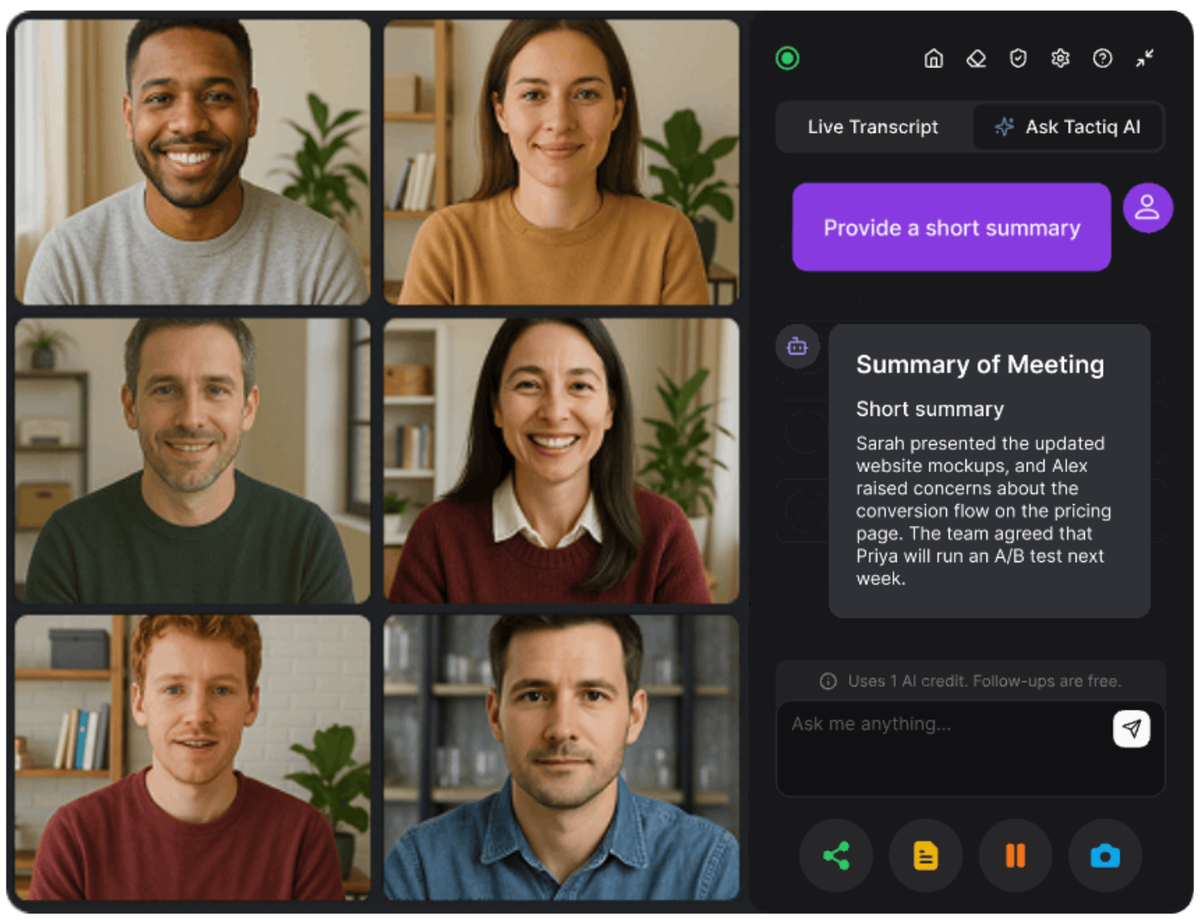
Hybrid meetings move fast. People share ideas in the room, via the Zoom chat, and through their mics. It’s easy to miss key points, especially when you’re juggling two audiences.
Tactiq (opens in a new tab) helps you stay on top of everything without stopping the flow of the conversation.
Here’s how Tactiq supports your hybrid meeting setup:
- Automatic transcription (opens in a new tab): Tactiq captures every in-room and remote voice, providing a complete record of the meeting.
- Real-time notes from conversations: Tactiq highlights keywords, speaker names, and key moments as they happen.
- AI-powered summaries: Turn long hybrid discussions into clear action items, decisions, and next steps with one click.
- Easy export and sharing: Send your transcript or summary to Google Docs, Notion, or your workspace tools without copy-pasting.
Want to simplify your next hybrid meeting? Install the free Tactiq Chrome Extension (opens in a new tab) and let AI handle your notes while you focus on the conversation.
Want the convenience of AI summaries?
Try Tactiq for your upcoming meeting.
Bringing Your Hybrid Zoom Meetings Together
Hybrid meetings are now a normal part of how teams connect, plan, and share ideas. When you combine the right equipment, thoughtful room setup, and clear communication habits, you create a space where all participants can contribute without feeling left out.
A successful hybrid setup comes down to three things:
- A clear plan for your meeting room and remote audience
- Reliable audio, video, and network support
- Tools that help you track decisions, notes, and action items across both sides
This is where Tactiq becomes especially helpful. It captures the full discussion, generates instant insights, and provides you with summaries you can use right away, no matter how busy or fast-paced your hybrid meeting feels.
FAQs About Zoom Hybrid Meetings
How do I set up a hybrid meeting in Zoom?
Set up your room cameras and microphones, schedule a Zoom meeting, enable chat and screen sharing, and test audio and video before attendees join.
What equipment do I need for a Zoom hybrid meeting?
You’ll need a camera, a microphone, speakers, a display, a hosting device, and a stable internet connection. Larger rooms may require PTZ cameras or ceiling mics.
How can I ensure remote participants feel included in hybrid meetings?
Greet them by name, rotate speaking turns, monitor chat, and use polls or Q&A to keep them involved throughout the meeting.
Can I transcribe a Zoom hybrid meeting automatically?
Yes. Tactiq can transcribe the full conversation in real time and generate summaries, action items, and follow-ups for your team.
Related articles

Zoom ChatGPT: How to Connect and Access Meetings

Zoom MCP: Features, Setup, and Limitations (Full Guide)

Zoom Workplace and Zoom Meetings Difference: What You Need to Know

What Is Zoom Cloud Meeting App?

Zoom Cloud Meetings for Mac: Full Guide

Zoom Meeting Statistics 2026: Usage, Revenue & Data

How to Edit Zoom Recording: A Complete Guide

How to Record Yourself on Zoom
Want the convenience of AI summaries?
Try Tactiq for your upcoming meeting.
Bringing AI into your meetings has never been so easy.
Add to Chrome - It's free!(opens in a new tab)Try Tactiq in your upcoming meeting!
Sign up now