
How to Use Google Gemini for Productive Meetings
May 9, 2024
May 9, 2024
December 9, 2025
December 9, 2025

Google Gemini now does more than answer questions. It helps teams plan meetings, organize tasks, and stay productive across Google Workspace.
The latest models understand longer conversations, respond with voice, and connect directly with your Google apps.
In this guide, you’ll learn:
- What the latest Gemini models can do
- How to access Gemini on web and mobile
- Key features that support meetings and daily tasks
- Practical ways to use Gemini for collaboration
- How Gemini compares to dedicated note-taking tools
What Is Google Gemini?
Google Gemini is Google’s newest family of generative AI models designed to handle text, images, video, audio, and code in one system. It builds on years of multimodal research and now supports stronger reasoning, clearer explanations, and deeper context across your daily tools.
Gemini helps you learn faster, plan projects, explore ideas, and complete everyday tasks with less effort.
The current Gemini era includes these core models:
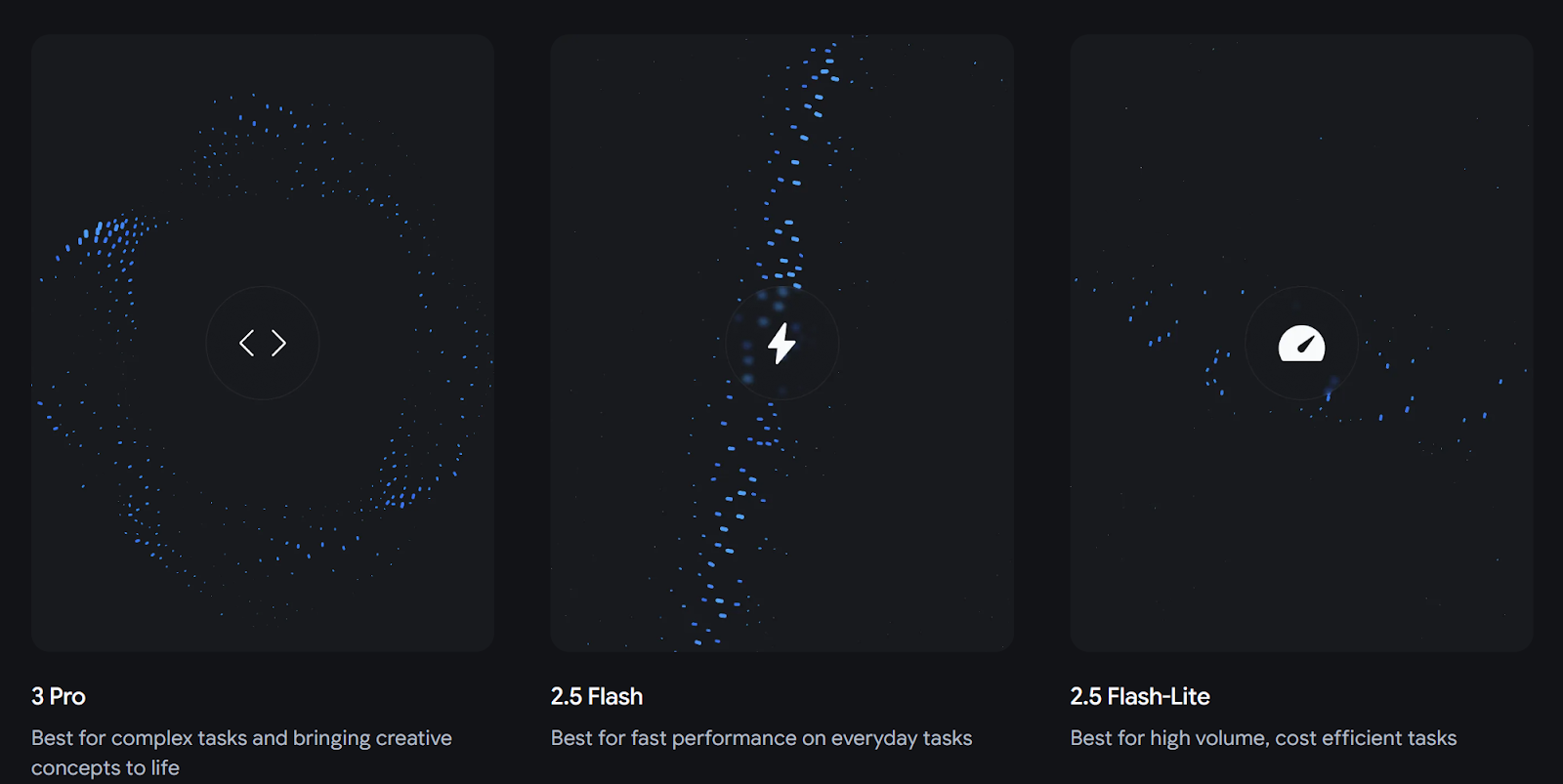
- Gemini 3 Pro. Described as the next-generation model, the 3 Pro is currently Google’s most efficient model. It handles complex tasks, advanced reasoning, long context, and rich visual understanding. It supports stronger planning, deeper analysis, and more interactive results across creative, technical, and collaborative work.
- Gemini 2.5 Flash. A fast and well-rounded model built for everyday tasks. It offers quick responses, smart reasoning, and strong cost-performance for large batches, automation, and high-volume use cases.
- Gemini 2.5 Flash-Lite. The lightest version of Flash. It focuses on speed and cost savings, making it a good fit for rapid requests and high-throughput systems that need consistent, fast results.
- Gemini 2.5 Pro. A capable model ideal for long context, math, code, and STEM challenges. It works through multi-step problems, large files, and analytical tasks with more structure and clarity.
Earlier models like Gemini 1.5 Pro helped shape today’s ecosystem by introducing long-context understanding and stronger multimodal reasoning, which paved the way for the newer 2.5 and 3 series.

Gemini subscription plans
Gemini offers three main access levels: a free plan, a mid-tier productivity plan, and a premium tier for advanced features.
Free Plan
- No monthly fee
- Access to Gemini 2.5 Flash
- Limited access to Gemini 3 Pro
- Image generation and basic editing
- Deep Research (standard level)
- Gemini Live for voice interactions
- 100 monthly AI credits for short video generation
- Chromebook, web, and mobile access
Google AI Pro - $19.99 per month
This plan unlocks more powerful tools for work, school, and creative projects. You get:
- Higher access to Gemini 3 Pro
- Stronger Deep Research
- Image and video generation with Nano Banana Pro
- 1,000 monthly AI credits
- Gemini in Gmail, Docs, Calendar, and more
- Gemini in Chrome
- NotebookLM with extended limits
- 2 TB of Google One storage
- Access in more than 150 countries
Google AI Ultra - $249.99 per month
This tier is made for users who need the best models and the highest limits. It includes:
- The highest access to Gemini 3 Pro and the upcoming Deep Think
- 25,000 monthly AI credits
- Priority access to new agent features
- Agentic planning tools that can complete multi-step tasks
- Enhanced Gemini in Gmail, Docs, Vids, and Chrome
- Code assistants with higher request limits
- NotebookLM with premium capabilities
- 30 TB of Google One storage
- Access to early projects like agent-style research tools
Where Gemini fits in your workflow
With these plans, users can write, research, analyze long documents, generate visuals, and get real-time help inside Google apps.
Gemini connects with Gmail, Google Calendar, Google Maps, Drive, Photos, and more to help you complete tasks without jumping between tools. Features like Gemini Live let you speak, share your screen, or show your camera to get step-by-step help.
Gemini has grown into a flexible AI system that supports learning, collaboration, and productive online meetings.
Who Can Use Google Gemini?
Gemini is available to anyone with a personal Google account. The free plan covers everyday tasks, while paid plans unlock stronger models and higher usage limits.
Gemini supports a wide range of users:
- Anyone with a free Google account
- Access to core features
- Use Gemini on the web or mobile
- Limited access to advanced models
- Google Workspace users
- AI features inside Gmail, Docs, Sheets, Slides, Meet, and Calendar
- Helpful for planning meetings, organizing notes, and managing tasks
- Feature availability depends on region, device, and admin settings
- Teams and professionals
- Use Gemini 3 Pro through paid plans for deeper reasoning and long-context tasks
- Helpful for research, summarization, writing, content creation, and planning
- Eligible college students
- A free one-year Google AI Pro plan
- Access to Gemini 3 Pro
- Unlimited image uploads
- Pro-level image generation
- Personalized quizzes, study guides, and flashcards
- NotebookLM with expanded limits
- Audio Overviews for listening to notes
- 2 TB of cloud storage
- Developers and builders
- Access to Gemini through the Gemini API, Google AI Studio, Vertex AI Studio, and the new Antigravity platform
- Helpful for coding tasks, prototypes, and agent-focused projects
Gemini is available across phones, Chromebooks, tablets, and desktops, making it easy to use for learning, daily tasks, project planning, and productive meetings.
💡 Pro tip: If you want real-time meeting notes while using Google Meet, try Tactiq. It captures transcripts, action items, and summaries automatically so you can stay present in the conversation.
7 Ways to Use Gemini to Boost Your Productivity
Now that we know the different Gemini models, how to access it on the web and mobile app, and its pros and cons, let’s look at some of the ways Gemini can increase your productivity, especially for your online meetings:
Write efficient AI meeting summaries
Gemini can automatically summarize your meeting transcripts, highlighting critical decisions, action items, and assigned tasks. For automated meeting summaries, consider using Tactiq, which effortlessly transcribes real-time discussions for easier note-taking during your meetings.
Come up with instant content briefs
Beat writer’s block with Gemini’s quick content briefs. Input your prompt, including your topic or target audience, and let Gemini quickly generate outlines, suggest keywords, and recommend content formats. It’s the ideal AI tool to kickstart your creativity and ensure your content hits the mark.
Get quick language translations for global collaboration
Break down language barriers during your meetings with Gemini’s real-time translation. This feature ensures that your team maintains effective communication and avoids misunderstandings, especially if you work with co-workers from different countries.
Master time management.
Take control of your schedule with Gemini’s time management capability. From task prioritization to scheduling assistance and reminders, Gemini can help you stay organized and focused amidst your busy to-do list.
Get seamless audio transcriptions
Quickly transform audio into text with Google Gemini. Whether class lectures or meeting recordings, Gemini’s speech-to-text technology makes reviewing notes a breeze. Alternatively, you can also use Tactiq to automatically transcribe uploaded audio or video files, delivering instant transcripts with just one click.
Stay informed and ahead of current events
Stay updated on the pulse of industry trends with Gemini. Create summaries of relevant articles, discover new research, and stay informed to make data-driven decisions.
Streamline your meeting recaps and minutes
Say goodbye to lengthy meeting recaps and minutes with Gemini’s summarization feature. By analyzing meeting notes and transcripts, Gemini can draft concise recaps and minutes, highlighting vital decisions and action items to save you time and keep everyone updated. For quicker results, Tactiq can also instantly write your meeting recaps and minutes with its quick prompts feature.
How to Access Google Gemini
You can use Google Gemini on the web, your phone, and inside many Google apps. Availability varies by region, device, and your subscription plan, but getting started is simple.
Use Gemini on the web
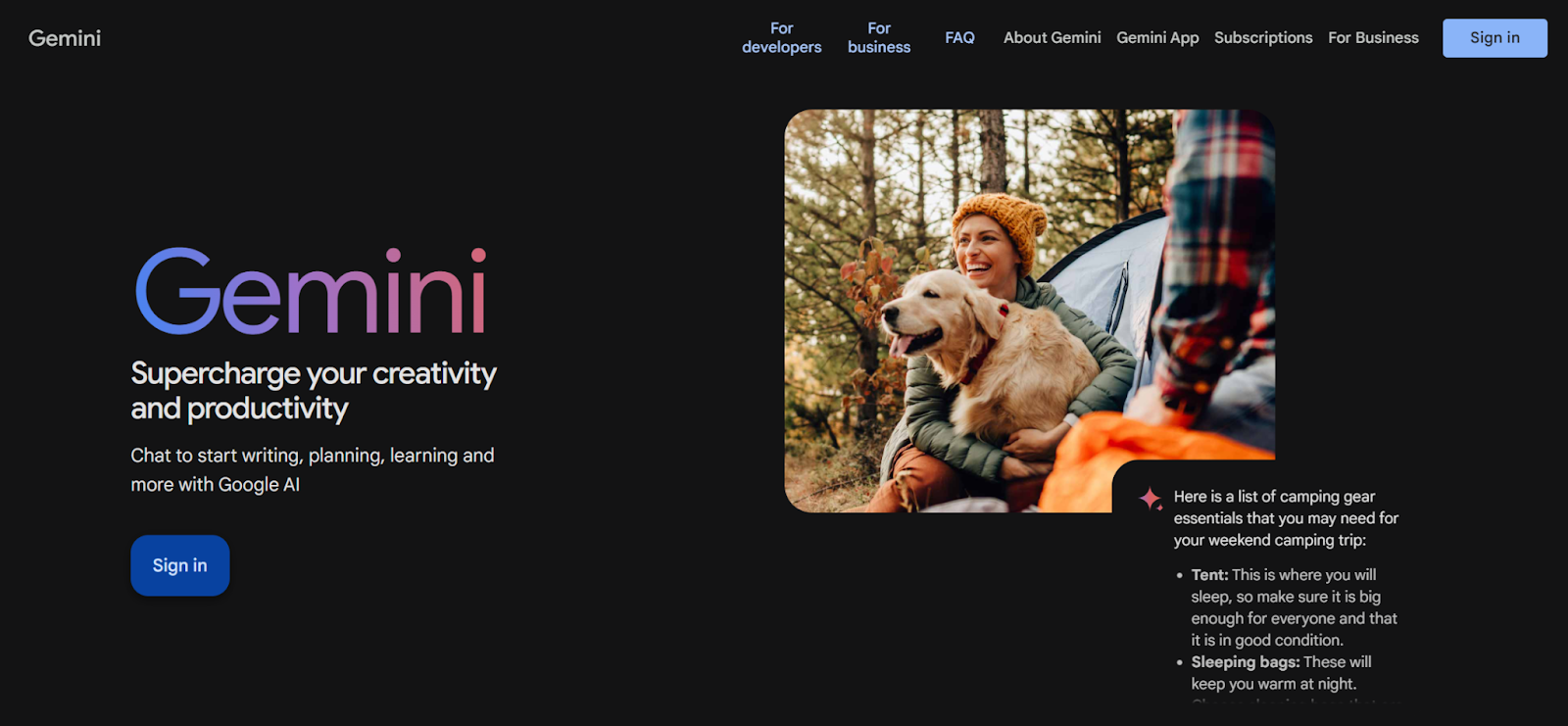
- Go to gemini.google.com.
- Sign in with your Google account.
- Enter your prompt or upload a file.
- Review the response and ask follow-up questions.
Use Gemini on mobile
- Open the Google Play Store or App Store.
- Search for Gemini and install the app.
- Sign in with your Google account.
- Tap Get Started.
- Type, speak, or upload an image or screenshot.
- Use Gemini Live for real-time voice conversations.
Device and region notes
- Access varies by country
- Some models, such as Gemini 3 Pro or Deep Think, may be limited to specific regions
- Features like screen sharing, long context, or Gemini Live help may roll out gradually
Top 5 Use Cases in Google Gemini
Meetings and collaboration
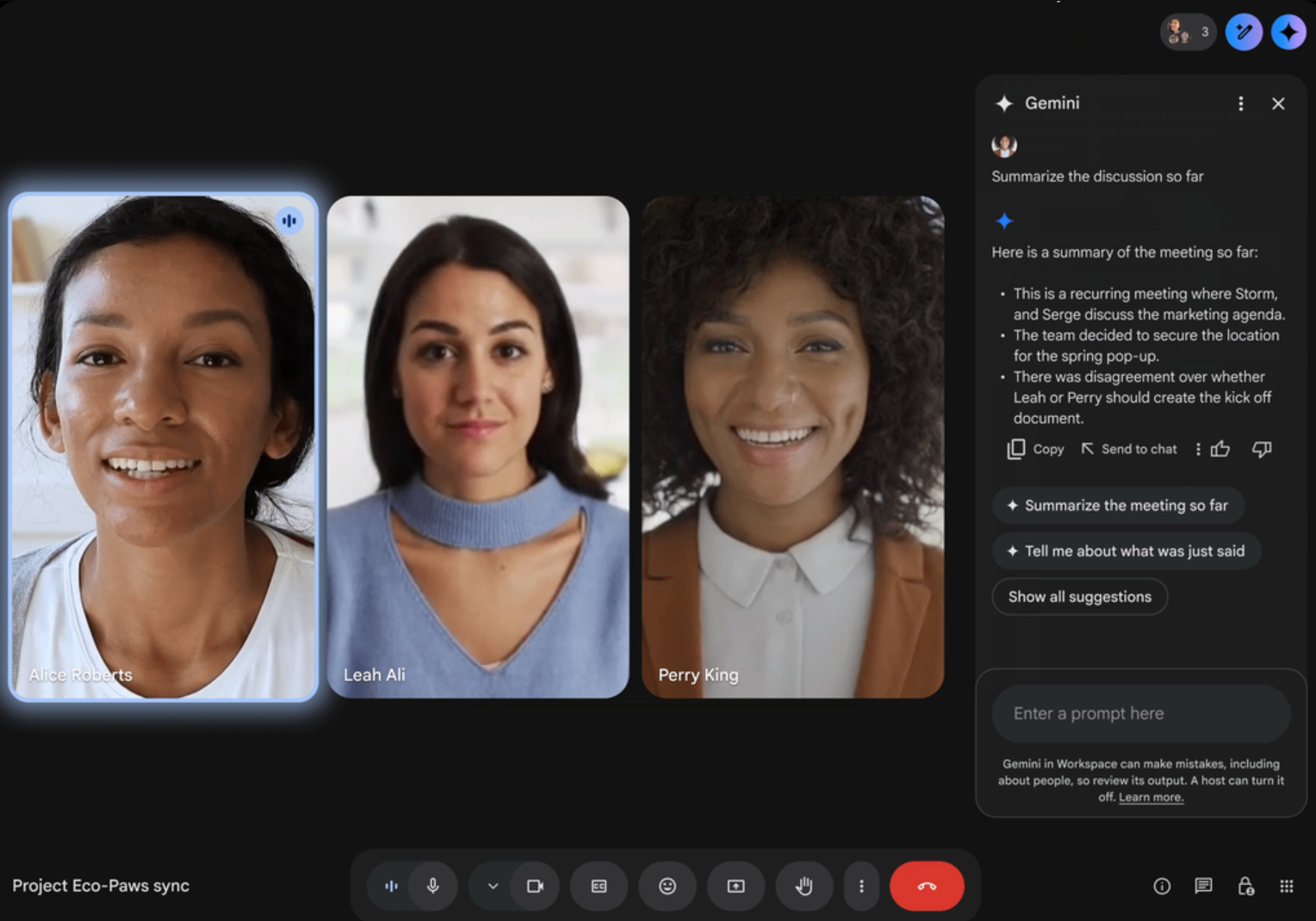
Gemini helps you prepare for meetings, understand key information faster, and communicate ideas clearly. It supports you before, during, and after your calls. You can use it to:
- Summarize long documents
- Turn agenda notes into action items
- Rewrite talking points
- Practice presentations with Gemini Live
- Pull details from Gmail, Google Calendar, and Drive
Daily productivity and workflow
Gemini gives you a simple way to manage everyday tasks. It organizes loose thoughts, cleans up writing, and keeps schedules on track. People often rely on it to:
- Turn tasks into step-by-step plans
- Create email drafts
- Rewrite or expand content
- Sort notes and ideas
- Run Deep Research for detailed reports
Creative tasks with images and video
Gemini supports creative work with powerful visual tools. You can brainstorm designs or create visuals without extra software. Popular uses include:
- Generating images with Nano Banana Pro
- Editing and refining photos
- Creating mockups for projects
- Turning text and images into short videos
- Converting sketches or handwriting into polished visuals
Learning and research
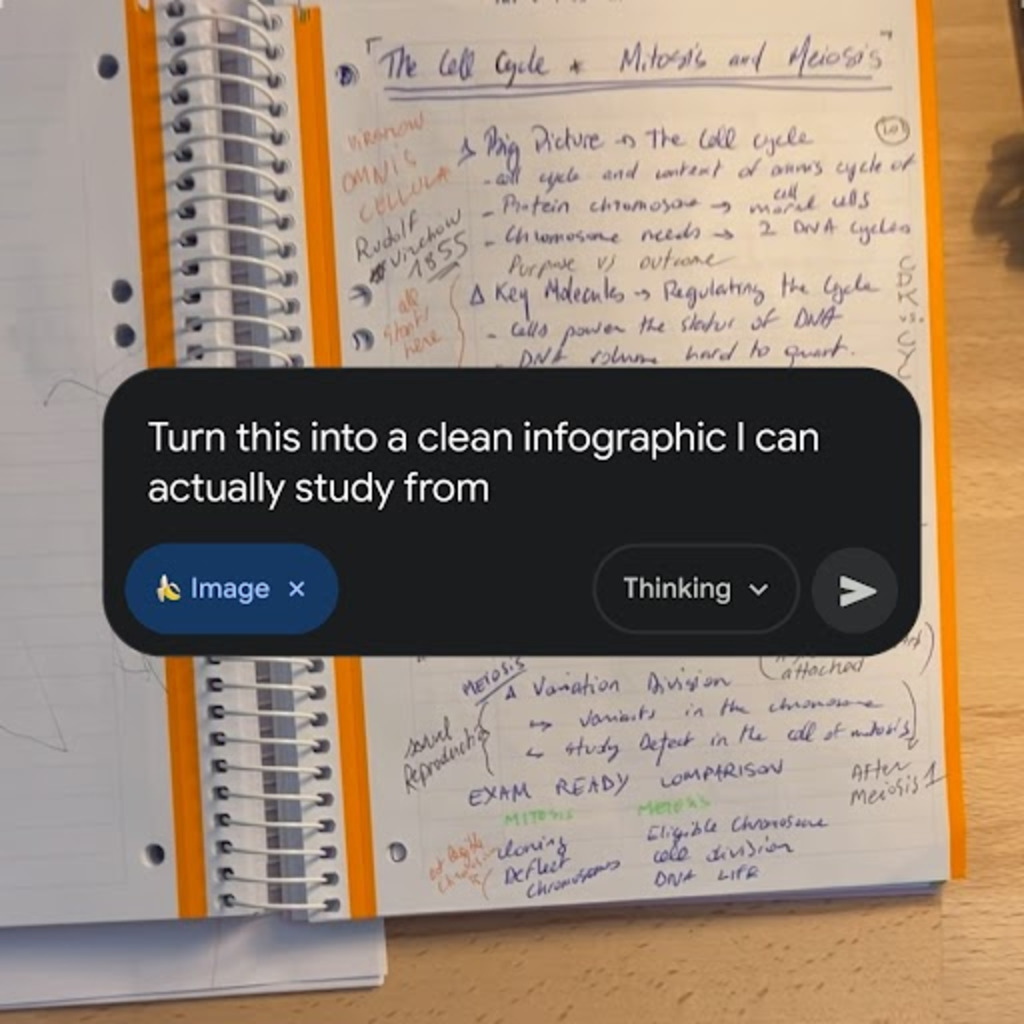
Gemini makes studying and research easier by breaking down complex topics and turning them into clear, useful materials. Its long context window helps it read chapters, lecture notes, and research materials simultaneously. Students and professionals use it to:
- Simplify complex concepts
- Turn class notes into quizzes and study guides
- Create Audio Overviews from lectures
- Analyze screenshots or textbook pages
- Ask follow-up questions for deeper understanding
Integration with apps and tools
Gemini connects with many Google apps, giving you support in the tools you already use. You can access it through:
- Gmail for writing and editing
- Google Docs for outlines and summaries
- Sheets for formulas and data cleanup
- Slides for content ideas
- Google Meet for real-time help
- Google Maps, Photos, YouTube, and Drive
You can also explore how Gemini compares to other AI tools in our guides on Perplexity vs Gemini and Gemini vs Copilot.
Google Gemini Alternative for AI Note Taking

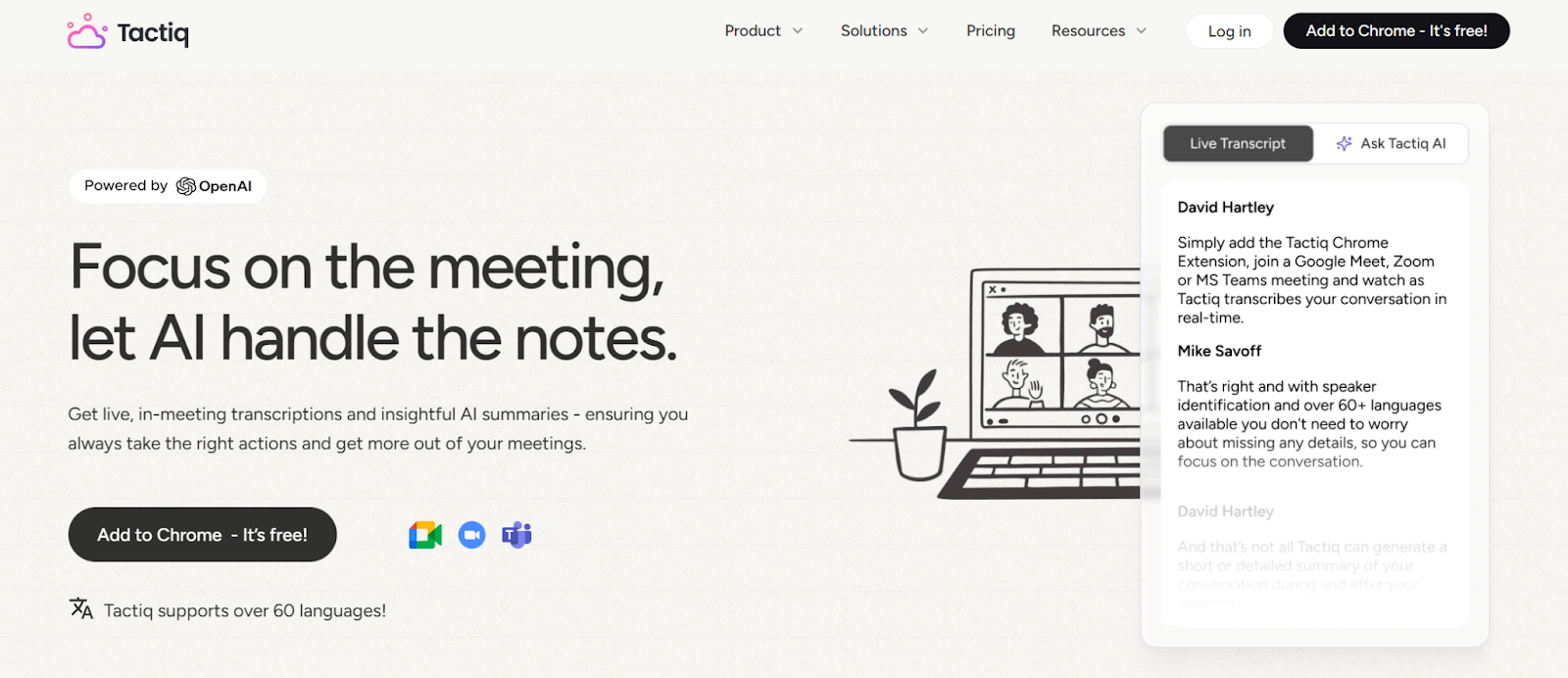
Gemini can help you review information and understand your meeting content, but if you need a tool built specifically for capturing notes during live calls, Tactiq is the better fit.
It was one of the first AI note takers available and works across Google Meet, Zoom, and Microsoft Teams. Tactiq is also free to use and supports more than 60 languages, making it easy for global teams to stay aligned.
Tactiq includes:
- Real-time transcription for video meetings
- AI summaries with action items
- Speaker identification
- Audio and video file uploads
- Custom prompts for deeper insights
- AI meeting kits for repeatable workflows
Gemini helps you take those notes further with writing, research, planning, and creative work. Tactiq captures everything during the call. Together, they create a smooth workflow from your meeting to your next steps.
Install the free Tactiq Chrome Extension and get your first AI meeting summary in under 60 seconds.
{{rt_cta_ai-convenience}}
Using AI for Productive Meetings
Google Gemini has grown into a powerful AI system that helps you plan, learn, create, and stay organized. Its updated models give you stronger reasoning, long-context understanding, and helpful tools across your favorite Google apps. This makes it a great companion for meeting prep, research, and everyday tasks.
If meetings are a big part of your day, pairing Gemini with Tactiq gives you an even smoother workflow. Tactiq captures everything in real time, and Gemini helps you turn those notes into plans, drafts, and ideas. Together, they support faster decisions, clearer communication, and more productive teamwork.
Try Tactiq for free and start capturing your meeting notes with one click.
FAQs About Google Gemini for Productive Meetings
How do I use Gemini in Google Meetings?
You can use Gemini to prepare talking points, summarize notes, and review meeting content. Inside Google Workspace, Gemini can help draft agendas, create summaries, and support follow-up tasks after your call.
Can Gemini help me schedule meetings?
Yes. Gemini can help draft scheduling messages and organize your availability by checking your Google Calendar. It can suggest meeting times and help you plan your week.
How do I use Gemini in a Teams meeting?
Gemini does not integrate directly with Microsoft Teams. You can still use it before or after your call to summarize notes or prepare talking points. For live transcription, use Tactiq with MS Teams.
How do I use Google Gemini effectively?
Start with clear prompts, upload files or screenshots when helpful, and use follow-up questions to refine results. Try features like Deep Research, Gemini Live, and long-context uploads to get richer insights.
Can Google Gemini take meeting notes?
Yes. Gemini can summarize transcripts or uploaded files. For real-time notes during calls on Google Meet, Zoom, or Teams, Tactiq is still the stronger option because it captures everything as the meeting happens.
Google Gemini offers three models: Nano for on-device tasks, Pro for scalable business and team performance, and Ultra for highly complex tasks. You can choose the model that best fits your workflow, so you get the right balance of power and accessibility.
You can use Gemini for free by logging into your Google account and visiting gemini.google.com, or by downloading the Gemini app from the Google Play Store and following the setup steps. This flexibility lets you integrate AI assistance into your workflow wherever you are.
Gemini’s multimodal capabilities let you process text, images, audio, and code, while its real-time translation and seamless integration with Google Workspace boost team collaboration. You save time and stay organized with features like meeting summaries, content briefs, and automated transcriptions.
Gemini’s advanced features often require technical knowledge and are mainly available to enterprise users, and it’s not compatible with platforms like Zoom or Microsoft Teams. You may also encounter limitations in creativity and potential biases in outputs, so it’s important to assess if Gemini fits your needs.
Gemini can automatically summarize meeting transcripts, generate concise recaps, and provide real-time translations to keep everyone aligned. For even faster, automated meeting transcriptions and actionable summaries, you can use Tactiq to eliminate manual note-taking and focus on collaboration.
Related articles








Want the convenience of AI summaries?
Try Tactiq for your upcoming meeting.
Want the convenience of AI summaries?
Try Tactiq for your upcoming meeting.
Want the convenience of AI summaries?
Try Tactiq for your upcoming meeting.