
How to Automatically Take Notes in Google Meet
December 9, 2022
December 9, 2022
January 11, 2026
January 11, 2026

TL;DR: This guide walks you through three ways to automatically take notes in Google Meet, from basic AI tools to Chrome extensions.If you want the most efficient and accurate option, captures live transcripts, highlights, and generates shareable summaries directly inside Google Meet, no setup required.
Taking meeting notes in Google Meet can feel overwhelming when calls move fast, and meeting participants expect accurate follow-ups.
With the latest Gemini rollout, Google Meet meetings now include upgraded AI support that captures key points, summaries, and structured notes in real time. These changes help you stay present in the conversation without having to juggle manual note-taking.
In this updated guide, you’ll learn:
- How automatic note-taking works in Google Meet
- How to take notes using the new “Take notes with Gemini” feature
- What Gemini captures during your meeting and how summaries work
- Where your notes become available after the meeting concludes
- How AI tools improve meeting notes when Gemini isn’t available
What is Automatic Note-Taking in Google Meet?
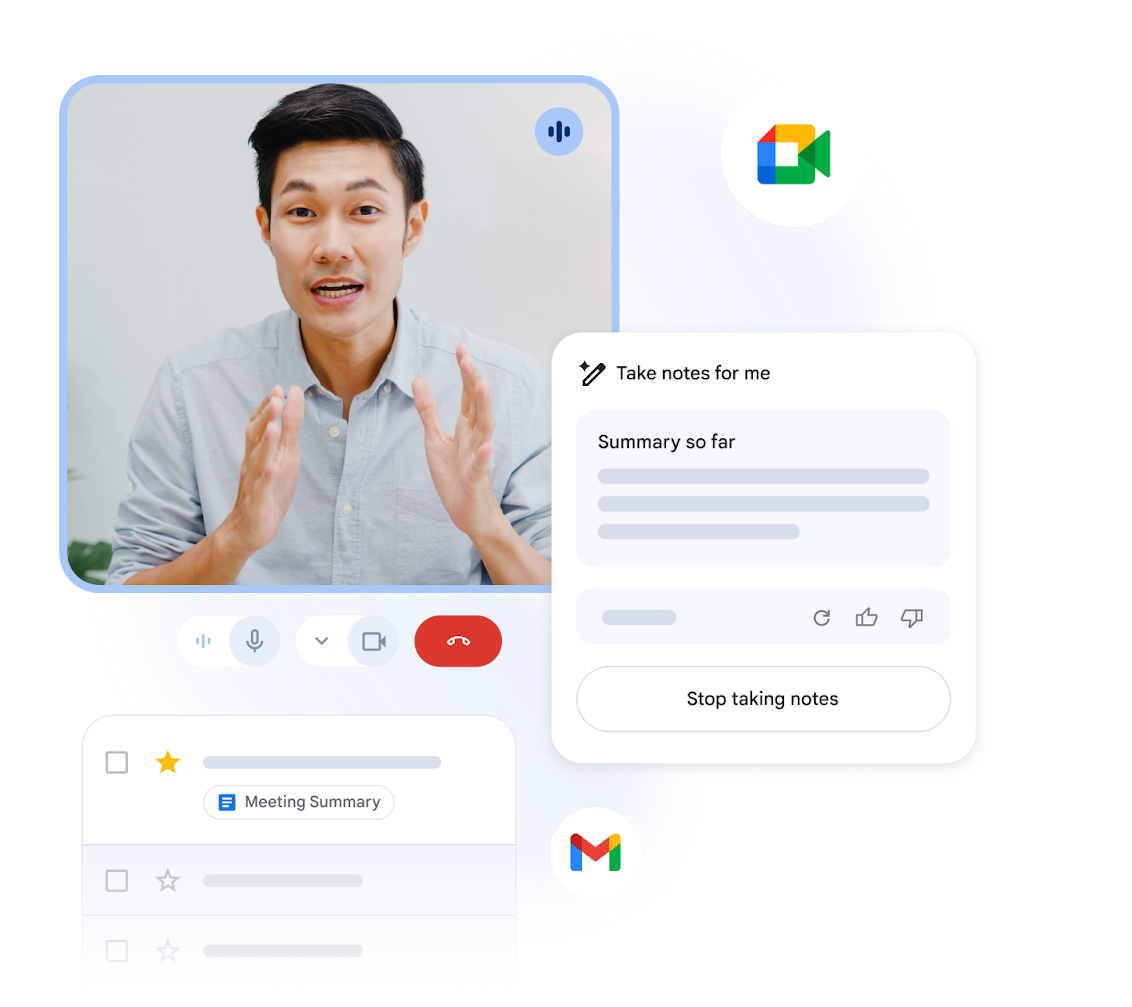
Automatic note-taking uses AI to capture key points from your Google Meet meetings without manual typing. It listens, identifies important details, and organizes them into clear meeting notes you can review later. These notes often include:
- Action items
- Questions
- Decisions
- Short summaries that help meeting attendees stay aligned
The goal is simple. You stay focused on the conversation. The AI note-taker handles the rest. This helps you actively participate while still getting notes in Google Meet for easy reference after the meeting concludes.
💡 Pro Tip: Use Tactiq’s in-meeting AI in Google Meet to get quick summaries and answers during the call. It helps you follow the conversation without checking your notes.
Using Third-Party Extensions for Taking Notes in Google Meet

Third-party extensions still matter in Google Meet meetings, even with Gemini note-taking available. Many meeting attendees use personal Gmail accounts or join from teams without the right Google add-on.
A free service like Tactiq gives you AI-generated meeting notes and private notes in every call.
With Tactiq, you can:
- Use Tactiq with Google Meet, Zoom, and Microsoft Teams for consistent note-taking across platforms.
- Use in-meeting AI to ask key questions, capture key points, and read notetaker insights in real time.
- Transcribe meetings across platforms and rely on automated note-taking for every meeting participant.
- Create AI meeting notes that help project managers track deliverables, sales teams document client calls, and recruiters review candidate interviews, all from a single meeting transcript.
- Connect your notes to workspace apps like Google Drive, Google Docs, Notion, Slack, and more.
- Review past meetings and access meeting report files whenever you need them.
How to use Tactiq in Google Meet
1. Install the free Tactiq Chrome extension. This adds a meeting notetaker to your browser for all Google Meet meetings.
2. Connect your preferred meeting apps.
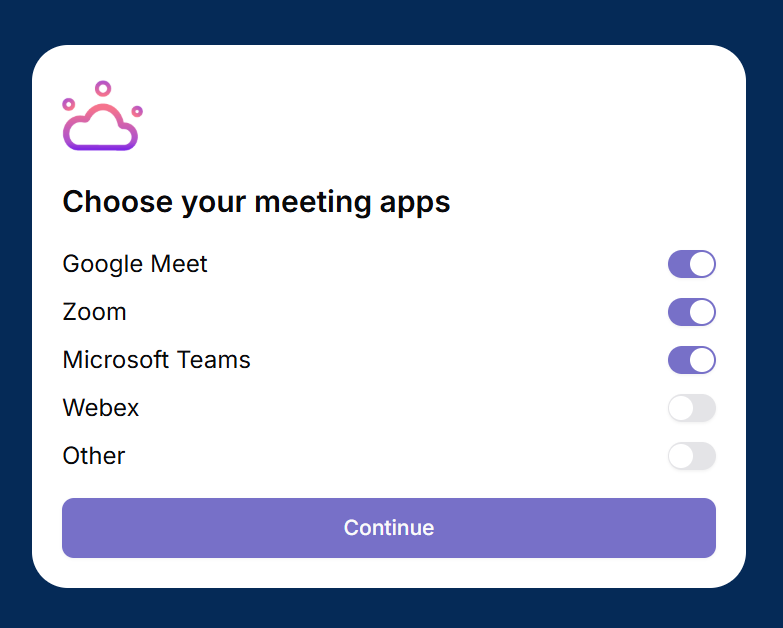
3. Join your Google Meet meeting. You’ll see the Tactiq window on the right.
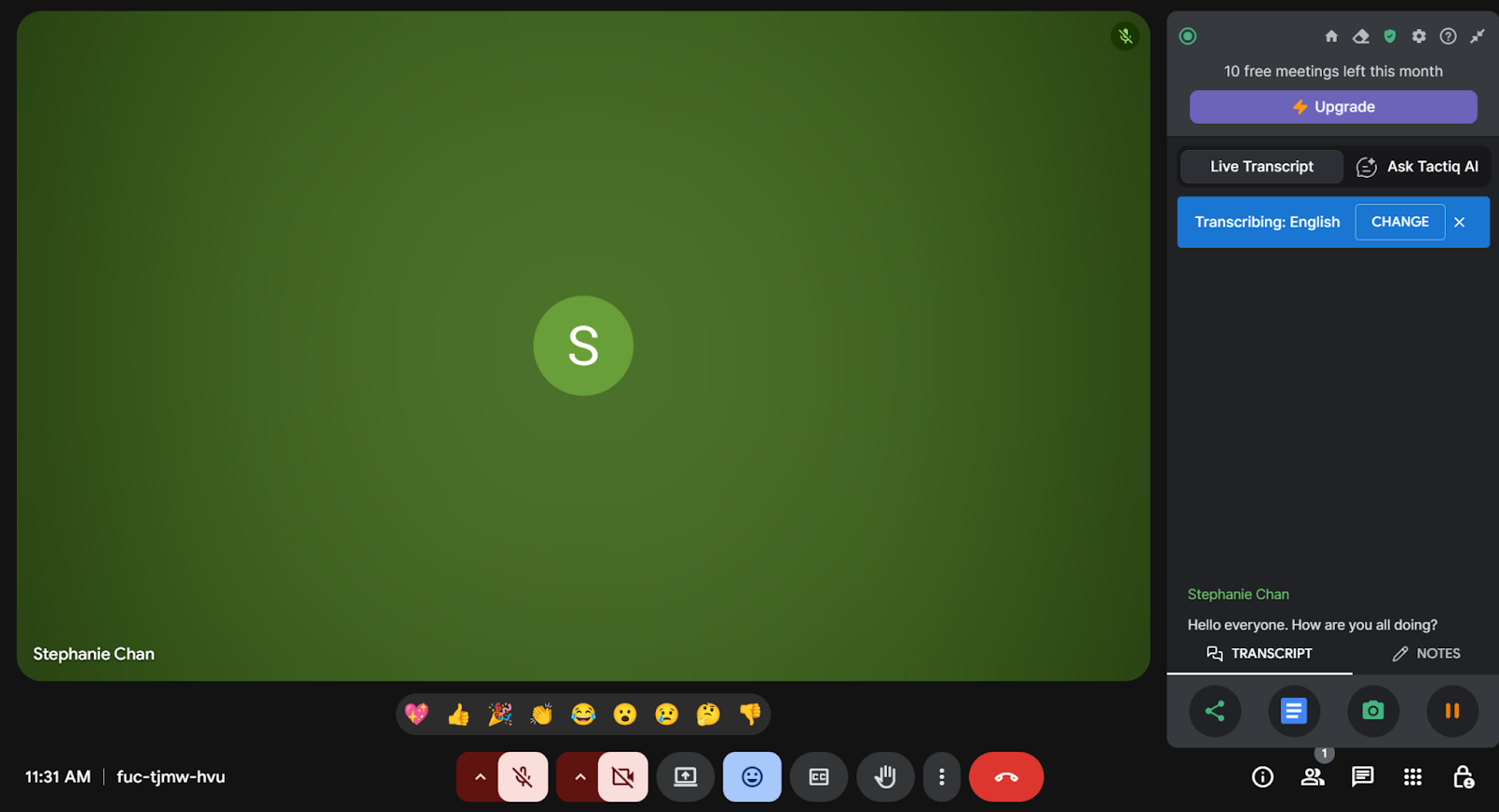
4. Start the meeting. Tactiq will transcribe the call in real time and capture key points.
5. Use in-meeting AI. Ask key questions, generate short summaries, or read notetaker insights during the call.
6. Create AI meeting notes. After the meeting concludes, open your transcript and create summaries, action items, and a comprehensive meeting report.
7. Send notes to your workspace. Use AI workflows to share collaborative meeting notes with your team or create follow-up documents across your connected apps.
Tactiq acts as a Google Meet note-taker that works for every meeting participant and supports automated note-taking across all your meetings.
Download the free Tactiq Chrome extension to capture meeting notes across all your platforms. No Google Workspace required.
{{rt_cta_ai-convenience}}
Using “Take notes with Gemini”
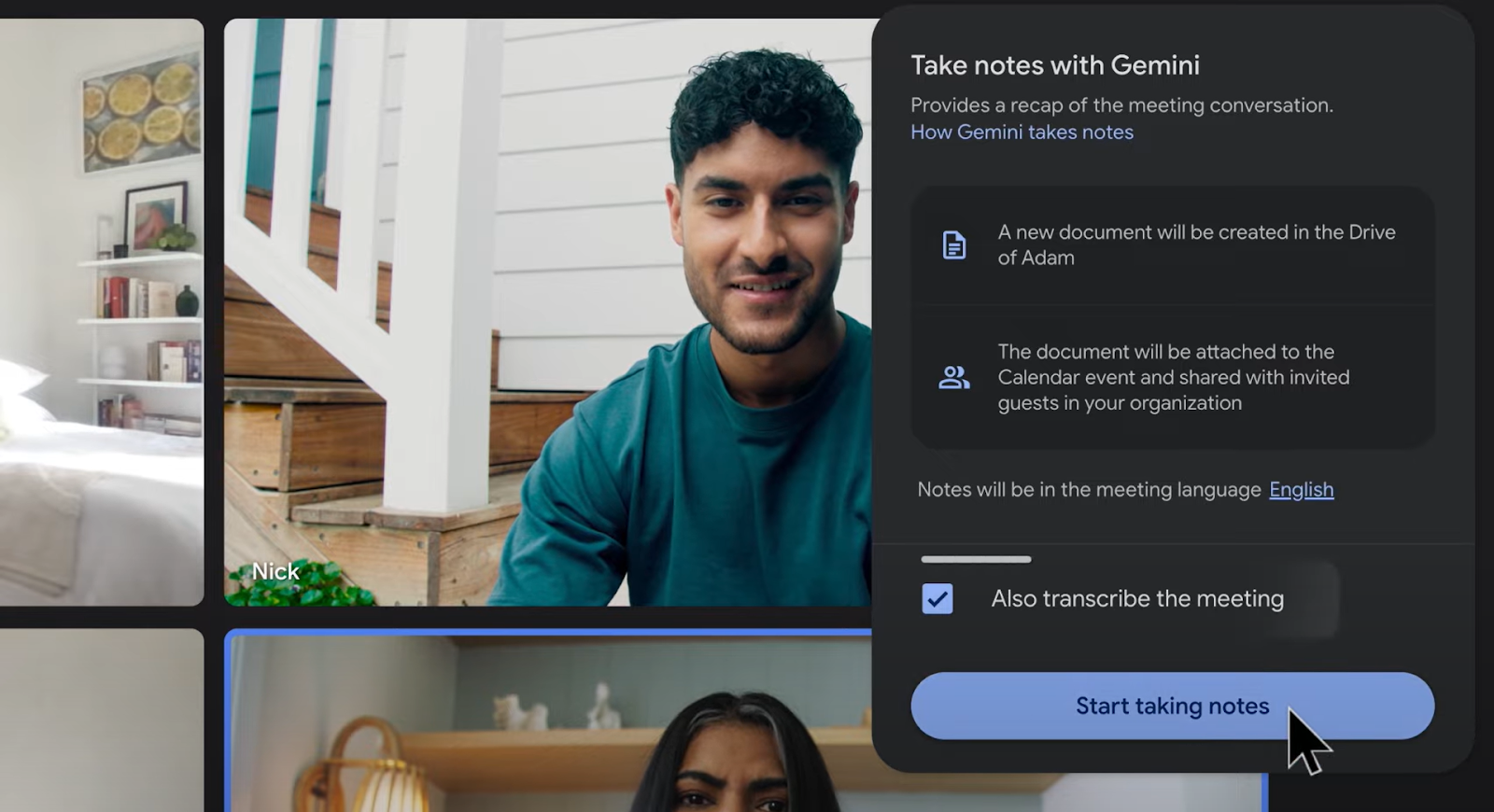
Google Meet now offers an AI-powered note-taker called “Take notes with Gemini.” It captures key points from your Google Meet meetings and turns them into structured meeting notes.
This feature requires a Google Workspace subscription (Business Standard or Business Plus).

Gemini acts as an automated meeting notetaker. It listens to the discussion, identifies important details, and generates a clear summary once the meeting concludes.
If you join late, you can open “Summary so far” to catch up on the conversation.
What does Gemini capture?
Gemini records key points, decisions, questions, and suggested next steps. It focuses on the essential details discussed in the meeting and organizes them into a structured summary.
How Tactiq complements Gemini
Gemini now offers strong summaries and deeper insights, but this feature only works for eligible Workspace accounts. If some meeting attendees join from personal Gmail or accounts from other platforms, your notes may be incomplete.
Tactiq fills this gap. You already saw earlier how Tactiq supports mixed account types, cross-platform meetings, and AI meeting notes. Here, it simply helps you keep your notes consistent when Gemini isn’t available for everyone. It also gives you a backup transcript and a way to create a more detailed meeting report when you require additional clarity.
In short, Gemini handles structured notes for supported users. Tactiq keeps every meeting attendee covered.
How to enable automatic note-taking in Google Meet
Here’s how to use “Take notes with Gemini”:
1. Open meet.google.com on your computer.
2. Select your meeting.
3. Click Take notes with Gemini in the top right.
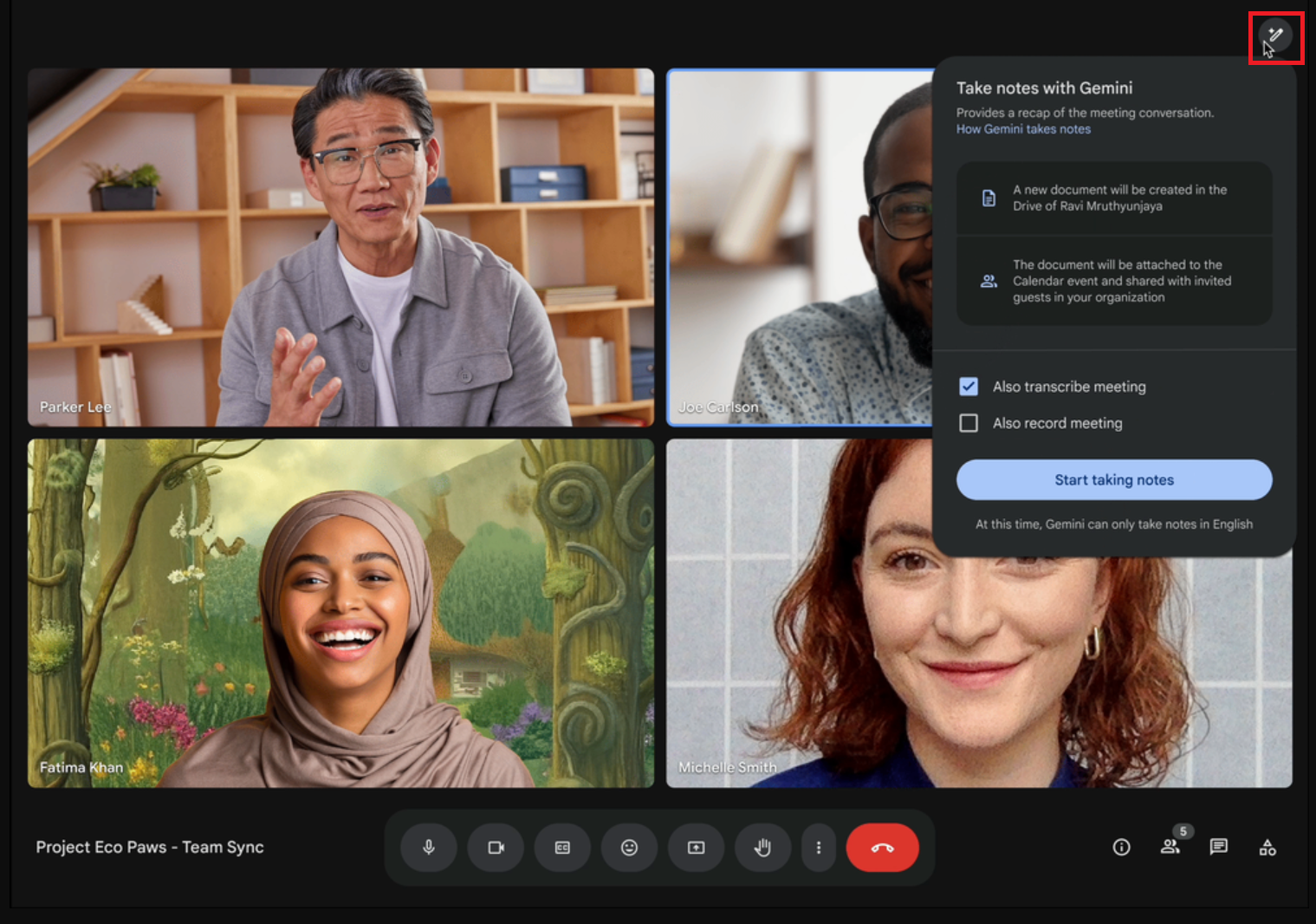
4. Select Start taking notes. Everyone in the meeting will see a notification and a pencil icon showing that AI note-taking is active.
Tip: This feature works best for meetings between 15 minutes and 8 hours.
Where to find your Google Meet notes after the meeting
When the meeting concludes:
- The meeting organizer and the person who started note-taking receive an email with a summary, suggested next steps, and a link to the notes.
- Notes appear in the associated Google Calendar event.
- Access depends on the sharing settings chosen at the start.
- Notes follow your organization’s retention and privacy rules.
Best Practices for Automatic Note-Taking in Google Meet
Automatic note-taking works best when you prepare your meeting and understand how Gemini functions. These points help you avoid disruptions and keep your meeting notes accurate:
- Check eligibility first: “Take notes with Gemini” is limited to Google Workspace Business Standard and Business Plus accounts. If the meeting organizer doesn’t have one of these plans, the feature will not appear.
- Pre-enable notes in Calendar: You can turn on note-taking when creating your event in Google Calendar. This ensures the feature starts automatically when someone with permission joins the call. It also removes the risk of forgetting to enable note-taking once the meeting begins.
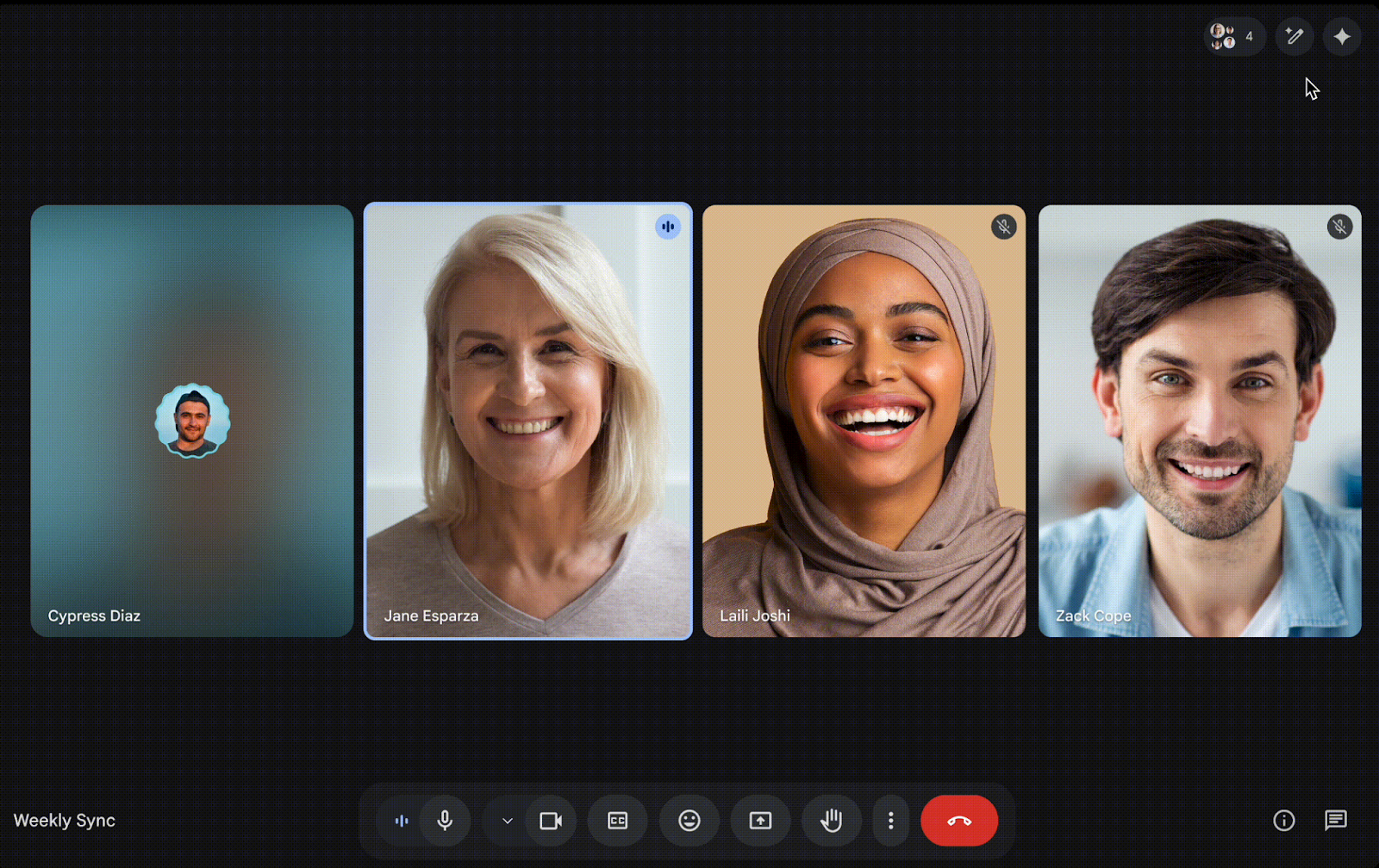
- Inform participants: Google Meet displays a notice when AI note-taking begins, but attendees appreciate clear communication from the host. Letting participants know early builds trust and keeps your meeting aligned with company policies. It also avoids confusion if someone sees the pencil icon and wonders how their notes are being captured.
- Review notes after the meeting: Gemini summaries are helpful, but they may miss context or subtle details. Review the notes and suggested next steps to confirm they match what was discussed. A quick review keeps your meeting notes accurate before your team relies on them.
- Use supported languages: Gemini works with a specific list of languages and does not support switching between languages during the same meeting. If participants speak an unsupported language, the note-taker may miss important points.
- Avoid sensitive content: Some conversations may involve confidential topics that AI should not capture. You can pause Gemini note-taking at any time to protect your private notes and follow internal policies. Turning the feature off for sensitive segments keeps your meeting compliant.
- Have a backup plan: Not every meeting attendee can access Gemini, especially external guests or users on personal Gmail accounts. Tactiq helps bridge that gap by providing everyone with access to reliable meeting notes across platforms. This ensures your notes stay consistent even when Gemini isn’t available for the full group.
Enhance Your Notes in Google Meet with Tactiq
Automatic note-taking in Google Meet continues to improve with Gemini, but not every meeting attendee can use it. Features vary by Workspace plan, and some participants join from personal Gmail accounts or other video platforms. When you need consistent meeting notes across your team, Tactiq helps you fill the gaps.
Tactiq adds real-time transcription, AI meeting notes, and an easy way to create a comprehensive meeting report for any Google Meet meeting. It works with mixed accounts and gives you tools to review key points, action items, and questions without depending on a single platform. If you want a simple way to support every meeting participant, Tactiq keeps your notes organized and ready to share.
Try it for your next call. Install the free Tactiq Chrome extension to improve your meeting notes in Google Meet.
If you want to understand how Gemini compares with other AI tools, check out our guides on Perplexity vs. Gemini and Gemini vs. Copilot.
FAQs About Taking Notes in Google Meet Automatically
What languages are supported by Gemini note-taking?
Gemini supports a limited list of languages, including English, French, German, Italian, Japanese, Korean, Portuguese, and Spanish. Note-taking works best when the whole meeting uses one supported language.
Does Gemini automatically capture action items and next steps?
Yes. Gemini includes key points, decisions, and suggested next steps in the meeting summary. It focuses on the main ideas shared during the call.
Can I use Gemini if I have a personal Gmail account?
Yes. Personal Gmail users can purchase a Gemini subscription and gain access to Gemini’s AI features.
Can I combine Gemini and Tactiq in my workflow?
Yes. Many teams use Gemini for built-in summaries and Tactiq for transcripts, AI meeting notes, and coverage for attendees without Workspace access.
How do I use AI to take notes in Google Meet?
You can use “Take notes with Gemini” if your Workspace plan supports it, or use Tactiq to capture real-time transcription, action items, and AI meeting notes for every meeting participant.
Automatic note-taking captures and organizes key points, action items, and decisions in real time, so you can stay engaged in the discussion without worrying about missing important details. This means you save time and avoid the hassle of manual note-taking, making meetings more productive and less stressful.
The 'Take notes for me' feature automatically creates organized meeting notes, provides real-time summaries if you join late, and sends post-meeting recaps to your email and Google Calendar. You and your team can quickly review what matters most, ensuring everyone stays aligned and reducing the need for extra follow-up.
First, join your scheduled meeting on meet.google.com, then click the 'Take notes with Gemini' button and select 'Start Taking Notes.' Once enabled, all participants are notified, and after the meeting, the notes are saved to the organizer’s Google Drive and shared via email and Google Calendar.
Install the free Tactiq Chrome Extension, join your Google Meet, and Tactiq will automatically transcribe the conversation in real time. After the meeting, you can access the full transcript, generate AI meeting notes, and use quick prompts or chat with Tactiq’s AI to get summaries or clarify points—saving you time and effort.
Tactiq offers real-time transcription and AI-powered note summaries for free, regardless of your Google account type, making it accessible to everyone. You can quickly review key decisions and action items without manual note-taking, ensuring your team stays informed and productive even without a paid Workspace subscription.
Related articles


_Main.jpg)




Want the convenience of AI summaries?
Try Tactiq for your upcoming meeting.
Want the convenience of AI summaries?
Try Tactiq for your upcoming meeting.
Want the convenience of AI summaries?
Try Tactiq for your upcoming meeting.