
Google Meet Attendance Report: The Complete Guide (2026)
- Published:
- July 29, 2025
- Updated:
- June 17, 2026

Need to know who joined your meeting and when? Google Meet makes it easy to track attendance, capture join and leave times, and get a full participant list after every call.
In this guide, you'll learn:
- What a Google Meet attendance report includes and which plans support it
- How to enable attendance tracking in Google Calendar and inside a live meeting
- How to access your report after the meeting ends
- Alternative ways to track attendance in Google Meet
- How to use attendance data to improve remote team productivity
TL;DR: Google Meet Attendance Report
Google Meet attendance reports show participant names, join and leave times, and total call duration. They're available on Business Plus, Essentials, Enterprise tiers, Education Plus, and the Teaching and Learning Upgrade.
Enable tracking in Google Calendar before your meeting, or toggle it on via Host Controls mid-call. If you're on a free account, Tactiq (opens in a new tab) fills the gap with transcripts, speaker tracking, and AI summaries.
What is a Google Meet Attendance Report?
A Google Meet attendance report shows who joined your meeting, when they arrived, when they left, and how long they stayed. It's a built-in feature for select Google Workspace (opens in a new tab) plans and helps the meeting organizer keep a clear record of participation.
Each report includes the following info:
- Participant names and emails
- Join and leave timestamps, plus total duration on the call
- Breakout rooms data, listed in separate tabs
- Some phone number digits if someone joins from a mobile device
- The meeting room's name if someone dials in from a Google Meet room
The meeting organizer automatically receives the report as a Google Sheets file by email after the call ends. It's useful for reviewing Google Meet history (opens in a new tab) or confirming attendance across recurring meetings and large group calls.
Attendance tracking is available on Business Plus, Essentials, Enterprise tiers (Starter, Standard, and Plus), Education Plus, and the Teaching and Learning Upgrade. If you're on a free account, skip ahead. We'll cover other ways to track attendance later in this guide.
Note for educators: Education Plus and Teaching and Learning Upgrade users receive attendance reports automatically for any meeting with 2 or more participants. No manual setup is needed.
Pro tip: If you're on a free Google account, Tactiq (opens in a new tab) can fill the gap. It captures a full transcript and shows you who spoke during the call. Install the free Chrome extension, and you'll have a record of every Google Meet without needing a Workspace upgrade.
How to Enable and Access Attendance Reports in Google Meet
Attendance tracking is a built-in feature for eligible Google Workspace plans, but it isn't always on by default. Here's how to enable it before your meeting and access your report once it ends.

Enabling attendance tracking in Google Calendar
- Open Google Calendar and create a new event or click an existing one.
- Click Add Google Meet video conferencing.
- On the right, click Change conference settings.
- Check the box next to "Attendance tracking."
- Click Save, then finish setting up your event.
For existing meetings, click Edit event, then follow steps 3 to 5 above.
Enabling attendance tracking inside a meeting
You can also toggle attendance tracking during a live meeting. At the bottom of the screen, click Host controls (the lock icon). A side panel will open. Toggle Attendance tracking on or off from there.
A note on recurring vs. one-time meetings
For recurring meetings, your setting is saved for all future sessions using the same meeting code. For one-time, nicknamed, or instant meetings, the feature returns to on after the meeting ends.
Note: Education Plus and Teaching and Learning Upgrade users don't need to enable anything. They automatically receive attendance reports for every meeting with 2 or more participants.
Accessing your report after the meeting
Once the meeting ends, the meeting organizer receives an email with a Google Sheets attendance report. Reports are typically sent within minutes, though larger meetings may take longer.
Troubleshooting: when reports aren't sent
Didn't get your report? Check the following:
- Account type: Confirm you're on an eligible Google Workspace plan.
- Settings: Make sure attendance tracking was enabled before the meeting started.
- Participants: Reports only generate when 2 or more people joined.
- Meeting host: Only the official host receives the report. Check the Google Meet invite (opens in a new tab) if someone else scheduled the call.
Still nothing? Check your Google Meet history (opens in a new tab) or use one of the alternative methods below.
Alternative Ways to Track Google Meet Attendance
If you're not on an eligible Google Workspace plan, or need more detail than the built-in report provides, there are other ways to track attendance in Google Meet. These tools help fill the gap when Google's native feature isn't available.
1. Tactiq
Tactiq
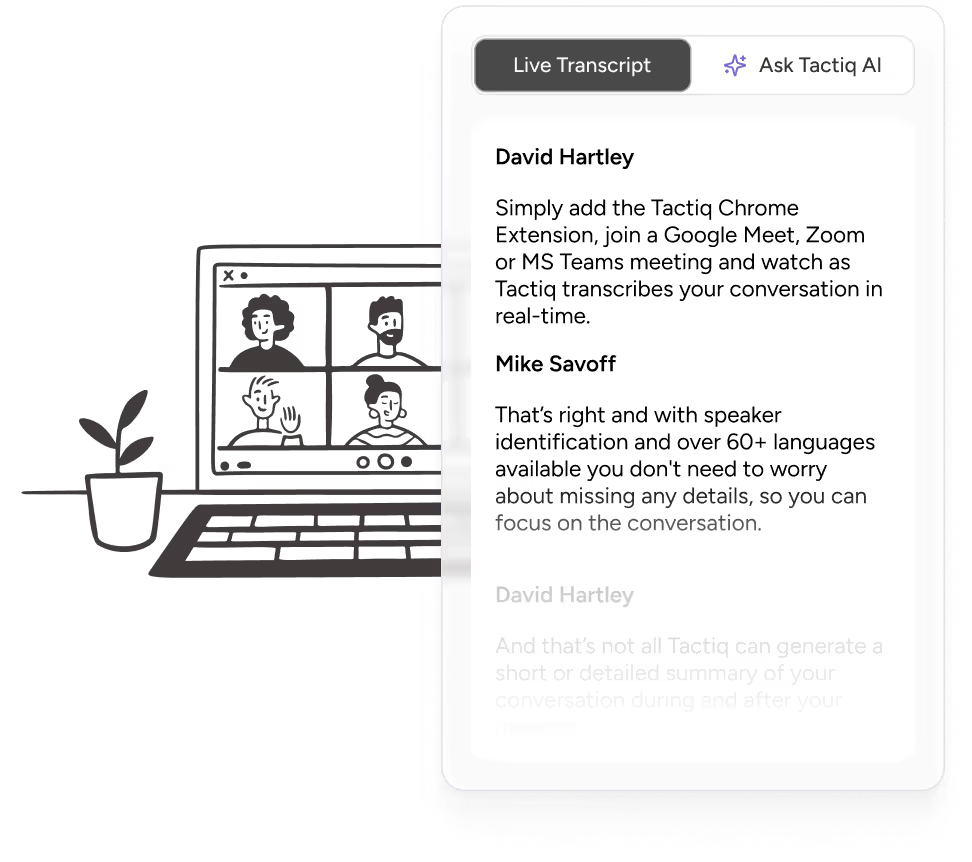
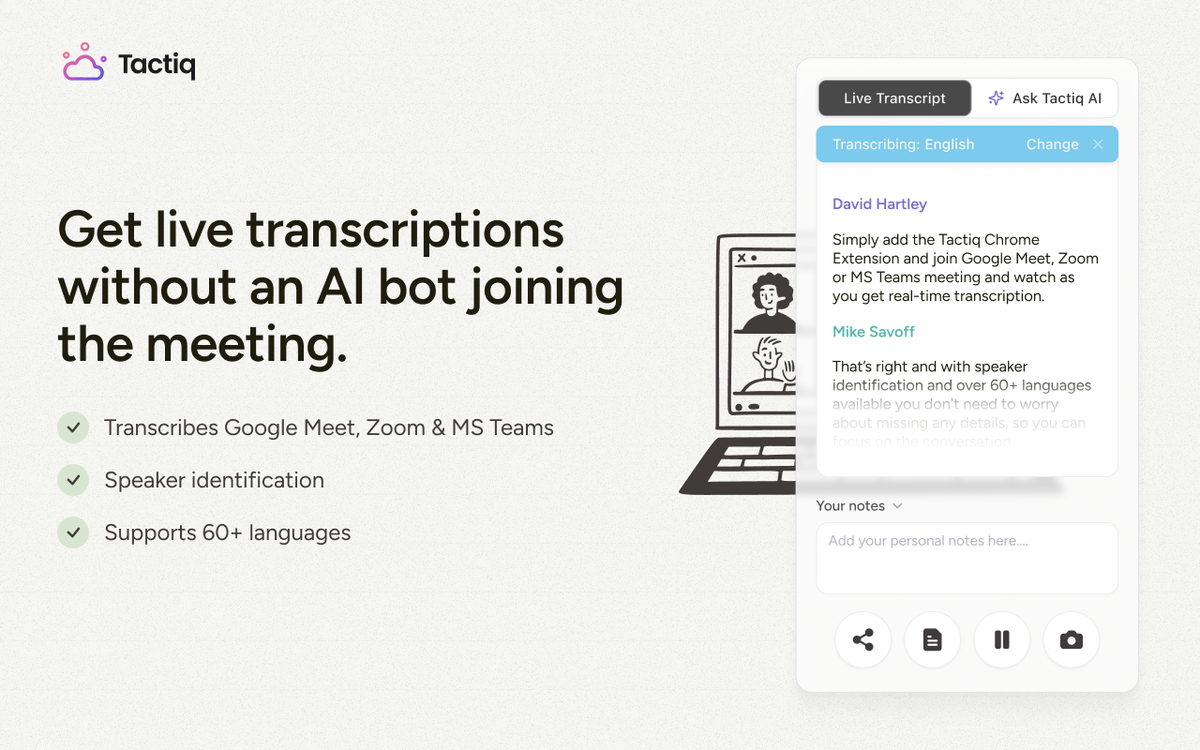
Tactiq (opens in a new tab) is a live transcription tool for Google Meet, Zoom, and Microsoft Teams. It works directly in your browser via a Chrome extension. No bots or recording required.
As your meeting runs, Tactiq automatically captures participant names, speaker activity, and talk time. This gives you a quick view of who was present and how engaged each person was. It won't show exact join and leave timestamps the way a native attendance report does, but it gives you something more useful: context.
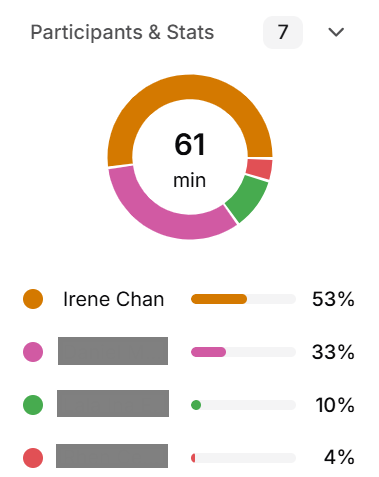
You can see who spoke, what they said, and how often they contributed. After the meeting, Tactiq generates a full transcript and AI summary. You can export everything to Notion, Slack, Google Docs, or a shareable link.
Best for: Teams that want real-time transcription, speaker insights, and AI-powered summaries alongside light attendance tracking.
Check out the free Tactiq Chrome extension today. (opens in a new tab)
Want the convenience of AI summaries?
Try Tactiq for your upcoming meeting.
2. Google Meet Attendance Tracker (Chrome extension)
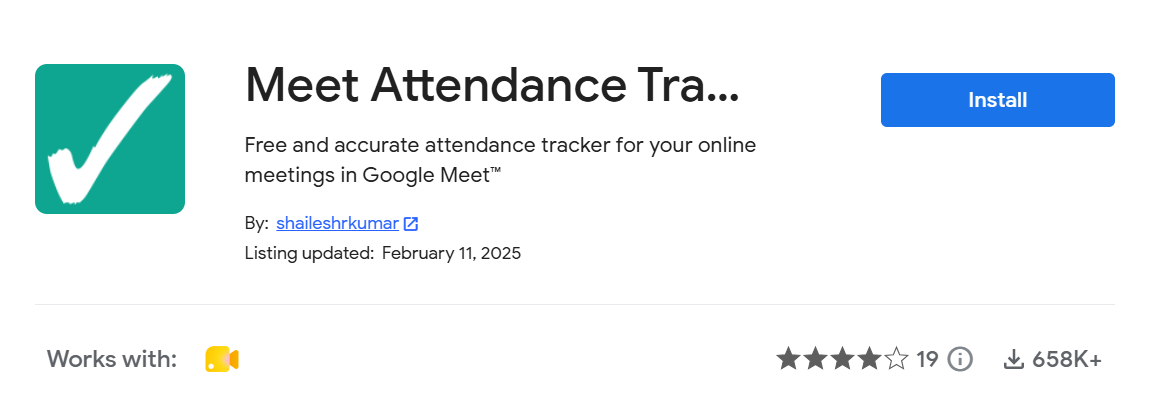
This free Chrome extension (opens in a new tab) is designed specifically to take attendance during Google Meet calls. Once installed, it creates a simple Google Sheets report with join and leave times, total time spent, and a full attendance list.
It works well for smaller meetings and gives organizers more flexibility, especially when using a free Google account.
Best for: Users who need detailed join and leave tracking without a Google Workspace upgrade.
3. Using Google Apps Script for custom tracking
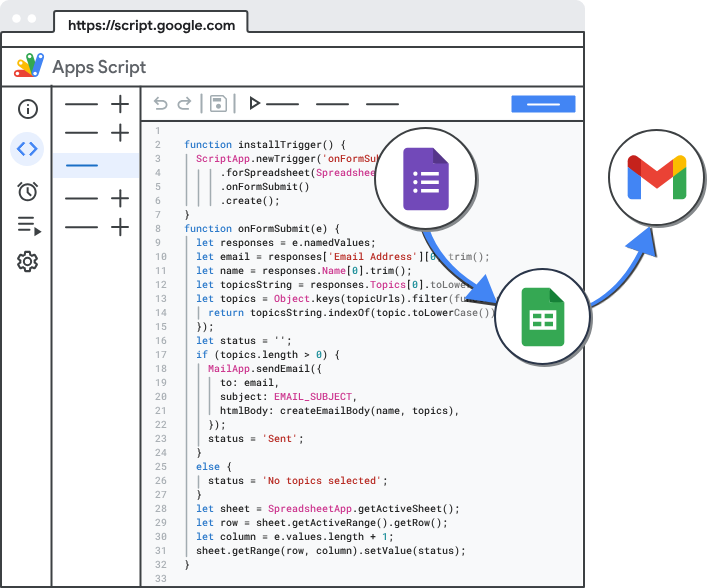
If you're comfortable with a bit of code, you can build your own tracking tool using Google Apps Script. For example, you can create a script that logs when someone joins a meeting via their Google Calendar event and automatically sends the data to a Google Sheet.
It takes some setup, but it's a flexible option for teams that work outside standard enterprise tools.
How to Use Attendance Data for Remote Team Productivity
An attendance report isn't just a list of names. It's a tool for understanding team habits, improving workflows, and staying aligned across time zones. Here's how to extract the most insights from your attendance data.
Identify trends
Are certain team members regularly late or missing from key calls? By reviewing attendance in Google Meet over time, you can spot patterns that affect collaboration, especially across recurring meetings. Use Tactiq alongside attendance data to see not just who showed up, but how actively they contributed.
Assess productivity
Compare overall call duration with meeting outcomes. If some Google Meet participants are joining but leaving early, it may signal the meeting isn't relevant to them or that it's running too long. It's also a chance to review how often breakout rooms in Google Meet (opens in a new tab) are being used and whether they're adding value.
Improve workflows
Use your data to streamline future meetings. You might need shorter calls, fewer attendees, or better timing across regions. Combine attendance tracking with post-meeting feedback to find out what's working and what isn't.
Wrapping Up
Google Meet's attendance report gives you a clear record of who joined your meeting and how long they stayed. But timestamps only tell part of the story.
Tools like Tactiq add the context that native reports miss: capturing transcripts, tracking speakers, and helping you follow up faster. By combining attendance data with real conversation insights, you can improve how your team collaborates, stay aligned on goals, and make every meeting count.
Install the free Tactiq Chrome extension today! (opens in a new tab)
FAQ
Your questions, answered.
If you have any further questions, Get in touch (opens in a new tab) with our friendly team
How do I get a Google Meet attendance report?
Can I see who attended a Google Meet after it ends?
Can I enable attendance tracking during a meeting?
Can Google Meet track activity and participation?
What if my Google Meet attendance report is not sent?
Related articles

Join Google Meet from a Zoom Room: A Complete Setup Guide

Smart Meeting Room: A Guide to Better Hybrid Collaboration

How to Turn off Waiting Room in Google Meet

Is Google Meet Encrypted? Full Guide (2025)

Google Meet Auto Recording: How It Works

Google Meet Hardware: What It Is & How It Works

Everything You Need to Do for a Google Meet Test

Best AI Google Meet Extensions for Productive Meetings
Want the convenience of AI summaries?
Try Tactiq for your upcoming meeting.
Bringing AI into your meetings has never been so easy.
Add to Chrome - It's free!(opens in a new tab)Try Tactiq in your upcoming meeting!
Sign up now