
How to Turn off Waiting Room in Google Meet
January 22, 2026
January 22, 2026
January 22, 2026
January 22, 2026

If you’ve ever hosted a Google Meet meeting and watched participants get stuck waiting to join, you’ve seen the waiting room in action. This waiting room feature is designed to control participant entry and protect the meeting room. But in many virtual meetings, it can slow things down.
For internal calls or trusted teams, having to admit participants one by one can interrupt the meeting experience and distract the host. That’s why many teams look for how to turn off the waiting room feature in Google Meet and rely on quick access instead.
In this guide, you’ll learn:
- How the Google Meet waiting room works
- When it makes sense to disable it
- How to manage open Google Meet sessions
Understanding Google Meet's Waiting Room Feature
Before you disable anything, it helps to understand how the waiting room feature in Google Meet actually works. This feature in Google Meet is designed to give the meeting host more control over who enters the meeting room and when they enter.
What is Quick Access
Quick access is the main setting behind the Google Meet waiting room. When quick access is turned on, most participants can join directly using the meeting link.
When it’s turned off, Google Meet effectively creates a virtual waiting room where participants waiting must be approved by the host or co-hosts before entering.
How the waiting room works
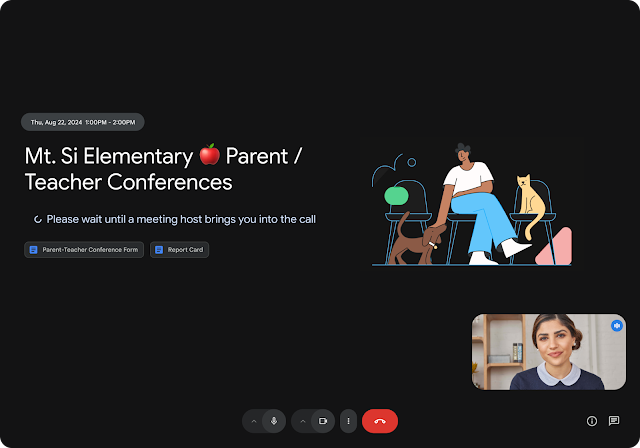
When the waiting room in Google Meet is enabled, new attendees are placed outside the main meeting in a queue. The host can admit participants all at once or allow individual participants to join one by one.
Hosts can also send one-way messages to people who are waiting, which helps manage expectations and reduce confusion.
When it's enabled vs disabled
- Enabled: Participant entry is controlled. This supports enhanced security, limits unwanted guests, and helps maintain a professional environment.
- Disabled: Quick access allows attendees to join freely, which reduces meeting disruptions and keeps internal Google Meet sessions moving smoothly.
If you also need visibility into who actually joined an open meeting, you can generate a Google Meet attendance report to review participants after the call.
How to Turn Off the Waiting Room in Google Meet
Before changing any settings, it’s important to confirm that the waiting room feature is actually available on your plan. The waiting room is only included with the following paid plans in Google Meet:
- Business Standard and Business Plus
- Enterprise Standard and Enterprise Plus
- Enterprise Essentials and Enterprise Essentials Plus
- Education Plus and Teaching and Learning add-on
- Workspace Individual
If you’re using a free Google account, the waiting room does not exist. In that case, participants can already join directly, and there’s nothing to turn off.
If your plan supports it and the waiting room is active, here’s how to disable it.
Step-by-step instructions during a meeting (via host controls)
If the waiting room is enabled during a live meeting, you can turn it off instantly.
1. Join the meeting as the host or one of the co-hosts.
2. In the bottom right corner, click the icon below to open host controls.

3. Find Quick access in the control panel.
4. Turn Quick access on to allow participants to join directly.
5. Close the panel to return to the meeting.
Once enabled, participants no longer remain in the waiting room and can enter the meeting room without approval.
How to disable the waiting room from Google Calendar (for scheduled meetings)
If the waiting room is turned on when the meeting is created, you can update it ahead of time.
1. Open Google Calendar and select the scheduled meeting.
2. Click Edit (pencil icon) to open the meeting details.
3. Click the gear icon to manage settings.

4. Enable the Quick access option, then click Save.
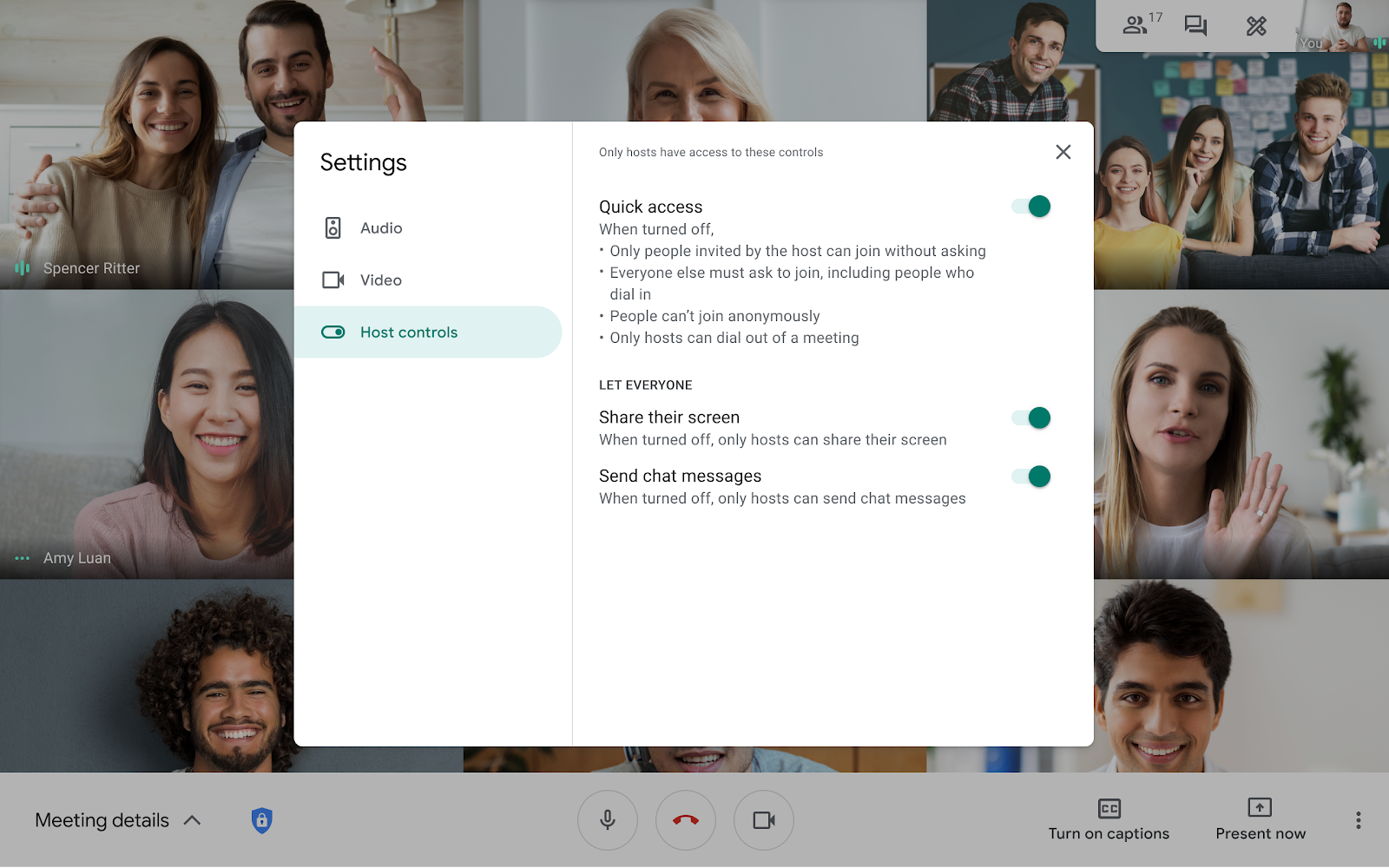
This ensures attendees can join the meeting without delays.
For Google Workspace admins (managing organization settings)
If the waiting room is enabled by default for your organization, only an admin can turn it off globally.
1. Sign in to the Google Admin Console.
2. Go to Menu → Apps → Google Workspace → Google Meet → Meet safety settings.
3. Click Waiting Rooms.
4. Disable it for the domain, specific organizational units, or selected groups.
5. Save the changes.
After this, meeting hosts will no longer see the waiting room option, and participant entry will return to normal behavior.
💡 Pro Tip: If you’re using Google Meet without access to advanced controls, Tactiq still lets you capture live transcripts and AI summaries, so nothing gets missed once the meeting starts.
Why Turn Off the Waiting Room in Google Meet
Turning off the waiting room can make a noticeable difference in how your Google Meet sessions flow, especially when you meet with the same people often. While the waiting room feature supports enhanced security, it’s not always the best fit for every meeting.
Reduces meeting disruptions for trusted teams
When everyone is known and expected, the waiting room can slow things down. Hosts have to pause, check names, and admit people manually. Disabling it helps reduce small but frequent meeting disruptions that break focus.
Prevents reconnection issues
Dropped connections happen. When the waiting room is on, returning participants may get stuck waiting again. Turning it off allows people to rejoin the meeting room quickly without interrupting the discussion.
Streamlines internal meetings
For internal virtual meetings, speed matters more than gatekeeping. With the waiting room off, attendees can join as soon as the meeting starts, creating a smoother meeting experience for everyone involved.
Considerations and risks
Disabling the waiting room lowers friction, but it also removes a layer of control. For meetings with external guests or sensitive topics, keeping it on helps prevent unwanted guests and limits access to only authorized individuals.
Best Practices When Disabling the Waiting Room
Turning off the waiting room works best when it’s intentional. The goal is to improve the Google Meet experience without sacrificing basic meeting management or control.
Only for trusted participants
Disable the waiting room only when you know who is joining. Internal teams and recurring groups are ideal. This helps avoid unwanted guests entering the meeting room through a shared meeting link.
Use for internal team meetings
For internal virtual meetings, the waiting room can add unnecessary friction. Turning it off allows participants to join directly, keeping conversations moving and reducing delays at the start of the meeting.
Alternative security measures
If you turn off the waiting room, rely on other controls instead. Lock the meeting after everyone joins, manage the participant list, and remove anyone who shouldn’t be there. These steps still support a professional environment without slowing entry.
You can also use breakout rooms in Google Meet to separate participants without blocking entry to the main meeting.
When to keep it enabled
Keep the waiting room on for client calls, interviews, or sensitive discussions. In these cases, controlling participant entry helps protect privacy and gives the host time to prepare before the main meeting begins.
How to Use Tactiq to Manage Google Meet Sessions

Turning the waiting room on or off helps control who joins a meeting. It doesn’t help you manage what happens inside the meeting. Once the conversation starts, meeting notes, action items, and follow-ups still need structure.
That’s where Tactiq fits in.
Tactiq is an AI-powered tool that works alongside Google Meet to capture conversations in real time. It runs quietly in the background, so you can stay focused without typing notes or managing documents during the call.
With Tactiq, you can:
- Get live transcription as the meeting happens
- Automatically track who said what, even if participants join late
- Generate AI summaries and action items after the meeting ends
- Search transcripts to find decisions, questions, or next steps
- Use custom AI prompts and meeting kits to create follow-ups, docs, or emails
Instead of managing entry rules, you manage outcomes.
Install the free Tactiq Chrome Extension to get real-time transcription and AI summaries for Google Meet. No recordings needed.
{{rt_cta_ai-convenience}}
Troubleshooting Common Issues
If the waiting room doesn’t behave the way you expect, the issue is usually tied to permissions, plan limits, or where the setting was applied. Here are the most common problems and how to fix them.
Can't find the waiting room option

If you don’t see a waiting room setting, your plan may not support it. The waiting room feature is only available on specific Google Workspace plans. If you’re using a free Google account, the option won’t appear at all.
Changes not saving
This often happens when the meeting is edited without proper permissions. Only the meeting host or an admin can change waiting room settings. If you’re not the original host, ask them to update the meeting in Google Calendar.
The waiting room is still active after disabling it.
If the waiting room is disabled after the meeting starts, the change may not apply until the meeting is restarted. End the meeting, then rejoin using the same meeting link to confirm the update.
Permission issues
In some organizations, admins control this feature. If the waiting room keeps turning back on, it may be enforced through the Google Admin Console at the domain or organizational unit level. In that case, only an admin can make the change.
Wrapping Up
The waiting room in Google Meet gives hosts more control over who enters a meeting. For external calls or sensitive discussions, that extra step can be useful. For internal meetings, it can slow things down.
Knowing how to turn the waiting room off helps you balance convenience with security. You keep meetings moving while still choosing when tighter controls are needed.
Once participants are inside the meeting, access settings fade into the background. What matters next is capturing decisions, tracking discussions, and following through. Tools like Tactiq help turn conversations into clear notes, summaries, and action items without manual work.
Try Tactiq today to get real-time transcription and AI summaries for Google Meet and keep every meeting on track.
FAQs About How to Turn Off Waiting Room in Google Meet
How do I turn off the waiting room in Google Meet?
You can turn it off by editing the meeting in Google Calendar and disabling the waiting room setting. If the feature is enforced at the organization level, an admin must turn it off in the Admin console.
What is Quick access in Google Meet?
Quick access controls how easily participants can join a meeting. When it’s on, invited attendees can join directly. When it’s off, participants may need approval before entering the meeting.
Can I permanently disable the waiting room?
Not always. Meeting hosts can disable it per meeting, but admins control whether the waiting room feature is available across the organization.
Is it safe to turn off the waiting room?
It’s safe for internal or trusted meetings. For external calls or sensitive discussions, keeping the waiting room on adds an extra layer of control.
How do I disable the waiting room for all meetings?
An admin can disable the waiting room in the Google Workspace Admin console at the domain, organizational unit, or group level.
Related articles


_Main.jpg)




Want the convenience of AI summaries?
Try Tactiq for your upcoming meeting.
Want the convenience of AI summaries?
Try Tactiq for your upcoming meeting.
Want the convenience of AI summaries?
Try Tactiq for your upcoming meeting.