
Google Meet Auto Recording: How It Works
July 17, 2025
July 17, 2025
August 22, 2025
August 22, 2025

Missing a record button click can result in lost details, especially during sales calls or fast-paced team meetings. Google Meet now supports auto-recording, so meetings can be captured from the moment they start. No reminders or manual steps needed.
But this feature isn’t available to everyone. Even if it is, you’ll want to understand how it works, who can use it, and how to manage privacy settings and meeting recordings.
In this guide, you'll learn how to set up Google Meet auto-recording, when it makes sense to use it, and how AI tools can help you capture key moments without recording at all. You can also check out this complete Google Meet guide for more information.
Can You Auto-Record on Google Meet?
Yes, but only if your organization is using a supported Google Workspace edition and the feature has been enabled by an admin. Supported editions include:
- Business Standard and Business Plus
- Enterprise Standard and Enterprise Plus
- Enterprise Essentials and Enterprise Essentials Plus
- Teaching and Learning Upgrade and Education Plus
The meeting organizer must also have permission to record. If the option to automatically record isn’t visible, it may be due to permission settings or the use of an unsupported edition.
Manual recording vs. auto recording
Manual recording puts the responsibility on the meeting host to click the record button when the meeting starts and remember to stop recording at the end. It’s easy to forget, especially during back-to-back video meetings or when things move fast.
Auto recording does this for you. Once enabled, the recording starts automatically when the meeting begins. No extra clicks needed. This is perfect for scheduled meetings, where documentation is critical and there may not be time to manage settings on the spot.
Here’s a quick comparison:
- Manual Recording
- Requires someone to click Start recording and Stop recording
- Easy to forget or miss parts of the meeting
- No default setting (needs action each time)
- Auto Recording
- Kicks in the moment the meeting starts
- Helps with consistency for recurring or team meetings
- Requires admin setup and a supported Google Workspace edition
Who can enable auto-recording?
Only Google Workspace admins can turn on the auto recording feature. This happens in the Google Admin console, where admins control who can record and whether it's on by default for certain users, departments, or the whole organization.
Regular users (including meeting organizers and co-hosts) can’t enable auto-recording on their own. They’ll need to ask an admin to set it up.
Here’s how it breaks down:
- Admins
- Can turn auto recording on or off for specific groups or organizational units
- Need to check that there’s enough space in Google Drive for meeting recordings
- Must be using a supported Google Workspace business or education edition
- End Users
- Can’t activate or manage auto recording settings
- Can only record manually if the option is turned on by the admin
- Might lose access to recording if they’re not signed in to the correct account (like a Google Classroom teacher not signed in to their school email)
If you're unsure why the option isn’t available, it could be due to host management, storage limits, or being outside the organization’s domain.
How to Set Up Auto Recording in Google Meet
You’ll need admin access to set this up. The setting lives in the Google Admin console under Google Meet. Once enabled, it can be applied to specific users, teams, or the entire organization.
How to enable auto recording via Google Workspace Admin
- Sign in to the Google Admin console with an administrator account.
- In the left menu, go to Apps > Google Workspace > Google Meet.
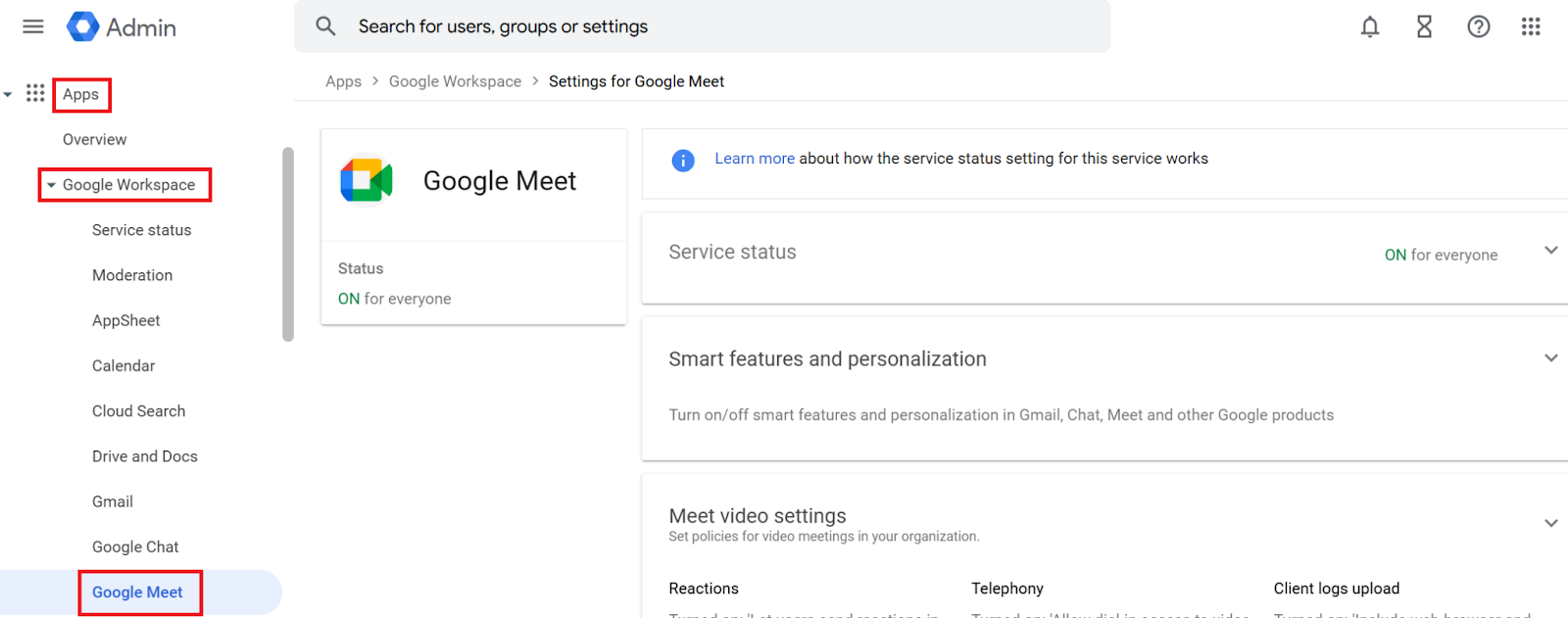
- Click on Meet video settings.
- Click Recording, then check the box: “Let people record their meetings.” Click Save. Note that changes may take up to 24 hours to apply.
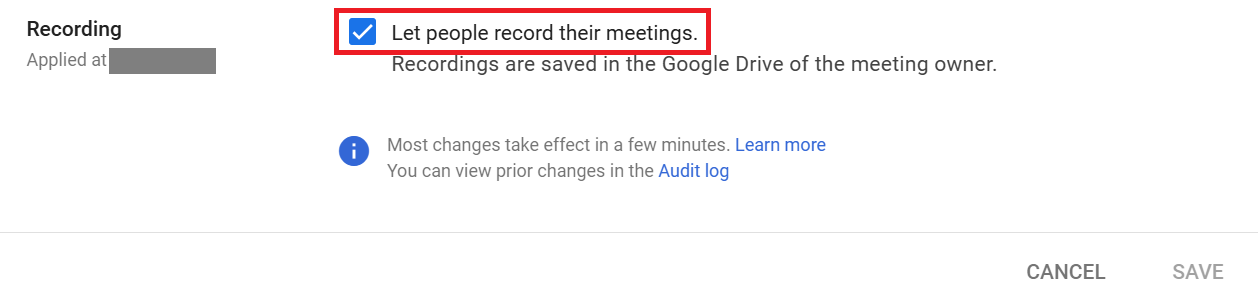
Admins can also manage recording quality limits here, based on edition. This is supported in plans like Enterprise Essentials Plus and Teaching and Learning Upgrade.
What participants see and consent requirements
When auto recording is turned on:
- Participants see a clear notification that the meeting is being recorded.
- If someone joins late, they’ll get the same alert.
- Recording can’t start without this message. It’s part of Google’s privacy and compliance protections.
Best Practices for Automating Meeting Documentation
To really get value from your Google Meet recordings, it helps to plan how those recordings are used, stored, and shared, especially in remote meetings.
Understanding which meetings should be automatically recorded
Not every meeting needs a recording. Focus on sessions where details might be referenced later, like:
- Sales calls or client demos
- Onboarding sessions
- Training and compliance meetings
- Large team meetings with lots of moving parts
Avoid auto-recording quick check-ins or asynchronous communication sessions unless required. Too many meeting recordings can eat up your Google Drive storage and overwhelm your team with files they won’t revisit.
Privacy, compliance, and notification
Make sure participants know when they’re being recorded:
- Let them know in the Google Calendar invite or agenda.
- Remind them at the start of the meeting, even if Google shows a prompt.
- Have a simple written policy that explains when and why you record.
Some regions require explicit consent. It’s a good idea to double-check local laws and add language to your team’s host management or meeting guidelines.
Integrating with note-taking and project management tools
Recordings alone won’t help much if no one watches them. Use tools that automate note-taking on Google Meet or connect with project software to turn recordings into:
- Action items
- Meeting summaries
- Google Docs with key highlights
Tactiq, for example, captures transcripts during meetings and sends summaries straight to your tools, so no one needs to rewatch an hour-long call just to remember what was said.
Before using any tool, it’s worth running a quick Google Meet test to confirm your audio, video, and recording settings are working as expected.
Tactiq: A Good Alternative for Auto-Recording
Auto recording sounds helpful, until it fills up your storage or creates issues with privacy and permissions. Sometimes, you just need a way to capture what was said without saving an entire recorded meeting.
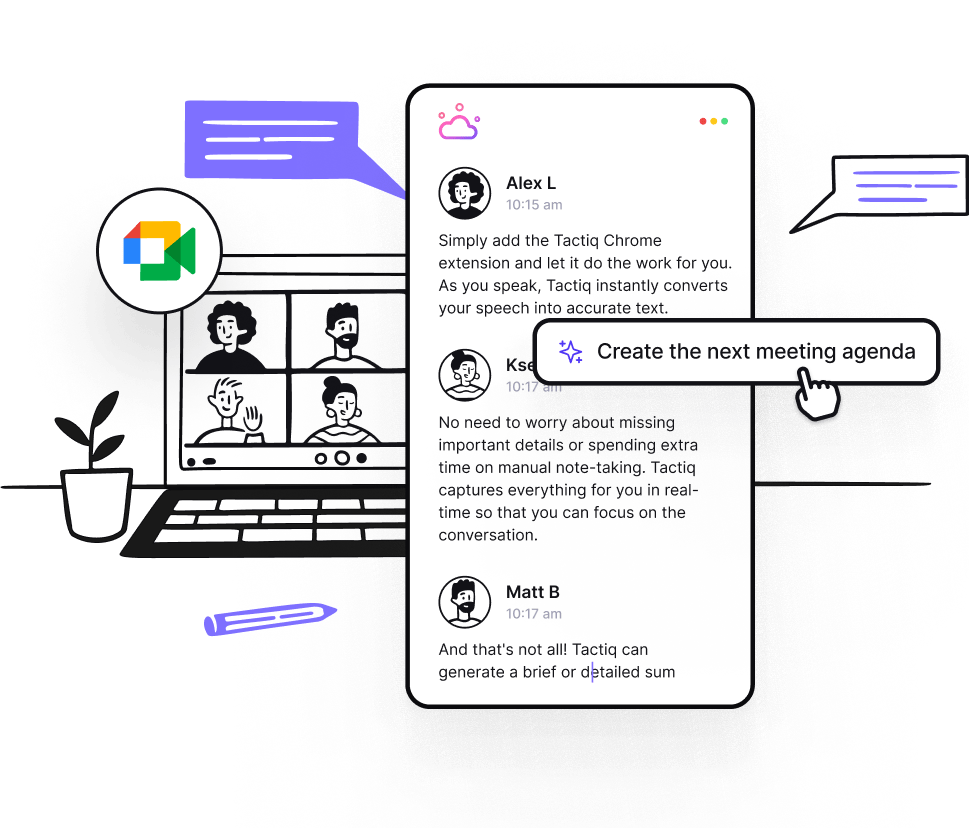
Tactiq gives you that option. Instead of recording the video or audio, Tactiq transcribes the entire Google Meet call in real time. You get the full transcript, plus AI summaries, key highlights, and action items, all without hitting start recording or worrying about storage.
While the Google Gemini note-taker is designed for Google’s ecosystem, it’s not available outside of Google Meet. Tactiq works across platforms, including Zoom and Microsoft Teams, so your documentation process stays consistent, no matter where your meetings happen.
Here’s why some teams prefer Tactiq over auto-recording:
- No video files to store. Tactiq doesn’t save the meeting, only the transcript. That means no bloated Drive folders or surprise storage limits.
- Full control over sharing. You choose who gets the transcript. It’s private by default and doesn’t automatically go to all participants.
- AI workflows built in. Turn your transcript into project updates, client follow-ups, or internal documentation using Tactiq’s AI-powered prompts.
- Built for team meetings. Tactiq works across platforms like Zoom and Microsoft Teams, not just Google Meet, so you can keep your workflow consistent.
If you're looking to capture ideas, next steps, or AI meeting notes without the hassle of managing video files, Tactiq is worth a try. Download the Tactiq Chrome Extension today!
{{rt_cta_ai-convenience}}
Wrapping Up
Auto recording in Google Meet can be a helpful feature, especially for organizations that need to keep a record of important meetings. But it also comes with limits. You’ll need the right Google Workspace edition, admin setup, and plenty of Google Drive space to make it work well.
If your team just wants to take notes, track action items, and review what was said without managing full meeting recordings, Tactiq offers a simpler way to get there. With real-time transcription and AI-powered insights, you can focus on the conversation while the notes take care of themselves.
Yes, but only if your organization uses a supported Google Workspace edition like Enterprise Plus or Business Standard, and an admin has enabled the setting.
A Google Workspace admin needs to turn on auto recording in the Admin console under Meet video settings. End users can't enable this on their own.
If auto recording isn’t enabled, the meeting host can click the record button manually once the meeting starts. Just remember to click stop recording when it ends.
No. Users must turn on their camera manually or adjust their video settings before the call.
You might be using an unsupported workspace individual subscriber plan, or recording hasn’t been enabled by your admin.
Related articles


_Main.jpg)




Want the convenience of AI summaries?
Try Tactiq for your upcoming meeting.
Want the convenience of AI summaries?
Try Tactiq for your upcoming meeting.
Want the convenience of AI summaries?
Try Tactiq for your upcoming meeting.