
Is Google Meet Encrypted? Full Guide (2025)
July 24, 2025
July 24, 2025
July 21, 2026
July 21, 2026

When you run online meetings, you want conversations to stay private. Google Meet promises strong protection, but how does its encryption work?
This guide breaks down Google Meet’s encryption methods, what data is protected, and what steps you can take to keep meetings secure. We’ll also show you how to use AI tools for secure transcriptions and summaries, so you can capture key points without risking privacy.
If you’re looking for a full overview of the platform, including setup, pricing, and how it compares to other tools, check out our Google Meet guide.
How Does Google Meet Encryption Work?
Google Meet uses several layers of encryption to protect your data. Most of it happens behind the scenes, but understanding the basics can help you feel more confident in your calls. Let’s break it down.
Encryption in transit and at rest
All Google Meet video meetings and calls are encrypted in transit (while data is traveling) and at rest (while data is stored) by default:
- When data travels between your device and Google’s servers, it’s protected from interception.
- Once stored (like when a recording is saved to Google Drive), it stays encrypted using the same world-class standards.
Meet follows Internet Engineering Task Force (IETF) security standards like Datagram Transport Layer Security (DTLS) and Secure Real-Time Transport (SRTP). These are industry-standard protocols that secure real-time communication. So even standard calls and meetings get a strong layer of protection baked in.
End-to-end encryption
Google Meet does not offer end-to-end encryption by default for regular video meetings. This means:
- Google’s servers handle video and audio to support features like captions, background blur, and breakout rooms.
- While the data is encrypted in transit and at rest, it’s not fully locked end-to-end. This means Google’s infrastructure can process the video and audio during the meeting, allowing smart features to function, but the content isn’t entirely private between participants.
However, end-to-end encrypted calls are available for personal Google accounts using the Meet app. These are 1:1 or group calls that don’t go through Google’s servers for processing audio/video. Instead, only the devices involved can decrypt the content.
But there’s a tradeoff. When you turn on end-to-end encryption in these video calls, features like in-call chat, polls, and reactions are disabled because they rely on server-side processing.
Client-side encryption
For organizations that need stricter controls, Google offers client-side encryption. This lets admins manage their own encryption keys, so not even Google can access the content. It’s available to certain Google Workspace customers, such as those in Enterprise Plus or Education Standard tiers. Check the Google Meet pricing breakdown for more information.
In a client-side encrypted call, data is encrypted on your device before it’s sent out. Only participants with the correct key can decrypt it.
Pro tip: Want to keep meeting records secure? Use Tactiq to generate real-time meeting transcripts directly inside Google Meet. Install the free Tactiq Chrome Extension to try it out.
Google Meet Privacy and Security Features
Image from Google
Google Meet is built with robust security measures that protect your information before, during, and after a meeting. These include access controls, activity logs, and compliance with enterprise-grade privacy standards.
Meeting recordings and storage
If you record a meeting, that recording is saved to the host’s Google Drive and encrypted at rest. Only people with access to the Drive file can view it. Admins can manage who’s allowed to record, and they can review how recordings are shared.
Google Meet recordings include the video, audio, and any shared screen content, but not captions or chat messages. You’ll also see a notification alerting all meeting participants when recording starts, as part of Google’s anti-hijacking measures.
Chat messages and data retention
Messages sent in Google Meet chats are stored temporarily and encrypted. If you’re using a Google Workspace account, admins can control how long messages are saved, depending on your organization's retention settings. For personal accounts, messages disappear after the meeting ends.
Live captions are powered by audio data, which is processed temporarily to provide subtitles in real time. That data isn’t stored or linked to any user identity.
Monitoring and user activity
Admins of work or school accounts can access logs and reports through the Google Workspace Admin Console. This includes who joined a meeting, who recorded it, and which devices were used.
Google Meet also uses device info and diagnostics (like crash reports and dropped call data) to improve performance and spot potential vulnerabilities. Because exposed personal details can still create risk outside the call itself, it’s worth taking time to check your digital footprint and see where sensitive information may appear elsewhere online. Google doesn’t use Meet content for advertising purposes, and users remain in control of their personal data through their Google Accounts.
Google Meet vs. Other Video Conferencing Apps
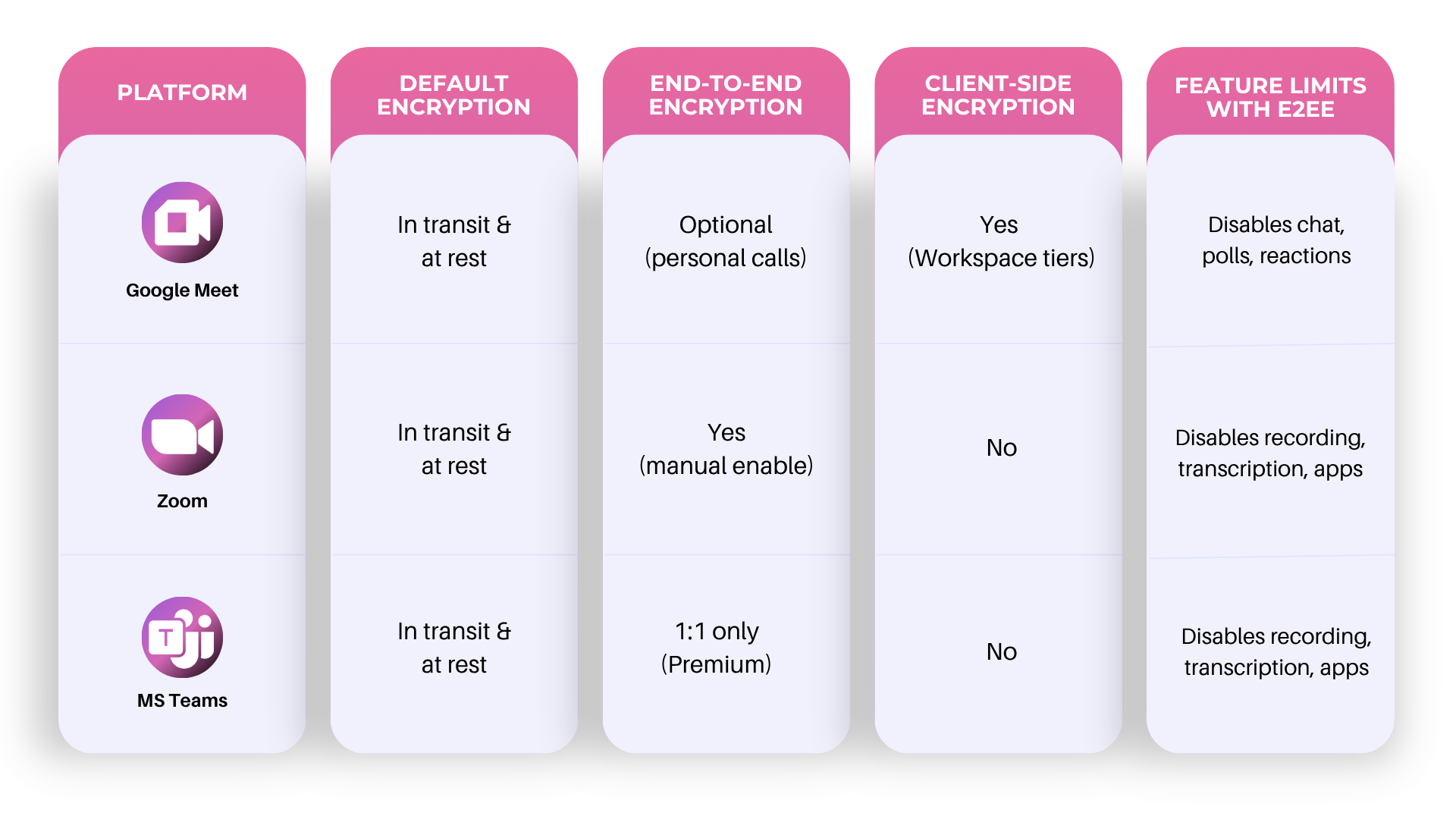
Here’s how Google Meet stacks up against Zoom and Microsoft Teams when it comes to encryption and privacy:
Google Meet
- Encrypts data in transit and at rest by default.
- Offers optional end-to-end encryption for personal 1:1 and group calls via the Meet app.
- Supports client-side encryption for eligible Google Workspace tiers.
- Doesn’t use meeting content for advertising.
- Tightly integrated with the Google ecosystem, including Google Drive for storage and Google Accounts for access controls.
Zoom
- End‑to‑end encryption is available for free and paid accounts, but must be manually enabled in account settings.
- Enabling E2EE disables features like cloud recording, live transcription, polling, whiteboards, Zoom Apps, and phone/SIP dial-ins.
- Streaming, live transcription, and certain device integrations are also disabled.
Microsoft Teams
- Encrypts in transit and at rest by default.
- Supports E2EE for 1:1 calls (as a Premium feature), but that disables features including recording, transcription, captions, call transfer/merge, and screen sharing enhancement.
- Doesn’t support E2EE for group meetings, even with Premium.
Learn more about Google Meet alternatives to compare other features.
What’s Not Encrypted in Google Meet?
Even though Google Meet uses strong encryption by default, not everything is protected end-to-end or under client control. Here are the key exceptions:
- Meeting recordings – When you share screen on Google Meet, that content is encrypted in transit, but if you're recording the session, the file saved to Drive is not end-to-end encrypted. Admins and others with access to the Drive file can view it.
- Live captions – Audio used for captions is processed temporarily on Google’s servers. It’s not stored or linked to you, but it isn’t end-to-end encrypted.
- Polls, Q&A, and in-call reactions – These rely on cloud encryption and aren’t available when using end-to-end encrypted calls.
- Third-party integrations – Add-ons or bots may access data depending on their permissions. Always review what these tools can see or control during a Google Meet session.
- Legacy infrastructure – If you join via phone dial-ins, the call may pass through systems that don’t support full encryption.
- Client-side encryption limitations – Only available for select Google Workspace accounts. It also doesn’t cover features like recordings or live streaming.
Understanding these gaps helps teams avoid exposing sensitive information unintentionally, especially when meeting with external participants or non-Google users.
Best Practices for Secure Meetings on Google Meet
Want to make your meetings safer? Here are simple steps you can take to protect your team’s privacy and data.
Use strong access settings
Control who gets into your meetings by managing how links are shared. Avoid posting meeting links in public forums or unprotected calendars. Turn on host controls like the waiting room feature to approve each participant before they join. For remote teams, using a VPN adds an extra layer of security when accessing meetings from public or unsecured locations.You can also block Google Meet users who attempt to join without an invite or behave disruptively during a session. This adds a layer of protection, especially for meetings that involve external participants.
Require sign-in when possible
Encouraging attendees to join using Google Accounts ensures you know who’s in the room. It also allows Meet to enforce more advanced access controls and log activity securely. For work or school accounts, admins can make this mandatory to reduce the risk of non-Google users trying to join meetings anonymously. This is especially useful for internal meetings or confidential discussions.
Avoid using legacy dial-ins
Phone dial-ins still exist for people without internet access, but they don’t offer the same level of encryption as the Google Meet app or web interface. These calls travel through traditional telecom systems that can introduce potential vulnerabilities. When possible, encourage participants to use a secure device with the Meet app installed. This ensures they benefit from fully encrypted calls and built-in security features.
Review third-party apps
Some integrations can access chat logs, recordings, or meeting content depending on their permissions. Before installing any add-ons, take the time to review the type of Google access they request. Stick to apps you trust, and remove any that are no longer needed. This is a simple way to protect your data and avoid unnecessary exposure during a Google Meet session.
Enable client-side encryption (if available)
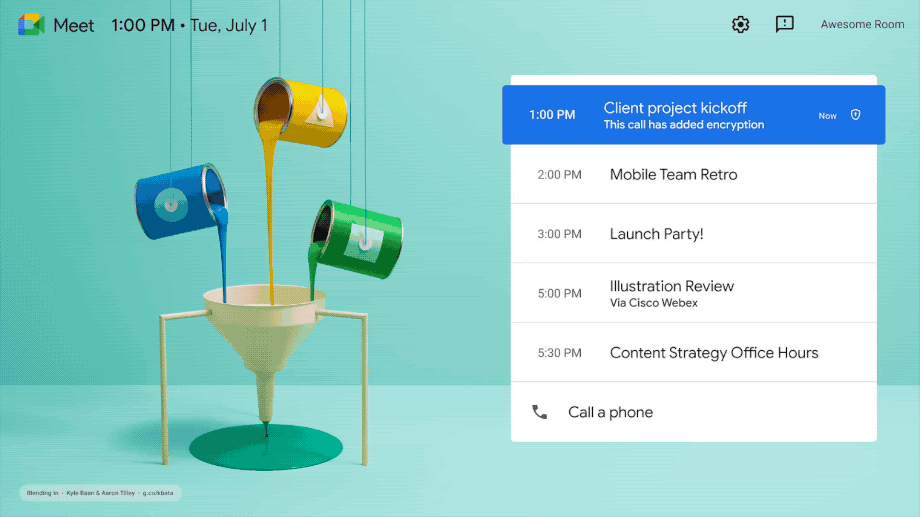
Image from Google
If your organization uses Google Workspace Enterprise Plus or Education Standard, you can turn on client-side encrypted calls for meetings with highly sensitive information. This means the meeting content is encrypted before it even leaves your device, and only authorized users can decrypt it. Even Google can’t access the data. While this disables some cloud-based features, it provides stronger control over your meeting’s encryption key.
Keep software updated
Using the latest version of the Meet app ensures you’re getting the latest security measures and bug fixes. Updates often include patches for known issues, which help protect against potential vulnerabilities. They also unlock features like end-to-end encrypted calling in the Meet app. Ask your team to check for updates regularly, especially on Android and iOS apps.
Using Tactiq With Google Meet: Secure Transcription for Remote Teams
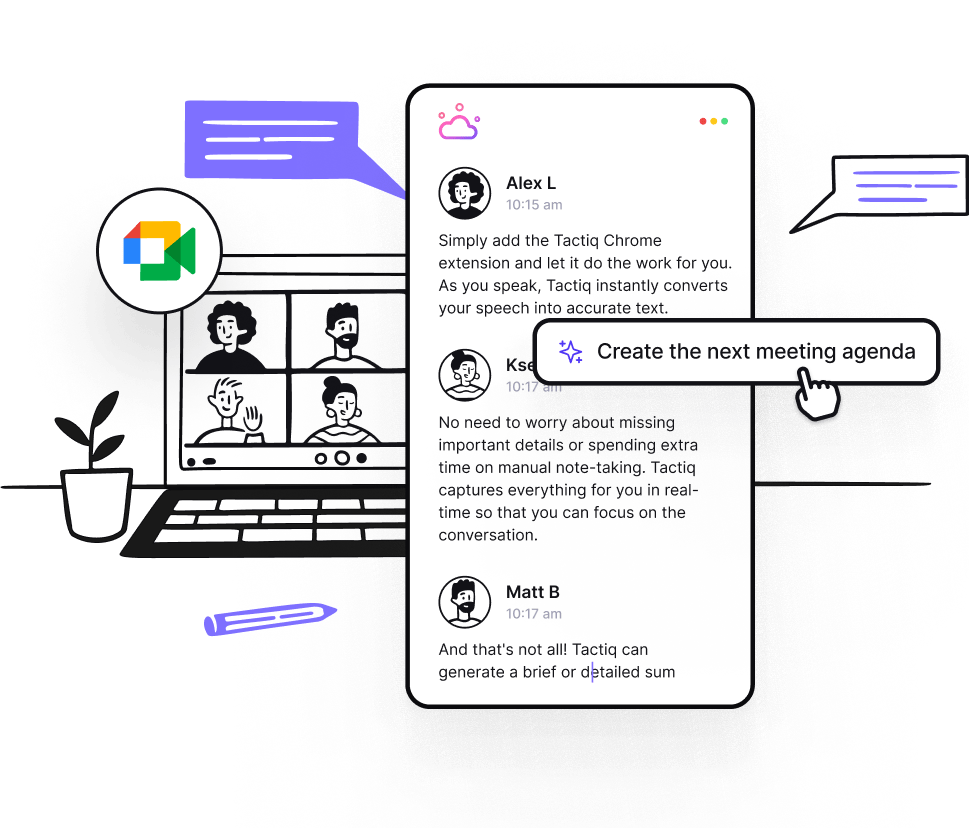
Even with strong encryption and access settings in place, one common challenge remains: how to capture meeting details without creating new security risks.
An AI tool like Tactiq can provide Google Meet transcriptions and AI-generated summaries. It helps you document your conversations accurately, without relying on manual note-taking or unsecured third-party tools. Everything stays within the Google ecosystem, giving you full control over your meeting data.
Here’s how Tactiq supports secure collaboration:
- Live transcription during meetings – Tactiq captures everything as it happens, displaying real-time text on screen so you can stay focused without missing important points.
- AI-generated summaries – After the meeting, you get smart summaries based on the transcript, which can include action items, follow-up emails, or project updates.
- Secure storage in Google Drive – Transcripts and summaries are saved to your Google Drive, where they’re encrypted at rest and never shared without your permission.
- Support for multilingual teams – Use Tactiq’s AI prompts to translate transcripts or summarize meetings in different languages, even during client-side encrypted calls.
- Searchable transcripts – Quickly find keywords or revisit decisions without rewatching the entire meeting.
Tactiq supports secure, organized, and actionable Google Meet sessions. You stay in control of your data from start to finish.
👉Install the free Tactiq Chrome Extension to try it out today.
{{rt_cta_ai-convenience}}
Wrapping Up
So, is Google Meet encrypted? Yes, but the full picture matters. Google Meet uses multiple layers of encryption, including protection in transit and at rest, with optional end-to-end and client-side encryption depending on your account type. These tools help keep your web video meetings private and secure, but understanding their limitations is just as important.
The good news is that you’re not stuck with default settings. With a few smart choices like managing access, reviewing third-party apps, and using tools like Tactiq, you can run safer, more productive meetings from anywhere.
Encryption is the foundation of secure communication channels. By understanding what’s protected, what’s not, and how to take control of your meeting data, you’re building stronger privacy habits that support open and focused collaboration.
Yes, Google Meet is encrypted by default. It uses cloud encryption for all meetings and calls, and offers optional end-to-end and client-side encrypted options for certain accounts. This setup helps protect your data from unauthorized access.
Google doesn't monitor your meetings or access content unless legally required or granted permission. If you're using a work or school account, admins may have visibility into meeting logs or participant activity through the Google Workspace Admin Console.
In-meeting chat messages are stored temporarily and encrypted. For personal accounts, they disappear when the meeting ends. Organizations may retain chat data depending on their admin settings.
No. Regular meetings use cloud encryption. End-to-end encryption is available only for 1:1 or group calls in the Meet mobile app when all participants are using personal accounts and have enabled the "Additional encryption" setting.
Start with strong access controls, keep the Meet app updated, and avoid unknown third-party add-ons. You can also block Google Meet users who shouldn’t join, or require sign-in to keep your meetings private.
Related articles


_Main.jpg)




Want the convenience of AI summaries?
Try Tactiq for your upcoming meeting.
Want the convenience of AI summaries?
Try Tactiq for your upcoming meeting.
Want the convenience of AI summaries?
Try Tactiq for your upcoming meeting.