
How Do I Turn Off Google Gemini?
- Published:
- September 15, 2026
- Updated:
- October 14, 2026

Google Meet has two separate Gemini features, and each one needs its own off switch.
Ask Gemini is an in-call assistant you can question during a meeting. “Take notes for me” is the note-taker that generates a shared notes (opens in a new tab) document afterward.
Turning off one does not turn off the other, so it helps to know which one is causing the problem. This guide walks through both switches, plus who controls each one:
- How to turn off Ask Gemini during a call or from your calendar
- How to turn off “Take notes for me”, including the default setting for meetings you host
- How admins control both features for the whole organization
- What participants can do if they are not the host
- A more consistent alternative to “Take notes for me”
How to Turn Off Ask Gemini
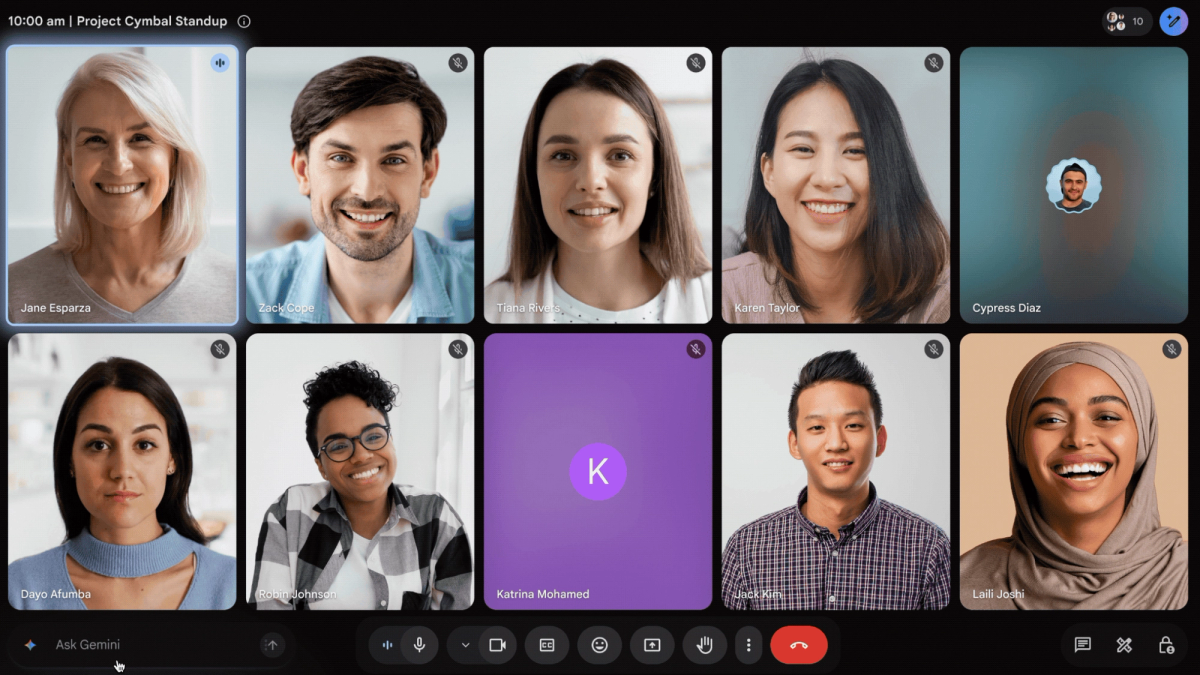
Ask Gemini is on by default, and it starts automatically once two people join the meeting. Hosts and co-hosts are the only ones who can turn it off for everyone.
- During the call: Open Host controls and turn off Gemini in that section. You can also hover over the Gemini icon at the bottom of the screen, then use the three-dot menu.
- From the calendar event: Edit the event, open Video call options, and click Gemini. Uncheck "Meeting attendees can use Ask Gemini" to disable it before the meeting starts.
This works well for one-off meetings, but recurring calls need the same toggle switched off every time you edit that event.
How to Turn Off "Take Notes for Me"
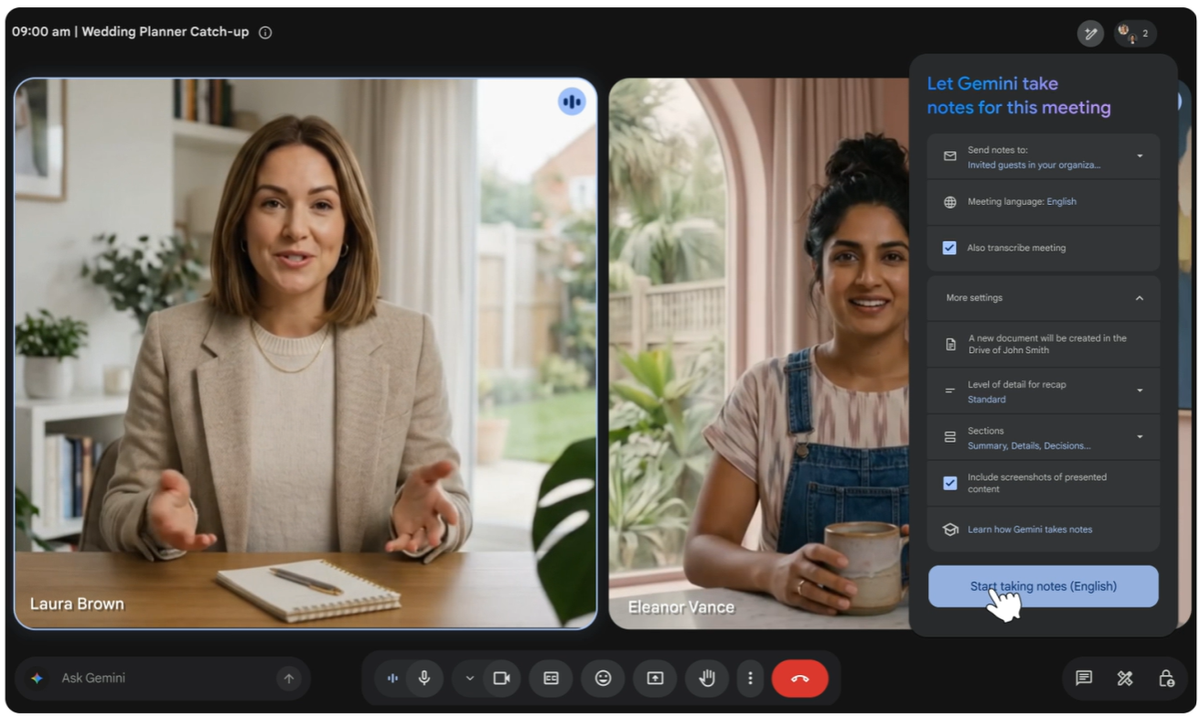
You can turn off "Take notes for me" (opens in a new tab) in three places: the meeting itself, your personal Meet settings, or your calendar. Each covers a different scope, from one meeting to all meetings you host.
During the call
Any internal participant can stop notes once they have started. Click the "Take notes for me" icon at the top of the screen, then stop it. If host controls are turned on, only the host or co-hosts can start or stop the feature.
Default for meetings you host
You can turn this off for every future meeting you organize. Go to meet.google.com (opens in a new tab), open Settings, then Meeting records. Under "Automatic note taking for all future meetings," select Off.
From the calendar event

Edit the event, add Google Meet if it is not already attached, and open Video call options. Click Meeting records, then uncheck "Take notes with Gemini."
How Admins Control Ask Gemini and “Take Notes for Me”, Org-Wide
Admins manage Ask Gemini and “Take notes for me” from the same place in the Admin console, but as separate settings.
To turn off Ask Gemini:
- Go to admin.google.com (opens in a new tab), then click Menu > Apps > Google Workspace > Google Meet.
- Optional: select an organizational unit or group to limit the change to certain teams.
- Click Gemini Settings and select the off option.
- Click Save.
To turn off “Take notes for me”:
- Go to admin.google.com (opens in a new tab), then click Menu > Apps > Google Workspace > Google Meet.
- Optional: select an organizational unit or group to limit the change to certain teams.
- Click Gemini Settings, then click Google AI note-taking.
- Uncheck "Let people use Google AI note-taking in meetings."
- Click Save.
Plan eligibility matters here too, since not every Workspace edition includes these Gemini features. If you are unsure whether your organization even has the free tier of Gemini (opens in a new tab) versus a paid plan, it is worth checking before assuming a setting is missing.
Changes can take up to 24 hours to apply, though they usually happen faster.
💡 Pro tip: Tactiq (opens in a new tab) skips this admin maze entirely. It works from a Chrome extension on any account, so teams do not need Workspace plan eligibility or admin configuration to get a live transcript.
Who Can Turn Off Gemini: Participants' Options
Not everyone in a meeting has host or admin access, but non-hosts still have some control over Gemini.
- Ask Gemini: A participant cannot turn it off for the whole meeting. They can ask the host to disable it, or turn off their own smart features so they personally cannot use it. Disabling smart features only stops that one person from prompting Ask Gemini.
- Take notes for me: Any internal participant can start or stop it, unless the host has turned on host controls. When host controls are active, only the host and co-hosts can start or stop note-taking.
Participants who want a more consistent record of a meeting are not limited to these built-in controls.
Tactiq: Live Meeting Transcription That Works Across Any Platform
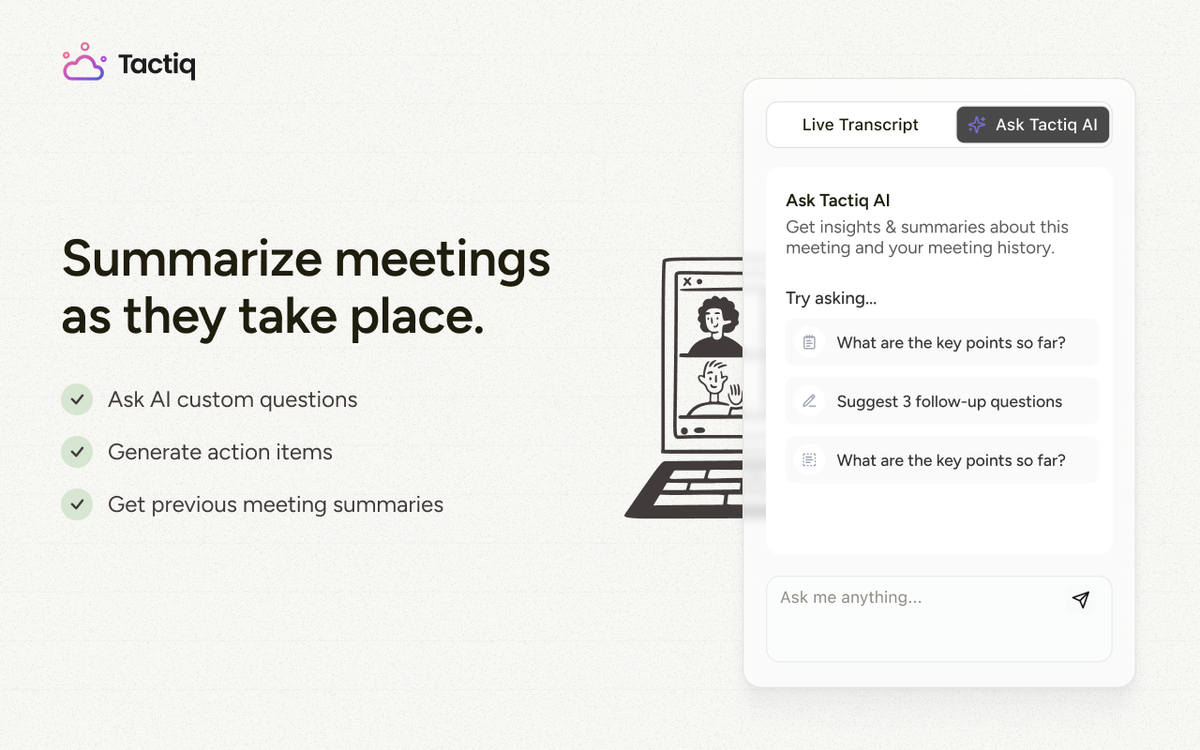
Tactiq (opens in a new tab) is a Chrome extension that captures a live, real-time transcript as your meeting happens, then turns it into an AI summary once the call ends.
Unlike “Take notes for me”, which only shows a pencil icon and a static "Summary so far" for anyone joining late, Tactiq's transcript builds visibly in its own window the whole time.
- No plan eligibility required. “Take notes for me” needs a paid Google AI or Workspace plan. Tactiq works on any Google account, free or paid.
- Works across platforms. Tactiq covers Google Meet, Zoom, and Microsoft Teams, so the same tool follows you between them.
- Visible while it happens. You can see the transcript build in real time, so a stalled or failed capture is obvious immediately instead of discovered after the call.
- Summarizes automatically. After the meeting, Tactiq generates a summary with key points and action items from the transcript.
For teams that want meeting insights routed to other tools, Tactiq's MCP server (opens in a new tab) connects transcripts directly to AI assistants like Claude or ChatGPT.
Want the convenience of AI summaries?
Try Tactiq for your upcoming meeting.
Turn Off Ask Gemini or “Take Notes for Me”
Ask Gemini and “Take notes for me” each need their own off switch. Hosts can disable either from a call or calendar event, and admins can turn both off for the whole organization in one settings menu.
Teams usually disable these features for privacy with outside guests, or frustration when a notes doc never shows up. For a broader look at other AI tools, this roundup of Google Meet AI note-taker alternatives (opens in a new tab) is worth a look.
FAQ
Your questions, answered.
If you have any further questions, Get in touch (opens in a new tab) with our friendly team
How do I turn off Google Gemini in Google Meet?
What's the difference between Ask Gemini and Take notes for me?
How do admins turn off Ask Gemini and automatic note-taking for the whole organization?
Why does Google Meet say notes are being taken but the transcript is empty?
Is there a Google Meet note-taker alternative that works without a Workspace plan?
Related articles
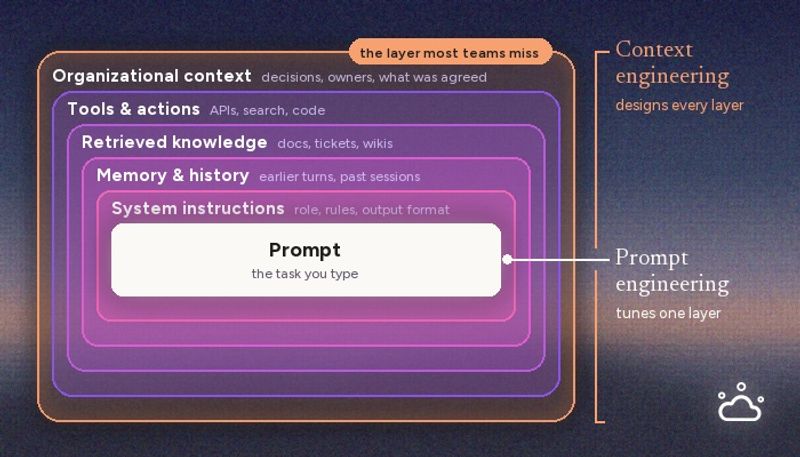
Context Engineering vs Prompt Engineering: What Your AI Agents Are Missing

Claude Memory: How to Import and Manage Your AI Context

Claude Cowork Connectors: Automate Recurring Work

Google Gemini MCP Support: Where It Works and Setup Tips

Best Claude Skills: Top Picks for Meetings, Content, and Code

5 Best AI Scheduling Assistants

Microsoft Teams MCP: How to Access Meeting Content With AI

AI Meeting Notetaker with Claude Connector: Top 6 Picks
Want the convenience of AI summaries?
Try Tactiq for your upcoming meeting.
Bringing AI into your meetings has never been so easy.
Add to Chrome - It's free!(opens in a new tab)Try Tactiq in your upcoming meeting!
Sign up now