

You no longer need to pay for dictation software. Free tools built into your phone, laptop, or browser can turn spoken words into written text just as reliably as paid apps.
But free dictation software has limits. Most tools handle one speaker, need an internet connection, and can't organize what you've recorded. That's fine for a memo to yourself. It's not fine for a meeting with five people talking over each other.
- The best free dictation software for Mac, Windows, and browser-based use
- What free dictation software can't handle
- How dictation differs from meeting transcription
- How to choose the right free dictation app for your needs
TL;DR: Free Dictation App Options
Free dictation apps built into your phone, laptop, and browser now handle everyday voice-to-text without a subscription.
Apple Dictation covers Mac and iPhone, with offline support on Apple Silicon. Windows offers Voice Typing for quick text entry and Voice Access for offline, whole-PC control. Google Docs Voice Typing and Speechnotes both work in the browser but need an internet connection.
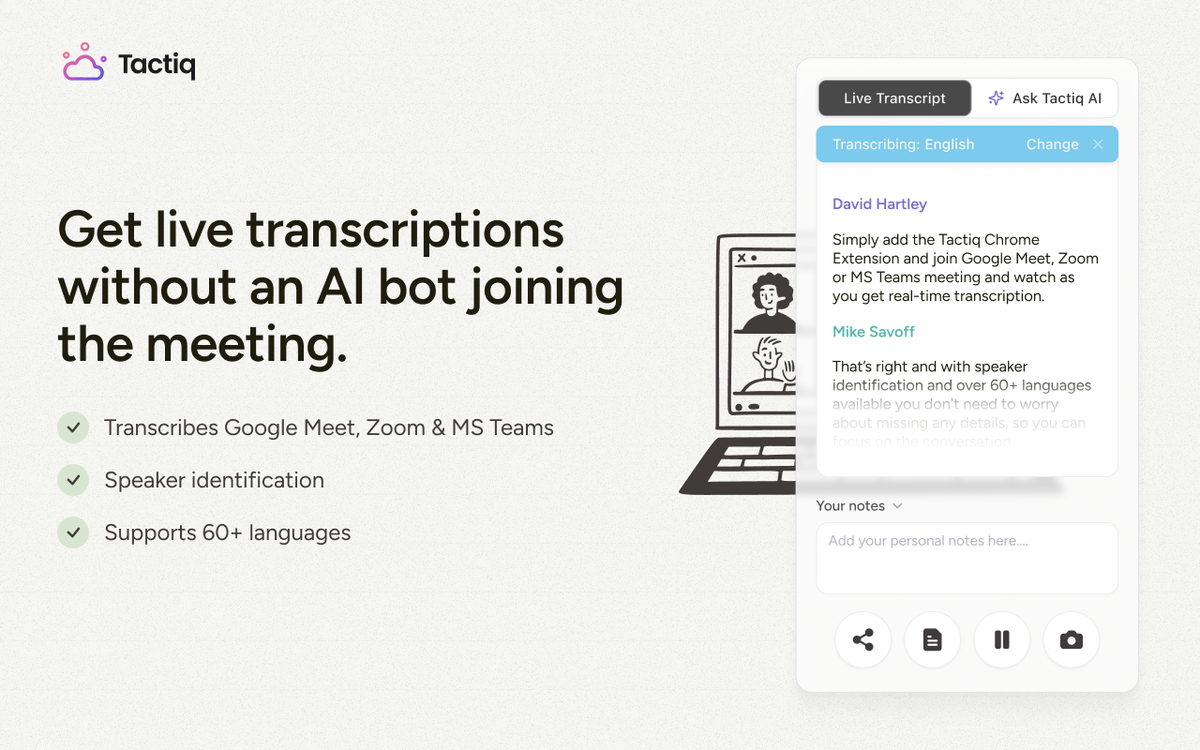
None of these tools separates multiple speakers (opens in a new tab) or organizes what you've recorded, which is why they fall short for meetings. For capturing a live, multi-speaker conversation, a dedicated tool like Tactiq (opens in a new tab) picks up where dictation leaves off.
Best Free Voice Dictation Software by Platform
The best free dictation app depends on your device and how you plan to use it. Here's how the top options compare across Mac, Windows, and browser-based platforms.
1. Apple Dictation (Mac/iPhone/iPad)
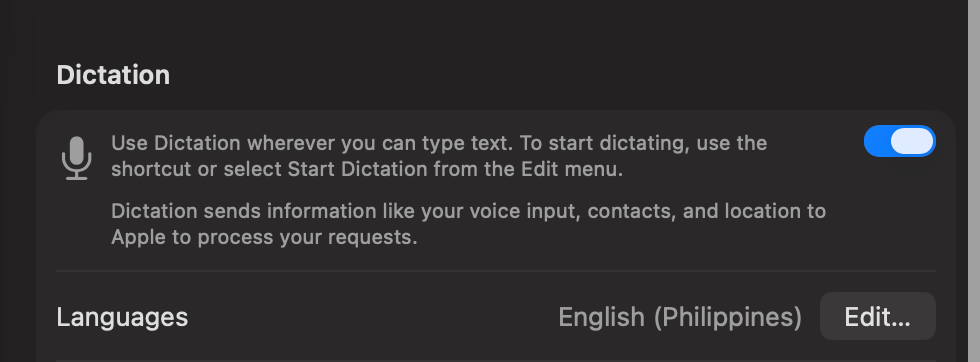
Apple Dictation comes built into every Mac and Apple mobile devices (iPhone/iPad) at no extra cost. Turn it on in System Settings on Mac, or tap the microphone icon on the keyboard on iPhone and iPad.
On Apple Silicon Macs, dictation requests are processed on the device for supported languages, so no internet connection is required. Intel Macs and unsupported languages still send dictated audio to Apple's servers to process the request.
- Free, no account or sign-up needed
- Works system-wide, in any app that accepts text
- Voice commands add punctuation, emoji, and new paragraphs as you speak
- Dictation availability and offline support vary by language and region
For a broader look at Mac transcription options beyond dictation, see what's the best transcription software for Mac (opens in a new tab).
2. Windows Voice Typing and Voice Access
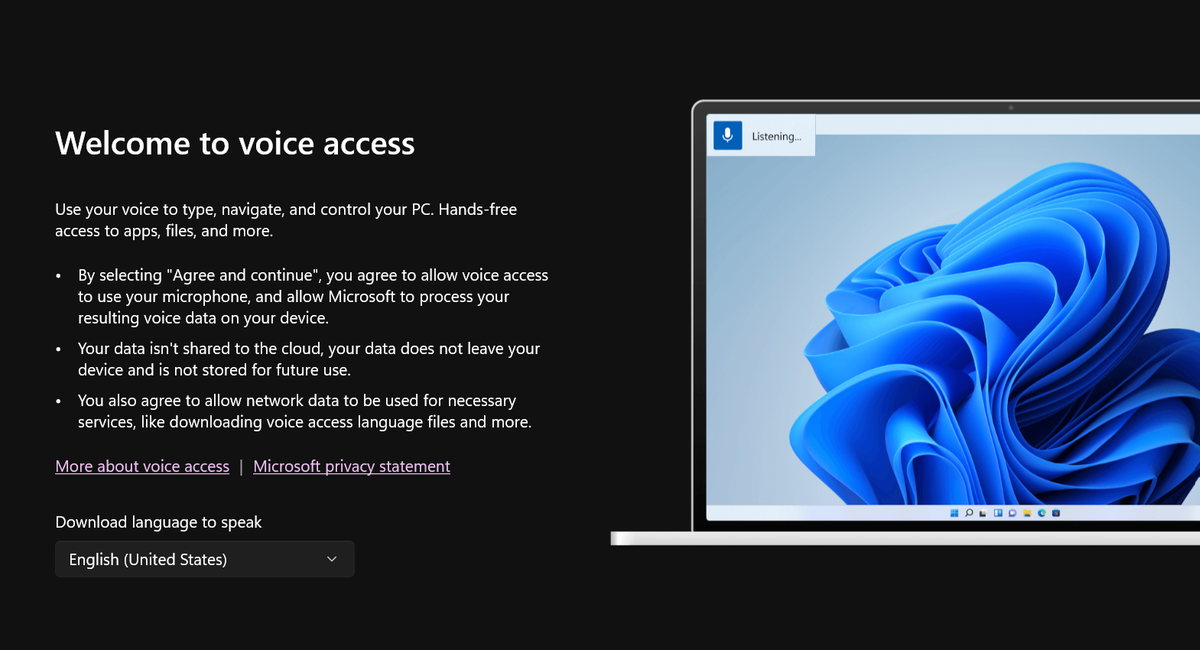
Windows has two built-in dictation tools that solve different problems. Voice Typing launches with the Win+H shortcut and converts speech to text in any text field, but it depends on Microsoft's cloud speech service and requires an internet connection.
Voice Access, by contrast, lets you control your entire PC by voice, including opening apps and clicking buttons, and it can work offline once its speech model finishes downloading. Voice Access requires Windows 11 version 22H2 or later.
- Free for all Windows 11 users; no extra download needed for Voice Typing
- Voice Typing: best for quick text entry in emails, documents, or chat
- Voice Access: best for hands-free navigation and whole-PC control, and the offline option of the two
- Both support custom vocabulary and voice commands for punctuation
3. Google Docs Voice Typing
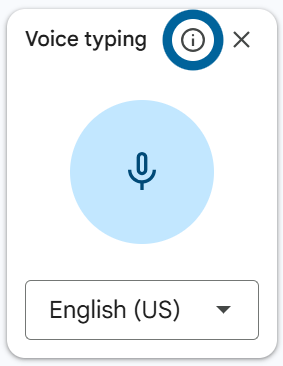
Google Docs Voice Typing turns spoken words into written text directly inside a Google Doc. Open a document, click Tools, then Voice Typing, and click the microphone icon that appears to start dictating.
It works with the latest versions of Chrome, Edge, and Safari, but not Firefox, and it requires an internet connection since your browser controls the speech-to-text processing (opens in a new tab).
- Free with any Google account; no extra software required
- Works only inside Google Docs and Slides speaker notes, not system-wide
- Good for drafting long documents by voice
- Voice commands handle punctuation and basic formatting as you dictate
4. Speechnotes
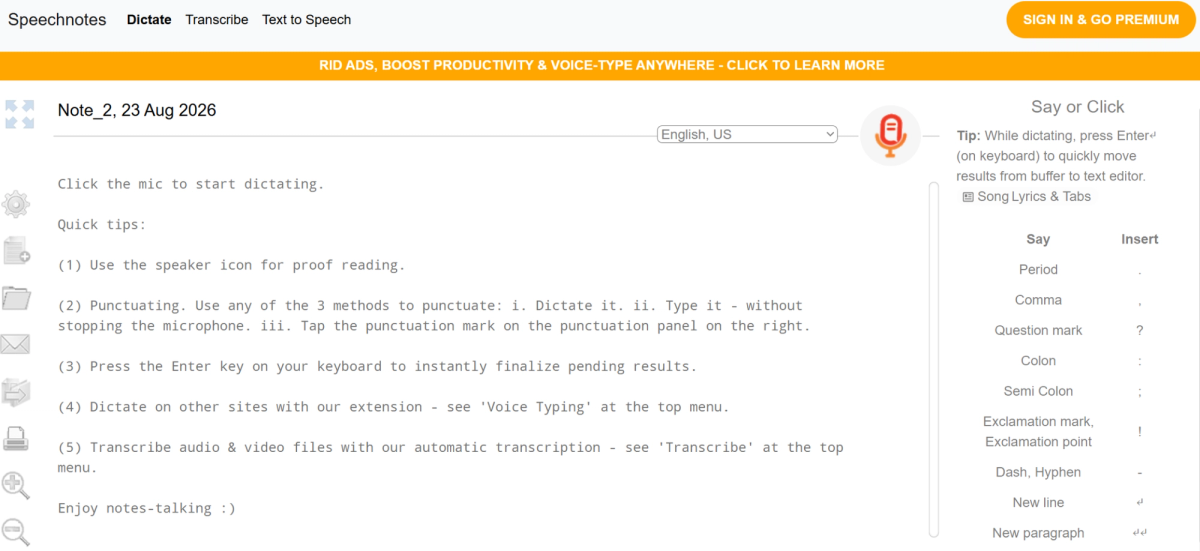
Speechnotes is a free, browser-based dictation tool that works in Chrome. Go to speechnotes.co (opens in a new tab), click the microphone icon, and start talking. Your words appear in the editor in real time, and you can export the result to Google Drive or download it as a document.
- Free with no account or sign-up required
- Works in Chrome, with a Chrome extension for voice typing in any web text field
- Punctuation commands let you say "period" or "comma" as you speak
- Mobile app includes an offline mode; the web version needs an internet connection for speech recognition
What Free Dictation Apps Can't Do
Free dictation tools handle solo voice input well, but they hit real limits once you ask them to do more. Knowing these gaps upfront saves you from picking the wrong tool for the job.
Single-speaker limitation
Every tool covered so far assumes one person is talking. Apple Dictation, Windows Voice Typing, and Google Docs Voice Typing can't tell speakers apart or handle overlapping voices. A conversation with multiple people quickly turns into a jumbled transcript.
Inconsistent punctuation and filler-word handling
Apple Dictation and Windows Voice Typing add basic punctuation automatically, but results are often uneven and need manual cleanup. Google Docs Voice Typing and Speechnotes still rely on spoken commands like "comma" or "period." None of these tools strip out "um," "uh," or false starts.
No compliance or team controls
Free dictation tools don't offer audit logs, data retention policies, or admin controls. That's a real gap if you're dictating anything involving client information or regulated data.
No organization or search
A dictation app gives you a single block of text. You can't tag, search, or connect that text to other notes, meetings, or projects later.
A note-to-self dictated alone is a different job than capturing a live conversation with several people talking. The next section covers that distinction directly.
💡 Pro tip: If you're looking for a meeting transcription tool beyond dictation, Tactiq (opens in a new tab) captures multi-speaker conversations automatically, so you don't have to choose between listening and writing.
Free Dictation vs. Meeting Transcription
Dictation and meeting transcription solve different problems, even though both convert speech into text. Dictation captures you talking to your device. Meeting transcription captures a live, multi-speaker conversation (opens in a new tab) as it happens.
Input source
Dictation assumes a single voice speaking directly to a microphone. Meeting transcription captures a room, or a video call, with multiple people talking, interrupting, and overlapping.
Speaker attribution
Dictation tools don't distinguish speakers, since there's only one. Meeting transcription tools label who said what, so a transcript stays readable after the call ends.
Purpose
Dictation replaces typing. You use it to draft a document, note, or message faster than you could type it. Meeting transcription replaces manual note-taking, so you can stay present in the conversation instead of scrambling to write things down.
What happens after
A dictated note is usually finished once you stop talking. A meeting transcript becomes raw material for summaries, action items, and follow-ups you build afterward.
If most of your voice-to-text needs involve one person speaking, a free dictation app already covers it. If you're regularly on calls with other people, meeting transcription is the tool built for that job. Dictation software wasn't designed for it.
If you're weighing dictation tools specifically, our Wispr Flow alternatives (opens in a new tab) guide breaks down options by price and privacy. For a broader look at free AI transcription options beyond dictation, see best free AI transcription tools (opens in a new tab).
Want the convenience of AI summaries?
Try Tactiq for your upcoming meeting.
How to Choose the Right Free Voice Dictation Software
The right free dictation app depends on your device, your privacy needs, and how much accuracy you need out of the box. A few factors narrow the choice quickly.
Platform
Apple Dictation only works on Apple devices. Windows Voice Typing and Voice Access only work on Windows. Google Docs Voice Typing and Speechnotes run in a browser, so they work on any operating system with Chrome, Edge, or Safari installed.
Offline vs. cloud processing
Apple Dictation on Apple Silicon Macs and Windows Voice Access can both work offline once set up. Windows Voice Typing, Google Docs Voice Typing, and Speechnotes all require an active internet connection, since they rely on cloud-based speech recognition.
Accuracy needs
Free dictation tools generally handle clear, conversational speech well. Technical jargon, accents, or specialized vocabulary may need more manual correction, regardless of which tool you pick.
Privacy considerations
Offline tools like Apple Dictation on Apple Silicon keep your voice data on the device. Cloud-based tools send audio to a third-party server for processing, which matters if you're dictating anything sensitive.
If you dictate mostly short notes or emails, any of the four options here will work. If you need offline privacy, stick to Apple Dictation on Apple Silicon or Windows Voice Access. If you're drafting long documents, Google Docs Voice Typing or Speechnotes fit that workflow better.
Dictation vs. Meeting Transcription: Which One is Right For You?
Free dictation has come a long way. Apple Dictation, Windows Voice Typing, Voice Access, Google Docs Voice Typing, and Speechnotes all turn your voice into text at no cost.
But none of them separate speakers or let you organize what gets captured. That's fine for a quick note. It's not fine for an actual conversation.
That's the line between dictation and meeting transcription. Dictation handles you talking to your device. Meeting transcription handles a room full of people and turns that into something searchable.
If your needs stop at solo notes, a free dictation app does the job. If you're in meetings all day, Tactiq is built for that instead. Install the free Tactiq Chrome extension today (opens in a new tab).
FAQ
Your questions, answered.
If you have any further questions, Get in touch (opens in a new tab) with our friendly team
What is the best free dictation app?
Is there a free dictation app for Mac?
Does Windows have a built-in dictation tool?
Can I use a free dictation app offline?
s there a free dictation app for meetings?
Related articles
Context Engineering vs Prompt Engineering: What Your AI Agents Are Missing

Claude Memory: How to Import and Manage Your AI Context

Claude Cowork Connectors: Automate Recurring Work

Google Gemini MCP Support: Where It Works and Setup Tips

Best Claude Skills: Top Picks for Meetings, Content, and Code

5 Best AI Scheduling Assistants

Microsoft Teams MCP: How to Access Meeting Content With AI

How Do I Turn Off Google Gemini?
Want the convenience of AI summaries?
Try Tactiq for your upcoming meeting.
Bringing AI into your meetings has never been so easy.
Add to Chrome - It's free!(opens in a new tab)Try Tactiq in your upcoming meeting!
Sign up now