
How to Separate Speakers in a Meeting Transcript
- Published:
- July 19, 2026
- Updated:
- August 25, 2026

You just finished a meeting, and the transcript reads "Speaker 1" and "Speaker 2" the whole way through. Now you're matching names to lines from memory, or re-listening to the recording to sort it out. Speaker separation decides whether a transcript is usable or just a wall of text.
Most tools handle this the same way: upload a recording after the meeting, wait for processing, then manually relabel generic tags with real names. It works, but it adds a cleanup step to every meeting.
This guide covers:
- What speaker separation means and why AI mixes up voices
- How to fix speaker labels manually after a recording
- What causes most mislabeling in the first place
- How to get accurate speaker labels automatically, live
- Best practices for cleaner transcripts every time
What Is Speaker Separation in a Transcript (and Why It's Tricky)
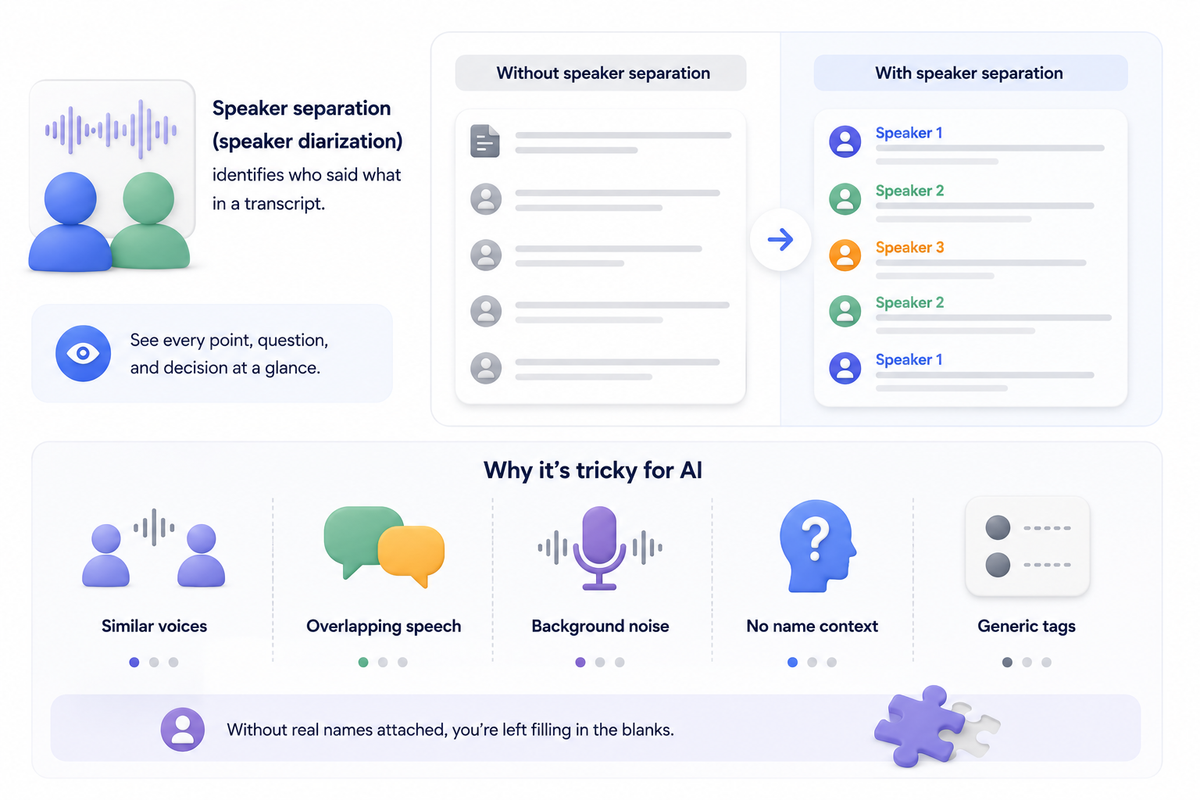
Speaker separation, also called speaker diarization, is the process of identifying who said what in a transcript. Instead of one continuous block of text, each line gets tagged to the person who spoke it. Done well, you can scan a transcript and instantly see who raised a point, asked a question, or made a decision.
The tricky part is getting AI to do this accurately. Several factors make speaker recognition harder than it sounds:
- Similar voices: close pitch or accent can confuse the model
- Overlapping speech: multiple speakers talking at once blurs the lines between speakers
- Background noise: poor audio quality makes voices harder to distinguish
- No name context: the model only hears voices, not names, so it defaults to generic tags like Speaker 1 or Speaker 2
Without real names attached, you're left filling in the blanks yourself.
💡 Pro tip: Use Tactiq (opens in a new tab) to pull real participant names directly from Zoom, Google Meet, and Microsoft Teams as the meeting happens, so speaker labels start accurate instead of needing a fix afterward.
How to Separate Speakers After a Meeting (Manual & Upload-Based Methods)
If you already have a recording, most tools require uploading it after the meeting ends to generate a diarized transcript. This is the standard workflow for ChatGPT's record mode (opens in a new tab), which processes audio only after you stop recording.
Zoom offers live captions during the call, but the downloadable, speaker-labeled transcript still comes from post-meeting cloud processing.
Re-transcribing with a diarization tool
Upload-based tools split audio files into segments and auto-label each one Speaker 1, Speaker 2, and so on. The accuracy depends heavily on audio quality, so a recording with background noise or multiple people talking over each other often produces messier splits.
Some tools handle this better than others. Zoom's AI transcription tool (opens in a new tab), for example, requires a paid plan to unlock diarization at all.
For meetings already exported from platforms like Teams, you can also re-import the transcript (opens in a new tab) into a tool that adds speaker separation after the fact, formatting the raw text into labeled segments.
Manually fixing and relabeling speakers
Once you have labeled segments, the real work starts:
- Listen back to the recording to confirm who's who
- Find-and-replace generic labels with real names
- Merge fragments where the same speaker got split into multiple segments
- Recheck the entire transcript for consistency before sharing it
This process works, but it's slow. For a one-hour meeting with several participants, manual relabeling can easily take another 20 to 30 minutes.
How to Get Accurate Speaker Identification Without the Manual Cleanup
The core problem with upload-based methods is timing. You only find out how many speakers were mislabeled after the meeting, and fixing it means reviewing the entire transcript line by line.
A few habits reduce mislabeling before you even get to that stage:
- Start with intros: asking each person to say their name at the start helps some tools link a voice to a name early
- Use separate mics where possible: one mic per speaker in person or on a shared device cuts down on crosstalk
- Avoid talking over each other: overlapping speech is still the biggest cause of split or merged segments
- Check labels before sharing: a quick scan catches obvious mismatches before the transcript goes to the whole team
These habits help, but they only reduce errors. They don't eliminate the need to fix labels after the fact. The real fix is getting speaker labels right the first time, during the meeting, not after it.
For a comparison of how different tools handle this, see free automatic transcription tools (opens in a new tab) and best free AI transcription tools (opens in a new tab).
How to Get Speaker Names Automatically During a Live Meeting
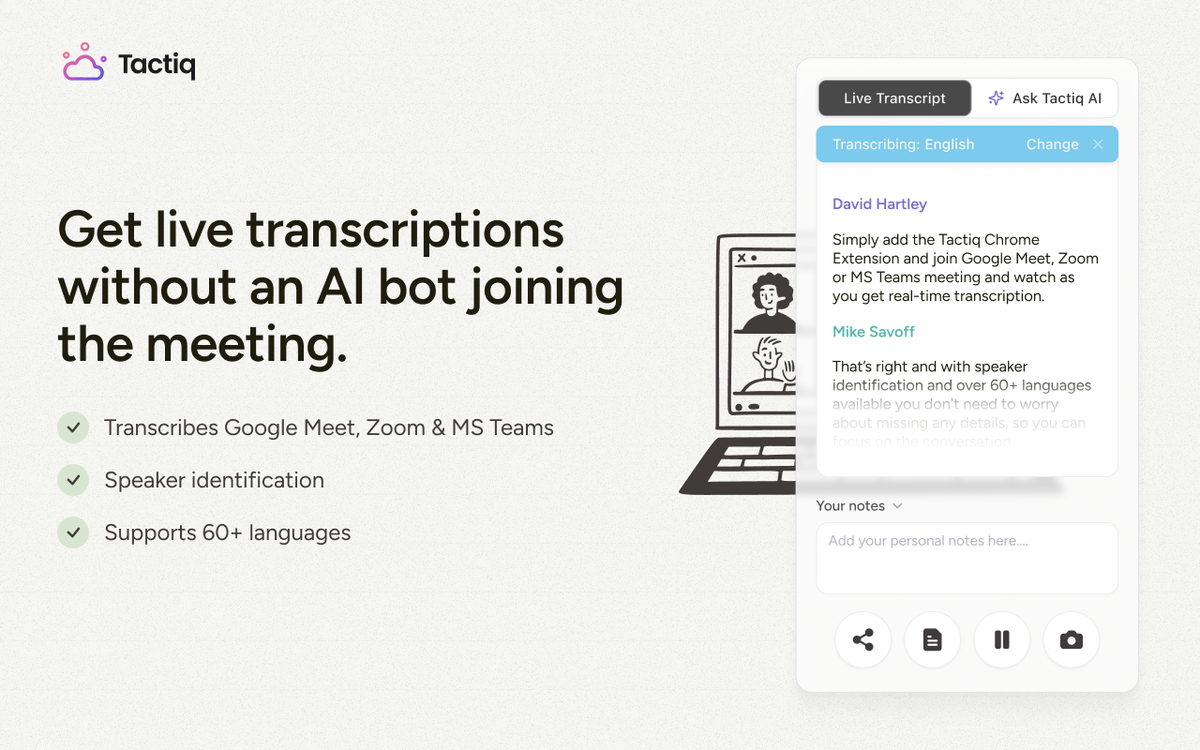
Tactiq (opens in a new tab) gives you a live transcript inside Zoom, Google Meet, and Microsoft Teams (opens in a new tab), with speaker names labeled as the meeting happens. Instead of Speaker A or Speaker B, it pulls each participant's name from the account they're logged into:
- No upload: labeling happens live, not after the meeting ends
- No re-listening: names come from the platform, not guesswork
- No manual relabeling: different speakers stay correctly tagged even when different voices sound similar, or someone joins mid-conversation
If speaker names still come through wrong, rename them once in the Participants and Stats panel. The fix applies across the entire transcript automatically.
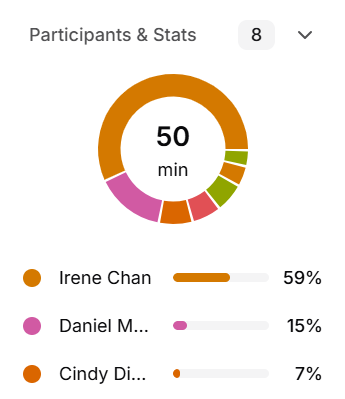
Ask key speakers to join with their real names displayed before the call. Tactiq pulls that name in directly, keeping labels accurate for future recordings.
Install the Tactiq Chrome Extension for free (opens in a new tab) to see it automatically label your next meeting.
Want the convenience of AI summaries?
Try Tactiq for your upcoming meeting.
Getting Speaker Labels Right the First Time
Manual speaker separation works, but it costs time you don't get back. Uploading a recording, waiting for processing, then relabeling Speaker 1 and Speaker 2 by hand adds up fast across dozens of meetings a month.
Automatic, live speaker separation skips that entirely. Tactiq (opens in a new tab) pulls real participant names from Zoom, Google Meet, and Microsoft Teams as the meeting happens, so the transcript is accurate the moment the call ends. Combined with a few habits, like clear intros and reduced background noise, you get a clean, name-accurate record without the manual fix-up.
The goal isn't a perfect transcript every time. It's a transcript you can trust enough to skip the cleanup altogether.
FAQ
Your questions, answered.
If you have any further questions, Get in touch (opens in a new tab) with our friendly team
What does "diarization" mean in a transcript?
Why does a transcript keep switching the same person between speaker labels?
Can I fix speaker labels without re-listening to the whole recording?
Should I use names or roles for speaker labels?
How can I get speaker names automatically during a live meeting?
Related articles

Gemini 3.5 Transcribe: Google Transcript Model Explained
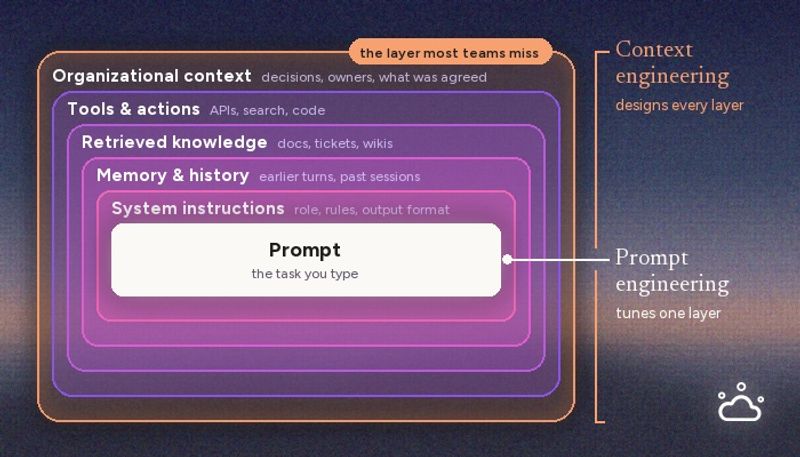
Context Engineering vs Prompt Engineering: What Your AI Agents Are Missing

Claude Memory: How to Import and Manage Your AI Context

Claude Cowork Connectors: Automate Recurring Work

Google Gemini MCP Support: Where It Works and Setup Tips

Best Claude Skills: Top Picks for Meetings, Content, and Code

5 Best AI Scheduling Assistants

Microsoft Teams MCP: How to Access Meeting Content With AI
Want the convenience of AI summaries?
Try Tactiq for your upcoming meeting.
Bringing AI into your meetings has never been so easy.
Add to Chrome - It's free!(opens in a new tab)Try Tactiq in your upcoming meeting!
Sign up now