
How to Schedule a Teams Meeting with a Link
- Published:
- July 15, 2026
- Updated:
- August 12, 2026

Scheduling a Microsoft Teams meeting takes a few clicks, and Teams handles the meeting link automatically. Every scheduling method generates a join link, whether you use the Teams calendar, Outlook, or a chat window. You don't need to build the link yourself or copy anything manually.
This guide covers everything you need to schedule a Teams meeting and share the link with confidence:
- How to schedule a meeting via the Teams app, Outlook, or a chat
- How to copy and share the join link with anyone
- How to invite people outside your organization
TL;DR: How to Schedule a Microsoft Teams Meeting with a Link
Open the Teams app, Outlook, or a chat, turn on the Teams meeting toggle, and Teams auto-generates the join link once you save or send the invite. Copy that link anytime from the meeting details and share it with colleagues or external guests, as long as outside access is allowed.
Recurring meetings keep one persistent link across every occurrence, and once the meeting's live, Tactiq (opens in a new tab) transcribes it and prepares a summary you can review afterward.
How to Schedule a Teams Meeting with a Link (Step-by-Step)
Teams gives you three main ways to schedule a meeting, and each one produces the same auto-generated join link. Pick whichever method fits where you're already working, whether that's the Teams app itself, your Outlook inbox, or an existing chat thread.
Once you hit send, Teams automatically adds the meeting to both your Teams and Outlook calendars.
For a broader look at running the meeting itself, check out this guide to a perfect Microsoft Teams meeting (opens in a new tab).
Schedule via the Teams app (calendar tab)
1. Open the Teams app and select the Calendar icon on the left side.
2. Select a time slot on the calendar, or select New to create a meeting.
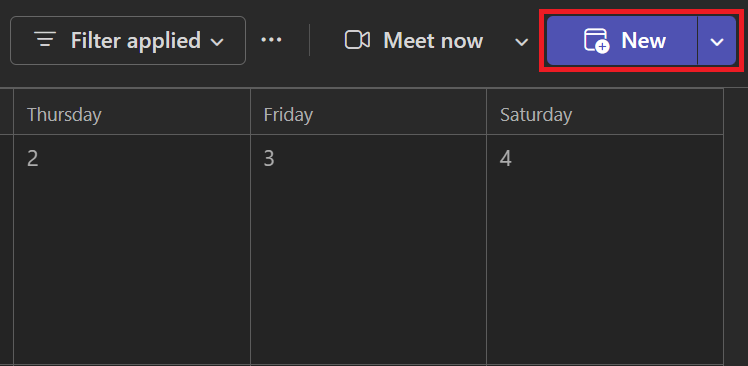
3. Add your meeting title, date, time, and attendees.
4. Turn on the Teams meeting toggle to make it an online meeting.

5. Select Save. Teams automatically generates the join link for everyone invited.
Schedule via Outlook
New Outlook (desktop or web):
1. Select Calendar, then select New event.
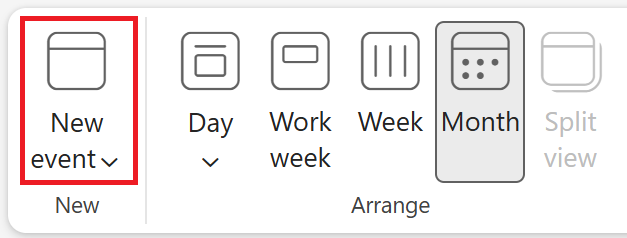
2. Turn on the Teams meeting toggle next to the title field.
3. Add your meeting details and attendees, then select Send.
Classic Outlook (desktop):
- Select the drop-down arrow next to New Email, then choose Meeting.
- Select the drop-down next to Teams Meeting and pick Schedule meeting.
- Add your details and attendees, then select Send.
Either way, the Teams join link populates the invite automatically once you send it.
Schedule via a Teams chat
- Select Chat in Teams, then select More chat options at the top of the chat window.
- Select Schedule a meeting.
- Add your meeting details, then select Send.
This method works well when you're already coordinating with the same group and don't want to start a new invite from scratch.
How to Get and Share the Meeting Link
Once a meeting exists on your calendar, grabbing the link takes just a couple of clicks. You don't need to dig through email or recreate the invite. Teams keeps the join link attached to the meeting itself, so it's always available from the meeting details.
Copy the join link from an existing meeting
1. Open Teams and go to your Calendar.
2. Click the scheduled meeting to open its details.
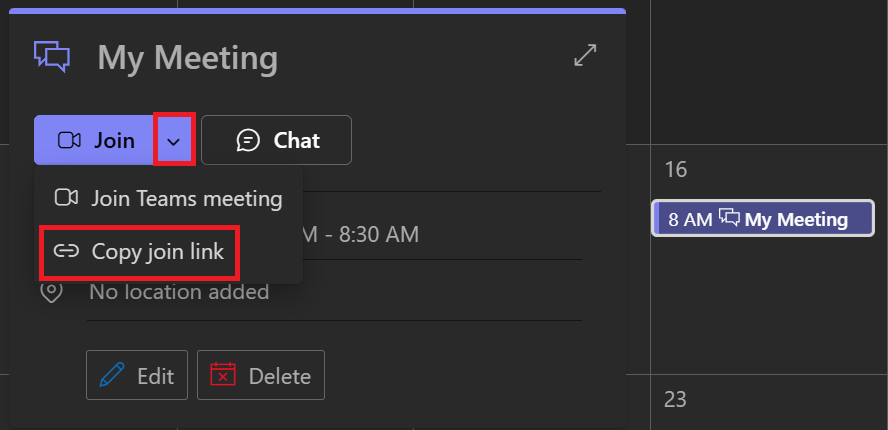
3. Click the arrow next to Join then select Copy join link. The link copies straight to your clipboard, ready to paste anywhere.
Sharing via email, chat, or other apps
Once you've copied the join link, paste it into any channel your invitees actually check. Drop it into a Teams chat, an email, or a project management tool like Asana or Trello. The link works the same no matter where you paste it, since it isn't tied to a specific app.
💡 Pro tip: Once your meeting starts, Tactiq (opens in a new tab) captures the transcript automatically, so you don't need to manually copy notes alongside the link.
Meet Now vs. Scheduled Link (Key Differences)
Not every meeting needs a calendar invite. Teams also lets you start a call instantly, without scheduling anything in advance. Knowing when to use each option saves you from cluttering your calendar with one-off calls.
When a meet now / instant link is appropriate
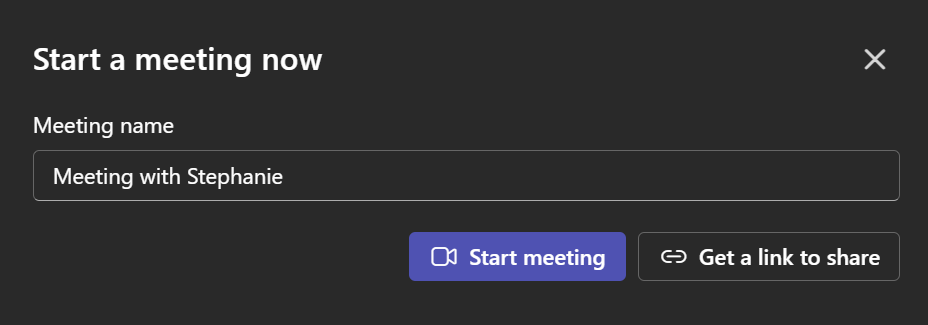
Meet Now works best for spontaneous conversations that don't need advance planning. Use it when a quick sync comes up in a chat, or when you want to loop someone in immediately.

To start one, click Meet now in your calendar, or use the camera icon inside any chat. Once you start the call, select the Copy meeting link to grab a link if you need to pull someone in who isn't already there.
If you want to see how joining actually looks from the other side, this guide on how to join a Microsoft Teams meeting (opens in a new tab) walks through it step by step.
Why scheduled or recurring meetings need a persistent link
Scheduled meetings work differently. Every scheduled meeting, including recurring ones, gets a single join link that stays the same for every occurrence. This matters for weekly standups, client check-ins, or any meeting people need to find again later.
A persistent link also keeps your meeting history connected. Six months from now, that same invite still opens the correct meeting thread and any past chat messages tied to it.
Inviting People Outside Your Organization
Teams meetings aren't limited to people inside your company. You can invite clients, contractors, or partners the same way you'd invite anyone else, as long as your organization allows external access.
Sharing the link with external guests

Add the external person's full email address to the Required attendees field when scheduling, just like you would for an internal invitee. You can also share the join link directly through email or chat after the meeting is created.
External guests receive the same invite and the same link as everyone else. There's no separate process or special format required on your end.
For a deeper look at permissions, guest types, and lobby settings, see this guide on how to invite external users to a Microsoft Teams meeting (opens in a new tab).
What external guests need (no license required)
External participants don't need a Microsoft Teams license or account to join. They can enter through the meeting link using a web browser; no download required.
Depending on your organization's settings, some external guests may wait in the lobby before an organizer admits them. This is normal and doesn't mean the link failed.
Managing a Scheduled Meeting
Once a meeting is on the calendar, you're not locked into the original details. Teams makes it easy to adjust timing, attendees, or the recurrence pattern without creating a new invite.
Editing time and attendees
- Open the Teams calendar and select the meeting to view its details.
- Drag the meeting into a new time slot, or open the details, choose a new time, and select Send update.
- To add or remove attendees, edit the Required attendees field, then select Send again.
Everyone invited gets an automatic notification with the updated details. You don't need to manually reach out to let people know.
Creating a persistent or reusable link for recurring meetings
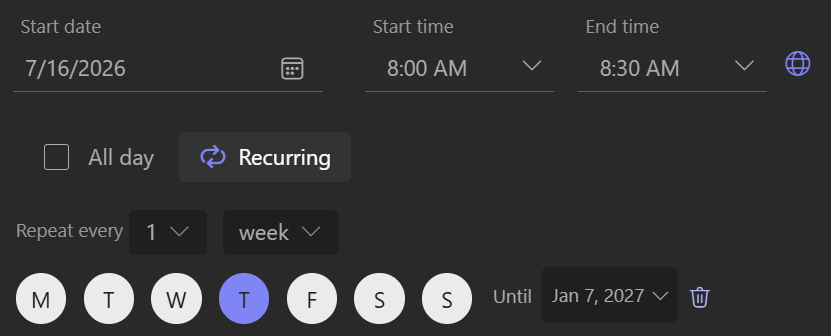
Recurring meetings use a single join link for every occurrence, so you don't need to generate a new one each week. Set the recurrence pattern when you first create the meeting, and Teams applies the same link to every instance in the series.
If you want someone else to open the meeting on your behalf, add them as a co-organizer. This guide on whether someone else can start your Teams meeting (opens in a new tab) covers co-organizer roles and lobby settings in more detail.
Troubleshooting Common Link Issues
Most link problems come down to a handful of predictable causes. Here's how to work through the most common ones.
Link not working or expired
Teams join links don't expire on a set schedule, so a "not working" link usually points to something else. Sometimes the meeting was never set up as an online meeting at all, so there's no join link to click.
If you're the organizer, open the meeting details from your calendar and check that the Teams meeting toggle is turned on. If you're an attendee and there's no join option, the toggle is likely off, and only the organizer can turn it on.
Low internet connectivity can also block a join attempt before it fully loads. Try waiting for your connection to stabilize, or switch to a supported device.
Recipient can't join (lobby, permissions)
If someone's stuck waiting, they're likely in the lobby, and an organizer or presenter needs to admit them. Some meetings also require email verification before letting a guest in, so check whether the person completed the one-time passcode step.
Security settings can block access too. If end-to-end encryption is turned on for the meeting, external or unverified guests may see a policy message and need the organizer's help to get in.
How to Make the Most of Your Scheduled Teams Meeting with Tactiq
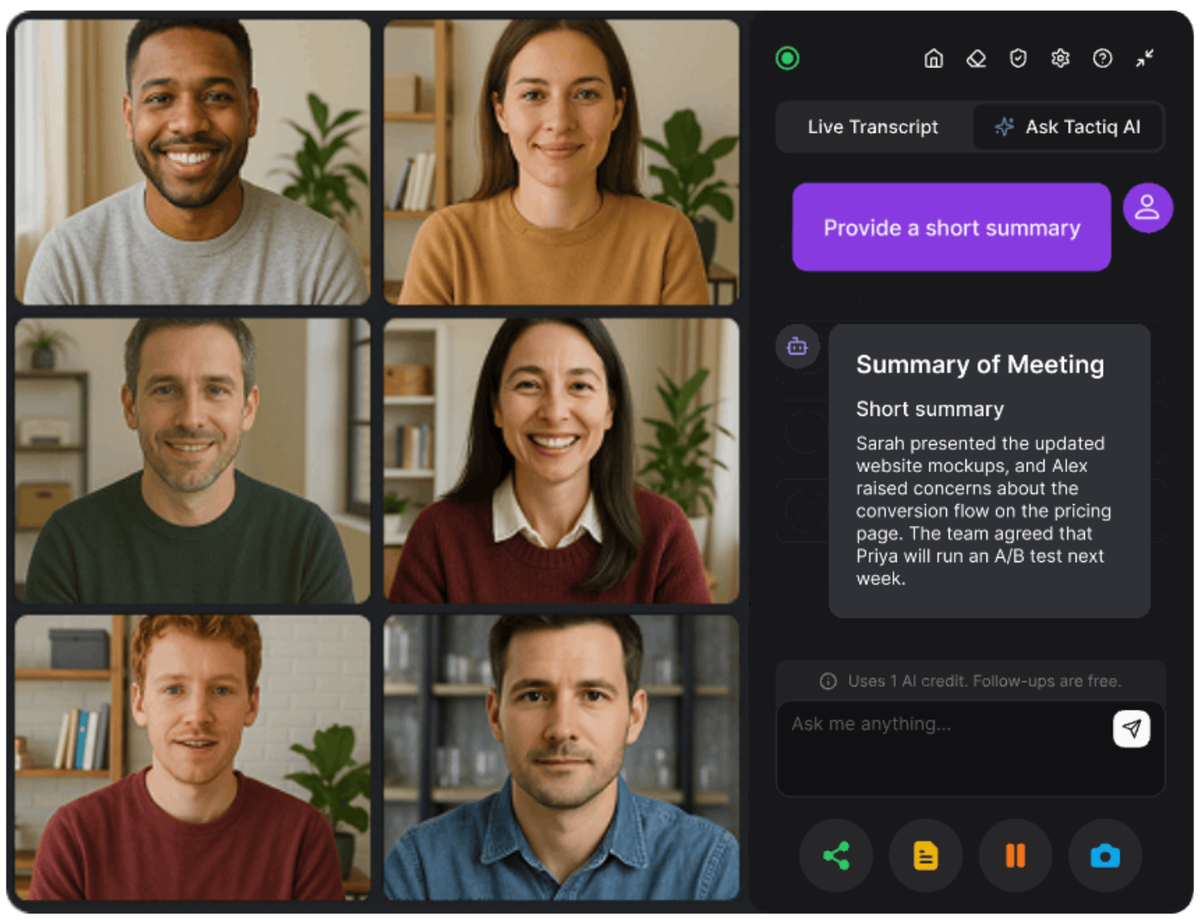
Scheduling your Teams meeting and sharing the link is only half the job. Once people join, someone still has to track what gets said, decided, and assigned. That's the part Tactiq handles.
As soon as your meeting starts, Tactiq (opens in a new tab) transcribes it live, right from your browser. No bot or separate recording app required.
Here's what happens automatically once your meeting is underway:
- Live transcription runs from the moment the meeting starts
- An AI summary generates once the meeting ends, with key points and action items
- Everything saves to a searchable transcript you can reference later
- Notes (opens in a new tab) can be exported to tools like Google Drive, Notion, or Slack
- Tactiq MCP (opens in a new tab) lets AI agents pull meeting transcripts directly into your CRM or workflow tools
This matters most for scheduled meetings, since those tend to carry the real agendas and follow-up work. A recurring sync or client check-in builds a searchable record over time, so you can find what was decided months later.
Install the Tactiq Chrome Extension today for free (opens in a new tab).
Want the convenience of AI summaries?
Try Tactiq for your upcoming meeting.
Scheduling a Teams Meeting Link Made Simple
Scheduling a Teams meeting with a link comes down to picking whichever method fits where you're working. Teams, Outlook, and chat all produce the same auto-generated join link on both calendars.
That link works the same for colleagues and external guests, as long as access is allowed. The key distinction is Meet Now versus a scheduled invite: one gets you in immediately, the other gives you a persistent link for recurring meetings.
Once the meeting's scheduled, Tactiq (opens in a new tab) picks up the transcript and summary automatically, so you're not rebuilding notes from memory.
FAQ
Your questions, answered.
If you have any further questions, Get in touch (opens in a new tab) with our friendly team
How do I generate a Teams meeting link?
What's the difference between a Meet Now link and a scheduled meeting link?
Can I invite someone without a Teams license using the link?
How do I create a reusable or persistent Teams meeting link?
Can I automatically get notes from a meeting I scheduled with a link?
Related articles
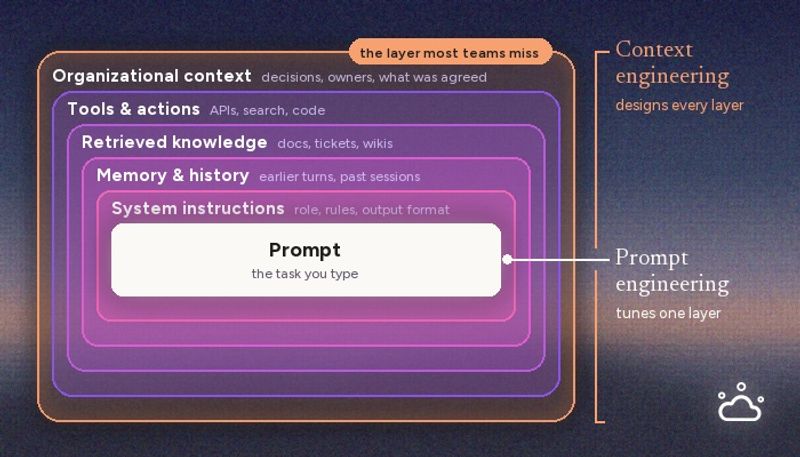
Context Engineering vs Prompt Engineering: What Your AI Agents Are Missing

Claude Memory: How to Import and Manage Your AI Context

Claude Cowork Connectors: Automate Recurring Work

Google Gemini MCP Support: Where It Works and Setup Tips

Best Claude Skills: Top Picks for Meetings, Content, and Code

5 Best AI Scheduling Assistants

Microsoft Teams MCP: How to Access Meeting Content With AI

How Do I Turn Off Google Gemini?
Want the convenience of AI summaries?
Try Tactiq for your upcoming meeting.
Bringing AI into your meetings has never been so easy.
Add to Chrome - It's free!(opens in a new tab)Try Tactiq in your upcoming meeting!
Sign up now