
How to Invite External Users to a Microsoft Teams Meeting
November 29, 2025
November 29, 2025
January 2, 2026
January 2, 2026

Inviting people outside your organization to a Microsoft Teams meeting can feel confusing the first time. You might wonder how external participants join, what access they get, or how to make sure your meeting stays secure.
Teams provides several ways to invite external users, but each option works differently depending on your settings and the type of account the person has.
Here’s a quick look at what we’ll cover:
- Who counts as an external user
- How to invite external guests using different methods
- What happens when users outside your organization enter the lobby
- How to adjust meeting options and permissions
- How to use Tactiq during external meetings for real-time transcripts and notes
Types of External Users in Microsoft Teams
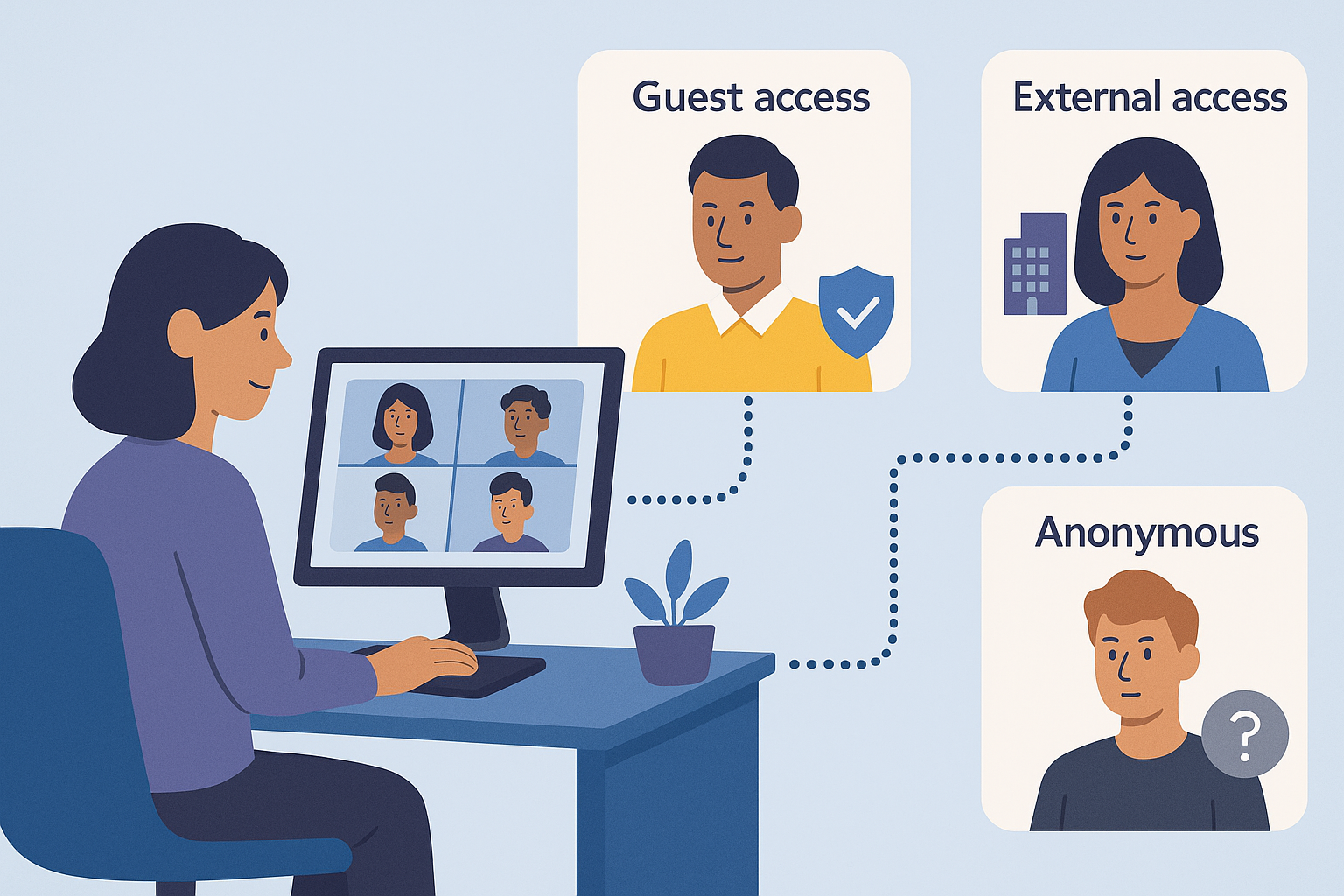
Inviting people outside your organization works best when you understand the different types of external participants Teams supports.
Each group joins your meeting differently, and their access depends on your organization’s settings. This helps your it admins keep meetings secure while you still meet with clients, partners, and other external attendees.
Types of external users
Microsoft Teams recognizes three main categories of external users :
- Guest access users
- Added to your directory with a guest account
- Join with their external email address
- Display “(Guest)” in the meeting
- Can participate much like internal participants, depending on permissions
- External access users
- Come from trusted Microsoft 365 organizations
- Both organizations must allow external access
- Display “(External)” when they join
- Treated as verified external attendees
- Anonymous participants
- Not signed in or not verifiable
- May not have a Microsoft account
- Display “(Unverified)”
- Allowed or blocked based on your organization’s compliance requirements
💡 Pro Tip: When external guests join your Teams meeting, you can't take notes and run the conversation simultaneously. Try Tactiq to capture real-time transcripts and automatically turn them into shareable summaries.
How To Invite External Users To Microsoft Teams Meetings (Step-by-Step Guide)
There are several ways to bring external participants into a Teams meeting. The method you choose depends on how quickly you need to invite them and how much information you want to include in the email invitation.
All options are compatible with guests, external access users, and anonymous participants, as long as your organization allows them to join.
Method 1: Schedule a meeting and add email addresses
This is the most common method for inviting external users. You can schedule a new meeting from the Teams calendar or Outlook calendar and add the guest’s email address directly.
From the Teams calendar:
1. Open Teams and go to Calendar.
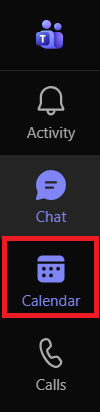
2. Click New on the upper right to create a new meeting.
3. Enter the meeting title, date, and time.
4. In the Invite attendees field, type the external email address. Add internal participants if needed.
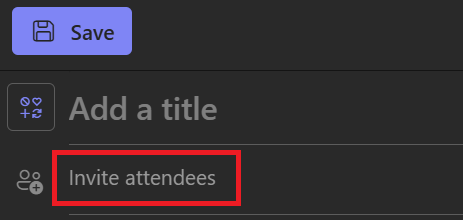
5. Enable the Teams meeting toggle.
6. Review the details and select Send.
7. The invited user(s) will receive the meeting link and can join the meeting from their email.
From the Outlook calendar:
1. Open Outlook and go to Calendar.
2. Select a date by double-tapping it.
3. In the Invite attendees field, enter the external user’s email and add other attendees.

4. Set the date, time, and details.
5. Enable the Teams meeting toggle.
6. Select Send to share the meeting with all invited users.
Method 2: Share a meeting link
If you have already created the meeting, you can copy the meeting link and share it with people outside your organization. You can also add users during an active meeting.
1. Open Teams and go to the Calendar tab.
2. Right-click on the scheduled meeting.
3. Select Copy meeting link.
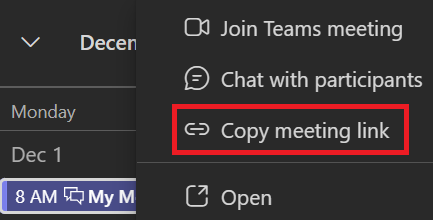
4. Share the link by email or chat.
5. External attendees can join the meeting directly using the link.
How to Manage External Users During Teams Meetings
Once your external guests join, you may want to control how they enter the room, what they can do, and how they participate. Microsoft Teams provides several tools to manage access, permissions, and the meeting lobby so you can keep the conversation secure and organized.
Understanding the lobby

The lobby acts as a waiting area for external attendees before they join the meeting. Your settings determine who waits and who enters right away.
- Guests may wait in the lobby depending on your default configuration.
- People from trusted Microsoft 365 organizations can often bypass the lobby if external access is allowed.
- Anonymous participants almost always wait in the lobby unless your settings allow them to join directly.
- Dial-in users wait in the lobby unless you change the setting.
Meeting organizers or presenters can admit, deny, or remove participants at any time. This helps maintain security when meetings involve people outside your organization.
Setting meeting options
Meeting organizers can adjust permissions and lobby behavior before or during the meeting.
Key settings include:
- Who can bypass the lobby: Choose if everyone, only people in your organization, trusted organizations, or guests can skip the lobby.
- Presenter vs. attendee controls: Limit actions like sharing content, managing chat, or admitting others to keep external meetings structured.
- Allowing or blocking anonymous participants: If compliance requirements are strict, your it admins may disable anonymous access completely. In that case, unverified users are blocked from joining.
What external users can and cannot do
External participants get a different set of permissions compared to users in your organization. What they can access depends on your Teams settings, meeting options, and the type of external attendee joining the meeting. The table you shared helps clarify the differences between external access users and guests. Here’s a simplified version of what each group can do.
What external users can do
- Chat with people in another organization
- Call someone in another organization
- Join the meeting from an email invitation or meeting link
- See the availability (presence) of someone in the meeting
- Use @mentions during the meeting chat (external access users may need specific permissions)
- Block someone in another organization if needed
- Participate in audio, video, and screen-sharing discussions
- View shared files during the meeting (guests have broader file access than external access users)
What external users cannot do
- Access internal files or channels outside the meeting
- Use search to look up people in your organization (guests cannot, some external access users can)
- See out-of-office messages from people in another organization (external access users cannot, guests can)
- Share files as external access users (guests can, but this depends on admin settings)
- Admit others to the meeting or change meeting options
- Bypass the lobby, depending on your compliance and lobby settings
- View sensitive content if the meeting uses restricted sharing or sensitivity labels
These limitations help protect your organization’s data while still allowing guests and external access users to participate fully in a Teams meeting when they join.
Troubleshooting Common Issues
External meetings can encounter several problems, especially when people outside your organization try to join. Here’s how to resolve the most common cases.
External users can’t join the meeting
This typically occurs when the participant isn’t verified or doesn’t meet your organization’s access requirements.
- Check if anonymous participants are allowed.
- Make sure the guest’s email address was added correctly to the invitation.
- Ask them to try joining from the latest version of Teams or a supported browser.
- Confirm that your it admins haven’t restricted external access for the organizer.
Anonymous access is disabled
If anonymous access is turned off, anyone who isn’t signed in with a Microsoft account or doesn’t have verified external access will be blocked.
- Ask the user to sign in before they join the meeting.
- Or, have an admin enable anonymous access if your compliance requirements allow it.
Browser compatibility issues
Some browsers block pop-ups, cookies, or device permissions, which prevents external participants from joining.
- Ask them to try Microsoft Edge or Google Chrome.
- Make sure they’ve allowed the browser to use their camera, microphone, and cookies.
- If the join page is stuck, ask them to open the meeting link in a new window.
External users have limited features
External attendees may notice that certain options, such as file access, search, or channel tools, are missing.
This usually means:
- They’re joining as anonymous participants instead of guests.
- The organizer has restricted certain features.
- Their organization blocks external collaboration.
If your guest appears as “Unverified,” they may have signed in with an account different from the one added to your Teams client. This mismatch prevents Teams from granting the correct permissions.
How To Use Tactiq For Meetings With External Users

When you host meetings with people outside your organization, note-taking can feel more challenging. External guests may join late, connection issues can interrupt the flow, and important details can slip by.
Tactiq helps you keep everything organized by capturing real-time transcripts and turning them into useful summaries you can share with your team.
Tactiq works with Microsoft Teams, Zoom, and Google Meet, so you can use the same workflow across all your meetings.
With Tactiq, you can:
- Capture live transcripts: See every comment in real time, including external attendees.
- Create AI summaries: Turn transcripts into quick recaps, action items, or follow-up messages.
- Use meeting kits and AI prompts: Build reusable prompts for client updates, project notes, and documentation.
- Translate or repurpose content: Generate summaries or translations for people who were unable to attend the meeting.
- Upload audio or video files: Get transcripts and summaries from recordings that external users send you.
- Send transcripts to Google Drive: Use AI workflows to auto-save notes for internal participants.
Try the free Tactiq Chrome extension to get instant transcripts and smarter collaborative meeting notes for your next Teams call.
{{rt_cta_ai-convenience}}
Bringing External Participants Into Teams Meetings With Confidence
Inviting people outside your organization doesn’t have to be complicated.
Once you understand the different types of external users, how lobby settings work, and what permissions each participant type receives, managing external meetings becomes much easier.
You can schedule meetings, share links, or add people on the spot, and adjust permissions to match your organization’s security needs.
With tools like Tactiq supporting your conversations, you also keep clear records of what was said, agreed on, and decided. No matter who joins the meeting.
FAQs About How to Invite External Users to a Microsoft Teams Meeting
How do I invite external users to a Microsoft Teams meeting?
You can add their external email address when scheduling a new meeting or share the meeting link with them.
Can external users join Teams meetings without an account?
Yes. They can join as anonymous participants if your organization allows anonymous access. If it’s disabled, they must sign in with a Microsoft account.
What is the difference between guest access and external access in Teams?
Guest access adds someone to your directory with a guest account, while external access allows verified users from trusted Microsoft 365 organizations to join.
Do external participants need a Microsoft account to join Teams?
No. They can join as anonymous participants unless that setting is blocked. If they appear “Unverified,” they may be signed in with a different account.
How do I enable guest access in Microsoft Teams?
Your IT admins must enable guest access in the Teams admin center. Once enabled, you can invite guests by adding their email to your meeting or directory.
Related articles





Want the convenience of AI summaries?
Try Tactiq for your upcoming meeting.
Want the convenience of AI summaries?
Try Tactiq for your upcoming meeting.
Want the convenience of AI summaries?
Try Tactiq for your upcoming meeting.