
Microsoft Teams Meeting Limit: Complete Guide 2026
October 5, 2025
October 5, 2025
October 14, 2026
October 14, 2026

Microsoft Teams is one of the most widely used video conferencing tools today, but every platform comes with limits.
Meeting length, attendee count, recording capacity, and file sharing all have maximum thresholds. Knowing these details helps teams plan better and avoid last-minute surprises during important calls.
What Are the Current Microsoft Teams Meeting Limits?
Microsoft Teams has different limits depending on the type of meeting, plan, and features in use. Here's a quick look at the most recent key specifications:
- Meeting duration: 60 minutes on free accounts, or 30 hours on paid plans.
- Participants in a meeting: 300 on basic plans, or 1,000 on enterprise and E plans.
- Town halls: 3,000 attendees with interactive features, 10,000 in view-only mode with Q&A, or 100,000 with an Attendee Capacity Pack.
- Breakout rooms: Up to 300 attendees.
- Recording length: 4 hours or 1.5 GB per recording.
- File upload per meeting: 250 GB per file.
These limits affect how Microsoft Teams users plan video meetings, share content, and manage events. Free accounts are the most restricted, while Microsoft 365 subscriptions extend the maximum limit audience size.
💡 Pro Tip: Running breakout rooms across a large meeting? Tactiq's real-time transcription keeps a full record of the main session. Try Tactiq free.
Time limits for Teams meetings
Meeting length depends on your plan:
- Free account: Group meetings on Microsoft Teams end after 60 minutes.
- Paid Microsoft 365 plans: Host meetings, webinars, and town halls for up to 30 hours without interruption.
- Applies across: The Teams app, Teams desktop client, and supported browsers.
Attendee limits by meeting type
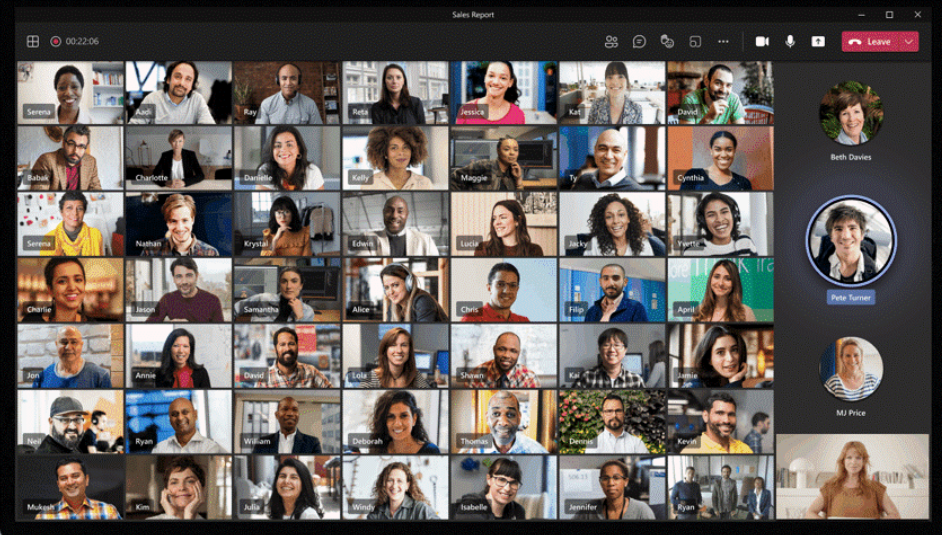
The maximum audience size in Microsoft Teams depends on the type of session you host:
- Standard meetings: Up to 300 participants with basic Microsoft 365 plans, and up to 1,000 with enterprise licenses. Everyone can chat, speak, and share.
- Video or audio calls from chat: Limited to 20 people. Beyond that, features like video calling, typing indicators, read receipts, and Teams status messages are disabled.
- Private chat: Supports up to 250 people total, though only 200 can be added to a group chat at the same time.
- Town halls: Support up to 3,000 attendees with interactive features, extendable to 10,000 in view-only mode with Q&A, and up to 100,000 with an Attendee Capacity Pack. Town halls replaced live events, which retired for all customers on June 30, 2026.
- Org-wide teams: A tenant can have up to 5 org-wide teams, including archived ones, each supporting up to 10,000 members drawn from the organization's Active Directory. If you regularly invite external users to a Teams meeting, these attendee caps still apply the same way.
For events that exceed interactive limits, Teams offers a view-only mode so additional participants can still watch the session.
Other relevant limits (Chat, Recording, etc.)
Beyond meeting time and attendee caps, Microsoft Teams sets limits on chat, recording, and file sharing:
- Private chat: File attachments are capped at 10 per chat, up to 100 MB each. For meeting-specific uploads, here's how to attach a file in a Microsoft Teams meeting.
- Meeting recordings: Each recording is capped at 4 hours or 1.5 GB. If this limit is reached, the recording stops and restarts automatically.
- Local download: Recordings not uploaded to Microsoft Stream stay available for local download for 20 days.
- File upload: The group file upload limit is 250 GB per file, with up to 25 TB of storage per team site.
- Storage backend: Since Teams runs on a SharePoint backend, SharePoint limitations apply to the Files tab.
- Private channels: No longer capped at 30 per team. Private channels now count toward the overall 1,000-channel limit per team, and each can hold up to 5,000 members, up from the previous 250.
These limits ensure performance stays stable across different operating systems, while also shaping how organizations manage collaboration at scale.
Free vs. Paid Teams: What Changes?
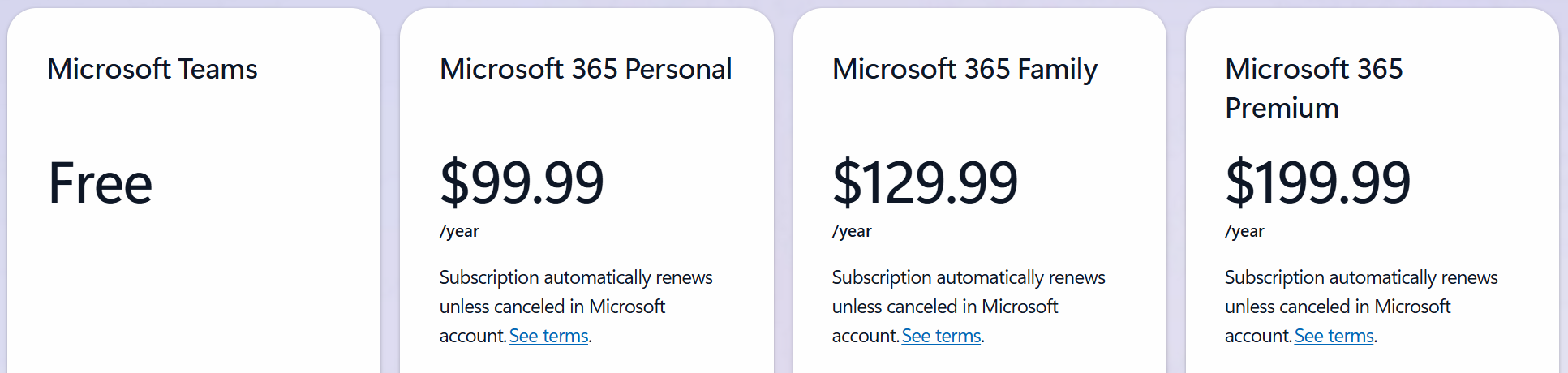
The Teams meeting limit changes significantly between the free version and Microsoft 365 subscriptions. Free accounts are best for casual or short sessions, while paid plans unlock extended durations, larger meetings, and built-in AI features.
- Microsoft Teams Free: Up to 100 participants per call with a 60-minute maximum. Includes unlimited chat, basic collaboration, and 5 GB of storage.
- Microsoft 365 Personal ($99.99/year): Expands meetings to 300 participants for up to 30 hours. Adds 1 TB of storage, desktop Office apps, and Microsoft Copilot built into Word, Excel, PowerPoint, and Outlook.
- Microsoft 365 Family ($129.99/year): Supports the same meeting limits as Personal (300 participants, 30 hours), for up to 6 people. Each person gets 1 TB of storage, totaling up to 6 TB, though Copilot features are limited to the subscription owner.
- Microsoft 365 Premium ($199.99/year): Includes everything in Family, plus expanded Copilot usage and access to more advanced AI features across Office apps.
Upgrading to a paid plan means you can host large meetings, run webinars without hitting time caps, and access premium Microsoft 365 tools that support workflow, security, and content creation.
If you're wondering whether a colleague can start your Teams meeting on your behalf, that depends on co-organizer settings available across all these plans.
How to upgrade and what you get
Switching from a free Teams account to a Microsoft 365 plan is simple. You can do it directly through Microsoft's website:
- Go to the Microsoft 365 plans page.
- Choose the subscription that fits your needs.
- Sign in with your Microsoft account.
- Enter payment details and confirm purchase.
Once upgraded, your account reflects the higher meeting limits right away, including the 300-participant cap and 30-hour duration.
If you're inviting people from outside your company, here's how to invite external users to a Teams meeting. Guest access settings work the same way across free and paid plans.
How to Manage Large Meetings and Events in Teams
Hosting a meeting with hundreds of participants requires more than just sending out a link. Microsoft Teams gives you tools to manage these sessions, but success depends on preparation and structure.
Preparing for large meetings
- Send invites early and clearly define roles like presenters, moderators, and attendees.
- Use org-wide team settings to reach everyone in your organization's Active Directory.
- Test technical setups in advance, including audio, video, and file sharing.
- Share ground rules in advance, like using mute, raising hands, or submitting questions in chat.
Managing interactive and view-only participants
Up to 1,000 people can join a Teams meeting and interact using chat, audio, and video. Once a meeting reaches that cap, new joiners are automatically added as view-only attendees, up to 10,000 total.
For events with tens of thousands, Town Halls support up to 3,000 attendees with interactive features. View-only mode with Q&A extends that to 10,000, and an Attendee Capacity Pack scales it up to 100,000.
Recording and documentation strategies
Enable meeting recordings to capture content for those who can't attend. Each recording is capped at 4 hours or 1.5 GB.
Recordings not stored in Microsoft Stream stay available for local download for 20 days. Use Teams files and SharePoint for archiving agendas, slides, and transcripts.
Assign someone to monitor chat and collect follow-up items, since some chat features don't work in very large groups.
How Tactiq Helps When You Hit a Teams Meeting Limit
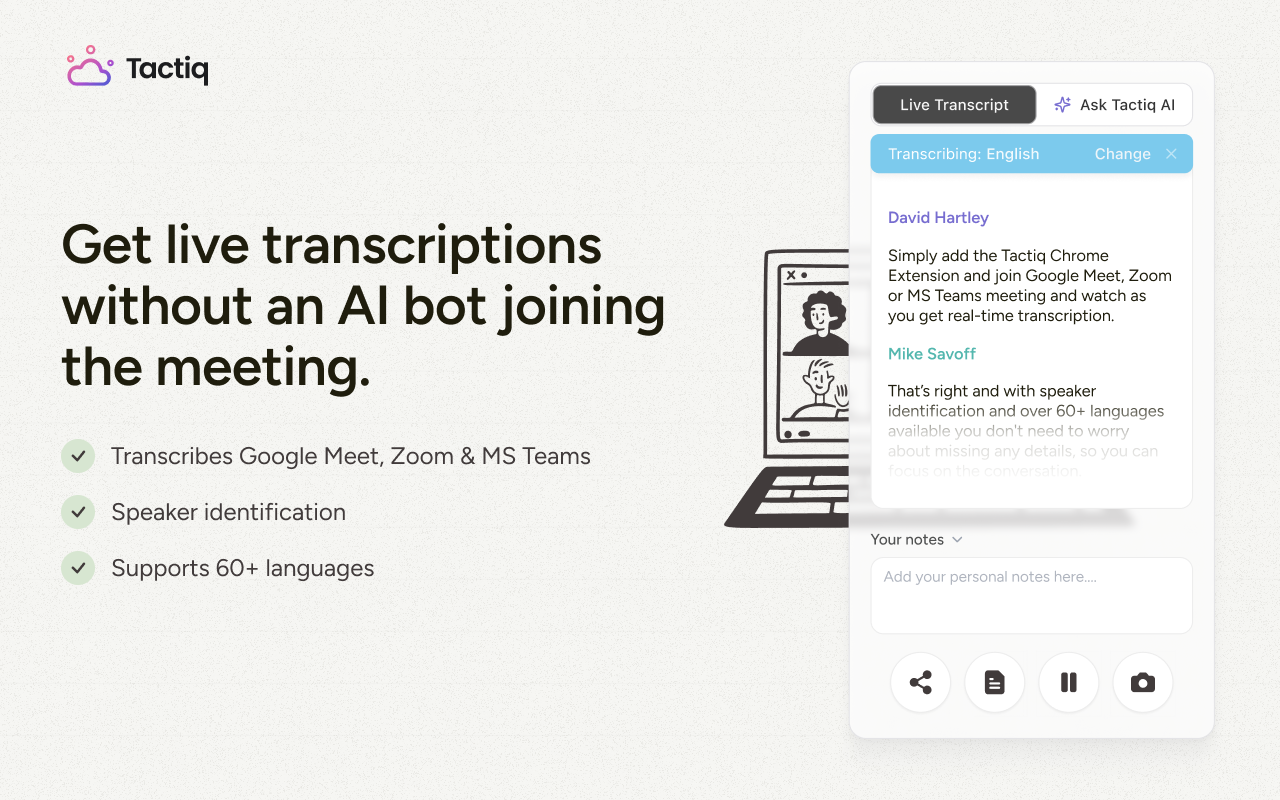
A 30-hour town hall or a 300-person meeting with breakout rooms creates a lot to keep track of. Tactiq captures the conversation in real time, so nothing gets lost even when a meeting pushes Teams to its limits.
Tactiq transcribes meetings live with no bot required, and it works across Microsoft Teams, Zoom, and Google Meet.
- Real-time transcription: Follow long or large meetings live, without relying on memory once they wrap.
- AI-generated summaries: Turn even hours-long recordings into collaborative meeting notes and clear action items.
- Searchable transcripts: Find a decision from hour four of a town hall without replaying the recording.
If you need to move a transcript out of Teams, here's how to export a transcript from Microsoft Teams.
Install the Tactiq Chrome extension today and keep every long or large Teams meeting organized.
{{rt_cta_ai-convenience}}
Wrapping Up
Microsoft Teams gives users generous limits, but every plan has boundaries. Free accounts cap group meetings at 60 minutes and 100 participants. Microsoft 365 plans extend meetings to 30 hours with up to 1,000 attendees.
Breakout rooms now support up to 300 participants. Town Halls replaced Live Events for large-scale broadcasts, reaching up to 100,000 attendees with an Attendee Capacity Pack.
Upgrading makes sense if your team regularly hosts large meetings or needs longer sessions. Whichever plan you choose, a tool like Tactiq can help keep every long or large session organized.
Yes. Free Microsoft Teams accounts have a 60-minute cap on group calls. Once you reach that limit, the call ends automatically. Paid Microsoft 365 subscriptions extend meeting length to 30 hours.
This refers to private chat. You can include up to 250 people in a single private chat thread. However, once a chat passes 20 participants, certain features like video calls and typing indicators are disabled.
You'll need to upgrade to Microsoft 365. Paid plans expand meeting duration to 30 hours and raise the interactive participant cap to 300, or 1,000 on enterprise licenses.
Breakout rooms support meetings with up to 300 attendees. Once breakout rooms are created, the overall meeting size locks at that 300-person cap.
No. Live Events retired for all customers on June 30, 2026. Town Halls replaced them, supporting up to 3,000 interactive attendees, 10,000 in view-only mode, or 100,000 with an Attendee Capacity Pack.
Related articles





Want the convenience of AI summaries?
Try Tactiq for your upcoming meeting.
Want the convenience of AI summaries?
Try Tactiq for your upcoming meeting.
Want the convenience of AI summaries?
Try Tactiq for your upcoming meeting.