
Can Someone Else Start my Teams Meeting?
November 30, 2025
November 30, 2025
February 17, 2026
February 17, 2026

Running late to a Teams meeting? Stuck on another call? Many people assume a colleague can jump in and start the meeting for them
But Microsoft Teams handles meeting roles in a very specific way, which affects who can start, manage, or control the event.
In this article, you’ll learn:
- Who can open and manage a meeting
- How to adjust lobby settings and bypass the lobby
- How co-organizers help with meeting scheduling
- How to set up your next new meeting so others can start it
Understanding Microsoft Teams Meeting Roles
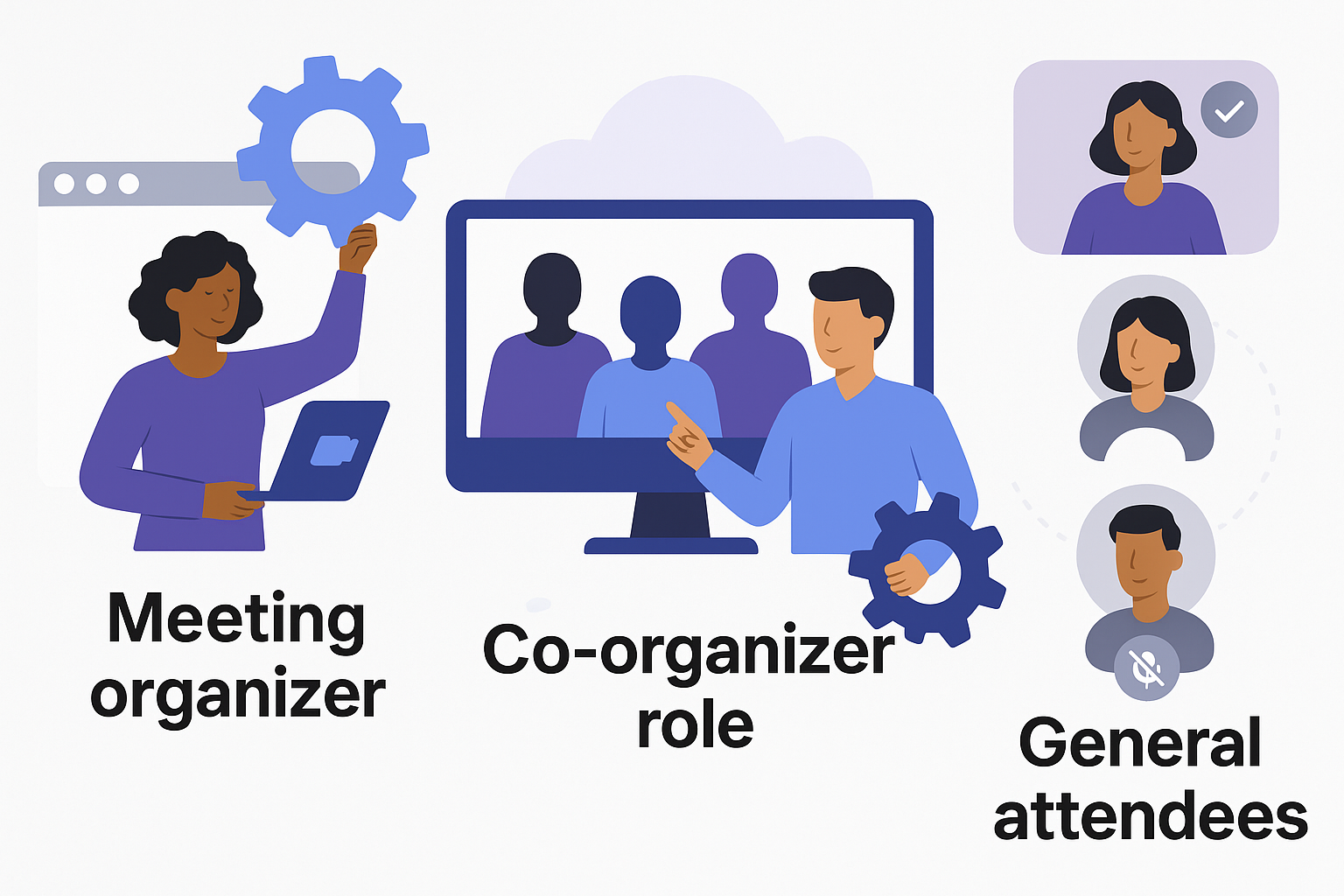
Understanding roles in Microsoft Teams meetings shapes how you manage access, meeting options, and how people join and participate. These roles define who can control the room, adjust settings, and start the Teams meeting on your behalf.
Meeting organizer
- Creates the meeting, sends the invite, and controls all settings.
- Decides who can bypass the lobby, manages participants, and updates meeting options anytime.
- Can start recordings, change roles, and remove people.
- No one else can take over the organizer role.
Co-organizer role
- Can start the meeting if the organizer isn’t there.
- Has most organizer permissions, including managing participants and meeting options.
- You can assign up to ten co-organizers from the same organization (including approved guests).
💡 Pro Tip: Want smoother meetings with less manual work? Use Tactiq to capture live transcription and AI summaries in Teams. It helps co-organizers stay aligned without having to scramble through notes.
Presenter vs attendee
- A presenter can share content, speak, use video, mute others, and control shared PowerPoints.
- They help run the session but cannot start the meeting or change organizer-level settings.
- An attendee has limited permissions. They can watch, chat, and participate, but cannot adjust meeting options, manage participants, or control the lobby.
Why presenters and attendees cannot start a meeting:
- Only organizers and co-organizers have permission to start or control the meeting.
- Presenters and attendees cannot access organizer-level meeting options.
- They cannot manage lobby rules, which affect how people join the call.
Methods to Allow Others to Start Your Meeting
If you want someone else to start your Teams meeting, you need to adjust specific meeting options or assign the right role. Microsoft Teams ties the ability to open a meeting room to certain permissions, so choosing the right method depends on your organization, the type of participants, and your meeting scheduling needs.
Method 1: Assign co-organizers (recommended)
Adding co-organizers is the most straightforward way to let someone else start your Teams meeting. Once assigned, they can open the meeting from their Teams calendar and assist in managing the session.
Add co-organizers from the Teams Calendar
1. Open the Teams app, then select the Calendar tab on the left panel.
2. Select the scheduled meeting.
3. Make sure the person you’re adding is included as a required attendee.
4. Select Edit > More options.
5. Open Meeting options.
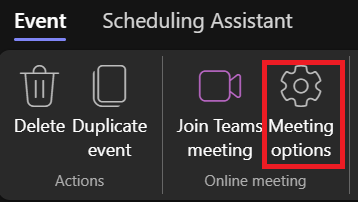
6. Under Choose co-organizers, search for their name.

7. Select Save to update the meeting invite.
Add a co-organizer during an active meeting
1. Open People from the meeting controls.

2. Hover over the person's name.
3. Select More options.
4. Choose Make a co-organizer.
Best practices for choosing co-organizers
- Add people who help with meeting scheduling or facilitation.
- Assign them early so they can start the meeting if you're not available.
- Include them directly in the Teams calendar invite.
- Confirm they know how to manage the lobby, present, and assist with participants.
Method 2: Configure meeting lobby settings
You can let someone else start your Teams meeting by adjusting the lobby settings so participants enter without waiting for the organizer.
1. Open your meeting from the Teams calendar.
2. Select Edit > More options > Meeting options.
3. Find Who can bypass the lobby and choose Everyone.
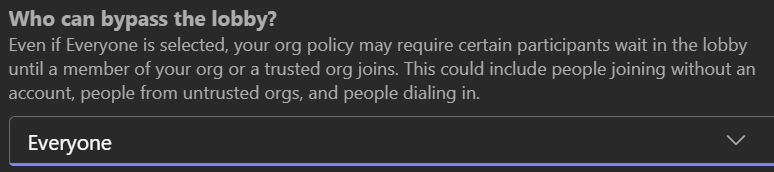
4. Set Who can present to the level you prefer.
This works well for internal members, but external users may still wait unless they’re allowed to bypass the lobby.
Method 3: Admin Center configuration (for anonymous users)
Allowing anonymous users to start a meeting is generally not recommended because it removes identity checks and can lead to privacy or security issues.
But if you still need people outside your organization to start the meeting without you, your IT admin must update the settings in the Teams Admin Center.
What an admin needs to enable
1. Open the Teams Admin Center.
2. Go to Meetings > Meeting settings.
3. Turn on Anonymous users can join a meeting.
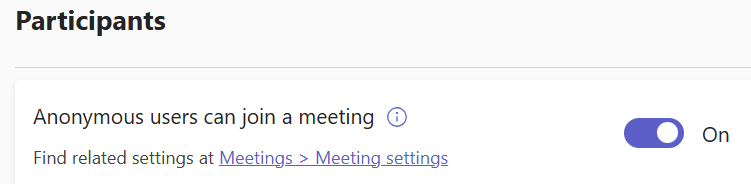
4. Save the changes.
Important notes
- Updates to meeting policies can take up to 48 hours to apply.
- These settings apply at the global or policy level, not just an individual meeting.
- This method is only necessary when your meeting invite includes external or anonymous participants who need to open the room.
Common Issues and Troubleshooting
Here are some common issues you may encounter during your meeting, along with their solutions.
The co-organizer can’t start the meeting
This usually happens when the person was signed in to an account different from your Teams client.
Fix: Ensure the Teams client is signed in to the same account from which the meeting was scheduled.
External users stuck in the lobby
External participants will not be able to enter automatically if your admin hasn’t enabled the right settings.
Fix: Your Teams admin must allow anonymous users to join and start meetings. Once enabled, set Who can bypass the lobby to Everyone.
Meeting policy restrictions
Some meeting policies limit who can present, join early, or bypass the lobby. These policies override your individual meeting settings.
Fix: Ask your Teams admin to review your assigned policy and confirm the correct permissions are enabled for your organization.
Lobby settings reverting
If your meeting was edited in Outlook after adjusting meeting options in Teams, the settings may revert to their default values.
Fix: Reopen Meeting options from the Teams calendar and update the lobby settings again.
Scheduling Meetings on Behalf of Others
You can schedule Teams meetings for someone else if they give you delegate access to their Outlook calendar. Once their calendar is shared with you, you can create meetings on their behalf and help manage their scheduling workload.
Using Delegate Access
The person you support must share their calendar with you first.
1. They open Outlook and go to the Calendar view.
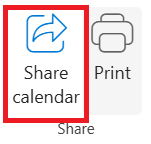
2. Select Share Calendar.
3. Choose the calendar they want to share.
4. Select Add and choose your name from their contacts.
5. Confirm the permission level (they should choose a delegate level that allows managing the calendar).
6. Select OK to finish sharing.
Once the calendar is shared, it will appear under your Shared Calendars list in Outlook.
How to schedule a meeting from their calendar
1. Open Outlook and switch to their shared calendar.
2. Create a new meeting directly on their calendar.
3. Add the required attendees and send the meeting invite.
4. The meeting will be created under their name, so they remain the organizer.
If you don’t add yourself as an attendee, the meeting won’t appear in your Teams calendar, but you can still join from the event in Outlook.
Who becomes the organizer
Even if you create the meeting, the other person remains the organizer by default. They keep all organizer-level control, including meeting options, lobby settings, and presenter permissions.
Best practices
- Add the person you’re scheduling for as a co-organizer so they can start the meeting if needed.
- Share any important changes to meeting options before sending the invite.
- Test access before major events to make sure the meeting join flow works as expected.
How Tactiq Can Help You with Your Microsoft Teams Meeting

Running Microsoft Teams meetings is easier when you’re not stuck typing notes, tracking action items, and chasing people after the call. Tactiq lets you stay present in the conversation while it captures everything in the background.
Tactiq works inside your Teams meeting to transcribe the discussion in real time and turn it into clear, shareable summaries. It’s useful when you work with co-organizers, manage meetings on behalf of someone else, or handle large groups of participants.
Here’s how Tactiq helps your meetings:
- Live transcription: See what’s being said in real time, so you don’t lose key details.
- AI meeting summaries: Get meeting notes, decisions, action items, and key points right after the meeting.
- 60+ language support: Transcribe Teams meetings across global teams on Microsoft Teams, Zoom, and Google Meet.
- Upload recordings: Import your Teams recordings to generate a transcript and AI summary.
- AI workflows: Send insights into your tools and automate updates after every meeting.
Download the free Tactiq Chrome extension today and start turning your meetings into actionable notes in seconds.
{{rt_cta_ai-convenience}}
Make Your Teams Meetings Easier to Start and Manage
Letting someone else start your Microsoft Teams meeting comes down to the roles and settings you choose.
Co-organizers can open the meeting for you, adjust settings, and manage the room. Lobby controls let people join without waiting, and meeting policies determine what external or anonymous participants can do.
With the right setup, your meetings stay on track even when you’re not the one pressing Start.
If you want clearer notes, faster follow-ups, and less manual work in every meeting, Tactiq helps you stay organized without extra effort. Install it once, and it supports all your future Teams meetings with real-time transcription and AI-powered summaries.
For more Microsoft Teams tips and meeting guides, check out our full Microsoft Teams collection.
FAQs About Someone Else Starting Your Teams Meeting
Can a co-organizer start a Teams meeting without the organizer?
Yes. Once added as a co-organizer, they can start the meeting from their Teams calendar even if the organizer hasn’t joined yet.
How do I let someone else start my Teams meeting?
Assign them as a co-organizer in your Meeting options, or adjust lobby settings so people can join without waiting for you.
Can external users start a Teams meeting?
Not by default. They can only start the meeting if your admin enables anonymous access and you allow everyone to bypass the lobby.
Why can’t my co-organizer start the meeting?
This often happens when they’re signed in with a different account than the one listed in your meeting invite, so Teams doesn’t recognize their role.
How many co-organizers can I add to a Teams meeting?
You can assign up to 10 co-organizers as long as they belong to the same organization.
Related articles





Want the convenience of AI summaries?
Try Tactiq for your upcoming meeting.
Want the convenience of AI summaries?
Try Tactiq for your upcoming meeting.
Want the convenience of AI summaries?
Try Tactiq for your upcoming meeting.