
Microsoft Teams Meeting Notes Disappeared
January 23, 2026
January 23, 2026
January 23, 2026
January 23, 2026

You finish a Microsoft Teams meeting. Later, you open the meeting again, and the notes are gone. The Notes tab is missing, empty, or replaced by something else.
This usually happens after a meeting ends, when Teams updates its layout, or when a meeting is created in a different way than expected. The notes may still exist, but Microsoft Teams stores them across several places. That makes access harder than it should be.
Meeting notes can live in the meeting chat, files, Loop components, or the Recap page. A small change in permissions or meeting type can make them feel lost. Before assuming they are gone for good, it helps to understand what happened.
In this guide, you’ll learn:
- Why do Microsoft Teams meeting notes disappear
- Where to find missing notes
- How to prevent this issue going forward
Why Do Microsoft Teams Meeting Notes Disappear?
When Microsoft Teams meeting notes disappear, the cause is usually structural, not accidental. Teams does not store all notes in one central place. Where notes live depends on:
- How the meeting was created
- Who organized it
- Which features were active during the meeting
Recent changes from Microsoft have also shifted how notes appear. Many users expect the Notes tab to behave the same way it always has. That is no longer the case.
Below are the most common reasons notes go missing.
Meeting type and scheduling issues
Meeting notes behave differently based on how the meeting starts. Meetings scheduled from the Teams calendar, Outlook, or a Teams channel each store notes in different locations. Channel meetings store notes with channel files, while private meetings rely on chat-based storage.
Instant meetings and ad-hoc calls often skip the Notes tab or fail to create a persistent place for notes. When a meeting is not scheduled in advance, notes are less reliably attached to the meeting details, which makes them harder to find later.
Licensing and permission requirements
Some meeting notes features depend on licensing and user roles. In Microsoft Teams for business, only certain users can view or edit notes. If permissions change after the meeting, notes may appear missing.
This often happens when:
- The meeting organizer leaves the company
- A user account is migrated from another organization
- Access rights change after the meeting ends
In these cases, the notes are stored, but no longer accessible to everyone.
How MS Teams has changed note-taking features
Microsoft has moved meeting notes into Loop-based components. In many meetings, the Notes tab has been replaced by the Recap page. Notes did not disappear. They were relocated.
This change has caused confusion across the Microsoft support community. Many users report opening past meetings and finding “0 comments” or no visible notes, even though notes were added during the meeting.
Some teams use external AI tools like ChatGPT to generate meeting notes in Microsoft Teams when native note-taking features fall short.
Sync and technical issues
Technical issues can prevent meeting notes from showing, even when they are still stored correctly. Cache problems, app version mismatches, or switching between the desktop app and the web version can stop notes from loading as expected.
In many cases, the notes are still stored in OneDrive or SharePoint, but the meeting page fails to surface them. This creates the impression that notes are missing when the issue is really a display or sync problem. Temporary disconnects or failed syncs during a meeting can also affect how notes and comments appear afterward.
How To Prevent Meeting Notes From Disappearing With Automatic Transcription

The most reliable way to prevent missing notes is to stop relying on where Microsoft Teams stores them. Native meeting notes depend on meeting type, permissions, and product changes. When any of those shift, access breaks.
Automatic transcription reduces that risk by creating notes from the conversation itself, not from a fragile Notes tab.
Tactiq provides live transcription for meetings and saves notes outside the Microsoft Teams meeting page. This means your notes stay accessible even when Teams updates its layout or changes how notes are surfaced.
What Tactiq captures for every meeting
Tactiq creates a separate, reliable layer of meeting notes that does not depend on Teams features.
Key features include:
- Live transcription for Microsoft Teams, Google Meet, and Zoom meetings
- Automatic meeting notes created from the discussion
- Searchable transcripts to quickly find key moments
- AI-generated summaries and action items after the meeting
- Notes saved outside the Teams meeting page
- No recording required
- Free plan available to get started
By keeping notes independent from meeting tabs, permissions, and Recap changes, Tactiq helps ensure meeting notes do not disappear again.
Install the free Tactiq Chrome Extension to keep meeting notes safe, searchable, and accessible after every Teams meeting.
{{rt_cta_ai-convenience}}
How To Recover Missing Teams Meeting Notes
If your Teams meeting notes seem to be missing, they are often still stored somewhere in Microsoft Teams. Notes can live in chat threads, files, or recap pages, depending on how the meeting was created and which features were active.
Below are the most reliable places to check.
Check your OneDrive (Microsoft Teams data folder)
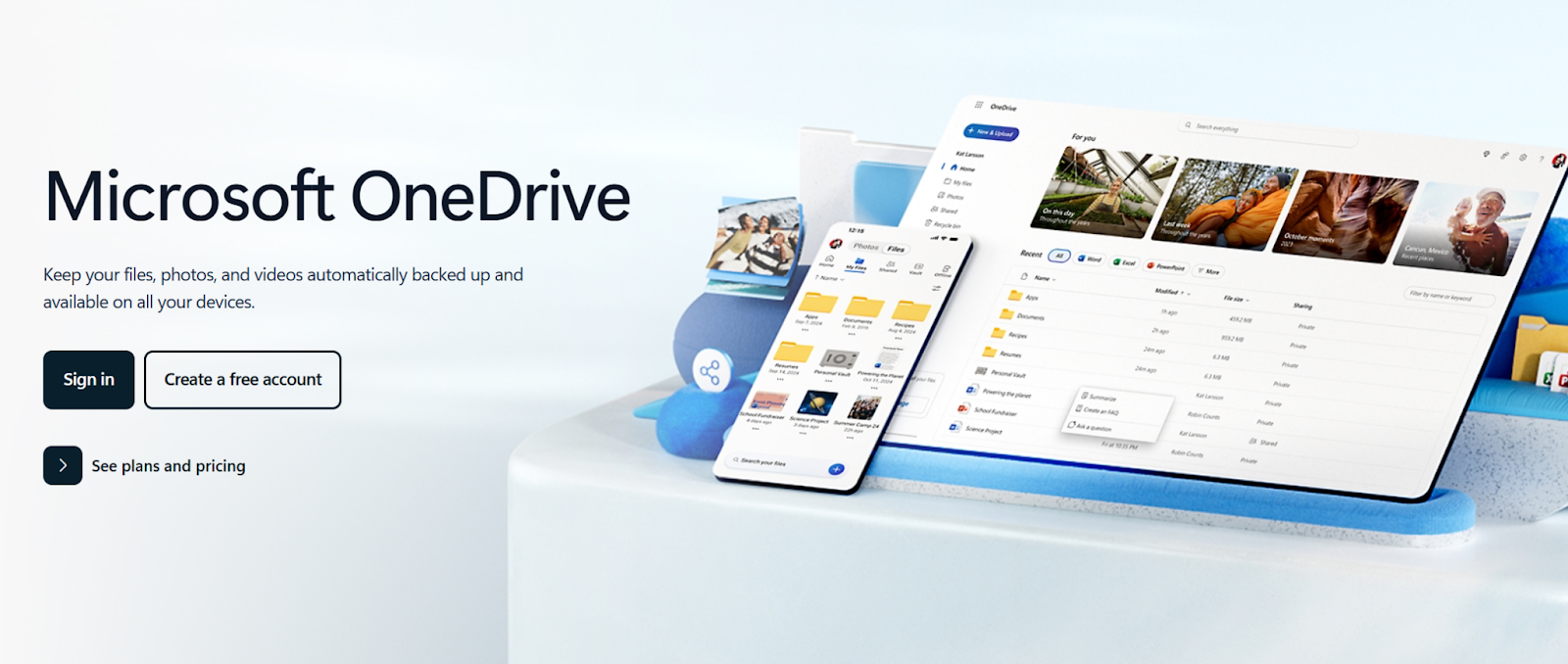
Microsoft Teams stores some meeting notes and files in OneDrive. This usually applies to private meetings and chats.
Open OneDrive and go to My files > Microsoft Teams Data > Wiki. You can also search by meeting name or date. Files created during the meeting, including notes and whiteboard content, may still be stored there.
Access notes through meeting chat
Many meeting notes live directly inside the meeting chat. Open the past meeting and scroll through the chat conversation. Look for pinned messages, Loop components, or notes shared during the discussion.
If comments were added during the meeting, they often appear as part of the chat thread rather than in a separate Notes tab.
Use the Recap tab
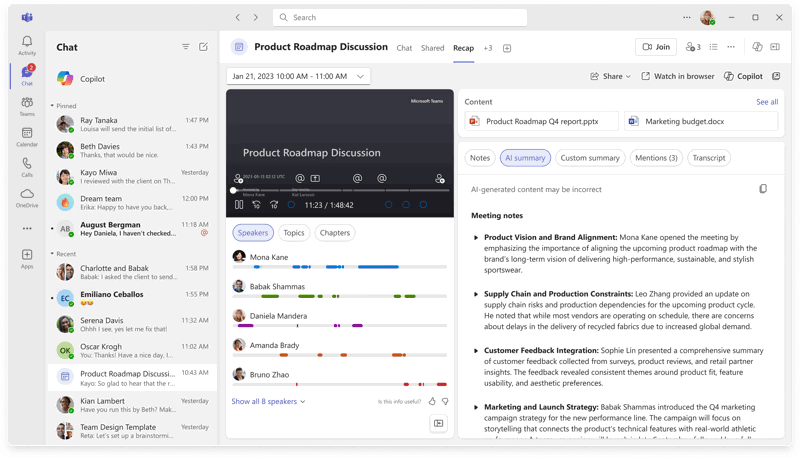
In newer versions of Microsoft Teams, the Notes tab has been replaced by Recap. Open the meeting details and select Recap to view available notes, transcripts, and shared content.
If the meeting was recorded or transcription was enabled, Recap is often the only place where notes remain accessible.
Check SharePoint
Channel meetings store notes and files in the connected SharePoint site. Open the relevant Teams channel, select Files, and open the SharePoint folder linked to the meeting.
Notes, recordings, and shared documents may be stored there even if they no longer appear on the meeting page.
Open .mht files
Older Teams meetings sometimes saved notes as .mht files. These files may still exist in meeting folders, but require a browser to open.
Download the file and open it using Microsoft Edge or Internet Explorer mode to view the stored notes.
Troubleshooting: Teams Meeting Notes Not Showing
When meeting notes do not appear, the issue is often technical rather than permanent. Microsoft Teams may still have the data, but the app fails to display it correctly. These checks can help restore access.
Clear Teams cache
A corrupted cache can block notes, chat, and files from loading. Closing the Teams app and clearing the cache often fixes missing content.
After clearing the cache, reopen Teams and sign in again. Many users report that notes reappear once the app reloads fresh data.
Update the Teams app
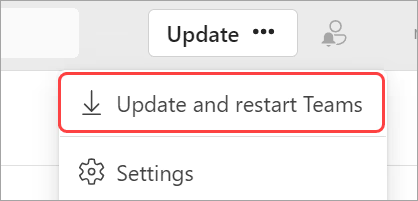
Outdated versions of Microsoft Teams can cause sync problems. Learn how to update your app here.
Microsoft regularly changes how meeting notes, Recap, and Loop components work. Updates ensure compatibility with these changes.
Check admin settings
Some organizations restrict access to meeting notes, recordings, or transcripts. Admin-level settings can block notes from showing even if they exist.
If notes disappeared after a policy change, contact your Teams admin to confirm permissions and access rules.
Verify recording and transcription were enabled
For some meetings, notes appear only when recording or transcription is active. If neither was enabled, Recap may not show any content.
This does not mean notes were never created, but it does limit where Teams stores them.
Best Practices For Teams Meeting Notes
Meeting notes often disappear because Microsoft Teams relies on fragile connections between meetings, chats, and files. These best practices reduce that risk and make notes easier to access after the meeting ends.
Always schedule meetings properly
Create meetings through the Teams calendar instead of starting instant or ad-hoc calls. Scheduled meetings attach notes, files, and discussion threads more reliably, which improves long-term access.
Enable transcription and recording
When transcription or recording is enabled, Teams stores more meeting data in Recap and linked files. This increases the chances that notes, comments, and action items remain visible later.
Use the desktop app instead of the web
The desktop app handles syncing, file access, and Loop components more consistently than the browser version. Notes are less likely to fail loading or appear missing.
Consider backup solutions
Relying on one Notes tab creates risk. Saving summaries, action items, or transcripts outside the meeting ensures you keep critical information even if Teams changes its layout again.
Wrapping Up
When Microsoft Teams meeting notes disappear, the problem is rarely the notes themselves. It is usually the way Teams creates, stores, or displays them. Meeting type, permissions, feature changes, and sync issues all play a role.
Recovery is often possible. Notes may still exist in meeting chat, Recap, OneDrive, or SharePoint. Knowing where to look saves time and avoids repeating work.
Prevention matters more than recovery. Scheduling meetings properly, enabling transcription, and using the desktop app reduce risk. Using automatic transcription tools adds another layer of protection by keeping notes outside fragile meeting pages.
If you want consistent access to meeting notes without worrying about where Teams stores them, try Tactiq's free Chrome extension today.
FAQs About Microsoft Teams Meeting Notes Disappeared
Why can’t I see my meeting notes in the Recap tab?
The Recap tab only shows content when certain features are active. If transcription or recording was not enabled, Recap may appear empty. Notes may still exist in meeting chat, files, or SharePoint, but Recap will not surface them.
How do I recover Teams meeting notes that disappeared?
Start with the meeting chat and the Recap page. If nothing appears, check OneDrive and SharePoint folders linked to the meeting. Older meetings may store notes as files rather than visible tabs.
Where are my old Teams meeting notes stored?
Older notes are usually stored in OneDrive, SharePoint, or embedded in chat threads. Channel meetings store notes with channel files, while private meetings rely more on personal storage locations.
Why did the Notes tab disappear and get replaced by Recap?
Microsoft moved meeting notes to Loop-based components. The Notes tab was replaced by Recap in many meetings. Notes were not deleted, but the access point changed.
What’s the best alternative to Microsoft Teams for automatic meeting notes that won’t disappear?
Tactiq provides live transcription that saves notes outside Microsoft Teams. This keeps meeting notes accessible even when Teams tabs, permissions, or layouts change.
Related articles





Want the convenience of AI summaries?
Try Tactiq for your upcoming meeting.
Want the convenience of AI summaries?
Try Tactiq for your upcoming meeting.
Want the convenience of AI summaries?
Try Tactiq for your upcoming meeting.