
How Do You Take Meeting Notes in Outlook?
- Published:
- July 29, 2026
- Updated:
- September 30, 2026

Every Outlook user has stared at a calendar invite wondering where the meeting notes actually live. Outlook wasn't built as a note-taking app, so the options aren't always obvious. Some rely on the small Notes field buried in each event. Others lean on OneNote. Teams users get a newer Meeting Recap feature.
This guide covers:
- The built-in Notes field on calendar events, and its limits
- How OneNote gives your notes more structure than a text box
- What Meeting Recap shows you, and where it falls short
- How to get real-time transcripts and AI summaries without typing
TL;DR: How Do You Take Outlook Meeting Notes?
Outlook (opens in a new tab) doesn't have a dedicated meeting notes feature, but it offers a few native workarounds. The Notes field on a calendar event works for quick, personal details but isn't built for shared or detailed records. OneNote gives meeting notes more structure through templates and direct Outlook integration.
Teams users can also check Meeting Recap (opens in a new tab) for a transcript and recording after eligible meetings, though it only works for Teams calls. For live, automatic capture across any meeting platform, a Chrome Extension like Tactiq (opens in a new tab) fills that gap.
Does Outlook Have a Built-In Meeting Notes Feature?
Outlook doesn't have a feature Microsoft officially calls "meeting notes." What it has is a description box on every Outlook calendar event, plus a separate Meeting Recap feature for Teams calls. Neither one was built to capture what happens during the discussion itself.
The event description box
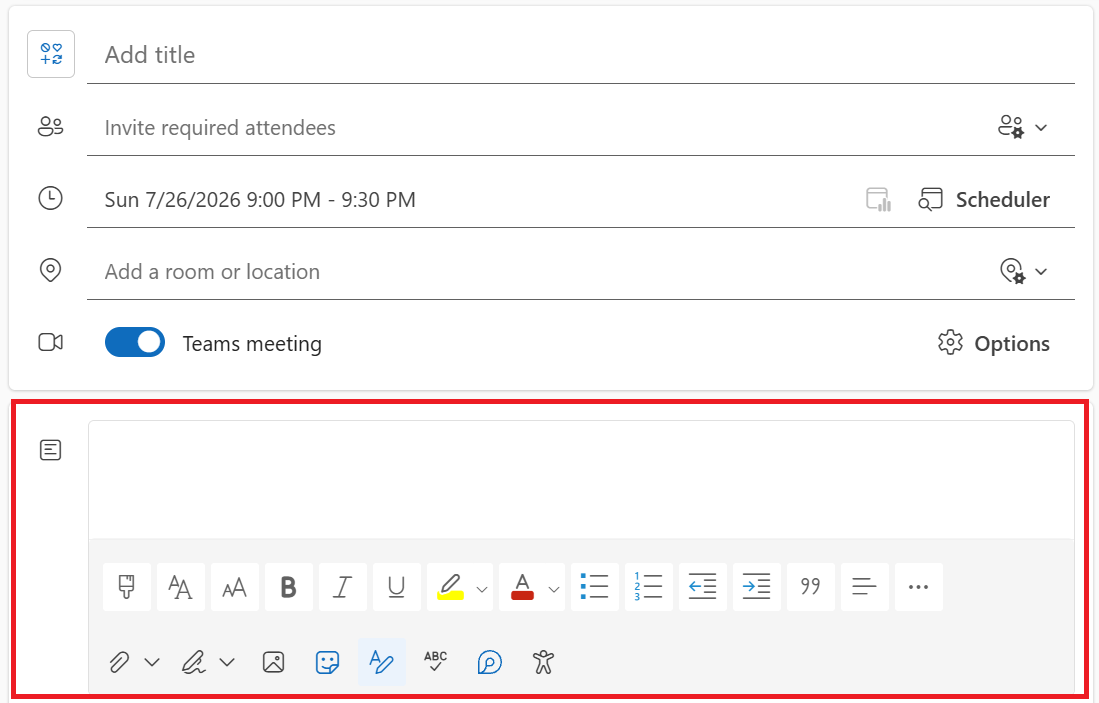
Every appointment, meeting, or event in Outlook includes a description area where you can type details for your own reference. This is the same box you'd use to add an agenda or location details when scheduling an event. It's often referred to as a "Notes" field, though it's really just the body of the event.
It works for jotting down quick context before a meeting, but it's manual, and it doesn't create a record of what was actually discussed.
Meeting Recap for Teams
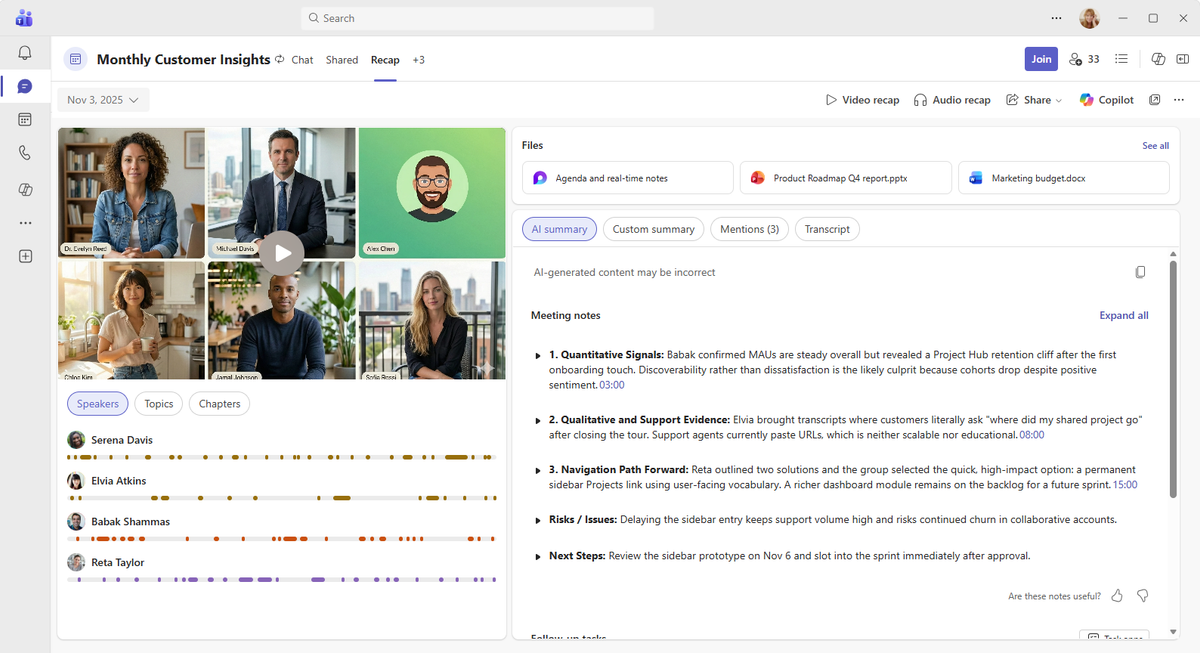
Outlook and Teams users also have Meeting Recap, a newer feature that gathers a meeting's recording, transcript, shared files, and follow-up tasks in one place. It only applies to Teams meetings that were recorded or transcribed, so it doesn't cover Zoom calls, Google Meet, or in-person meetings booked through Outlook.
How to Add Notes to an Outlook Calendar Event
Adding notes to a calendar event only takes a few steps, whether you're creating a new event or updating a meeting invite already on your calendar.
1. Open Outlook and go to your Calendar.
2. Double-click an existing event, or select New Event to create one.
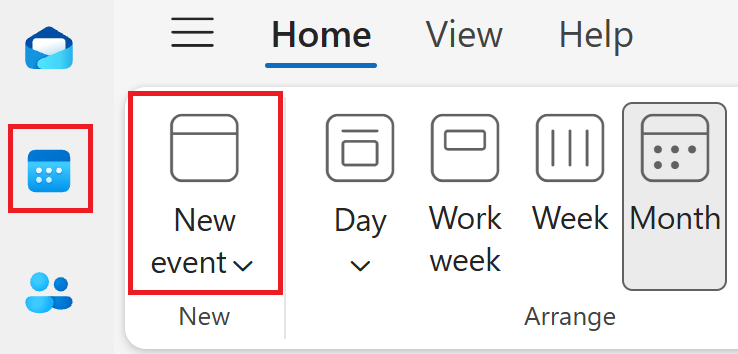
3. Enter your meeting details, like the subject, date, and attendees.
4. Scroll to the description section below the location field.
5. Type your notes directly into this box.
6. Select Save.
Note that the exact ribbon layout can vary slightly depending on your Outlook version.
This works well for short reminders or agenda points you want attached to the event. It comes with some real limits, though:
- Notes typed here are manual, so you're relying on someone to type them during or after the meeting.
- If you weren't the one who created the event, you may not be able to change this field.
- The notes aren't visible from the main calendar view, so you have to open the event to see them.
- This box captures whatever you set down in advance or after the fact. It doesn't capture the actual conversation as it happens. If you need to update or remove the invite instead, see How to Cancel a Meeting in Outlook (opens in a new tab).
💡 Pro tip: If you want a record of what was actually said, not just what you remembered to type, Tactiq (opens in a new tab)’s Chrome extension captures a live transcript and AI summary of your meeting automatically.
Using OneNote for More Structured Outlook Meeting Notes
OneNote gives you a more structured option than the description box on a calendar event. If you have Outlook and OneNote installed on the same computer, you can pull meeting details directly into your notes instead of typing them out again.
Here's how it works:
- In OneNote, go to the Home tab and select Meeting Details.
- If the meeting is today, choose its time and subject from the list to insert it.
- If it's on a different day, select the calendar icon, pick the date, choose the time and subject, then select Insert Details.
This inserts the meeting's date, location, agenda, and attendee list onto a new OneNote page. From there, you can edit the text freely without affecting the original event on your calendar.
If you'd rather add this to an existing page, click the inserted details to select the note container, then copy and paste them into your notes.
Note that this feature may not appear in every OneNote version or interface. If you don't see Meeting Details on the Home tab, you may be in a version that doesn't support this integration.
For a deeper walkthrough of setting up a notebook and formatting minutes, see Using OneNote for Meeting Minutes (opens in a new tab).
Outlook's Meeting Recap Feature
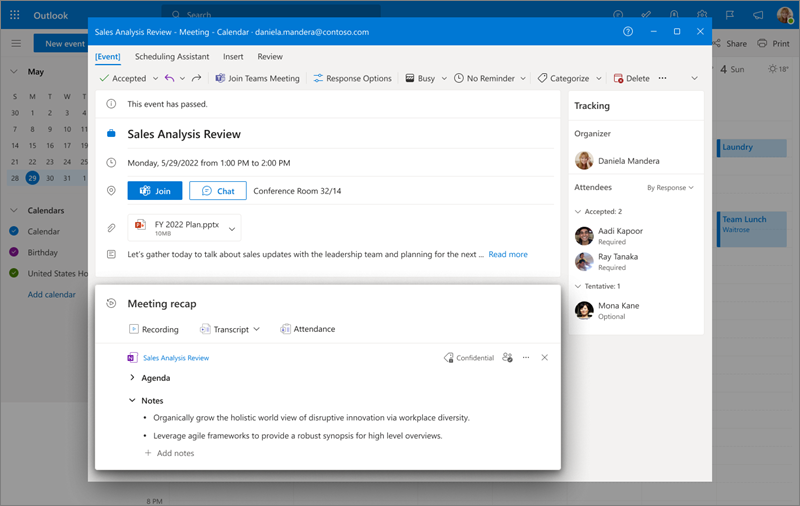
Meeting recap in new Outlook links you to a meeting's content directly from the calendar, instead of requiring you to hunt through separate apps. It doesn't store any files itself. It simply points to the recording, transcript, and shared files, wherever they already live.
To view a meeting recap:
- Open your calendar in a new Outlook tab.
- Click on a past meeting.
- If a recap is available, you'll see links to the meeting content in the meeting details.
Meeting recap only supports private, scheduled Teams meetings right now. It isn't available for several common meeting types:
- Non-Teams meetings, including Zoom or Google Meet
- Ad-hoc Teams calls that weren't scheduled in advance
- Teams channel meetings
- Meetings scheduled on a Microsoft 365 Group calendar
All meeting participants can see that a recap exists, but access to each individual asset, like the recording, still follows its own file permissions.
To check who's actually attending before the meeting, see How to See Who Accepted a Meeting in Outlook (opens in a new tab).
Getting Automatic Meeting Notes for Outlook Meetings with Tactiq
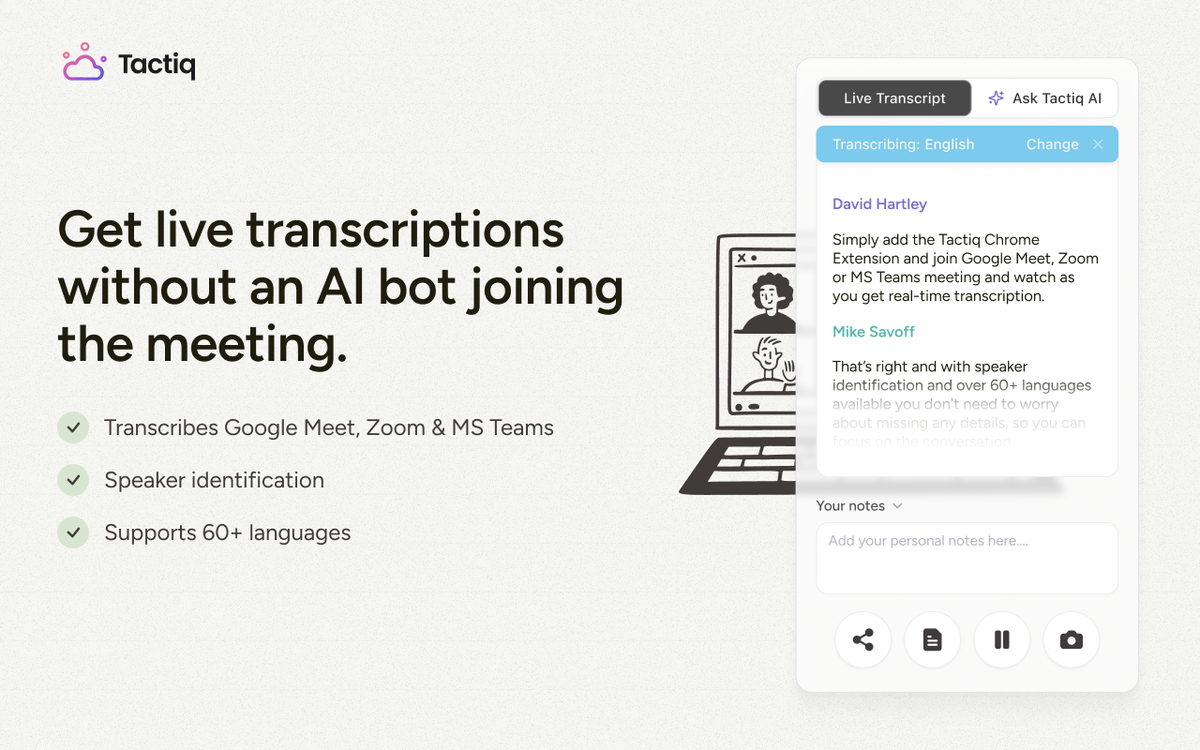
Every native Outlook option so far depends on someone remembering to type notes, or a Teams-specific feature that only works after the meeting ends. Tactiq closes that gap by capturing the discussion as it happens.
Tactiq (opens in a new tab) is a Chrome extension that transcribes Zoom, Microsoft Teams, and Google Meet calls in real time, directly in your browser. It works with meetings scheduled through Outlook, so you don't have to change how you already book calls.
This includes recurring meetings, where Tactiq picks up the transcript automatically each time the series runs.
Once the call ends, Tactiq generates an AI summary and pulls out action items on its own, no manual typing required. From there, you can:
- Send the summary to OneDrive (opens in a new tab) to keep it inside your Microsoft workflow
- Copy it into OneNote
- Share it directly with attendees who missed the call
For Zoom meetings booked through Outlook, see How to Add Zoom Meeting to Outlook (opens in a new tab). For Teams meetings, see Add Microsoft Teams to Outlook (opens in a new tab).
👉 Download the free Tactiq Chrome Extension (opens in a new tab) and get automatic meeting notes for every Outlook meeting you schedule.
Want the convenience of AI summaries?
Try Tactiq for your upcoming meeting.
Taking Meeting Notes in Outlook
Outlook offers a few native ways to track meeting notes, but none of them capture a live discussion automatically. The description box works for quick reminders, OneNote adds structure through templates, and Meeting Recap helps Teams users review a call afterward.
Each option has a gap. You're either typing manually, limited to Teams, or waiting until the call ends to see anything useful. For real-time capture, tools like Tactiq fill that space.
FAQ
Your questions, answered.
If you have any further questions, Get in touch (opens in a new tab) with our friendly team
Does Outlook have a meeting notes feature?
How do I add notes to an Outlook calendar event?
How do I take meeting notes in OneNote from Outlook?
What is Outlook Meeting Recap and how does it work?
How can I get automatic meeting notes without typing during the call?
Related articles

Gemini 3.5 Transcribe: Google Transcript Model Explained
Context Engineering vs Prompt Engineering: What Your AI Agents Are Missing

Google Gemini MCP Support: Where It Works and Setup Tips

5 Best AI Scheduling Assistants

Microsoft Teams MCP: How to Access Meeting Content With AI

How Do I Turn Off Google Gemini?

Best Free Dictation App Options

6 Best Wispr Flow Alternatives
Want the convenience of AI summaries?
Try Tactiq for your upcoming meeting.
Bringing AI into your meetings has never been so easy.
Add to Chrome - It's free!(opens in a new tab)Try Tactiq in your upcoming meeting!
Sign up now