
Using OneNote for Meeting Minutes
April 8, 2026
April 8, 2026
April 8, 2026
April 8, 2026

For anyone working in Microsoft 365, Microsoft OneNote is a natural first choice for meeting minutes. It's built into the suite, syncs across devices, and connects directly to Microsoft Teams and Outlook. Everything stays in one organized place.
But there's a catch. OneNote is a note-taking app; it doesn't automatically capture your meeting. Every word still has to come from you, typed in real time while you're also trying to follow the conversation. And even with Copilot built in, the AI can only work with what's already on the page.
This guide covers everything you need to know about using OneNote for meeting minutes, including:
- How to set up your notebook structure before the meeting
- How to use Meeting Details to auto-populate Outlook meeting info
- Best practices for taking meeting notes during the meeting
- How to share notes after the meeting
- How Tactiq can handle transcription and AI summaries so you stop typing and start listening
How to Use OneNote for Meeting Minutes
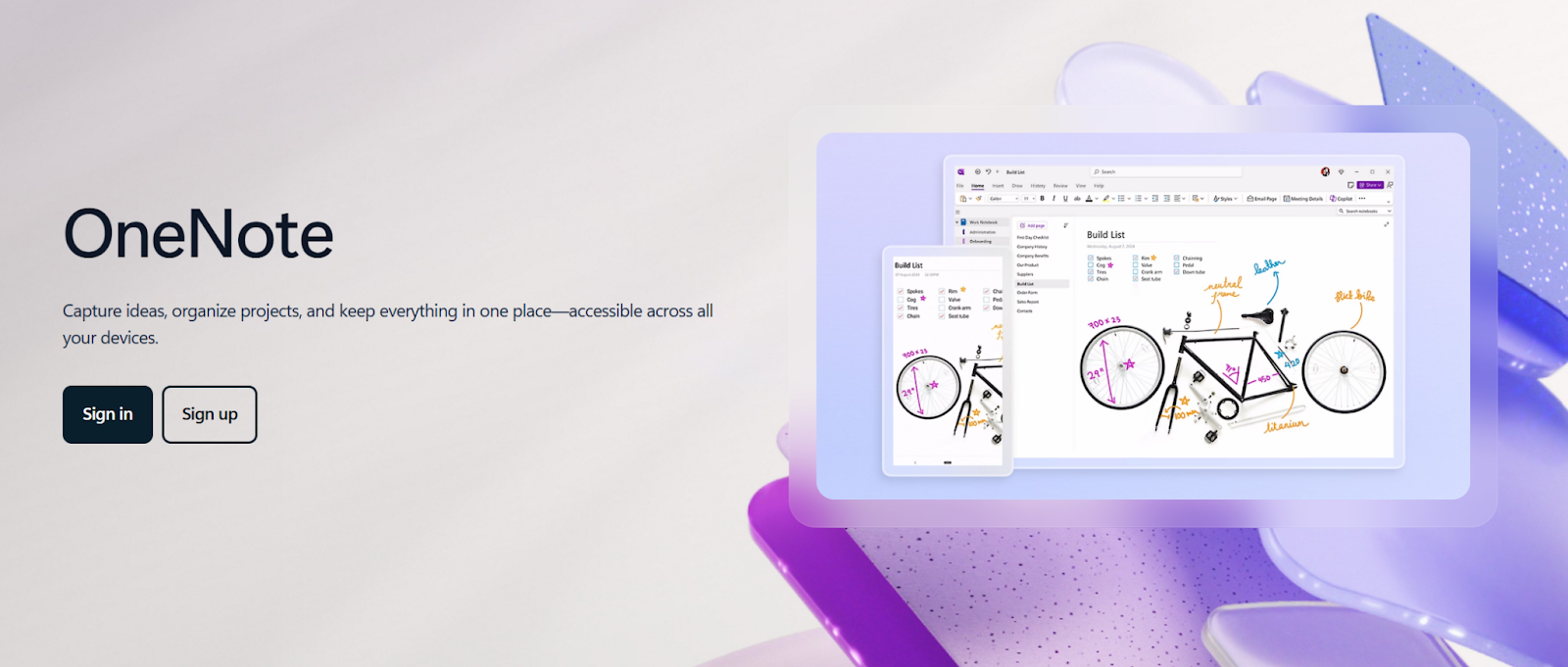
Notes in OneNote are organized in a three-level hierarchy: notebooks, sections, and pages. Getting this structure right before the meeting saves time and keeps your minutes easy to find later.
Setting up your notebook structure
Create a dedicated notebook for meetings. Inside it, create sections by team, project, or meeting type (for example, "Leadership Syncs," "Client Calls," or "All-Hands"). Then create a new page for each individual meeting.
Name each page with a date and subject, like "2025-06-10 Q2 Planning." Vague titles like "Meeting Notes" make managing meeting notes across multiple teams harder than it needs to be. A few structural tips worth building in from the start:
- Use one section per recurring meeting series
- Create a new page for each meeting date within that section
- Use subpages to capture follow-up threads or related documents
- Color-code sections for quick visual scanning
- Keep one section as a staging area for ad hoc meetings
Using Meeting Details to auto-populate meeting info
Instead of typing out the date, time, attendees, and location manually, OneNote can pull all of that from your Outlook calendar.
From New Outlook (Windows):
1. Right-click the meeting from your Outlook calendar and select Send to OneNote.
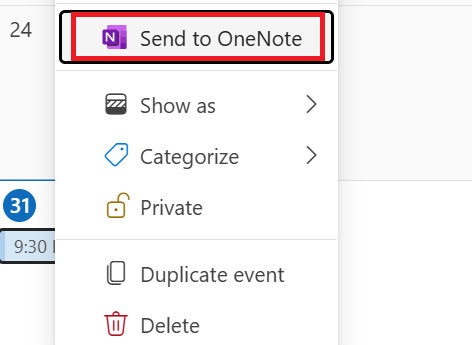
2. In the OneNote panel, select the notebook and section where you want to save the notes.
3. Click Save.
Note: Send to OneNote is not supported in Outlook 2019. If you're using the New Outlook client, you may need to enable the OneNote add-in first via Settings > Add-ins.
From OneNote on Windows (desktop app):
1. Click into the page where you want the meeting info.
2. Go to the Insert tab and click Meeting Details.
.png)
3. Select today's meeting from the list, or click Choose a Meeting from Another Day to pick a different date.
4. Select the meeting and click Insert Details.
From OneNote on Mac or web:
1. Open the OneNote page where you want to add the meeting details.
2. Go to the Insert tab and click Meeting Details.
3. Select today's meeting from the list, or use the dropdown to choose a different date.
4. Click Insert Details.
Sharing and distributing minutes after the meeting
Click Share in the top right corner of OneNote, then select Copy Link to Notebook to share meeting notes with your team.

💡 Pro tip: Tactiq transcribes your Teams meeting in real time and generates an AI summary you can copy straight into your OneNote template after the call. No manual note-taking required.
OneNote Meeting Minutes Templates
OneNote includes built-in page templates that give your meeting minutes a consistent structure from the start. You'll find them under Insert > Page Templates. The Templates pane opens on the right. Expand any category to browse the options.

For a full library of ready-made formats to adapt, the meeting minutes templates article covers 20 options across different meeting types.
Creating a custom reusable template
The built-in templates are a starting point. Most teams end up customizing one to match their recurring meetings: adding a standing agenda, removing fields they never use, or formatting action items their way.
Here's how to save a page as a reusable template:
1. Add a new page and set it up exactly the way you want it: headings, sections, placeholder text, tags.
2. Go to View > Paper Size.
3. Set your paper size and margins in the task pane.
4. Click Save current page as a template at the bottom of the Paper Size task pane.
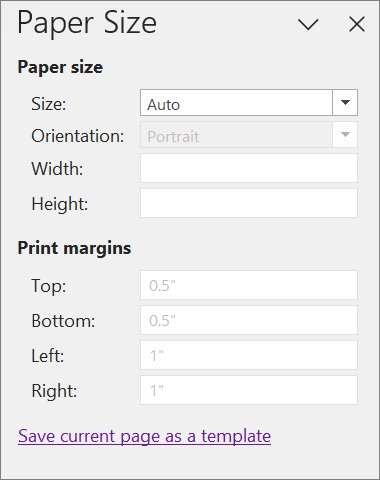
5. Give it a name and click Save. It will appear under My Templates in the Templates pane.
Once saved, select your custom template from My Templates any time you create a new meeting notes page. If you have a Microsoft 365 Copilot license, you can also prompt Copilot to draft a template structure directly on the page.
How to Integrate OneNote with Microsoft Teams
If you're already running meetings in Microsoft Teams, you don't need to switch between Microsoft applications to keep your notes organized. OneNote connects directly to Teams, keeping your minutes in the same place your team already works.
Adding OneNote as a tab in a Teams channel
New standard channels in Teams now include a Notes tab by default, powered by OneNote. If your channel doesn't have one, or you want to connect a specific existing notebook, here's how to add it:
1. Go to the channel where you want to add OneNote.
2. Select Add a tab (+) in the tabs bar at the top of the channel.
3. Select OneNote from the app list.
4. Choose one of the following:
- Create a new notebook — name it and click Save
- Browse notebooks — choose an existing notebook and section, then click Save
- Paste a OneNote link — paste the notebook URL and click Save
5. Once added, everyone in the channel can view and edit the notebook, provided they have access.
For best results, give each channel its own dedicated section in the team notebook. Microsoft recommends matching the section name to the channel name to avoid confusion when multiple people access the notebook.
Note: The Notes tab is only available in standard channels. Private and shared channels do not include it by default.
Native Teams notes vs. OneNote
Teams has a built-in note-taking option called collaborative meeting notes. Before or during a meeting, any attendee can add agenda items, take notes, and assign follow-up tasks, all stored as a Loop component and co-edited in real time.
You access them by going to your Teams Calendar, opening the meeting event, and selecting the notes section.
They're convenient for quick in-meeting capture, but there are tradeoffs worth knowing:
- Notes are only accessible to people in the same org as the meeting organizer
- External attendees cannot access or edit meeting notes
- Notes are tied to the meeting itself, so they’re hard to search or find later
- There are no templates, so every meeting starts from scratch
- Formatting options are limited compared to a full OneNote notebook
If you need structured, reusable, searchable meeting minutes that connect to the rest of your workflow, OneNote is the stronger setup.
Limitations of Using OneNote for Meeting Minutes
OneNote is a capable notes organizer, but it has real gaps for capturing meetings.
- You still have to type everything manually. OneNote has no way to listen to your Teams meeting. Someone has to type in real time, which means divided attention and missed details.
- Fast meetings are hard to keep up with. Decisions get made, and context shifts faster than most people can type. The quality of your minutes depends entirely on how focused your note-taker is.
- Copilot helps, but only after the fact. It can summarize what's already on the page, but it can't generate content from a live meeting. The manual bottleneck stays in place.
- Audio recording isn't a transcription. OneNote can record audio manually, but it doesn't automatically connect to or transcribe a Teams meeting in progress. This is where a tool like Tactiq makes a difference.
For teams running frequent meetings in Teams, these gaps add up. The app for meeting notes guide covers what to look for in a dedicated tool, and the Microsoft Teams guide for perfect meetings is worth a read for broader context.
How to Use Tactiq with Microsoft Teams and OneNote

OneNote gives you the structure. Tactiq gives you the content to fill it with.
Tactiq is a Chrome extension that transcribes your Microsoft Teams meetings in real time. No bot joins the call. Once the meeting ends, you get a full transcript and can generate an AI summary, action items, and follow-up tasks in one click. From there, copy everything straight into your OneNote page.
Here's the workflow:
1. Install the Tactiq Chrome extension. It's free to get started.
2. Join your Teams meeting in the browser. Tactiq starts transcribing automatically.
3. Stay present. The transcript appears in the Tactiq widget on the side of your screen. No manual note-taking required.
4. After the meeting, open your transcript in Tactiq and generate an AI summary with one click.
5. Copy the summary (or action items, decisions, or any custom AI output) into your OneNote meeting notes page. Or skip the manual step entirely. Use the Tactiq + OneNote Zapier workflow to automatically create a OneNote note the moment your transcript is ready.
The result: you create meeting notes from the actual conversation: accurate, structured, and ready the moment the call ends. No rushed typing. No missed details.
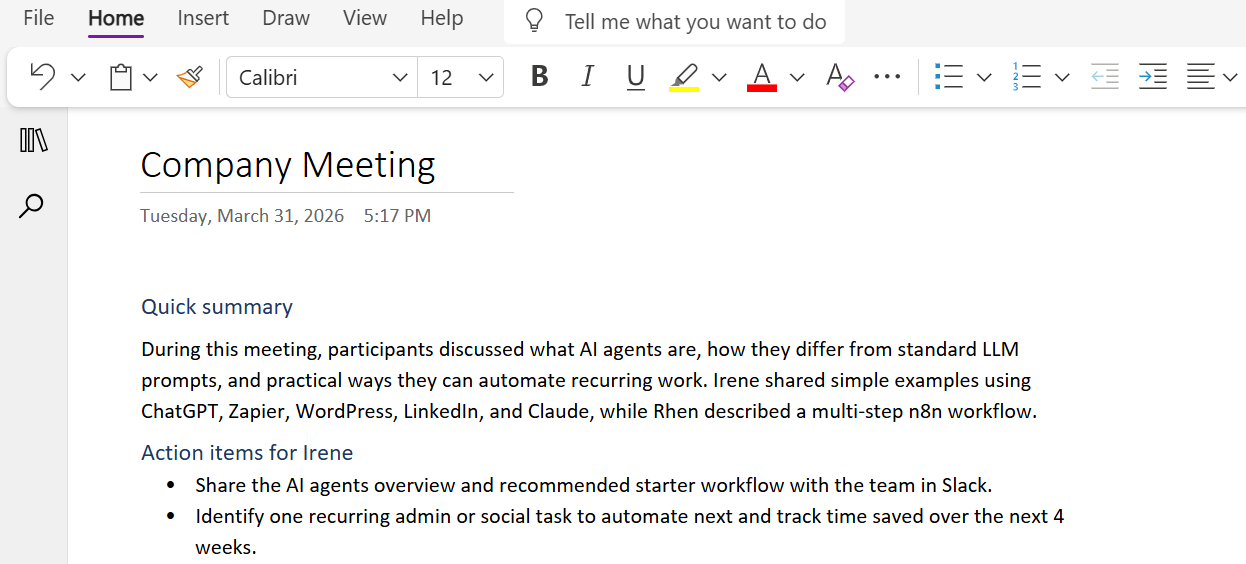
For a closer look at how this works in practice, watch the video below and read the full guide on transcribing meeting minutes.
Install Tactiq for free today.
{{rt_cta_ai-convenience}}
Never Miss a Detail in Your OneNote Meeting Minutes Again
OneNote is an excellent tool for meeting minutes. The notebook structure, Outlook integration, and Teams tab keep everything organized and easy to find. Templates save setup time, and tags keep action items trackable across every meeting.
The gap is capturing the meeting. OneNote can't listen to your meeting, and the accuracy of your minutes will always depend on how well someone kept up in the moment.
Tactiq closes that gap. It transcribes your Teams meetings in real time, generates AI summaries the moment the call ends, and gives you clean, accurate content to paste straight into OneNote. You stay focused on the conversation. The notes take care of themselves.
Install Tactiq for free and start every meeting knowing nothing will get missed.
Frequently Asked Questions on Using OneNote for Meeting Minutes
How do I use OneNote for meeting minutes?
Create a dedicated notebook with sections by team or meeting type. Use a new page per meeting, add Outlook meeting details via Meeting Details in the Insert tab (Windows desktop, Mac, and web).
Does OneNote have a meeting minutes template?
Yes. Go to Insert > Page Templates in the desktop app and then expand the Business category. You'll find several built-in meeting notes options ranging from simple to detailed formats. Note that templates are only fully supported in the OneNote desktop app, not the web version.
How do I integrate OneNote with Microsoft Teams?
Go to a Teams channel, select Add a tab (+), choose OneNote, then create a new notebook or connect an existing one. New standard channels also include a Notes tab powered by OneNote by default.
Can I share OneNote meeting notes with external participants?
Click Share in the top right corner of OneNote, then select Copy Link to Notebook. Note that native Teams meeting notes are not accessible to external attendees. A shared OneNote notebook is the better option.
How do I automatically generate meeting minutes from a Teams meeting?
Install the Tactiq Chrome extension. It transcribes your Teams meeting in real time and generates an AI summary after the call, ready to paste into OneNote with no manual note-taking required.
Related articles








Want the convenience of AI summaries?
Try Tactiq for your upcoming meeting.
Want the convenience of AI summaries?
Try Tactiq for your upcoming meeting.
Want the convenience of AI summaries?
Try Tactiq for your upcoming meeting.