
How to See Who Accepted a Meeting in Outlook
September 19, 2025
September 19, 2025
September 19, 2025
September 19, 2025

Tracking who attends your meetings can make or break your productivity. When you send a meeting invitation, you need to know who has accepted, who has declined, and who's still considering it.
Microsoft Outlook makes it easy for meeting organizers to see attendee responses. You can check response status across different platforms - Outlook for Windows, Mac, or the web version all work the same way.
The process differs slightly depending on which version of Outlook you're using. Let's walk through exactly how to see who accepted a meeting in Outlook across all platforms.
How to Check Attendee Responses In Outlook
This section covers how to check meeting responses across Outlook's desktop, web, and mobile platforms.
For Outlook Desktop (Windows/Mac)

Finding meeting responses in Outlook for Windows and Outlook for Mac follows the same steps. Here's how to check who accepted your meeting invitation:
- Go to Outlook, click the Calendar icon, and locate your meeting.
- Double-click on the meeting event to open it.
- You can check Tracking on the right side of the window.
The tracking tab shows each person's response. You'll see who accepted, declined, or hasn't responded yet. The attendee's response appears next to their name with a clear status indicator. This works alongside Outlook's scheduling assistant feature for complete meeting management.
For earlier versions of Outlook, the tracking button might look slightly different. Some versions show it as "Response Status" instead of just "Tracking." If you frequently host Teams meetings, make sure you add Microsoft Teams to Outlook for seamless integration and better response tracking across both platforms.
💡 Pro tip: Want to track more than just who accepted your meeting? Try Tactiq for real-time transcription and AI-powered meeting summaries that show who actually participated and what they contributed - free to get started.
For Outlook Web App (OWA/Outlook 365)
The web version of Microsoft Outlook works similarly but with a different interface:
- Go to your calendar in the web browser.
- Find your meeting and double-click on it.
- You can check Tracking on the right side of the window.
For Outlook Mobile (iPhone/Android)
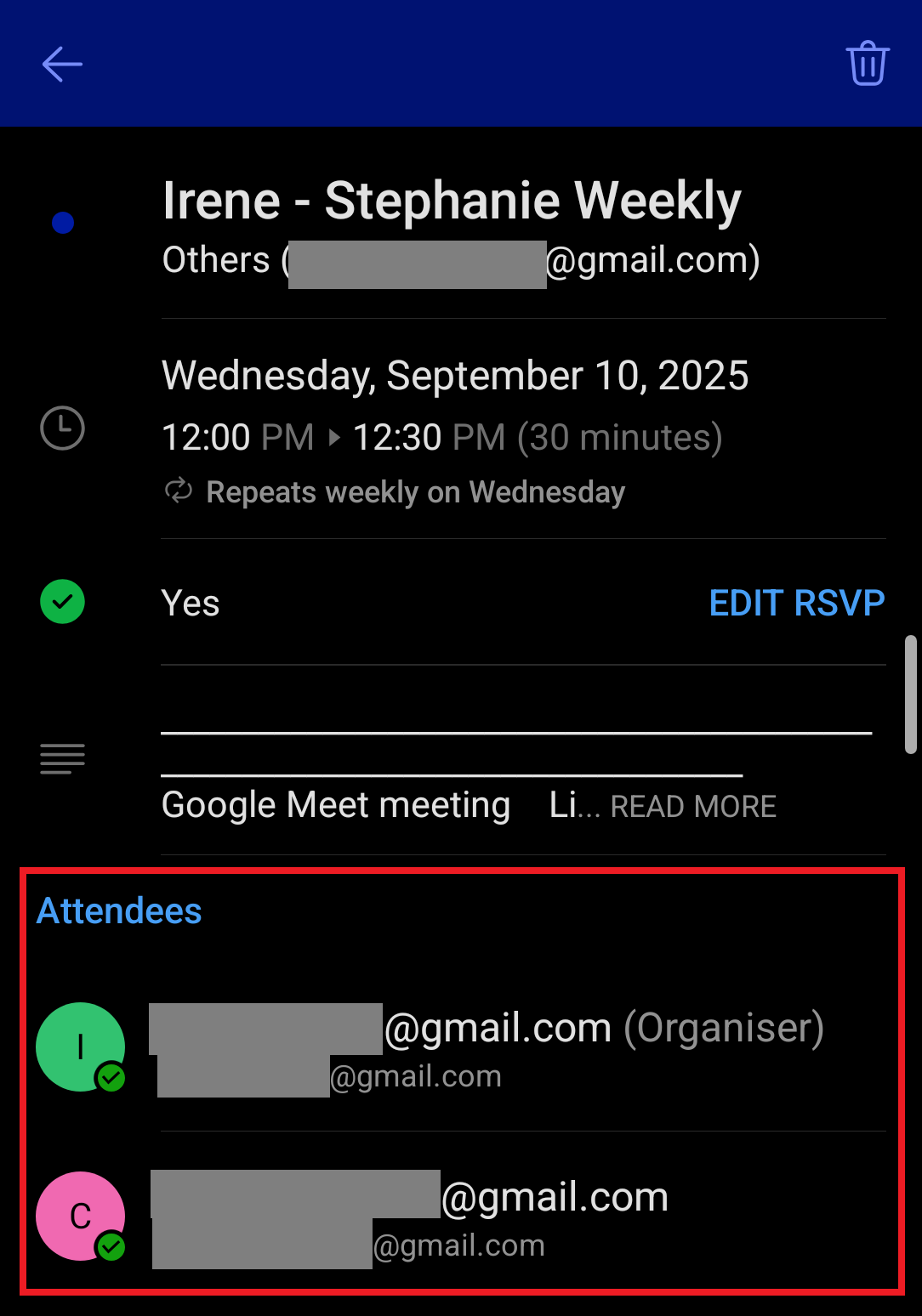
Mobile versions have limited tracking features. You can see basic attendee information, but detailed response tracking works better on desktop or web versions.
To check responses on mobile:
- Open the Outlook app.
- Go to your calendar.
- Tap on your meeting.
- Look for attendee details in the event information.
Who Can See Meeting Responses in Outlook (Organizer Vs. Attendee)
Meeting response visibility in Outlook has expanded beyond just the meeting organizer. Here's who can see what and when.
What attendees can see
Attendees using Microsoft 365 within the same organization can now view other attendees' responses. This means team members can see who accepted or declined (or tentatively accepted) before the meeting starts. However, this feature only works for internal attendees - external users outside your organization cannot see meeting responses.
Platform limitations
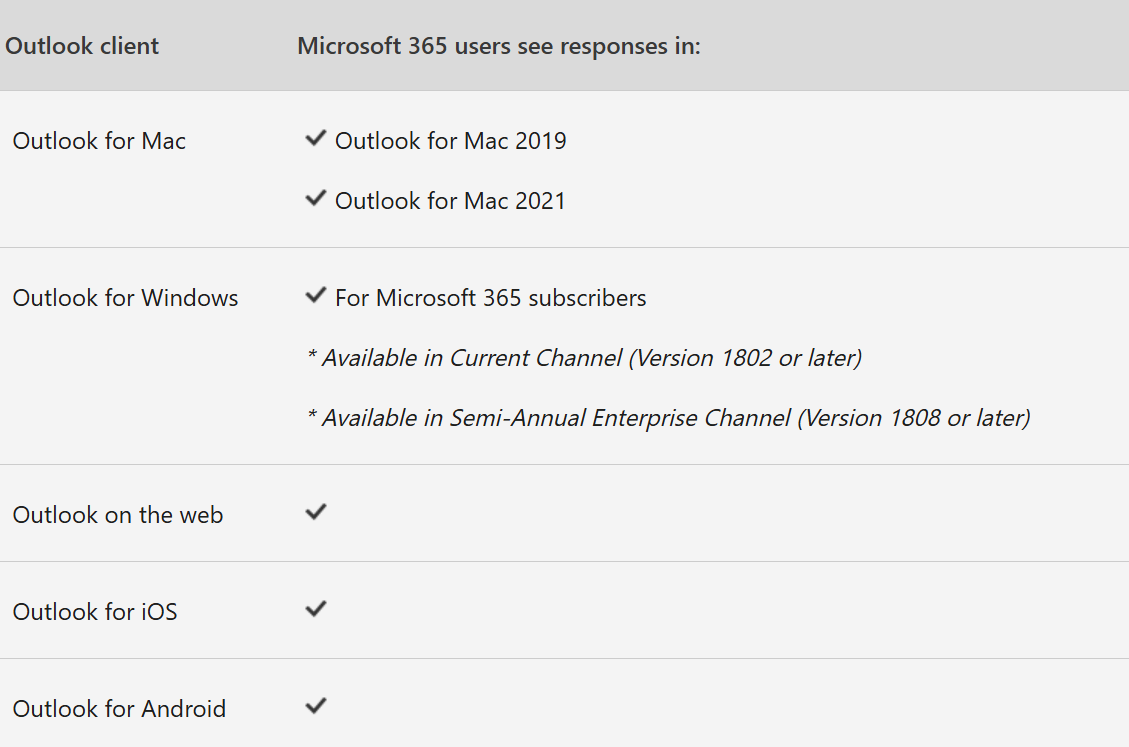
Response tracking works across most Outlook platforms, including Outlook for Mac, Windows, Android, and the web. If you're using other meeting platforms, consider adding the Zoom plugin to Outlook to maintain consistent tracking across different meeting types.
Timing considerations
Smaller meetings with fewer than 50 attendees show response updates within 15 minutes. Larger meetings can take up to 24 hours for all attendee status changes to appear for everyone.
"Do not send response" tracking
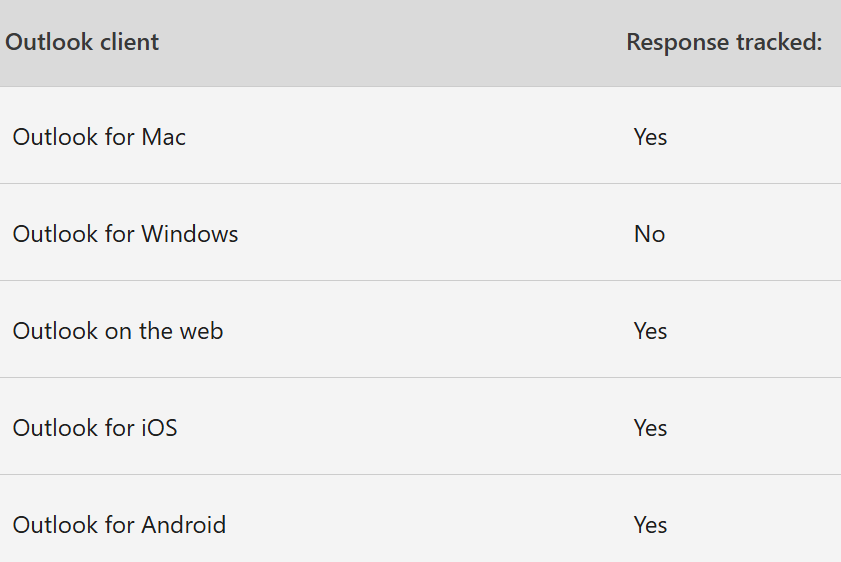
When someone chooses not to send a response, tracking varies by platform. Outlook for Windows doesn't track these silent responses, but other versions like Outlook for Mac, iOS/Android, and the web version do capture them. This means the attendee's response still updates in the system even when they choose not to notify others.
Privacy note
Currently, meeting organizers cannot hide the attendee list from other internal attendees. Everyone within your organization who attends the meeting can see who else was invited and their response status. This additional information helps teams coordinate better, but may raise privacy concerns for sensitive meetings.
Troubleshooting: RSVP Tracking Not Working In Outlook
Sometimes, Outlook may not display meeting responses correctly. Here are the most common issues and how to fix them.
"Do not send response" selections
When meeting attendees choose this option, their responses might not appear in your tracking tab. This happens because Outlook for Windows doesn't capture silent responses, while other platforms do. You'll see an incomplete attendee status if people use this setting frequently.
Tracking tab not updating
Your tracking button might show outdated information or missing responses. This often occurs when Outlook hasn't synced recent changes or when attendees responded from different devices. Large meetings with over 50 attendees can take up to 24 hours to show all response updates. Check that your system date is correct, as incorrect date settings can affect response syncing.
Missing attendee responses
External meeting attendees outside your Microsoft organization cannot see or be tracked the same way as internal users. Their responses might appear differently or not show up in the attendee list at all. Calendar sync issues can also cause missing responses, especially if you need to add Google Calendar to Outlook for cross-platform meeting management.
Fixes and workarounds
- Refresh your meeting - Close and reopen the meeting invitation to force Outlook to sync the latest responses. You can also try refreshing your calendar view by pressing F5 or clicking the refresh button. This simple step is often helpful for resolving sync issues.
- Resend meeting invites - If responses aren't coming through, resend the meeting request to specific attendees. This creates a new tracking thread and often resolves sync issues. In cases where tracking completely fails, you might need to cancel a meeting in Outlook and create a fresh invitation to reset the response tracking.
- Check device synchronization - Make sure your Outlook is syncing properly across devices. Log out and back into your Microsoft account, or restart the Outlook application to force a fresh connection.
Take Your Outlook Meetings Beyond Basic Response Tracking with Tactiq
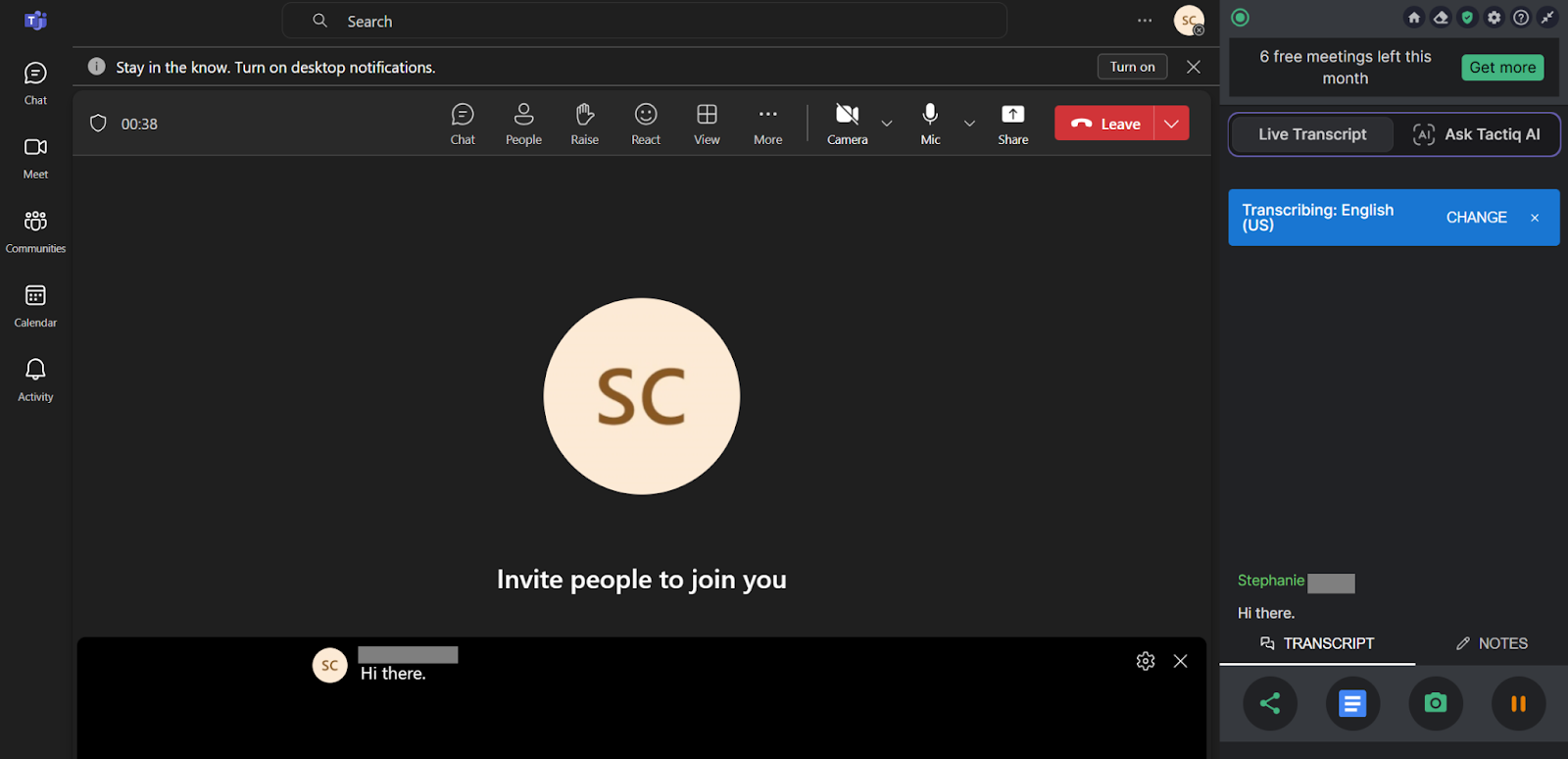
Outlook's response tracking tells you who accepted your meeting invitation, but it doesn't capture what actually happens during the meeting. You still need to take notes, track decisions, and follow up manually.
Tactiq is built specifically for capturing and transforming meeting insights into actions, making it the perfect complement to Outlook's basic tracking features. Tactiq transcribes your meetings across Google Meet, Zoom, and Microsoft Teams in real time without recording audio or adding bots to your calls.
From there, its AI does the heavy lifting:
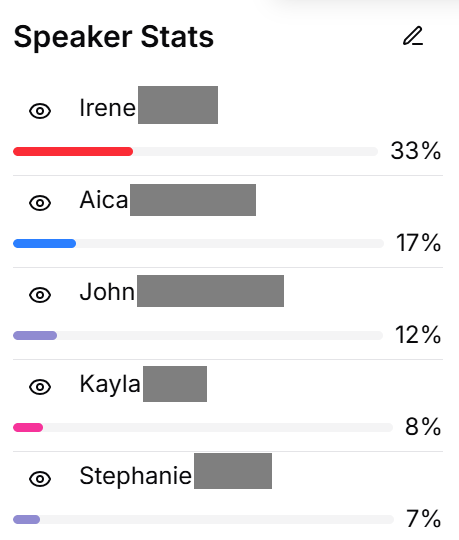
- Automated attendee tracking: Extract complete attendee lists showing who actually participated, not just who accepted the invitation. Get accurate records of meeting participation across all platforms.
- Live transcription: Get speaker-specific transcripts that show exactly who said what.
- AI-generated summaries: Automatically create comprehensive meeting summaries with key decisions, discussion points, and outcomes without manual note-taking.
- Smart follow-up automation: Turn meeting content into personalized recap emails and action items for each attendee based on their actual contributions, not just their RSVP status.
With Tactiq's AI workflows, meeting insights automatically flow into the tools your team already uses. This saves hours of repetitive admin work that Outlook's response tracking can't handle. While Outlook shows you attendance plans, Tactiq gives you a complete workflow-enhancing system for remote team productivity.
Download the free Tactiq Chrome Extension today.
{{rt_cta_ai-convenience}}
Wrapping Up
Tracking meeting responses in Outlook helps you plan better and stay organized. You can see who accepted, declined, or hasn't responded across desktop, web, and mobile platforms using the tracking tab.
Remember that response visibility depends on your organization's setup and platform choice. When Outlook's basic tracking isn't enough, tools like Tactiq can provide complete meeting documentation and automated follow-ups based on actual participation.
Ready to take your meetings beyond basic response tracking? Sign up for Tactiq today.
FAQs About Who Accepted An Outlook Meeting
How can I see who accepted a meeting in Outlook if I am not the organizer?
You can only see responses if you're the organizer or an internal attendee in the same Microsoft 365 organization. External users cannot see response details. If you need this answer, ask the meeting organizer to share the attendee list with you.
How to get the attendee list from an Outlook meeting?
Open your meeting, and you will see the "Tracking" tab on the right. This shows all invited attendees and their responses. You also have the option to copy attendee names, copy all tracking information, or download the attendance report as CSV.
How to track RSVP in Outlook?
Use the Tracking feature by opening your meeting event and finding the "Tracking" section on the right. This displays the response status for all invitees across desktop, web, and mobile platforms.
Why is Outlook not tracking meeting responses?
Common causes include attendees choosing "Do not send response," sync issues, external attendees, or delays in large meetings. Try refreshing your meeting, resyncing your calendar, or resending invitations.
Can I export the attendee response list from Outlook?
Yes, you can copy attendee names, copy all tracking information, or download the attendance report as a CSV file. These options are available by clicking the three-dot icon in the Tracking tab for meeting organizers.
Related articles








Want the convenience of AI summaries?
Try Tactiq for your upcoming meeting.
Want the convenience of AI summaries?
Try Tactiq for your upcoming meeting.
Want the convenience of AI summaries?
Try Tactiq for your upcoming meeting.