
How to Use Google Docs for Meeting Minutes
October 22, 2025
October 22, 2025
March 9, 2026
March 9, 2026

Google Docs is a simple way to keep meeting minutes in one place. It’s ideal for teams that prefer manual note-taking and want a clear record for future reference. You can use an existing Google Doc or start from scratch to add meeting notes, organize agenda items, and record key points from your discussion.
In this section, you’ll learn how to:
- Create meeting notes in Google Docs from scratch
- Use meeting notes templates and built-in tools
- Customize a properly structured document for collaboration
- Capture important details and follow-ups for your next meeting
Manual Meeting Minutes In Google Docs
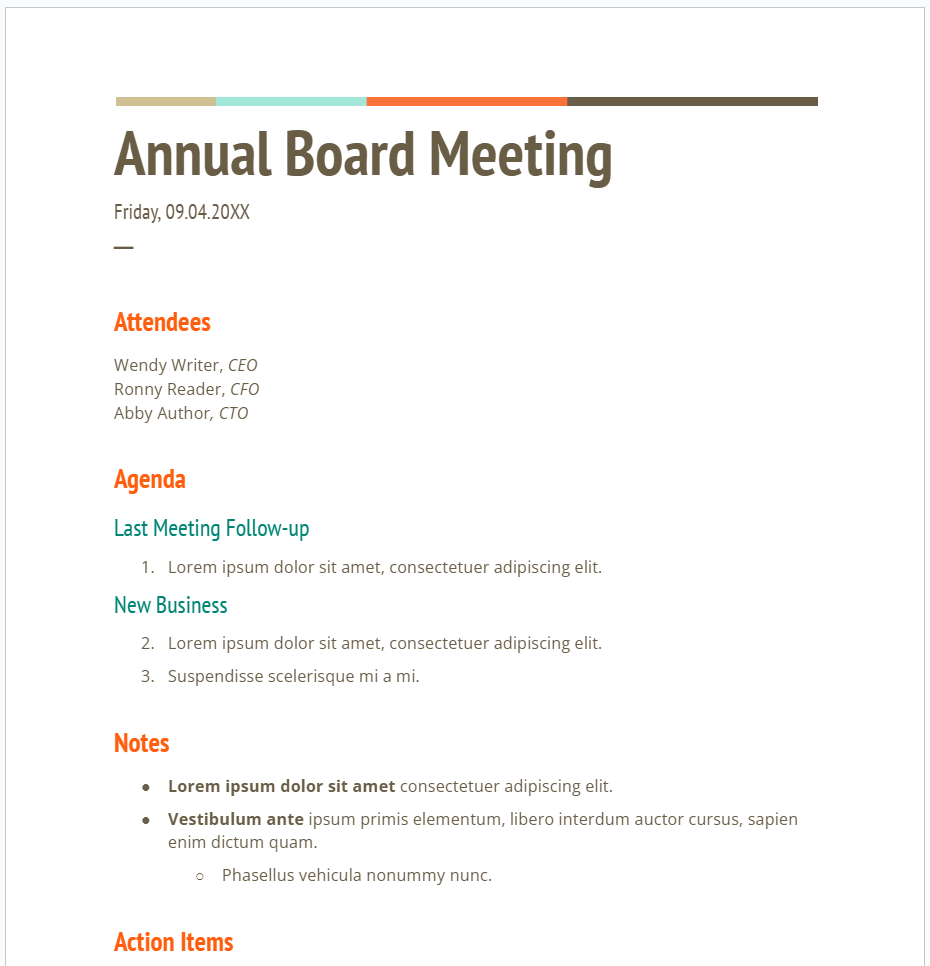
Before diving into templates or automation, it helps to understand how Google Docs works as a base for meeting minutes. It’s part of the broader Google Workspace tools, making it easy to document discussions, assign action items, and share meeting notes across your team. With a few simple steps, you can turn a blank document into a structured record of your meeting.
Creating a meeting minutes doc from scratch
Starting your meeting minutes in a blank Google Doc gives you flexibility to format your meeting notes exactly how you want. It’s perfect for teams that rely on manual note-taking or want full control over layout and content.
Follow these steps to create meeting minutes in Google Docs from scratch:
- Go to docs.google.com and click Blank document.
- Add a meeting title with the date, time, and topic.
- List attendees for proper documentation.
- Outline agenda items using bullet points.
- Record key points, decisions, and action items during the meeting.
- Summarize follow-ups with owners and deadlines to track progress.
- Save the file to Google Drive for sharing and future reference.
💡 Pro Tip: Skip manual note-taking with Tactiq. It captures real-time transcriptions from your Google Meet calls and exports them as Google Docs for easy editing.
Using built-in templates and building blocks
If you prefer a faster setup, Google Docs offers meeting notes templates and smart building blocks that make documentation an easier process. You don’t need to start from scratch. Just pick a suitable template and adjust it to your meeting details.
To use a built-in option:
- Go to docs.google.com.
- Select the Template gallery section at the top right.
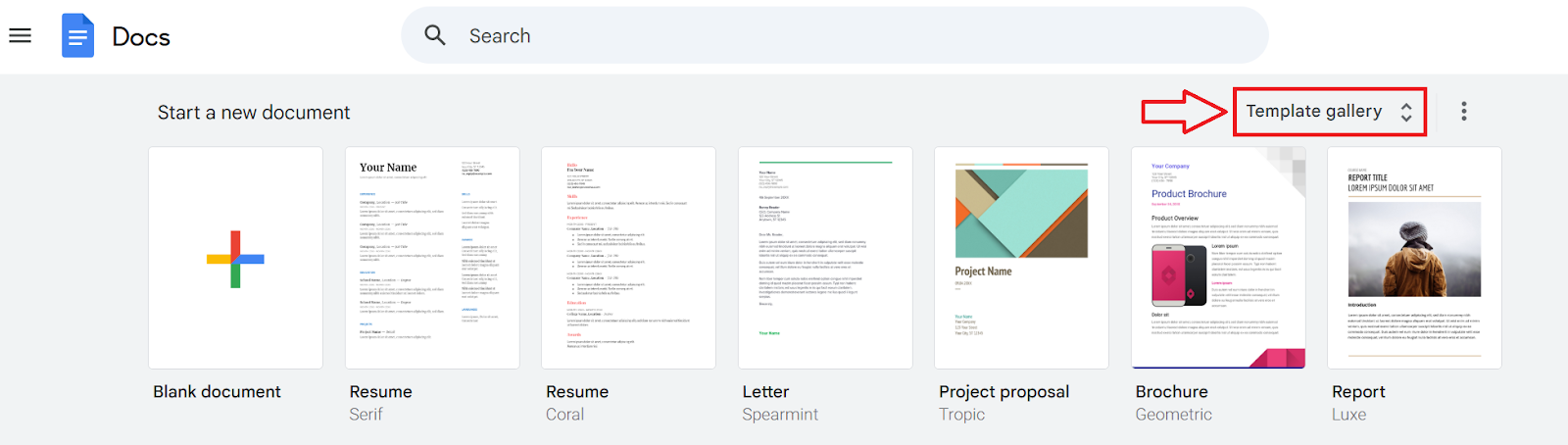
- Under Work, select a Meeting Notes template from the list.
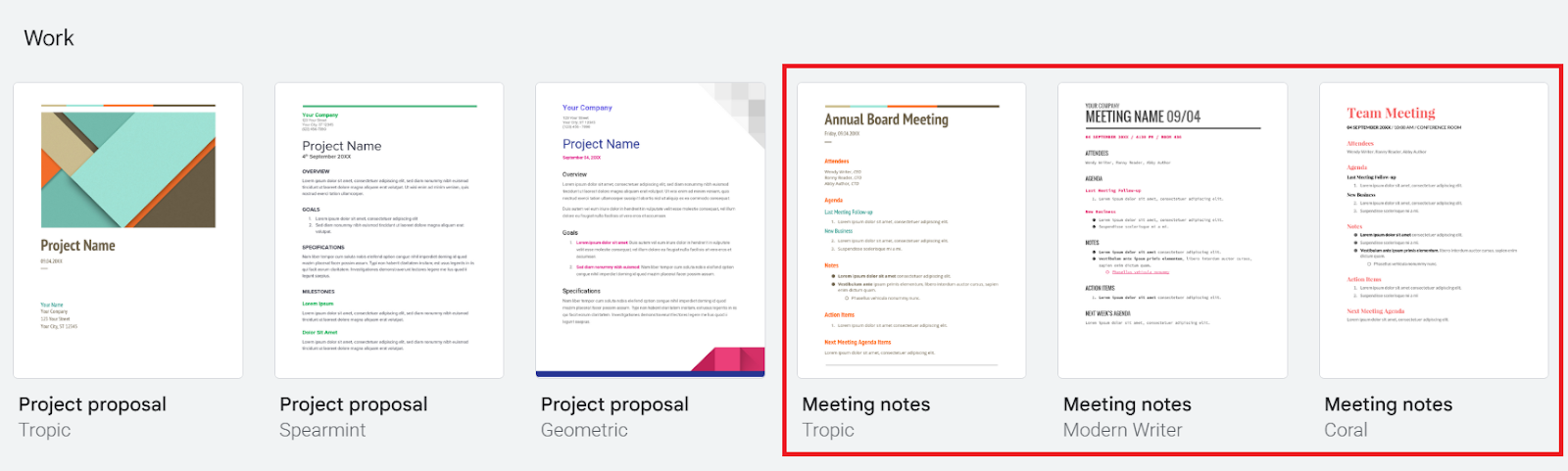
- Replace placeholder text with your agenda items, key points, and action items.
- Share the document for real-time collaboration with your team.
You can also insert the meeting notes building block directly inside an existing Google Doc:
- Type @meeting notes, then choose the Google Calendar event connected to your meeting.
- Docs will auto-fill event details like date, attendees, and title, saving you manual input.
To plan more collaborative sessions, learn how to schedule a meeting with multiple attendees.
Customizing your meeting minutes template
Once you’ve chosen or created a meeting minutes template in Google Docs, you can adjust it to fit your team’s needs.
Here are simple ways to customize your meeting notes in Google Docs:
- Add sections for attendees, agenda items, key takeaways, and next meeting details.
- Include a table with decisions or follow-ups to track responsibilities.
- Use bullet points for important details and quick scanning.
- Apply headings to separate discussion topics or projects.
- Insert a summary box for key information or final outcomes.
💡 Pro Tip: Color-code sections or highlight critical information so it’s easier for team members to find key moments later.
For one-on-one discussions, check out how to keep one-on-one meeting notes for a structured approach.
Integrating Google Calendar and meeting notes
If you’re a Google Workspace user, you can create a Google Docs meeting notes file directly from a Calendar event. The document automatically includes event details like the meeting title, date, and attendees, and is attached to the event for everyone to access.
Note: This feature is available only for Google Workspace and G Suite accounts on the web version of Calendar.
Here’s how to add meeting notes from Google Calendar:
- On your computer, open Google Calendar.
- Create a new event.
- (Optional) Add your meeting title, time, guests, and other event details.
- Click Add description or attachments, select Create meeting notes, then click Save.
Your new Google Docs meeting notes file will open with pre-filled event information. Once saved, it’s automatically attached to the Calendar event and shared with all invited guests, even those outside your organization.
Limitations of Google Docs For Meeting Minutes (And How to Overcome Them)
While Google Docs makes note-taking simple and collaborative, it still has a few drawbacks when it comes to meeting minutes. Teams relying only on manual entry may struggle to capture key points or keep up with fast-moving discussions during virtual meetings.
Common challenges include:
- Manual input: You need to type every detail, which can slow you down and lead to missed important points.
- No transcription support: Docs doesn’t record or transcribe Google Meet calls automatically.
- Inconsistent formatting: If you don’t use a clear meeting minutes template, documents can become unstructured over time.
- Missed context: It’s easy to overlook key takeaways or action items if no one reviews or updates the notes.
The best way to overcome these limits is by using an AI meeting assistant like Tactiq that integrates with Google Meet.
Using Tactiq For Google Docs Meeting Minutes
Tactiq is an AI-powered tool that captures, transcribes, and summarizes your Google Meet discussions automatically. It helps you document key points, decisions, and action items so you can stay focused on the meeting instead of typing notes.
Tactiq can be used in two ways:
- Generate meeting minutes automatically without Google Docs: After each meeting, Tactiq creates a full transcript and AI summary you can review, edit, and share directly inside the Tactiq dashboard. There’s no need to open a separate document. Your meeting minutes are generated instantly.
- Connect with Google Docs: If you prefer keeping your notes in Google Workspace, Tactiq connects with Google Drive and creates a Google Doc containing your transcript and AI-generated meeting summary. This makes it easy to store, share, and collaborate on your meeting notes within your team.
How to connect Tactiq to Google Drive
- Install the Tactiq Chrome Extension and sign up for a free account.
- Open your Tactiq dashboard and go to Account & Settings > Integrations.
- Find Google Drive, then click Connect.
- Sign in with your Google account, click Continue, and then Allow to grant access.
- Return to the Integrations page and enable:
- Automatically save transcripts to Google Drive after the meeting — saves every transcript as a Google Doc automatically.
- Use shared drive — lets you store transcripts in a shared company Drive instead of a personal one.
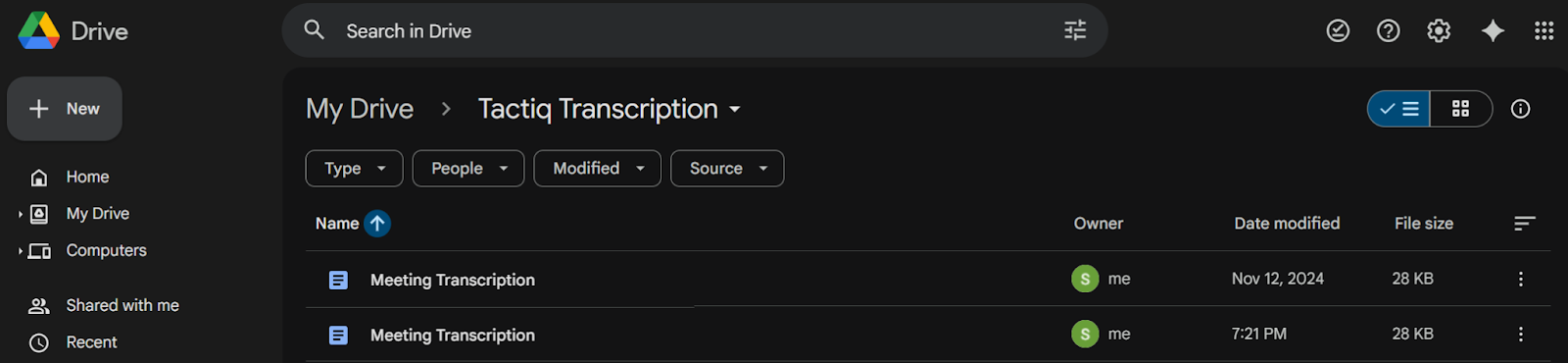
- Once connected, Tactiq will create a folder in your Google Drive called Tactiq Transcription where your meeting notes are stored as Google Docs.
- To view your files anytime, go to Account & Settings > Integrations > Google Drive, then click View folder.
With Tactiq, you can generate meeting minutes automatically inside the app or connect your workspace to Google Drive to keep everything organized in one central location.
Download the free Tactiq Chrome Extension today!
{{rt_cta_ai-convenience}}
Wrapping Up
Using Google Docs for meeting minutes is a reliable way to keep your meeting notes organized and accessible. It works well for teams that prefer manual note-taking and want to stay within familiar Google Workspace tools like Google Calendar and Google Drive.
But if you want to save time and capture every detail automatically, Tactiq adds a smarter layer to the process. It records key points from your Google Meet, uses AI to summarize discussions, and creates a Google Doc in your Drive so you can review, edit, or share it instantly.
With both tools, you can choose between manual input and AI-powered support, whichever helps your team stay on the same page and make every meeting count.
FAQs About How to Use Google Docs for Meeting Minutes
How do I take meeting minutes in Google Docs?
Start with a blank Google Doc or use a meeting notes template. Add sections for agenda items, key points, and action items. Share it with your team so everyone can collaborate and update notes in real time.
How do I use Google Docs for meetings?
Use Google Docs to capture meeting details, add live notes, and assign follow-ups. You can also connect Docs with Google Calendar to attach notes to your events, making them easier to find later.
How do I create minutes of meeting in Google Meet?
Use Tactiq to automatically record and summarize your Google Meet discussions. It connects to Google Drive, creates a Google Doc with AI-generated notes, and highlights key takeaways for quick review.
What AI tool can I use instead of Google Docs for meeting minutes?
Tactiq is an AI meeting assistant that transcribes your meetings, identifies key takeaways, and exports structured meeting notes to Google Docs. You can also use ChatGPT for meeting minutes to refine or expand your summaries.
How do I create a meeting minutes document?
Open Google Docs, give your file a meeting title, and add sections for attendees, agenda items, and decisions. Save it in Google Drive for future reference and easy sharing across your team.
Related articles








Want the convenience of AI summaries?
Try Tactiq for your upcoming meeting.
Want the convenience of AI summaries?
Try Tactiq for your upcoming meeting.
Want the convenience of AI summaries?
Try Tactiq for your upcoming meeting.