
How to Reschedule a Meeting in Outlook
September 12, 2025
September 12, 2025
September 12, 2025
September 12, 2025

Rescheduling happens more often than you think: a client cancels at the last minute, a project deadline shifts, or another meeting gets dropped on your calendar. If you’re using Microsoft Outlook, knowing how to reschedule a meeting keeps everyone aligned and avoids confusion.
This guide walks you through the exact steps, special scenarios, and best practices so you can update your Outlook meeting with confidence.
Why You Might Need to Reschedule a Meeting in Outlook

Image from Microsoft
There are plenty of reasons you may need to modify a scheduled meeting. Common ones include:
- Conflicting priorities – another event overlaps with your meeting time.
- Emergencies – unexpected issues that require immediate attention.
- New priorities – project deadlines or tasks shift, making a new meeting time necessary.
In each case, rescheduling meetings in Outlook keeps everyone on the same page. Updating the meeting details makes sure the new date and time appear on every attendee’s Outlook calendar, avoiding mix-ups with the original meeting.
💡 Pro tip: Tactiq transcribes your meetings in real time and creates instant summaries, so even if a session is rescheduled, your team still has clear notes and action items to move forward.
How to Reschedule a Meeting in Outlook
Follow these steps to move an existing meeting to a new date or time.
1. Open your Outlook calendar
Start in the Outlook calendar. On desktop or the web, select the calendar icon from the navigation bar. On mobile, tap the calendar at the bottom of the app. This view shows all your scheduled meetings, appointments, and events.
2. Locate the meeting to reschedule
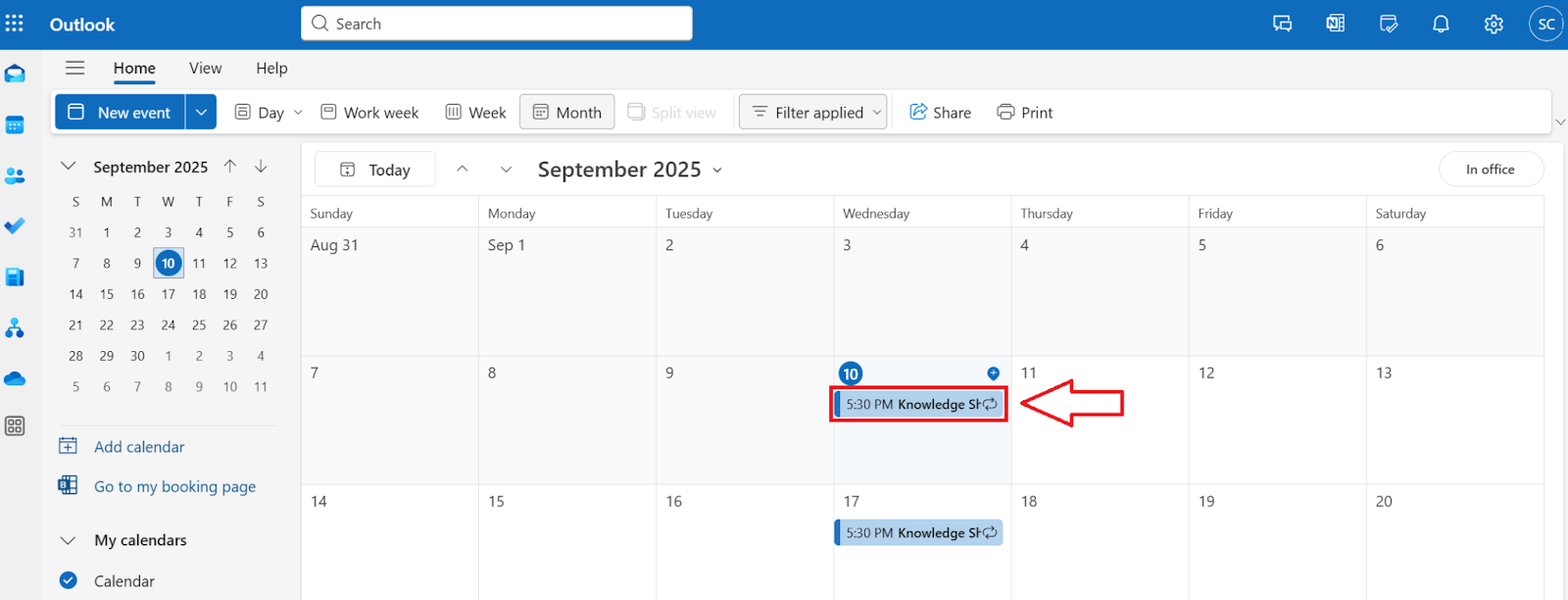
Find the scheduled meeting you want to change. If it’s a one-time meeting, just double-click to open it, then select Edit. For a recurring meeting, you’ll be asked if you want to edit the entire series or just one meeting. Choose the option that fits.
3. Edit the meeting details
In the meeting window, update the information you need:
- Change the date or time slot.
- Adjust the location or meeting title.
- Edit the attendee list if someone new should join.
4. Add a message for attendees (optional)
It’s a good idea to explain the change. Add a short message in the notes field so meeting attendees understand why the meeting time changed.
5. Send the update
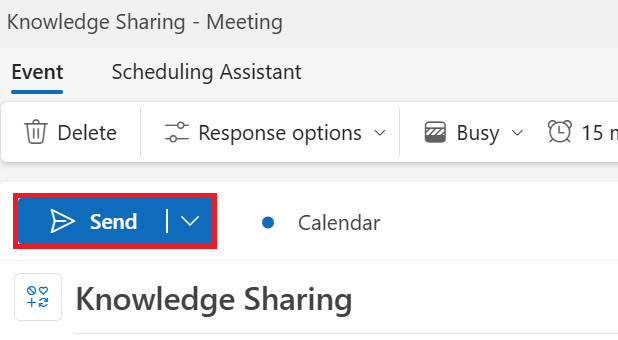
When you’re done making changes, select Send. Outlook will save the new details and automatically notify all attendees. If you only changed the attendee list, Outlook can notify just the new or removed people instead of sending a new meeting invitation to everyone.
Special Scenarios & Troubleshooting
Sometimes rescheduling isn’t as straightforward. Here’s how to handle unique cases and fix common issues.
Rescheduling a single meeting in a series
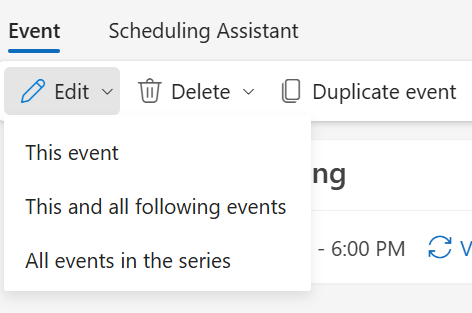
If your meeting is part of a recurring meeting, Outlook gives you options when you double-click it:
- This event – this option allows you to change only a single occurrence meeting.
- This and all following events – this option allows you to update this and all future events.
- All events in the series – this option allows you to apply updates to the entire series.
This flexibility lets you keep your original meeting series intact while adjusting only what’s necessary.
If you are not the organizer
Only the person who created the meeting can change it. If you’re not the organizer, you can’t edit the meeting details. Instead:
- Send a quick email or chat request to ask for a new date.
- Suggest a new meeting invitation with alternative times.
Rescheduling Teams meetings in Outlook
For Outlook linked with Microsoft Teams, changes work the same way. When you update the Outlook meeting, the Teams invite updates automatically. If you usually meet in Teams, you may also want to learn how to add Microsoft Teams to Outlook.
Common issues & how to fix them
Rescheduling meetings doesn’t always go smoothly. A few common problems include:
- Failed updates – check your internet connection and try again.
- Missing notifications – confirm you selected Send so attendees get notified.
- Recurring item errors – reopen the event and choose between editing the single occurrence or the entire series.
Best Practices for Rescheduling Meetings (Etiquette & Productivity)
Rescheduling meetings can be done smoothly if you keep etiquette and productivity in mind. These tips help reduce disruption while keeping communication clear.
- Give enough notice – The earlier you inform people, the easier it is for them to adjust. A same-day change can throw off calendars, while a few days’ notice shows respect for everyone’s time.
- Offer alternatives – Instead of proposing only one new meeting time, share two or three options. This makes it easier to lock in a slot that works for all attendees.
- Be transparent – Use the notes field in the meeting invitation to briefly explain why the change is happening. Clear context reduces frustration and helps maintain trust.
- Limit disruption – Keep in mind different time zones and working hours. A rescheduled meeting that lands outside normal hours can reduce participation and productivity.
- Cancel if needed – Sometimes the best option is not to move the meeting at all. If the agenda is no longer relevant, it may be more effective to cancel the meeting instead.
Use Tactiq to Stay Organized When Rescheduling Outlook Meetings
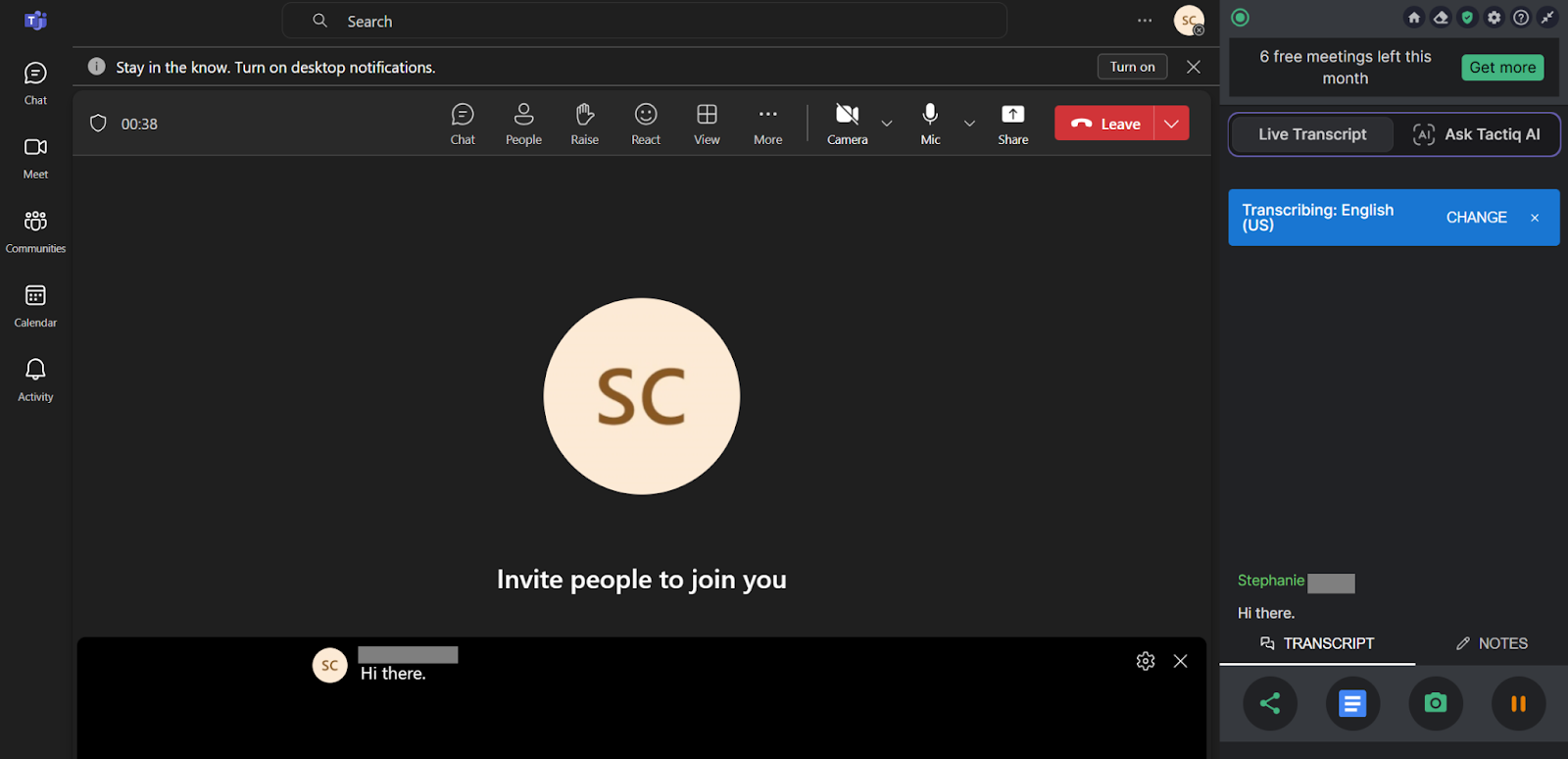
When you reschedule a meeting in Outlook, keeping your team aligned is just as important as shifting the time.
Tactiq connects with Zoom, Microsoft Teams, and Google Meet to capture every conversation and turn it into clear, actionable updates.
- Live transcription – Get accurate, real-time transcripts so you never lose track of what led to a reschedule.
- AI meeting summaries – Receive instant summaries and action items that reflect updated meeting details, helping remote teams stay aligned asynchronously.
- Built-in AI Q&A – Ask custom questions about your meeting and get immediate answers, so you can clarify details without digging through notes.
- Custom AI prompts & workflows – Automate tasks after rescheduling, like drafting follow-up emails, creating documentation, or updating project boards.

If you often rely on different integrations, you may also want to explore
Install the Tactiq Chrome extension today for smarter meeting management.
{{rt_cta_ai-convenience}}
Wrapping Up
Moving a meeting in Outlook is often unavoidable, but it doesn’t need to disrupt your workflow. A few quick edits in your Outlook calendar are enough to adjust the time, update details, and keep participants informed.
Tactiq adds another layer of support by capturing every discussion, generating instant summaries, and powering AI workflows that handle follow-ups for you. Instead of juggling rescheduled invites and scattered notes, you’ll have everything organized in one place.
Try Tactiq free today and make every meeting easier to manage.
FAQs About Rescheduling a Meeting in Outlook
How do you reschedule a meeting?
Open your Outlook calendar, double-click the meeting, edit the details, and select Send to notify attendees.
How do I reschedule an existing meeting?
Locate the meeting in your Outlook calendar, update the date, time, or details in the meeting window, and send the update.
How do I reschedule a single meeting in a series?
Double-click the event, then choose This event to change a single occurrence without editing the entire series.
How do I reschedule a meeting if I’m not the organizer?
Only the person who set up the meeting can edit it. If you’re not the organizer, request a new time by email or chat.
What is the best way to notify attendees of a rescheduled meeting?
Always use Outlook’s Send Update option. It updates the calendar event and sends a new meeting invitation to all attendees.
Related articles








Want the convenience of AI summaries?
Try Tactiq for your upcoming meeting.
Want the convenience of AI summaries?
Try Tactiq for your upcoming meeting.
Want the convenience of AI summaries?
Try Tactiq for your upcoming meeting.