
Best Way to Schedule a Meeting with Multiple Attendees
September 2, 2025
September 2, 2025
May 22, 2026
May 22, 2026

Scheduling a group meeting should be easy, but different calendars, time zones, and priorities make coordination more challenging than it looks. One person forgets to reply, another can’t make the proposed slot, and suddenly a simple meeting takes days to arrange.
The right tools can take the chaos out of scheduling. Instead of long email chains and missed updates, you get polls, smart reminders, and calendar sync that does the heavy lifting. This kind of smart scheduling keeps everyone aligned without the stress.
In this guide, you’ll learn the most common challenges, the features that actually solve them, and the best tools for scheduling meetings with multiple attendees.
Why Scheduling Group Meetings Is Challenging
Every group meeting comes with hidden roadblocks.
Time zones create uneven participation. While some join fresh in the morning, others log in late at night, which can lower engagement.
Email coordination adds more friction. Even with the best intentions, people forget to reply, overlook updates, or double-book their time. The longer the back-and-forth lasts, the more difficult it is to secure a slot.
Another hurdle is accountability. When there’s no system to confirm attendance, no-shows happen. This breaks the flow and forces teams to revisit topics in later sessions.
And then there’s the agenda. Without a clear outline, discussions drift, decisions stall, and people leave without clarity on next steps. Instead of saving time, the meeting creates more work.
The solution begins with the right scheduling features that remove these obstacles and make group meetings run smoothly.
Essential Features For Group Meeting Scheduling
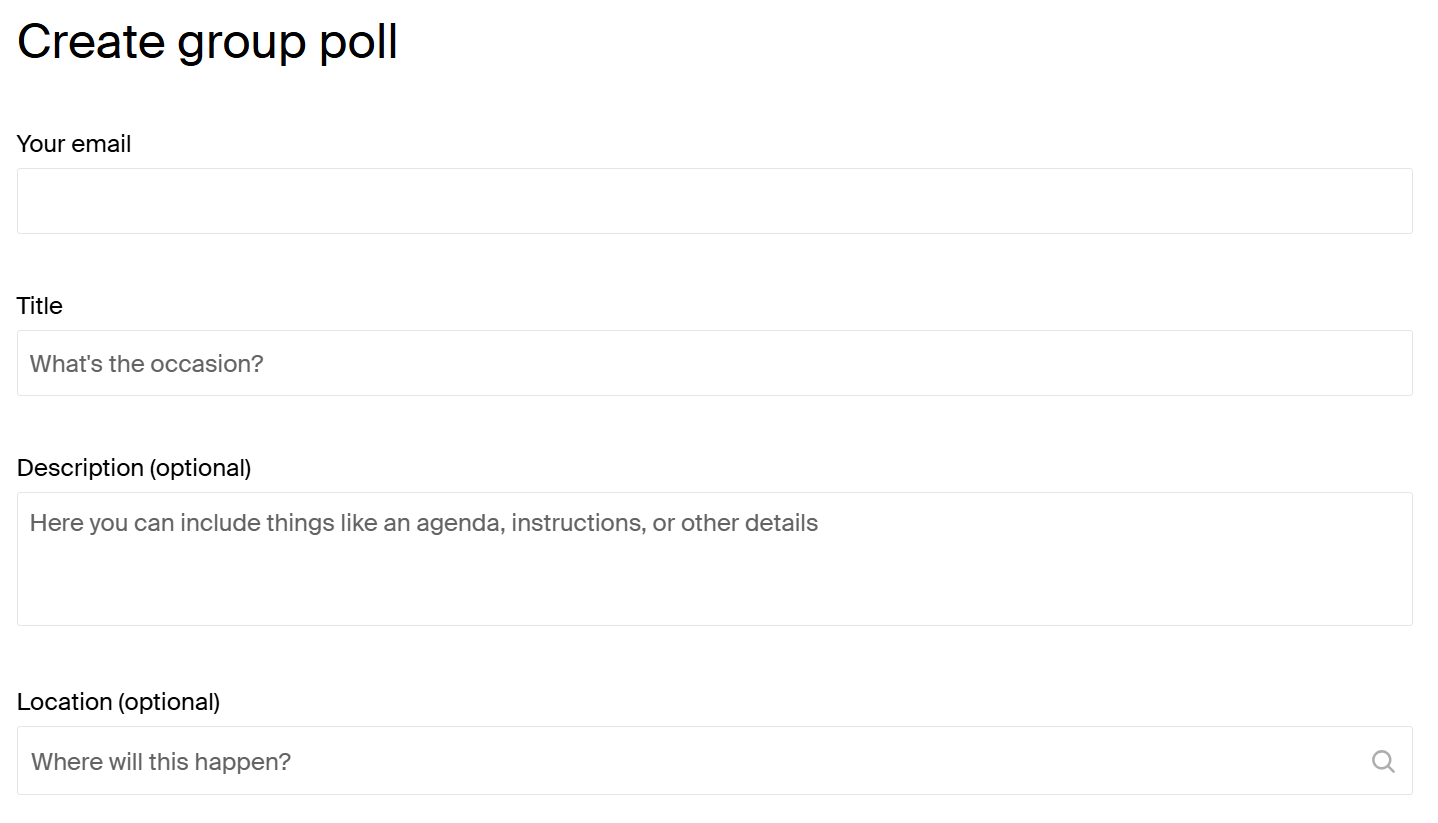
Not every scheduling tool works well for groups. The right features make the difference between endless back-and-forth and a smooth process. Here’s what to look for:
- Polling options – Instead of juggling email replies, set up a poll so everyone can vote on their preferred time. This gives a clear answer, faster, and avoids confusion.
- Calendar integration – Syncing with Google Calendar, Outlook, or iCal keeps schedules clean. It prevents double bookings and lets attendees confirm with one click.
- Automated reminders – A quick reminder before the meeting reduces no-shows. It also gives participants time to prepare, which improves meeting quality.
- Time zone support – Smart tools detect each attendee’s location and suggest times that are fair for everyone, without manual math.
- Attendee limits – Larger group meetings often need clear caps to stay manageable, while smaller ones benefit from flexibility. Knowing the limits up front helps avoid overloading sessions.
💡 Pro tip: Tactiq ensures scheduling efforts pay off by capturing every word in group meetings. It delivers instant summaries and action items, so follow-through never slips.
Top Tools To Schedule Group Meetings With Multiple Attendees
Once you know which features to look for, the next step is picking the right platform. These are the top tools you can use to schedule meetings with multiple attendees.
1. Calendly
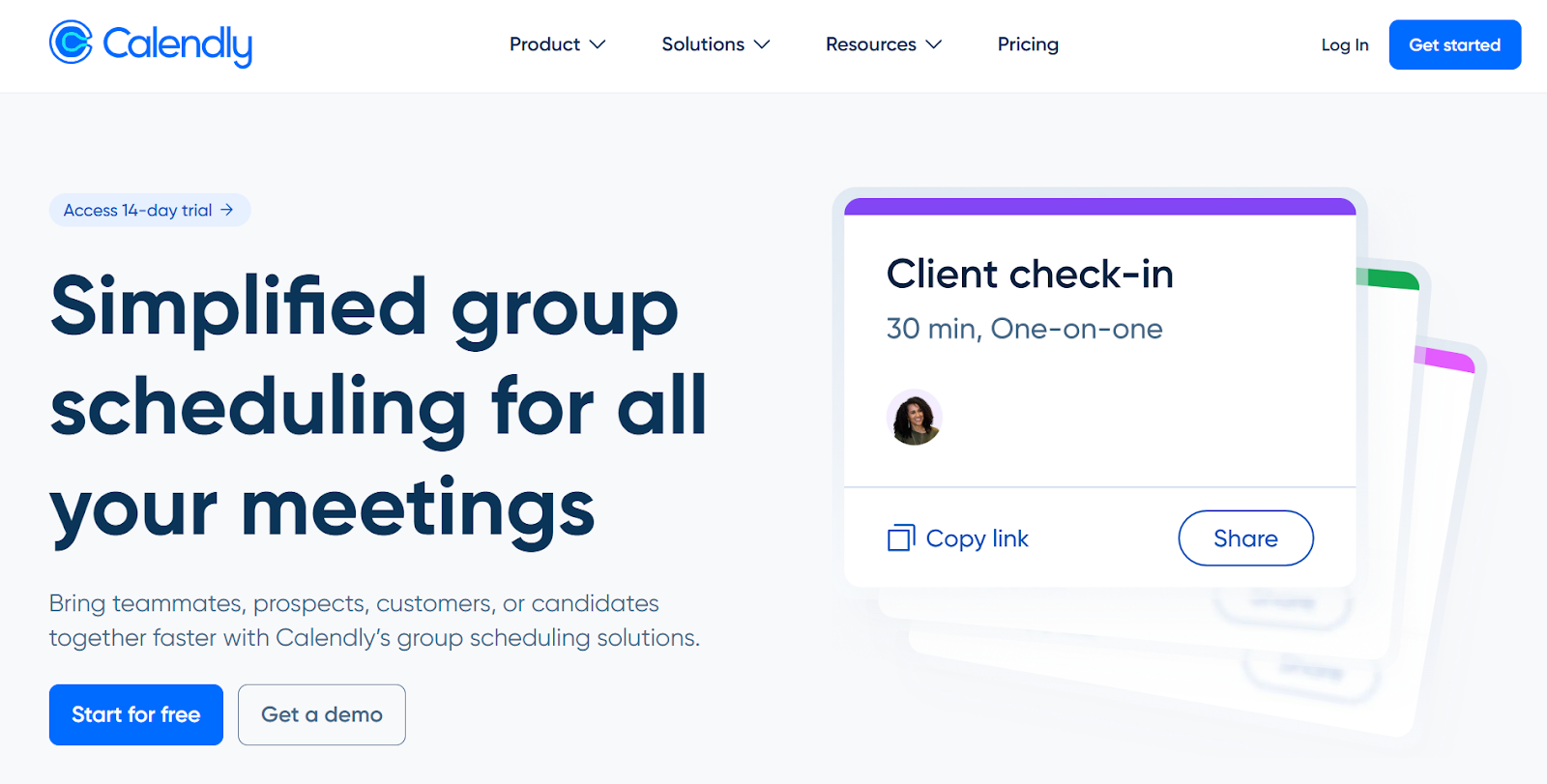
Calendly takes the stress out of group scheduling by displaying real-time availability and allowing participants to vote on preferred times. It’s built to handle everything from small team check-ins to large group events.
Key features include:
- Collective meetings – Book only when all required hosts are available.
- Round Robin scheduling – Assign meetings to the next available teammate for faster connections.
- Meeting polls – Let external participants choose the time that works best.
- Routing – Automatically qualify requests and direct them to the right team member.
- Managed event templates – Standardize agendas, reminders, and workflows for large groups.
- Integrations – Connects with Google and Microsoft calendars, plus Zoom, Teams, and Google Meet.
A free plan is available, and paid plans start at $10 per user per month.
2. Doodle
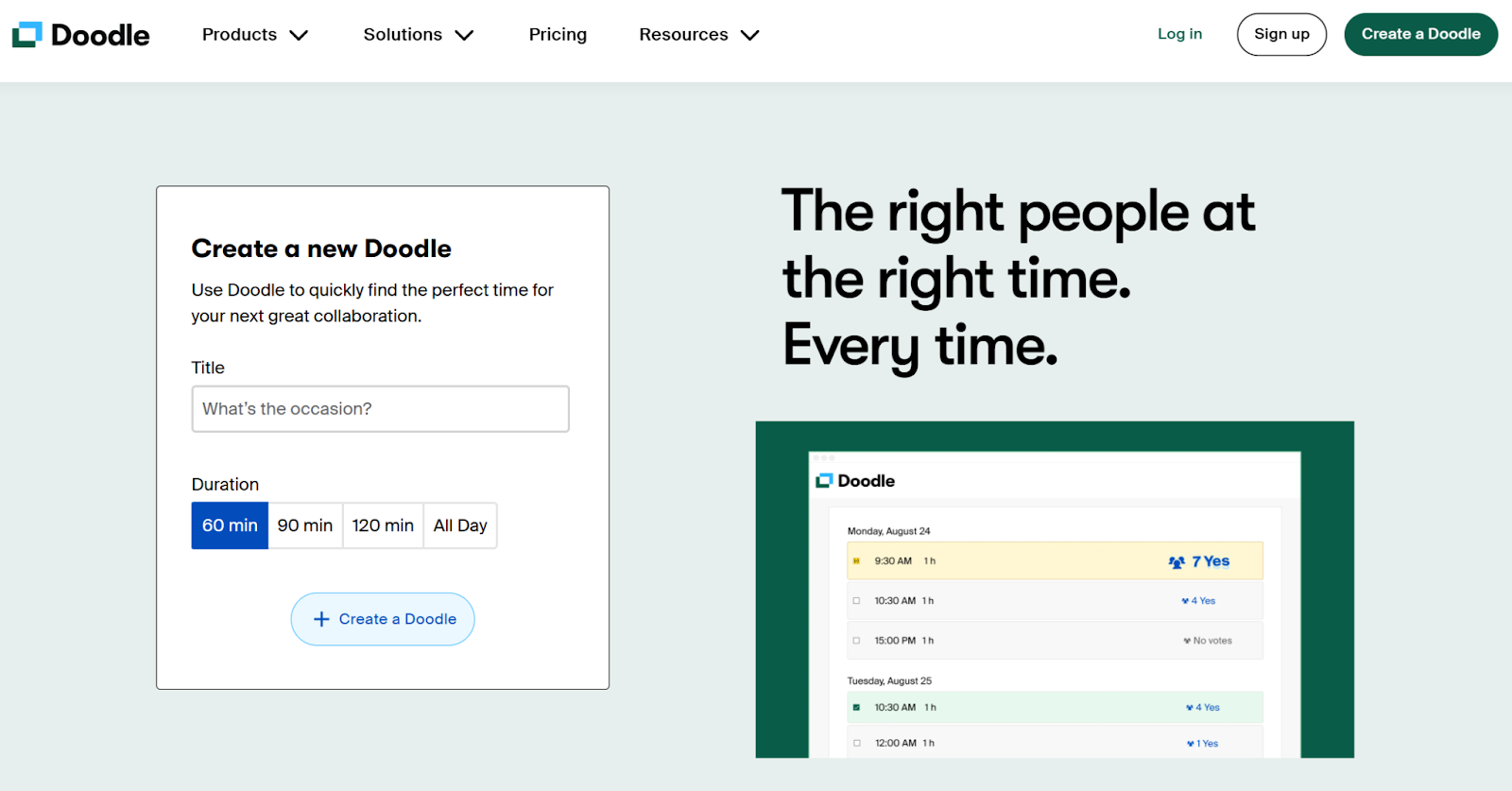
Doodle is built for one thing: getting a group to agree on a time. Instead of chasing replies, you send a poll with a few time options and see which slot works best for everyone.
Key features include:
- Group polls – Share a set of times and let participants vote, even if they don’t have a Doodle account.
- Response tracking – Instantly see who has replied and who still needs to.
- Automatic invites – Once the time is chosen, Doodle sends calendar invitations to all confirmed participants.
- Meeting details – Add agenda, location, or notes to ensure everyone comes prepared.
- Reminders and deadlines – Nudge people who haven’t replied yet or set a cutoff time to finalize quickly.
- Video conferencing links – Automatically generate meeting links and add them to the event.
A free plan is available, with paid plans starting at $6.95 per user per month.
3. Microsoft Outlook Scheduling Poll (Formerly FindTime)
.png)
Image from Microsoft
Microsoft retired the FindTime add-in in 2023 and replaced it with Scheduling Poll, now built directly into Outlook. It helps organizers suggest multiple meeting times and lets participants vote.
Key features include:
- Smart availability – Scheduling Poll checks attendee calendars (via Microsoft 365) and highlights the best slots. Required and optional attendees are flagged, and you can see who’s free, busy, or out of office.
- Flexible setup – Pick time zones, meeting hours, and durations. Add multiple dates so participants see a wide range of options.
- Online meetings – Links are added by default, based on your organization’s provider (Teams, Zoom, etc.).
- Consensus booking – If all attendees agree on one time, Outlook schedules it automatically.
- Calendar holds – Tentative events block out each proposed time until the poll is finalized.
- Notifications & security – Organizers get updates when votes are cast. Authentication can be required to prevent anonymous responses.
Scheduling Poll is free with Microsoft 365 accounts and works in Outlook for Windows, Mac, and the web.
4. Calendar
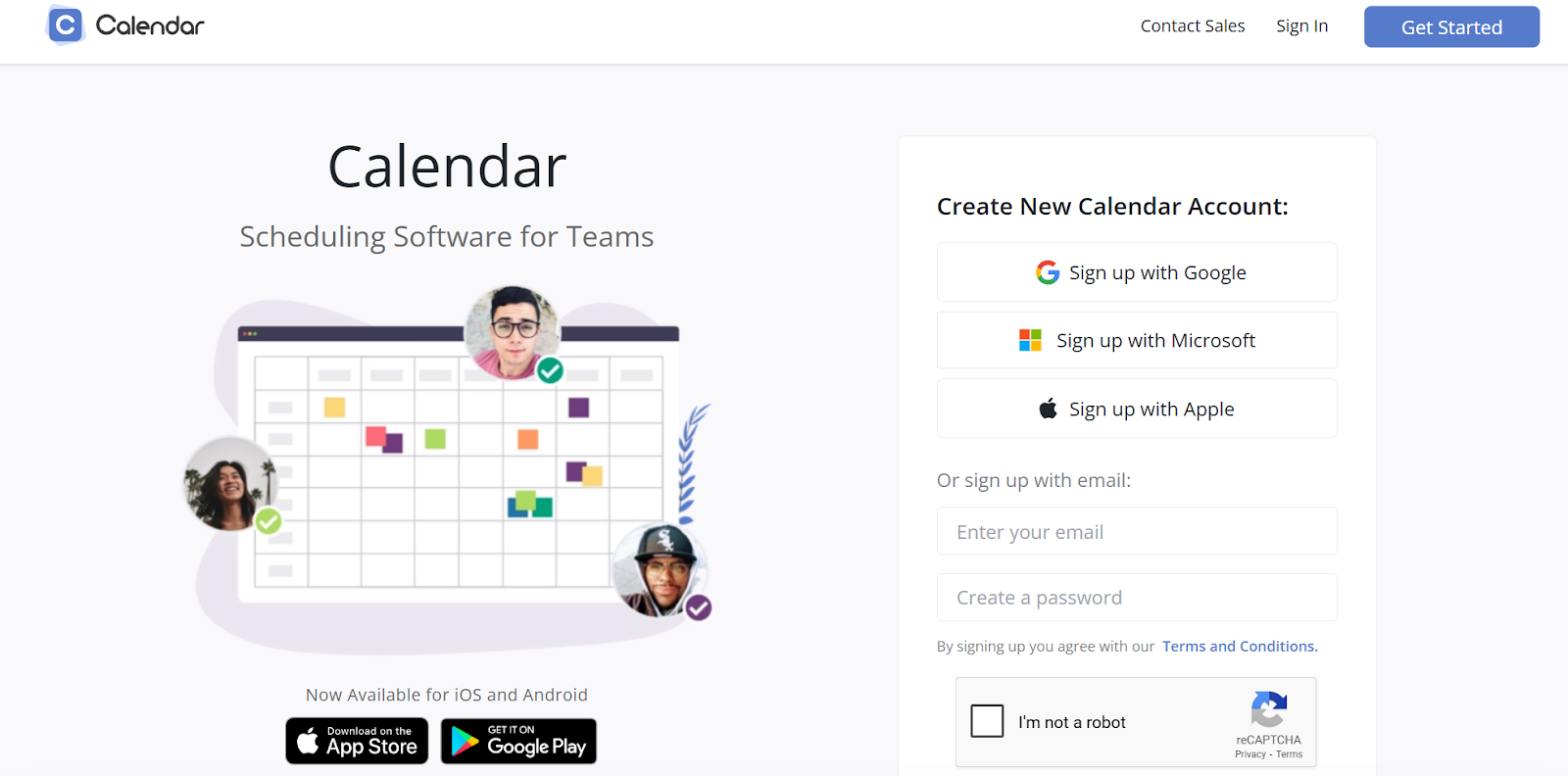
Calendar is an all-in-one scheduling app designed for both teams and individuals. You can share a personal scheduling link that shows your real-time availability. Attendees pick a time, and the event is instantly added to your calendar.
Key features include:
- Custom scheduling pages – Build personalized event templates for recurring or one-off meetings.
- Multi-person scheduling – Add teammates to see when everyone is busy or free, then book a time that works for all participants.
- Round robin scheduling – Distribute meetings fairly across your team so no single person gets overloaded with requests.
- Find a Time – Compare calendars across users in seconds and choose the best slot without back-and-forth messaging.
- Calendar analytics – Track how much time is spent in meetings and get insights that help improve productivity and focus.
Calendar is available on web, iOS, and Android. It offers a free plan, with paid plans starting at $8 per user per month.
Other Notable Tools
Beyond the major platforms, a few lighter scheduling tools are also worth noting.
- When2meet – A simple web-based tool that shows everyone’s availability on a grid, making it easy to spot overlapping free times.
- Appointlet – Lets you create booking pages for teams, integrates with major calendars, and works well for customer-facing scheduling.
- YouCanBookMe – Great for client bookings, it connects directly to your calendar and supports custom booking pages and reminders.
These tools may not include the advanced analytics or integrations of larger platforms, but they’re quick, lightweight options for small teams or casual group meetings.
Scheduling For Virtual Meetings: Best Practices
Virtual meetings come with extra challenges, but the right practices can keep them on track:
- Set meeting length carefully – Virtual fatigue is real. Keep sessions short or break longer agendas into smaller parts.
- Plan buffer time – Back-to-back calls drain focus. Encourage short breaks between meetings.
- Confirm tech setup – Test microphones, cameras, and internet connection beforehand to avoid wasting time at the start.
- Assign a facilitator – Designate someone to guide the discussion, keep track of time, and ensure every voice is heard.
- Document live decisions – Capture agreements and next steps during the call so nothing slips through.
By planning beyond just scheduling, you make virtual meetings more engaging and less draining for attendees.
After The Meeting: Ensuring Productivity And Follow-Through
Getting everyone into the meeting is only half the work. What happens after determines if the session was worth the time.
Distributing meeting notes is the first step. A clear record helps attendees review what was discussed and keeps absent members in the loop. Assigning action items is just as important. Each task should have an owner and a deadline, so responsibilities don’t get lost.
Follow-ups also matter. A quick recap email or shared document keeps the momentum going and ensures decisions turn into action. Without these steps, even the best-run meetings can lose their impact once everyone logs off.
AI tools like Tactiq make this process easier by capturing key details during the call and automatically turning them into clear next steps.
How Tactiq Streamlines Your Group Meetings
Tactiq makes it simple to capture and organize what happens in your meetings. Instead of relying on memory or scattered notes, you get transcripts, summaries, and action items ready to share.
How to get started
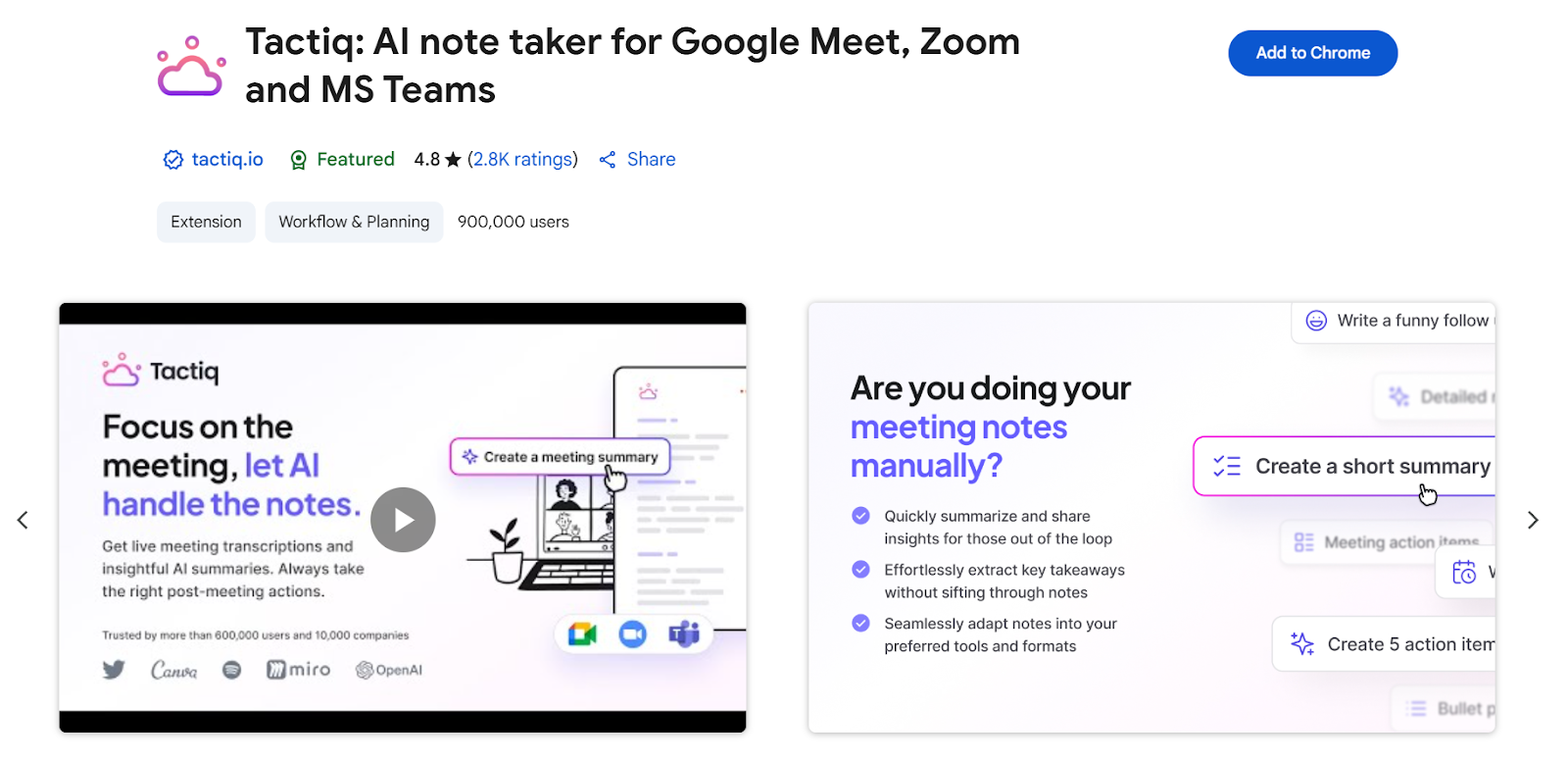
- Download the Tactiq Chrome extension from the Chrome Web Store.
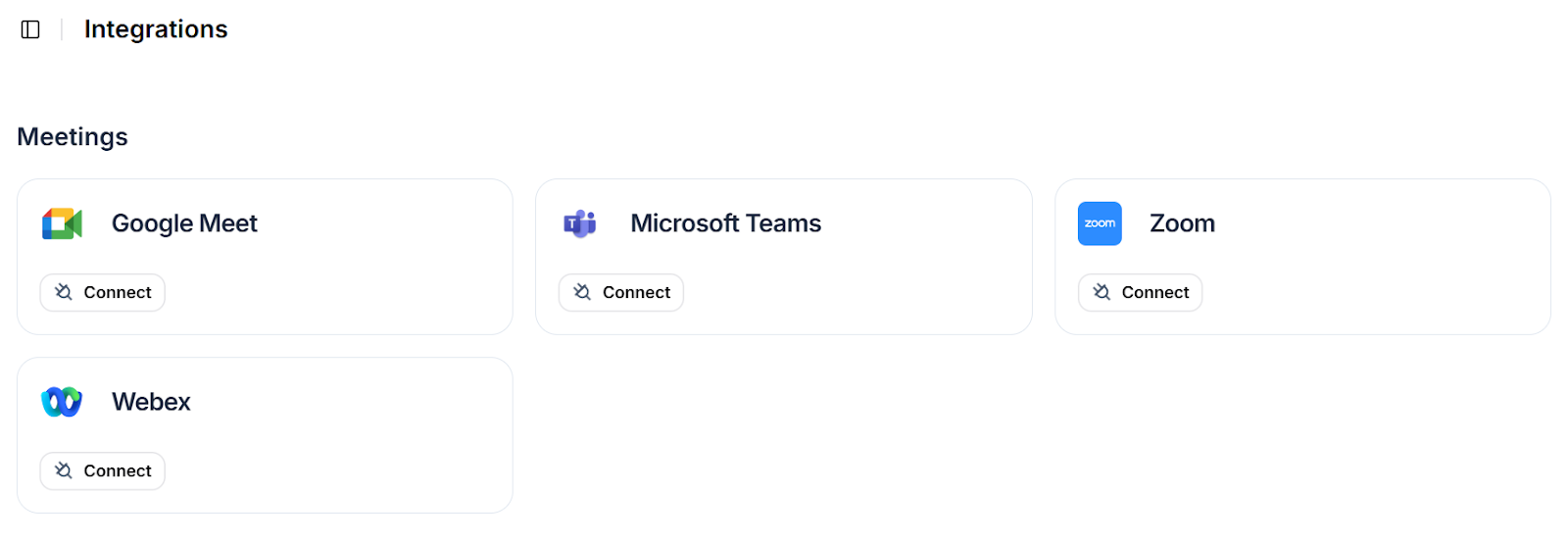
- Connect your favorite video conferencing platform under Integrations.
- Join your meeting on Zoom, Google Meet, or Microsoft Teams.
- Enable transcription to see the conversation captured in real time. While most platforms let you record meetings, Tactiq creates live transcripts you can search and share instantly without replaying the entire call.
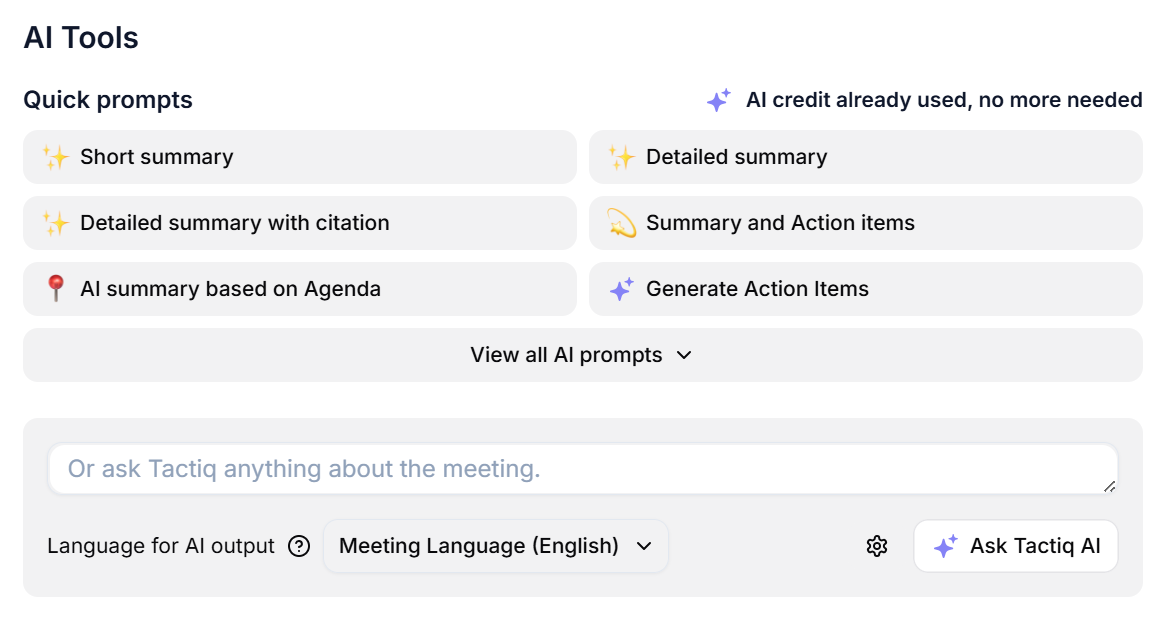
- After the meeting, you can use AI prompts to generate summaries, action items, or project updates.
- Save and share transcripts with your team to keep everyone aligned.

Benefits for group meetings:
Here are the advantages of using Tactiq for group meetings:
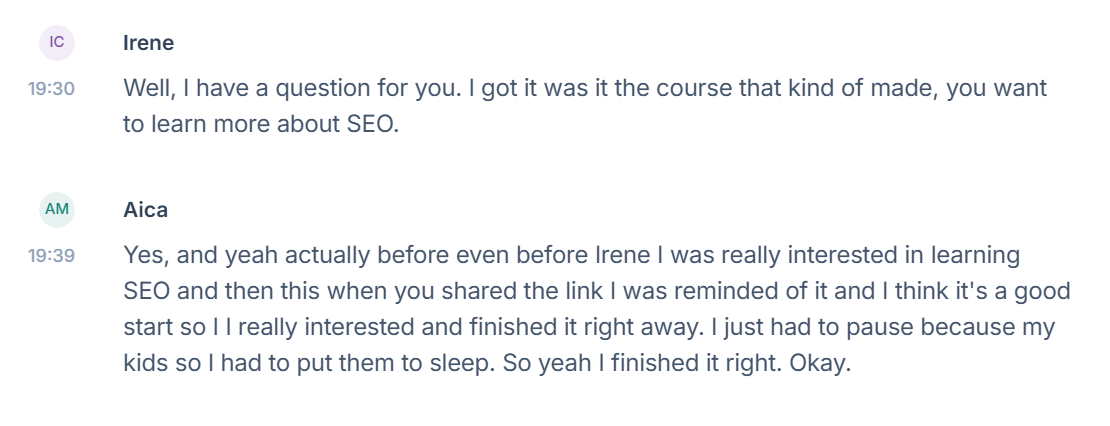
- Speaker identification – Easily track contributions in larger groups by knowing who said what.
- Real-time transcription – Follow along without missing details, even when multiple people are talking.
- Action item tracking – Turn discussions into clear tasks with owners and deadlines so responsibilities don’t get lost.
- Searchable transcripts – Quickly find key points or decisions by searching the transcript instead of rewatching the entire call.
With Tactiq, every group meeting ends with clarity. Everyone knows what was decided, who’s responsible, and what comes next.
👉 Try Tactiq free today and turn your group meetings into actionable results.
{{rt_cta_ai-convenience}}
Wrapping Up
Group scheduling doesn’t have to be a headache. The right tools cut down on back-and-forth, make time zones easier to manage, and keep everyone on track with reminders. Adding clear agendas and structured follow-ups ensures meetings are worth the effort.
Tools like Tactiq take things further by capturing transcripts, identifying speakers, and creating instant action items. As an app for meeting notes, it helps teams walk away with clarity and shared accountability. That means less confusion, fewer missed details, and more productive outcomes.
👉 Get started with Tactiq today (for free!) and make your next group meeting easier to run and easier to act on.
FAQs About How to Schedule a Meeting with Multiple Attendees
How to schedule a meeting in Outlook with multiple people?
Use Outlook’s Scheduling Poll to propose times, check availability, and send invites that fit everyone’s calendars.
How to schedule a meeting with a group?
Tools like Calendly, Doodle, or Calendar let you share polls or booking links, so group members can pick a time without endless emails.
Which app is best for group meetings?
Calendly works well for teams, Doodle for quick polls, and Tactiq enhances any group meeting by capturing transcripts and action items.
How to set up a Teams meeting with multiple users?
Open Microsoft Teams, select New Meeting, add attendees, and set the date and time. A calendar invite with a meeting link is sent to all participants.
How do I reduce no-shows for group meetings?
Send automated reminders, share clear agendas, and use tools like Tactiq to send meeting notes, so participants stay accountable.
Related articles








Want the convenience of AI summaries?
Try Tactiq for your upcoming meeting.
Want the convenience of AI summaries?
Try Tactiq for your upcoming meeting.
Want the convenience of AI summaries?
Try Tactiq for your upcoming meeting.