
Google Gemini MCP Support: Where It Works and Setup Tips
- Published:
- October 13, 2026
- Updated:
- October 13, 2026

Google Gemini MCP support depends on which Gemini product you use. If you’re trying to connect a tool, first check whether the instructions cover the web app, CLI, API, or Enterprise.
That distinction matters when you want Gemini to use meeting transcripts or project documents outside your chat. Model Context Protocol (MCP) gives AI applications a standard way to connect to external tools and data.
This guide covers:
- Where Gemini supports MCP across CLI, API, and Enterprise
- What’s currently possible in the Gemini web app
- How to bring meeting transcripts into your Gemini workflow
TL;DR: Does Google Gemini Support MCP?
Yes. Gemini supports MCP through its CLI (opens in a new tab), the Gemini API’s Interactions API, Gemini Enterprise, and eligible Gemini web accounts. Web app access currently requires a personal account, age 18+, US location, English, and Keep Activity enabled.
Where Gemini Supports MCP Today: CLI, API, and Enterprise
The right setup depends on where you use Gemini. Here’s how each supported product connects to MCP servers.
Familiar with Claude’s connectors? Our Claude connector explainer (opens in a new tab) provides a useful comparison.
Gemini CLI: connect local and remote MCP servers
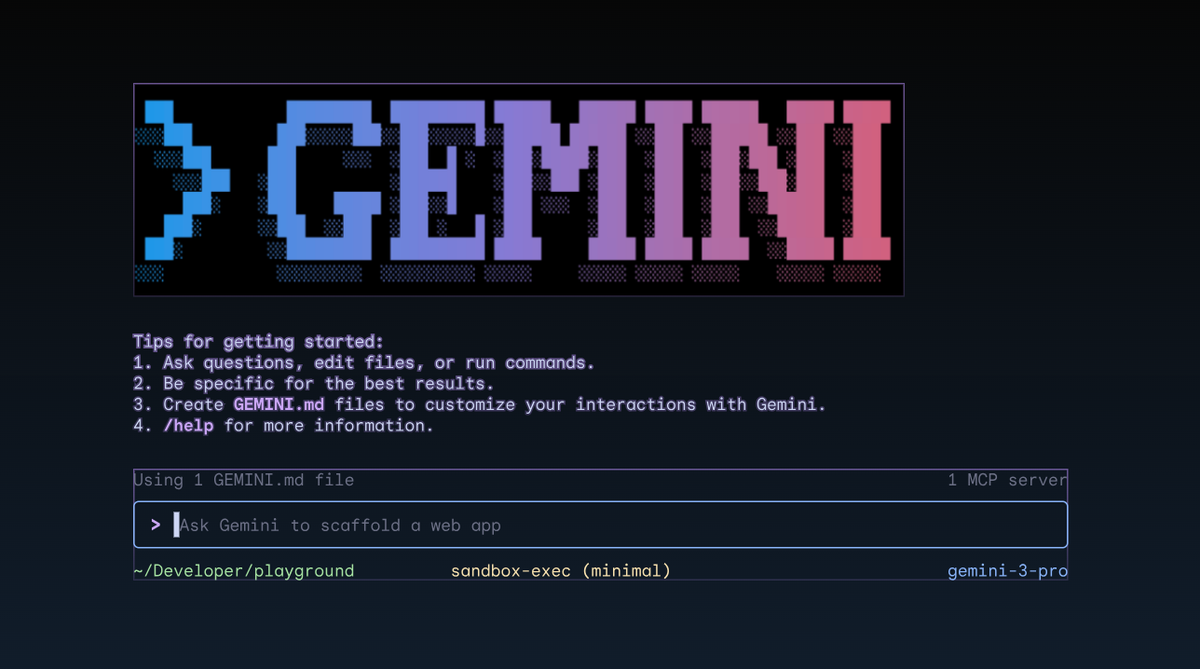
Gemini CLI (opens in a new tab) lets you work with Gemini from your computer’s terminal. Its native MCP client connects to local and remote MCP servers.
Since June 18, 2026 (opens in a new tab), Gemini CLI stopped serving Gemini Code Assist for individuals, Google AI Pro, and Ultra accounts. Google directs affected users to Antigravity CLI. Existing Gemini Code Assist Standard and Enterprise subscriptions remain supported until their contracts end, under a separate deprecation schedule.
The MCP protocol lets Gemini CLI discover and call server tools. Depending on the available MCP tool, Gemini can:
- Retrieve documents from connected services.
- Query databases for relevant information.
- Perform actions in connected tools.
Gemini CLI supports three connection methods:
- Standard input/output (stdio): Communicates with a server running locally.
- Server-Sent Events (SSE): Connects through an SSE endpoint.
- Streamable HTTP: Connects through an HTTP endpoint that supports this transport.
Your MCP server configuration defines the connection and authentication requirements. Follow Google’s MCP setup guide (opens in a new tab) for the technical steps.
💡 Pro tip: If you still have Gemini CLI access, connect Tactiq’s MCP connector (opens in a new tab) to search your meetings by participant or date.
Gemini API: connect remote MCP servers in your own app
The Gemini API lets developers build Gemini into their own apps. Its Interactions API supports direct connections to remote MCP servers, giving Gemini access to their tools and services.
Developers configure the connection in an API request, including:
- Server name and URL: Identify the MCP server and its endpoint.
- Authentication headers: Supply credentials when the server requires them.
- Allowed tools: Optionally restrict which server tools Gemini can call.
This connection supports Streamable HTTP only. It does not support SSE servers or the local stdio connection available in Gemini CLI.
For implementation details, follow Google’s remote MCP documentation (opens in a new tab).
Gemini Enterprise: connect custom MCP servers through admin setup
Gemini Enterprise (opens in a new tab) supports custom MCP servers through connections Google calls “data stores.” These let organizations connect their own tools and data sources to Gemini Enterprise.
An administrator configures the connection through the Google Cloud console. Setup includes:
- Server connection: Provide the MCP server’s HTTPS endpoint.
- Authentication: Configure OAuth 2.0 when the server requires it.
- Access controls: Set the required administrator permissions and organization policies.
- Available actions: Enable the MCP tools users should be able to use.
Gemini Enterprise supports Streamable HTTP for these connections. It does not support the older SSE transport.
See Google’s custom MCP server setup guide (opens in a new tab) for requirements and configuration steps.
In Gemini Enterprise Business edition, team admins add MCP servers under Manage team > Connected apps > Add MCP Server.
How MCP Support Works in the Gemini Web App
If you want to connect a server without opening a terminal, Gemini’s web app now offers custom MCP connections. However, access depends on your account and location.
According to Google’s custom apps guide (opens in a new tab), you must:
- Use a personal Google account: Work and school accounts currently cannot add custom apps.
- Meet age and location requirements: You must be 18 or older and in the US.
- Use English: Custom Connected Apps are currently available only in English.
- Enable Keep Activity: Custom apps are unavailable when this setting is off.
Add a custom MCP server to the web app
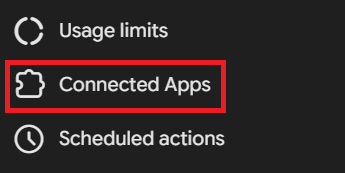
Google documents the following setup:
- Open gemini.google.com (opens in a new tab), then select Settings > Connected Apps.
- If needed, open Personal Intelligence first, then select Connected Apps.
- Under Custom apps, select the URL field or Add a custom app.
- Enter the app’s MCP server URL, then click Next and follow the on-screen instructions.
Servers without Dynamic Client Registration require additional credentials under Advanced features. Follow your provider’s instructions for those details.
Once connected, the custom app is available in both Gemini’s web and mobile apps. To select it for a prompt, type @ and choose the app.
If you’re comparing workflows, see our Claude vs. Gemini guide (opens in a new tab). You can also explore Google Gemini alternatives (opens in a new tab) if your account doesn’t meet these requirements.
Connecting Your Meeting Transcripts to Gemini Via MCP
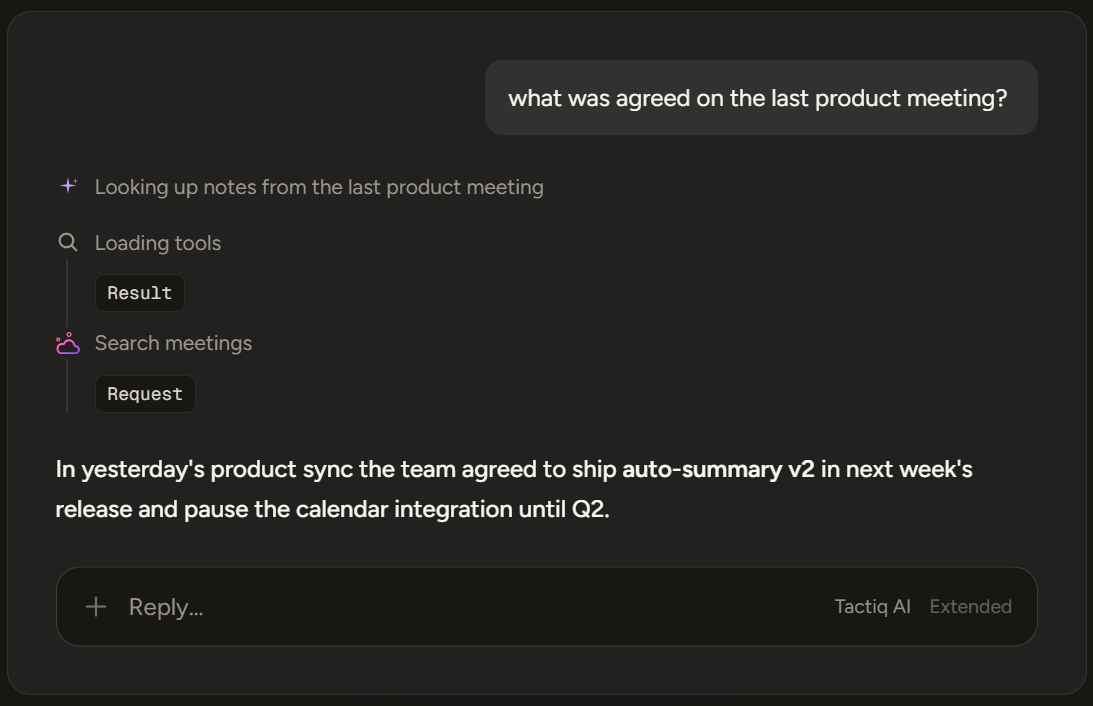
After a client call, you might want Gemini to draft a follow-up using the decisions you actually agreed on. Tactiq’s MCP connector (opens in a new tab) gives compatible clients access to meetings captured across Google Meet, Zoom, and Microsoft Teams.
Your Tactiq plan determines what the connection can retrieve:
- Free and Pro: Search and list meetings.
- Team or higher: Also read meeting details, summaries, and full transcripts.
Choose a direct MCP connection or the Google Drive route below to bring your meeting transcripts into Gemini.
Use Tactiq’s MCP connector with Gemini CLI or Enterprise
Tactiq’s server address is https://mcp.tactiq.io. The connection uses browser-based OAuth sign-in, so you don’t need a Tactiq API key.
Your setup depends on the Gemini product:
- Gemini CLI: Configure a remote HTTP MCP connection and authenticate through its OAuth flow.
- Gemini Enterprise: Have an administrator configure the custom MCP data store, authentication, and enabled meeting tools.
Use Tactiq’s connection guide (opens in a new tab) for its server requirements. Follow Google’s documentation for your client’s configuration.
With transcript access, you can move from finding a meeting to preparing the work that follows. For example, ask:
- “Identify the decisions from yesterday’s client call.”
- “List the action items and owners from our project meeting.”
- “Draft a follow-up email using that discussion.”
For a Claude-specific walkthrough, see how to connect meeting notes to Claude through MCP (opens in a new tab).
Want the convenience of AI summaries?
Try Tactiq for your upcoming meeting.
Use Google Drive when custom MCP access isn’t available
If MCP setup feels too complicated, try Google Drive for tasks like summarizing a saved meeting transcript or checking agreed deadlines. This option depends on Google Workspace being available in your Gemini Connected Apps settings.
Tactiq’s Google Drive integration (opens in a new tab) automatically saves transcripts as Google Docs after meetings. To enable it:

- Open Account & Settings > Integrations in Tactiq.
- Under Storage, click Google Drive, and authorize your Google account.
- Enable “Automatically save transcripts to Google Drive after the meeting.”
Your transcripts appear in the “Tactiq Transcription” folder.
Next, connect Google Workspace in Gemini using the Google account containing your transcripts. Keep Activity must be enabled. Work and school accounts require administrator enablement. If the connection fails, check Gmail’s “Smart features in other Google products” setting.
Ask Gemini to find a transcript by its document title, then request the information you need. For example: “Find the client kickoff transcript in Google Drive and summarize the agreed deadlines.”
Gemini accesses the saved document through Google Workspace. This route uses Connected Apps rather than Tactiq’s MCP server.
Choose the Gemini MCP Setup That Fits Your Work
The best starting point is the Gemini product you already use. Check its account requirements, connection options, and authentication instructions before following a setup guide.
Start with one data source and a task you repeat regularly. Expand your connections once that workflow works reliably.
FAQ
Your questions, answered.
If you have any further questions, Get in touch (opens in a new tab) with our friendly team
Does Google Gemini support MCP?
Does Gemini CLI support MCP servers?
Can I use MCP with the Gemini app?
How do I connect a remote MCP server to the Gemini API?
How does Tactiq’s MCP server work with Gemini?
Related articles

Gemini 3.5 Transcribe: Google Transcript Model Explained
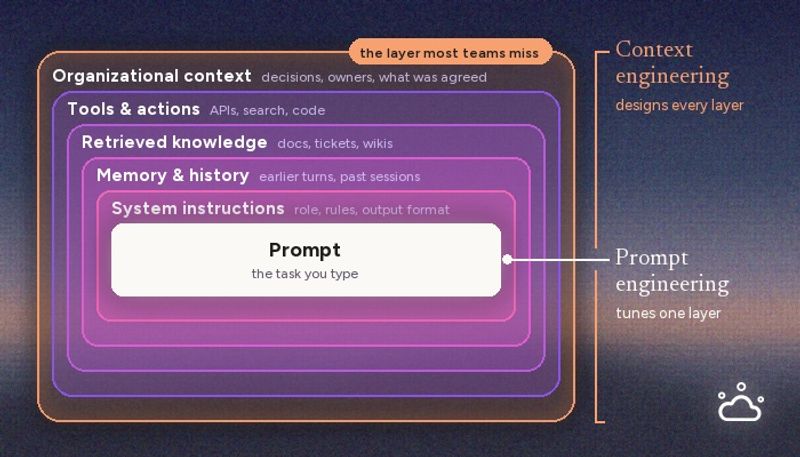
Context Engineering vs Prompt Engineering: What Your AI Agents Are Missing

Claude Memory: How to Import and Manage Your AI Context

Claude Cowork Connectors: Automate Recurring Work

Best Claude Skills: Top Picks for Meetings, Content, and Code

5 Best AI Scheduling Assistants

Microsoft Teams MCP: How to Access Meeting Content With AI

How Do I Turn Off Google Gemini?
Want the convenience of AI summaries?
Try Tactiq for your upcoming meeting.
Bringing AI into your meetings has never been so easy.
Add to Chrome - It's free!(opens in a new tab)Try Tactiq in your upcoming meeting!
Sign up now