
Microsoft Copilot can automatically generate meeting notes inside Microsoft Teams. It captures key discussion points, action items, and summaries without anyone having to type a word. However, it comes with licensing requirements, admin dependencies, and platform restrictions that aren't always obvious upfront.
Here's what this guide covers:
- How Copilot captures and stores meeting notes in Teams
- License and technical requirements
- Key limitations
- How to get AI meeting notes in Teams for free
What Are Microsoft Copilot Meeting Notes?
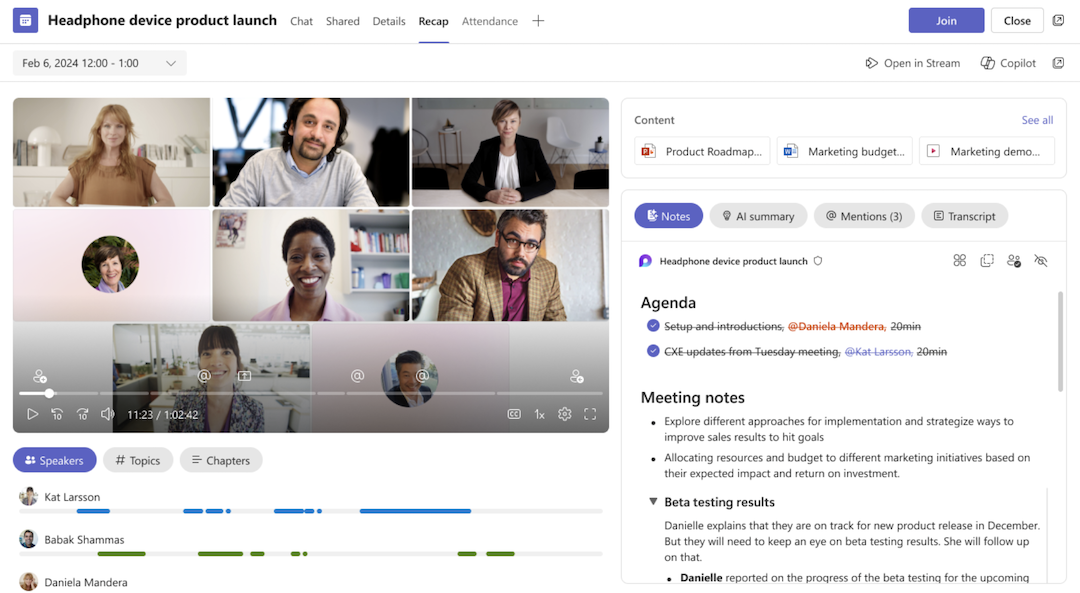
Microsoft Copilot meeting notes are AI-generated summaries produced from a live meeting transcript in Microsoft Teams. When active, Copilot tracks the conversation and organizes it into key points, decisions, action items, and follow-ups. Notes are stored in a Microsoft Loop page and accessible from the Recap tab of your Teams calendar event.
Collaborative Notes vs. Intelligent Recap vs. Copilot
- Collaborative notes: A shared Loop component where participants manually add agenda items and notes during a Teams meeting. Available to all Teams users, no paid license needed.
- Intelligent Recap: An automated post-meeting summary with AI-generated notes, suggested tasks, and a searchable meeting transcript. Requires Teams Premium or Microsoft 365 Copilot.
- Copilot in Teams: An interactive AI assistant you prompt during or after a meeting. Ask it to recap key discussions, list action items, or pull highlights from the transcript and meeting chat. Requires a Microsoft 365 Copilot license.
Pro Tip: If you don't have a Copilot or Teams Premium license, Tactiq gives you live transcription and AI meeting summaries across Teams, Zoom, and Google Meet. Free for up to 10 meetings a month.
How to Use Microsoft Copilot for Meeting Notes in Teams
Here's how to use Copilot across the meeting lifecycle in Microsoft Teams.
Before the meeting
- Open Teams and go to Calendar. Select New Meeting.
- Enable Teams meeting, then click the gear icon to access Online meeting options.
- Under the Copilot and other AI section, set Allow Copilot to “During and after the meeting” or “Only during the meeting”.
- Select Apply.
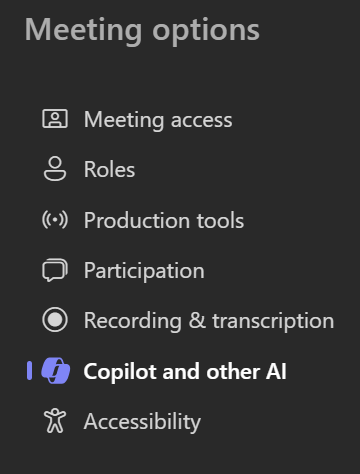
Set Copilot to "During and after the meeting" and enable transcription. You'll need the transcript to access Copilot history after the call ends.
During the meeting
Select Copilot from the meeting controls to open a private chat with Copilot. Select View prompts in the Copilot pane to see built-in suggestions, or type your own. Useful prompts include:
- Recap the meeting so far
- List action items
- What ideas were discussed?
- Create a table of ideas discussed and their pros and cons
After the meeting
Access Copilot from two places: the meeting chat (select Open Copilot in the upper-right corner) or the Recap tab in the meeting event. Both show the same Copilot conversation history, but only if transcription was enabled during the meeting.
Requirements to Use Microsoft Copilot for Meeting Notes
As noted above, Copilot meeting notes require either a Microsoft 365 Copilot or Teams Premium license. Here's what to verify before your first meeting.
License requirements
Copilot meeting notes in Teams require one of two paid licenses:
- Microsoft 365 Copilot: An add-on to an eligible Microsoft 365 plan. Includes the full Copilot experience in Teams, Intelligent Recap, and AI assistance across Word, Outlook, and Excel.
- Teams Premium: A separate add-on license. Includes Intelligent Recap and AI-generated notes, but not the broader Microsoft 365 Copilot experience.
Standard Microsoft 365 plans don't include either by default. Check Microsoft's official pricing page for current rates.
Technical requirements
- Transcription isn't required to use Copilot during a meeting, but you need it enabled to access Copilot history after the meeting ends
- Facilitator (AI notes) only works in scheduled meetings, not instant meetings, channel meetings, or calls
- Copilot won't work in meetings hosted outside your organization
How to Get AI Meeting Notes in Teams Without Copilot
Microsoft Copilot is a capable tool, but it requires a paid license, IT admin setup, and only works inside Microsoft Teams. If you don't have a Copilot or Teams Premium license or you run meetings across multiple platforms, Tactiq is a free alternative worth knowing about.

Tactiq is a Chrome extension that captures live transcription and generates AI meeting notes without joining as a bot. No admin approval or recording required. It works in Microsoft Teams, Zoom, and Google Meet, so your notes stay consistent regardless of which platform you're on.
Here's what Tactiq gives you in every meeting:
- Real-time transcription as the conversation happens
- AI-generated summaries, action items, and key discussion points after the meeting
- Custom prompts you can ask mid-meeting: "summarize the last 5 minutes" or "list decisions made so far"
- Support for 60+ languages
- AI Workflows to send notes directly to tools like Notion, Slack, or HubSpot
- Tactiq MCP (Business plan) to give Claude or other AI agents direct access to your meeting transcripts, so you can search and act on them without leaving your chat
How to set it up
- Install the Tactiq Chrome Extension. It's free for up to 10 meetings per month.
- Join your Microsoft Teams meeting in Chrome as you normally would.
- Tactiq starts transcribing automatically.
- After the meeting, open your Tactiq dashboard to access your transcript, summary, and action items.
- Use AI Workflows or manual exports to send notes to your preferred tools.
{{rt_cta_ai-convenience}}
Stop Losing Meeting Insights, Start Capturing Them
Microsoft Copilot can handle meeting notes inside Teams, but only if you have the right license, the right admin setup, and you're running scheduled meetings within your organization. For teams that meet those requirements, it's a solid option built directly into your existing workflow.
If you don't, Tactiq gives you the same core outcomes (live transcription, AI summaries, and action items) without the license cost or IT dependency. It works across Microsoft Teams, Zoom, and Google Meet, so your notes stay consistent no matter where your meetings happen.
The meeting is for the conversation. The notes can take care of themselves.
Open your Teams meeting, select Copilot from the meeting controls, and use the Copilot pane to prompt it during or after the meeting. A Microsoft 365 Copilot license is required.
Copilot doesn't take notes automatically by default. You need to enable Facilitator before the meeting or turn it on during the call from the meeting controls.
Yes. You need either a Microsoft 365 Copilot license or a Teams Premium license. Standard Microsoft 365 plans don't include either.
Copilot is an interactive AI assistant you prompt during or after a meeting. Intelligent Recap is an automated post-meeting summary that generates notes, tasks, and highlights without prompting. Both require a paid license.
Yes. Tactiq is free for up to 10 meetings per month. It works in Teams, Zoom, and Google Meet with no license or admin setup required.
Related articles








Want the convenience of AI summaries?
Try Tactiq for your upcoming meeting.
Want the convenience of AI summaries?
Try Tactiq for your upcoming meeting.
Want the convenience of AI summaries?
Try Tactiq for your upcoming meeting.