
5 Best Speech to text Online Tools for Free
- Published:
- February 2, 2024
- Updated:
- August 20, 2026

With the constant influx of meetings, video content, and audio files, keeping track of every crucial detail becomes challenging for many professionals. Speech-to-text technology solves this problem. Converting spoken words into written text (opens in a new tab) ensures that no valuable insight or critical information slips through.
Here are the top 5 free speech-to-text tools, covering:
- Real-time meeting transcription
- Quick voice dictation for everyday typing
- Uploaded audio file transcription
- Video subtitles and captions
- Podcast and video editing with built-in transcription
5 Best Speech-to-Text Online Free Tools
Speech-to-text tools have come a long way, with options now built for meetings (opens in a new tab), dictation, subtitles, and podcast editing. Below are five free tools worth trying, each suited to a different way of turning audio into text.
1. Best speech-to-text for meeting transcription: Tactiq Chrome Extension
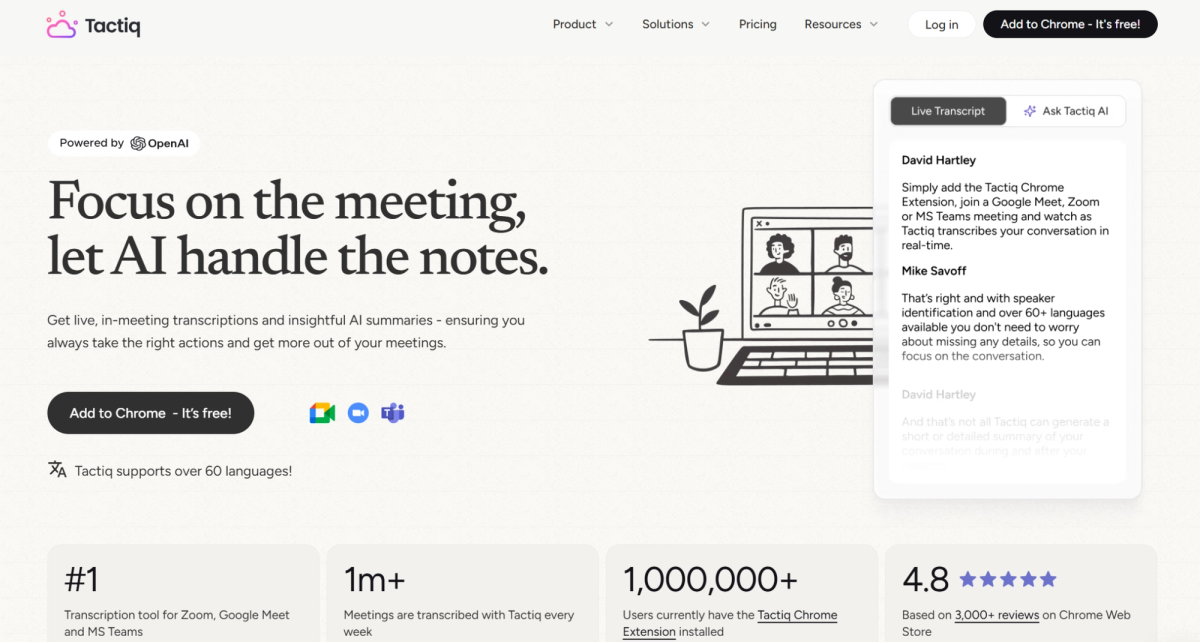
The Tactiq Chrome Extension (opens in a new tab) transcribes Zoom, Google Meet, and Microsoft Teams calls into searchable text. You stay focused on the discussion. Tactiq captures the details, including action items and key decisions, so you can process them after the meeting ends.
Main features:
- Real-time transcription: captures spoken words as the meeting happens, with no bot joining the call
- Speaker identification: detects who said what, so you can track tasks and priorities by speaker
- Fast search: jump straight to the exact part of a transcript you need
- Flexible exports: send transcripts to Google Docs, Notion, Slack, Confluence, or PDF
Tactiq supports over 60 languages, making it a solid pick for teams handling meetings across different regions.
💡 Pro tip: A transcript is just the start. Turn it into a summary, action items, or a follow-up email with one click (opens in a new tab), and get more out of every conversation.
Want the convenience of AI summaries?
Try Tactiq for your upcoming meeting.
Ready to try it? Add the Tactiq Chrome Extension for free (opens in a new tab) and get 10 free meeting transcripts a month.
2. Best speech-to-text for quick voice dictation: Google Docs Voice Typing
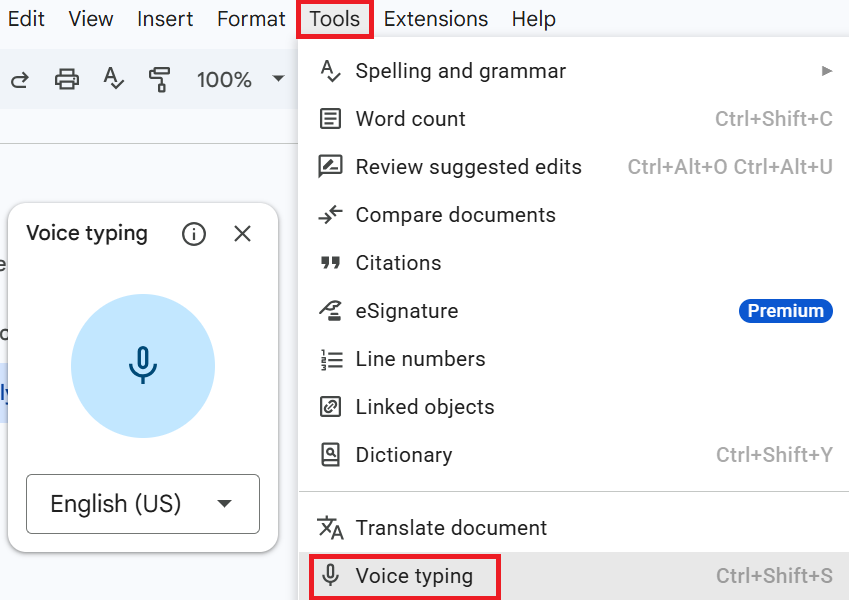
Google Docs Voice Typing turns spoken words into written text directly inside a Google Doc, with no extra software or signup. It works well for brainstorming, drafting, or dictating notes when you'd rather speak than type.
Main features:
- Built-in dictation: converts speech to text directly in a Google Doc, no extension required
- Voice commands: format text, add punctuation, and edit your document using spoken commands
- Wide language support: works across multiple languages and regional accents
- Free access: included with any Google account, no signup or payment needed
Voice Typing runs in Chrome, Edge, and Safari, but not in Firefox. It relies on your browser's speech-to-text service, so an active internet connection is required.
To use it:
- Open a document in Google Docs using a supported browser.
- Click Tools, then Voice typing. A microphone box appears.
- Click the microphone and speak clearly at a normal pace.
- Click the microphone again to stop.
3. Best speech-to-text for uploaded files: Tactiq
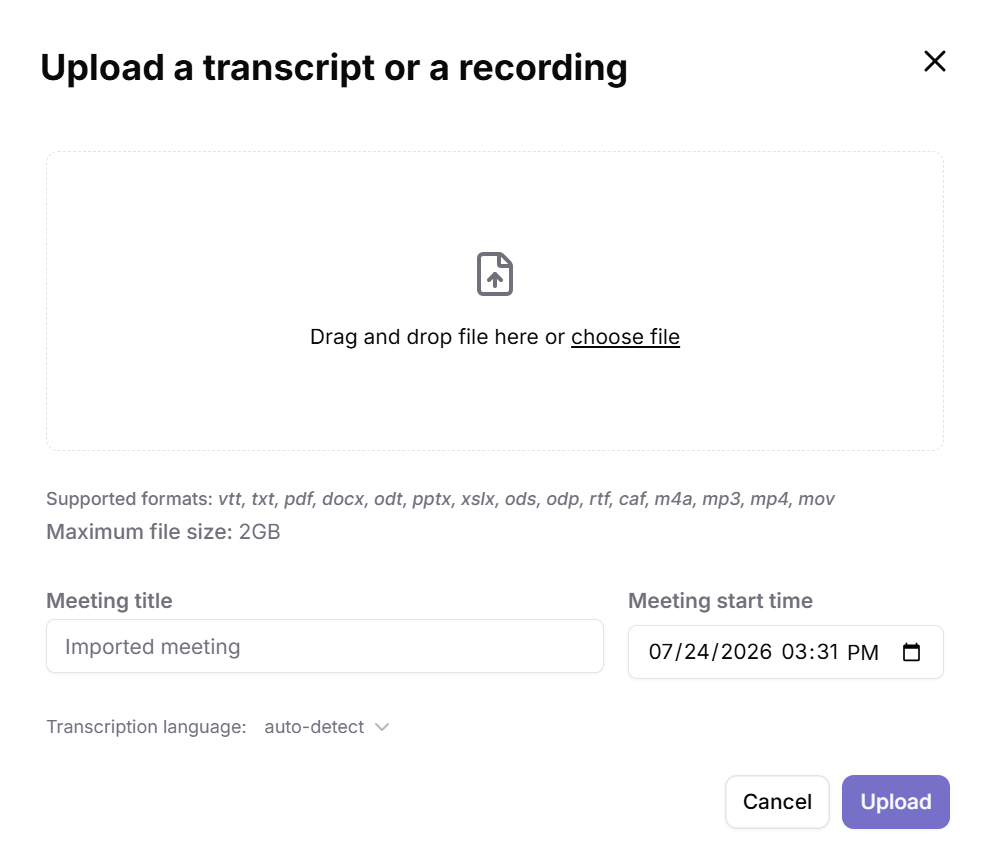
Tactiq also converts recorded audio files into accurate text, without needing a live meeting. This suits anyone who works mainly with existing audio, like interviews, lectures, or voice memos, rather than live calls.
Main features:
- Simple file upload: upload audio or video files up to 2GB directly for transcription
- Automated transcription: automatically transcribes uploaded audio content, with speaker labels
- Editable transcripts: edit and rename speakers after transcription
- Versatile saving options: save the transcript to your device or export to your favorite tools
To convert audio to text with Tactiq:
- After signing up, go to your Tactiq dashboard (opens in a new tab) and select Upload Transcript or Recording in the top right corner.
- Drag and drop the file, or select Choose file.
- Optionally enter a meeting title and start time.
- Select the transcription language, or keep Auto-detect selected.
- Select Upload to start processing.
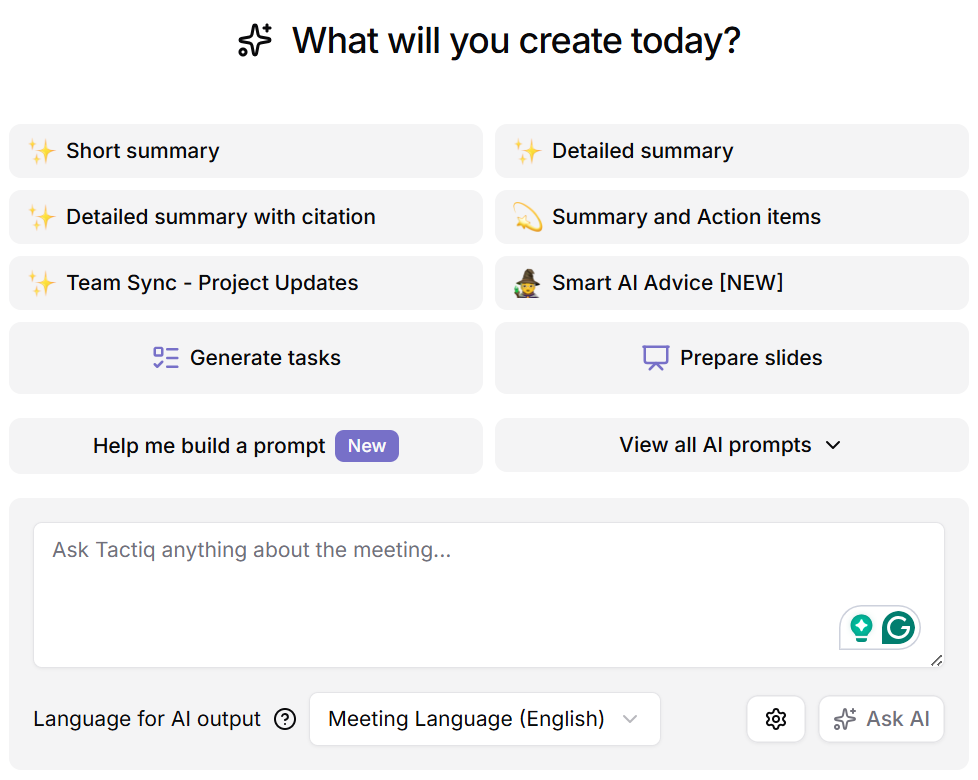
Once uploaded, you can use Quick Prompts and AI tools to generate a summary, action items, or other insights from your file.
4. Best speech-to-text for video subtitles: Veed
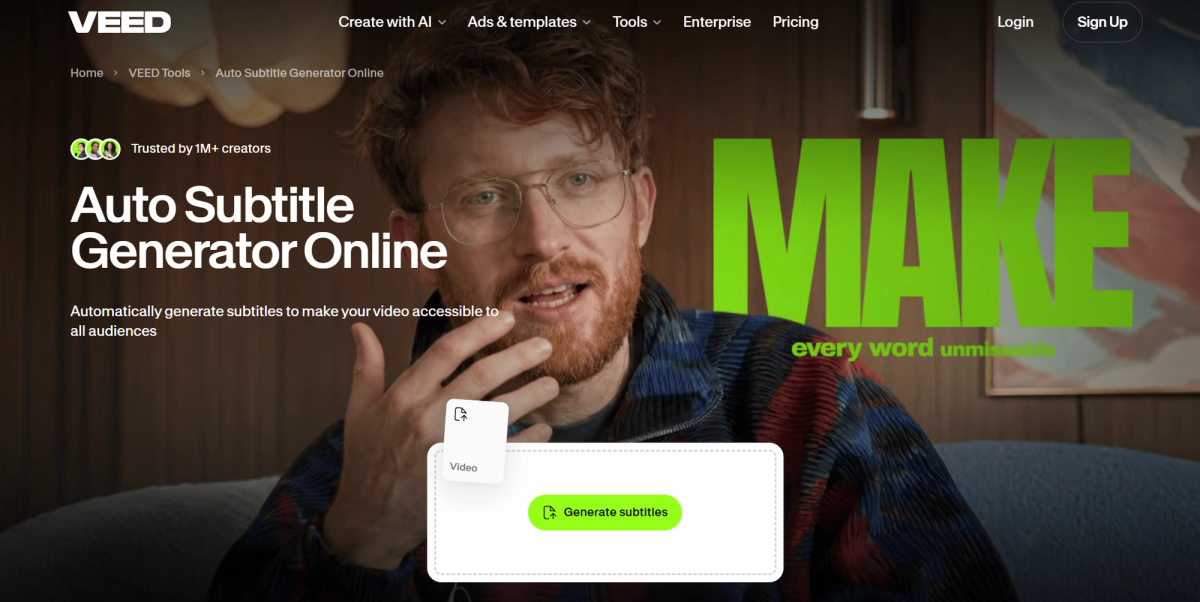
Veed (opens in a new tab) uses automatic speech recognition to transcribe audio and video into synced subtitles, so viewers can follow along without sound. It's built for creators and marketers who need to create subtitles ready to post quickly.
Main features:
- Automatic subtitle generation: transcribes spoken audio (opens in a new tab) into subtitles with up to 99.9% accuracy
- Language support: translate subtitles into more than 125 languages for localized subtitles across regions
- Works with audio input alone: generate subtitles from MP3, WAV, podcasts, or voice memos, not just video
- Flexible export: burn subtitles into the video or download them as an SRT, VTT, or TXT text file
To transcribe video or audio into subtitles with Veed:
- Upload your video or audio file, then click Subtitles in the left menu
- Choose the spoken language, select Auto Subtitle, and let the AI generate captions.
- Edit the subtitle style, then burn the subtitles into your video or download the file
Veed's auto-subtitle generator is completely free to start on short clips with monthly limits. Subtitling longer videos or downloading subtitle files requires a paid Creator plan.
5. Best transcription service for podcast and video editing: Descript
Descript (opens in a new tab) goes beyond basic transcription with a full suite of audio and video editing tools, built for podcasters and video creators. Its transcription, editing, and collaboration features simplify the entire production process.
Main features:
- Accurate transcription: delivers up to 95% accuracy across 25 languages
- Text-based editing: delete or move words in the transcript, and the audio or video updates automatically
- Filler word removal: detects and removes words like "um" and "uh" in one click
- AI Actions: turn a transcript into a blog post, social clip, or summary
To transcribe with Descript:
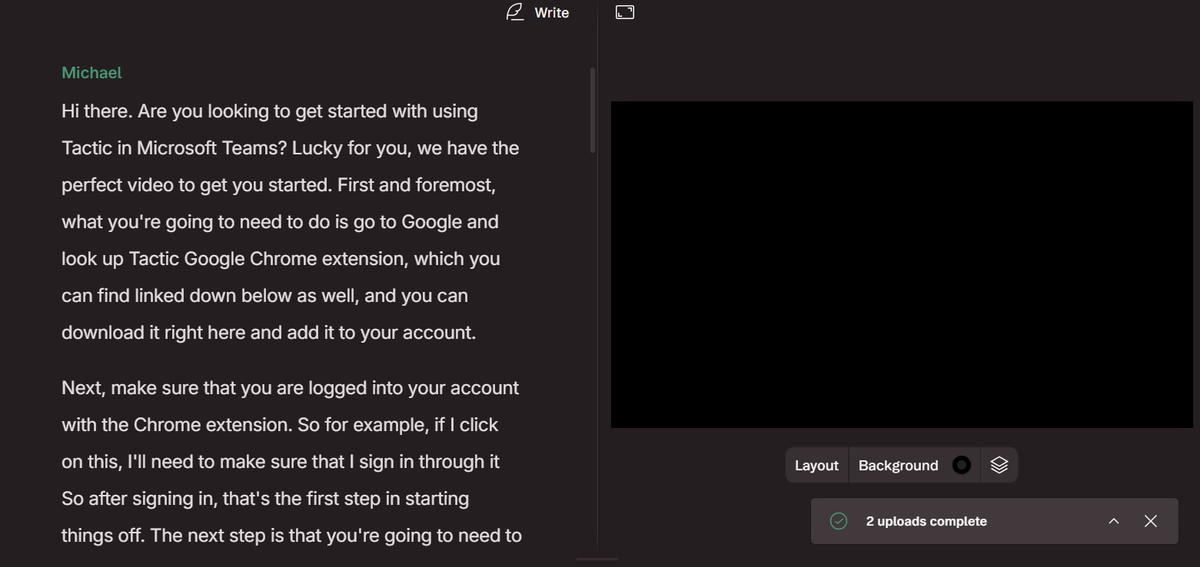
- Create a new project and upload your audio or video file, either by dragging it in or clicking Upload file.
- Descript detects the number of speakers and starts transcribing automatically.
- Once transcription finishes, review the text and fix any missing words, mislabeled speakers, or punctuation.
Descript's free plan includes 1 media hour a month, 100 AI credits, and 720p exports with a watermark.
Transform Your Workflow with Speech-to-Text Tools
Speech-to-text tools have moved well past simple transcription. Whether you need real-time notes during a meeting, quick dictation, subtitles for a video, or a full podcast editing workflow, there's a free tool built for it.
Picking the right one comes down to matching the tool to how you actually work, not just the accuracy number on its landing page.
Start with the free plans covered here, test them against your own audio, and upgrade only if you outgrow the limits.
FAQ
Your questions, answered.
If you have any further questions, Get in touch (opens in a new tab) with our friendly team
How can speech-to-text tools help your business?
How do you use speech-to-text tools in different browsers?
What are the best practices when using speech-to-text technology?
What's the fastest way to dictate text for free?
What steps should you follow to transcribe an audio file with Tactiq?
Related articles

Gemini 3.5 Transcribe: Google Transcript Model Explained
Context Engineering vs Prompt Engineering: What Your AI Agents Are Missing

Claude Memory: How to Import and Manage Your AI Context

Claude Cowork Connectors: Automate Recurring Work

Google Gemini MCP Support: Where It Works and Setup Tips

Best Claude Skills: Top Picks for Meetings, Content, and Code

5 Best AI Scheduling Assistants

Microsoft Teams MCP: How to Access Meeting Content With AI
Want the convenience of AI summaries?
Try Tactiq for your upcoming meeting.
Bringing AI into your meetings has never been so easy.
Add to Chrome - It's free!(opens in a new tab)Try Tactiq in your upcoming meeting!
Sign up now